Things I didn’t know about the WebKit inspector

A few things I learnt reading http://jtaby.com/2012/04/23/modern-web-development-part-1.html, writing here to not forget them.


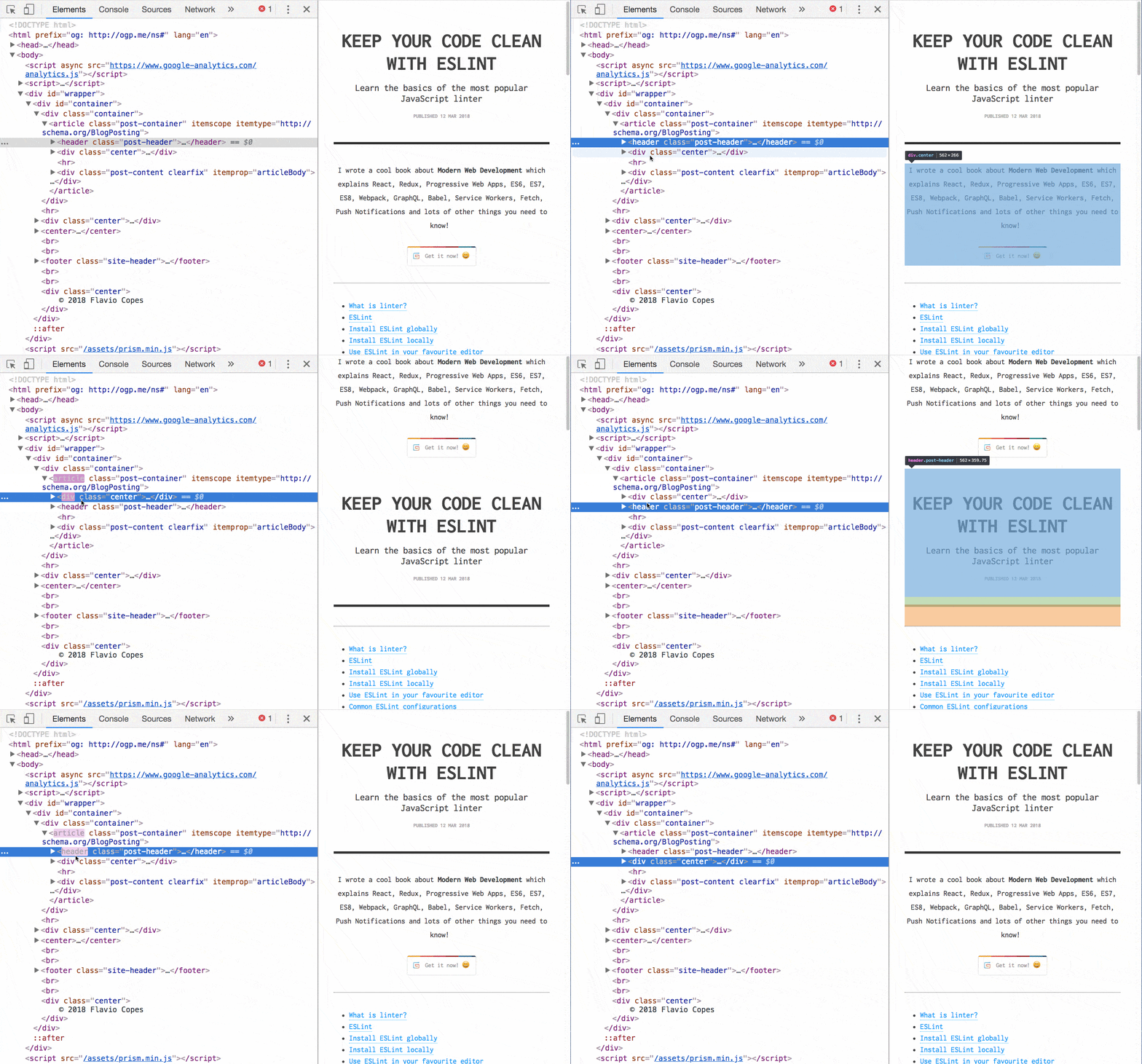
  • Drag and drop in the Elements panel: you can drag and drop any of the page’s HTML elements and change their positioning live across the page. This allows for funny stuff like this:

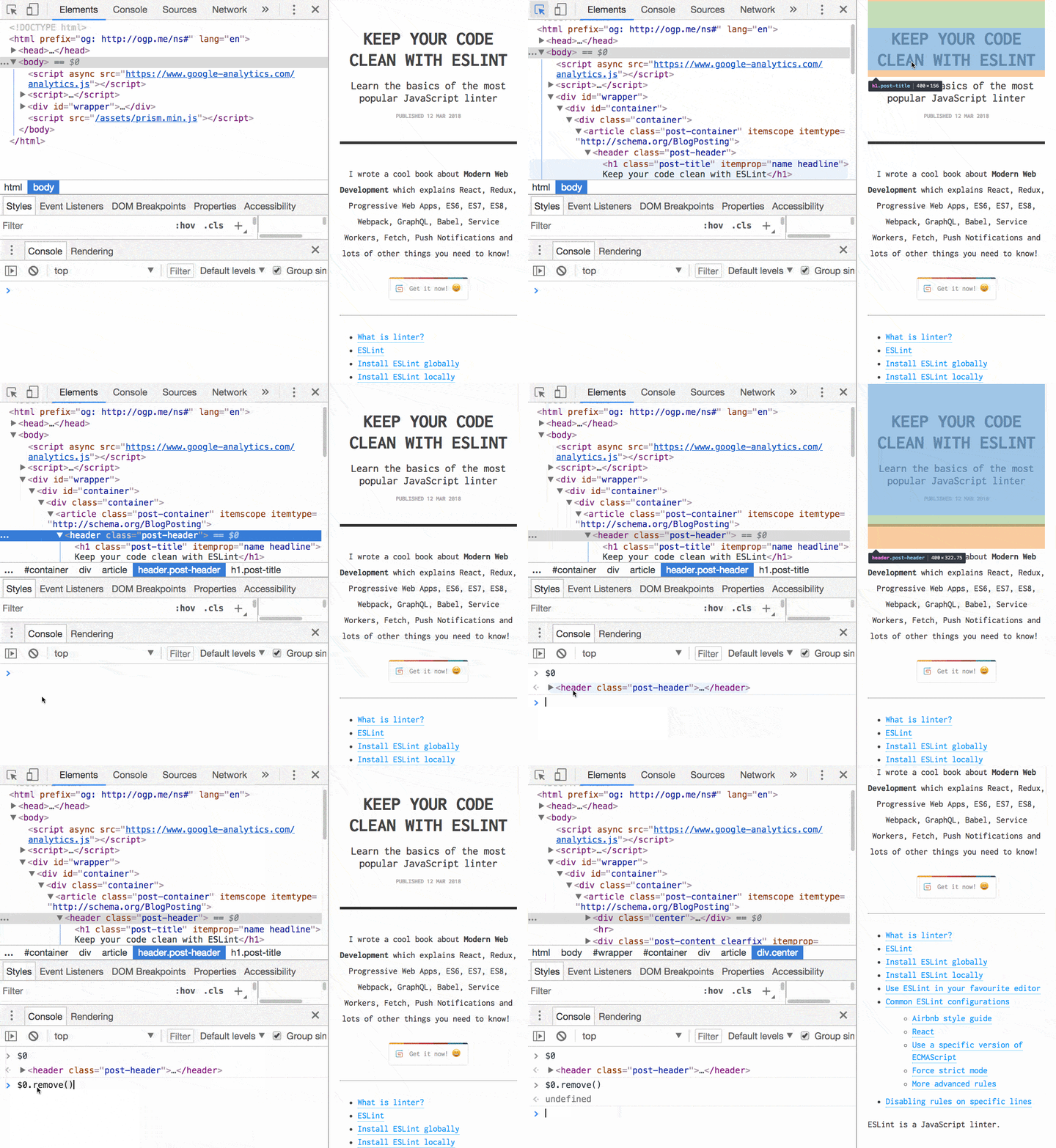
  • Elements-console quick links: select an element and digit $0 in the console, it will be used by the script. If using jQuery, you can enter $($0) to use the jQuery functionality:

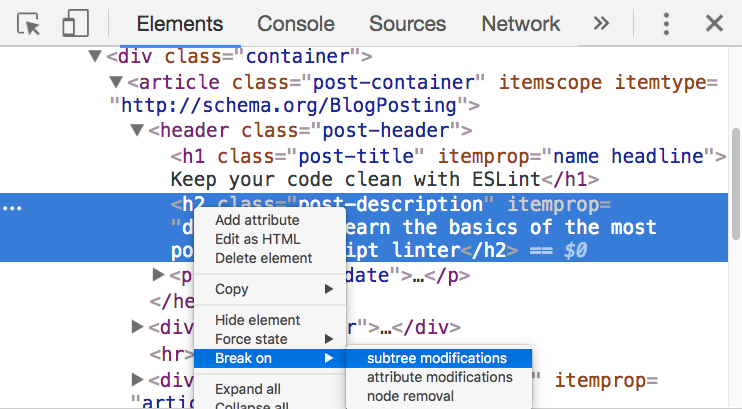
  • Debug on DOM modifications: right-click an element and enable ‘Break on Subtree Modifications’: whenever a script traverses that element childs and modifies them, the debugger rolls in automatically to let you inspect what’s happening:

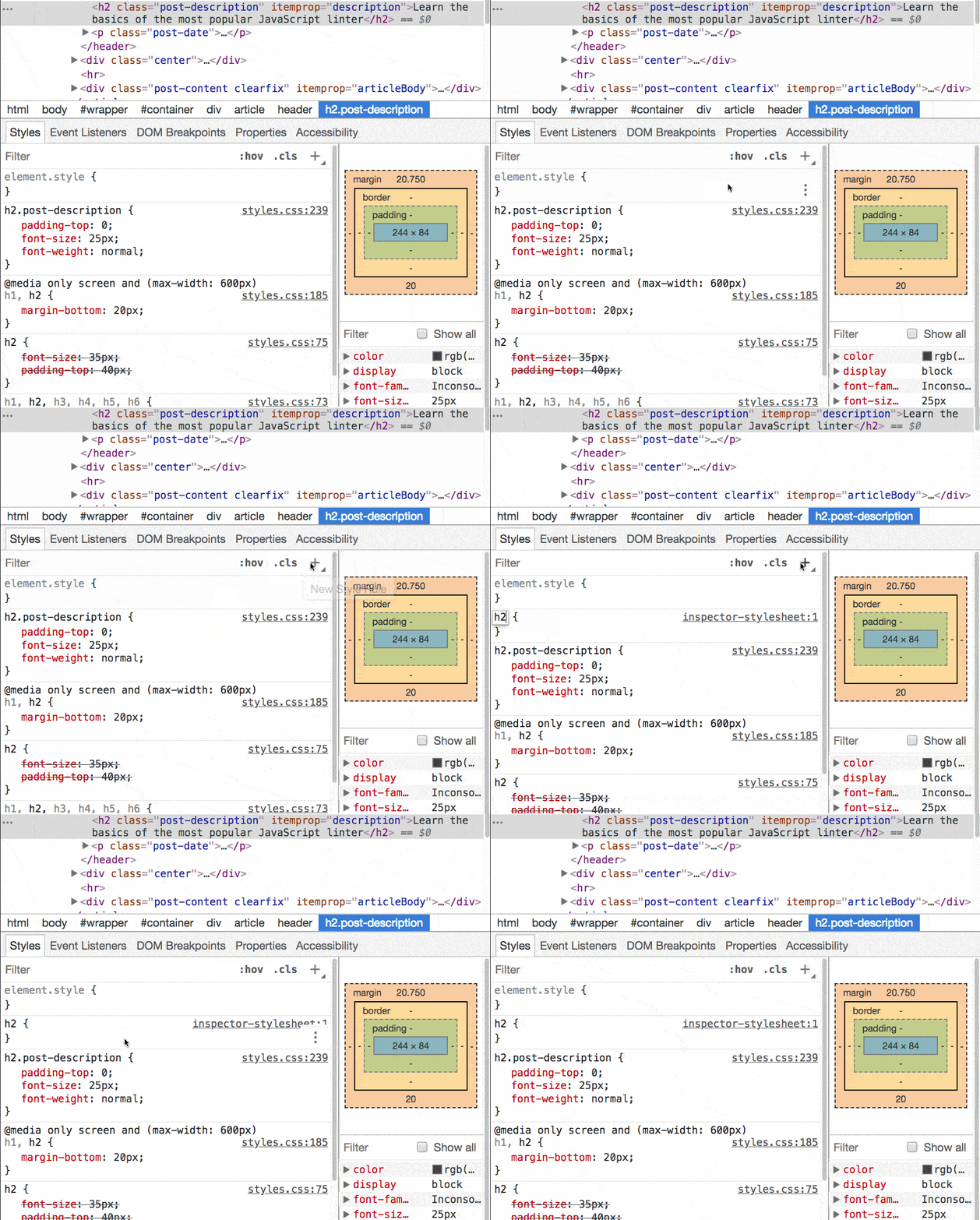
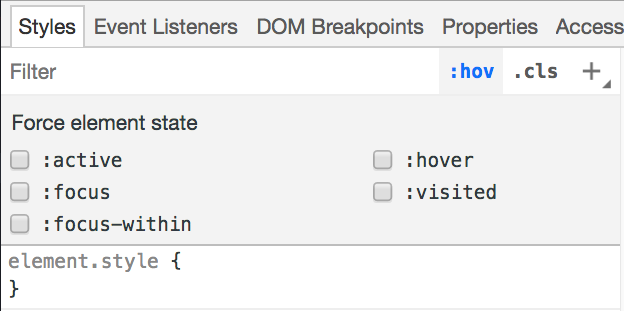
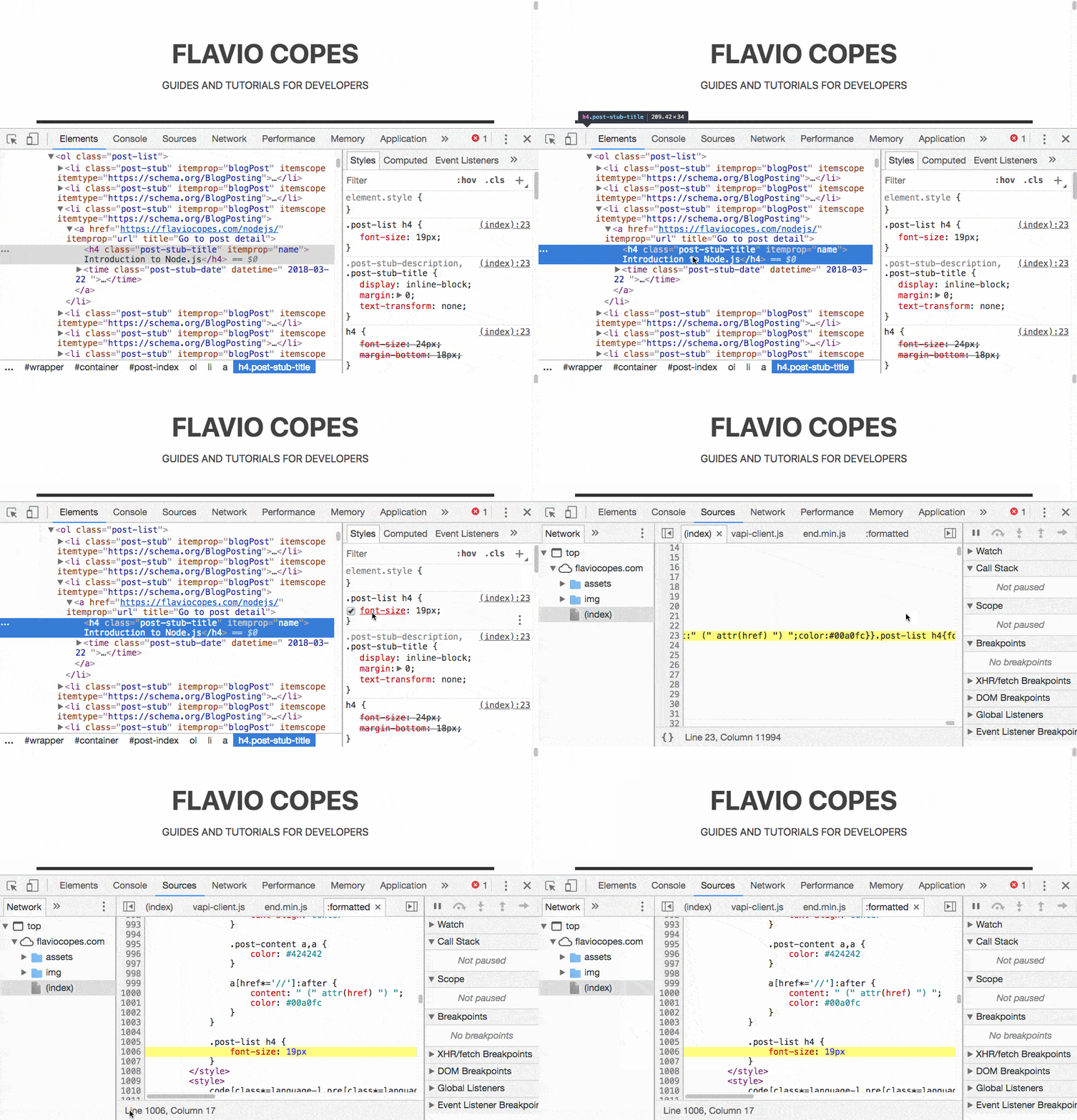
  • The styles buttons: next to the CSS ‘Styles’ heading, there are 2 super useful buttons: one lets you add a new CSS property, with any target you want. The second one lets you trigger a state for the selected element, so you can see the styles applied when it’s active, hovered, on focus..

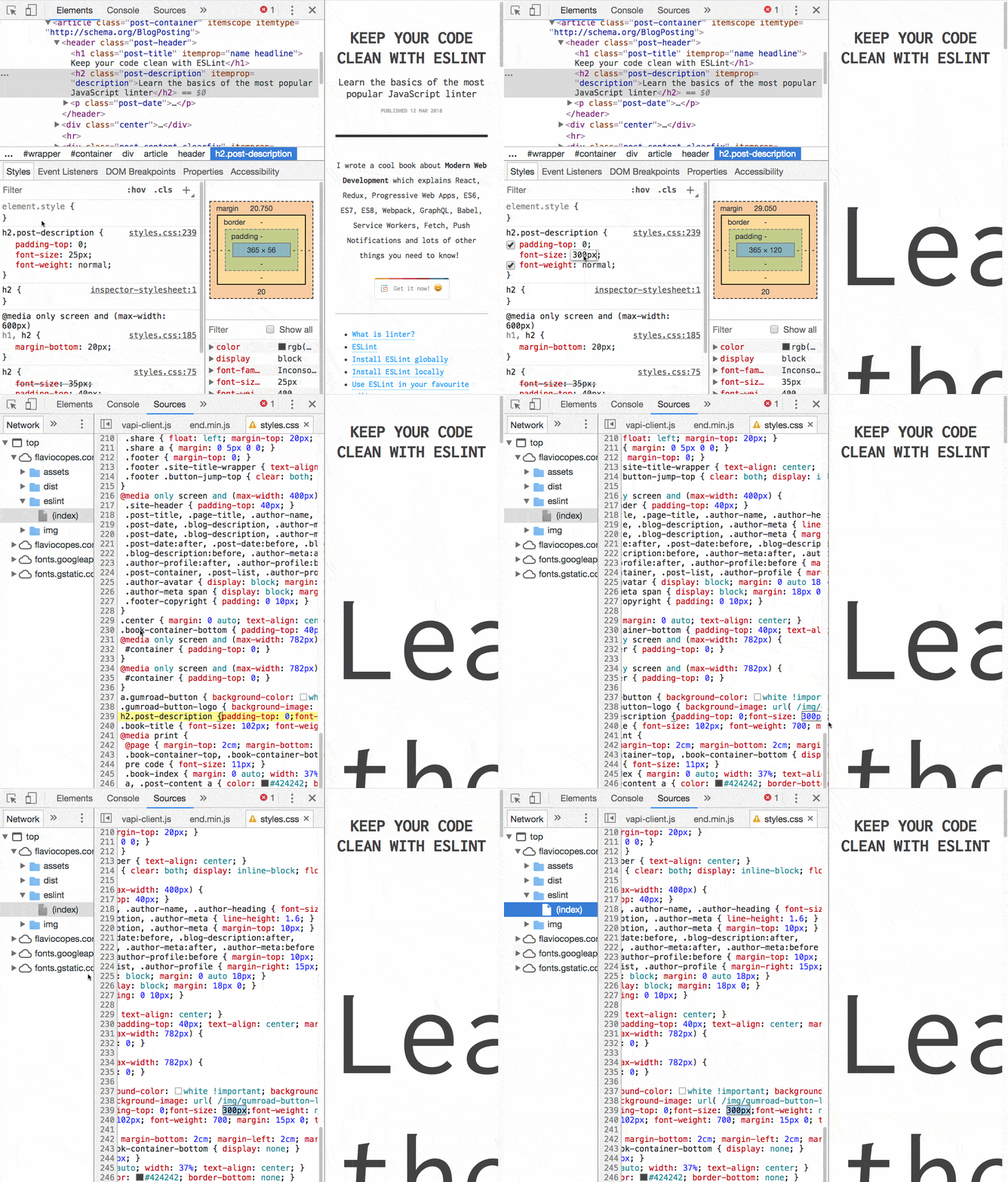
  • Save to file the CSS tweaked using the inspector: click the name of the CSS that’s been modified, the inspector opens it into the Sources pane. From there you can save it. This trick does not work for new selectors added using +, or into the element.style properties, but only for modified, existing ones.
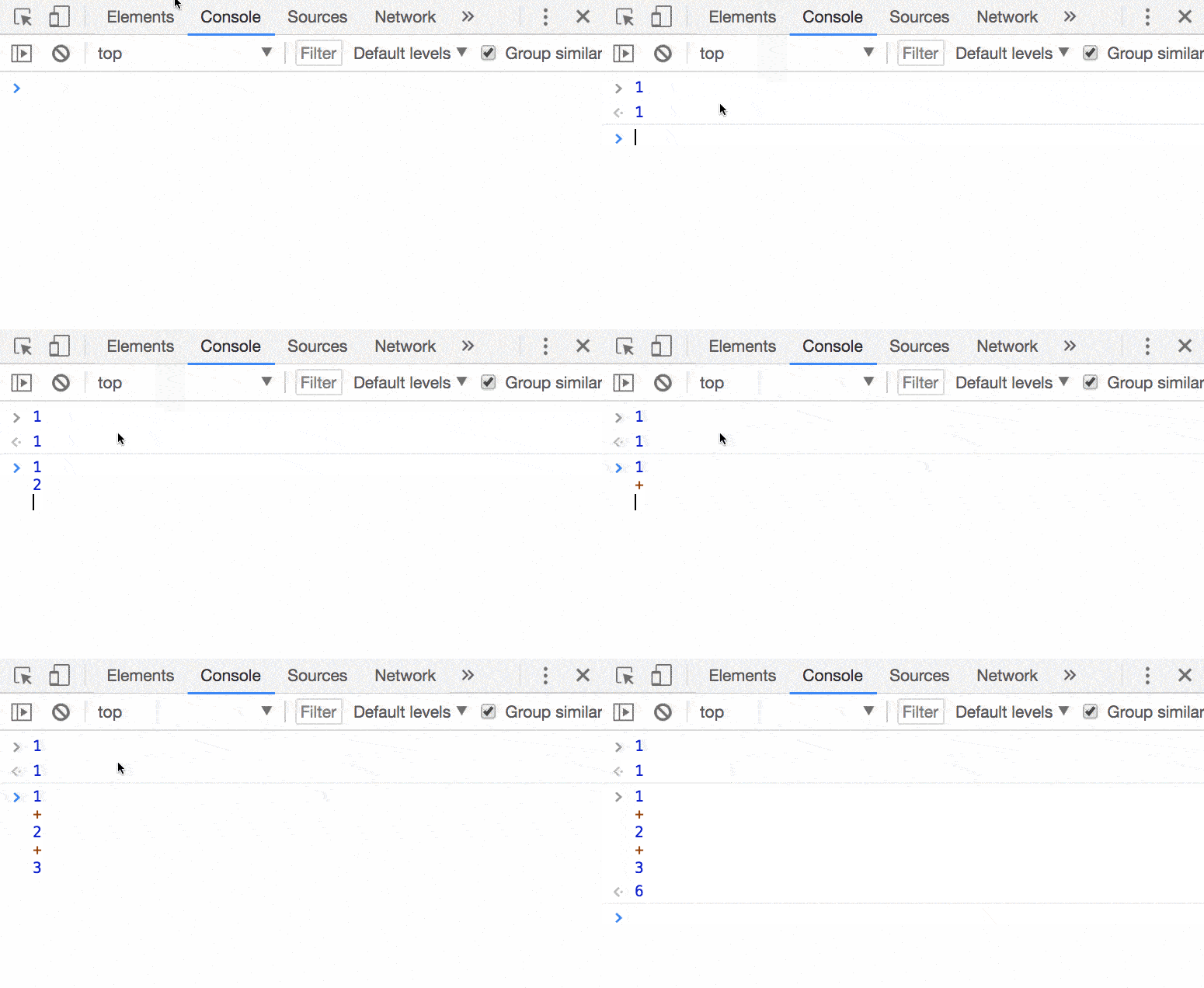
  • Console, write more-than-1-line commands: shift-enter does the trick. Pressing enter at the end of the script runs it.

  • Shortcut to clear the console: ctrl-L

  • Tracking uncaught exceptions: from the Sources pane, double clicking the “||” button will break the code when an uncaught exception occurrs, preserving the call stack and the current state of the application.

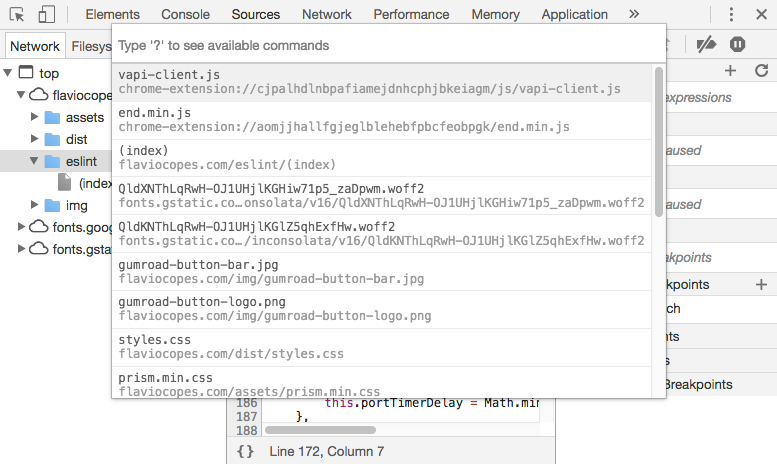
  • Go to.. in the Sources pane: CMD-O, shows the available files. CMD-Shift-O, shows the functions (or classes) in the current file. CMD-L goes to a specific line:

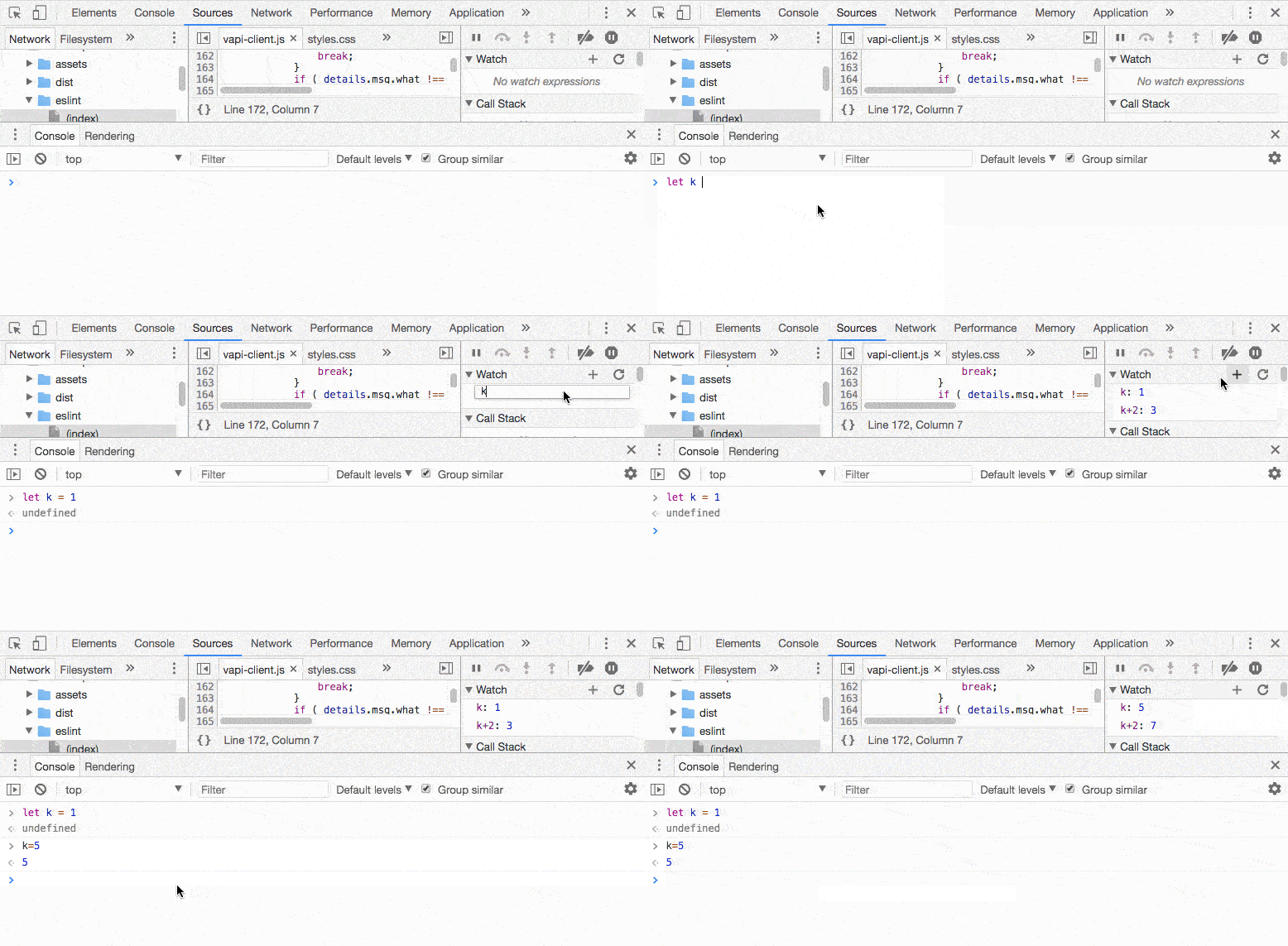
  • ‘Favourite’ an expression (or variable value): instead of writing again and again a variable name or an expression you are going to check a lot during a debug session, add it to the ‘Watch Expression’ list. You refresh the values if you modify them directly, or just watch them change while the code runs:

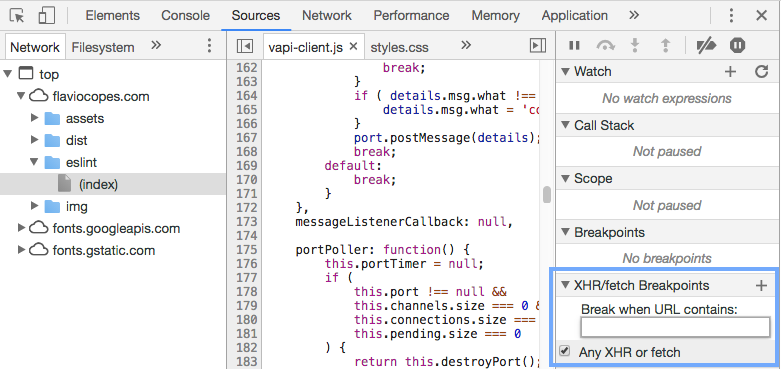
  • XHR debugging: from the debugger open the “XHR Breakpoints” section, you can specify any URL (even a substring) your code should break into when doing an XHR request. Or even tell him to break on every XHR:

  • Load events timeline saved by another person: say a coworker finds a problem, instead of showing a screenhost, he can save the timeline and you can load it locally.


  • http://makuchaku.in/ makuchaku

    Very informative article. Would have loved it if you had added screenshots :)

  • Marius

    I would also add, the change of the user agent that can be found in the right hand corner under settings (including iOS support)

  • http://twitter.com/MaxSchnur Max Schnur

    I don’t know how I’ve missed so many of these. Super useful. Thanks!

  • http://twitter.com/jancbeck Jan Beck

    Knew 10 of 12. I think I spend way too much time in the Inspector.

  • scriptedfate

    Don’t forget conditional breakpoints in Script by right-clicking the breakpoint and hitting ‘Edit Breakpoint…’

  • http://joocode.com/blog Flavio Copes

    Right, it’s much better looking now :)

  • Nico Prat

    Did you know ? You can undo/redo your HTML or CSS changes with CMD+Z or CMD+SHIFT+Z.

  • Nico Prat

    Also, useful for mobile dev : you can “dock the dev panel to the right” in the options.

  • http://www.facebook.com/leonardofariacoelho Leonardo Faria

    Just a comment: images are broken: You’re over the rate limit. Serve this file from your own servers. Contact support@github.com if you have questions.

  • http://ahmetalpbalkan.com/ Ahmet Alp Balkan

    Hey, screenshots are not loaded when we load the page. I copied the image URL to address bar then it worked. Why are you using github for that? Probably there is a hotlink protection or cross-domain protection.

  • http://joocode.com/blog Flavio Copes

    Yes, sorry – didn’t know hotlinking was denied! Moved them to my server.

  • http://joocode.com/blog Flavio Copes

    Oh yes, found out now – now they should be visible.

  • http://metaskills.net/ Ken Collins

    Command-K still works to clear the console.

  • Chris

    Regarding saving the style sheets, you CAN save new elements you typed in from the ‘+’ button… it’s just located in a different location.
    Go to sources tab, and in the list of sources look for “inspector-stylesheet”. You can either save that or copy-paste into the style sheet of your choice.

  • http://joocode.com/blog Flavio Copes

    Yup, good tip! I find that very useful when using the MBP 13″, while on the bigger screen I tend to use the normal bottom layout.

  • Ray Williams Johnson III

    fake and gay

  • http://twitter.com/Benjie Benjie Gillam

    My favourite (other than $0, $1, etc) is the “{ }” button in Sources which expands compressed (minified) javascript to help you pinpoint issues/set breakpoints, or at least give you a bit more context. Helps your stack traces make more sense!

  • loicuv

    and change the color theme of the inspector by editing its CSS file, since the inspector is made of html & css.

  • http://paulstamatiou.com Paul Stamatiou

    CMD-Shift-O ftw!

  • septerr

    Thanks. Didn’t know many of these.

  • prasanth

    What’s the equivalent of CMD + O and CMD + SHIFT + O for windows.
    Also, I felt you missed out CTRL + SHIFT + F. It is used to search for text within all scriptd

  • psahni

    i am nt able to do this

  • psahni

    done, thanks

  • http://twitter.com/jordanmoore Jordan Moore

    Chrome’s web inspector has some neat responsive deign testing tools on clouding touch emulation — https://twitter.com/jordanmoore/statuses/232472366230429697

  • http://joocode.com/blog Flavio Copes

    Could it be CRTL + O? Just guessing here

  • http://joocode.com/blog Flavio Copes

    Wow that’s nice too :)

  • Shiv

    This is great information that is going to save me a lot of time while debugging using Chrome. Thanks a lot!

  • Danny

    Nice finds. I love the webkit inspector.

  • Sandeep Kachhadiya

    superb tips..

  • http://twitter.com/luc_h Luc Heinrich

    Extremely useful, but seems to be gone in Safari 6 :(

  • prasanth

    yes. it is Ctr + O and Ctrl + Shift + O

  • Konrad

    Apple made their own web inspector front-end. It is completely different.

  • Konrad

    You can enable experimental features such as shadow DOM, overriding the Geolocation position and others. In chrome, go to chrome://flags and enable Web Inspector experiments. This adds a new tab in the Web Inspector Settings screen.

  • http://www.wealsodocookies.com nicolas alpi

    Thanks a lot, I’ve learn a few tricks. Specially like the $0 assignment, this is gonna be a real time saver!

  • http://martinsikora.com/ Martin

    Very nice, I’ll really appreciate CMD-O and $0!

  • Riderman Sousa

    Very good,Many of these tips I did not know!

  • Félix Saparelli

    For us poor Firebuggers:

    - Drag and Drop? Nope. Not that I know of.
    - $0 works the same.
    - Debugging on DOM modification… different names, same functionality, less menu depth.
    - The styles buttons… are not there, but the functionality is present, just a few more clicks away.
    -
    Save tweaked CSS… I think there is indeed such functionality, I don’t
    use it myself, preferring the excellent FireDiff plugin.
    -
    Multiline: yes. And using AceBug, you even get awesome syntax
    highlighting and some advanced features in a mini-editor fashion.
    - Clear the console: CMD-shift-R or console.clear() if you javascript faster.
    - Uncaught exceptions… “Break on all errors” does something similar.
    - Goto… in the Sources pane? Honestly, I don’t know. There’s a search bar, though, and you can use “#”.
    - “Favourites”. Huh. Yeah, you can watch stuff. Script panel, right side of the screen, first tab on the left.
    - You can break on XHR. You might be able to filter, but I don’t know how.
    - The timeline stuff? No idea.

    Here’s a bunch of screenshots, in order, of all the Firebug features I’ve listed: http://imgur.com/a/D4GRI

  • http://www.alfystudio.com Ahmad Alfy

    Drag and Drop element is new for me! Thanks :-)

  • Braunson Y

    Super handy, thank you!

  • nathancahill

    Thanks! FireDiff and AceBug were new to me.

  • hatemale

    Wow, I knew some, but now I uh… know more. Still, I feel Firefox’s devtools are superior. Pity the ‘Fox itself is, in it’s current state, a piece of crap.

  • Francisc

    Brilliant.

  • http://www.vissit.com Jaime

    Super usefull!
    Thanks.

Google+