
How to keep a NAS network drive connected on a Mac after sleep
By Flavio
macOS mounts a network share once, at login, and doesn't put it back after sleep, a Wi-Fi change or a server restart. Reconnect it from the Finder with Command-K, or let a menu bar app reconnect it for you and say why when it can't.
You open the MacBook after lunch and the NAS drive is gone from the Finder sidebar. The video project shows missing clips, or the photo library can’t find its archive. You connected it this morning.
A Mac doesn’t reconnect a network share after it sleeps, changes Wi-Fi, or the NAS restarts. You put it back by hand with the Finder’s Connect to Server, or you let an app watch the share and reconnect it for you.
Why does the network drive disconnect?
A share on a NAS is a connection, not a disk inside the Mac. When the Mac sleeps, the Wi-Fi goes down and the connection with it. When the NAS restarts for an update, it drops every Mac connected to it.
After a short drop, macOS sometimes picks the connection up again on its own. After sleep or a server reboot, the share often just disappears, or a “Server connections interrupted” dialog asks you to disconnect it.
The free way: Connect to Server and Login Items
To put the share back by hand:
- In the Finder, choose Go › Connect to Server… (Command-K).
- Type the address, like
smb://nas.local/Media, and click Connect. - Sign in with your NAS user name and password. Tick Remember this password in my keychain so you don’t type it next time.
Click the + in the Connect to Server window to add the address to your favorite servers, and next time it’s a double-click.
To connect it when you log in, connect the share once, then add it to Login Items in System Settings › General. The Mac mounts it every time you log in, often with a Finder window.
That’s where the free way stops. Login Items run once, at login. After sleep, a Wi-Fi change or a NAS restart, nothing puts the share back, and you usually notice when an app complains about a missing file.
The shorter way: a menu bar app that reconnects
Network Share Reconnector is a Mac app I built for this. It keeps a list of the shares you want connected and checks them:
- when it starts
- 5 seconds after the Mac wakes from sleep, to give the Wi-Fi time to join
- right after a network change
- as soon as one of the shares disconnects
- every 5 minutes
If a share is missing, it connects it again in the background, with no Finder window. It costs $19, paid once.
Add the share once
The first time, the window opens with Add a Share… and Pick a Connected Share…. If the NAS share is connected right now, Pick a Connected Share… lists it, ticked, and you click Add Share. Otherwise click Add a Share… and paste the same address you’d type in Connect to Server.
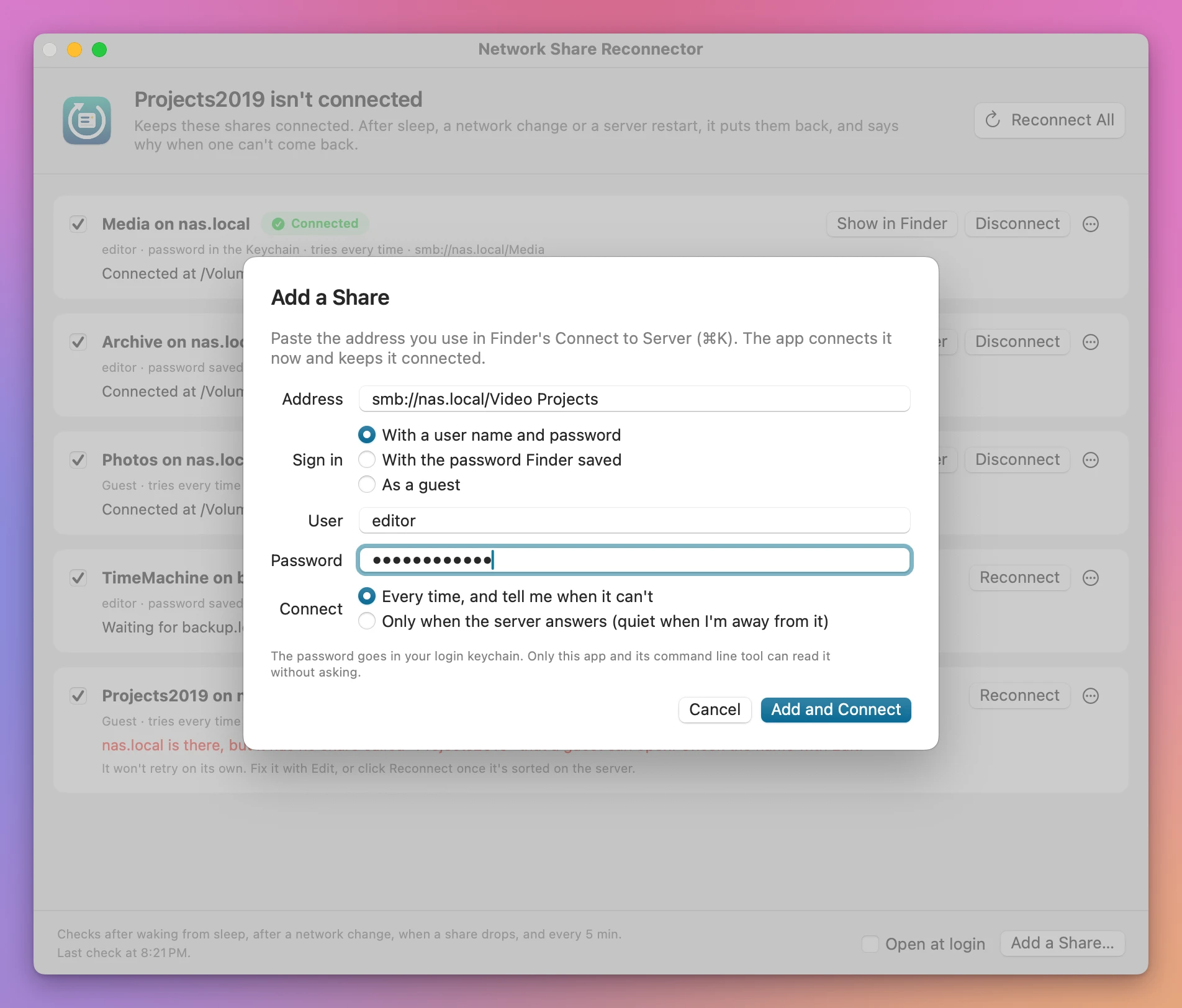
Sign in can use a password you type (it goes in the Mac’s keychain), the password the Finder already saved, or guest access. Connect has a second choice for laptops: Only when the server answers (quiet when I’m away from it). At home, an office share then waits quietly instead of showing an error.
Click Add and Connect, then tick Open at login at the bottom of the window. You can close the window: the app keeps running in the menu bar.
The test setup here is made up: a NAS called nas.local with Media, Archive and Photos, a backup server that’s switched off, and an old share called Projects2019 that no longer exists.
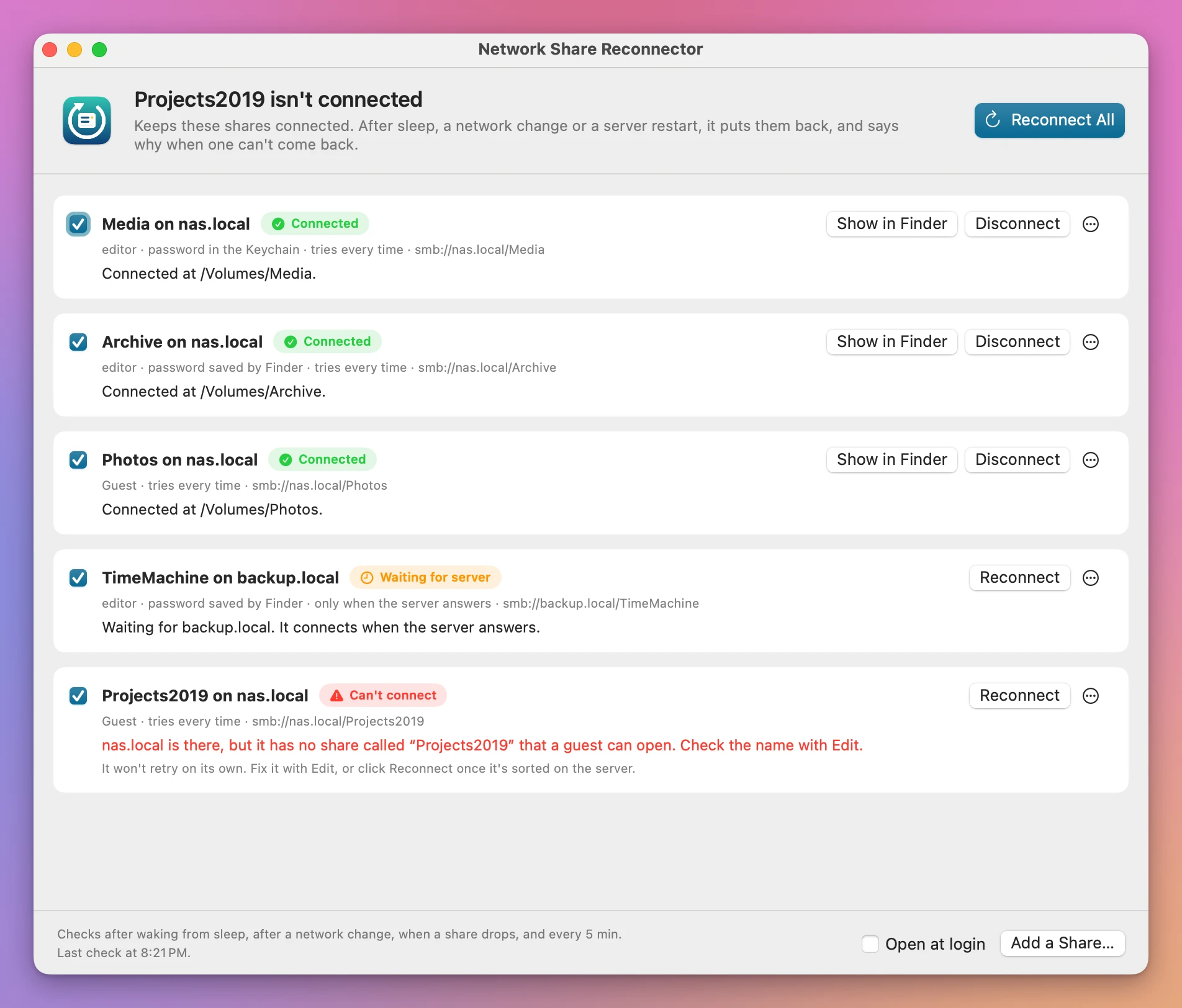
What happens when the NAS restarts
In the test, the file sharing on the server was stopped and the shares were disconnected, like a NAS rebooting for an update. Every share then said “The server isn’t on this network right now. nas.local didn’t answer on port 445.”, with the time of the next try.
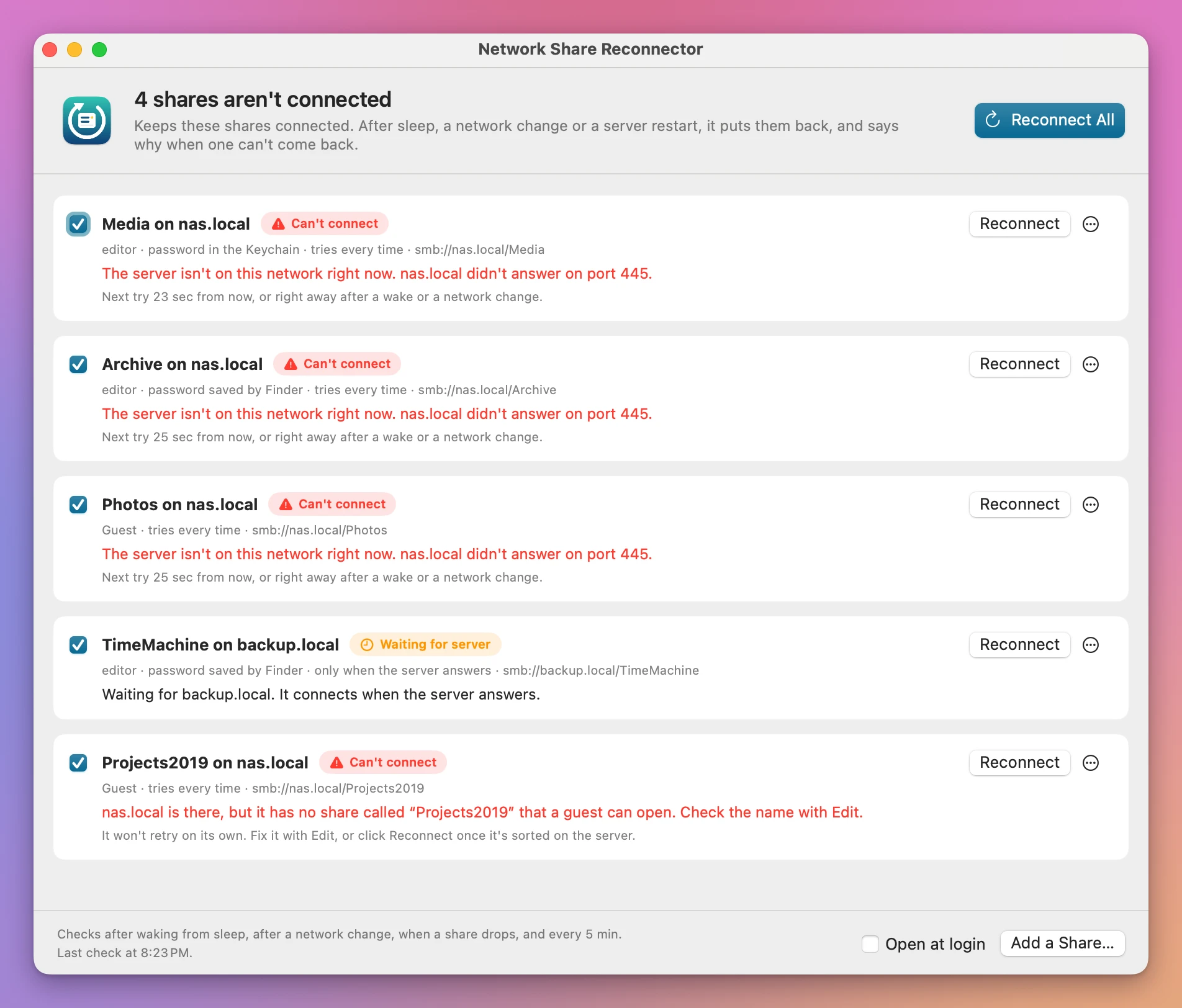
When file sharing came back, all three shares connected again on their own within about a minute. Nothing was clicked.
The app waits longer after each failed try: 30 seconds, then 1, 2, 5 and 10 minutes, then every 15 minutes. A wake or a network change skips the wait. A wrong password is different: the app stops and asks you to fix it with Edit…, because some NAS systems lock an account after several wrong passwords.
If you eject the share yourself while the NAS is there, the app pauses it instead of mounting it again a minute later, and says “Click Reconnect when you want it back.”
Check it from the menu bar
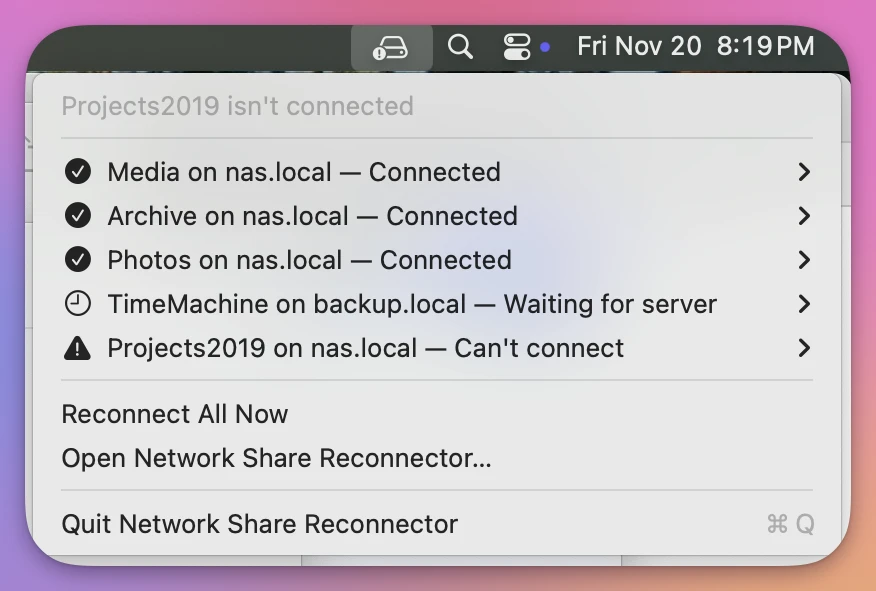
The drive icon in the menu bar gets an exclamation mark when a share can’t connect. Click it to see every share and its state, and Reconnect All Now.
The two ways side by side
| Connect to Server and Login Items | Network Share Reconnector | |
|---|---|---|
| At login | Mounts the share once | Mounts it |
| After sleep or a Wi-Fi change | You reconnect by hand | Checks again right away |
| NAS restarted | You reconnect by hand | Tries again until it’s back |
| NAS switched off | A Finder error, or a wait | ”The server isn’t on this network right now” |
| Wrong password | A Finder sign-in dialog | Stops and says so |
| Finder windows | Often one at login | None |
| Price | Free | $19, paid once |
If your Mac is a desktop that never sleeps and the NAS rarely restarts, Login Items are enough. If it’s a laptop, or the share keeps vanishing under your projects, the app saves you the Command-K round every time.
Get Network Share Reconnector
Keep NAS and file server shares mounted on your Mac. After sleep, a network change or a server restart it connects them again, and when one can't come back it says why in a sentence.
See Network Share Reconnector → · Read the docs · $19. See the app page for tax details.