
How to loop part of a song and slow it down
By Flavio
QuickTime Player can trim a recording to one passage, loop it and play it at half speed. To keep several passages, each at its own speed, Practice Loops marks them on the waveform and loops each with one key.
You’re learning a part from a recording, and one passage keeps beating you. You want to hear those few seconds over and over, a bit slower, without dragging the playhead back every time.
On a Mac, QuickTime Player can do it for one passage: trim the recording down to it, turn on looping, and set the speed to half. For several passages in the same song, each at its own speed, Practice Loops keeps them all marked and switches between them with one key.
The recording in the screenshots is made up: a short tune drawn from sine waves, called “Harbor Lights, run-through.wav”. The screenshots are from macOS 15 Sequoia.
Can QuickTime Player loop part of a song?
Yes, with a trim. QuickTime Player comes with every Mac and opens MP3, M4A, WAV and AIFF files.
- Open the recording in QuickTime Player.
- Choose Edit › Trim…. The window turns into a strip of the recording with a yellow frame around all of it.
- Drag the left handle of the frame to where the passage starts, and the right handle to where it ends.
- Click Trim. The window now plays only that passage.
- Choose View › Loop, so the passage starts again when it ends, and press Space.
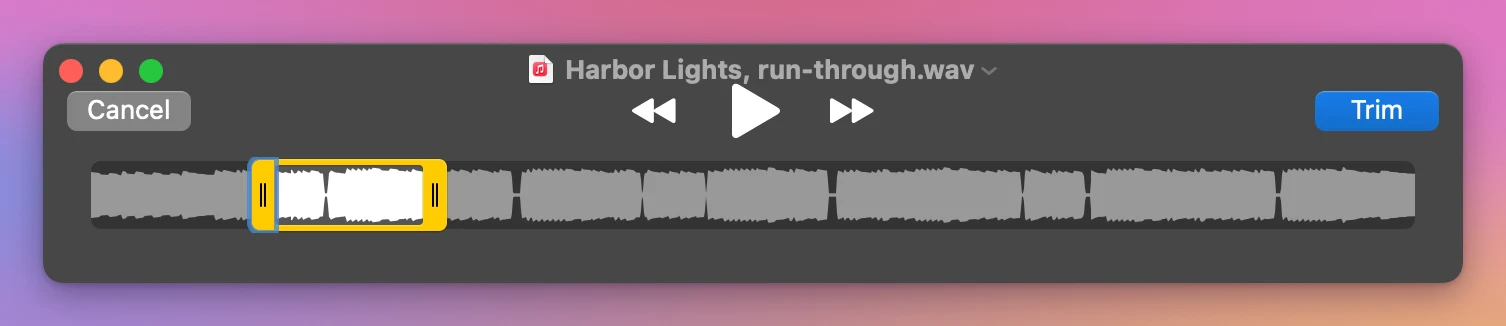
The trim changes only what’s open in the window. Your file on disk stays the same unless you save.
Can QuickTime Player slow it down?
View › Playback Speed has five choices: Half, Normal, Fast, Faster and Double. Half is the only slower one, so a passage that’s fine at 75% but impossible at full speed has to be practiced at 50%.
What about the next passage?
That’s where it gets slow. QuickTime Player holds one trim at a time. For the bridge after the solo you choose Edit › Undo to get the whole recording back, trim again, and set the loop and the speed again. Close the window and the passages are gone, unless you saved each trimmed passage as a file of its own.
There’s no count-in either. The loop starts straight away, so you come in on the first note cold.
The shorter way: mark every passage once
Practice Loops opens the recording and draws its waveform. Every passage you mark stays in a list on the left, with its own speed, from 25% to 150% in 5% steps, and the pitch stays the same at every speed.
- Click Choose a Recording… and pick the file, or drag it onto the window.
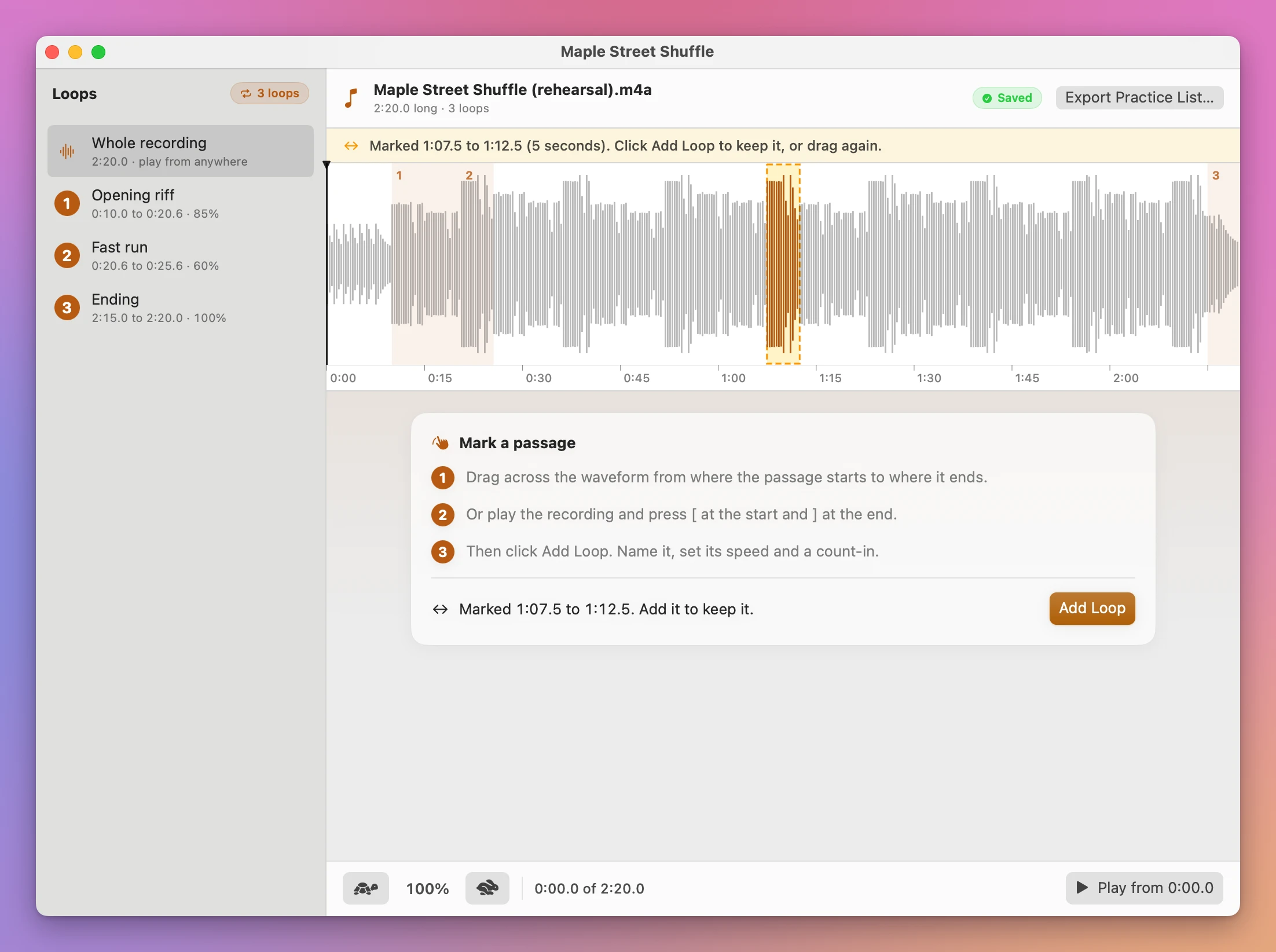
- Drag across the waveform from where the passage starts to where it ends. The line above the waveform says the times, like “Marked 1:07.5 to 1:12.5 (5 seconds)”.
- Click Add Loop. The loop gets a number on the waveform and a row on the left.
- Type a name, like “Fast run”. Set the Speed slider, for example to 60%.
- Pick a Count-in of 4 beats and type the passage’s tempo. The clicks play at the tempo times the speed: 96 BPM at 60% gives four clicks at 58 BPM, so you come in on time.
- Press Space. The passage repeats with no gap until you press Space again.
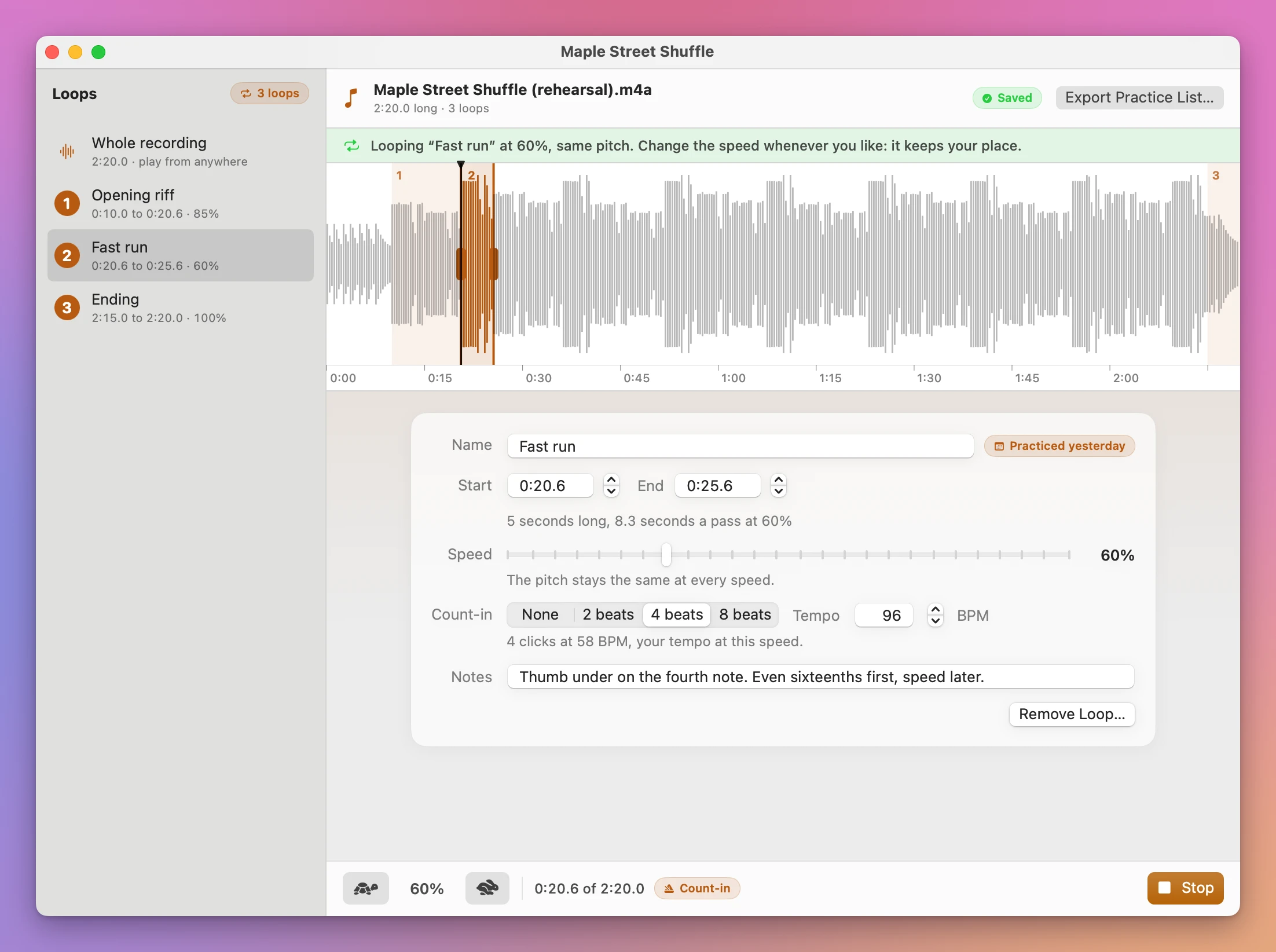
Press ↓ for the next loop and ↑ for the one before. If a loop is playing, the new one starts at once. The − and + keys change the speed by 5% while it plays, and it keeps going from where it was.
You can also mark while you listen: play the whole recording and press [ where the hard part starts and ] where it ends.
Keep the passages for tomorrow
Click Save Project… and pick a name. From then on every change is saved by itself. The next day, the start screen lists the project under Pick up where you left off. Click Open, and it opens on the loop you were practicing, so Space starts it straight away.
File › Export Practice List… saves every loop with its times, speed, count-in and notes as a text file to print or send to a teacher.
QuickTime Player or Practice Loops?
| QuickTime Player | Practice Loops | |
|---|---|---|
| Cost | Comes with the Mac | $19, paid once |
| Loop one passage | Trim, then View › Loop | Drag, then Add Loop |
| Several passages | One at a time, trim again for each | All of them, one key apart |
| Slower | Half speed only | 25% to 150% in 5% steps |
| Count-in | No | 2, 4 or 8 clicks |
| The next day | Trim again | Opens on the last loop |
| Your recording | Unchanged unless you save | Never changed |
For one passage you’re learning tonight, QuickTime Player’s trim and loop are enough. When a song has three or four hard spots and you’ll come back to them all week, marking them once saves the trimming every evening.
Get Practice Loops
Mark the hard passages of a recording and loop each one at its own speed, from 25% to 150%, with the pitch kept and an optional count-in. Move between passages with one key, and pick up the next day on the loop you left.
See Practice Loops → · Read the docs · $19. See the app page for tax details.