
How to pick the best photos from a shoot and send the client a shortlist
By Flavio
You have hundreds of photos from one shoot and the client has to choose a few. Here's how to do it with Preview and Finder, and how to give stars from the keyboard and send a PDF the client answers with numbers.
You came back from a shoot with 600 photos. The client will pick 30, but first you have to cut the 600 down to the ones worth showing, and then send them in a form the client can answer without a call.
On a Mac you can do it with Finder and Preview, for free. It works for a few dozen photos. For a few hundred, Photo Shortlist does the going through and the sending in one window.
The photos in this tutorial are made up: 600 pictures of hills, cities and shapes in four folders, made on a test Mac running macOS 15.
What does the client need from you?
Two things. A small set of photos, so they don’t have to look at 600. And a way to say which ones they want without guessing at file names, like “number 14 and number 22”.
The free way: a picks folder and Preview
Select the photos of one folder in Finder and open them in Preview. Preview shows them in a sidebar on the left, and the arrow keys move from one to the next. On the test Mac, six photos opened as one window titled “6 documents, 6 total pages”.
Preview has no stars or rejection. To keep the good ones, make a new folder called Picks next to the shoot and drag each good photo into it from Finder, or copy it there if you want the originals to stay where they are.
Then you need something to send. Open the photos in the Picks folder in Preview, choose File → Print…, open the PDF menu at the bottom of the print window and save a PDF.
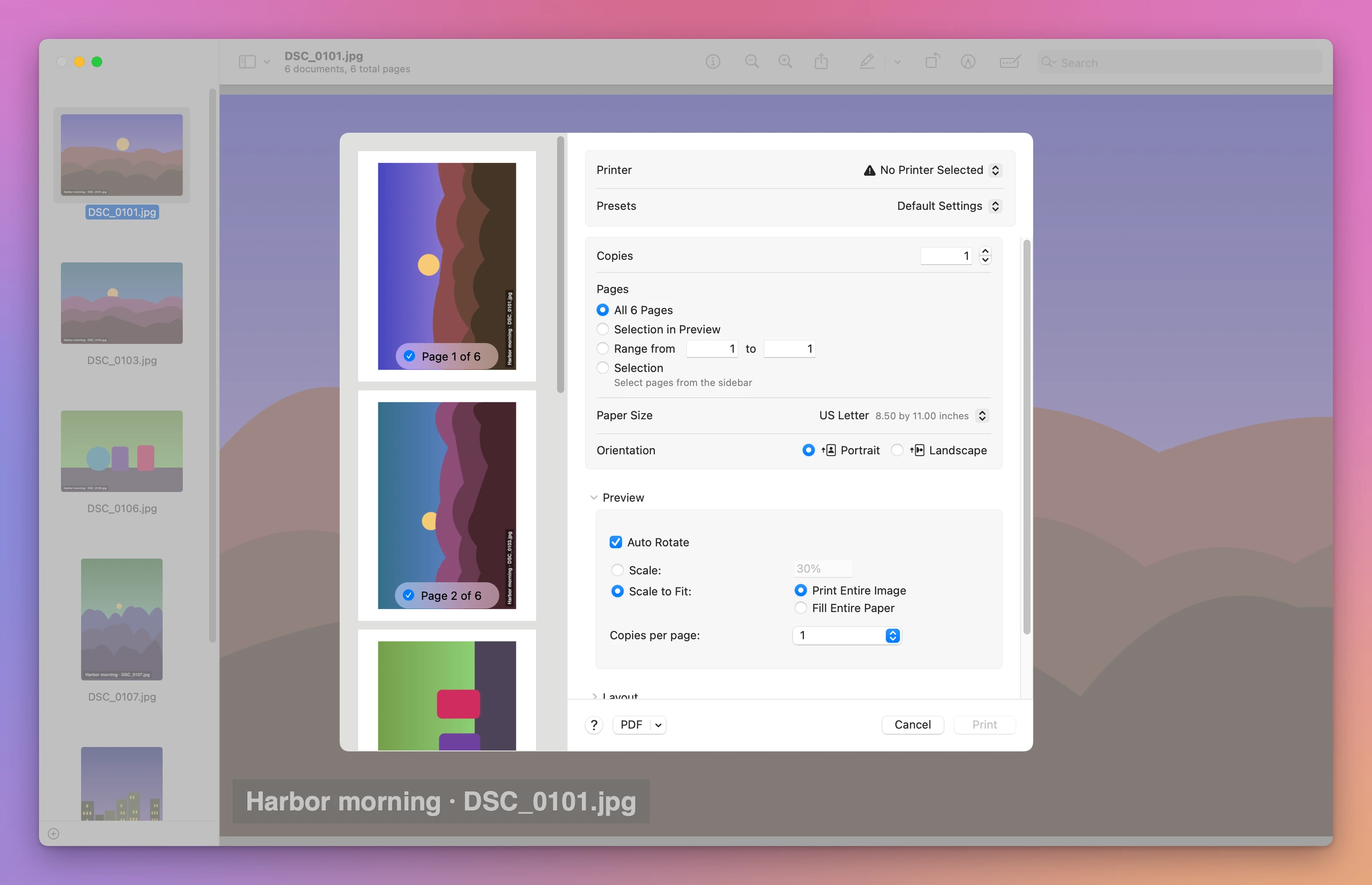
It works, and it costs nothing. Here’s what it costs in time:
- There’s no “maybe”. A photo is in the Picks folder or it isn’t, so you end up with two or three passes.
- There’s no note per photo, so “crop a little off the top” goes in an email.
- Preview printed one photo per page here, and nothing on the page says which file it is. The client writes back “the one with the boat”, and you look for it.
- With 600 photos you go one at a time, and you can’t put two close shots next to each other.
The shorter way: Photo Shortlist
Photo Shortlist is a Mac app that does this one job. It costs $19, paid once.
Click Choose Photos… and pick the shoot’s folder, or drag it onto the window. Each folder inside becomes a group in the grid. Here the 600 test photos showed up in four groups of 150, with a line saying one camera RAW file was left out, since the app shows JPEG, PNG, HEIC, TIFF, GIF and WebP.
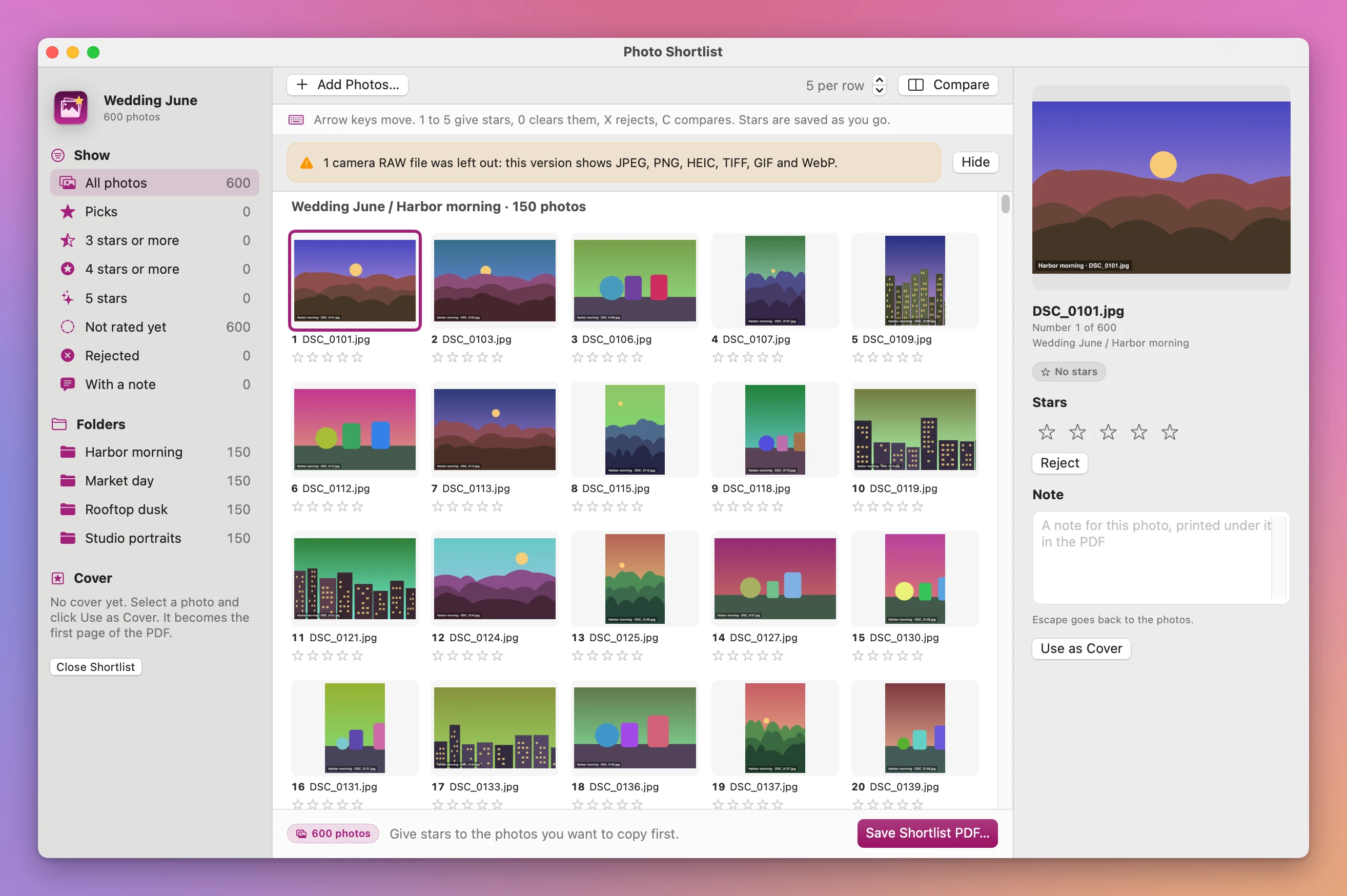
Every photo has a number, 1 to 600, in the order of the grid. It stays the same whatever you filter.
Give stars from the keyboard
Use the arrow keys to move through the grid. Press 1 to 5 to give stars, 0 to clear them and X to reject a photo. A rejected photo stays where it is, dimmed and labelled. To give the same stars to several photos, Shift-click or Command-click them and press the number once.
The Show list on the left counts as you go: picks, 3 stars or more, not rated yet, rejected.
Compare the close ones
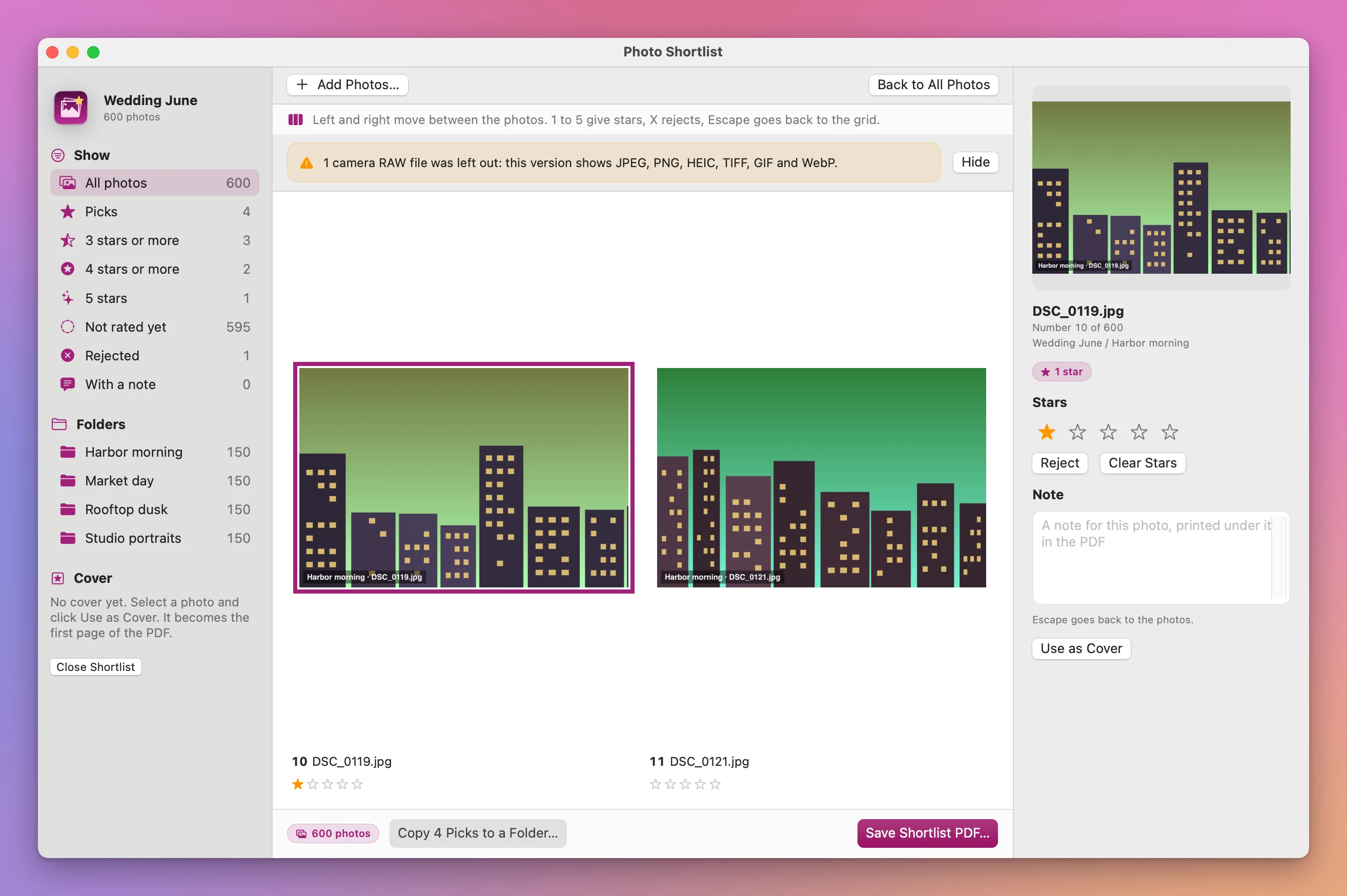
Select two to four photos and press C. They fill the middle of the window. The left and right arrows move a frame between them, and the stars go to the one in the frame. Escape goes back to the grid.
Write a note and pick a cover
Click the Note box on the right and type what the client should know. While you type, the number keys type numbers. Press Escape to go back to giving stars. Use as Cover makes a photo the first page of the PDF.
Save the shortlist PDF
Click Save Shortlist PDF…. Pick a title, what goes in (all photos, or only the picks with 1, 3, 4 or 5 stars), whether the rejected ones and the notes are left out, the photos per row and the paper. The sheet tells you how many photos and pages it will be. Then click Save PDF….
On the test Mac, the 600 photos with one rejected became a 599-photo PDF of 31 pages and 8.2 MB, saved in a few seconds. Under each photo there’s its number, its file name and its stars. The rejected photo was left out, and the photos after it kept their numbers, so the client’s “number 14” is still your number 14.
Your stars and notes are saved in the app’s own file as you go, never in the photos. Open the same folder tomorrow and they’re back.
Preview, or Photo Shortlist?
| A picks folder and Preview | Photo Shortlist | |
|---|---|---|
| Rating | In the folder or not | 1 to 5 stars, plus reject |
| Going through 600 photos | One at a time | A grid and the arrow keys |
| Two close shots side by side | No | Two to four |
| A note per photo | No | Yes, printed in the PDF |
| What the client sees | One photo per page, no names | A number and file name under each photo |
| Your photos | Moved or copied by hand | Only read |
| Cost | Free | $19 once |
For ten photos, a picks folder and Preview are fine. When the shoot is in the hundreds and the client has to answer by email, numbers under the photos save the back and forth.
Get Photo Shortlist
Go through a shoot of hundreds of photos with the keyboard: stars with 1 to 5, reject with X, compare side by side and write notes. Save a shortlist PDF with a number and file name under each photo, or copy the picks to a folder. Your photos are never changed.
See Photo Shortlist → · Read the docs · $19. See the app page for tax details.