
How to show a sponsor their read is in your video before you publish
By Flavio
A sponsor wants to know the read lasts 60 seconds and comes before 3:00. Here's how to check each placement in QuickTime Player and send the times, and how Sponsor Proof Sheet makes a PDF with the times, frames and the file's fingerprint.
Your sponsored video is exported, and the brand’s agency writes back before approving it: “Can you confirm the read is at least 60 seconds and starts before 3:00, the logo is on screen for 5 seconds, and the link is on the end card?”
The answer is a list of times, one per placement, with a frame of each so they can see it. You can make that list by hand in QuickTime Player, or open the video in Sponsor Proof Sheet, mark each placement, and save a PDF that checks them against the brief.
The examples here use a made-up video: “Building a desk shelf” by a channel called Rowan Makes, sponsored by Fernhollow Notebooks. Neither exists.
What does a sponsor want to see?
A brief lists the placements, and most come with a rule:
- A length. “A 60-second read”, “logo on screen for at least 5 seconds”.
- A place in the video. “Before 3:00”, “in the first two minutes”, “on the end card”.
- Things outside the video. A pinned comment with a discount code, a link in the description.
For each one they want where it starts and ends, how long it lasts, and a frame. Agencies that approve many videos also want to know which file you checked, so the video that goes up is the one they approved.
How to do it with QuickTime Player
QuickTime Player comes with every Mac, and it shows times the way editing apps do.
- Open the final export in QuickTime Player.
- Choose View → Time Display → SMPTE Timecode. The time now reads hours, minutes, seconds and frames, like
00:01:42:00. - Play to where the sponsor read starts. Pause, and step a frame at a time with the left and right arrow keys until it’s on the first frame of the read. Write the timecode down.
- Play to where the read ends and write that timecode down too.
- Press ⌘⇧4 and drag over the video to save a screenshot of the frame. Do it at the start, and again in the middle.
- Work out the length: 00:02:47:15 minus 00:01:42:00 is 1 minute, 5 seconds and 15 frames, so 65.5 seconds at 30 frames a second.
- Do the same for the logo and the end card.
- Select the video in the Finder and choose File → Get Info for its size.
- Write the email: each placement, its times, its length, whether it meets the brief, and the screenshots attached.
It works, and it’s free. Most of the time goes into stepping frames and subtracting timecodes, four times for a brief with four placements. View → Time Display → Go To Timecode… helps when you already know a time and want to check it.
Two things are missing. The screenshots don’t say which file they came from, and nothing tells the agency the file you upload on Thursday is the one you checked. A Mac shows a file’s size and dates in Get Info, but not a fingerprint that changes when the file does.
How to do it with Sponsor Proof Sheet
Sponsor Proof Sheet is a Mac app I made for this. It costs $19, paid once.
Click Choose the Final Video… and pick the export. While you work, the app reads the file’s size, length and picture, and works out its SHA-256 fingerprint: 64 characters made from every byte of the file.
Then click Paste the Brief… and paste the placements from the sponsor’s email, one per line. The app reads the rules in the words: “at least 60 seconds, before 3:00” becomes a placement that must last 60 seconds and start before 3:00. The “Sponsor:” and “Video:” lines fill in those fields.
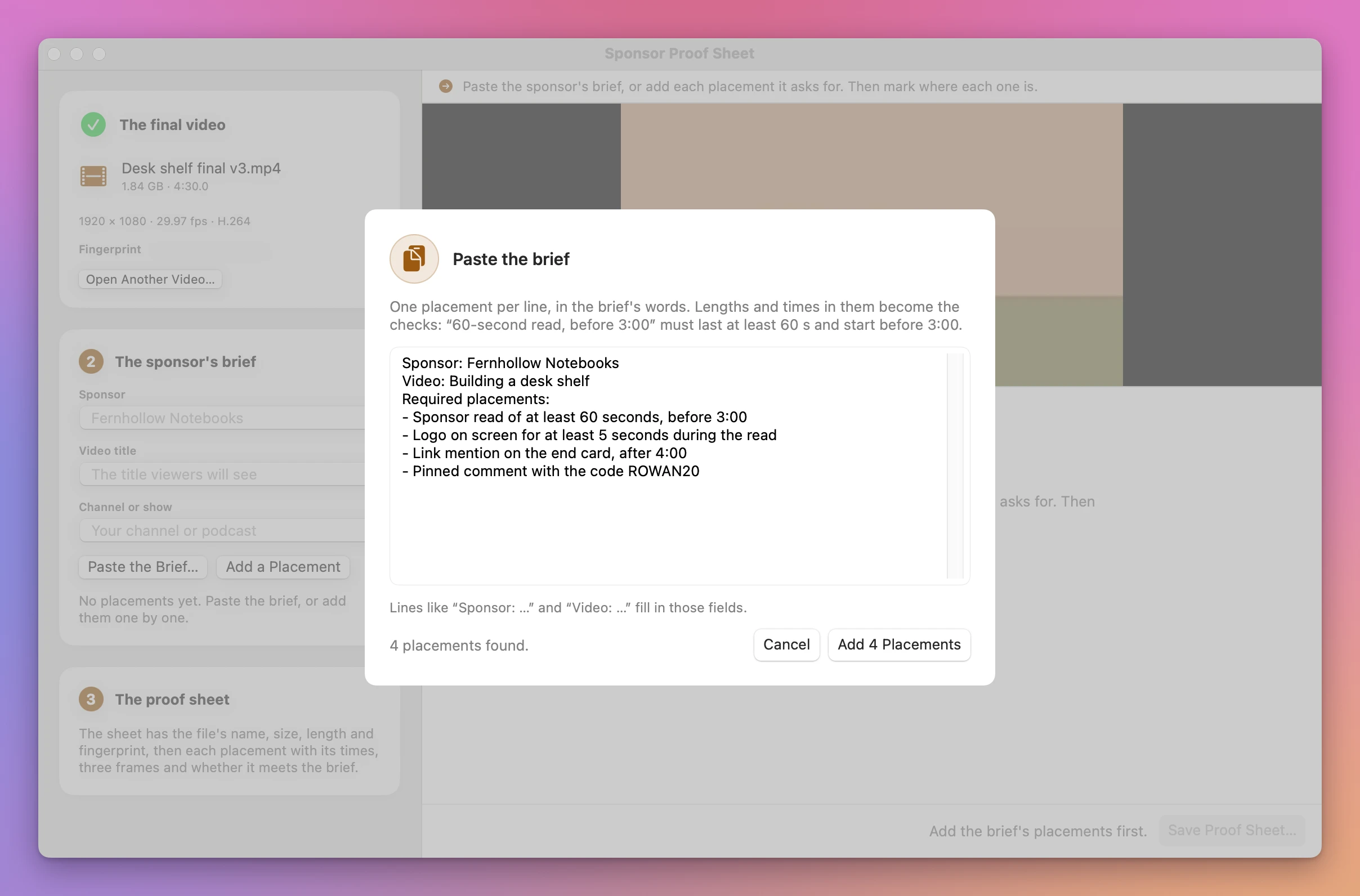
Click Add 4 Placements. Each placement is now in the list, not marked yet, with its rules filled in.
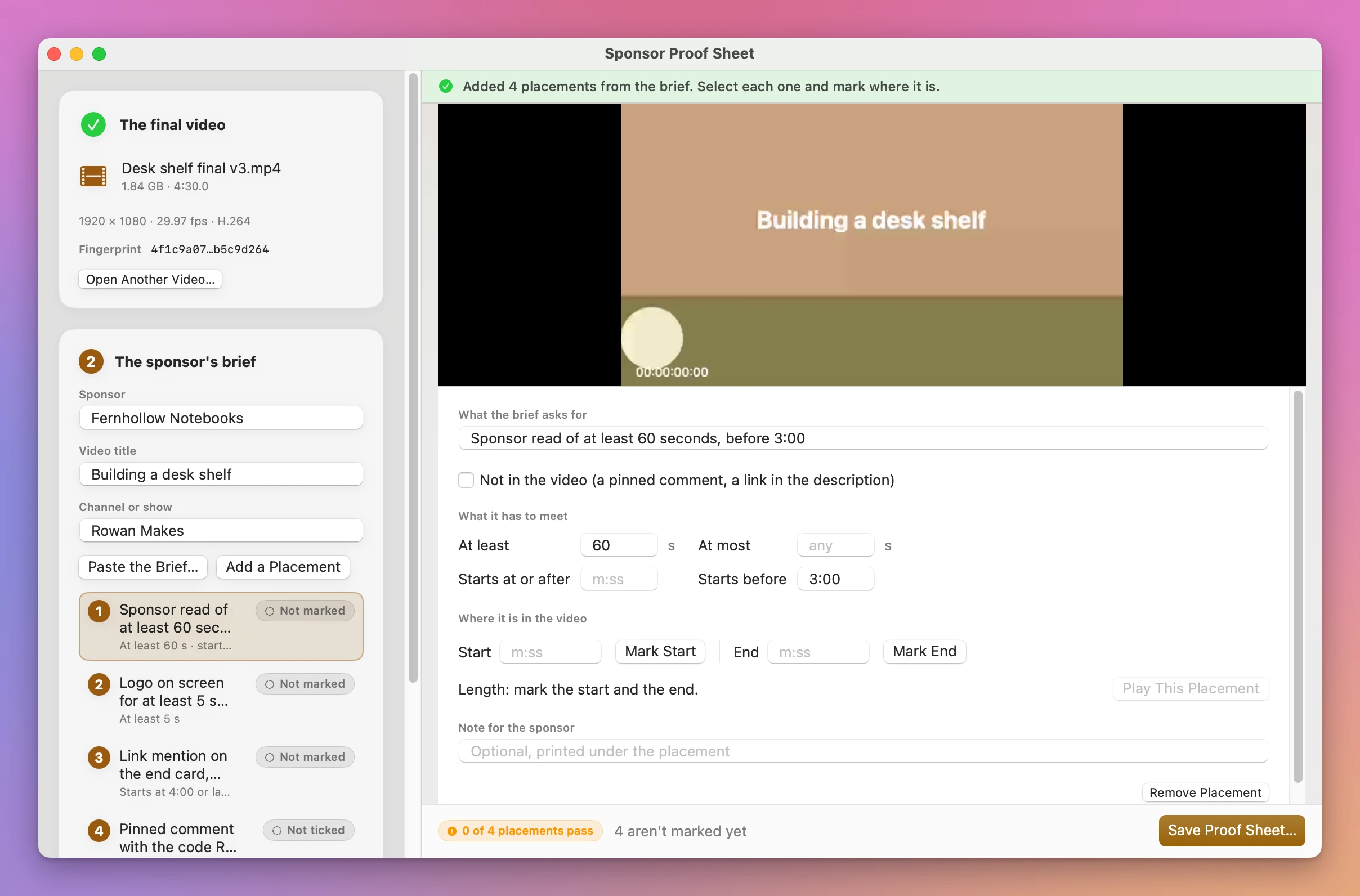
Play the video to where the read starts and click Mark Start, then to where it ends and click Mark End. You can also type the times, like 1:42 or 00:01:42:00. The length is worked out, the three frames that go on the sheet appear under it, and the pill says Passes or Fails.
In the example, the logo is marked from 1:50.0 to 1:54.0. The brief asks for 5 seconds, so it fails, and the app says why.
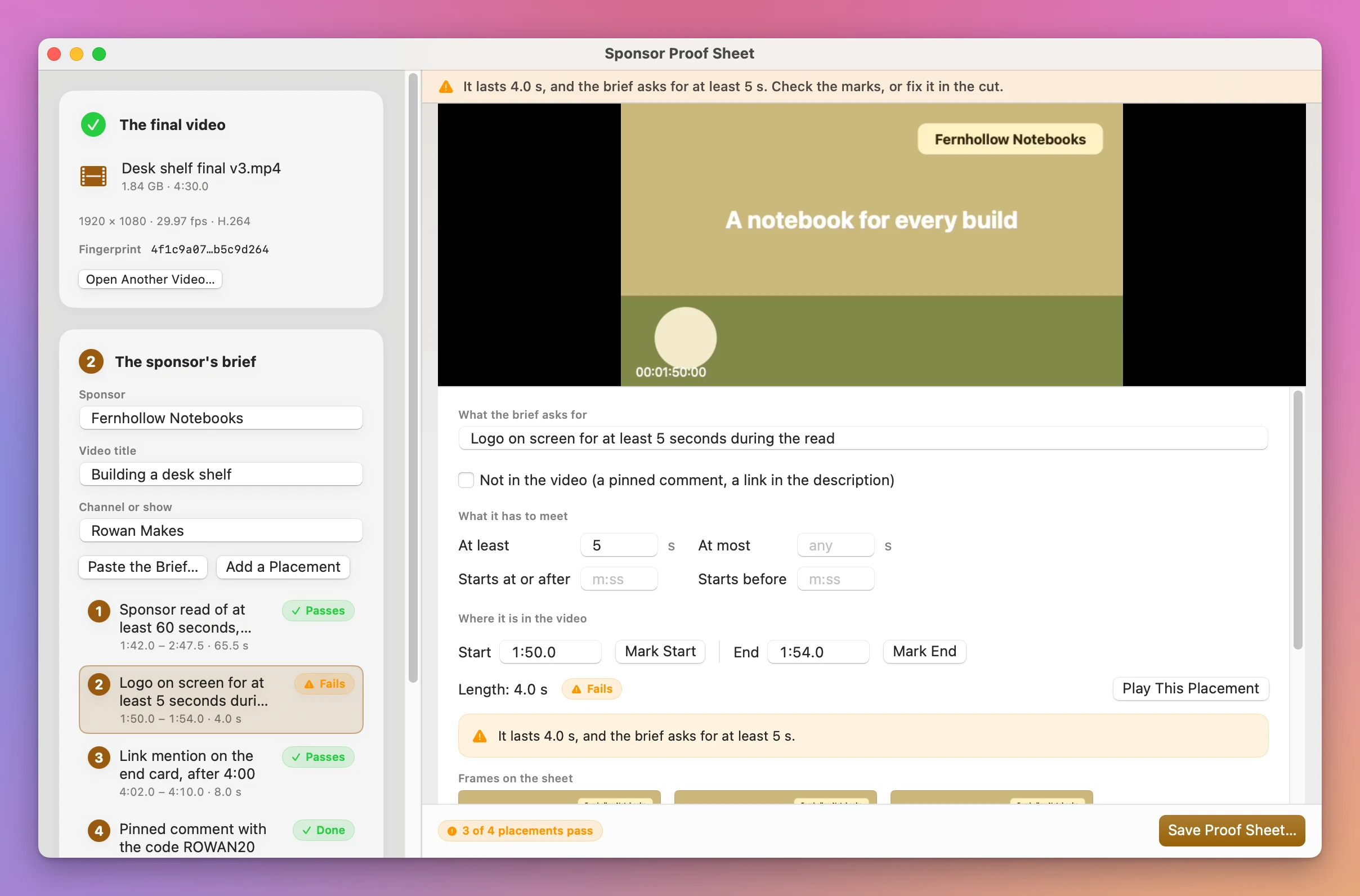
That’s the moment to look again. Either the logo stays on longer and the mark was early, or the cut needs a second more before you publish. Mark it again, and it passes.
For the pinned comment, which isn’t in the video, tick Not in the video and Done: I checked it, and write how in the note.
Click Save Proof Sheet…. The PDF has the file’s name, its size to the byte, its length, picture size, frame rate and fingerprint, then every placement with its brief, its times and timecodes, its length, whether it passes, and three frames: the first, the middle and the last.
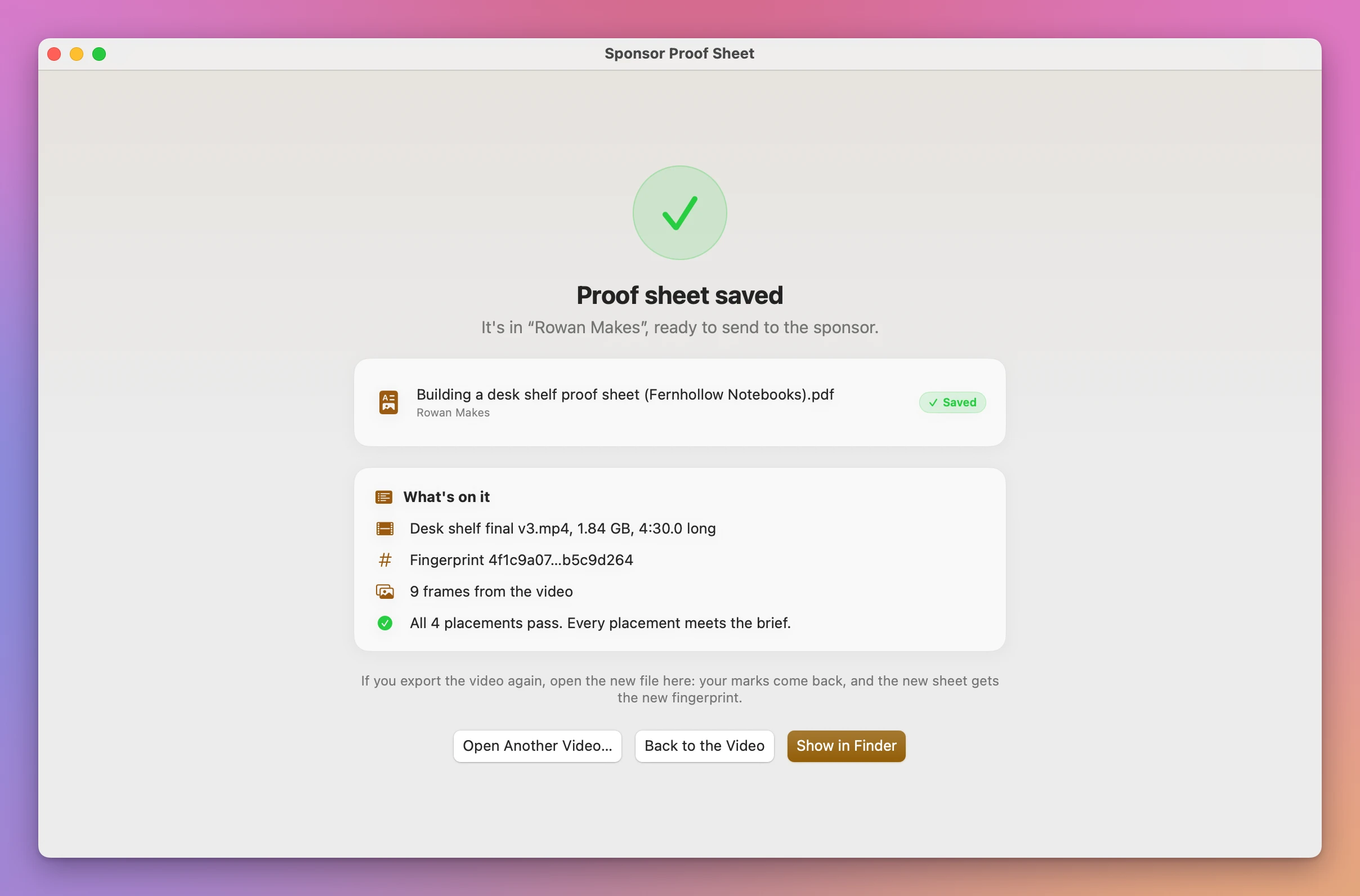
The brief and the marks stay saved with the video. If you export again, open the new file: the marks come back with a note to check them, and the new sheet gets the new fingerprint.
Which way should you use?
| QuickTime Player and an email | Sponsor Proof Sheet | |
|---|---|---|
| Cost | Free | $19 once |
| Times of each placement | You write down the timecode | Mark Start and Mark End, or typed |
| Length | You subtract timecodes | Worked out |
| Checked against the brief | By eye | Passes or Fails, with the reason |
| Frames | One screenshot at a time | Three per placement, on the sheet |
| Which file it was | Name and size | Size to the byte and the SHA-256 fingerprint |
| After a new export | Start again | The marks come back |
| What the sponsor gets | An email and attachments | A one-page PDF |
For a single video with one read, QuickTime Player and a careful email are fine. When you have a brief with four placements, or a sponsor every week, the sheet saves the subtracting and gives the agency something to file.
Get Sponsor Proof Sheet
Open your final export, paste the sponsor's brief and mark where the read, the logo and the link are. Each placement is checked against the brief, and a PDF proof sheet shows the times, three frames of each and the file's fingerprint.
See Sponsor Proof Sheet → · Read the docs · $19. See the app page for tax details.