# Using Claude Code on a server
> Run Claude Code directly on a remote Linux server instead of your laptop. A hands-on walkthrough building a digital pet web app on a Sprites VM, with a public URL anyone can visit.
Author: [Flavio Copes](https://flaviocopes.com/about/) | Published: 2026-11-29 | Topics: [AI](https://flaviocopes.com/tags/ai/) | Canonical: https://flaviocopes.com/claude-code-on-a-server/
I usually run coding agents on my Mac, then deploy the finished app to a server. In this walkthrough, we'll flip that around and run Claude Code directly on a remote Linux machine to build a small digital pet.
The pet gets hungrier over time, and anyone with its public URL can visit the page and feed it. We'll check that two browsers see the same pet, make sure it survives a restart, and delete the test machine once we're done.
Because the app lives on a remote machine, visitors can keep feeding the pet while your laptop is asleep, as long as the remote app is running. Sprites can pause when idle, so we'll also look at what happens when the process stops and how to keep the state intact.
## Why a server
A server is just a computer waiting to answer requests. Putting the app on a remote host lets people reach it without relying on your laptop.
Your local machine can run a web server too, though it comes with a few catches:
- by default, it may only be reachable on `localhost`
- a process tied to a terminal window can stop when you close that window
- everything disappears the moment your laptop sleeps
A remote host gives our pet its own URL. Once you make that URL public, anyone can visit whenever the app is available.
Sprites manages idle time differently from an always-running VPS, so here is how the three setups compare:
| Setup | Reachable from another device | When your laptop sleeps | Idle behavior | Process recovery |
| --- | --- | --- | --- | --- |
| Local Mac | Only on `localhost` by default | Stops | Stays awake while Mac is awake | Manual restart if terminal closes |
| Disposable Sprite VM | Built-in `*.sprites.app` URL (private by default, toggleable to public) | Keeps running until idle | Auto-pauses when idle; HTTP requests wake it | Needs `sprite-env services` and disk storage |
| Always-on VPS | Public IP or your own domain | Keeps running | Runs continuously | Needs a service manager like systemd |
For this experiment, we'll use [Sprites](https://fly.io/sprites/) as our server. You could follow along on any VPS, but a Sprite is disposable, boots in seconds, and ships with AI coding agents preinstalled.
If you haven't set up Sprites yet, install the CLI (`curl -fsSL https://sprites.dev/install.sh | sh`), sign in with `sprite login`, and spin up a machine with `sprite create test`. The [Sprites docs](https://docs.sprites.dev/) have the full setup details.
Claude Code comes preinstalled on a fresh Sprite. I'd still check `claude --version` and update it if needed, since the base image can change. Codex is installed too, so you can use that instead if you have an OpenAI subscription.
## Create the project folder
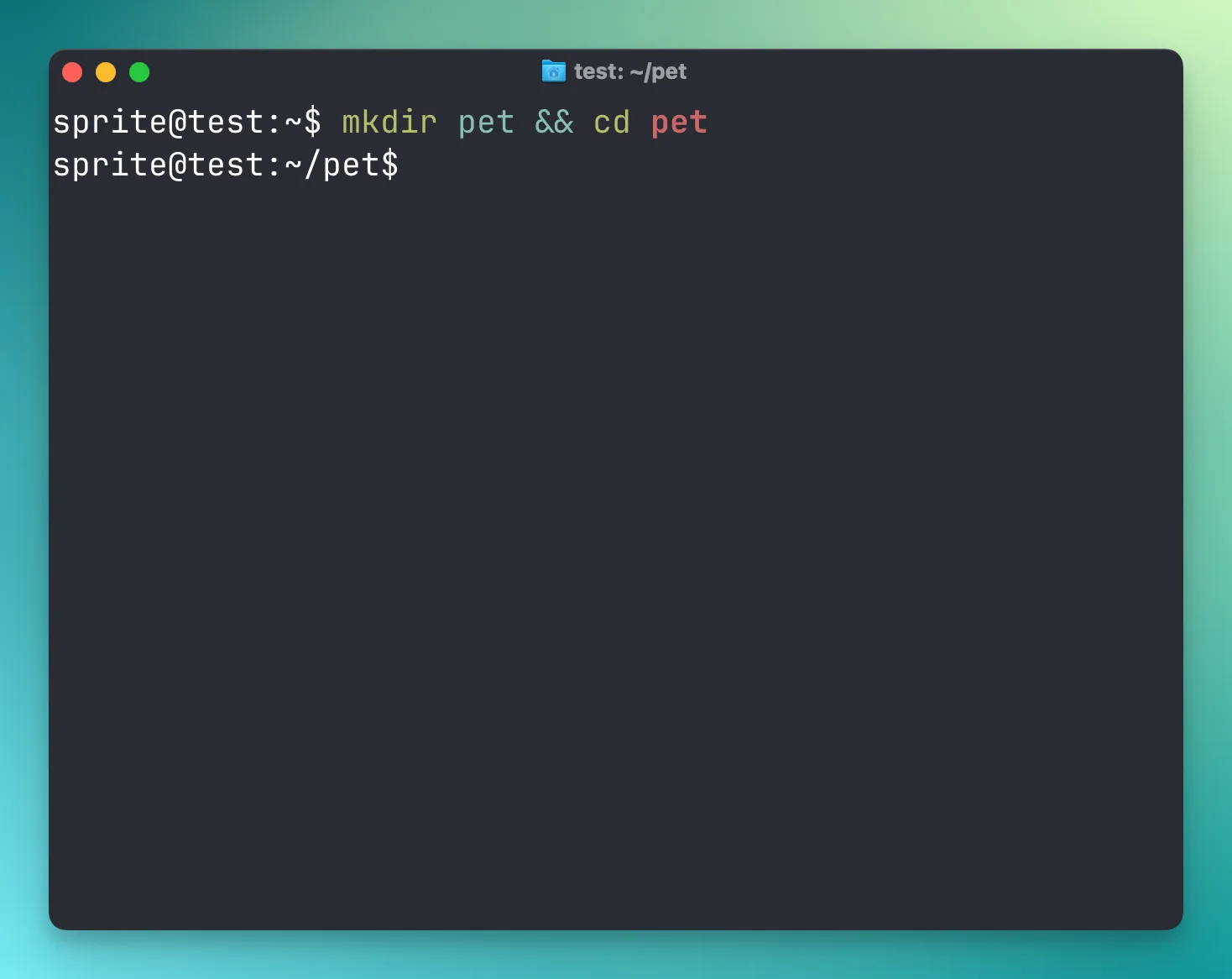
Connect to your Sprite (I named mine `test`) and create a folder for the project:
```bash
mkdir pet && cd pet
```
## Run Claude Code
Now start Claude Code inside that folder:
```bash
claude
```
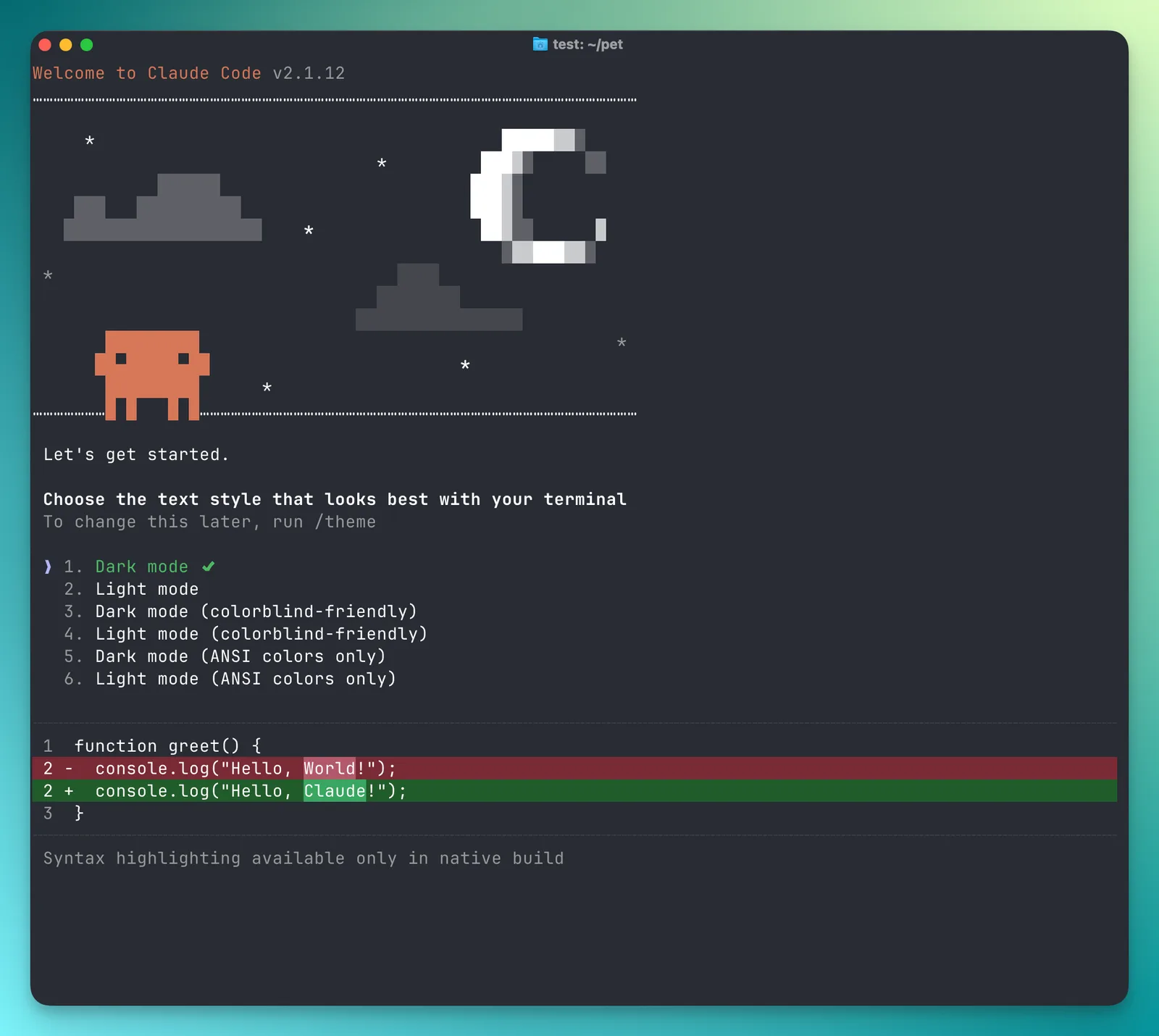
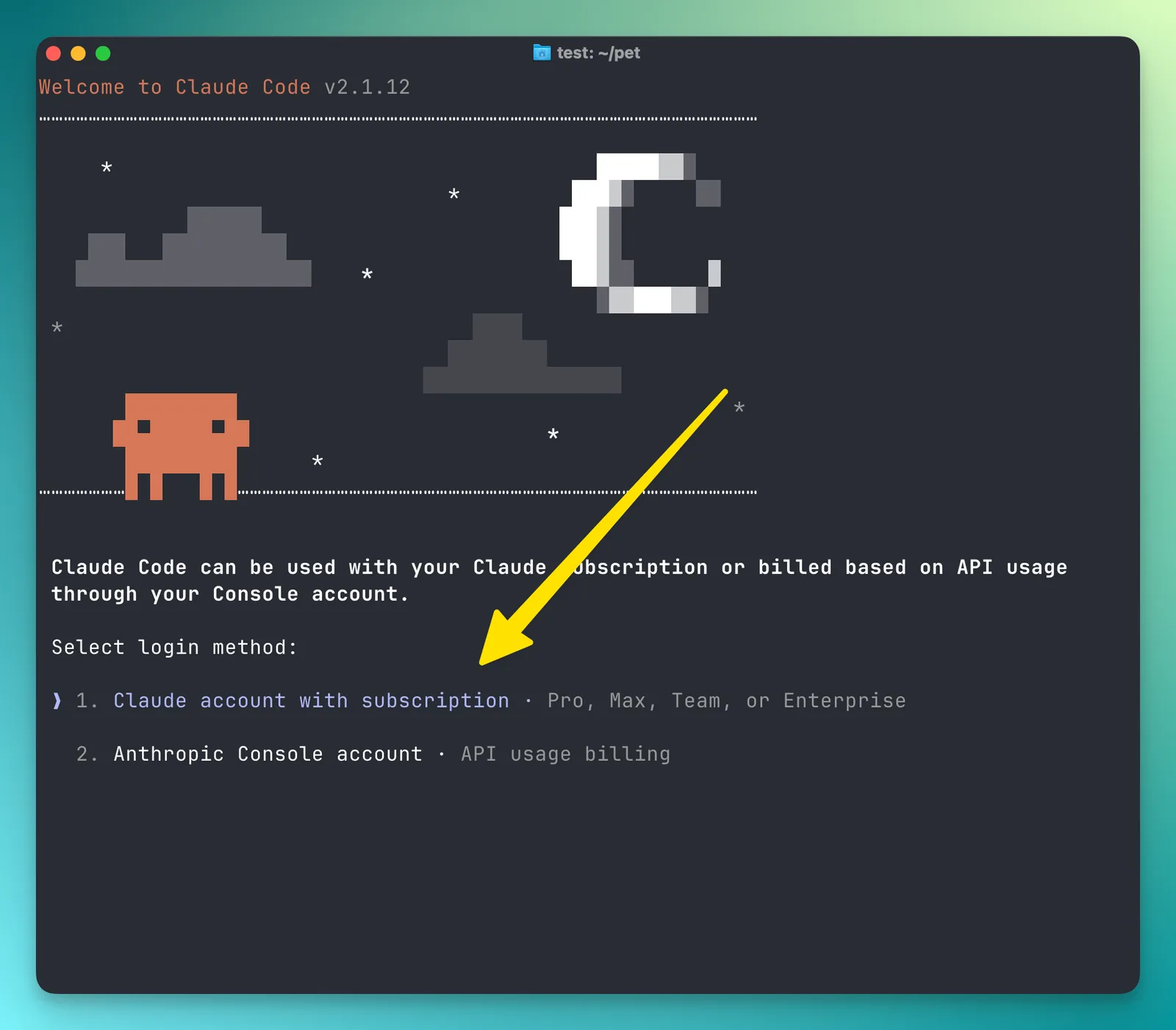
Pick a theme, then authenticate your account. I chose the subscription route here:
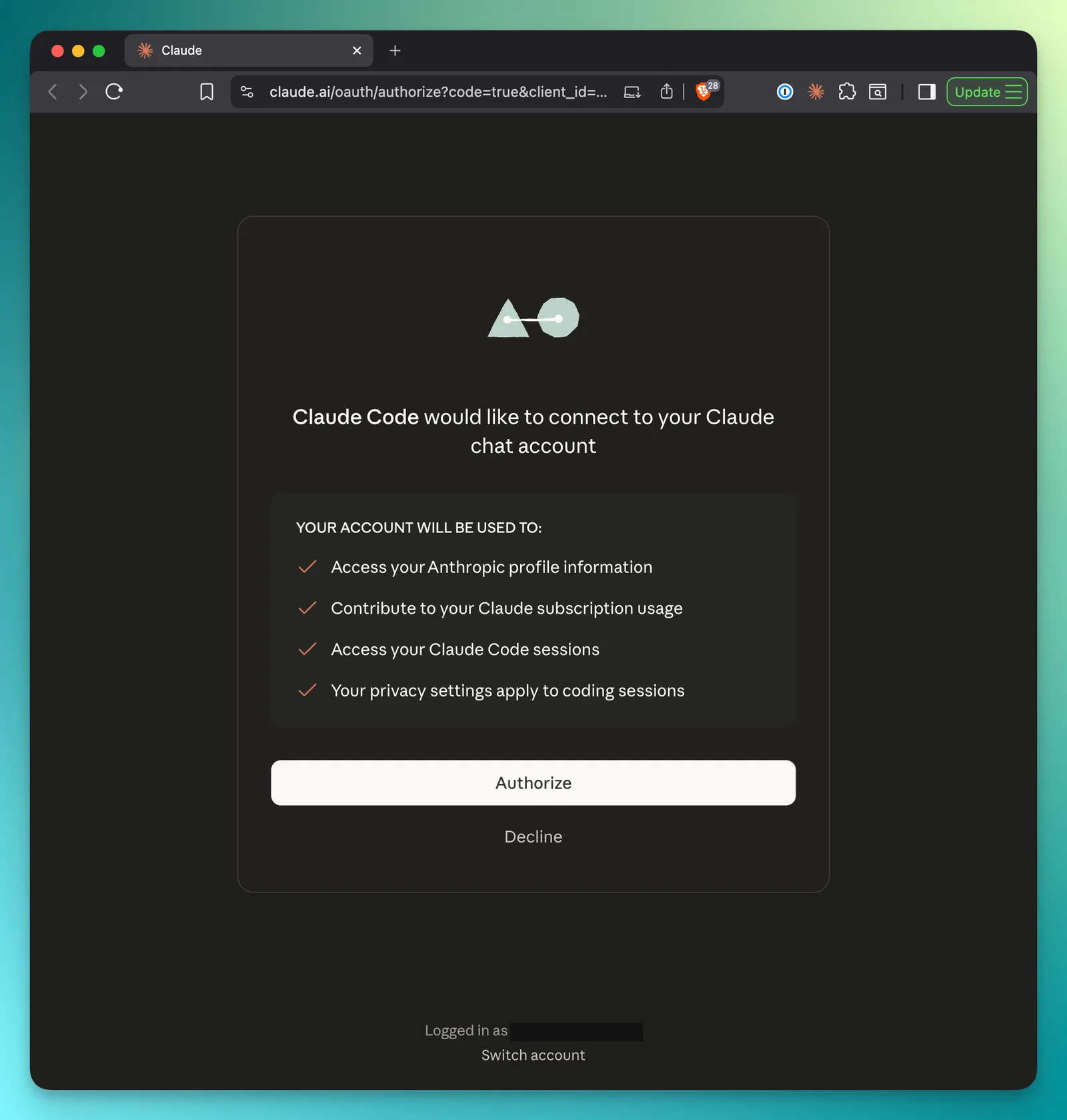
During my session, the authorization page opened right in my Mac's browser. Completing that sign-in authenticated Claude Code on the remote Sprite:
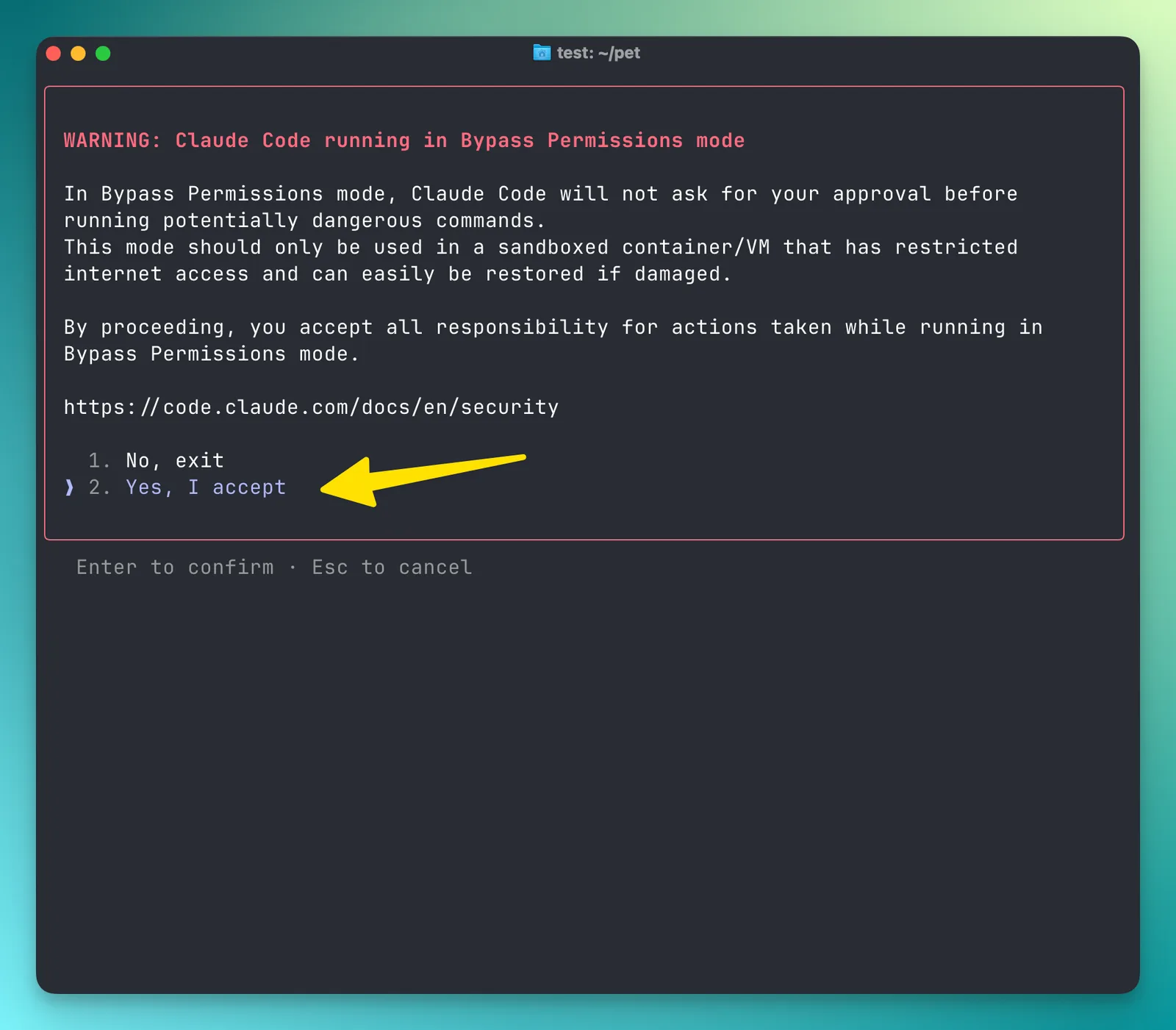
In the screenshot below, I turned on "bypass permissions" mode. Only do that with disposable data and narrowly scoped access.
Even inside a sandbox, an agent can still affect any external services you authorize, and turning on a public URL exposes whatever the app serves:
## Create the app
Now you can write a prompt and build whatever you like. Here is the prompt I used:
> Create a digital pet web server using Bun and TypeScript. The pet should:
> - Have a name (Pixel), hunger level (0-100), and track when it was last fed
> - Get hungrier over time (10 hunger points per minute)
> - Show different emoji moods based on hunger: happy (<20), okay (<50), hungry (<80), starving (>=80)
> - Have a simple dark-themed web UI showing the pet, hunger bar, and a feed button
> - GET / shows the pet, POST /feed feeds it and redirects back
>
> Save it as pet.ts, then run it and tell me how to access it.
After a short wait, Claude Code finishes writing the code and starts the server:
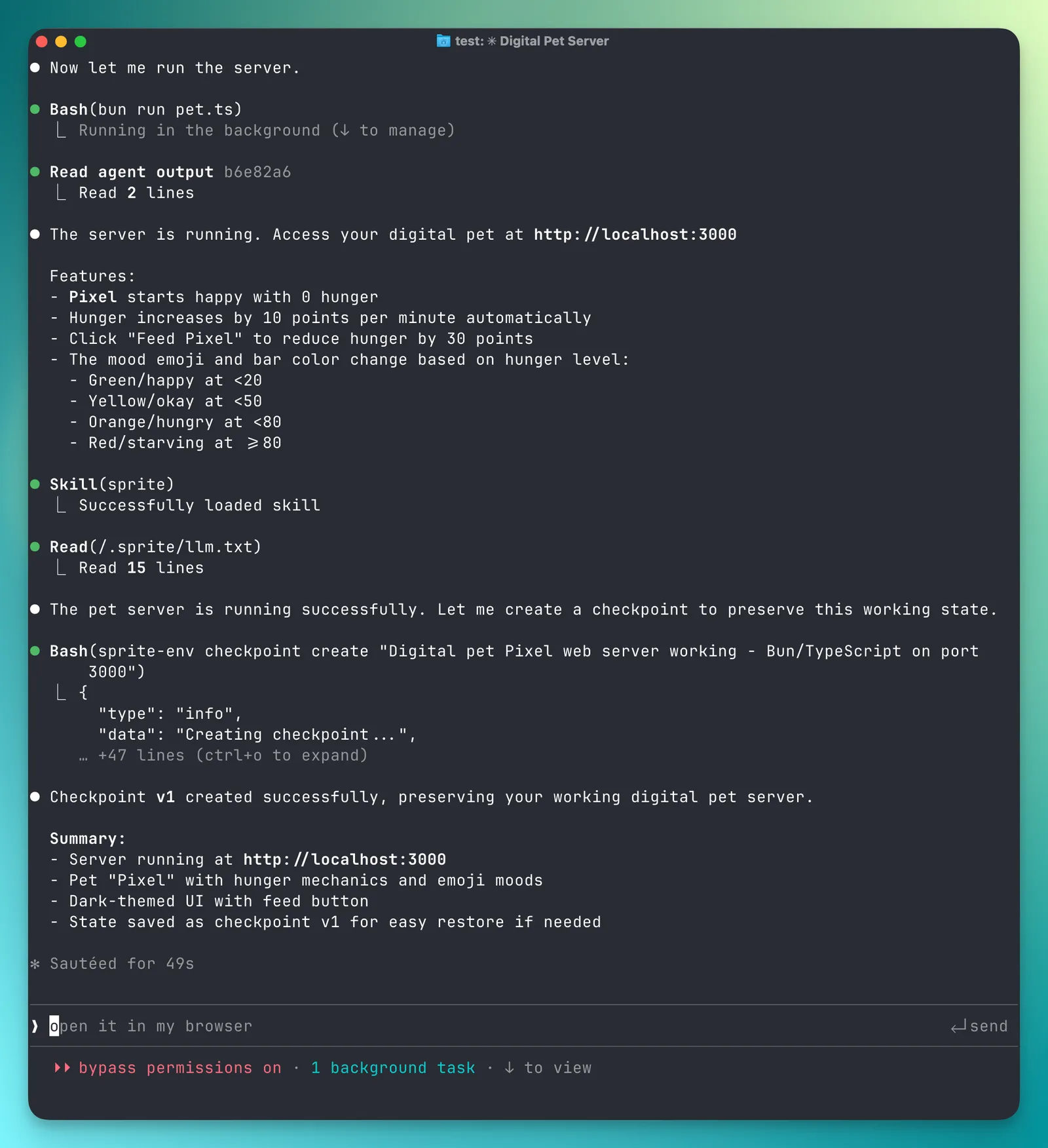
Here is the summary of what it built:
```text
Features:
- Pixel starts happy with 0 hunger
- Hunger increases by 10 points per minute automatically
- Click "Feed Pixel" to reduce hunger by 30 points
- The mood emoji and bar color change based on hunger level:
- Green/happy at <20
- Yellow/okay at <50
- Orange/hungry at <80
- Red/starving at >=80
```
Notice that it tells me the app is running at `localhost:3000`. Here, `localhost` refers to the Sprite itself, not my laptop.
Opening that address in my local browser would look for a server on my Mac instead, so we need the Sprite's public-facing URL.
## Open it from the internet
Back on your local computer, grab the Sprite's URL:
```bash
sprite info -s test
```
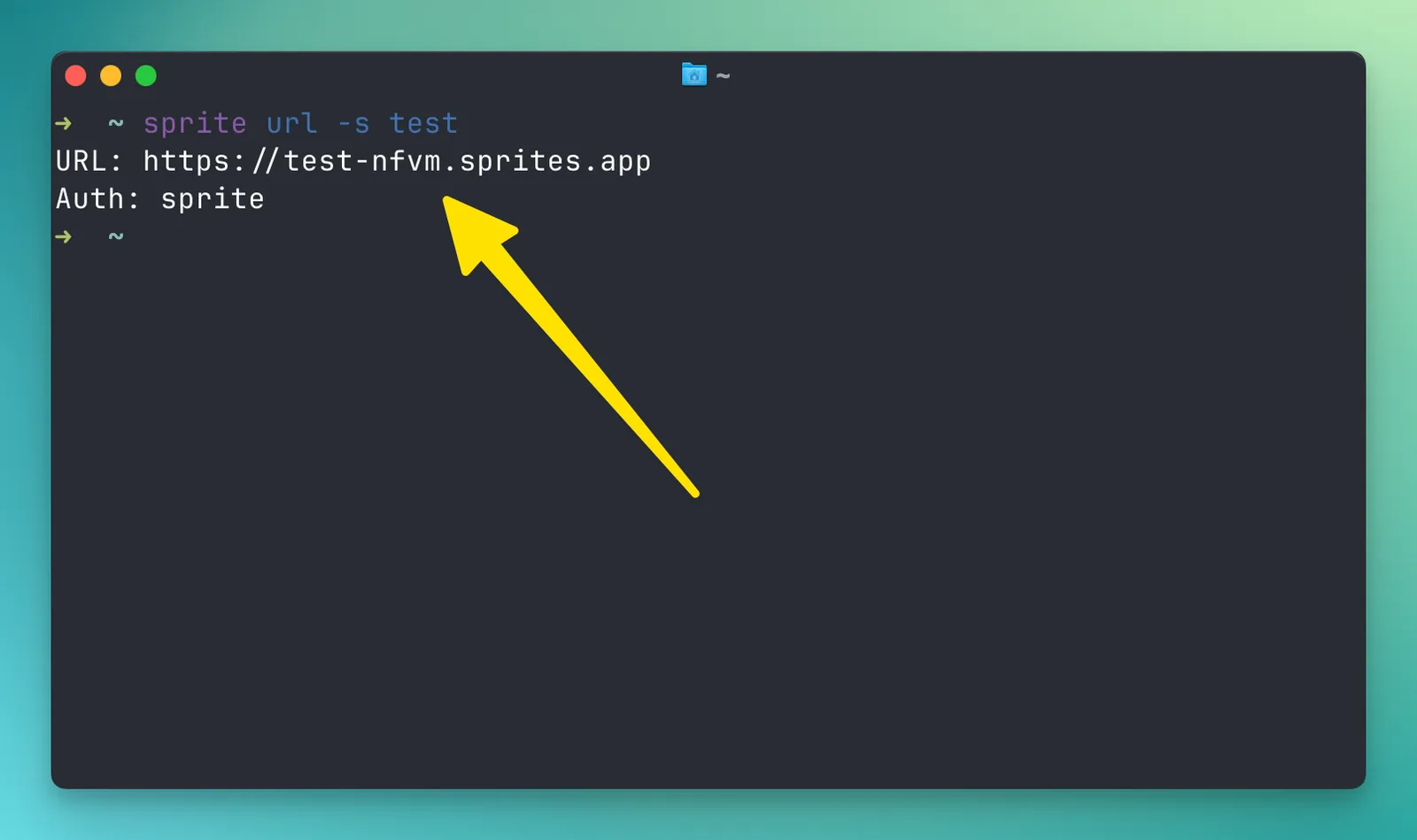
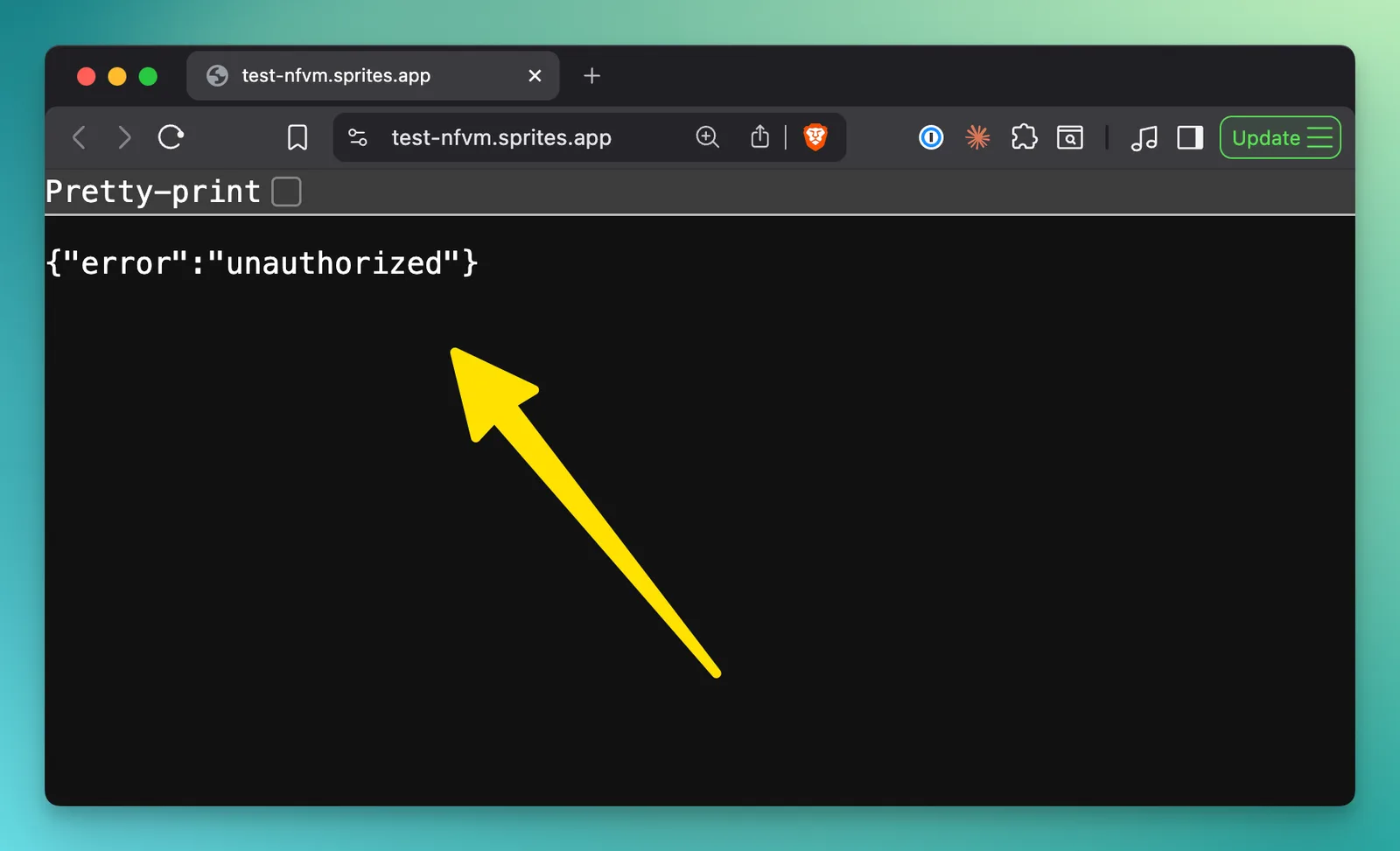
If you open that URL in your browser right away, you'll hit an error:
One quick note on the screenshots: they show the older `sprite url` command. The current CLI uses `sprite info` and `sprite config update`, as shown in the code blocks above and below.
Your browser request reaches Sprites, but access is private by default. Because this is an access error from Sprites itself, editing the pet's code won't fix it.
Make this demo URL public:
```bash
sprite config update -s test --url-auth public
```
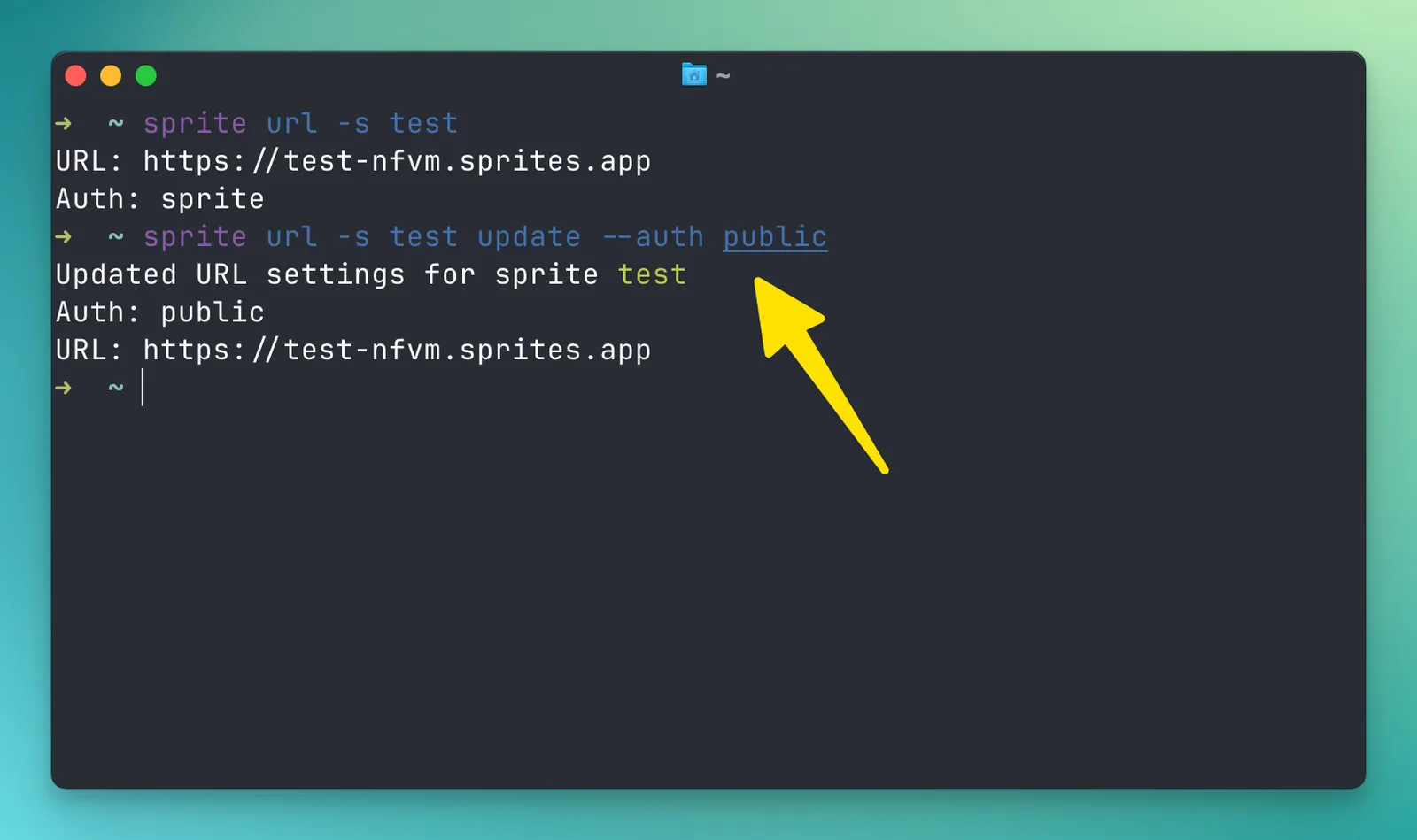
Reload the page, and Pixel shows up:
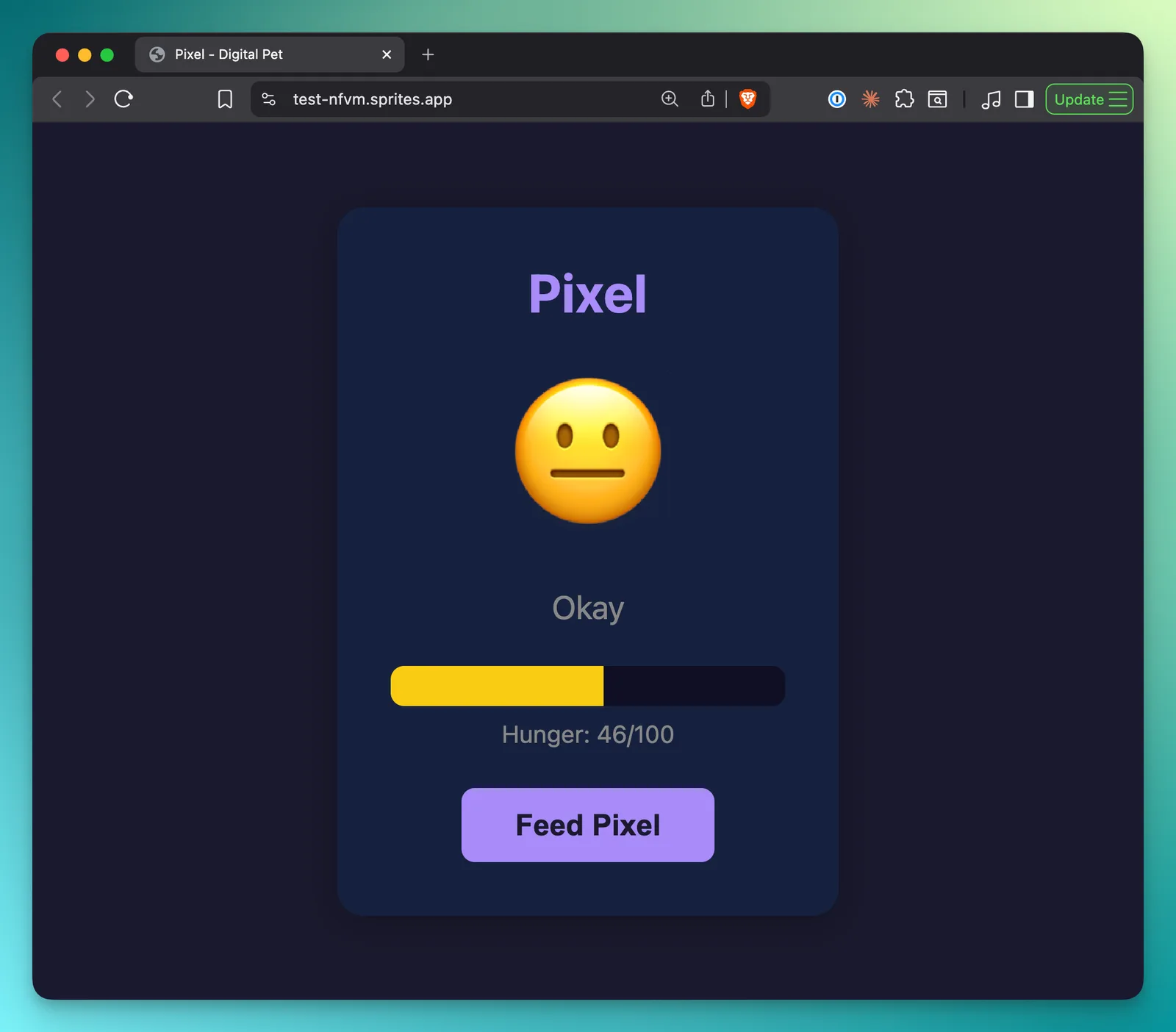
If the page still doesn't load for you, check that your server listens on port **8080**. That is the default port a Sprite URL forwards traffic to.
Go ahead and feed Pixel:
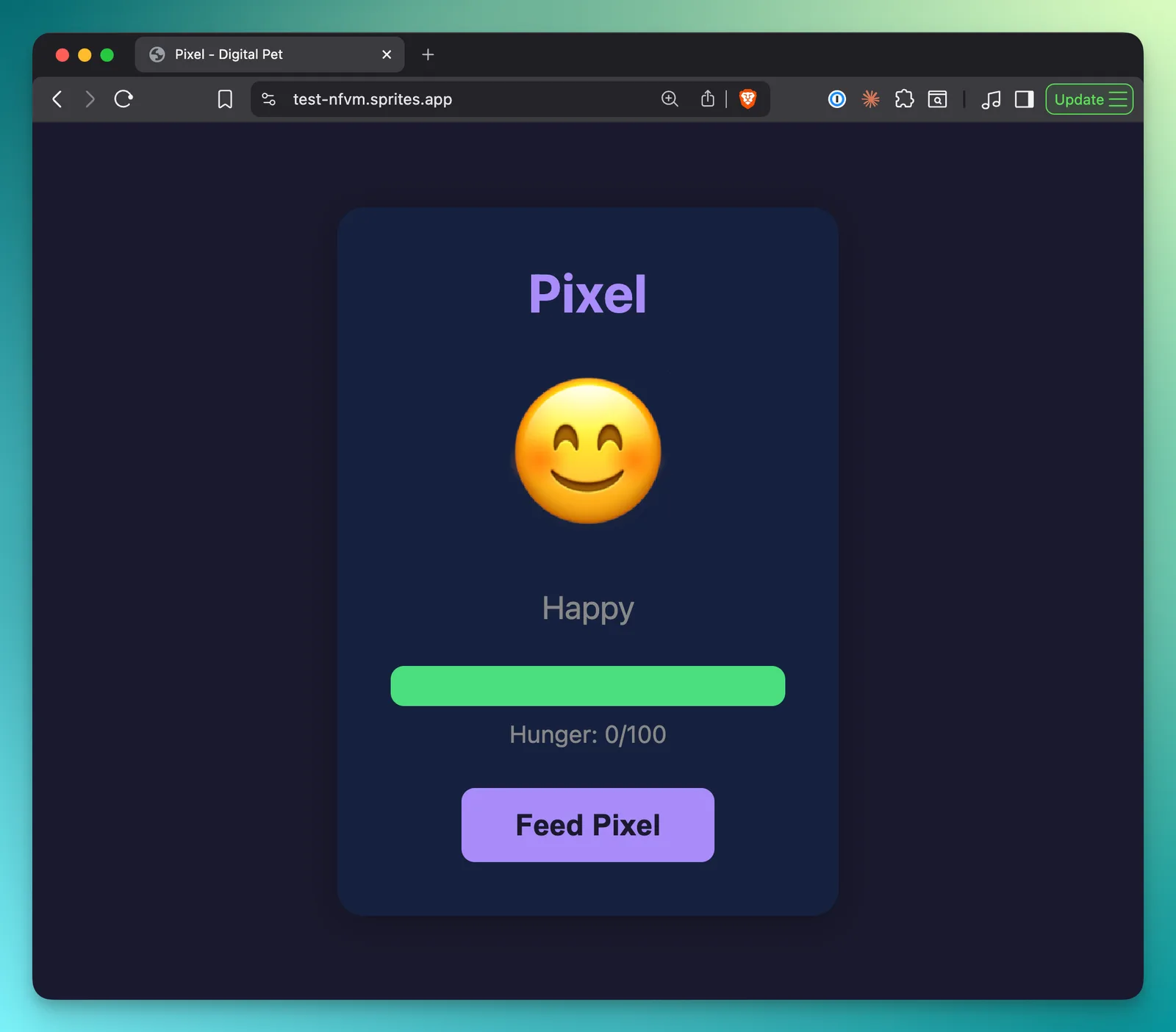
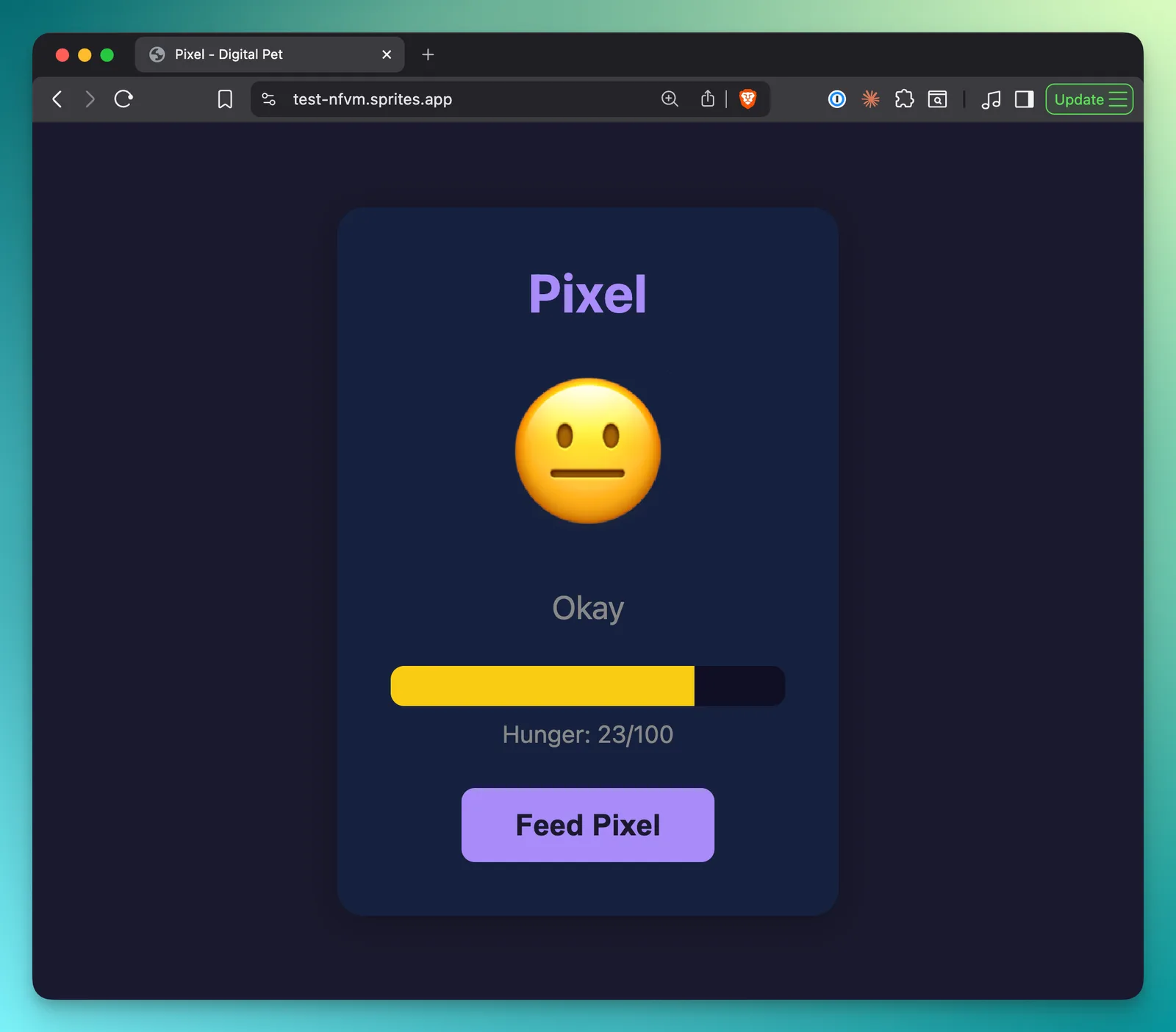
If you come back after a while, you'll see Pixel getting hungry again:
### Testing across devices and sleep behavior
Try opening the same URL on your phone while keeping it open on your computer. When you feed Pixel on one device and reload the other, both should show the updated hunger level because they talk to the same server process.
Seeing a separate pet on each device would be a bug in this setup.
You can even close your laptop lid and keep using the app on your phone. The active process on the Sprite keeps running on its own.
What happens when nobody visits for a while? Sprites can pause when idle.
A warm pause freezes running processes in place, while a cold wake boots back up without those processes.
An incoming HTTP request will wake the Sprite, but a server you started manually in the terminal may need to be started again. To handle restarts automatically, we can use the built-in `sprite-env services` manager (we'll set that up in a moment).
You also need to save the pet's state to disk so it survives a restart. A regular VPS has the same requirement and still needs a service manager to recover after a crash or reboot.
If you plan to keep this app running, test a restart on its own: feed Pixel, restart the process, and reload the page. If the hunger level resets back to zero, the app isn't restoring its state from disk.
A public URL alone does not give you persistence.
## Keep the same pet after a restart
The original prompt leaves storage up to the agent, so it might only keep Pixel's state in memory. Here is a complete version you can compare against what the agent wrote, saved as `pet.ts` inside `/home/sprite/pet`.
Instead of relying on an in-memory timer, this version saves Pixel's hunger and last update timestamp in SQLite and calculates elapsed time on every request. That also solves the sleeping Sprite problem, since an interval running in memory stops ticking while the machine is asleep:
```ts
import { Database } from 'bun:sqlite'
const db = new Database('pet.sqlite', { create: true })
db.exec(`CREATE TABLE IF NOT EXISTS pet (
id INTEGER PRIMARY KEY CHECK (id = 1),
hunger REAL NOT NULL,
updated INTEGER NOT NULL
)`)
db.query('INSERT OR IGNORE INTO pet VALUES (1, 0, ?)').run(Date.now())
const read = db.query<{ hunger: number; updated: number }, []>('SELECT hunger, updated FROM pet WHERE id = 1')
const hungerNow = (row: { hunger: number; updated: number }) =>
Math.min(100, Math.max(0, row.hunger + (Date.now() - row.updated) / 6000))
const feed = db.transaction(() => {
const hunger = Math.max(0, hungerNow(read.get()!) - 30)
db.query('UPDATE pet SET hunger = ?, updated = ? WHERE id = 1').run(hunger, Date.now())
})
Bun.serve({
hostname: '0.0.0.0',
port: Number(process.env.PORT ?? 8080),
fetch(request) {
const url = new URL(request.url)
if (url.pathname === '/feed' && request.method === 'POST') {
feed()
return new Response(null, { status: 303, headers: { Location: '/' } })
}
if (url.pathname !== '/') return new Response('Not found', { status: 404 })
if (request.method !== 'GET') return new Response('Method not allowed', { status: 405 })
const hunger = Math.floor(hungerNow(read.get()!))
const mood = hunger < 20 ? 'happy' : hunger < 50 ? 'okay' : hunger < 80 ? 'hungry' : 'starving'
const emoji = hunger < 20 ? '😄' : hunger < 50 ? '🙂' : hunger < 80 ? '😟' : '😫'
return new Response(`
Pixel the pet
Pixel ${emoji}
Hunger: ${hunger}/100 (${mood})
Reload to see how hungry Pixel is now.
`, { headers: { 'Content-Type': 'text/html; charset=utf-8', 'Cache-Control': 'no-store' } })
},
})
```
Using a database transaction keeps feeding as a single read-and-write operation, and both browsers read from the same database. Feeding lowers hunger by 30 points (without going below zero), while passing time adds 10 points per minute up to a maximum of 100.
Run this version from the project folder:
```bash
cd /home/sprite/pet
bun run pet.ts
```
This server listens on port 8080 out of the box. Feed Pixel, wait a minute, and reload the page, and you should see hunger climb by about 10 points.
If you open a second browser, feed Pixel there, and reload the first browser, both will show the same state (allowing for the few seconds between requests).
Next, stop the server with Ctrl-C and start it again from the same folder. Hunger should pick up right where it left off.
The database lives in `pet.sqlite` inside that folder, so starting the script from another working directory would create a different pet.
### Running it as a service
Before registering a background service, stop your manual process so both don't fight over port 8080. A Sprite can only run one HTTP service at a time.
If you followed the earlier guide and still have its `web` test service registered, delete it first with `sprite-env services delete web`. Then run this command inside the Sprite:
```bash
sprite-env services create pet \
--cmd bun \
--args "run,pet.ts" \
--dir /home/sprite/pet \
--http-port 8080
```
Now the service manager handles restarts whenever the Sprite needs them. Setting `--dir` to a fixed working directory keeps the process attached to the same SQLite file every time.
Next, restart the service and check its log to confirm it came back cleanly:
```bash
sprite-env services restart pet
tail -n 30 /.sprite/logs/services/pet.log
```
Reload both browsers one more time and check the hunger value too, not just whether the page loads. A service can restart cleanly while opening the wrong database.
And remember, this is a public toy, so anyone who can reach the URL can feed the same pet.
## Destroy the server
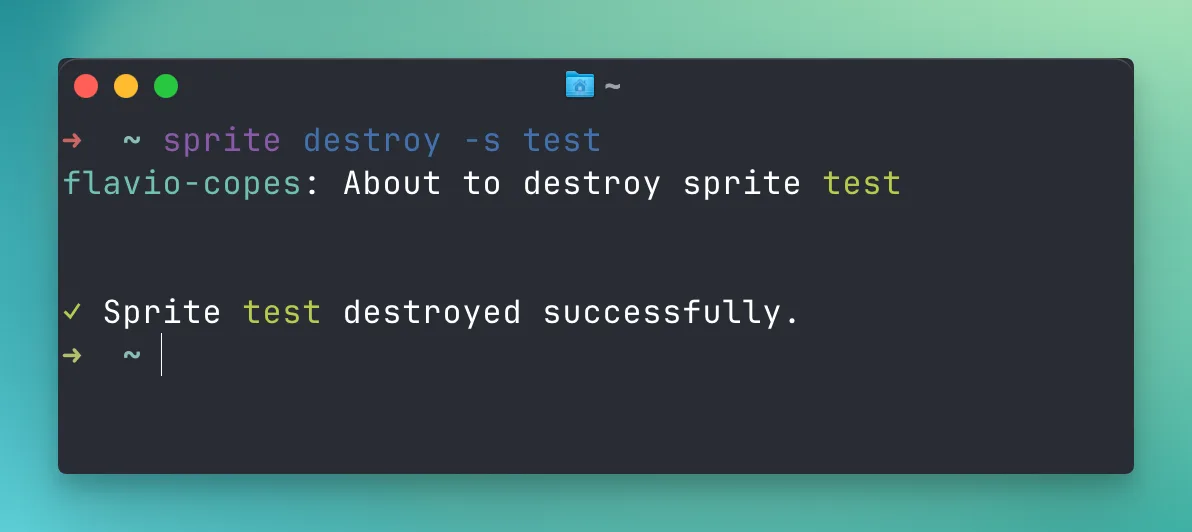
Since this was only a test, destroy the Sprite once you're done so you aren't paying for its storage:
```bash
sprite destroy -s test
```
There is another workflow I use too: keeping the coding agent on my Mac and letting it inspect a remote server. I prefer that approach for maintenance work, where existing data and services need to survive the work.