# How to use Firebase Firestore as your database
> Learn how to use Firebase Firestore as your database: create collections and documents, read and write data from JavaScript, and set up security rules.
Author: [Flavio Copes](https://flaviocopes.com/about/) | Published: 2019-10-28 | Topics: [Services](https://flaviocopes.com/tags/services/) | Canonical: https://flaviocopes.com/firebase-firestore/
I had the need to create a storage for some data for my [membership Club](https://club.flaviocopes.com), the place where I teach programming.
I wanted my users to be able to manually say "I completed this course", by clicking a button.
Basically, I wanted to store a particular object for every user.
## Setting up Firebase
I decided to use **Firebase** for this, and in particular the **Firestore database** they provide.
The free tier for it is generous, with up to 1GB of data stored and 10GB of network transfer per month. Way exceeding my estimates for what I need!
Open the Firebase website at
Firebase is a Google product, so once you are logged in to Google, you are essentially also
logged in to Firebase.
I created a new Firebase project by clicking "Create a project"
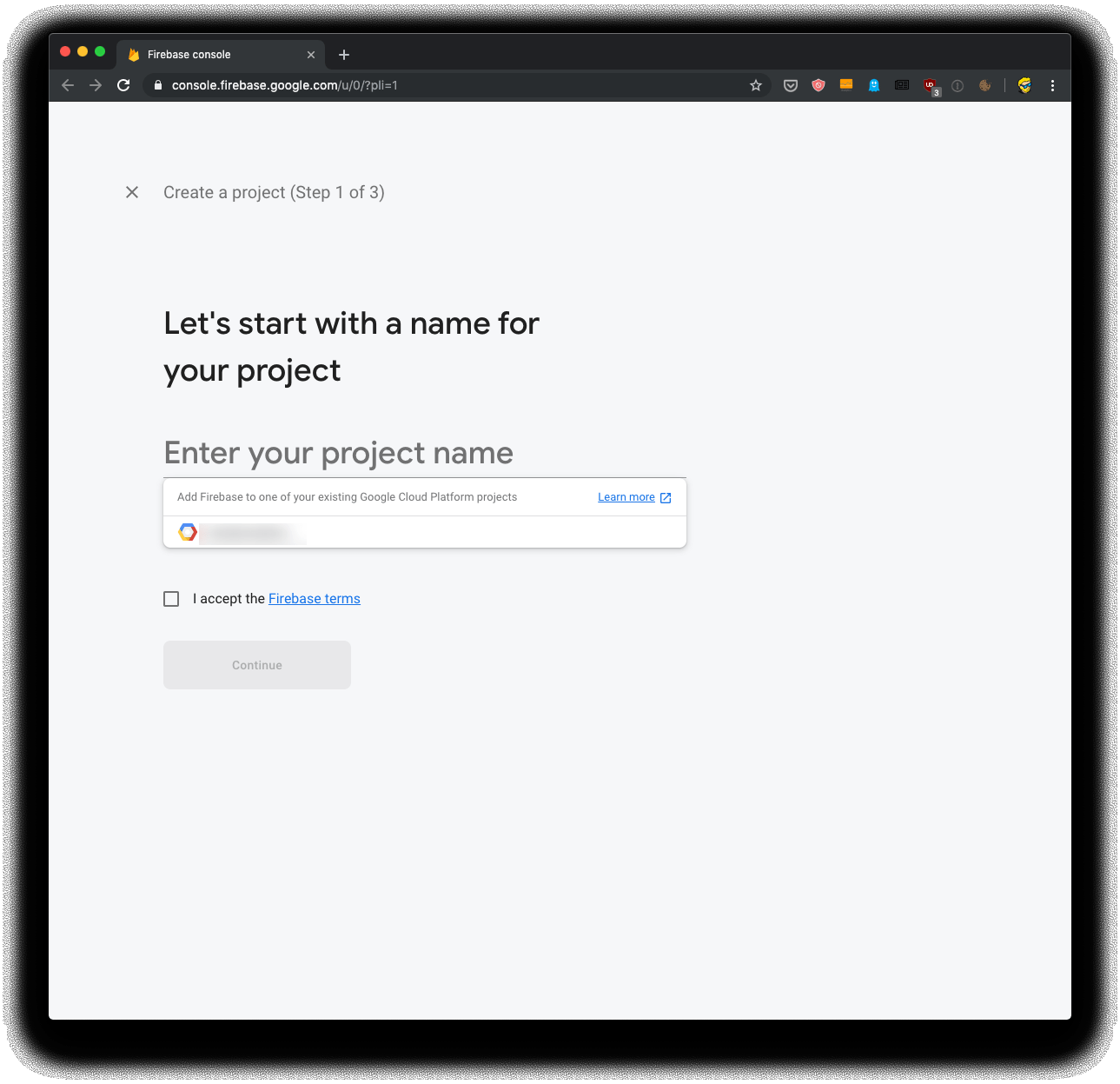
I gave it a name:
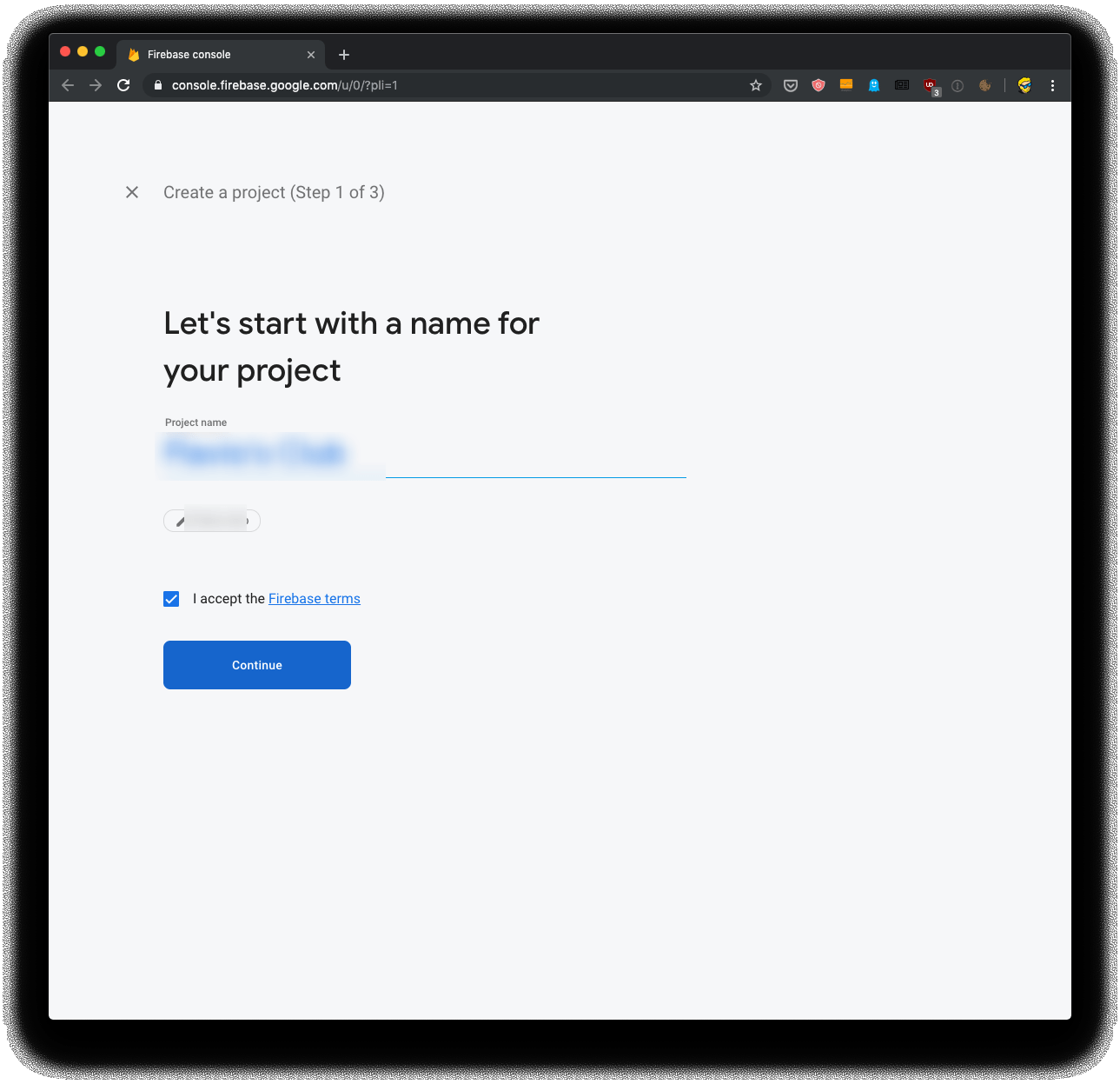
And that was it:
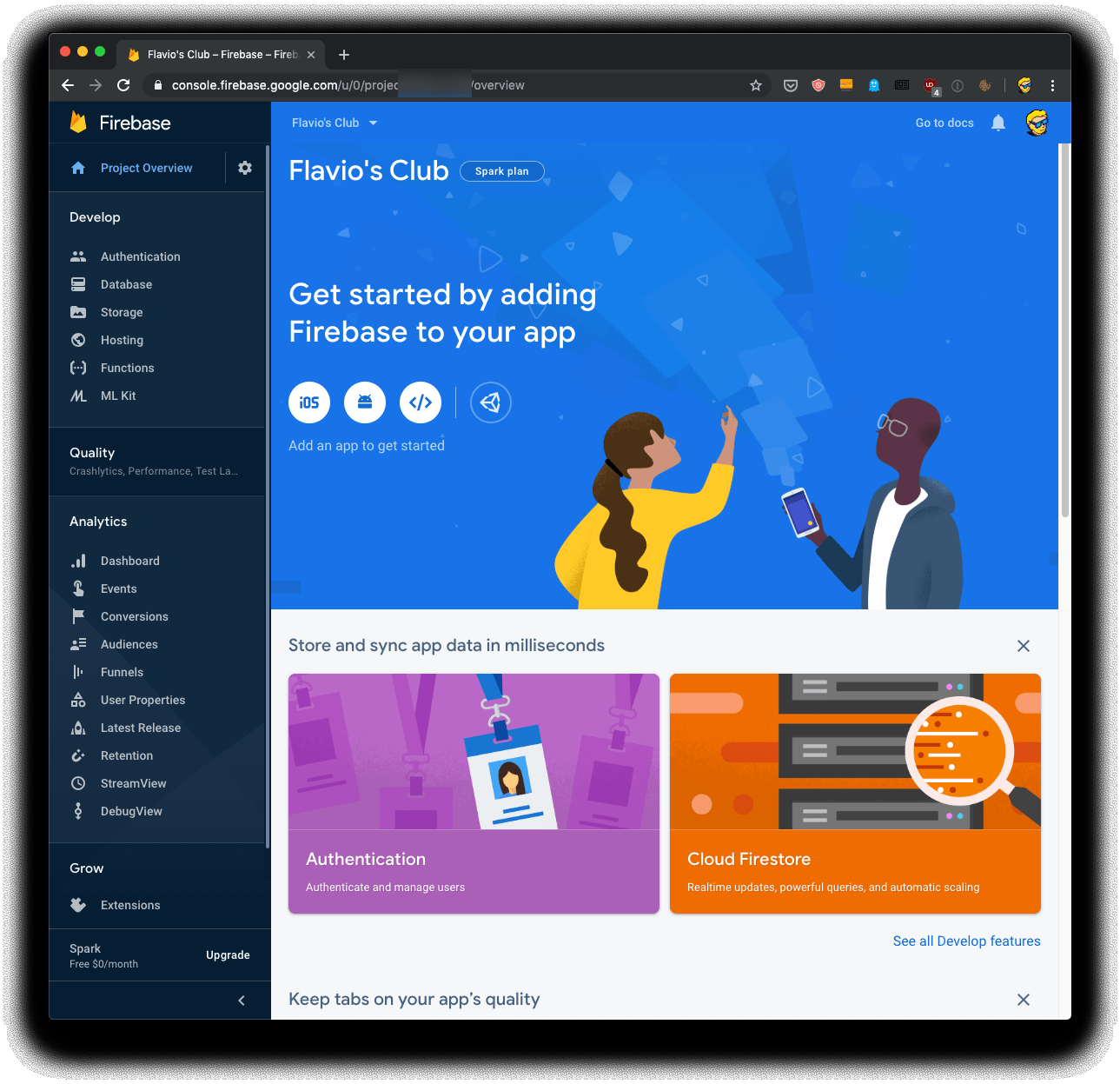
I clicked the "Web" icon next to iOS and Android, and I entered the app name:
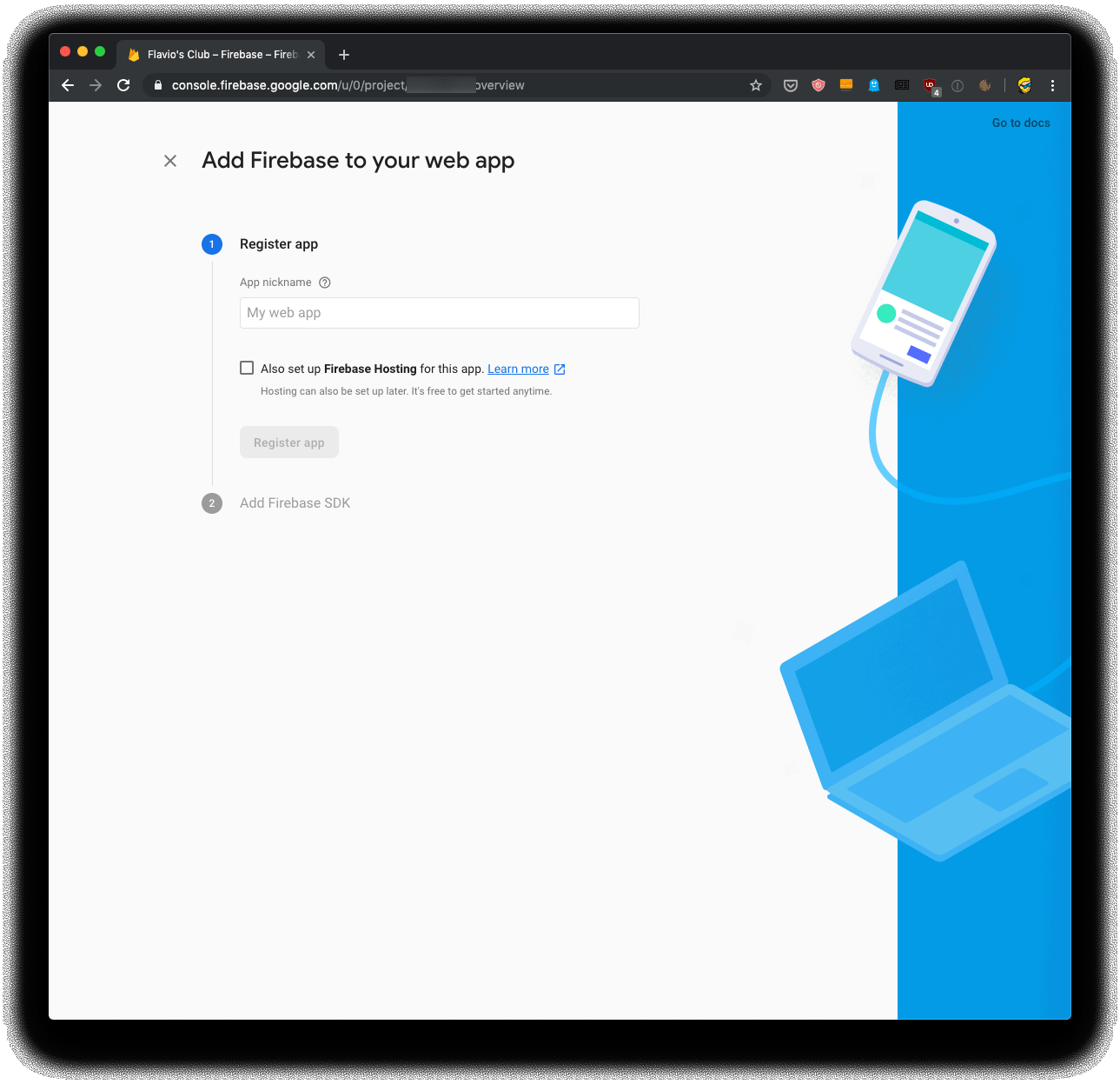
And Firebase immediately gave me the access keys I needed, along with some sample code:
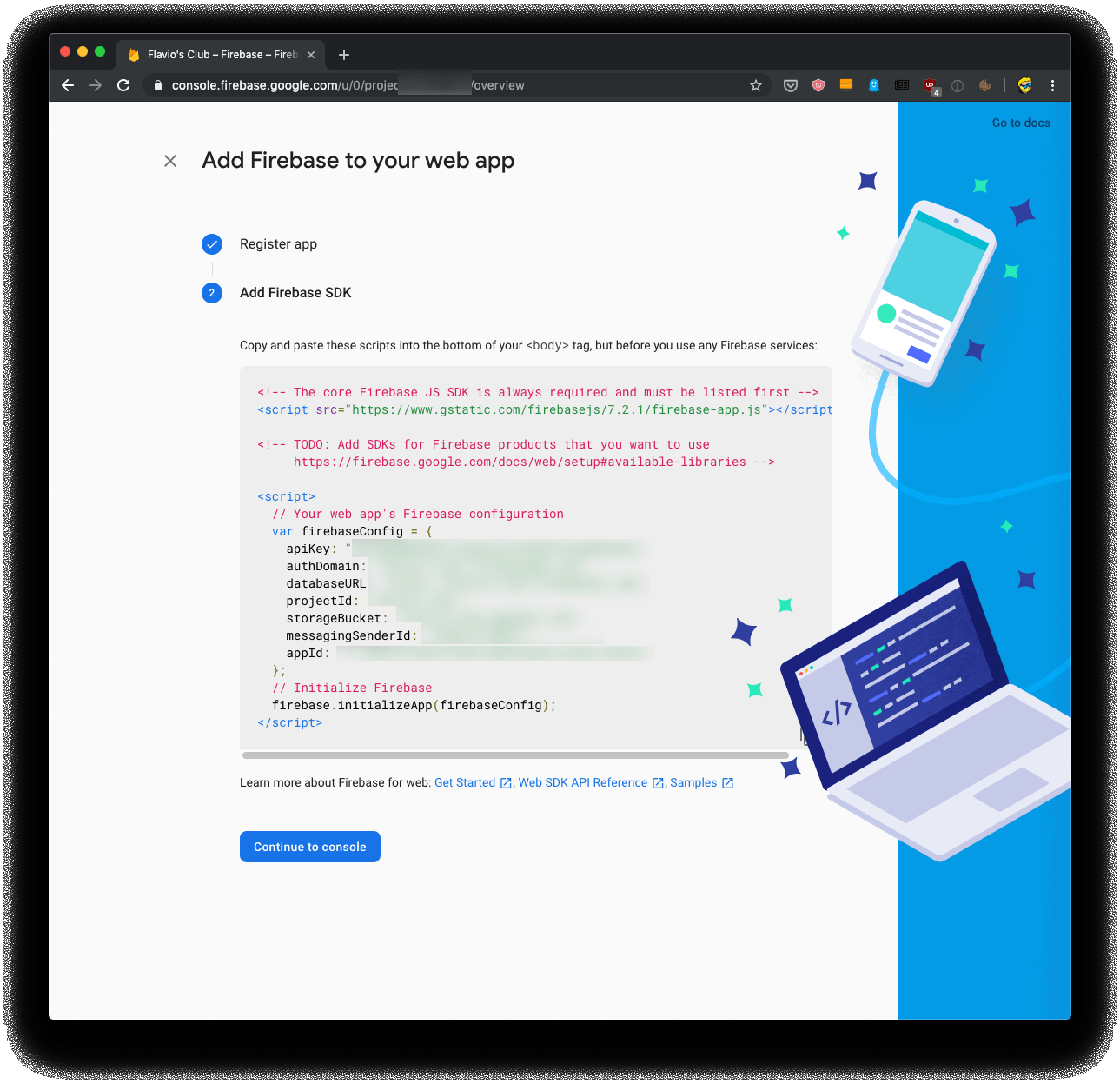
Right after that, Firebase prompted me to add some security rules for the database.
You can choose 2 things by default: open to everyone, or closed to everyone. I started open to everyone, something they call **test mode**.
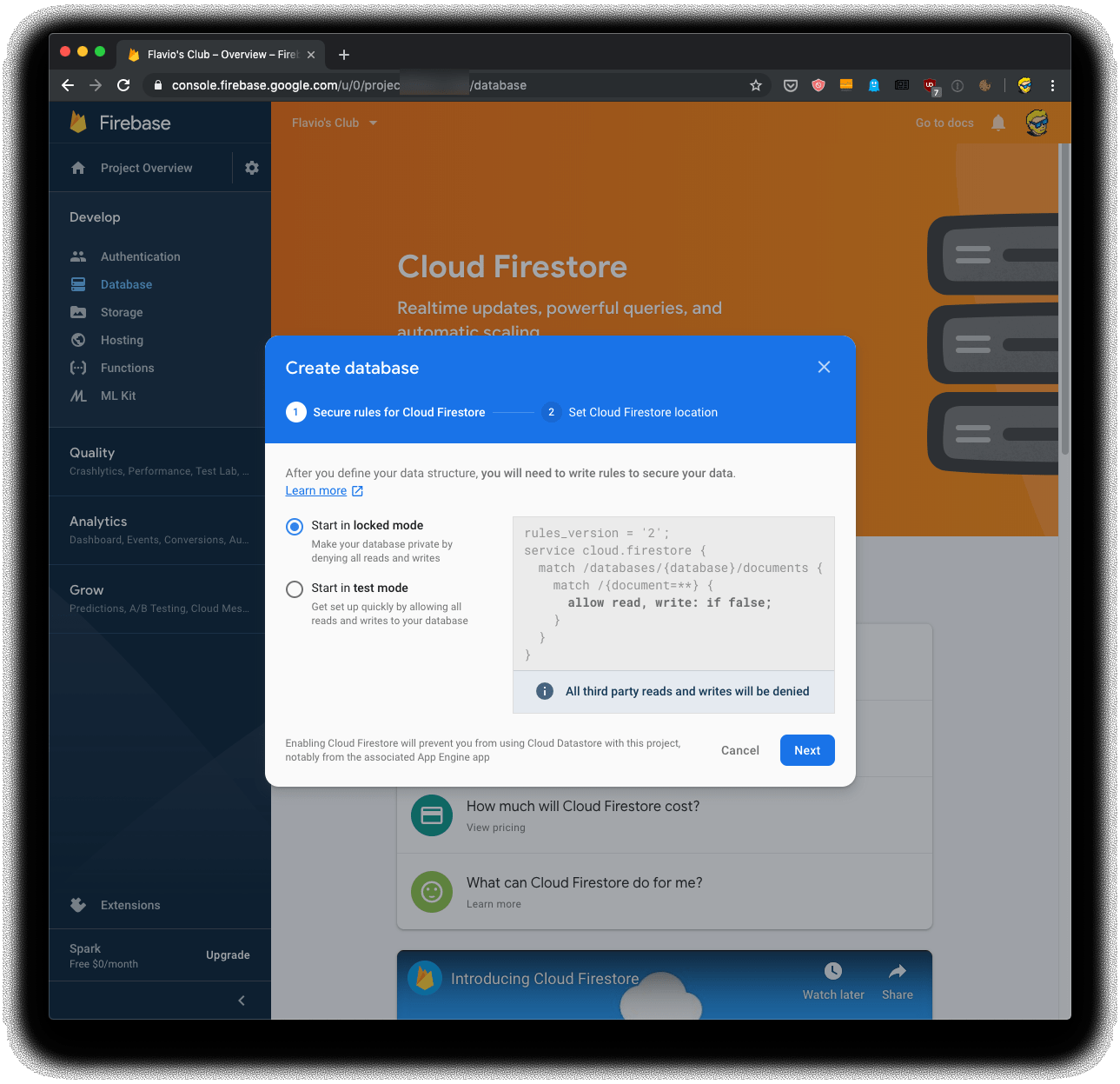
That's it! I was ready to go, by creating a collection.
What's a collection? In the Firestore terminology, we can create many different collections and assign documents to each collection.
A document can then contain fields, and other collections.
It's not much different than other NoSQL databases, like [MongoDB](https://flaviocopes.com/mongodb/).
I highly recommend watching [the YouTube playlist on the subject](https://www.youtube.com/playlist?list=PLl-K7zZEsYLluG5MCVEzXAQ7ACZBCuZgZ), it's very well done.
So I added my collection, which I called `users`.
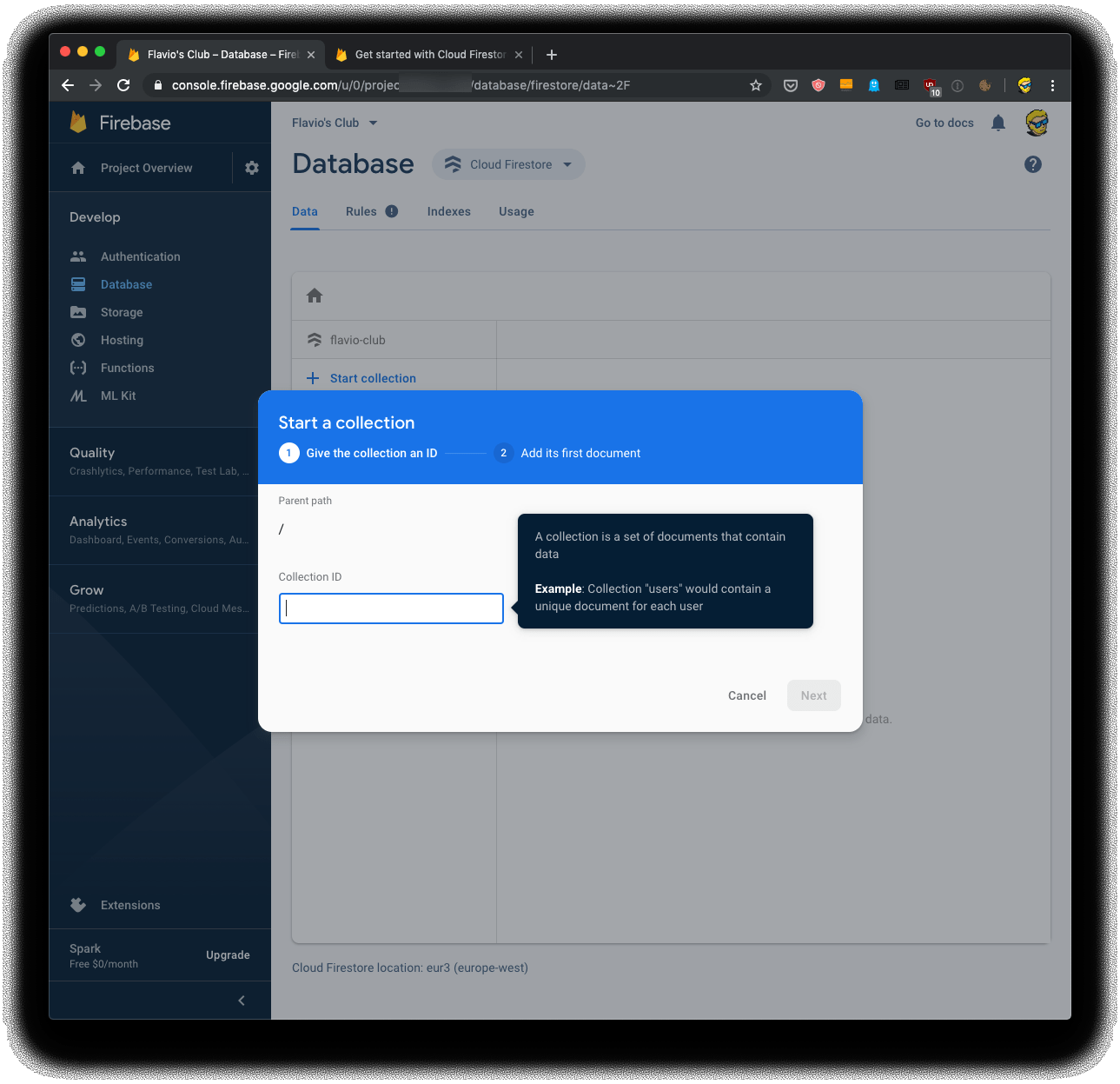
I wanted to identify each user using a special string, which I call `id`.
## The frontend code
We're now getting to the [JavaScript](https://flaviocopes.com/javascript/) part.
In the footer, I included those 2 files, provided by Firebase:
```html
```
then I added a [DOMContentLoaded event listener](https://flaviocopes.com/dom-ready/), to make sure I ran the code when the DOM was ready:
```html
```
In there, I added the Firebase configuration:
```js
const firebaseConfig = {
apiKey: "MY-API-KEY",
authDomain: "MY-AUTH-DOMAIN",
projectId: "MY-PROJECT-ID"
}
```
I passed this object to `firebase.initializeApp()`, and then I called `firebase.firestore()` to get the reference to the database object:
```js
firebase.initializeApp(firebaseConfig)
const db = firebase.firestore()
```
Now, I created a script to populate the user IDs from a list I had in my backend, using a simple loop:
```js
const list = [/*...my list...*/]
list.forEach(item => {
db.collection('users').doc(item).set({})
})
```
..and I ran it once, to populate the database.
I basically programmatically **created a document for each user**.
This is very important, because once I created a document, it meant I could restrict the permissions to only update those documents, and disallow adding new ones or deleting them (something we'll do later)
Ok so now I had some complex logic to identify the user ID and the course ID, which I won't go into because it's not related to our task here.
Once I gathered that, I could get a reference to the object:
```js
const id = /* the user ID */
const course = /* the course ID */
const docRef = db.doc(`membership/${id}`)
```
Great! Now I could get the document reference from Firebase:
```js
docRef.get().then(function(doc) {
if (doc.exists) {
const data = doc.data()
document.querySelector('button')
.addEventListener('click', () => {
data[course] = true
docRef.update(data)
})
} else {
//user does not exist..
}
})
```
> My logic was actually much more complicated because I have other moving parts, but you get the idea!
I initialize the document data by calling `doc.data()` and when the button is clicked, which I assume it's the button to say "I completed the course", we associated the `true` boolean value to the club identifier.
Later on, on subsequent loadings of the courses list page, I can initialize the page and assign a class if the course was completed, like this:
```js
for (const [key, value] of Object.entries(data[course])) {
const element = document.querySelector('.course-' + course)
if (element) {
element.classList.add('completed')
}
}
```
## The permissions problem
I started Firebase in test mode, remember? Which makes the database open to everyone - everyone with the access keys, which are public and published in the code shipped to the frontend.
So I had to do one thing: decide the level of permission allowed.
And I stumbled upon a pretty important problem.
Using the Firebase Console, under _Rules_, we can trim the permission. Initially this was the default rule:
```js
rules_version = '2';
service cloud.firestore {
match /databases/{database}/documents {
match /{document=**} {
allow read, write;
}
}
}
```
I changed the rules to `read, update`, so one can only update a document, not create new ones:
```js
rules_version = '2';
service cloud.firestore {
match /databases/{database}/documents {
match /{document=**} {
allow read, update;
}
}
}
```
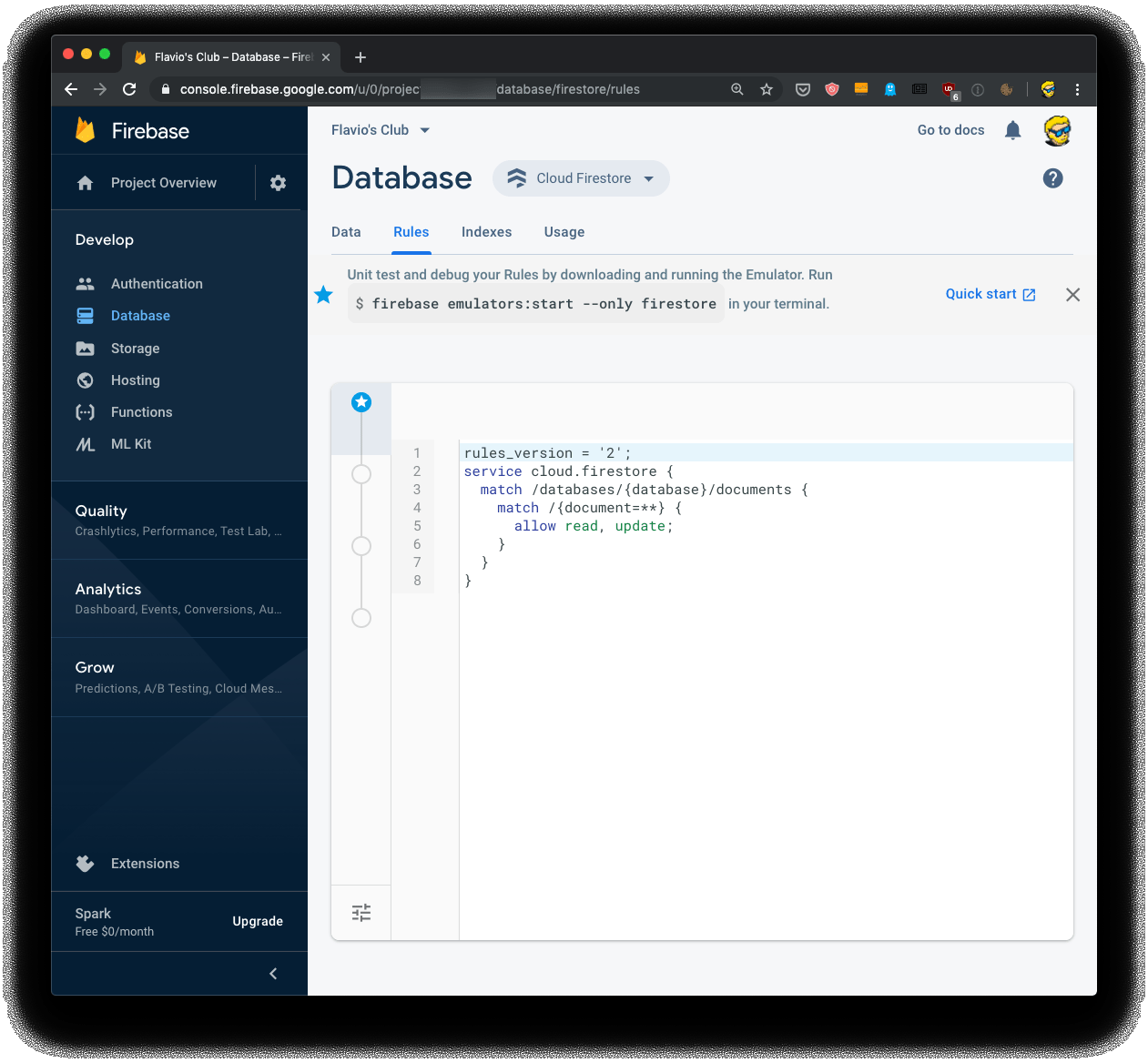
But I was not able to prevent people to use the Firebase API, now freely available in the browser, to play around and list all the other documents in the collection - getting access to other people's files.
While this didn't handle any sensitive data, it was not possible to ship this code.
## Moving the code from frontend to the backend via a custom API
The permission issue was a road blocker.
I thought about removing all the code I had, but eventually I figured out that I could hide all the API access from the browser completely and use a [Node.js](https://flaviocopes.com/nodejs/) service to run the Firebase API.
This is also a common method to hide private/secret keys required by services: hide them behind a server you control.
Instead of calling the Firebase from the browser, I created a set of endpoints on my own server, for example:
- POST to `/course` to set a course as completed
- POST to `/data` to get the data associated to the user
and I access them using the [Fetch API](https://flaviocopes.com/fetch-api/):
```js
const options = {
method: 'POST',
headers: {
'Accept': 'application/json',
'Content-Type': 'application/json'
},
body: JSON.stringify({ id, course, lesson })
}
const url = BASE_URL + '/lesson'
fetch(url, options).catch(err => {
console.error('Request failed', err)
})
```
All the logic with button clicks and so on remains in the client-side code, of course, I just moved the Firebase logic away.
On the Node.js server side, I installed the official `firebase` package using `npm install firebase` and required it:
```js
const firebase = require('firebase')
```
I set up an [Express](https://flaviocopes.com/express/) server to use [CORS](https://flaviocopes.com/express-cors/) and I initialized Firebase:
```js
const firebaseConfig = {
apiKey: process.env.APIKEY,
authDomain: process.env.AUTHDOMAIN,
projectId: process.env.PROJECTID
}
firebase.initializeApp(firebaseConfig)
const db = firebase.firestore()
```
Then the code is exactly like the one I used in the frontend, except it now fires on HTTP endpoint calls. This is the code that returns a specific document from our collection
```js
const getData = async (id) => {
const doc = await db.doc(`membership/${id}`).get()
const data = doc.data()
if (!data) {
console.error('member does not exist')
return
}
return data
}
app.post('/data', cors(), async (req, res) => {
const id = req.body.id
if (id) {
res.json(await getData(id))
return
}
res.end()
})
```
and here's the API to set a course as completed:
```js
const setCourseAsCompleted = async (id, course) => {
const doc = await db.doc(`membership/${id}`).get()
const data = doc.data()
if (!data) {
console.error('member does not exist')
return
}
if (!data[course]) {
data[course] = {}
}
data[course]['done'] = true
db.doc(`membership/${id}`).update(data)
}
app.post('/course', cors(), (req, res) => {
const id = req.body.id
const course = req.body.course
if (id && course) {
setCourseAsCompleted(id, course)
res.end('ok')
return
}
res.end()
})
```
That's basically it. There's some more code required, to handle other logic, but the gist of Firebase is this one I posted. Now I am also able to add a user for my server-side service, and limit all other access to the Firebase API and strengthen the security on it.