# How to install Next.js
> Learn how to install Next.js from scratch, from setting up Node and npm to running npm install next react react-dom and starting the Next dev server.
Author: Flavio Copes | Published: 2019-11-07 | Canonical: https://flaviocopes.com/how-to-install-nextjs/
To install [Next.js](https://flaviocopes.com/nextjs/), you need to have [Node.js](https://flaviocopes.com/nodejs/) installed.
Make sure that you have the latest version of Node. Check with running `node -v` in your terminal, and compare it to the latest LTS version listed on .
After you install Node.js, you will have the `npm` command available into your command line.
If you have any trouble at this stage, I recommend the following tutorials I wrote for you:
- [how to install Node.js](https://flaviocopes.com/node-installation/)
- [how to update Node.js](https://flaviocopes.com/how-to-update-node/)
- [An introduction to the npm package manager](https://flaviocopes.com/npm/)
- [Unix Shells Tutorial](https://flaviocopes.com/shells/)
- [How to use the macOS terminal](https://flaviocopes.com/macos-terminal/)
- [The Bash Shell](https://flaviocopes.com/bash/)
Now that you have Node updated to the latest version and `npm`, create an empty folder anywhere you like, for example in your home folder, and go into it:
```sh
mkdir nextjs
cd nextjs
```
and create your first Next project
```sh
mkdir firstproject
cd firstproject
```
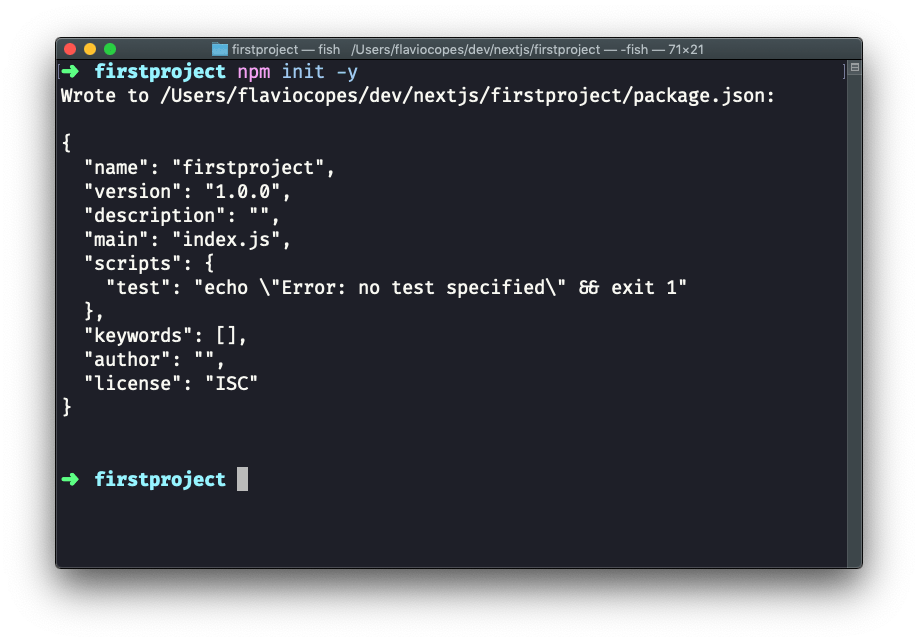
Now use the `npm` command to initialize it as a Node project:
```sh
npm init -y
```
The `-y` option tells `npm` to use the default settings for a project, populating a sample `package.json` file.
Now install Next and [React](https://flaviocopes.com/react/):
```sh
npm install next react react-dom
```
Your project folder should now have 2 files:
- `package.json` ([see my tutorial on it](https://flaviocopes.com/package-json/))
- `package-lock.json` ([see my tutorial on package-lock](https://flaviocopes.com/package-lock-json/))
and the `node_modules` folder.
Open the project folder using your favorite editor. My favorite editor is [VS Code](https://flaviocopes.com/vscode/). If you have that installed, you can run `code .` in your terminal to open the current folder in the editor (if the command does not work for you, see [this](https://code.visualstudio.com/docs/setup/mac#_launching-from-the-command-line))
Open `package.json`, which now has this content:
```json
{
"name": "mysite",
"version": "1.0.0",
"description": "",
"main": "index.js",
"scripts": {
"test": "echo \"Error: no test specified\" && exit 1"
},
"keywords": [],
"author": "",
"license": "ISC",
"dependencies": {
"next": "^9.1.2",
"react": "^16.11.0",
"react-dom": "^16.11.0"
}
}
```
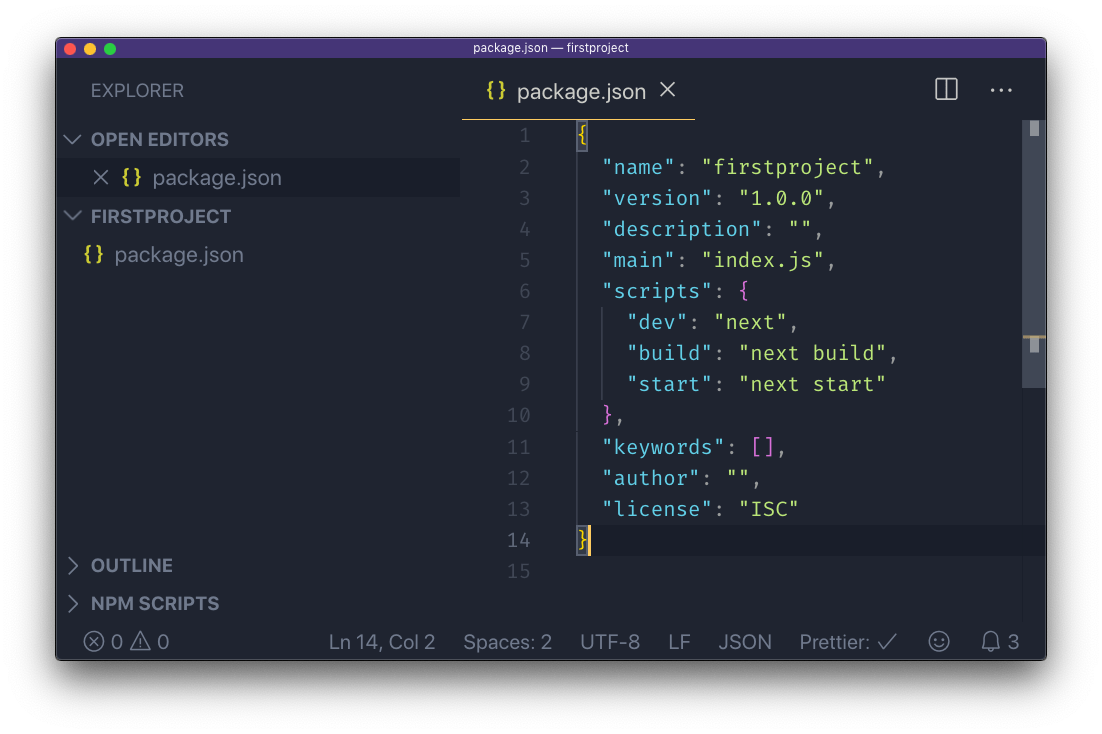
and replace the `scripts` section with:
```json
"scripts": {
"dev": "next",
"build": "next build",
"start": "next start"
}
```
to add the Next.js build commands, which we're going to use soon.
Now create a `pages` folder, and add an `index.js` file.
In this file, let's create our first React component.
We're going to use it as the default export:
```js
const Index = () => (
Home page
)
export default Index
```
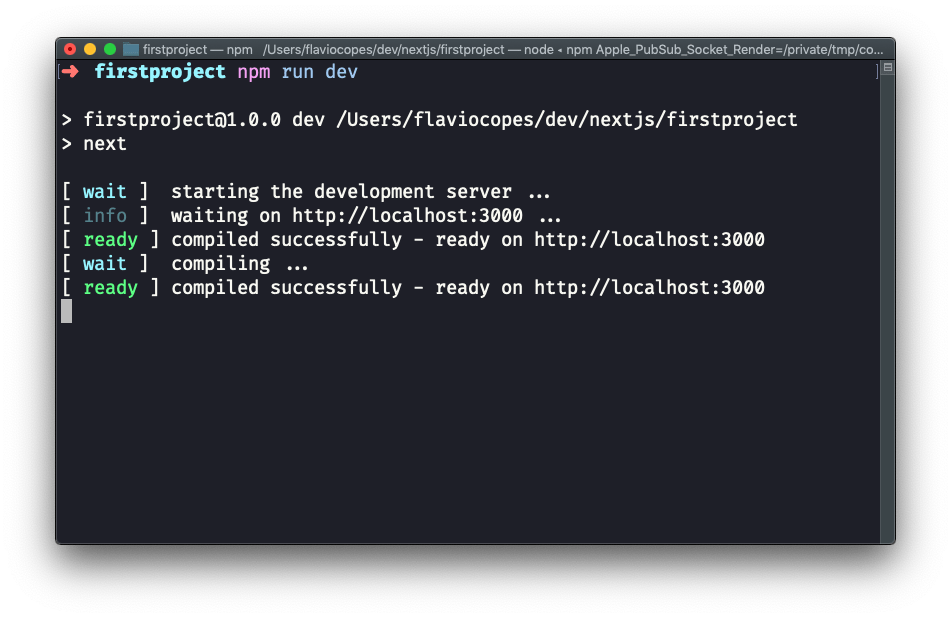
Now using the terminal, run `npm run dev` to start the Next development server.
This will make the app available on port 3000, on localhost.
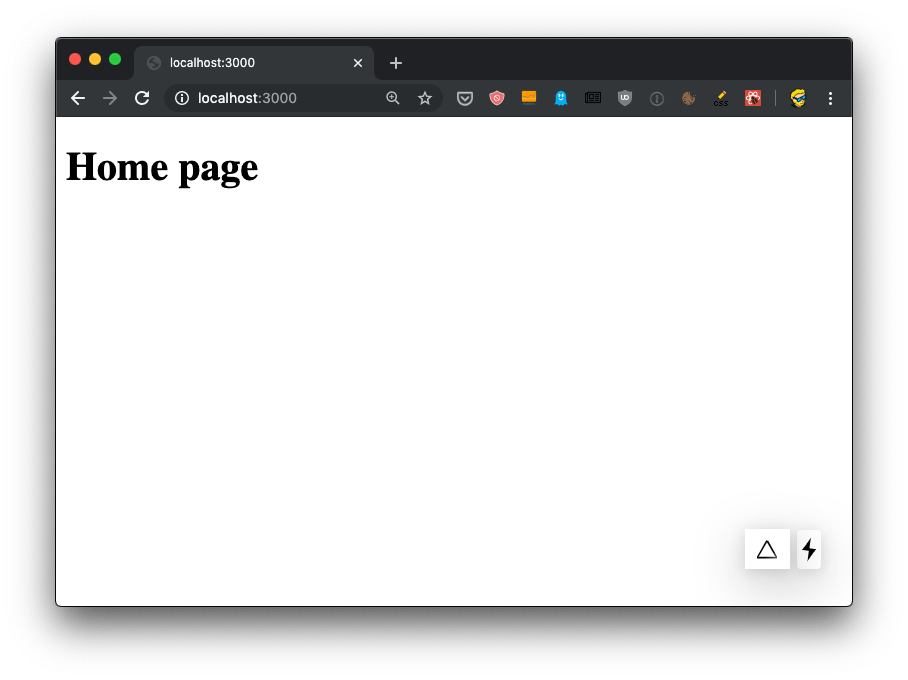
Open in your browser to see it.