# How to install PostgreSQL on macOS
> Learn how to install PostgreSQL on macOS with Homebrew, using brew install postgresql and brew services start postgresql to run it as a background daemon.
Author: [Flavio Copes](https://flaviocopes.com/about/) | Published: 2019-12-25 | Topics: [Database](https://flaviocopes.com/tags/database/) | Canonical: https://flaviocopes.com/postgres-how-to-install/
The following instructions to install PostgreSQL are based on macOS.
For Windows and Linux, go to and choose your package.
Also search "how to install postgres on windows" or "how to install postgres on `your linux distribution`" if you're using other platforms.
It should not differ a lot, especially past the installation phase.
On macOS we'll use [Homebrew](https://flaviocopes.com/homebrew/). If you don't have Homebrew installed yet, go to and follow the instructions there.
Once you are done, get back and in the command line run:
```bash
brew install postgresql
```
and after it finished, run:
```bash
brew services start postgresql
```
to _start_ PostgreSQL as a daemon, which means it will keep running in the background, listening for connections.
Using Homebrew has the great advantage that any update can be installed by running
```bash
brew upgrade postgresql
brew postgresql-upgrade-database
brew services restart postgresql
```
`postgresql` is the more complex to pronounce name of PostgreSQL, but they are the same thing. It just embeds SQL in the name. What's **SQL**? SQL, pronouced "sequel", means Structured Query Language, and it's a special language we use to interact with a _relational database_.
If you're new to database, it's a lot of new terms for you! Basically a relational database organizes the data into **tables**, and provides a way to insert and extract data from those tables. That's SQL.
And we're going to use it soon.
Right after we log in to PostgreSQL!
Go back to the command line, and type
```bash
psql postgres
```
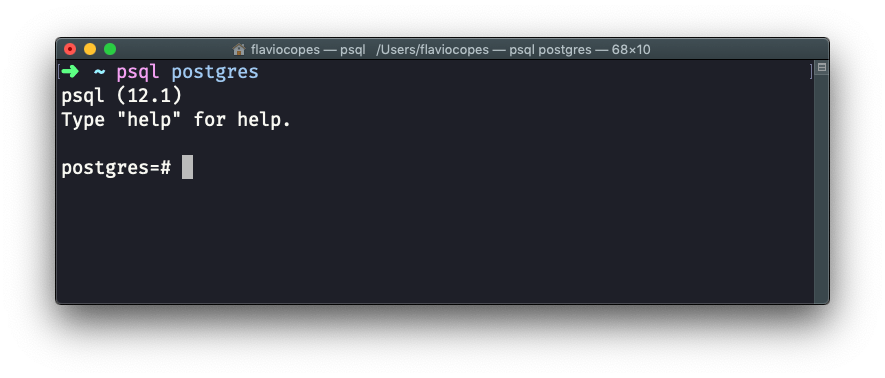
This will give you access to the `postgres` database, which is created by default, with your macOS username. Homebrew automatically created your user at installation.
Now that we are into the `psql` application, we can create a new database:
```sql
CREATE DATABASE test;
```
> Don't forget the semicolon `;`, because it's needed by SQL otherwise the command will not run.
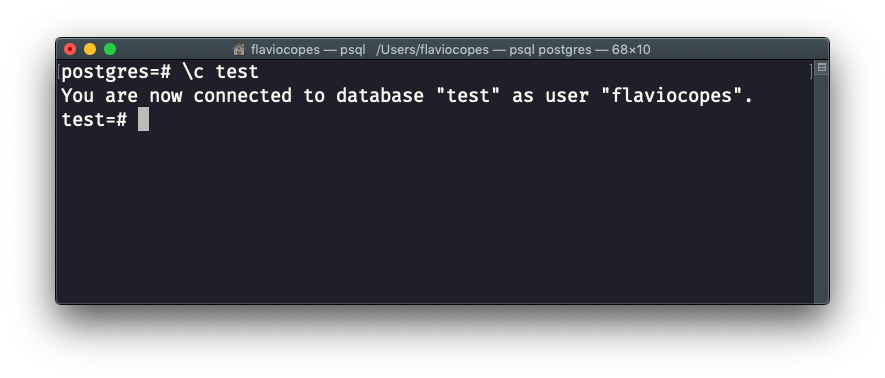
Now in a new line, we switch to this database using
```sql
\c test
```
The prompt will tell something like this:
`You are now connected to database "test" as user "flaviocopes".`.
Now we're going to create a new table.
Use this syntax:
```sql
CREATE TABLE users (
id SERIAL PRIMARY KEY,
email VARCHAR(255) UNIQUE NOT NULL,
password VARCHAR(255) NOT NULL
);
```
Now if you run this, and no error shows up, you will have the table in the system.
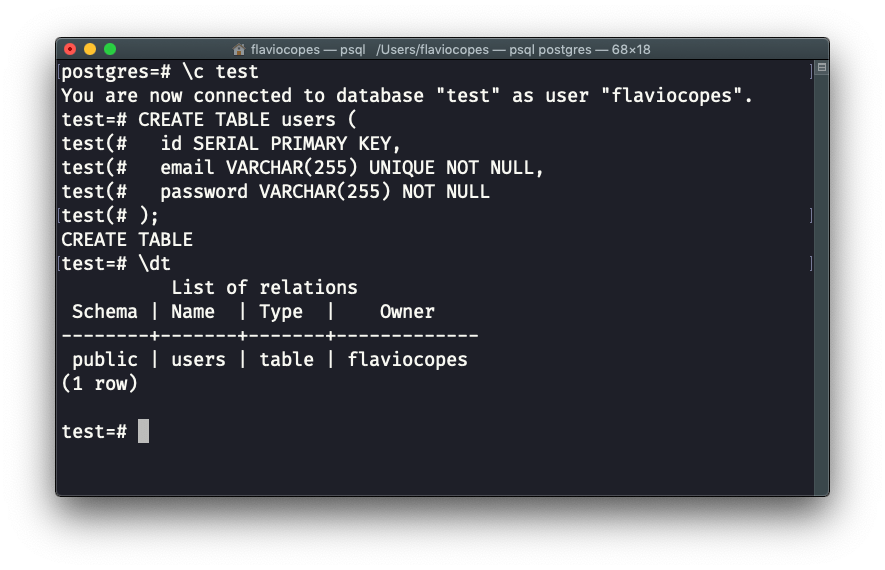
You can see it by running the command
```sql
\dt
```
which will show you the database tables:
If you did any error, you can delete the table by running the command
```sql
DROP TABLE users
```
To finally quit `psql`, run
```sql
\q
```
or just type `quit`.
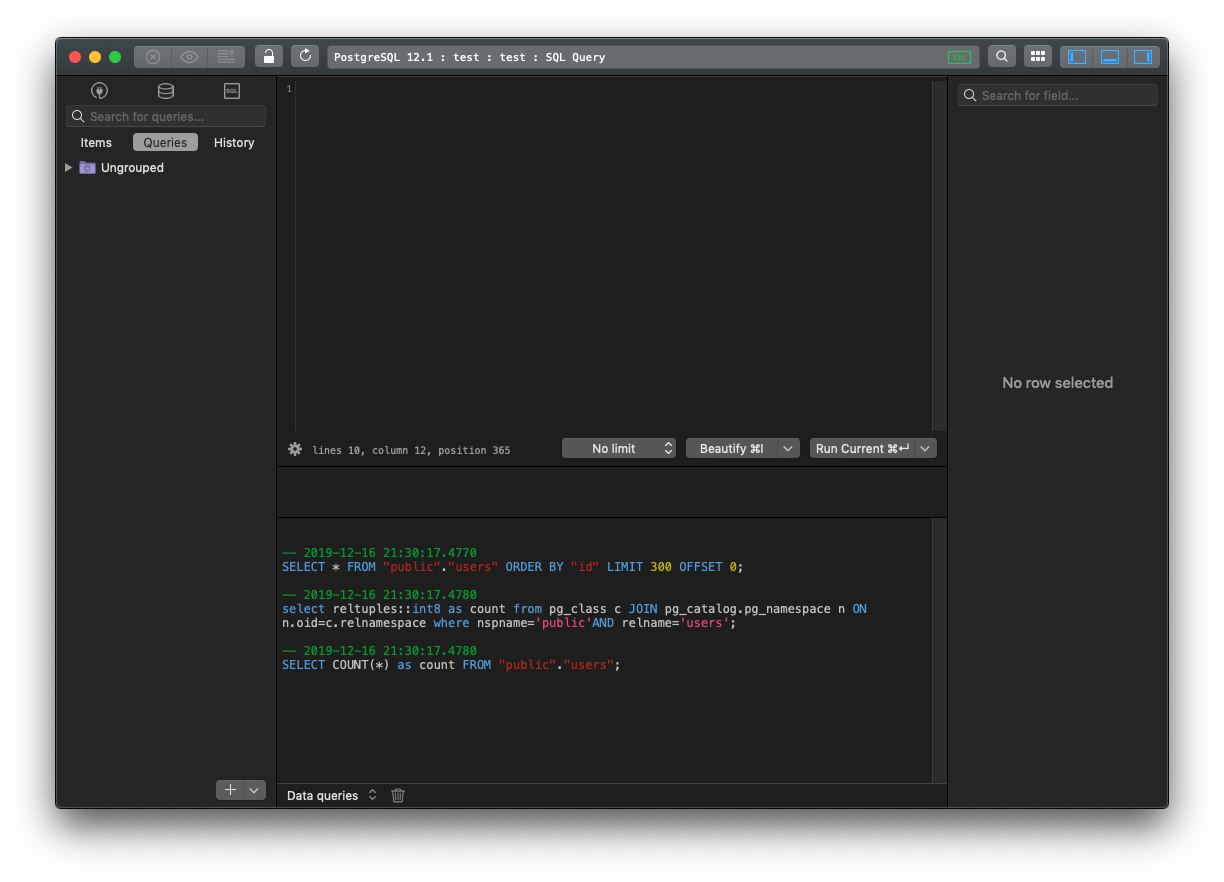
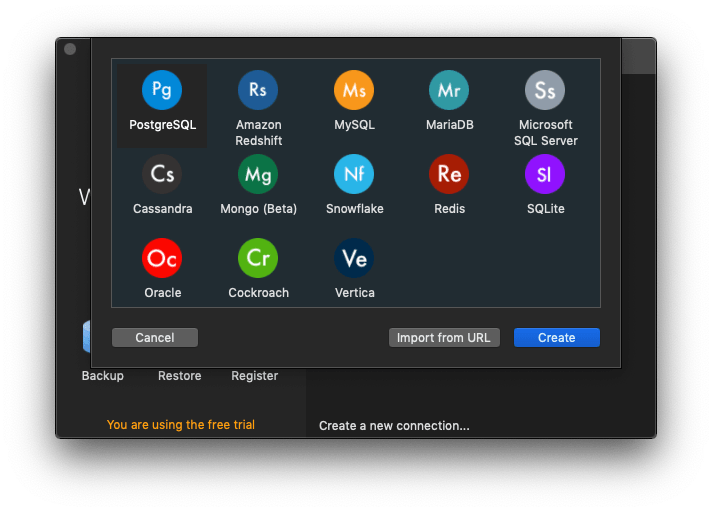
Now that you know how things work under the hood, I will show you an easier way to work with PostgreSQL, and other databases too: the [TablePlus app](https://tableplus.com/). It works on macOS, Windows and Linux.
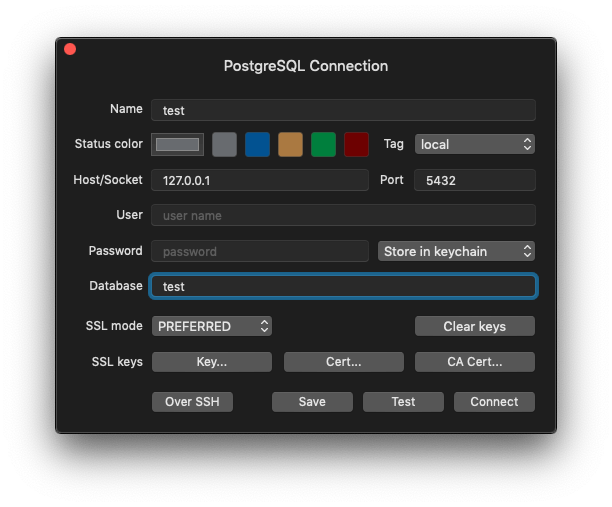
Connect to the database:
specifying the `test` database name:
In addition to be able to inspect tables with a Graphical User Interface:
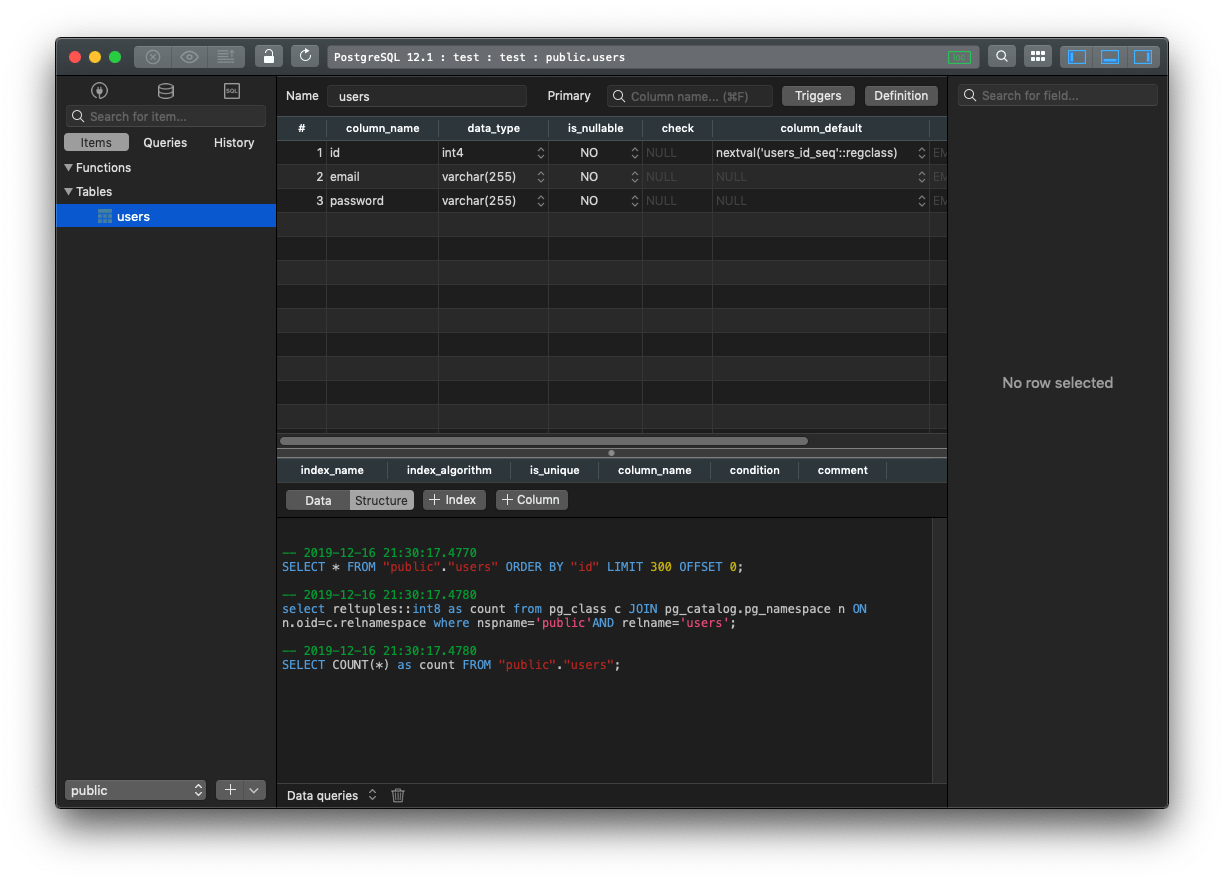
It also allows us to work with SQL queries, very easily: