Installing Python 3 on macOS
By Flavio
Tagged: Python
Learn how to install the latest Python 3 on macOS with the official installer from python.org, then set up certificates, aliases, and pip.
macOS does not ship Python anymore. Apple removed the old system Python 2 in macOS 12.3, back in 2022, and there is no python command out of the box.
There is a /usr/bin/python3, but it’s a stub. The first time you run it, macOS asks you to install the Xcode Command Line Tools, and only then you get a real interpreter. It’s whatever version Apple bundled with the tools, and you have no control over it: Apple updates it only when it updates Xcode.
Python 3 is the one we’re going to use for modern Python development.
If you already have a working python3 command, check the version. As of October 2026, the latest stable CPython line is 3.15. If your Mac gives you something older, keep reading.
One option is to use Homebrew: brew install python installs the latest Python 3 release, 3.15 at the time of writing.
Another option is to use the official Python packages and that’s the approach we’ll follow.
Go to https://www.python.org, choose the Downloads menu, hover “macOS” and download the official macOS installer for Python 3.15:
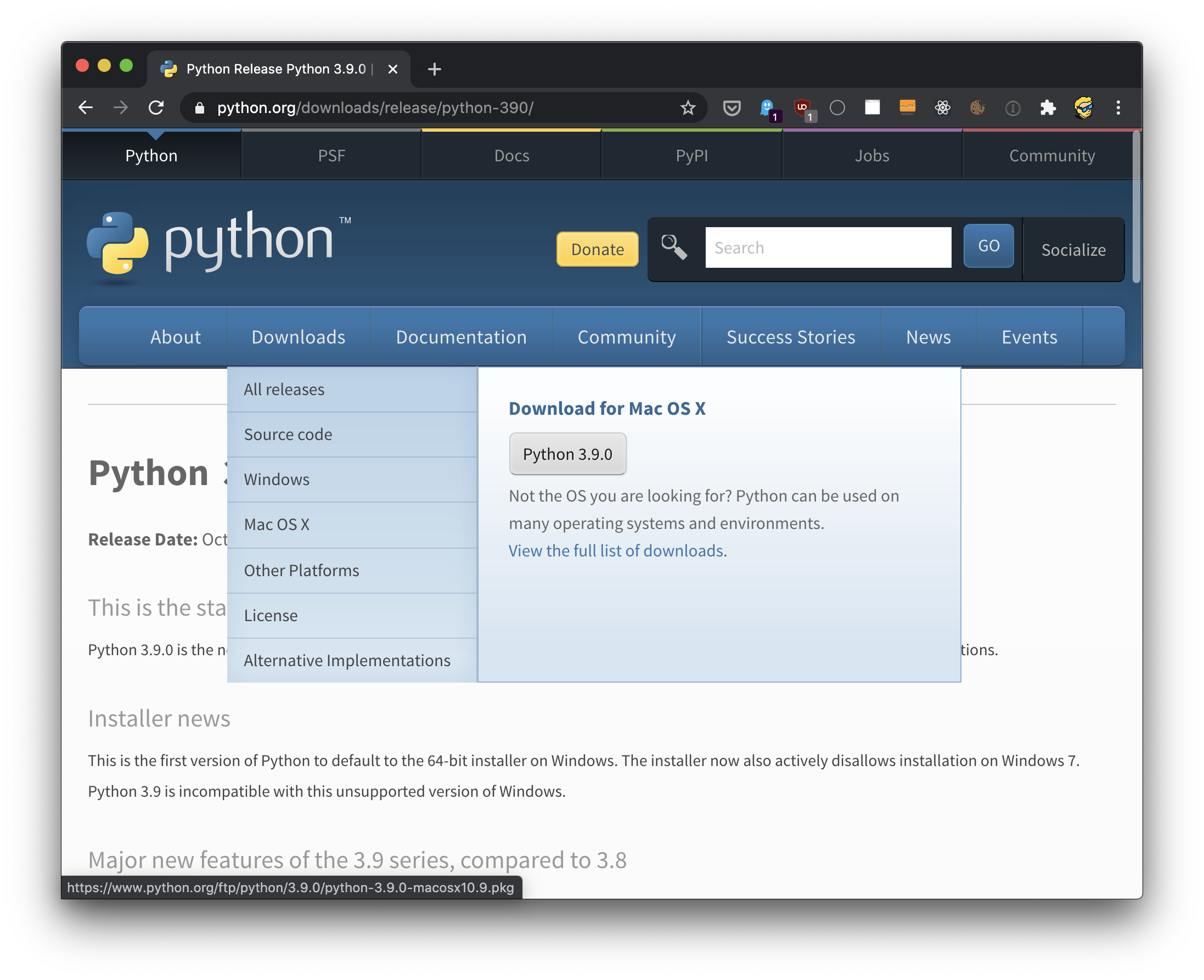
(The screenshots below show an older Python 3.9 installer. The panels look the same for 3.15.)
Click that, and run the installer:
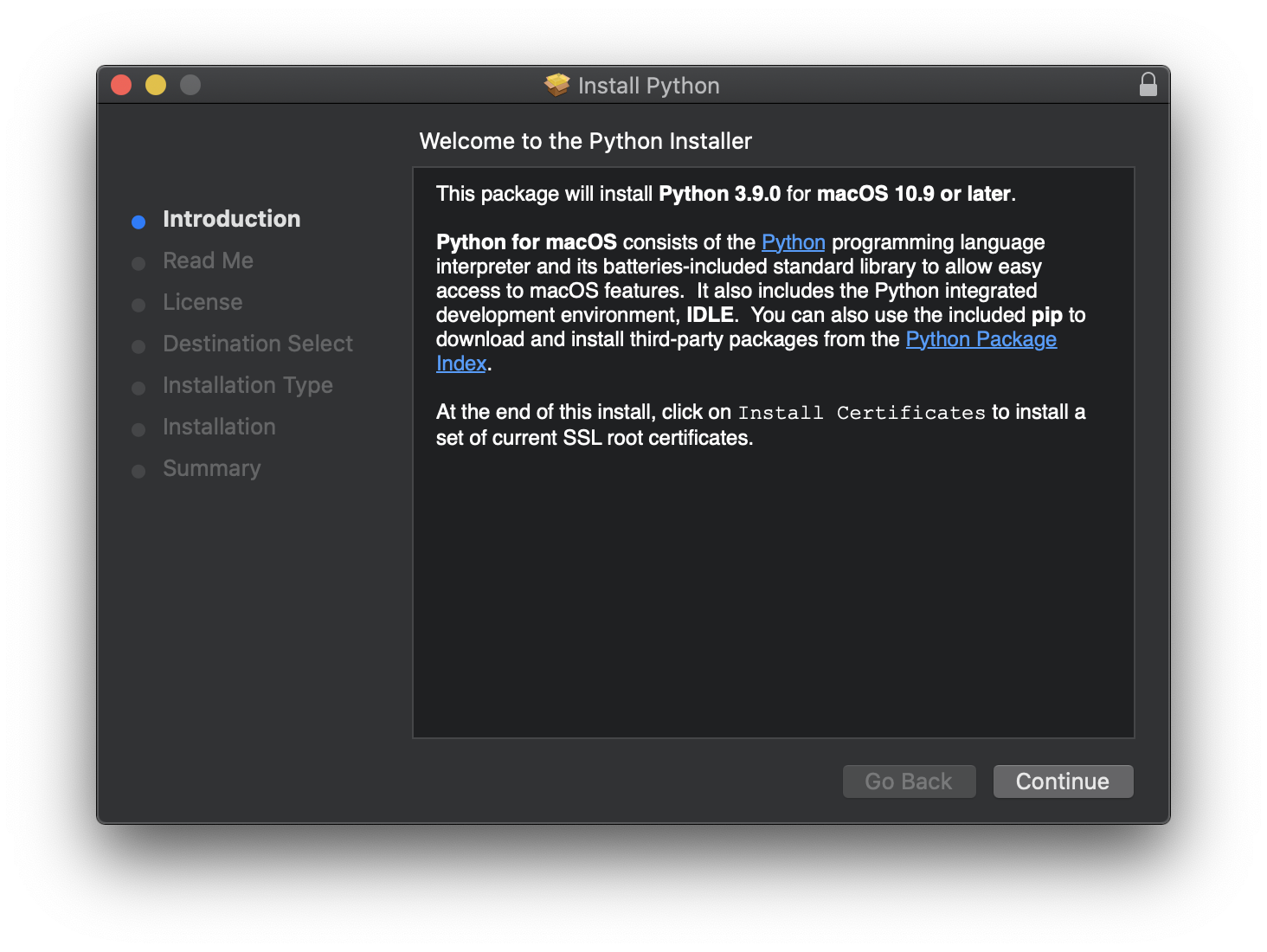
Click “Continue”:
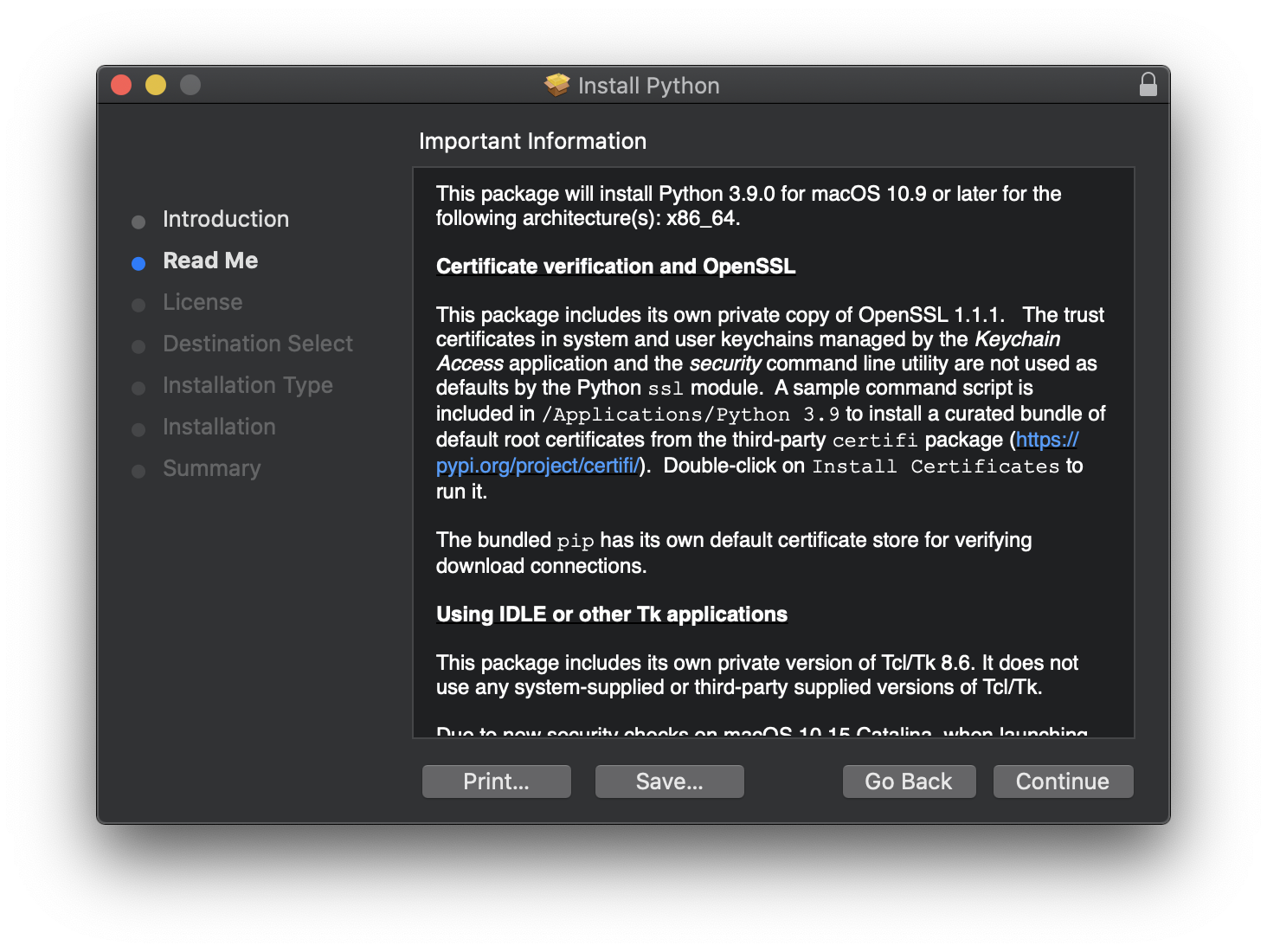
Then click “Continue” again. A new panel will appear with an interesting recap on the history of Python and its governance:
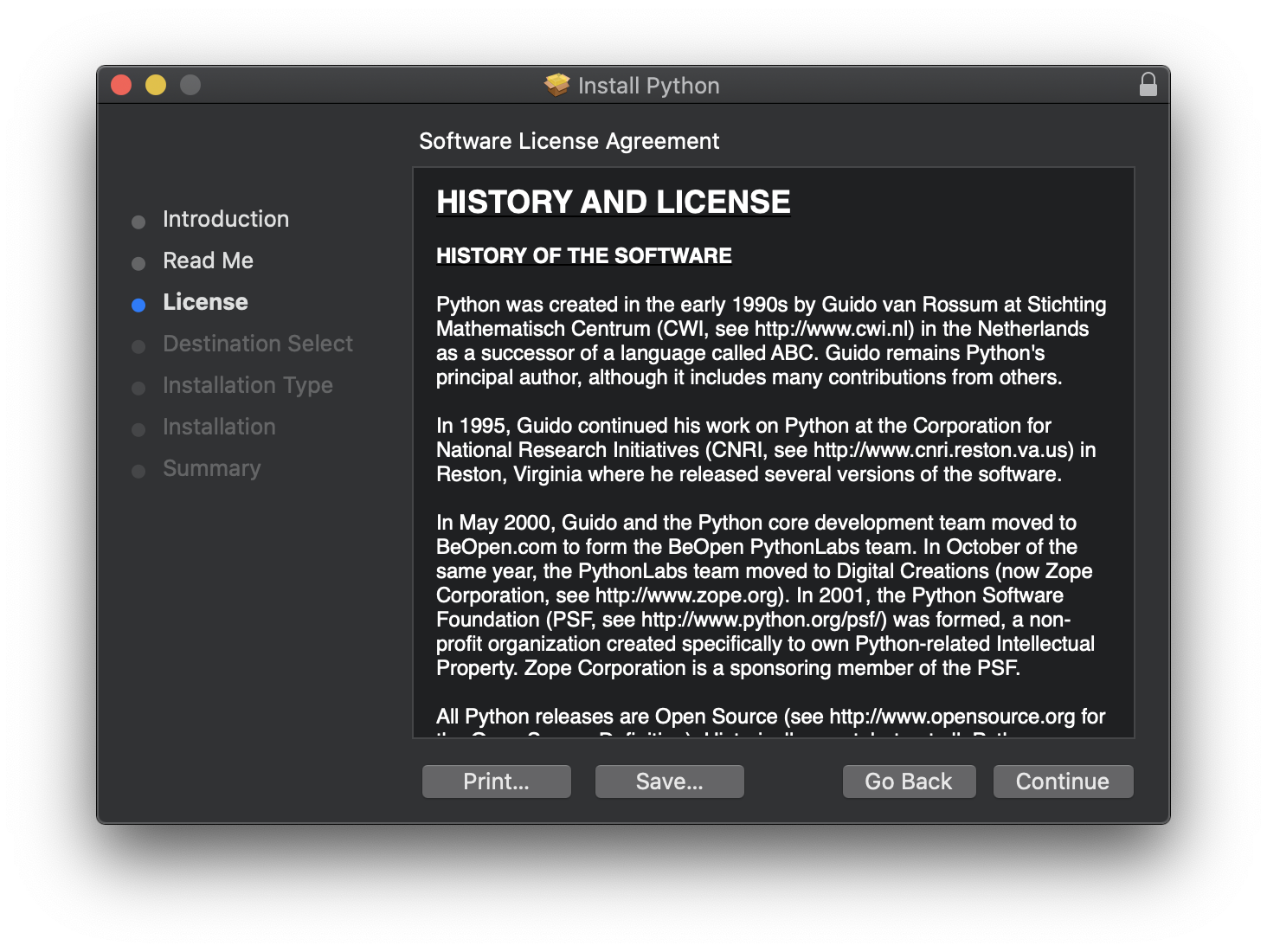
Python was created in the early 1990s by Guido van Rossum at Stichting Mathematisch Centrum (CWI, see http://www.cwi.nl) in the Netherlands as a successor of a language called ABC. Guido remains Python’s principal author, although it includes many contributions from others.
In 1995, Guido continued his work on Python at the Corporation for National Research Initiatives (CNRI, see http://www.cnri.reston.va.us) in Reston, Virginia where he released several versions of the software.
In May 2000, Guido and the Python core development team moved to BeOpen.com to form the BeOpen PythonLabs team. In October of the same year, the PythonLabs team moved to Digital Creations (now Zope Corporation, see http://www.zope.org). In 2001, the Python Software Foundation (PSF, see http://www.python.org/psf/) was formed, a non-profit organization created specifically to own Python-related Intellectual Property. Zope Corporation is a sponsoring member of the PSF.
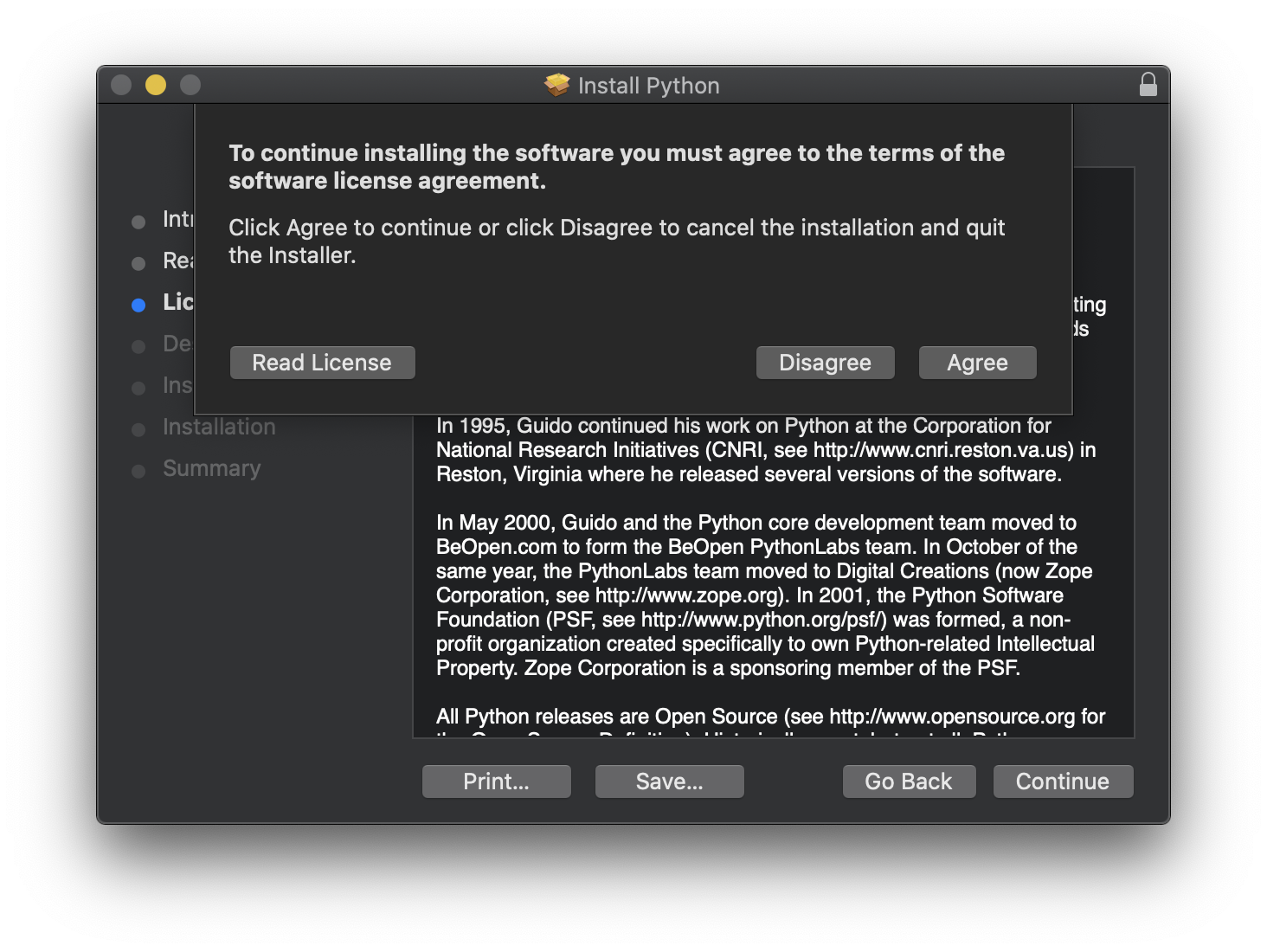
Then you can read the Python license. Python is open source, and released with the Python Software Foundation License Version 2.
This license is GPL-compatible, which means you can combine Python with software that is GPL, Python itself is not GPL. The GPL license has some problems related to the fact that all software derived from GPL software must be released as GPL as well, and the source code of the software must be distributed to anyone that wants access to it.
That’s not the case for your Python programs. You can release the source if you want, but it’s not required.
Agree to the license:
And move to the installation phase:
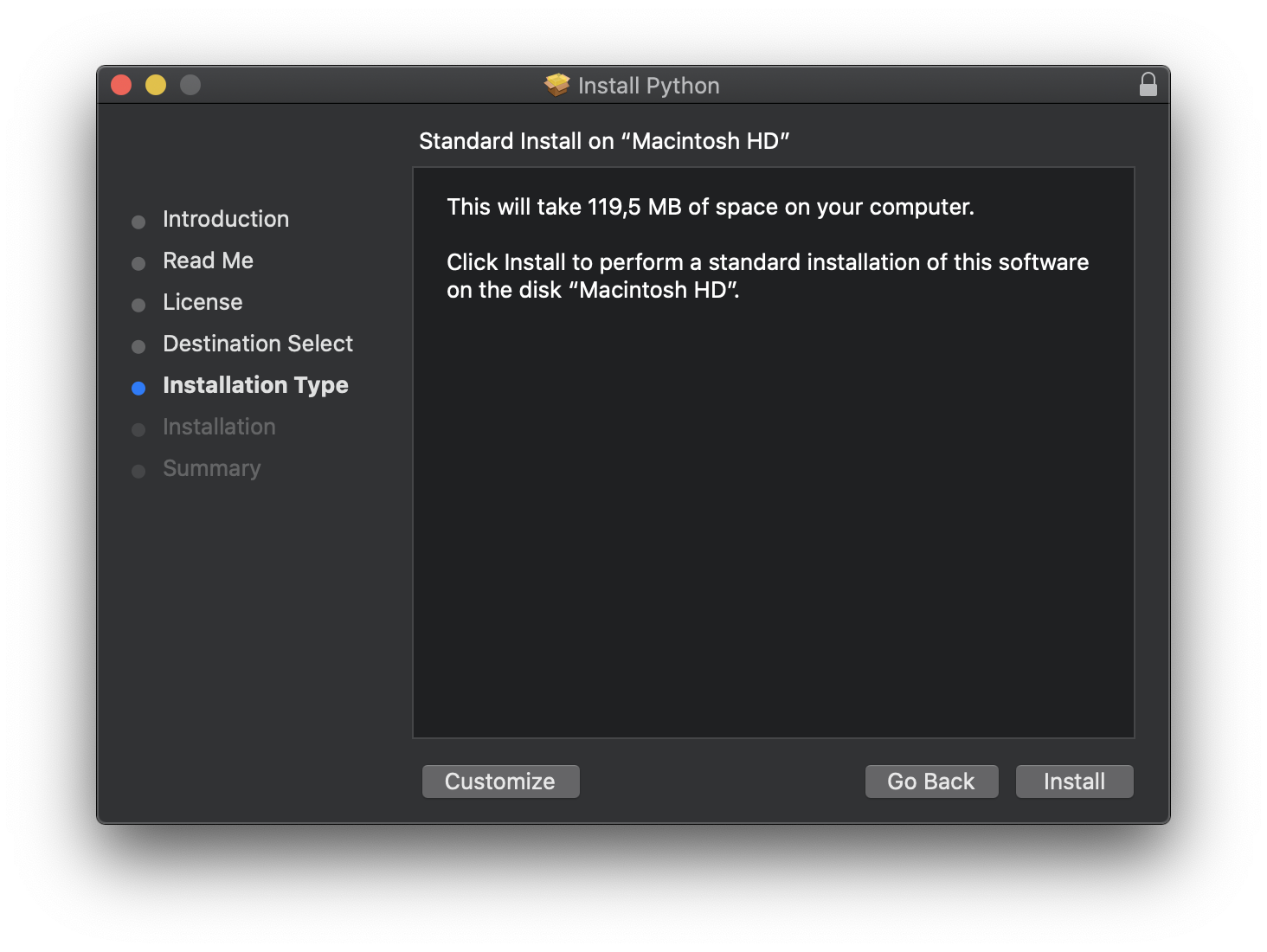
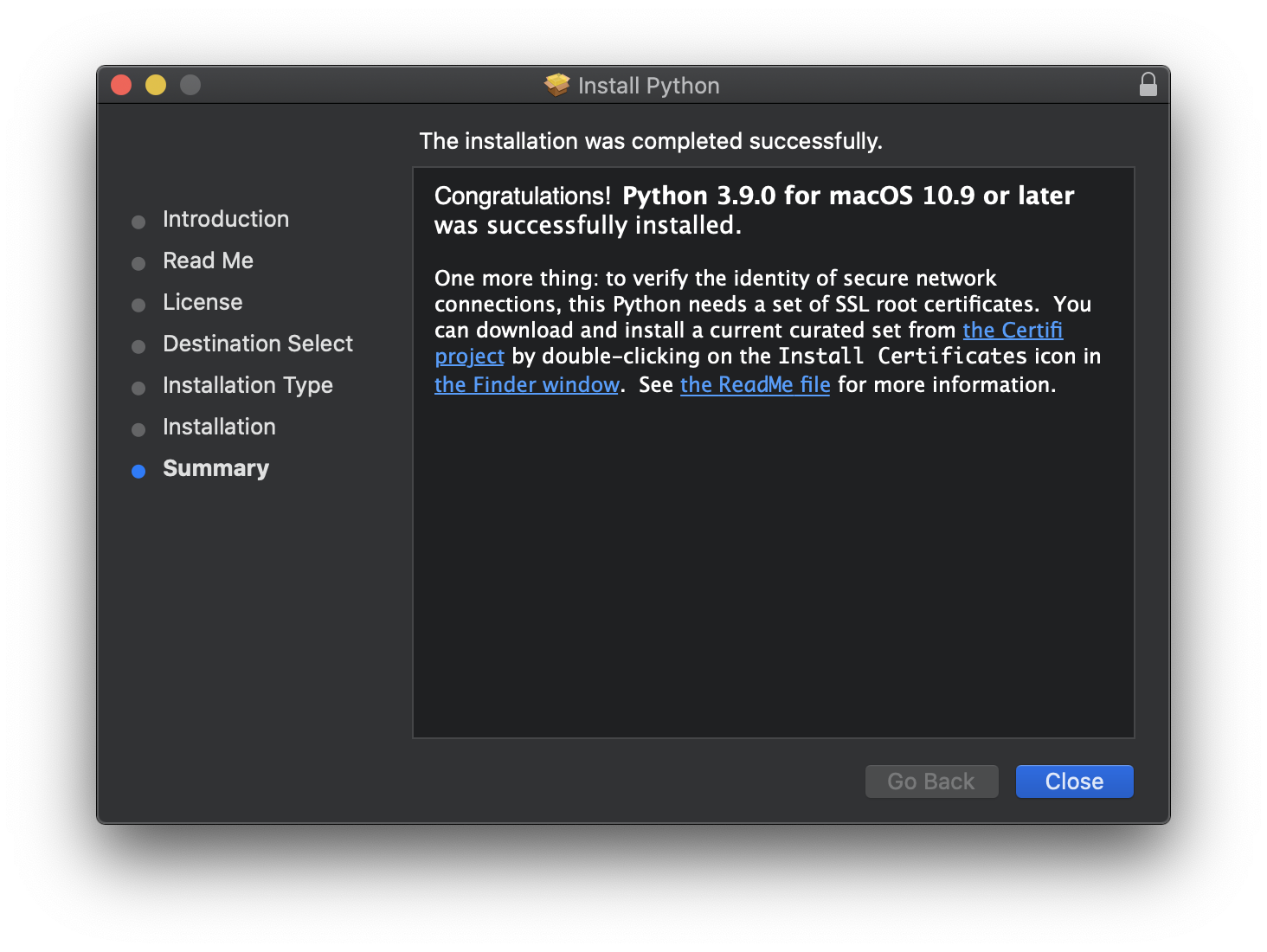
When it’s finally installed, Python lives in /Library/Frameworks/Python.framework/Versions/3.15 and the installer adds its bin folder to your shell PATH, so python3 (and python3.15) now point to the new interpreter. Apple’s /usr/bin/python3 stub is still there, it just comes later in the PATH.
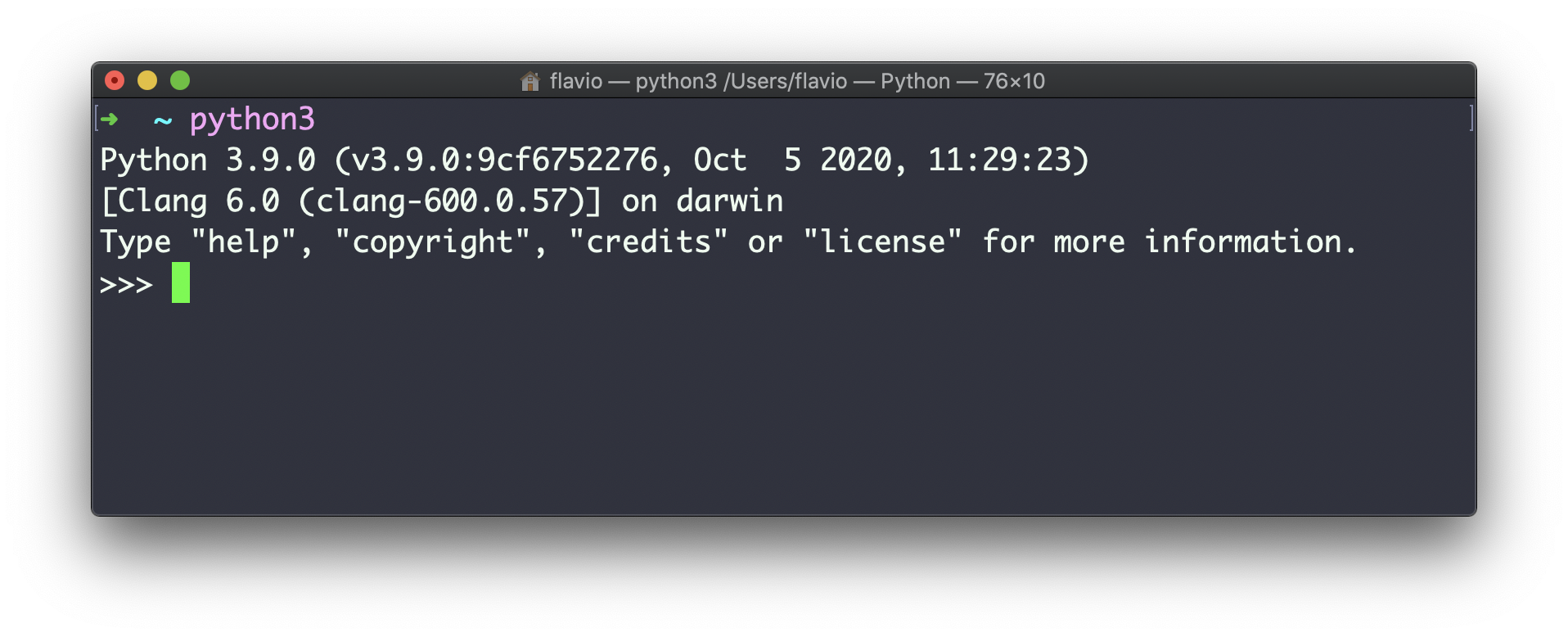
Running python3 in the macOS terminal opens the interpreter we just installed. You should see 3.15:
You will now also find a new folder under “/Applications/Python 3.15” (change that with your exact version number), with some files:
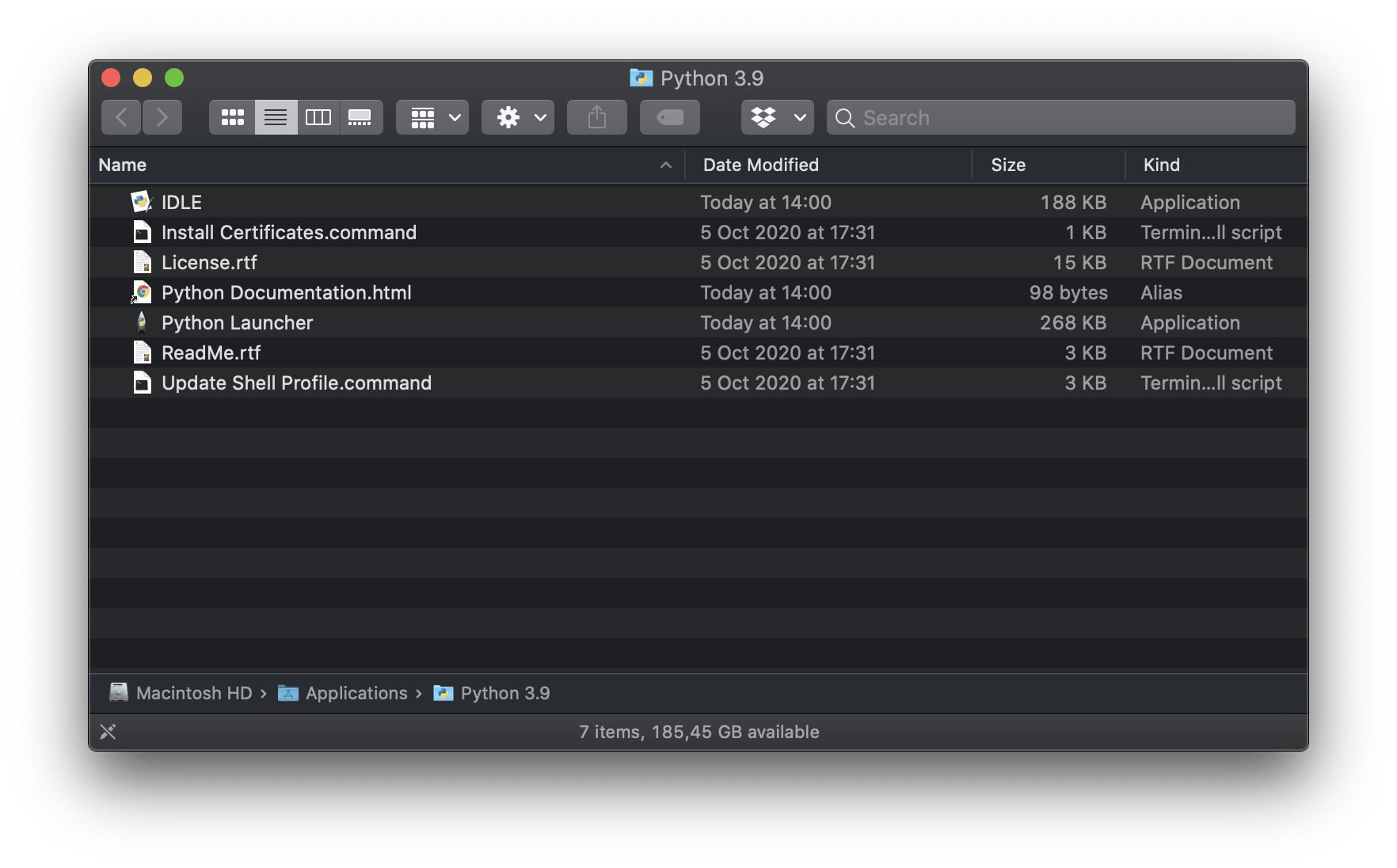
As the instructions said in the last installation panel, you need to run the “Install Certificates.command” to install the SSL certificates needed by Python.
This is because the official macOS installer ships its own OpenSSL and expects a curated bundle of default root certificates from the third-party certifi package.
Certifi provides Mozilla’s carefully curated collection of Root Certificates for validating the trustworthiness of SSL certificates while verifying the identity of TLS hosts
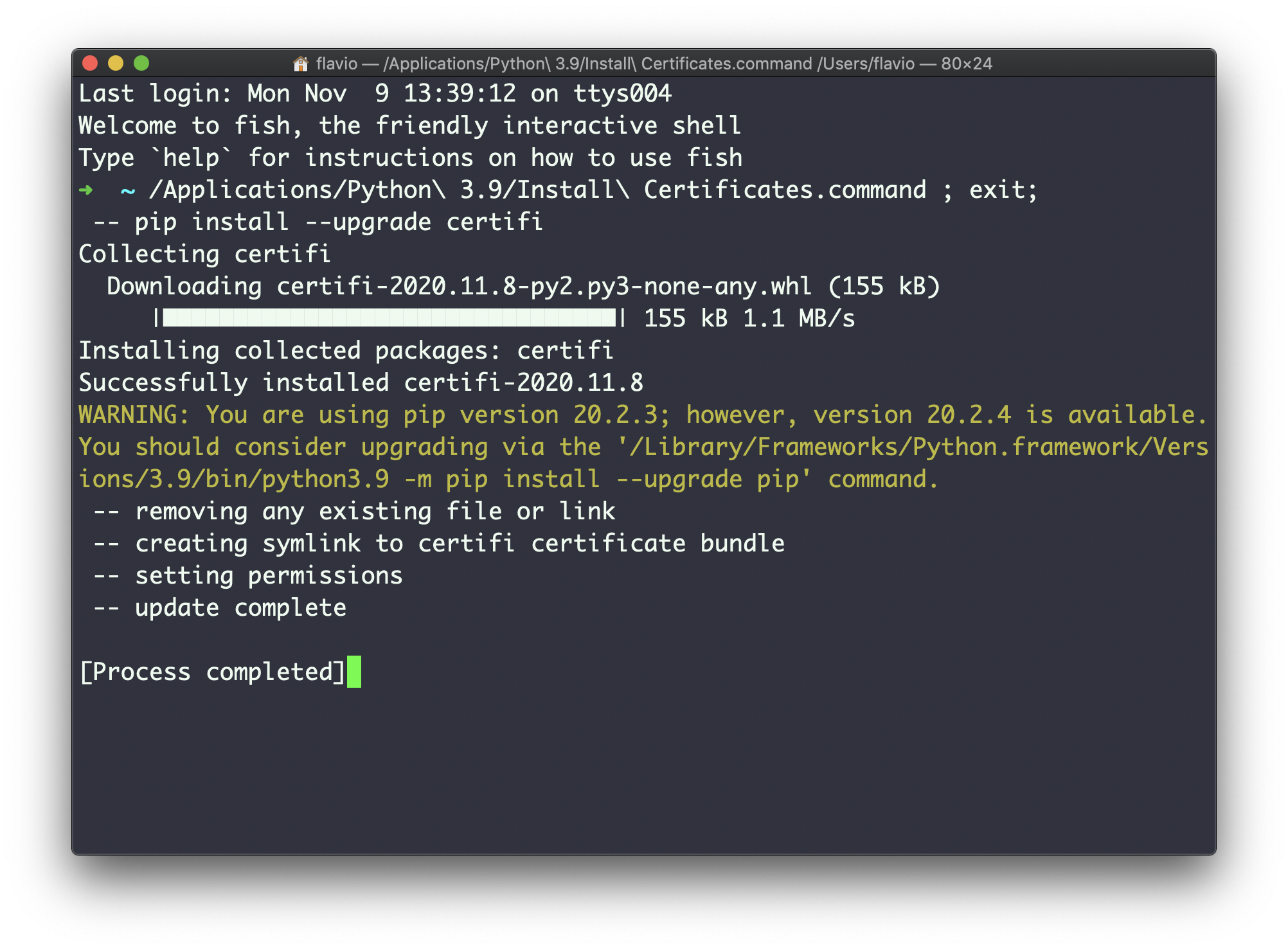
Double-click on Install Certificates to run it, and it will do its job quickly:
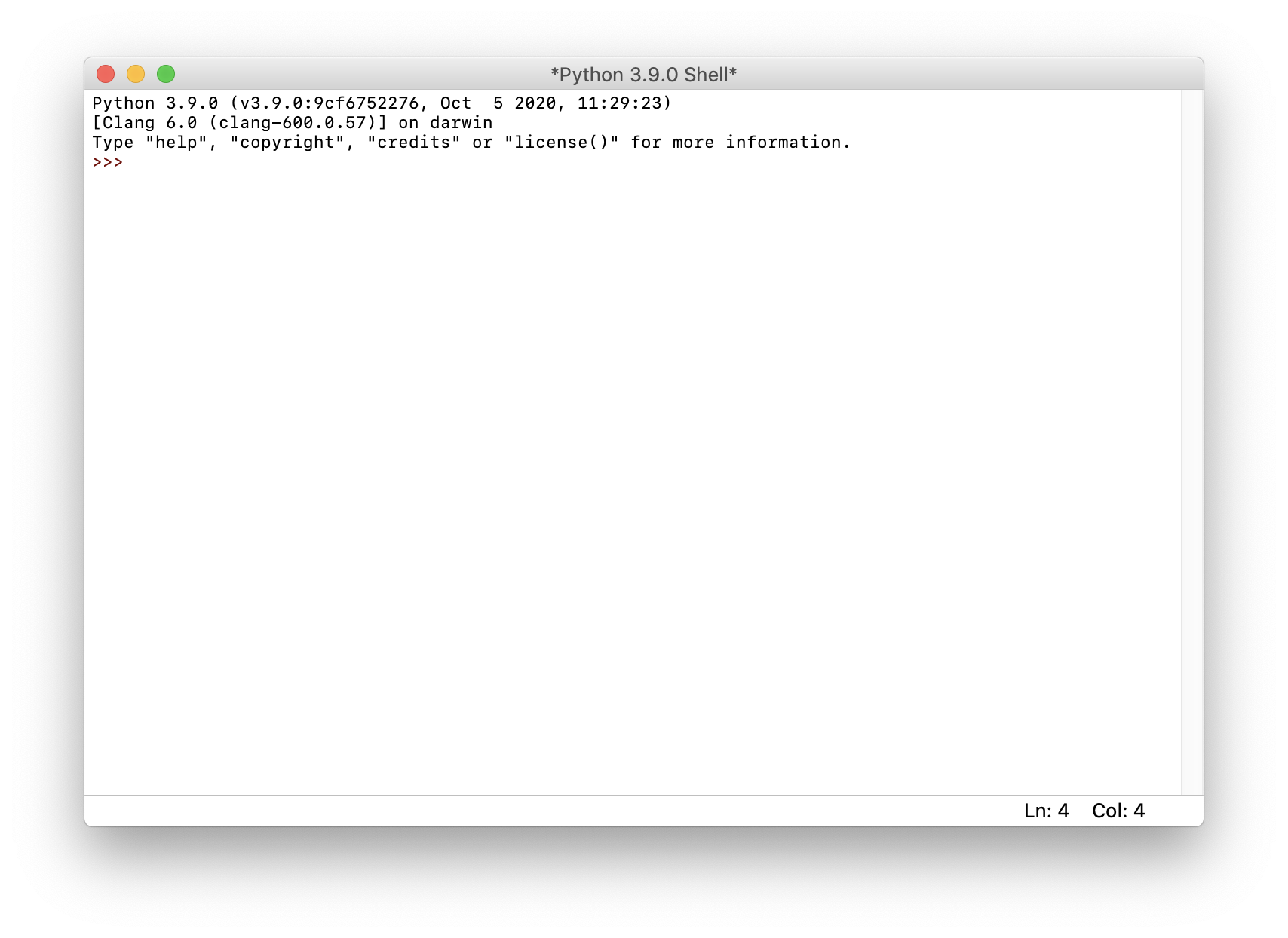
The other files contained in that folder are IDLE, an application that opens the Python interpreter in its own window:
Then we have a link to the official documentation, the license, and Python Launcher, an utility that lets you to locate and manage different Python versions installed on the system, and instruct scripts to use a specific version.
I recommend having a shell alias to execute python3 each time you run python.
With the Fish shell, you can run:
alias python "python3"
alias pip "pip3"
funcsave python
funcsave pip
directly in the terminal.
Also, make sure the pip binaries are in your shell path, to run them easily:
set PATH ~/Library/Python/3.15/bin $PATH(change 3.15 with your current version)
With Zsh, you need to add the alias to the .zshrc file in your home folder:
alias python="python3"With Bash, you need to add the alias to the .bashrc file in your home folder:
alias python="python3"Now you can run python and it will point to the Python 3 version you just installed. From there, run programs from the REPL or from a file.
I found that the easiest way to run pip (the Python package manager) is to use python -m pip <COMMAND> rather than pip <COMMAND>, for example:
python -m pip install djangoAnd you should always use a virtual environment with venv when doing so.
Want me to talk about your product? You can sponsor this site.
Related posts about python: