regex select entire line starting with..
By Flavio
Learn how to use a regex like ^booktitle:.* in VS Code to select an entire line starting with a given prefix, then delete it by replacing with nothing.
To select an entire line that starts with a specific string, anchor the regex to the start of the line with ^, then match the rest of the line with .*.
Here’s the pattern I used:
^booktitle:.*I had a bunch of markdown files with a frontmatter property I didn’t need any more. Editing dozens of files by hand was not an option, so I opened the search panel in VS Code, enabled regex mode (the .* icon in the search field), searched for that pattern, and replaced every match with an empty string (tip: you can try patterns like this against sample text in my regex tester).
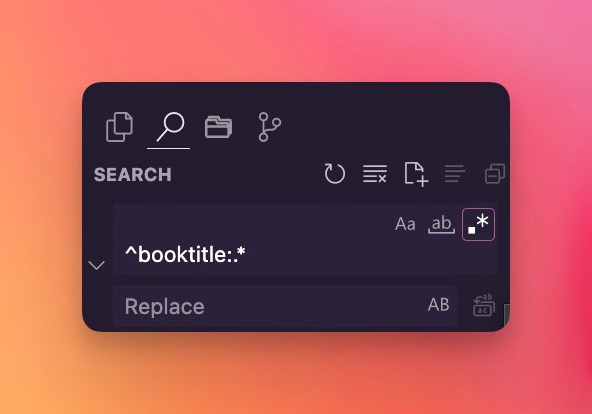
How the pattern works
The pattern has three parts.
^ matches the start of a line. In editors like VS Code, search works line by line, so ^ anchors the match to the beginning of each line, not just the beginning of the file.
booktitle: is a literal match. Only lines starting with exactly that text are selected.
.* matches any character, zero or more times, up to the end of the line. The dot does not match newlines, which is exactly what we want here: the match stops where the line ends.
Put together, the pattern selects the whole line, from the first character to the last.
Watch out for the leftover empty line
Here’s the pitfall I ran into. Replacing the match with an empty string deletes the text, but not the newline character at the end of the line. You’re left with an empty line where the property used to be.
The fix is to include the newline in the pattern:
^booktitle:.*\nVS Code accepts \n in regex search, so this removes the line and closes the gap.
Doing the same from the terminal
If the files are not open in an editor, sed does the same job. On macOS:
sed -i '' '/^booktitle:/d' *.mdThe d command deletes every line matching the pattern, and -i '' edits the files in place. On Linux, drop the '' after -i.
I still prefer the VS Code route for this kind of cleanup. You see every match highlighted before you commit to the replace, which is a nice safety net when you’re touching many files at once.
Want me to talk about your product? You can sponsor this site.
Related posts about devtool: