# Turn on automatic security updates on your VPS (and decide about auto-reboot)
> Set up unattended-upgrades on Ubuntu and Debian, tested on a real Droplet with the November 2026 NGINX HTTP/2 fix: security-only vs all packages, auto-reboot, needrestart, third-party repos, logs and alerts.
Author: [Flavio Copes](https://flaviocopes.com/about/) | Published: 2026-11-21 | Topics: [Security](https://flaviocopes.com/tags/security/) | Canonical: https://flaviocopes.com/unattended-upgrades/
On November 18, 2026, two critical memory-safety bugs in NGINX's HTTP/2 code were disclosed: [CVE-2026-123633 and CVE-2026-123007](https://www.wiz.io/blog/nginx-http2-rce-vulnerabilities). Both allow unauthenticated remote code execution when HTTP/2 is enabled, which is most HTTPS sites running NGINX.
Ubuntu built the fixed package the same day. A server with automatic security updates installed it the next morning, without anyone logging in.
That's the whole argument for `unattended-upgrades`. It's also why some people refuse to turn it on: software that changes your server while you sleep can also break it while you sleep.
I set up a fresh Ubuntu 24.04 Droplet, installed the vulnerable NGINX on purpose, enabled HTTP/2, and let `unattended-upgrades` fix it. Then I tested auto-reboot, library restarts, a third-party repository and an alert hook. Every output and number in this post comes from that server.
## What happened with NGINX, and how fast you need to patch
The two bugs live in the HTTP/2 module:
- **CVE-2026-123007** is an integer underflow in HTTP/2 flow control (`send_window`). It affects NGINX 1.9.5 to 1.31.8, so every version since 2015, and it can be triggered on a server that only serves static files over HTTPS.
- **CVE-2026-123633** is a use-after-free when an HTTP/2 connection gets reused while a request is still active. It affects 1.19.7 to 1.31.8 and is more likely to be exploited when NGINX is a reverse proxy.
Upstream fixed both in NGINX 1.30.7 (stable) and 1.31.9 (mainline), listed on the [NGINX security advisories page](https://nginx.org/en/security_advisories.html).
Distributions don't ship those versions. They backport the patch into the version they already have, so the version string is what you check:
| Distribution | NGINX branch | Fixed package | Notice |
| --- | --- | --- | --- |
| Ubuntu 26.04 LTS | 1.28.3 | `1.28.3-2ubuntu1.13` | USN-9159-1 |
| Ubuntu 24.04 LTS | 1.24.0 | `1.24.0-2ubuntu7.20` | USN-9159-1 |
| Ubuntu 22.04 LTS | 1.18.0 | `1.18.0-6ubuntu14.23` | USN-9159-1 |
| Debian 13 (trixie) | 1.26.3 | `1.26.3-3+deb13u11` | DSA-6642-1 |
| Debian 12 (bookworm) | 1.22.1 | `1.22.1-9+deb12u11` | DLA-4918-1 |
| nginx.org packages | 1.30 / 1.31 | `1.30.7` / `1.31.9` | upstream advisory |
To see what you're running:
```bash
dpkg-query -W nginx
```
On my test server, before the update:
```text
nginx 1.24.0-2ubuntu7
```
That's the original Ubuntu 24.04 release version, vulnerable to both bugs (and to a long list of older ones). The fix is anything at `1.24.0-2ubuntu7.20` or later.
If you can't update right away, the stopgap is to turn HTTP/2 off. On NGINX 1.25.1 and later that's `http2 off;` in each `server` block. On older versions, like 1.24 on Ubuntu 24.04, remove `http2` from the `listen` line:
```nginx
listen 443 ssl http2;
# becomes
listen 443 ssl;
```
Then `nginx -t && systemctl reload nginx`. Your visitors fall back to HTTP/1.1, which is slower with many small files but works everywhere.
### How fast is fast enough
Here's what the Ubuntu package changelog says about the timing, read with `apt-get changelog nginx` on the server:
```mermaid
flowchart TD
accTitle: From disclosure to a patched server
accDescr: NGINX bugs disclosed on November 18. Ubuntu signs nginx 1.24.0-2ubuntu7.20 the same day and publishes USN-9159-1 on November 19. A server with unattended-upgrades refreshes its package lists and installs the fix at its next 06:00 run.
A[Nov 18
bugs disclosed] --> B[Nov 18
Ubuntu signs 7.20]
B --> C[Nov 19
USN-9159-1 out]
C --> D[next 06:00 run
server patched]
B --> E[Nov 19
7.21 fixes 2 more CVEs]
```
Version `1.24.0-2ubuntu7.20`, with the two HTTP/2 fixes, was signed on November 18. The next day `1.24.0-2ubuntu7.21` added fixes for two more NGINX bugs, CVE-2026-123640 in `ssl_preread` and CVE-2026-125283 in `try_files`. Two security updates for one package in two days.
That's not unusual this year. I counted the `noble-security` entries in the changelog of Ubuntu 24.04's NGINX package: 16 security updates in 2026, against 2 in 2025.
```mermaid
xychart-beta
title "nginx security updates on Ubuntu 24.04, 2026"
x-axis ["Jan", "Feb", "Mar", "Apr", "May", "Jun", "Jul", "Aug", "Sep", "Oct", "Nov"]
y-axis "Updates" 0 --> 5
bar [0, 1, 0, 1, 2, 4, 3, 1, 1, 1, 2]
```
The same server's changelogs have 7 entries in 2026 for OpenSSL, 6 for OpenSSH and 28 for the kernel. A calendar reminder to log in and run `apt upgrade` once a month, which is what I used to do (it's in [How to update your Ubuntu server packages](https://flaviocopes.com/how-to-update-ubuntu-packages/)), leaves you exposed for weeks at a time. For a remote code execution bug in the program that faces the internet, the realistic target is a day or two.
## Check whether it's already on
On Ubuntu, `unattended-upgrades` is installed and enabled by default, including on DigitalOcean's Ubuntu images. Many people have it running and don't know. On Debian it depends on the image, so check.
Two files and two systemd timers do the work. The first file turns it on:
```bash
cat /etc/apt/apt.conf.d/20auto-upgrades
```
```text
APT::Periodic::Update-Package-Lists "1";
APT::Periodic::Unattended-Upgrade "1";
```
`"1"` means every day. `"0"`, or a missing file, means it's off.
The timers decide when it runs:
```bash
systemctl list-timers 'apt-daily*'
```
`apt-daily.timer` refreshes the package lists at 06:00 and 18:00, each with a random delay of up to 12 hours. `apt-daily-upgrade.timer` installs the updates at 06:00 with a random delay of up to an hour. The times are in the server's time zone, which on a VPS is usually UTC.
Then ask `unattended-upgrade` what it would do right now. `--dry-run` downloads the packages but installs nothing:
```bash
sudo unattended-upgrade --dry-run -v
```
This is my test server with the vulnerable NGINX installed:
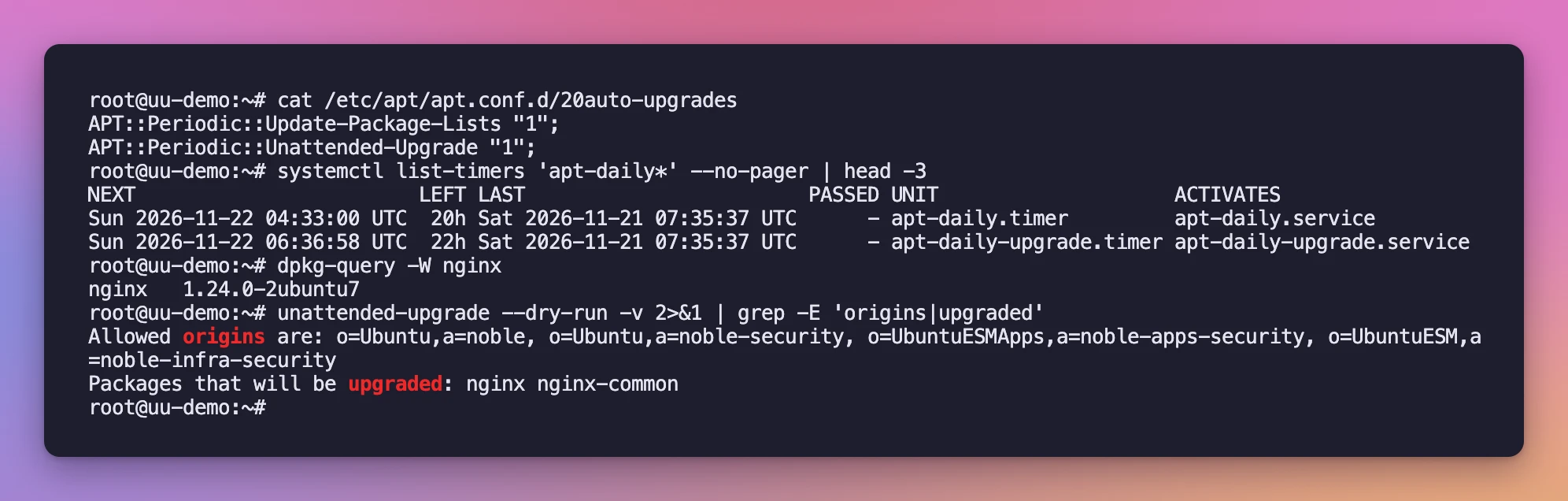
The `Allowed origins` line tells you which repositories it will install from. `Packages that will be upgraded` is the list. If you see `No packages found that can be upgraded unattended`, either you're up to date or the package you care about comes from an origin that isn't allowed (more on that below).
## Install and turn it on
If it's missing, on Ubuntu or Debian:
```bash
sudo apt install unattended-upgrades
sudo dpkg-reconfigure -plow unattended-upgrades
```
The second command asks one question, "Automatically download and install stable updates?", and answering Yes writes the `20auto-upgrades` file above.
The rest of the configuration lives in `/etc/apt/apt.conf.d/50unattended-upgrades`. Don't edit it. It belongs to the package, and when the package updates it, apt stops and asks whether to keep your version. On a server that updates itself, nobody is there to answer.
Put your changes in a file of your own instead. apt reads every file in `/etc/apt/apt.conf.d/` in alphabetical order, and lists like `Allowed-Origins` get merged, so a file named `52unattended-upgrades-local` adds to the defaults:
```bash
sudo nano /etc/apt/apt.conf.d/52unattended-upgrades-local
```
To check what apt sees after merging all the files:
```bash
apt-config dump | grep -E 'Allowed-Origins|Origins-Pattern|Automatic-Reboot'
```
## Security updates only, or everything?
This is the first real decision. The defaults on Ubuntu 24.04 allow four origins:
```text
Unattended-Upgrade::Allowed-Origins {
"${distro_id}:${distro_codename}";
"${distro_id}:${distro_codename}-security";
"${distro_id}ESMApps:${distro_codename}-apps-security";
"${distro_id}ESM:${distro_codename}-infra-security";
};
```
`noble` is the release itself, which never changes after release day. `noble-security` is the security pocket. The two ESM lines only do something with Ubuntu Pro. So by default you get **security updates only**.
Ubuntu also has `noble-updates`, for bug fixes and new hardware support. Here's what each choice meant on my test server, on the same day, from the same state:
| | Security only (default) | Security + `-updates` |
| --- | --- | --- |
| Packages upgraded | 3 (`nginx`, `nginx-common`, `python3-jwt`) | 19 more, including systemd and the kernel |
| Kernel | stays on `6.8.0-149` | `6.8.0-151` installed |
| Reboot needed afterwards | no | yes (`linux-image-6.8.0-151-generic`) |
| Old kernels removed | no | yes, the `6.8.0-147` packages |
| Risk of a behavior change | low, patches are minimal backports | higher, bug fixes change behavior |
Notice the kernel row. On that day the newest kernel was only in `noble-updates`, not in `noble-security`, so the security-only setup didn't install it. Ubuntu publishes kernels with security fixes to both pockets, so this isn't permanent, but it shows that "security only" also means fewer reboots.
To install everything, add the `-updates` pocket in your local file:
```text
Unattended-Upgrade::Allowed-Origins {
"${distro_id}:${distro_codename}-updates";
};
```
My advice is to stay with security only on a production server. Security updates are small patches backported by the distribution's security team, which is the whole point of running an LTS release. Bug-fix updates are fine too, most of the time, but "most of the time" is exactly what you don't want running unattended. Run the full `apt upgrade` yourself once a month, when you're there to look.
## What a real run looks like
Here's the actual run, not the dry run. `unattended-upgrade -v` is the same program the timer starts at 06:00:
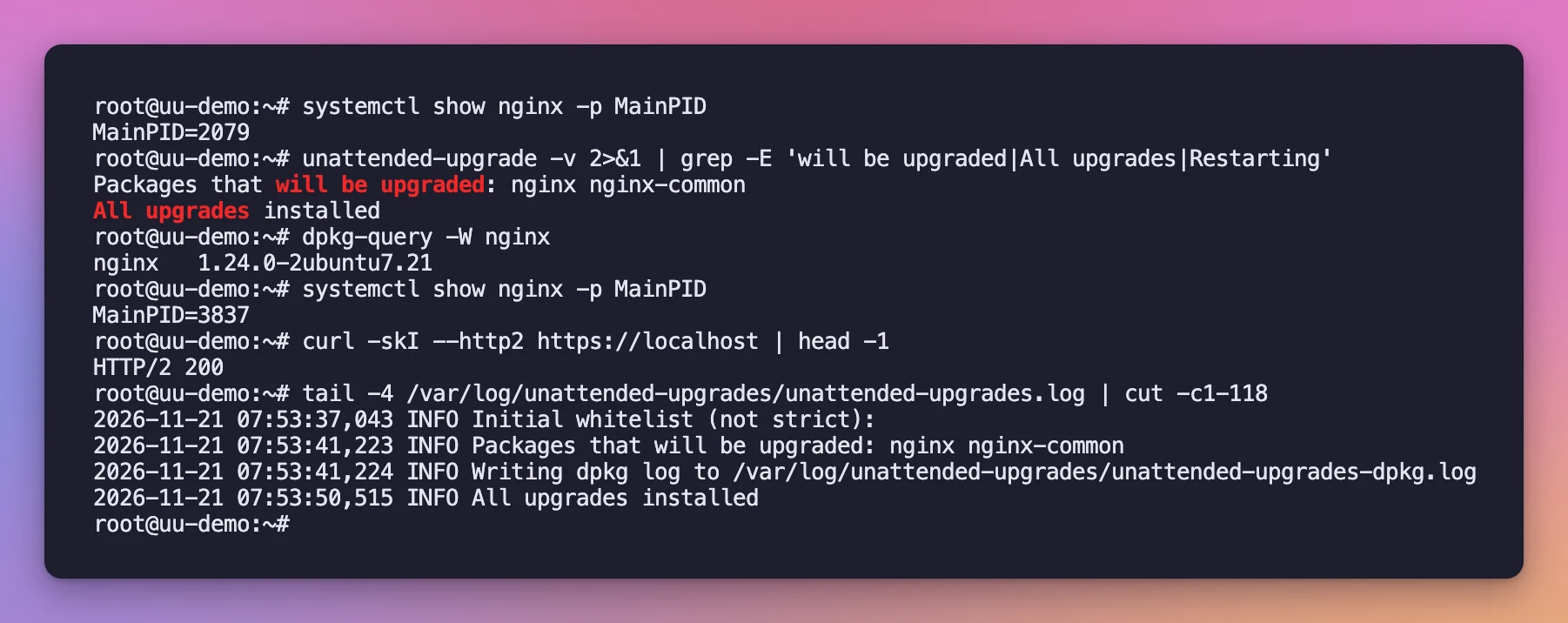
It took about 13 seconds. The NGINX package restarted the service on its own (the main PID went from 2079 to 3837), and HTTP/2 kept answering with a 200. Nothing in my configuration was touched, because the package keeps `/etc/nginx` as a configuration file it doesn't overwrite.
### needrestart restarts what still uses old libraries
Updating NGINX itself is the easy case, because its package restarts it. The harder case is a library. When OpenSSL gets a security fix, every running program that loaded the old `libssl` keeps using the old code in memory until it restarts.
On Ubuntu 24.04, `needrestart` handles this. After every install it checks which processes still map deleted library files and restarts their services.
To test it, I downgraded `libssl3t64` and `openssl` to the release version `3.0.13-0ubuntu3`, restarted NGINX so it loaded that old library, and let `unattended-upgrade` bring them back to `3.0.13-0ubuntu3.16`:
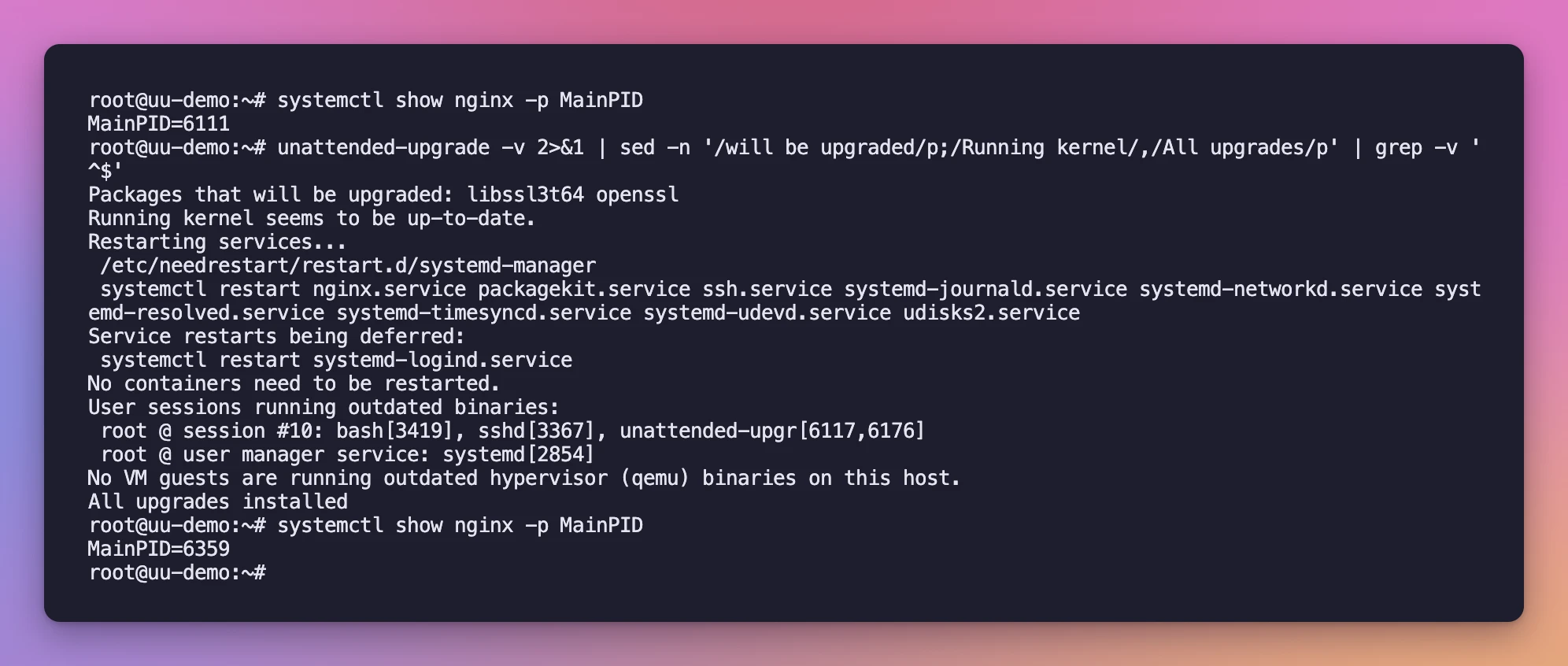
`needrestart` restarted nginx, ssh, journald, resolved and five more services, and deferred `systemd-logind`, which it never restarts on its own. My SSH session stayed open, since restarting `ssh.service` only replaces the listening daemon.
It also lists the user sessions that still run old binaries. Those fix themselves when you log out.
Two things `needrestart` can't do. It can't restart the kernel, and it doesn't restart containers that bundle their own copy of OpenSSL. A Docker image with its own NGINX doesn't get patched by any of this. You rebuild or pull the image.
This is the whole daily cycle, click it to go step by step:
## Auto-reboot: when it's worth it
A kernel update writes `/var/run/reboot-required`, and the server keeps running the old kernel until it reboots. Same for a few low-level packages like `libc6` and `systemd`, which `needrestart` can't fully restart.
`unattended-upgrades` can do the reboot for you. These options go in the local file:
```text
Unattended-Upgrade::Automatic-Reboot "true";
Unattended-Upgrade::Automatic-Reboot-WithUsers "true";
Unattended-Upgrade::Automatic-Reboot-Time "04:00";
```
`Automatic-Reboot` is off by default. `Automatic-Reboot-WithUsers` decides whether to reboot while someone is logged in over SSH, and it defaults to true. Set it to false if you leave long `tmux` sessions open and would rather reboot by hand. `Automatic-Reboot-Time` is when to reboot. The default is `now`, so set a time.
I tested it with the `-updates` pocket allowed, so that the run installed the new kernel, and a reboot time a few minutes ahead:
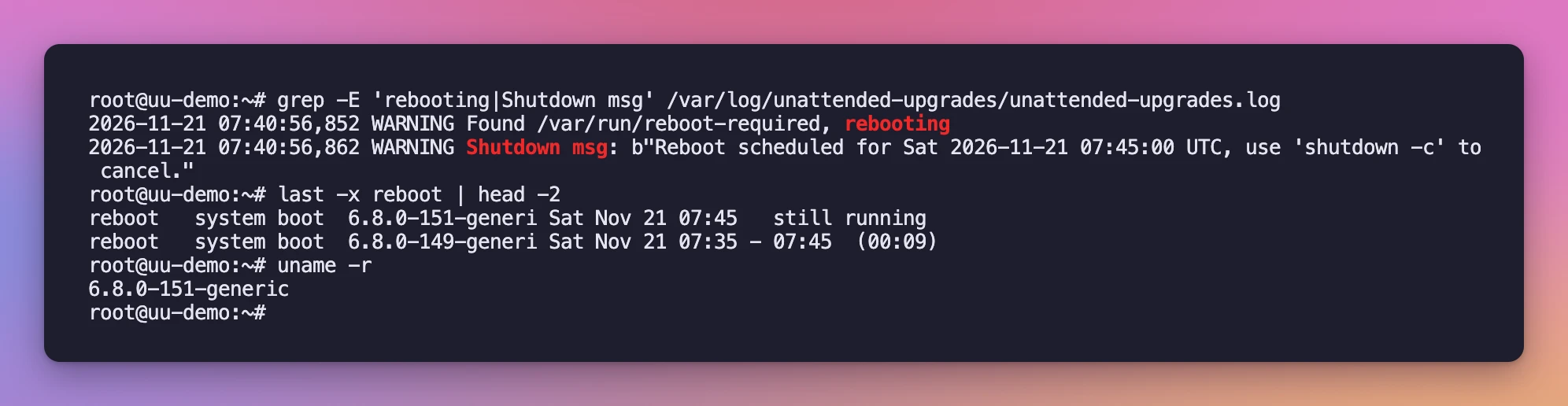
The run finished at 07:40:56, found `/var/run/reboot-required`, and called `shutdown -r 07:45`. At 07:45 the Droplet rebooted into `6.8.0-151-generic`.
While it rebooted I requested the homepage from my Mac twice a second:
```text
07:45:00 000
...
07:45:20 000
07:45:21 200
```
**21 seconds** without a response. NGINX starts on boot, so the site came back on its own.
So is it worth it? It depends on what 21 seconds of downtime costs you, and on what happens when a reboot doesn't come back.
```mermaid
flowchart TD
accTitle: Should the server reboot itself?
accDescr: If a short nightly outage is fine and every service starts on boot, turn auto-reboot on at a quiet hour. If not, keep it off and get an alert when a reboot is pending.
Q1{Can the site be down
for half a minute at night?}
Q1 -->|Yes| Q2{Does every service start
by itself on boot?}
Q1 -->|No| Off[Keep it off.
Alert on reboot-required]
Q2 -->|Yes| On[Turn it on, 04:00]
Q2 -->|No, or not tested| Fix[Test a manual reboot first]
Fix --> Q2
```
Turn it on when:
- it's one server running a website or an API, and every service is a systemd unit enabled at boot
- you have no ops team checking `reboot-required` every week
- you'd rather lose 30 seconds at 4am than run a vulnerable kernel for a month
Keep it off when:
- the server runs a database with other servers connecting to it, and a restart drops their connections at random
- something on the server needs manual steps after a boot, like unlocking an encrypted disk or starting a process in `tmux`
- you've never rebooted that server and don't know if it comes back
The last one is the most common. Before turning on auto-reboot, reboot by hand once, at a time you're watching, and check that everything starts. If it doesn't, you want to find out now and not at 4am on a Sunday.
If you keep it off, a pending reboot shows up when you log in (Ubuntu's login message says `*** System restart required ***`), and you can make the alert script below tell you.
### Pick the time
The reboot happens at `Automatic-Reboot-Time` after the run that needed it. The run itself starts at 06:00 plus up to an hour, which may not be a quiet hour for your visitors.
You can move the timer with a systemd override:
```bash
sudo systemctl edit apt-daily-upgrade.timer
```
```ini
[Timer]
OnCalendar=
OnCalendar=*-*-* 03:30
RandomizedDelaySec=15m
```
The empty `OnCalendar=` clears the default before setting the new one. After saving, `systemctl list-timers apt-daily-upgrade.timer` showed the next run at 03:41:37 UTC on my server, 03:30 plus the random delay.
With several servers, give each a different reboot time so they don't all go down at once.
## Supply-chain worries
The main objection to automatic updates is: what if the update itself is malicious? It's a fair question, so let's be precise about what `unattended-upgrades` installs.
With the default configuration it installs from the Ubuntu or Debian security archive only. Those packages are built by the distribution from source, signed with the archive key, and they're small patches on top of a version you've been running for months. That's a very different thing from `npm install` pulling the latest release of a dependency published an hour ago by whoever got a maintainer's token.
The risk is real for **third-party repositories**: Docker, NodeSource, Tailscale, PostgreSQL's own repository, a vendor's agent. Those ship new upstream versions directly.
By default `unattended-upgrades` ignores them. I added Tailscale's apt repository to the test server and installed an older version, 1.104.5:
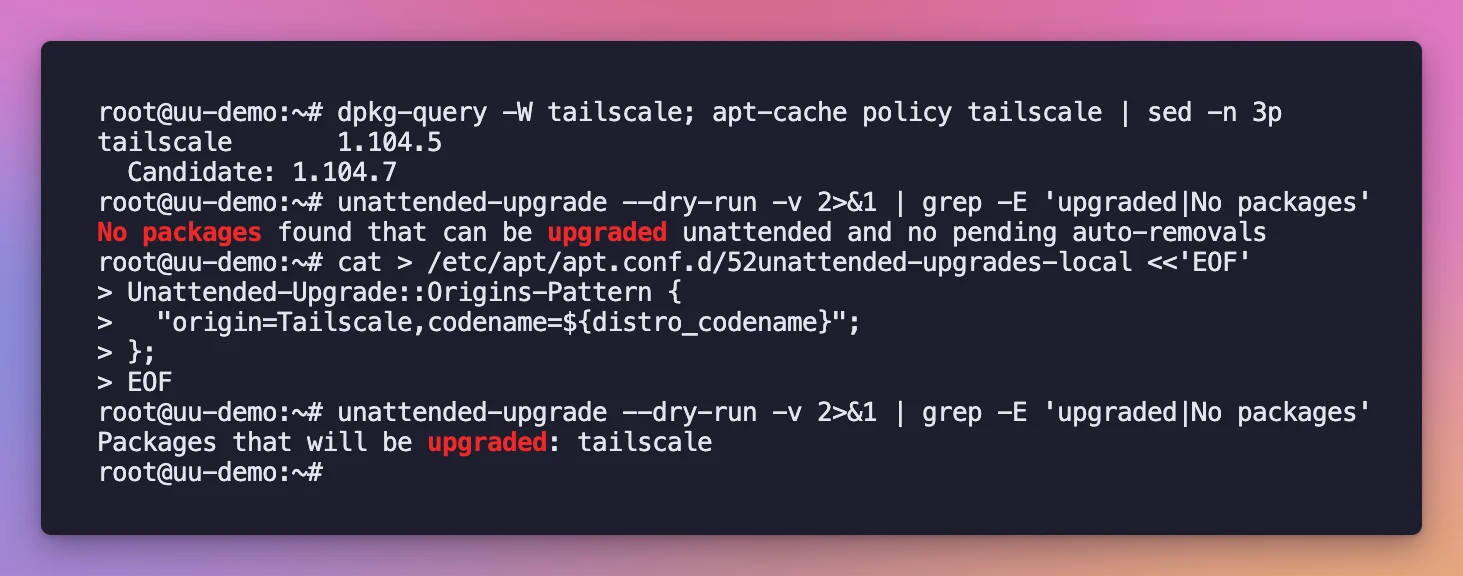
`apt` knew about 1.104.7, but the dry run said `No packages found that can be upgraded unattended`. After adding an `Origins-Pattern` line that matches the repository's `Origin: Tailscale`, the dry run picked it up.
To find a repository's origin, look at the `Release` file apt downloaded for it:
```bash
grep -E '^(Origin|Label|Codename)' /var/lib/apt/lists/*Release
```
So the supply-chain question is one you answer per repository. My take:
- **Distribution security archive**: auto-install. This is the case where waiting costs more than trusting.
- **Third-party repositories**: leave them out. Update them by hand, after a release has been out for a few days and nobody has reported problems.
- **A third-party tool that is itself security-critical** (a VPN client, an agent with root): include it only if you trust the vendor's release process as much as your distribution's.
There's no built-in "wait N days before installing" setting in `unattended-upgrades`. Keeping third-party origins out is the delay.
### Hold back a specific package
If one package must never update on its own, like a database you upgrade with a migration plan, blacklist it:
```text
Unattended-Upgrade::Package-Blacklist {
"nginx";
};
```
Be careful, the entries are Python regular expressions matched against the start of the package name. `"nginx"` also matched `nginx-common`, and both stayed on the old version. Use `"nginx$"` to match one package exactly.
A blacklist also shows up when you log in. My server greeted me with:
```text
2 updates could not be installed automatically. For more details,
see /var/log/unattended-upgrades/unattended-upgrades.log
```
`sudo apt-mark hold ` works too, and it also stops a manual `apt upgrade`. Use the blacklist when you only want to keep automation away from a package.
Remember what a hold costs. If I had blacklisted NGINX last week, I'd still be running the vulnerable version.
## Check that it works
Turning it on isn't enough. It can stop working silently: a full disk, a held dpkg lock, a repository that changed its key.
### Logs
Each run writes to `/var/log/unattended-upgrades/unattended-upgrades.log`:
```text
2026-11-21 07:53:41,223 INFO Packages that will be upgraded: nginx nginx-common
2026-11-21 07:53:41,224 INFO Writing dpkg log to /var/log/unattended-upgrades/unattended-upgrades-dpkg.log
2026-11-21 07:53:50,515 INFO All upgrades installed
```
The full dpkg output goes to `unattended-upgrades-dpkg.log` in the same folder, and `/var/log/dpkg.log` has a line per package:
```text
2026-11-21 07:38:52 upgrade nginx:amd64 1.24.0-2ubuntu7 1.24.0-2ubuntu7.21
```
The timer's own logs are in the journal:
```bash
journalctl -u apt-daily-upgrade --since yesterday
```
### Get an alert
The log is useless if you never read it. `unattended-upgrades` can send an email (`Unattended-Upgrade::Mail`), but that needs a working mail setup on the server, which most VPSes don't have.
I prefer a push notification. This script reads the last run from the log and POSTs a summary to a webhook, like an [ntfy](https://ntfy.sh) topic you subscribe to on your phone:
```bash
#!/bin/sh
# /usr/local/bin/uu-report
URL="${UU_WEBHOOK:-https://ntfy.sh/your-secret-topic}"
LOG=/var/log/unattended-upgrades/unattended-upgrades.log
RUN=$(awk "/Starting unattended upgrades script/{buf=\"\"} {buf=buf \$0 \"\n\"} END{printf \"%s\", buf}" "$LOG")
TITLE="$(hostname): updates ok"
echo "$RUN" | grep -q -E "ERROR|WARNING" && TITLE="$(hostname): check unattended-upgrades"
[ -f /var/run/reboot-required ] && TITLE="$TITLE, reboot pending"
echo "$RUN" | grep -E "upgraded|ERROR|WARNING|reboot" | sed "s/^[0-9-]* [0-9:,]* //" |
curl -fsS -H "Title: $TITLE" --data-binary @- "$URL" >/dev/null
```
Make it executable with `sudo chmod +x /usr/local/bin/uu-report`, then run it after every upgrade run with a systemd drop-in:
```bash
sudo systemctl edit apt-daily-upgrade.service
```
```ini
[Service]
ExecStartPost=-/usr/local/bin/uu-report
```
The `-` before the path matters. Without it, my first test failed: the webhook wasn't reachable, `curl` exited with code 7, and systemd marked the whole `apt-daily-upgrade.service` as failed, even though the upgrade itself had worked. With the `-`, a failed notification is ignored.
To test it without sending anything out, I pointed `UU_WEBHOOK` at a small Python listener on the server itself and started the service by hand:
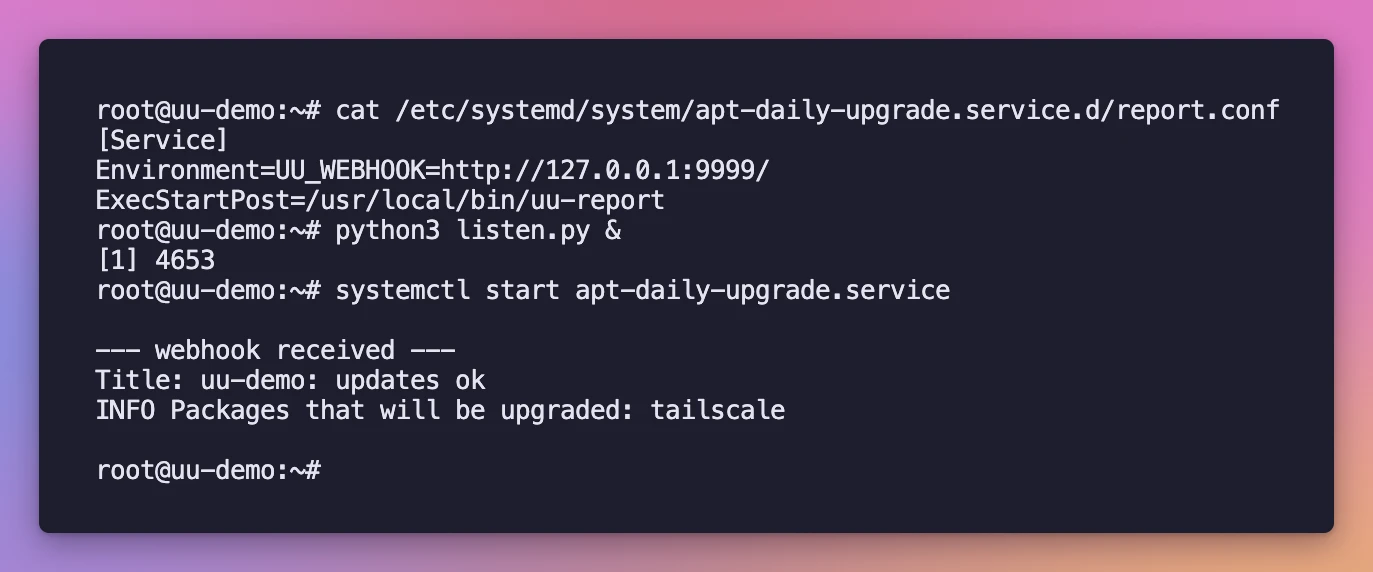
Use a long random topic name if you use the public ntfy.sh server, since anyone who knows the name can read it.
## Patch faster: refresh the lists right before the upgrade
The package lists refresh at most once a day, at a random time. The upgrade runs at 06:00. If the lists were refreshed at 05:00 and the fix is published at 05:30, you get it the morning after, almost two days later.
You can make the upgrade run refresh the lists first. Allow the refresh to run more than once a day:
```bash
echo 'APT::Periodic::Update-Package-Lists "always";' | sudo tee /etc/apt/apt.conf.d/21refresh-always
```
Then add a line to the same drop-in as the alert:
```ini
[Service]
ExecStartPre=/usr/lib/apt/apt.systemd.daily update
ExecStartPost=-/usr/local/bin/uu-report
```
On my server, starting the service updated the `update-success-stamp` right before the upgrade ran. Now each night's run installs whatever was published up to that moment.
For a bug like the NGINX one, you can also run the update by hand the day it's announced:
```bash
sudo apt update && sudo unattended-upgrade -v
```
That installs only what your configuration allows, which on the default setup means only security fixes.
## Debian
On Debian 13 the package may not be installed. `apt install unattended-upgrades` and `dpkg-reconfigure -plow unattended-upgrades` work the same way.
The configuration uses `Origins-Pattern` instead of `Allowed-Origins`, and these are the lines Debian enables by default:
```text
Unattended-Upgrade::Origins-Pattern {
"origin=Debian,codename=${distro_codename},label=Debian";
"origin=Debian,codename=${distro_codename},label=Debian-Security";
"origin=Debian,codename=${distro_codename}-security,label=Debian-Security";
};
```
Debian's `label=Debian` line includes point releases, which bring bug fixes as well as security fixes. That's a bit more than Ubuntu's default. Everything else in this post, the reboot options, blacklist, logs and systemd overrides, is the same. I went through a Debian 13 server in [How to move a DigitalOcean Droplet from Ubuntu to Debian](https://flaviocopes.com/ubuntu-to-debian-digitalocean/).
## The setup I'd use on a single VPS
All of the above in one place. `/etc/apt/apt.conf.d/52unattended-upgrades-local`:
```text
Unattended-Upgrade::Automatic-Reboot "true";
Unattended-Upgrade::Automatic-Reboot-WithUsers "true";
Unattended-Upgrade::Automatic-Reboot-Time "04:00";
Unattended-Upgrade::Remove-Unused-Kernel-Packages "true";
```
No `-updates`, no third-party origins. Plus the `uu-report` hook with `ExecStartPost=-`, so I hear about failures and pending reboots.
Here's how that compares with the other approaches:
| Approach | Time to get a fix like the NGINX one | Downtime you don't schedule | Third-party code installed unattended | Work for you |
| --- | --- | --- | --- | --- |
| Manual `apt upgrade` once a month | up to a month | none | none | monthly login |
| Security-only, no auto-reboot (Ubuntu default) | one to two days | service restarts only | none | reboot after kernel updates |
| Security-only + auto-reboot at 04:00 | one to two days | ~21 s on kernel nights | none | check alerts |
| Everything, including `-updates` and vendor repos | one to two days | more restarts, more reboots | yes | most surprises |
| Managed platform | the provider's job | the provider's job | n/a | none on the OS |
## When a managed platform is the better answer
Automatic updates fix the OS. They don't fix the app you deploy, your Node.js version, the Docker images you pulled, or the database you installed from a tarball.
If what you run is a static site or a small app that fits Workers, Pages or a similar platform, there's no NGINX to patch at all. This website runs on Cloudflare Pages, and I didn't have to do anything this week.
A VPS makes sense when you need a real server: a database, a long-running process, background jobs, software that only ships as a Linux package. Then it's your job to keep it patched, and `unattended-upgrades` does most of that job in five minutes of setup.
Pair it with a server that exposes as little as possible. If NGINX isn't reachable from the internet at all, as in [How to secure a VPS with Tailscale and Cloudflare Tunnel](https://flaviocopes.com/secure-vps/), a bug like this one becomes much less urgent. I also went through an AI-assisted hardening pass on an Ubuntu server in [Securing a server using AI](https://flaviocopes.com/securing-a-server-with-ai/), and turning on unattended upgrades was one of the first things it did.