How to fix prettier messing up your HTML on save
By Flavio Copes
Fix Prettier messing up your HTML on save in VS Code by setting the HTML editor.defaultFormatter to vscode.html-language-features in settings.json.
The fix is to stop using Prettier for HTML files, and let VS Code’s built-in HTML formatter handle them instead. One setting does it.
Like everyone I use Prettier to format my JS files.
I’ve had some issues with Prettier formatting my HTML like this:
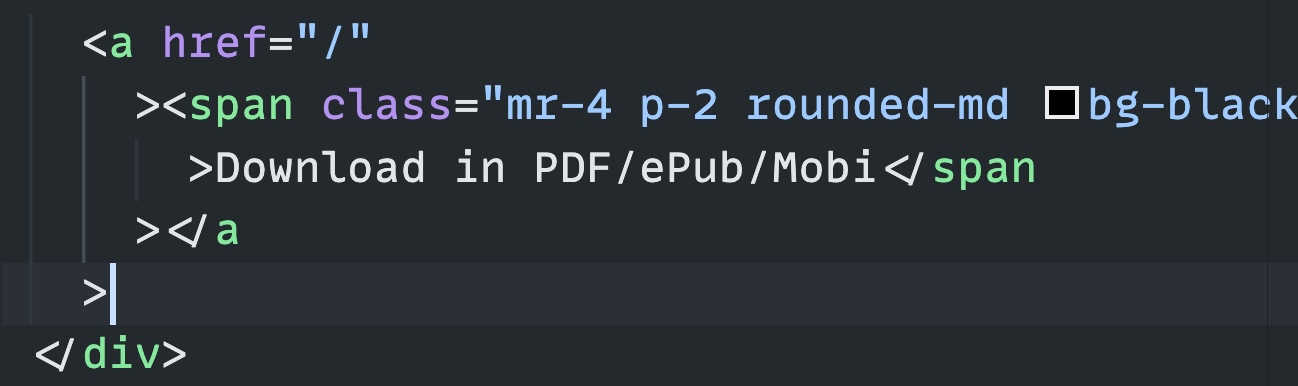
The solution I found is to add this to your settings.json file to tell VS Code to use the default HTML formatter instead of Prettier:
{
  "[html]": {
    "editor.defaultFormatter": "vscode.html-language-features"
  }
}
To open settings.json, press cmd-shift-P (ctrl-shift-P on Windows) and pick “Preferences: Open User Settings (JSON)”.
The [html] part is a language-specific setting. It only applies to HTML files, so Prettier keeps formatting your JavaScript and CSS exactly like before.
Why does Prettier do this to HTML?
Two reasons.
First, Prettier wraps lines longer than 80 characters (the printWidth option). HTML pushes past that limit constantly, between long attributes and text content, so tags get broken across multiple lines.
Second, whitespace in HTML can be significant. A space between two inline elements, like two links, is visible on the rendered page. Prettier refuses to add or remove whitespace that could change what the browser shows, so it splits tags in these strange-looking spots to keep the output identical.
The result renders the same, but reading it is painful.
An alternative: keep Prettier, relax it
If you’d rather keep Prettier on HTML, you can tell it to stop worrying about whitespace. In your Prettier config file, .prettierrc:
{
  "htmlWhitespaceSensitivity": "ignore"
}
Be careful with this one. It lets Prettier add and remove whitespace around inline elements, which can change how the page renders. I prefer the first fix.
If the fix doesn’t seem to work
One pitfall: your project may contain a .vscode/settings.json file with its own formatter settings. Workspace settings override user settings, so your fix looks like it does nothing.
Open that file and check for a conflicting editor.defaultFormatter. Either remove it, or put the [html] block there instead of in your user settings.
Want me to talk about your product? You can sponsor this site.
Related posts about tools: