
An app by Flavio
App Drawer
A panel in the Dock for the Mac apps you build. Working On, a grid of every app, pins, and the appdrawer command. Full MIT source included.
Buy App Drawer · $20One-time purchase. Tax included. Full source code.
macOS 14 or later · Apple silicon and Intel
I build lots of apps locally, and they sit in different folders. If I keep them all open they pollute my Dock. App Drawer is my very easy way to remember my apps and launch them.
Click it in the Dock and a panel opens above the icon. On the left is Working On: the apps I built or committed to in the last 16 hours, plus the ones I pinned. On the right is every app, in a grid. I type to search, move with the arrow keys, and press Return to open one.
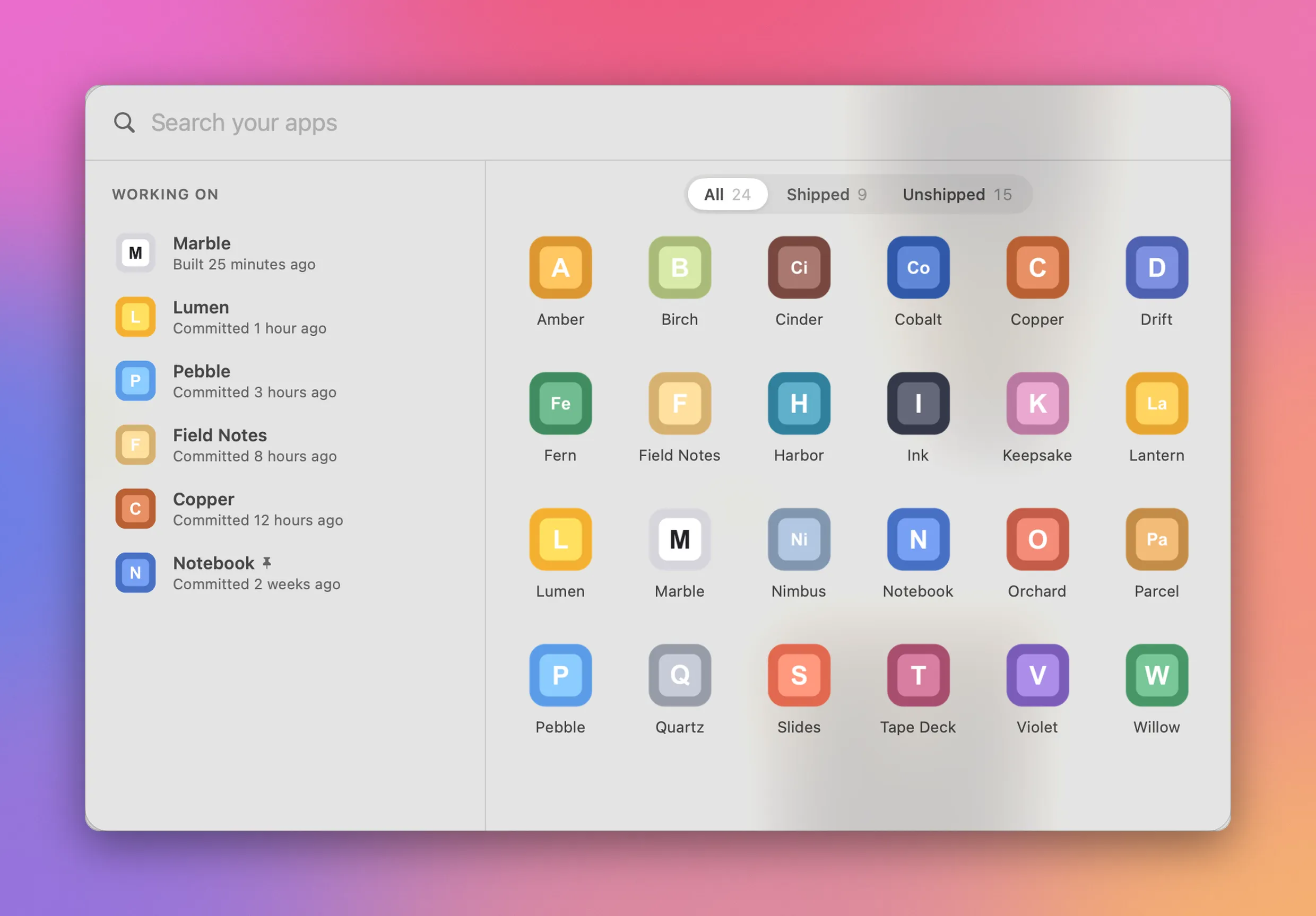
Working On on the left, every app on the right. The apps in these screenshots are fictional.
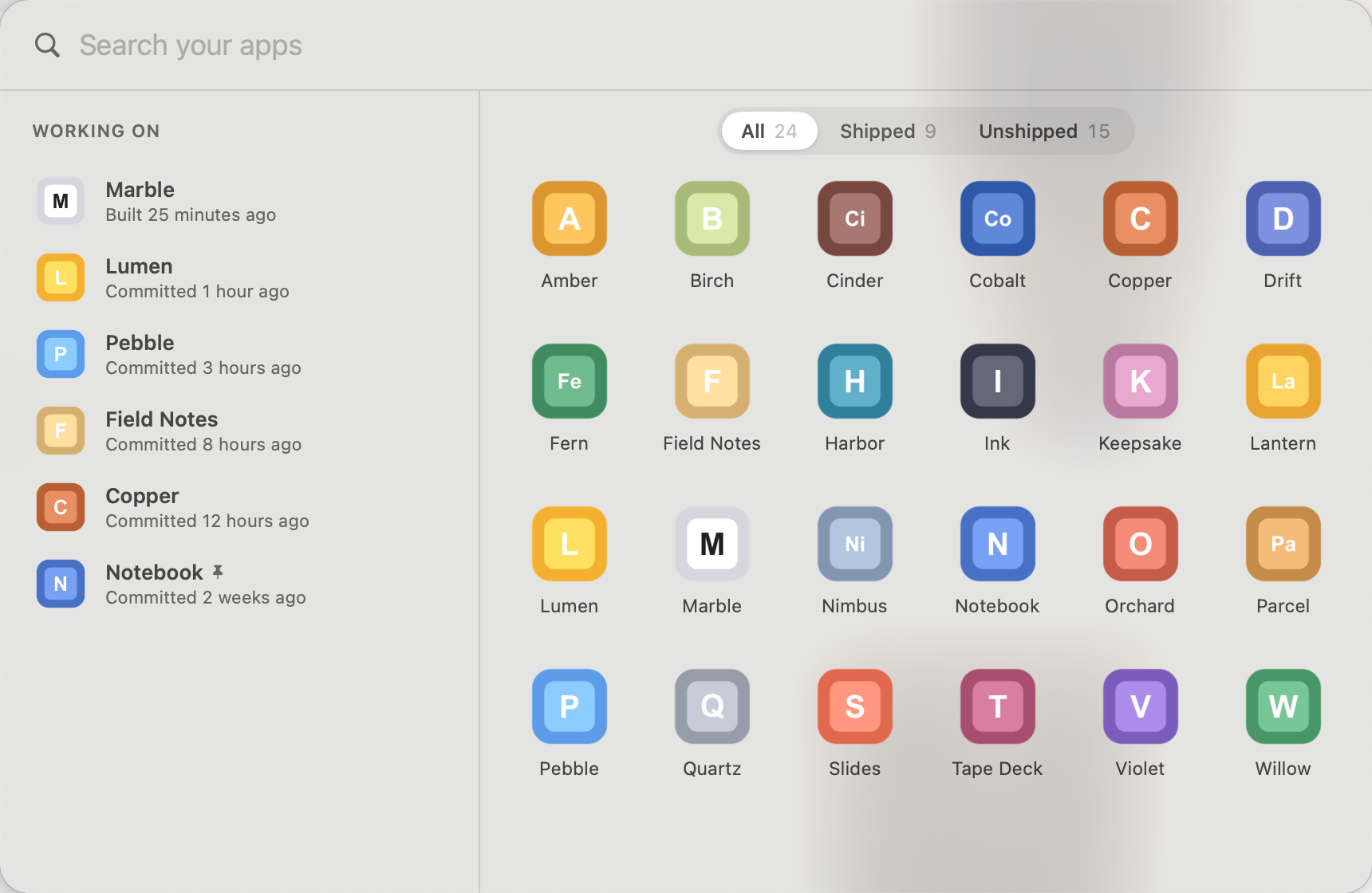
The same panel, without the frame.
Above the grid I switch between All, Shipped and Unshipped. An app counts as shipped when its repo has a GitHub remote and a version tag like v1.2.0. Unshipped lists them by date. The ones I haven’t touched in 60 days go below a line.
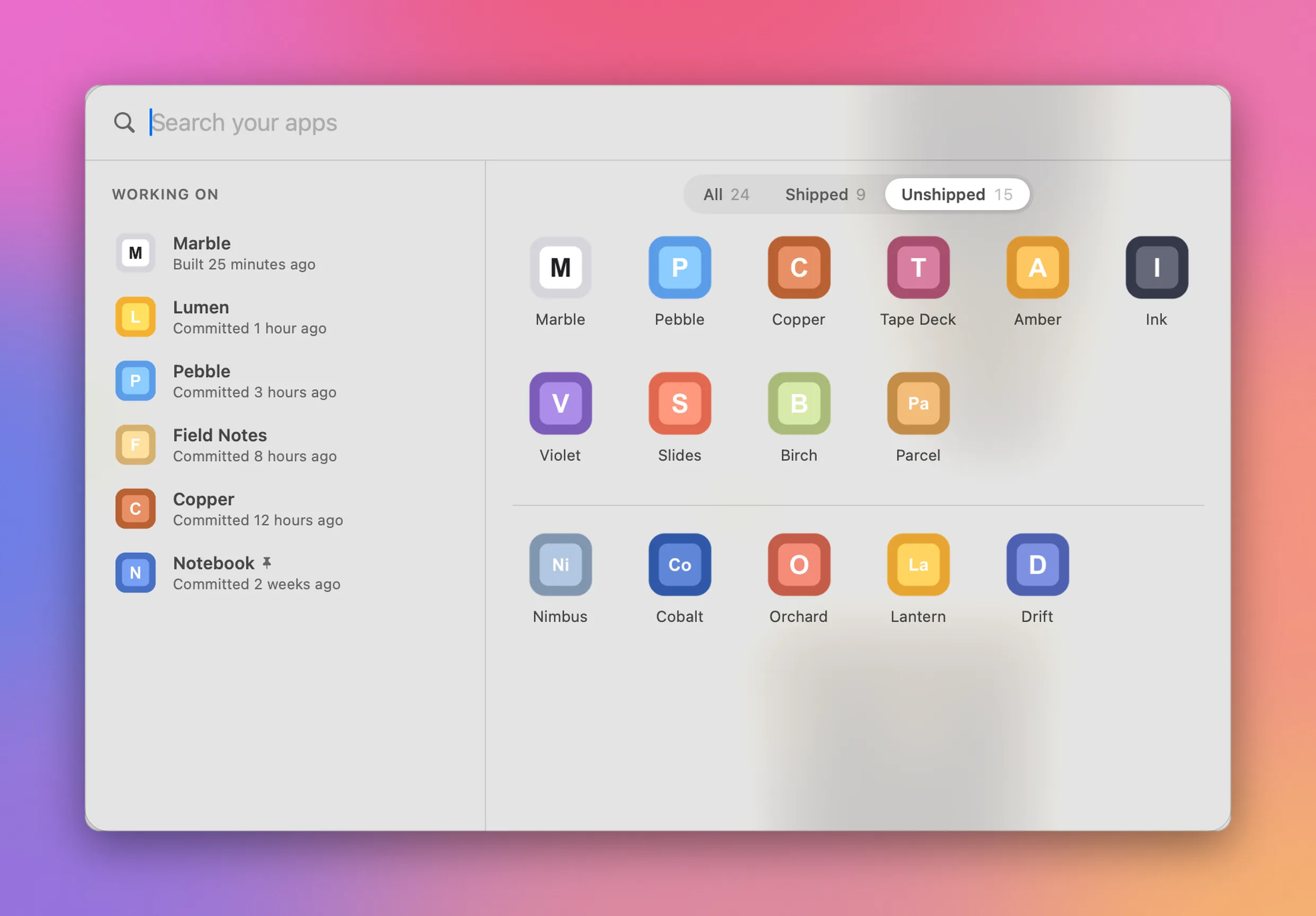
Unshipped keeps the recent ones first. Older apps sit below the line. Working On stays as it is.
Right-click an app to pin it, keep it in the Dock, open the project, or hide it. Open Project shows up when Cursor, Visual Studio Code or Zed is installed, and it uses the first of those it finds.
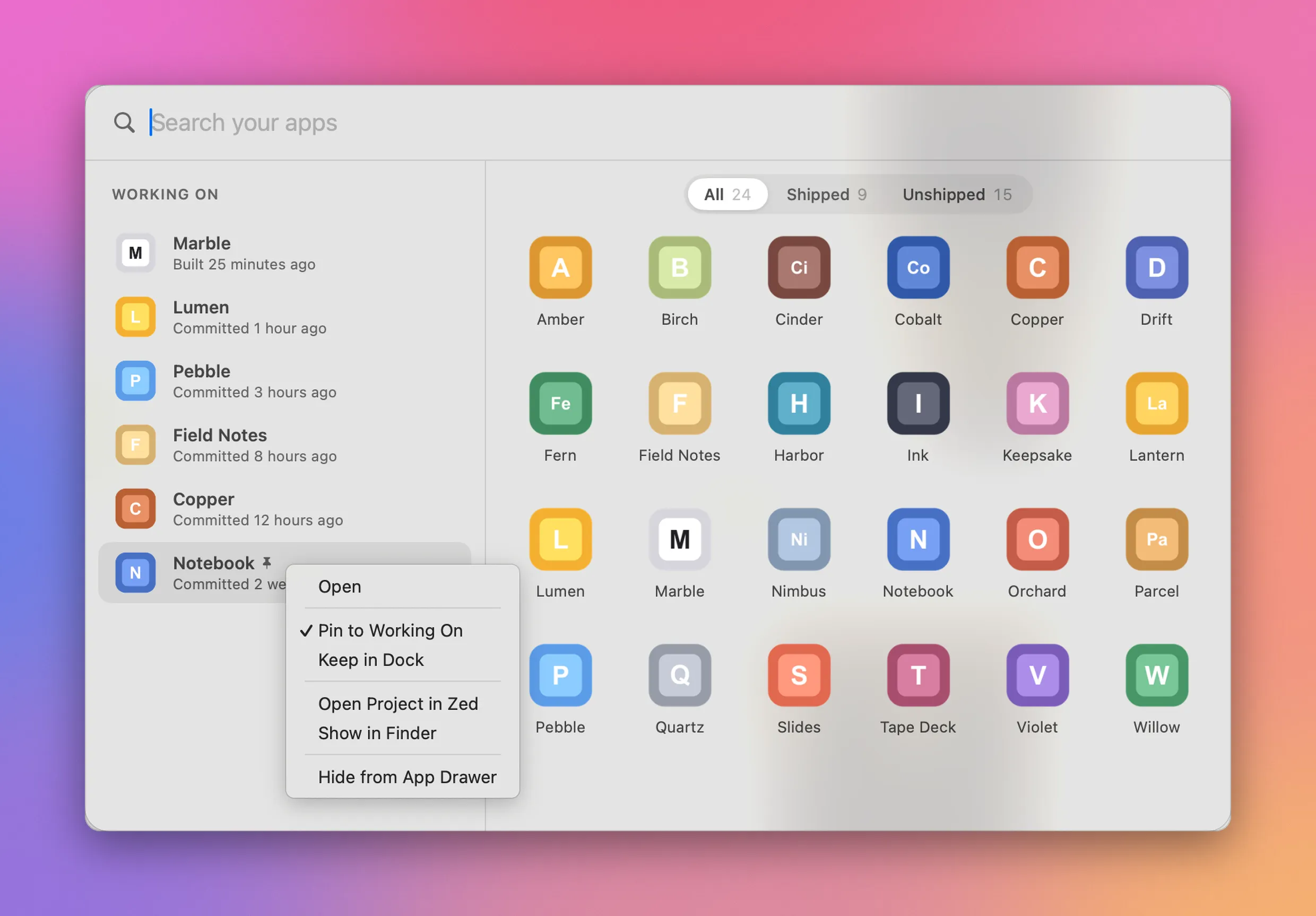
Notebook is pinned, so it stays in Working On after the 16 hours are gone. Hide takes an app out of the panel.
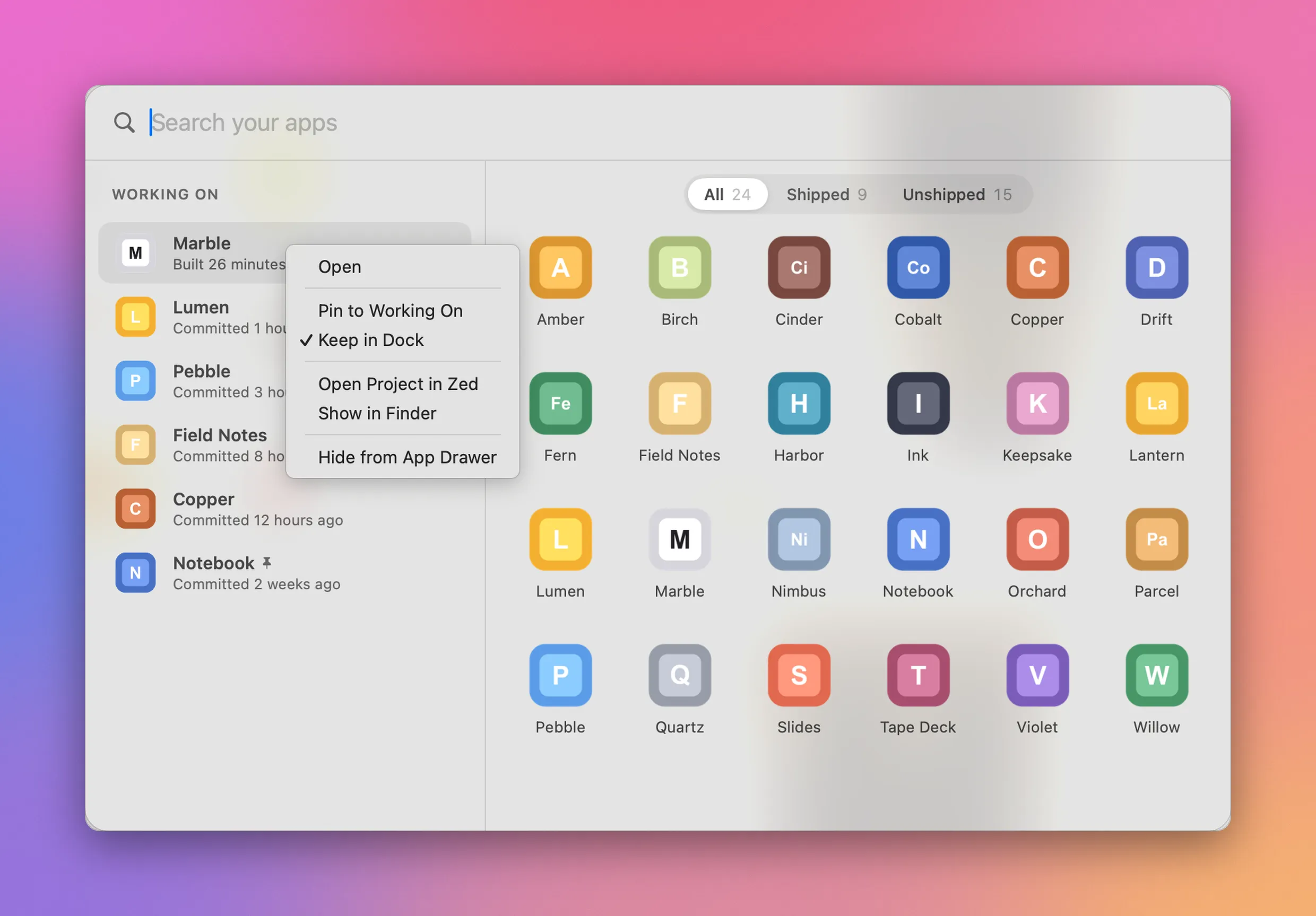
Keep in Dock leaves Marble there after I quit it. A running app already shows in the Dock, and App Drawer leaves that alone.
App Drawer also keeps shortcuts in ~/Applications/App Drawer Apps, so Raycast can find the builds in its main search.
Folders
The first time it runs, App Drawer looks in ~/dev, ~/Developer, ~/Projects and ~/www, the ones you have. If your projects live somewhere else, open Settings (⌘,) and add the folders.
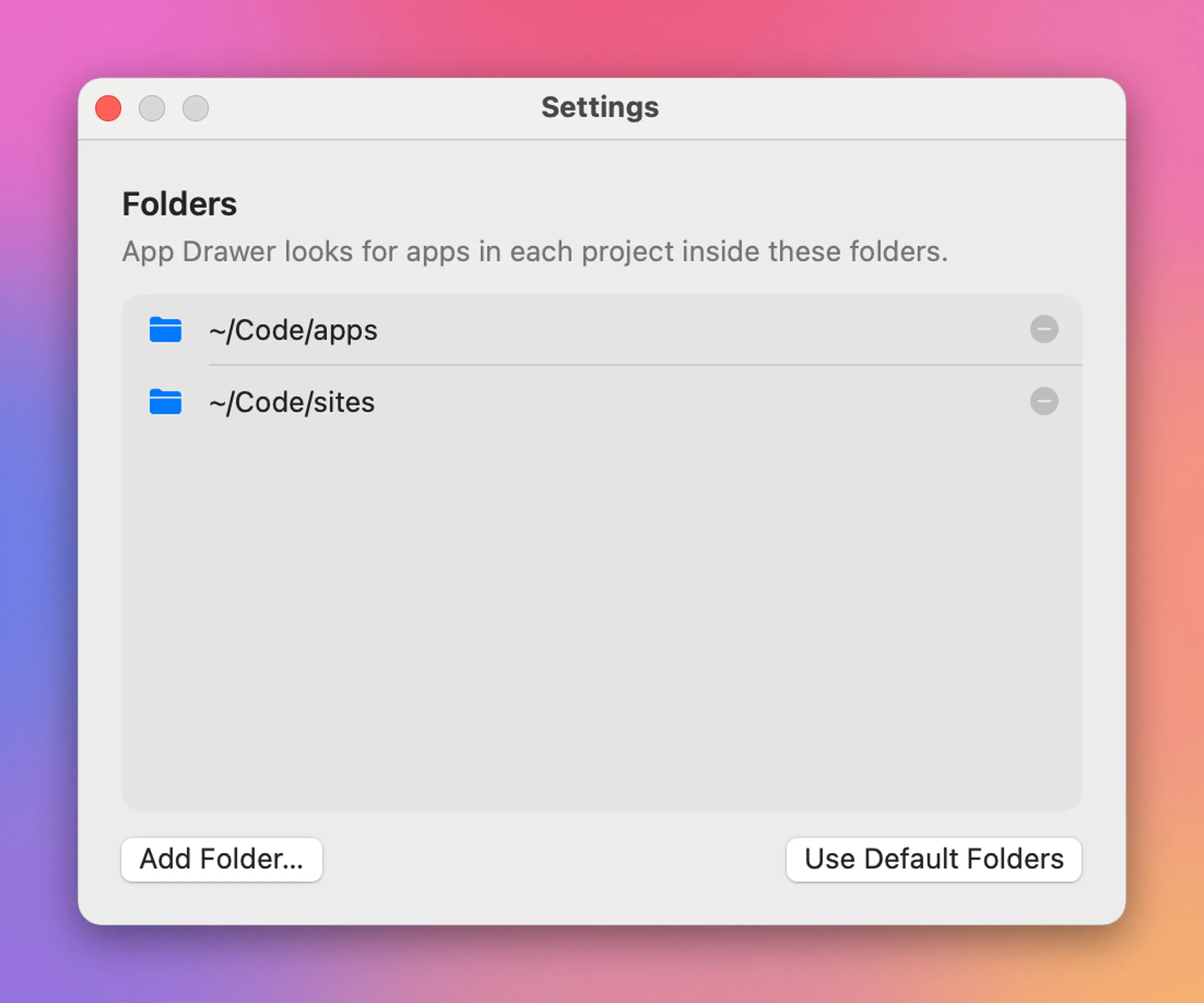
Two folders. App Drawer checks each project inside them for a .app.
It looks 8 levels deep and skips node_modules and folders like old. When an app has several builds, you get the newest one.
The command line
The app includes appdrawer, so you or an agent can list, pin, hide and update the Dock from the terminal. Link it into your PATH:
ln -s "/Applications/App Drawer.app/Contents/Helpers/appdrawer" ~/.local/bin/appdrawerThen the same choices as the panel:
appdrawer list
appdrawer pin "Harbor Notes"
appdrawer hide "Field Notes"
appdrawer folders add ~/Code
appdrawer dock add Marble
You can name an app by its name, its project folder or its bundle id. Case and spaces don’t count. appdrawer capabilities --json describes the commands for an agent.
What you get
$20 once, tax included. You get the notarized Mac app, the appdrawer command, and the full source under the MIT license.
App Drawer runs on macOS 14 or later, on Apple silicon and Intel. I’ve tested this build on macOS 15.
After you pay, Polar asks you to connect a GitHub account. It invites that account to the private repository with read-only access. Download the app from Releases, or build it yourself. You need a GitHub account to receive the repository.
Updates are manual. Download the new zip from Releases when there is one. There’s no subscription, and the app itself has no account.
App Drawer only finds apps by scanning the folders you choose. A build that lives somewhere else won’t show up, and App Drawer never rebuilds the apps it lists.