
An app by Flavio
Camera Card Copier
Copy a camera or audio recorder card to two drives at once. Every file is read back from both drives and checked against the card, a copy cut off halfway is marked as not finished, and a receipt says what went where.
Buy Camera Card Copier · $19One-time purchase. Plus tax where it applies.
macOS 14 or later · Apple silicon and Intel
Latest version 1.0.2, released November 22, 2026
It’s the end of a shoot. You have a card full of clips, two drives on the desk, and a camera that wants the card back tomorrow, formatted.
The usual way is to drag the card’s folders to one drive, then to the other, and wait. Then you look at the two folders and hope. The Finder doesn’t check anything after a copy. If a cable comes loose halfway, a half-written clip can sit on the drive with its real name, and nothing tells you which copy is incomplete. A week later nobody remembers which card went where.
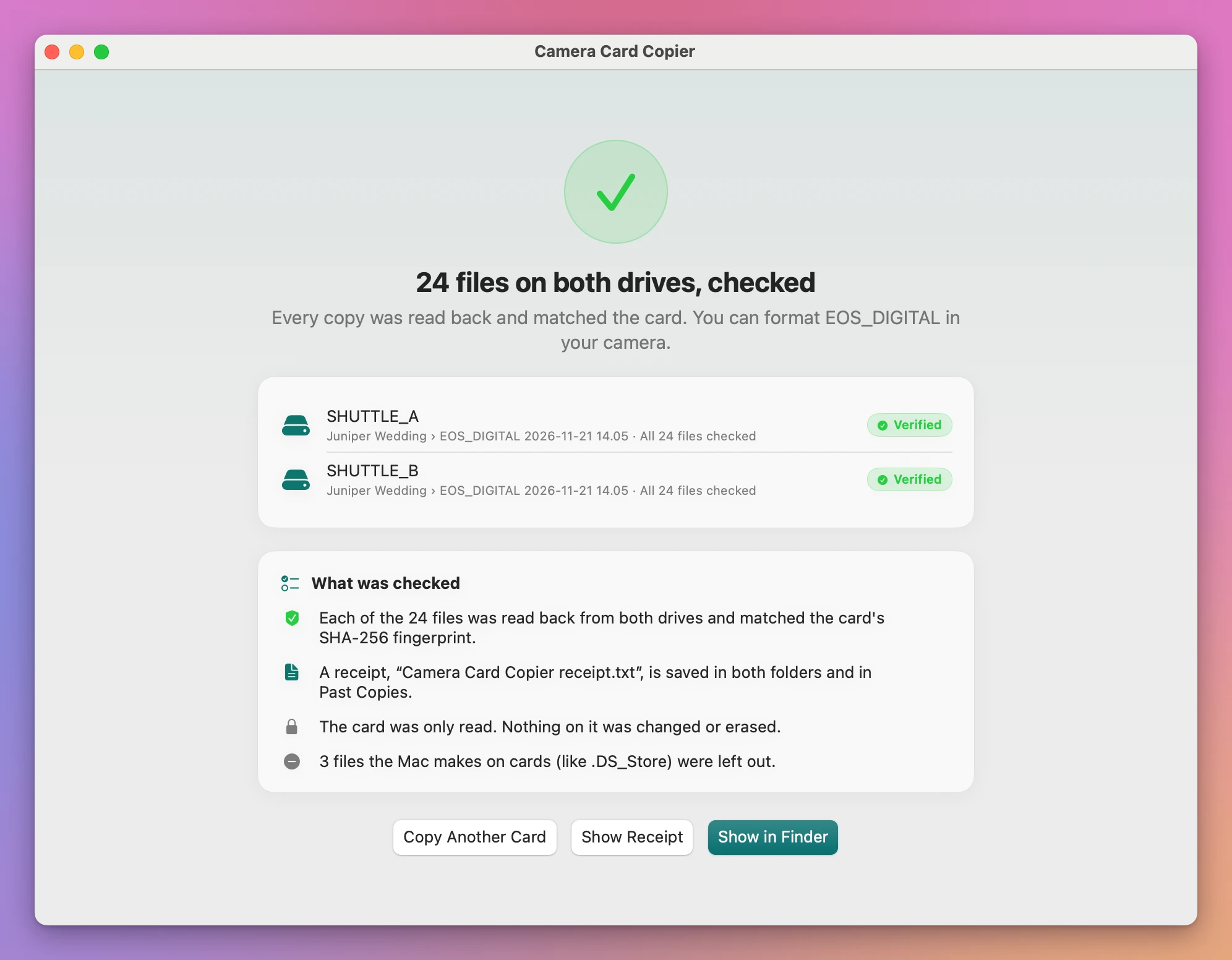
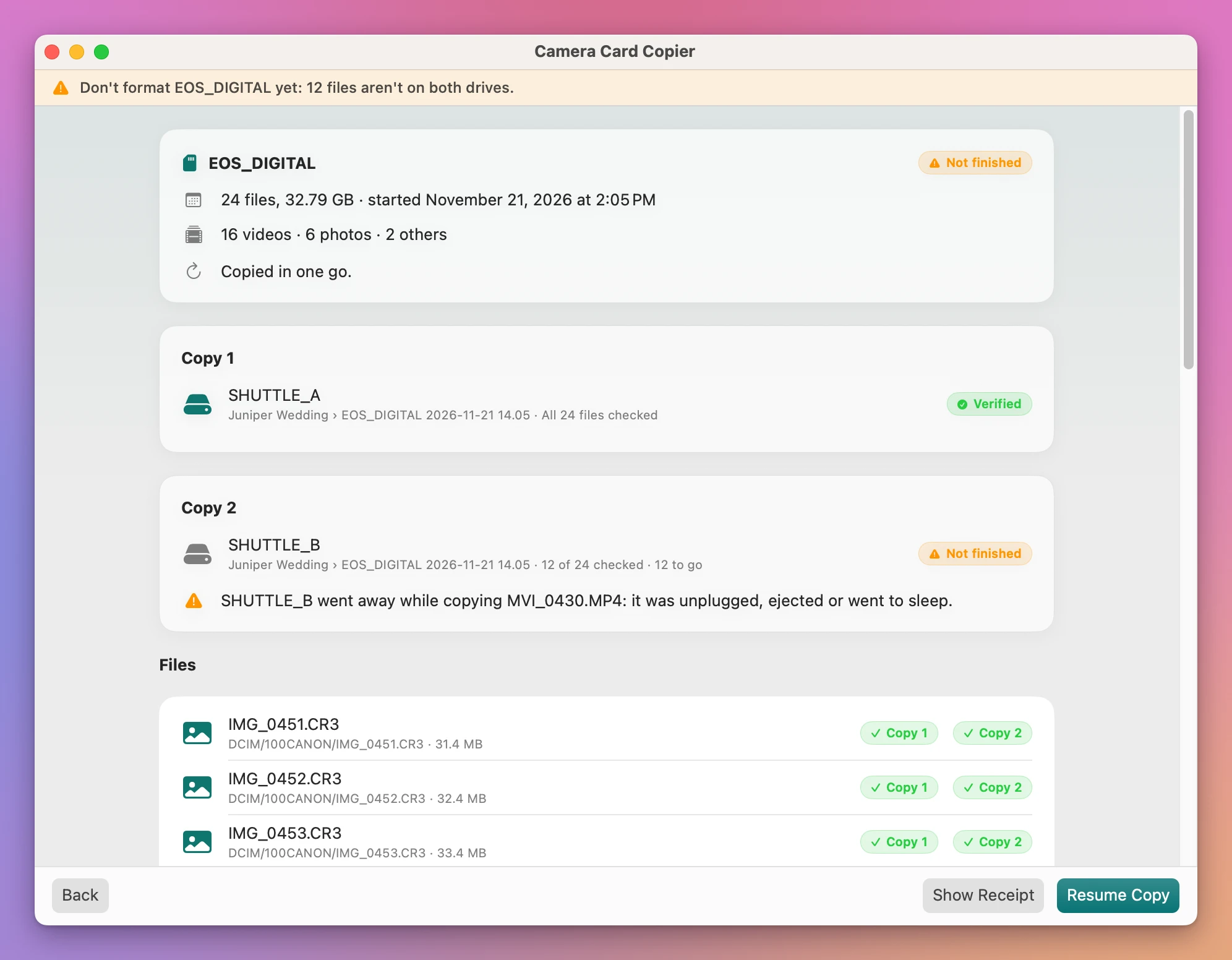
Camera Card Copier copies the card to both drives at once, reads every file back from each drive and compares it with the card. When both copies match, it tells you the card can be formatted. When one doesn’t, it says so in orange, with the drive, the file it was copying and how many files are missing, and Resume Copy finishes the job later.
Watch a 30-second demo of Camera Card Copier:
Who it’s for
- Wedding and event filmmakers. Two cameras and a recorder, four cards at 1 a.m., a work drive and a backup drive. You need to know which cards are safe to format before the next day, not hope.
- Documentary and corporate shooters with a two-copy rule. The contract says footage lives on two drives before a card is reused. The receipt in each folder is the record: card name, file counts, both folders, every file verified.
- Podcast and interview producers. You copy the recorder’s card and the camera’s card to a NAS folder and a USB drive, then hand the receipt to the editor so they know where each file is.
- Wildlife and sports photographers. Thousands of raw files a day. A cable that came loose once and a folder that turned out half empty a week later is how you end up here.
- Second shooters and assistants. You offload someone else’s cards and have to show what you copied and where, written down.
How it works
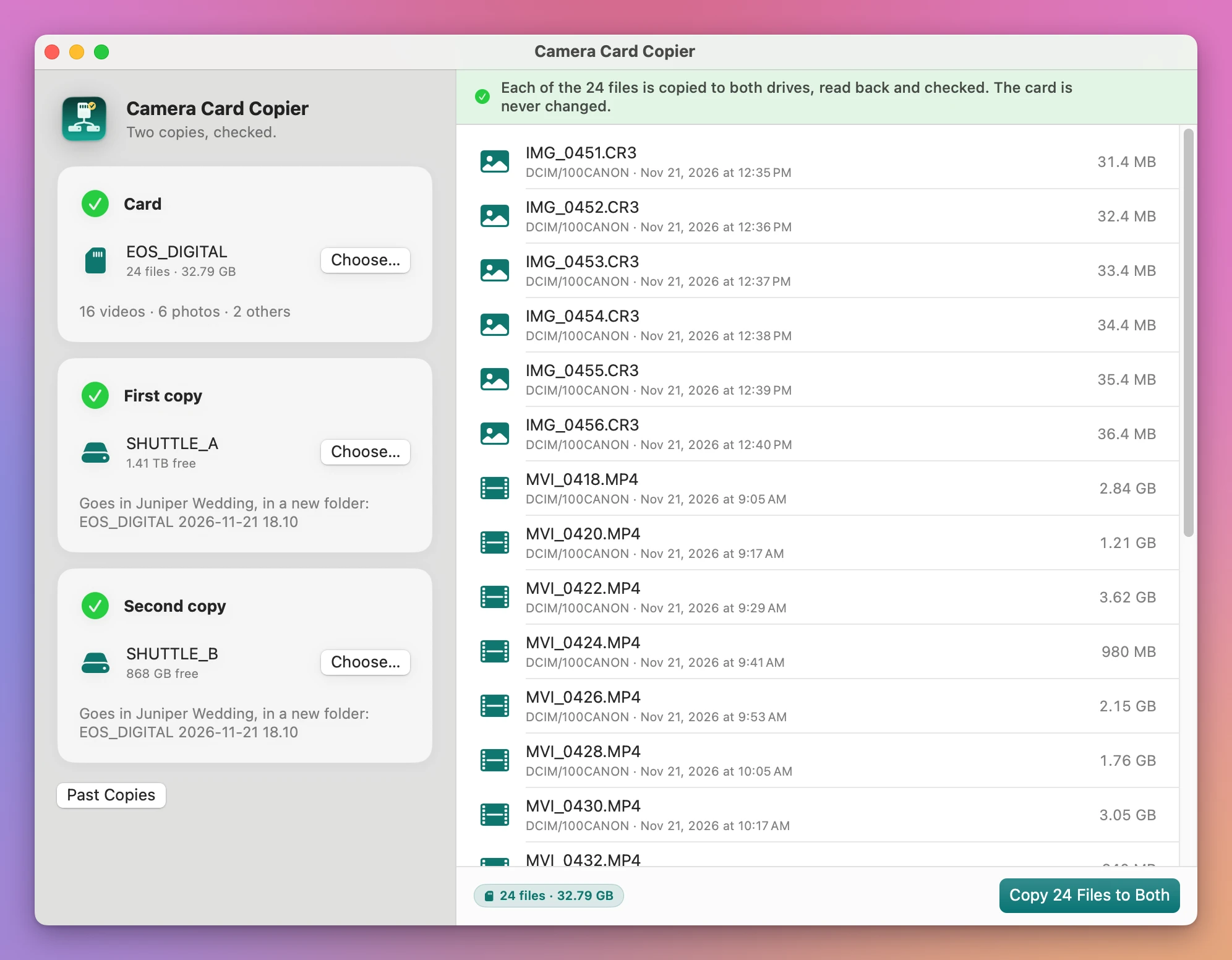
- Put the card in the reader and click Choose a Card…, or drag the card from the Finder onto the window. The files on the card are listed, with videos, photos and audio counted. Files the Mac makes on cards (
.DS_Store,._files) are left out. - Under First copy, click Choose a Drive… and pick a drive or a folder on it.
- Under Second copy, pick the other drive.
- Click Copy 24 Files to Both (the number is your card’s).
- Wait for the green check, or read the orange screen if a copy isn’t finished.
What you get
Two copies from one read of the card
Each file is read from the card once and written to both drives at the same time. The copies go in a new folder named after the card and the time, like EOS_DIGITAL 2026-11-21 14.05, with the card’s own folders inside, so DCIM/100CANON stays DCIM/100CANON. Each copy keeps the clip’s date.
The card is only read. The app never writes to it, renames anything on it or erases it. You format the card in your camera, when the app says both copies are verified.
Every file checked against the card
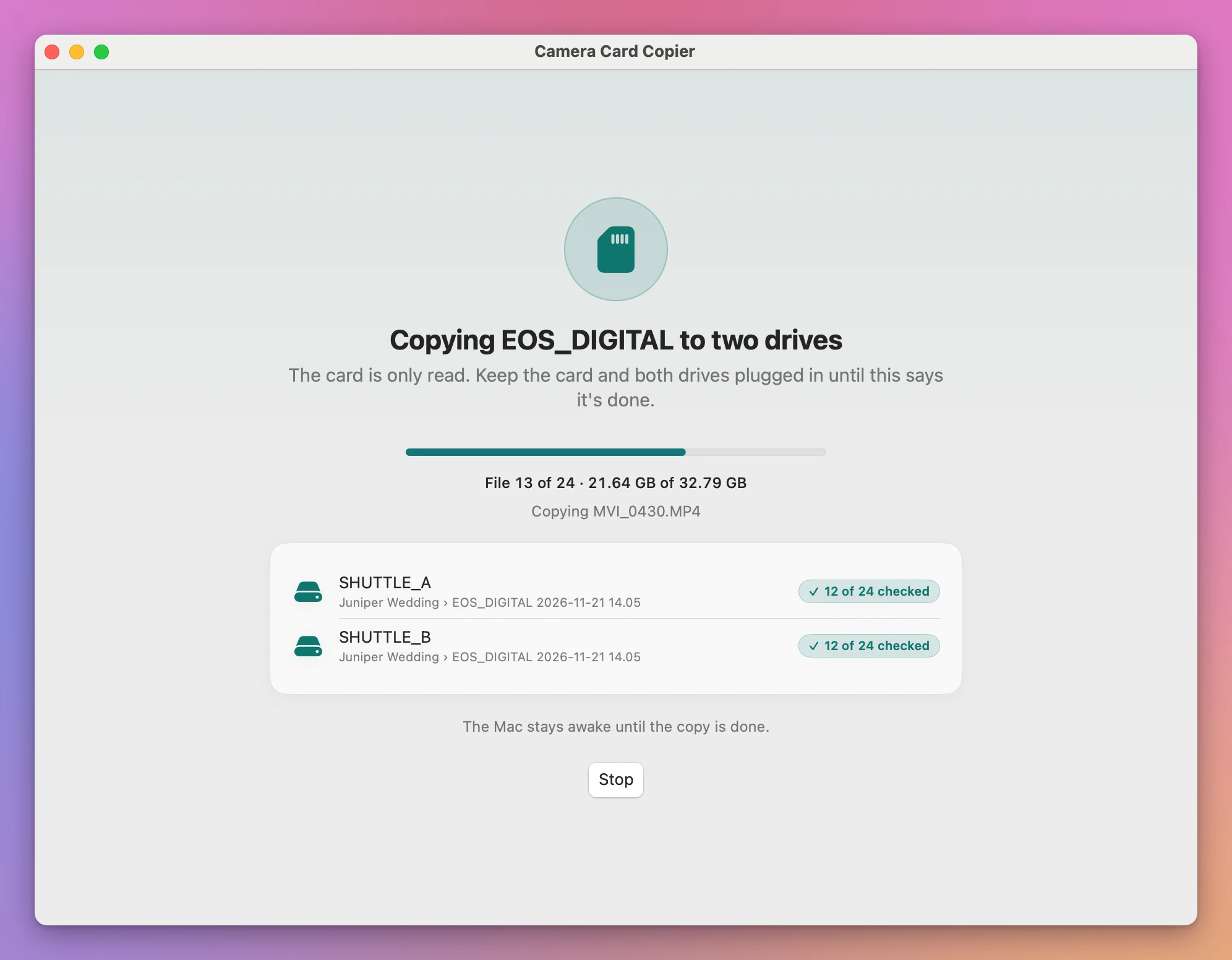
After a file is written, it’s read back from each drive, straight from the drive and not from what the Mac still has in memory, and compared with the card using a SHA-256 fingerprint. It only gets its real name once it matched. Until then it’s called MVI_0430.MP4.cardcopy-partial, so a file cut off halfway never looks finished in the Finder.
A copy that isn’t finished looks different
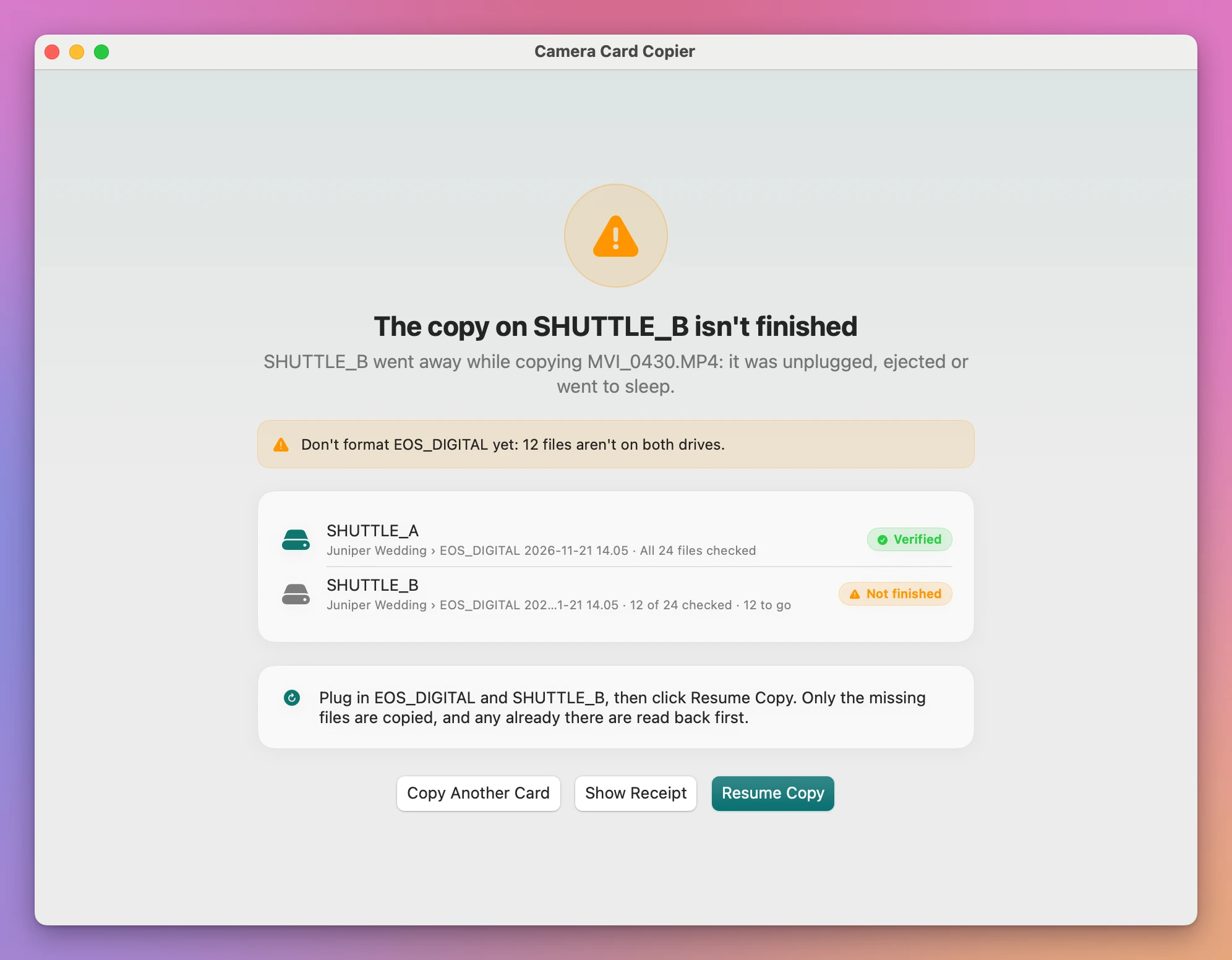
If a drive is unplugged, ejected or goes to sleep in the middle, the other copy carries on. At the end you get an orange screen that names the drive, the file it was copying when it went away, how many files are checked on it, and how many files aren’t on both drives yet. It also says, in plain words, not to format the card.
The same happens after a click on Stop, when the card is pulled out, or when the Mac loses power in the middle: the files checked before that stay checked.
Resume without starting over
Plug the drive back in, keep the card in the reader and click Resume Copy. Only the missing files are copied. A file that’s already on the drive under its real name is read back first and kept if it matches.
A receipt with every job
Every copy writes a plain text file, Camera Card Copier receipt.txt, into both folders. It has the card’s name and size, when it was copied, how many videos, photos and audio files were on it, both folders, whether each copy is verified, why a copy stopped, and every file with its state in each copy and its fingerprint. You can open it in TextEdit years from now.
Past Copies (⌘Y) keeps every job, newest first, with a Verified or Not finished pill. Click one for its receipt, file by file.
Check the copies again later
From a verified job, Check Copies Again reads both copies back from their drives and compares them with the fingerprints taken during the copy. It doesn’t need the card, so it works months later, after the card was formatted. A file that changed on a drive shows up as Different.
It warns you before you start
A folder on the card itself, the same folder twice, one folder inside the other, or a drive without enough room for the card are all refused before anything is written, with a sentence that says what to do. Two copies on the same drive are allowed, with a warning that if the drive fails, both copies go with it.
Why not do it by hand
The Finder can do this. Drag the card’s folders to the first drive, then to the second. You can even start both copies at once. Then select the folder on the card and on each drive and press Command-I: Get Info shows the number of bytes and items, and if they’re the same on all three, the copies are probably complete.
What Get Info can’t tell you is whether the bytes are the right ones. A file can have the right size and broken content. If a drive goes away in the middle, the Finder shows an error, and working out which files made it to that drive is up to you. And there’s no record afterwards of which card went to which folder, or when.
Free command line tools can copy and verify, if you’re comfortable in Terminal. Pro offload apps made for film crews do all of this and much more, at pro prices.
| Finder, twice | Camera Card Copier | |
|---|---|---|
| Copies to two drives | One drag per drive | Both at once, from one read of the card |
| Checks the content | No, only sizes in Get Info, by hand | Every file read back and compared (SHA-256) |
| A copy cut off halfway | You find out later, maybe | Orange screen: which drive, which file, how many missing |
| Resume | Copy again, and pick what’s missing yourself | Resume Copy, only the missing files |
| Record of the job | None | A receipt in both folders and in Past Copies |
| Writes to the card | Can create .DS_Store files | Never |
| Cost | Free | $19 once |
What it doesn’t do
- It doesn’t format, erase or eject the card. Format it in your camera.
- It copies to exactly two places.
- It doesn’t rename clips, sort them into dated folders, make proxies or convert anything.
- It doesn’t read clip metadata like timecode, reel names or camera settings.
- It doesn’t upload anything to the cloud.
- It’s not made by, affiliated with or endorsed by any camera, audio recorder or memory card maker. Folder names like
DCIMand100CANONin the screenshots are the ones cameras create, and the cards and drives are made up.
Questions
Does it work with my camera?
It works with any card or folder the Mac can open in the Finder: SD, CFexpress, microSD in a reader, a recorder connected as a drive, or a folder. It copies every file on it, whatever the camera.
Can a copy go to a network drive?
Yes, if it shows up in the Finder as a folder you can write to, and the copies are read back and checked the same way. The first time, macOS may ask whether the app can open files on network volumes.
What does macOS ask the first time?
The first time you choose a card or a drive, macOS may ask whether Camera Card Copier can open files on removable volumes. Click Allow. Nothing is asked when the app opens.
What happens if the Mac goes to sleep during a copy?
The app keeps the Mac from going to sleep on its own while it copies. If the Mac sleeps, shuts down or loses power anyway, the job is in Past Copies as not finished, and Resume Copy picks it up.
Does anything get uploaded?
No. Your files stay on your card and your drives. The app connects to the internet only to check for updates.
What it needs
macOS 14 Sonoma or later, on Apple silicon or Intel.
Buy Camera Card Copier
$19 plus tax where it applies, paid once.
Download the app from the order page or your Creem receipt, unzip it and move it to Applications. I sign the app with my Apple Developer ID, and Apple notarizes the download.
The app checks for updates once a day. When a new version is ready, click Install and Relaunch. To check anytime, choose Camera Card Copier → Check for Updates….