
An app by Flavio
Client Notes to Markers
Paste the email with your client's notes. Client Notes to Markers finds every time in it, however it was written, shows where each note lands on the cut, flags the lines with no time, and saves marker files for Premiere Pro, DaVinci Resolve and Final Cut Pro, plus a spreadsheet and a checklist to print.
Buy Client Notes to Markers · $19One-time purchase. Plus tax where it applies.
macOS 14 or later · Apple silicon and Intel
Latest version 1.0.2, released November 22, 2026
The client watched v2 and replied with an email. “0:42 make the logo bigger. 1:15-1:20 cut this, it drags. Around the 2 minute mark the music is loud. At 1m52s the subtitle says recieve.” Eight times, written four different ways, and two notes with no time at all (“the ending feels long”).
By hand, you scrub to 0:42, press M, open the marker, paste the note, go back to the email, and do it again. Eight times this round, twenty next round, and one typo in a time puts a note in the wrong place.
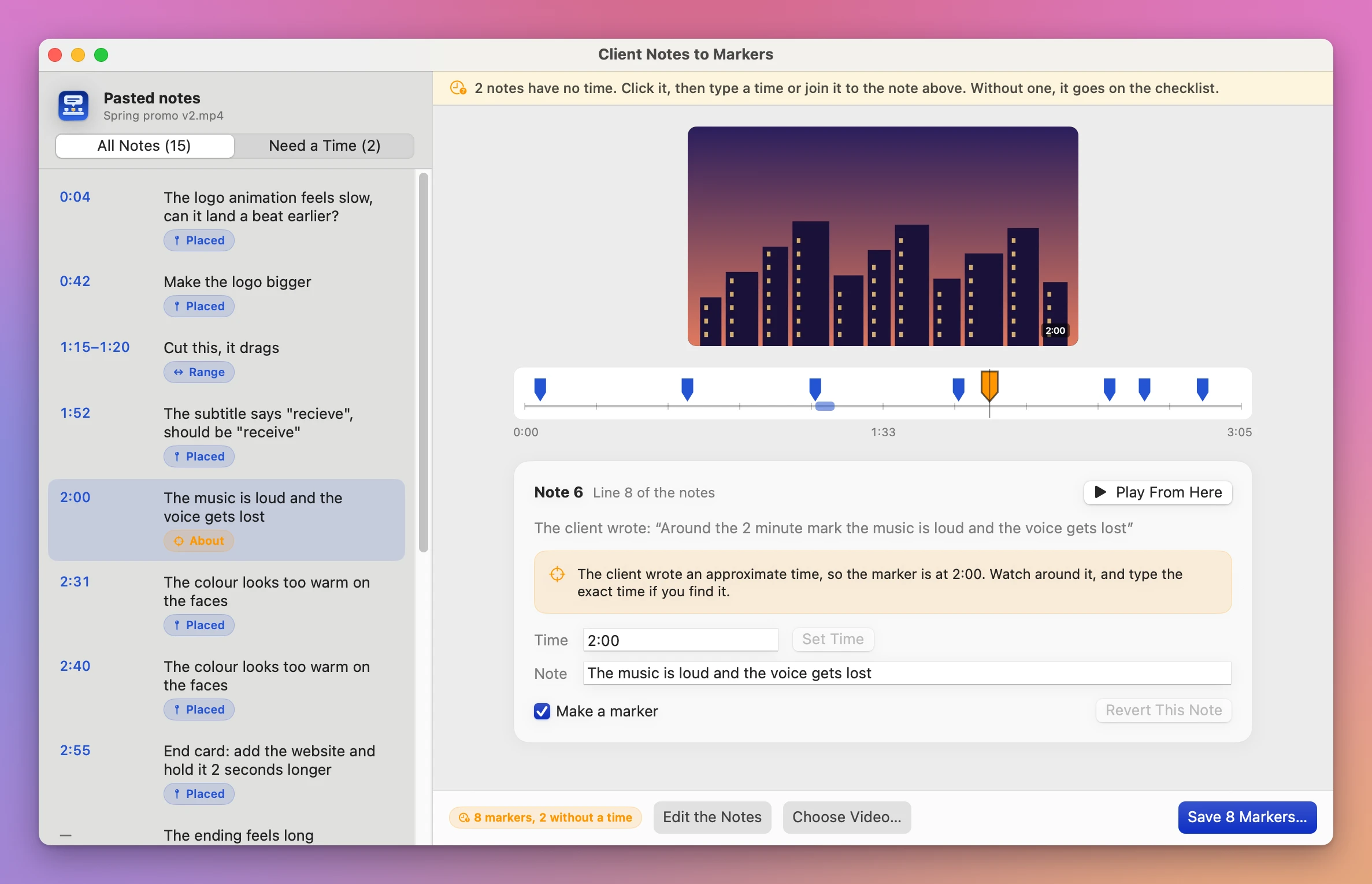
Client Notes to Markers reads the email the way it was written. Paste it, and every note lands on a strip over the cut. Open the video the client watched and each note jumps to its frame. The lines with no time are flagged, so you can give them one or keep them for the checklist. Then save the markers for your editing app.
Watch a 30-second demo of Client Notes to Markers:
Who it’s for
- Freelance editors on revision rounds. The client answers the review link with a reply-all of twenty lines, some with times, some without. You paste it and import the markers before you open the project.
- YouTubers who work with an editor, or editors who work for one. The notes come from a phone, in a chat, as “1m20 too long” and “the 90s song is too loud at 3:10”. The app knows the first is a time and “the 90s” isn’t.
- Assistant editors prepping notes for the lead. The producer’s notes go on the timeline as Final Cut Pro to-do markers, and a printed checklist goes on the desk.
- Motion designers who get notes in timecode with frames, like
01:00:12:10 hold the title longer. The marker lands on that frame, and the app sees that the timeline starts at one hour. - Producers collecting notes from three people in one document, who want to see which lines have no time before the document goes to the editor.
From an email to markers
- Copy the notes from the email, chat or document and click Paste the Client’s Notes. Or click Open a Text File….
- Each note shows with its time and a pill: Placed, Range, About (the client wrote “around”), Needs a time or Left out (greetings, signatures, the “On Monday, Dana wrote:” line).
- Click Choose Video… and pick the export the client watched. Click a note and the video jumps to its frame.
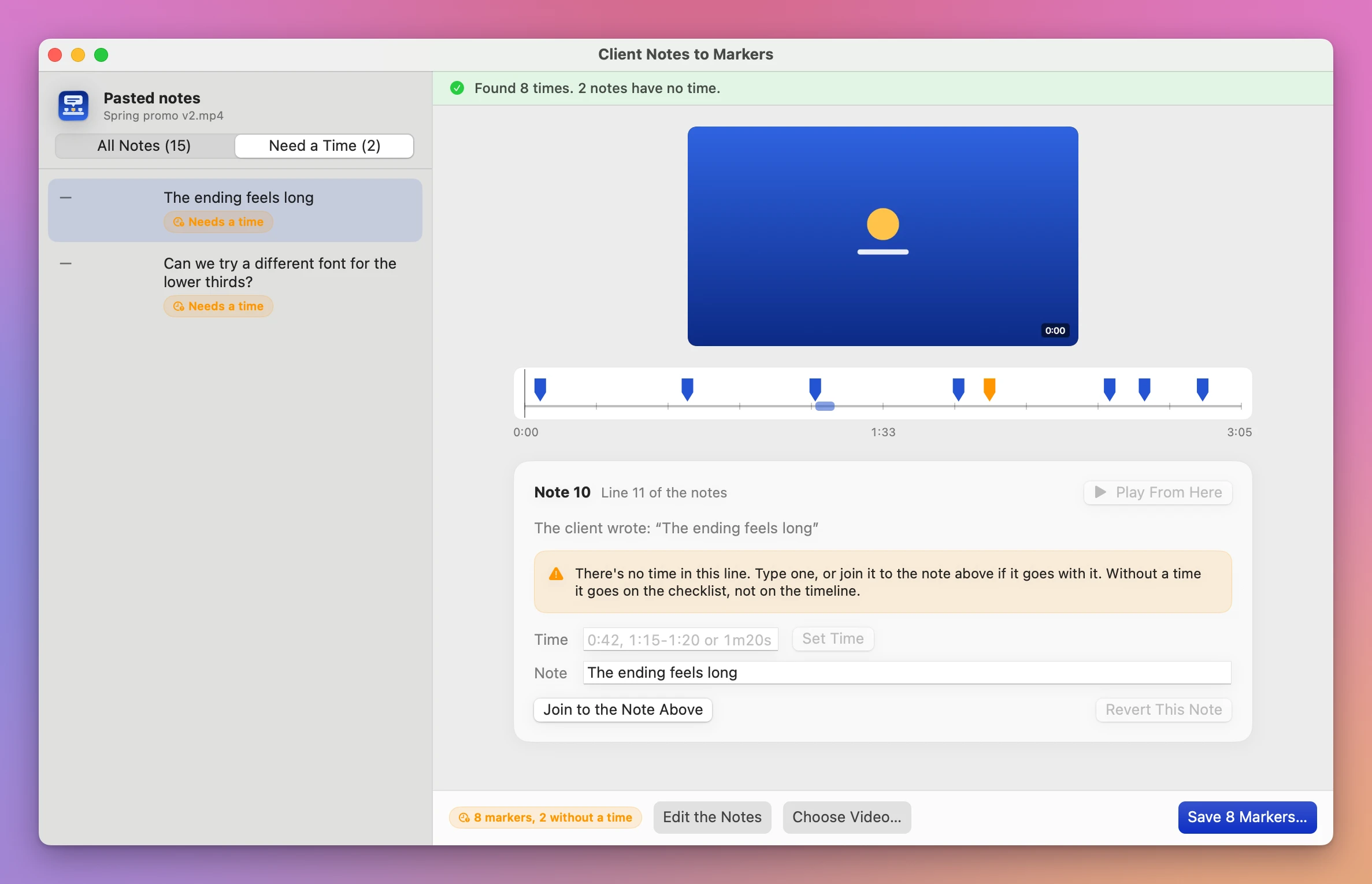
- Click a note that needs a time, type one (0:42, 1:15-1:20 or 1m20s) and press Return. Or click Join to the Note Above when it goes with the line before.
- Click Save 8 Markers…, tick the files for your editing app and click Save Files…. Pick the folder, change the name the files start with if you like, and click Save.
What you get
Times written the way people write them
The app finds 0:42, 12:05, 1:02:03, 0:42.5, timecode with frames like 01:00:12:10, 1m20s, 1m 20s, 1 min 20 sec, 1m20, 2 minute mark, 90 seconds, 1h02m10s and “at 1.15”. Ranges too: 1:15-1:20, 1:15 to 1:20, “between 0:10 and 0:20” and the short 1:15-20.
It also knows what isn’t a time. “10:42 AM” in a reply header is a time of day. “The 90s song” is a decade. “1.” at the start of a line is a list number. “Hold it 2 seconds longer” is a length, so that note stays at 2:55 and doesn’t get a second marker at 0:02.
A line with two times, like “2:31 and 2:40 the colour looks too warm”, becomes two markers with the same words. “Around”, “about” and “-ish” mark a note as approximate, and DaVinci Resolve shows those markers in yellow.
Every note on the cut, and on the frame
The strip under the video shows the whole cut with a marker for each note, ranges as bars, approximate notes in orange. Click a marker to pick its note, or click anywhere else on the strip to move the video there.
With the video open, picking a note shows its frame, and Play From Here plays from it. The video is optional: without it, the strip runs to just past the last note.
The lines with no time, flagged
Need a Time lists only the notes without one. Type a time and the note becomes a marker. Click Join to the Note Above for a line that continues the one before it. A note you leave without a time goes on the checklist and in the spreadsheet, under its own heading, so it doesn’t get lost.
You can change a note’s words, untick Make a marker to keep it off the timeline, and Revert This Note brings back what the client wrote. Edit the Notes shows the whole text again: fix a line, click Find the Times, and the changes you made to the other notes stay.
Files for your editing app
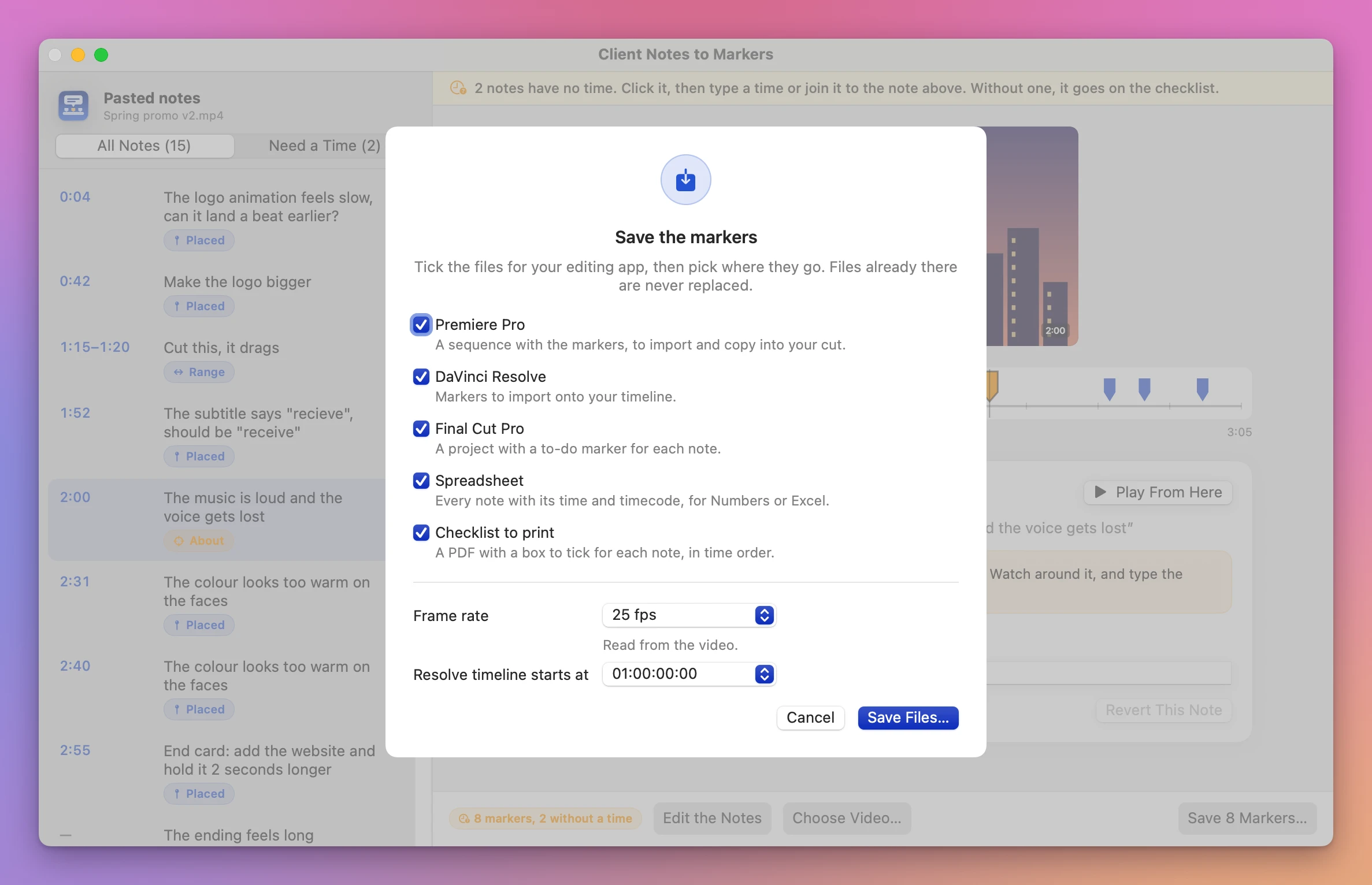
- Premiere Pro: a sequence with one marker per note, in the XML format Premiere Pro imports with File › Import. Copy the markers from that sequence into your cut.
- DaVinci Resolve: a marker EDL, the kind Resolve exports itself, for Timelines › Import › Timeline Markers from EDL. Ranges keep their length.
- Final Cut Pro: an FCPXML project with a to-do marker for each note, so they show in the Timeline Index’s to-do list.
- Spreadsheet: every note with its time, timecode, status and the client’s own line, for Numbers or Excel.
- Checklist to print: a PDF with a box for each note in time order, then the notes with no time.
The frame rate comes from the video, or you pick it (23.976 to 60 fps), so each marker lands on the right frame. Timecode notes that start at one hour, the way most timelines do, are moved to the start of the cut, and one click keeps them as written.
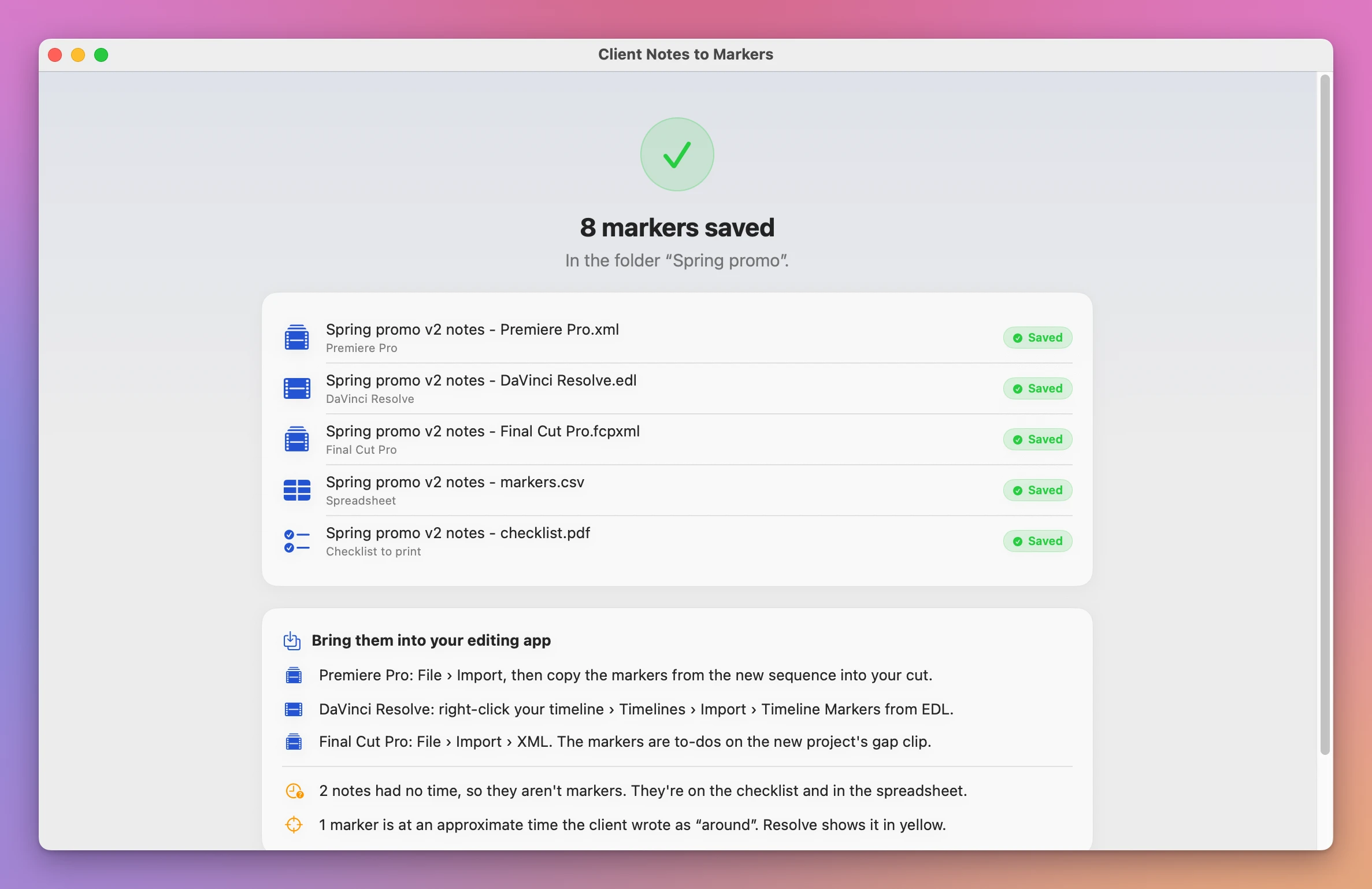
Files already in the folder are never replaced: a second save gets a “2” in its names.
Why not do it by hand
Premiere Pro, DaVinci Resolve and Final Cut Pro all add a marker with the M key at the playhead. For each note you find the time in the email, move the playhead there, press M, open the marker and paste the note. It works, and for three notes it’s fine. For twenty, it’s twenty trips between the email and the timeline, and you still have to spot the lines with no time yourself.
Premiere Pro can export its markers to a spreadsheet but can’t import one. Review platforms put comments on the timeline when the client uses them, and many clients still reply by email. Free web converters and paid marker tools turn a tidy file into markers, but your client didn’t write a tidy file: they wrote “around the 2 minute mark”.
| By hand in your editor | A marker converter | Client Notes to Markers | |
|---|---|---|---|
| Cost | Free | Free or paid | $19 once |
| Reads the email as written | You read it | Needs a tidy CSV or a review platform’s export | Yes |
| Times like “1m20s” or “around 2 min” | You work them out | No | Yes |
| Flags notes with no time | You spot them | No | Yes, in their own list |
| See the frame before you import | You scrub | No | Click the note |
| Premiere Pro, Resolve and Final Cut Pro | One at a time, in each | Depends on the tool | All three from one paste |
| Checklist to print | You make one | No | Yes |
| Time for 20 notes | 10 to 15 minutes | A few minutes, once the file is tidy | About a minute |
What it doesn’t do
- It doesn’t guess a time from the words. “The bit with the dog” needs you to type when the dog shows up.
- It reads pasted text and text files (.txt, .md, saved emails). It doesn’t read PDFs, Word documents or a review platform’s export.
- It doesn’t write into your project. It makes files you import, and in Premiere Pro and Final Cut Pro the markers arrive in a new sequence or project, from where you copy them.
- Times are written as non-drop-frame timecode. On a 29.97 drop-frame timeline, a marker deep into a long cut can be a couple of frames off.
- It doesn’t track rounds of revisions or search transcripts.
Questions
Does it change my files?
No. The notes and the video are only read. The marker files are new files in the folder you pick, and none is ever written over.
Does it upload anything?
No. Everything happens on your Mac. The app connects to the internet only to check for updates.
Do I need the video?
No. Without it you get the same markers. With it, you see each note’s frame, the frame rate is read for you, and notes after the end of the cut are flagged.
Which versions of the editing apps does it work with?
The Premiere Pro file is a Final Cut Pro 7 XML sequence, the format Premiere Pro imports with File › Import. The Resolve file is the marker EDL Resolve reads with Timeline Markers from EDL. The Final Cut Pro file is FCPXML 1.10, which Final Cut Pro 10.6 and later import.
What it needs
Client Notes to Markers runs on macOS 14 Sonoma or later, on Apple silicon and Intel Macs.
Buy Client Notes to Markers
$19 plus tax where it applies, paid once.
Download the app from the order page or your Creem receipt, unzip it and move it to Applications. I sign the app with my Apple Developer ID, and Apple notarizes the download.
The app checks for updates once a day. When a new version is ready, click Install and Relaunch. To check anytime, choose Client Notes to Markers → Check for Updates….
Client Notes to Markers is an independent app. It’s not made by, affiliated with or endorsed by Adobe, Blackmagic Design or Apple. Premiere Pro, DaVinci Resolve and Final Cut Pro are named only to say which files the app makes.