
An app by Flavio
Clip Joiner
Join the videos on a memory card into one file on your Mac, straight from the card. Nothing loses quality, and every join is checked before your originals go.
Buy Clip Joiner · $20One-time purchase. Tax included.
macOS 14 or later · Apple silicon and Intel
Your camera filled the card with small videos, and you want one. A trail camera saves a clip every time something walks past. A GoPro or a drone cuts one long recording into several files.
$20 including tax, paid once.
Clip Joiner is a Mac app that joins videos into one file. Plug in the memory card, tick the videos, click Join, and one video lands on your Mac. The picture and the sound are copied exactly as the camera recorded them, so nothing loses quality.
My trail camera saves a one-minute clip every time something walks past it, so the card comes back full of small files. I had seven of them, in 4K, 1.8 GB in all. Clip Joiner made one 7-minute video out of them in under 5 seconds.
Straight from the card
The usual way takes two jobs. You copy every file to the Mac, then you join the copies with another app, then you clean up.
Clip Joiner reads the videos where they are, on the card, and saves the joined video on your Mac. Nothing is copied first, so you never have a second set of files to delete.
| Copy, then join | Clip Joiner | |
|---|---|---|
| Copy the files to the Mac first | Yes | No |
| Space used on the Mac | Twice the videos, until you clean up | Once |
| What’s left to delete | The copies, then the files on the card | The files on the card |
Here’s how it goes:
- Plug in the card. The start screen gets a button with the card’s name, like Scan NO NAME.
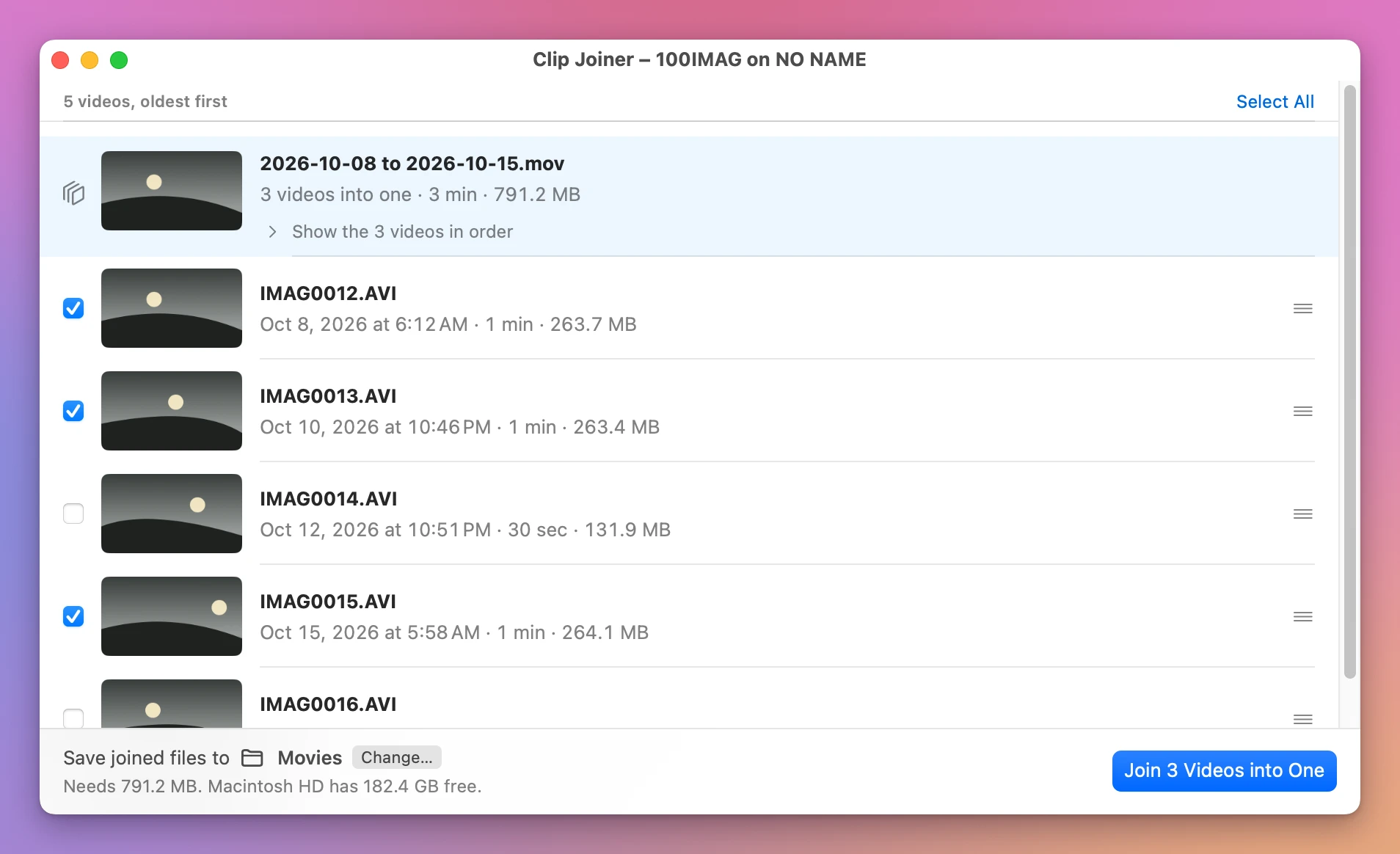
- The app lists the videos it found, oldest first. Tick the ones you want in the joined video.
- Pick where to save it. It’s your Movies folder unless you change it. Click Join.
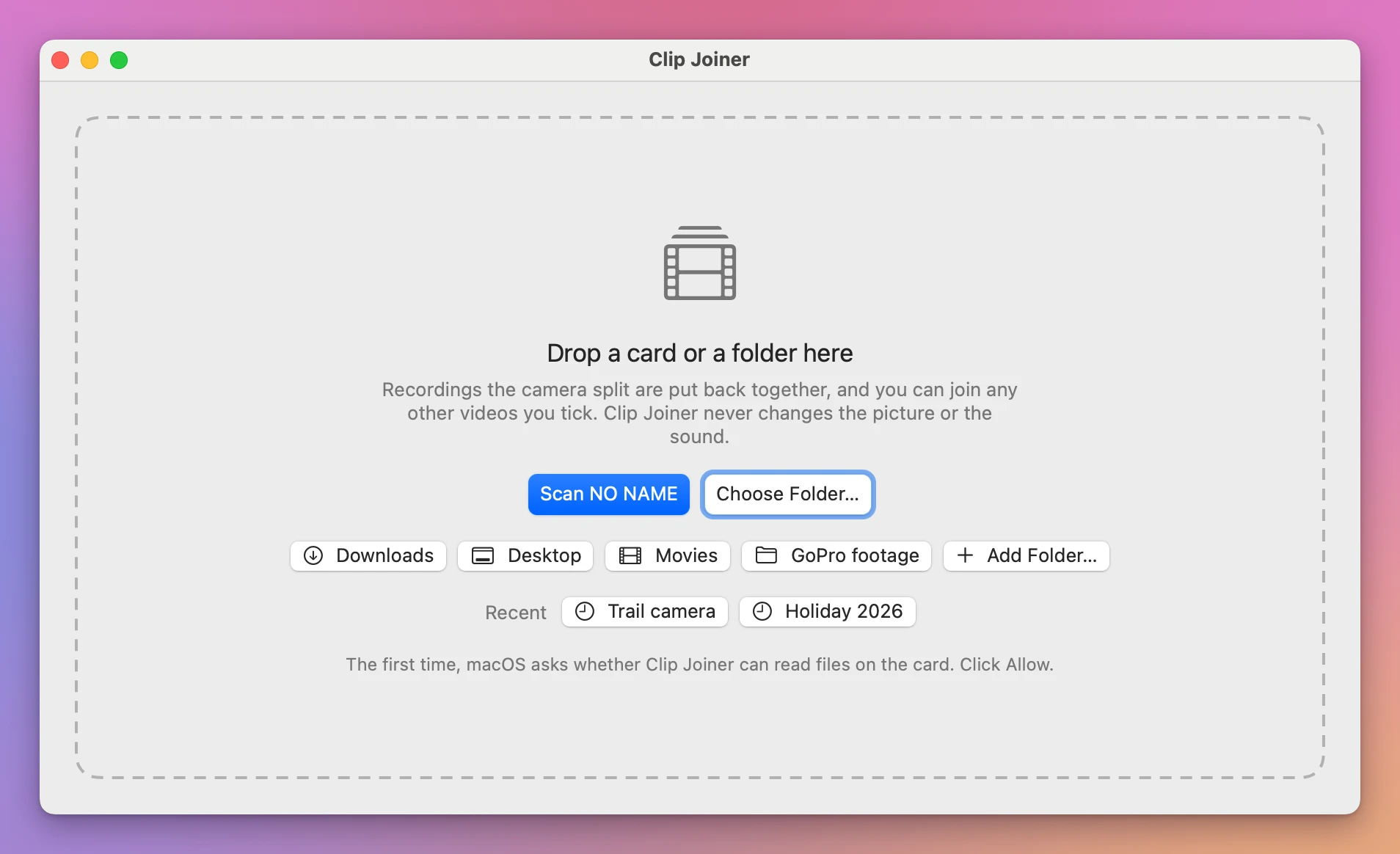
The first time, macOS asks whether Clip Joiner can read the card. Click Allow.
Videos that are already on your Mac work the same way. Drop a folder on the window, or click Downloads, Desktop or Movies. You can keep the folders you use often on the start screen, and the app remembers the last five you opened.
See a video before you tick it
Click a video and it plays in a small panel in the corner of the window. It starts with the sound off, and the speaker button in the panel turns it on. Click another video to switch, or press Escape to close the panel.
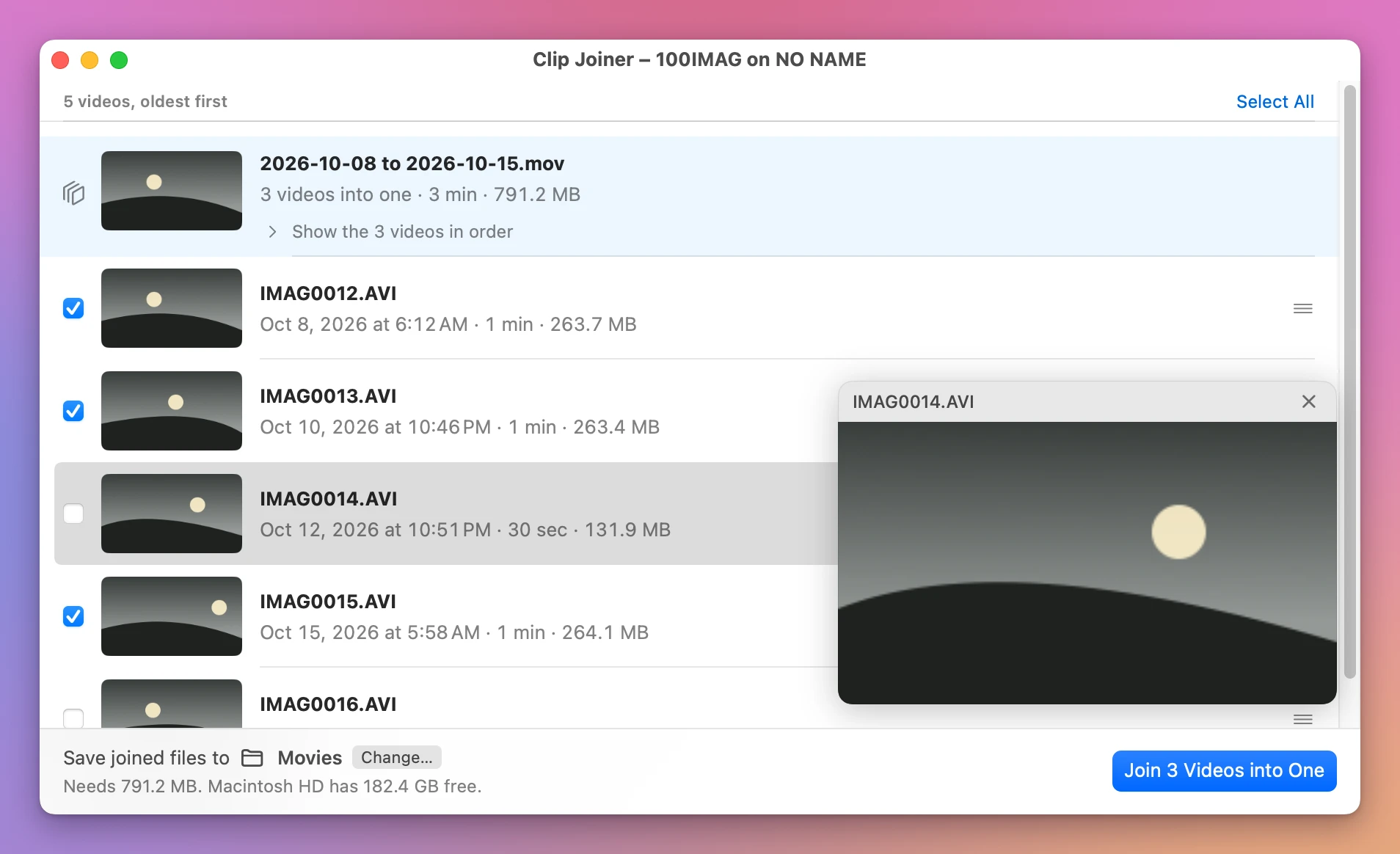
A joined video plays the same way, so you can watch it before you remove the originals.
Nothing loses quality
Most apps that join videos rebuild every frame. That takes a long time, and the picture comes out a little worse than it went in.
Clip Joiner doesn’t touch the frames. It puts the videos one after the other, as they are, which is why 1.8 GB took under 5 seconds.
Before it says it’s done, the app compares the joined video with the originals, piece by piece. Then it asks macOS to open the video, and its length has to be the length of the originals added together. If anything is off, the joined file is thrown away and your originals are where they were.
It never replaces a file either. When a name is taken, it offers the next free one.
Named by the day
The joined video is named after the day it was recorded, like 2026-10-08.mov. When the videos were recorded over several days, the name has the first day and the last: 2026-10-08 to 2026-10-15.mov.
To call it something else, click Rename… on its row and type the new name.
In the order you want
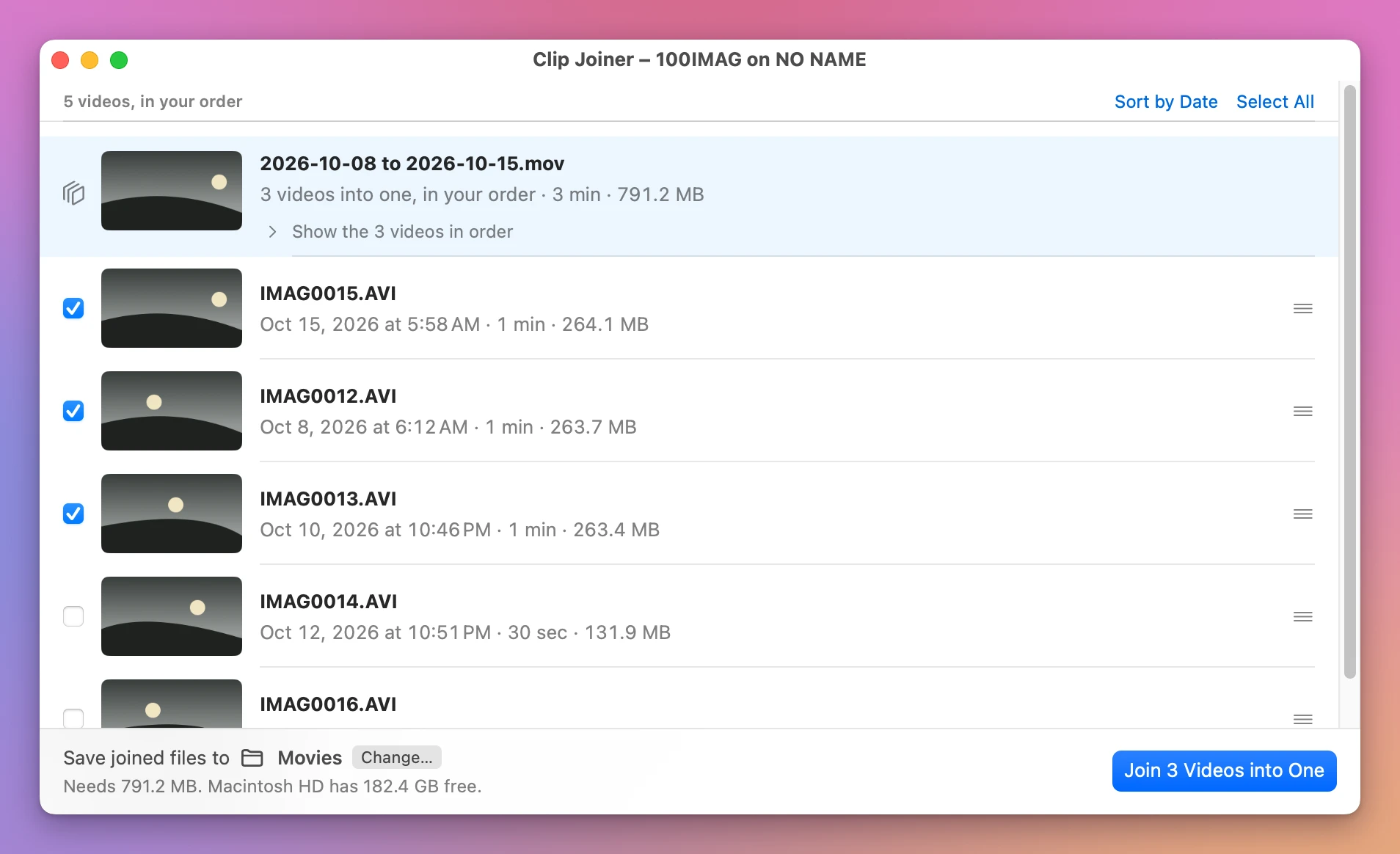
The videos are listed by the date they were recorded, oldest first, and they’re joined top to bottom.
To change the order, drag a row, or right-click it and choose Move Up, Move Down, Move to Top or Move to Bottom. Sort by Date puts the date order back.
Then free the card
After a join that says Joined and checked, the app offers to move the originals to the Trash. Nothing happens until you confirm, and Keep Originals is the default button, so pressing Return never removes anything.
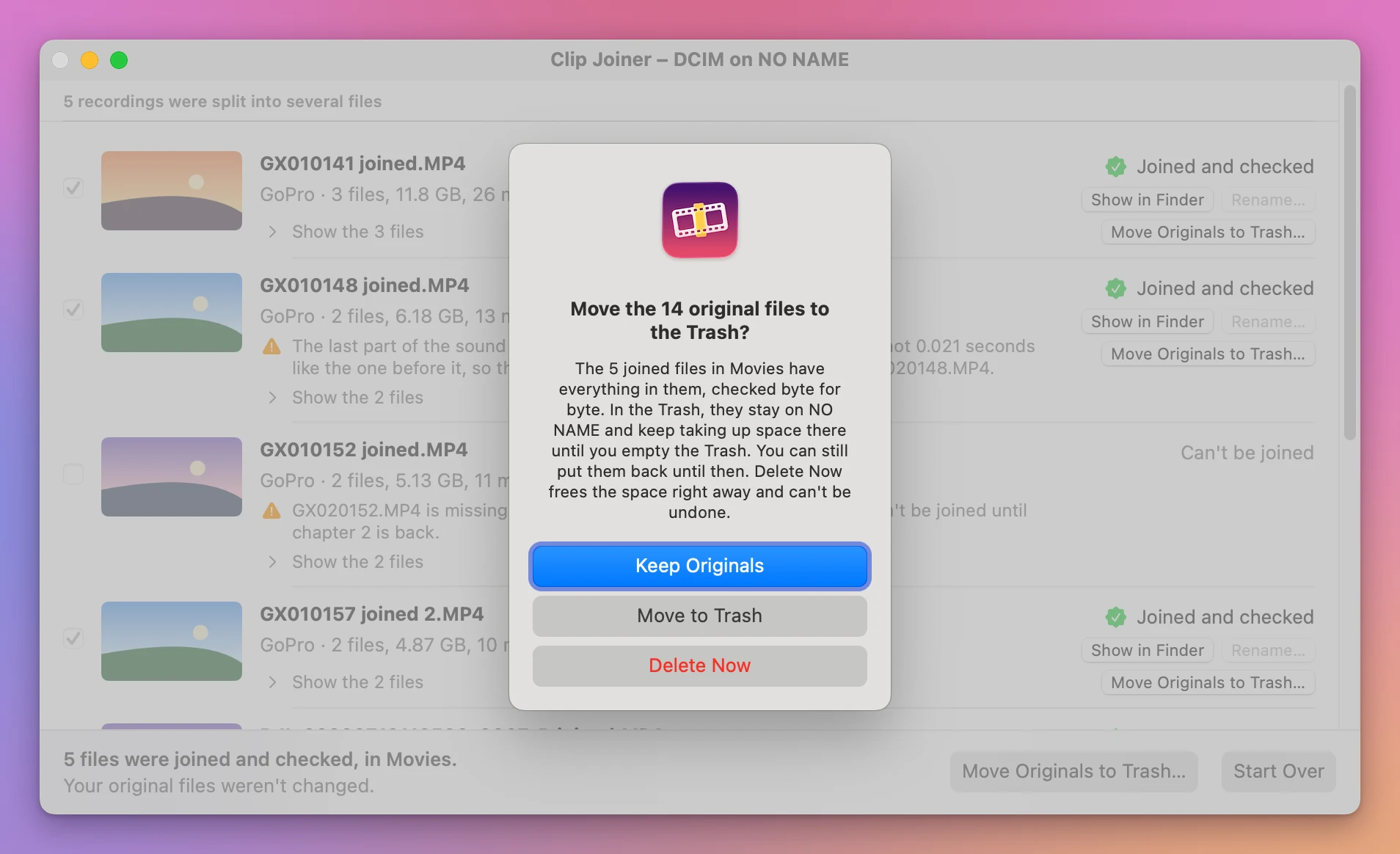
On a memory card, the Trash is on the card. macOS keeps a card’s trashed files in a hidden folder on the card itself, so they keep taking up space there until you empty the Trash. The alert says so, and for a card it adds Delete Now, which frees the space right away and can’t be undone.
Right before it removes anything, the app looks at the joined video once more. It has to be where it was saved, unchanged. If you moved it or edited it in the meantime, the originals stay and the app tells you why.
Recordings the camera split
A GoPro saves a long recording as chapters, like GX010141.MP4 and GX020141.MP4. A DJI drone starts a new file every few gigabytes.
Clip Joiner finds those on its own and shows each recording as one row, with its files inside. They’re ticked for you, and one Join button does everything.
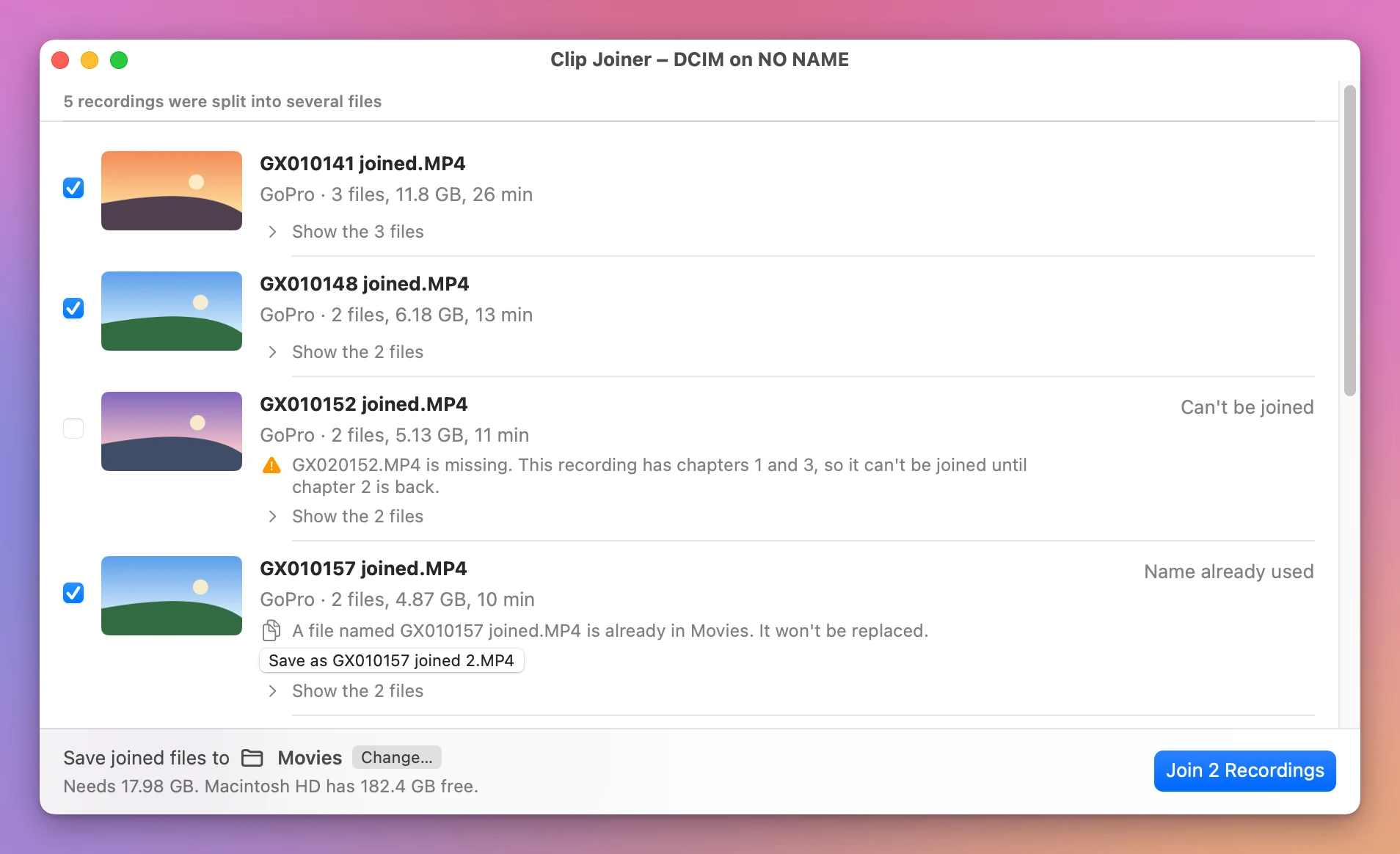
- A GoPro’s GPS and motion data is kept. Many joiners drop it.
- A drone’s
.SRTfiles, which hold the flight data, are merged into one that still lines up with the video. - A drone doesn’t mark which files belong together, so the app says which files look like one recording and waits for you to tick it. It never joins a guess on its own.
- If a chapter is missing, the recording isn’t joined, and the row says which file to look for.
Good to know
Clip Joiner is my own project. It’s not made by, affiliated with or endorsed by GoPro or DJI.
The app checks every join before it offers to remove anything, but I’m not responsible for lost videos. Keep a backup of footage you care about, and play the joined video before you delete the originals.
It reads MP4 and MOV videos, and the AVI videos that trail cameras record. AVI videos are joined into a .mov file, which plays in QuickTime Player. The frames inside are still the camera’s own.
The videos you join have to be recorded with the same settings, like the same picture size. Making different ones fit would mean rebuilding them, so the app refuses and tells you which video is the odd one out.
It doesn’t trim or convert videos.
The card sets the speed. My seven clips were on the Mac’s own disk, which is why 1.8 GB took under 5 seconds. From a card, expect about the time it takes to read the videos twice: once to join them and once to check them.
Buy Clip Joiner and get started
Clip Joiner costs $20 including tax, paid once. There’s no subscription.
After buying, your receipt has the app and a license key. Unzip the app and drag Clip Joiner to your Applications folder. It runs on macOS 14 Sonoma or later, on Apple silicon and Intel Macs. It’s signed with my Apple Developer ID and checked by Apple, so it opens like any other app you download.
Enter the license key in Clip Joiner → License… to get updates automatically. A key works on 3 Macs. Once a day, Clip Joiner checks for a new version, shows what’s new, and installs it with Install and Relaunch. Your receipt always has the latest version, too.