
An app by Flavio
Contact Share Cards
Share contacts as vCards with only the fields you choose, like name, company and work email, without the home address, birthday, notes or photo.
Buy Contact Share Cards · $19One-time purchase. Plus tax where it applies.
macOS 14 or later · Apple silicon and Intel
Latest version 1.0.1, released November 22, 2026
A new client asks for your team’s contact details. Five people, their names, titles, work phones and work emails. You select them in Contacts, choose File → Export → Export vCard…, and you’re about to attach the file.
That file has everything on each card. The office manager’s iPhone number and home phone, her home email, her home address, her birthday. And the note you wrote on her card, if there is one.
Contacts has no way to pick which fields go out. Contact Share Cards does. Tick the people, tick the fields (company, job title, only the Work phone, only the Work email), check each card in a preview, and export. Your contacts stay exactly as they are.
Who it’s for
- Office managers. A new client wants the team’s contact sheet. They should get names, titles, work phones and work emails, not the staff’s personal mobiles, home addresses and birthdays.
- Consultants. You’re introducing a client to three specialists. You send one
.vcfwith each specialist’s work details only, and nothing from the private side of their cards. - Parents. The grandparents or another family need the babysitter list: names, mobile numbers, maybe a home address. Not the notes you keep on those cards, like a gate code or “allergic to cats”.
- Anyone handing out their own card. At a conference, to a new landlord, to a contractor. Your name, mobile and email, without your home address and birthday.
- Small businesses moving clients into a CRM. The CRM should only get work emails and phones. You get a
.vcfto import and a CSV with the same fields to check before you do.
From Contacts to a trimmed vCard file
- Allow access to Contacts. The first time, click Allow Access to Contacts and then Allow in the macOS prompt. The app only reads Contacts. If you’d rather not, click Or open a vCard file instead… and work from a
.vcfyou already have. - Tick the people. Pick All Contacts or one of your groups in the sidebar, search by name, company, job title, email or phone, and tick who to share. Select All ticks everyone the list shows. Ticks stay when you switch groups or search, so you can combine people from several groups.
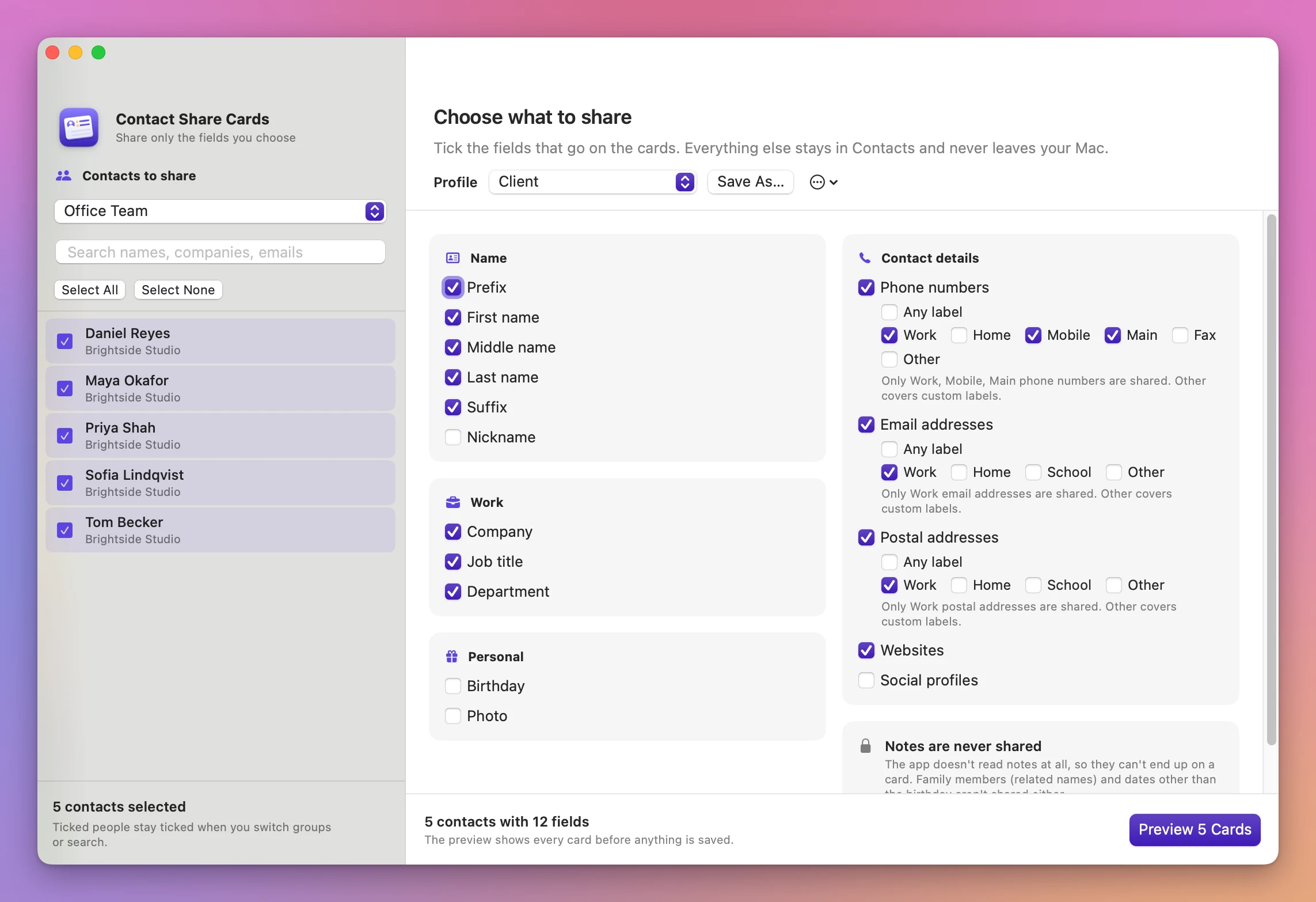
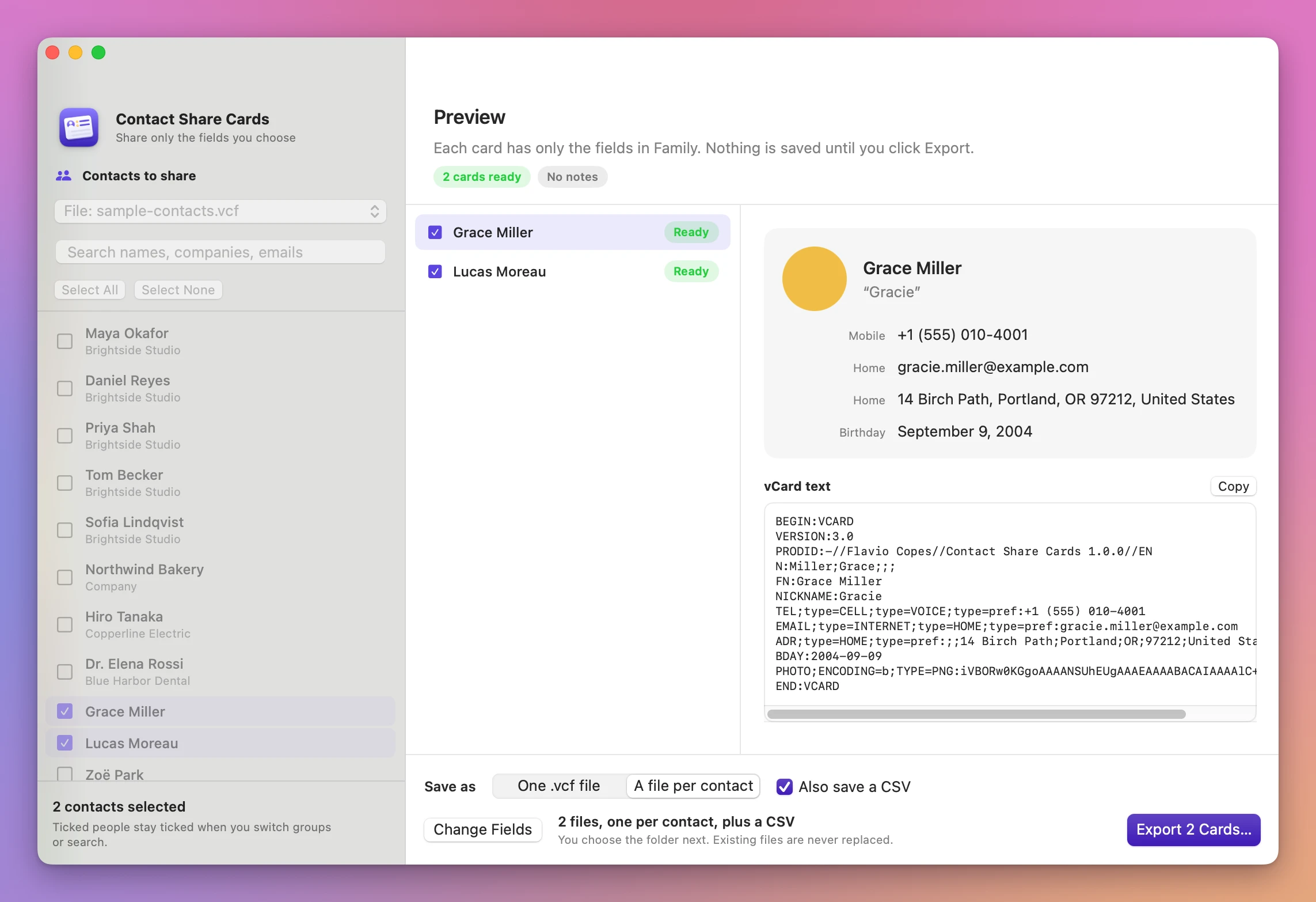
- Choose the fields. Pick a profile: Client (name, company, job title, department, work, mobile and main phones, work email, work address, websites) or Family (first, middle and last name, nickname, mobile and home phones, home and other emails, home address, birthday, photo). Change any checkbox. For phones, emails and addresses you can keep Any label, or only the labels you tick, like Work and Main.
- Save the profile, if you’ll use it again. When the fields differ from the profile, an orange Edited pill appears with Save. Save As… keeps it under a new name, like “Office desk”.
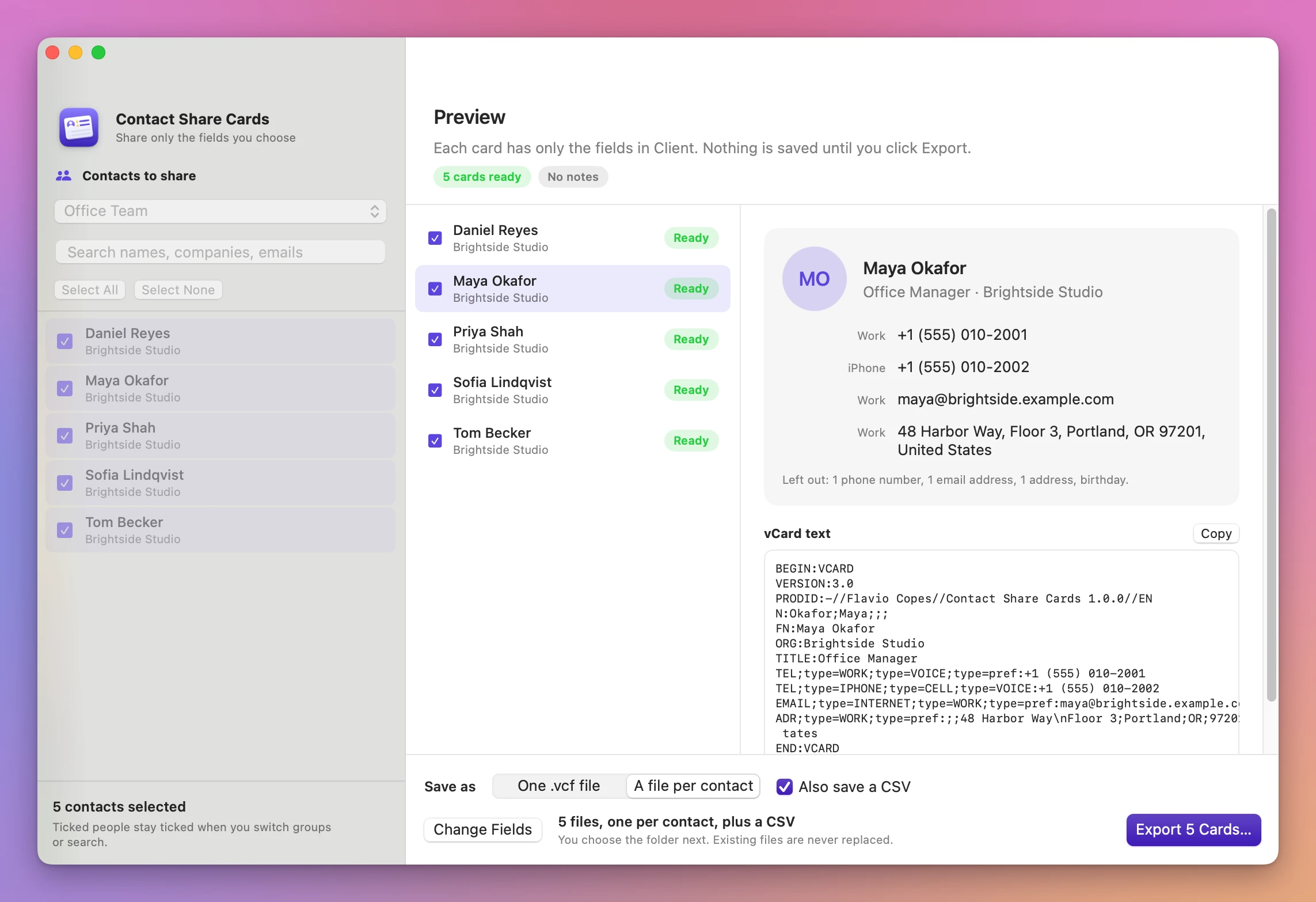
- Click Preview. The button says how many, like Preview 5 Cards. Each card shows up as it will be shared, with what was left out and the exact vCard text.
- Pick the format and export. Under Save as, choose One .vcf file or A file per contact, and tick Also save a CSV if you want a spreadsheet of the same fields. Click Export 5 Cards… and choose the folder.
What you get
Only the fields you ticked
Each card has the fields of the profile and nothing else. With the Client profile, Maya’s card keeps her work phone, iPhone number, work email and work address, and leaves out her home phone, home email, home address and birthday. The preview says it in plain words: “Left out: 1 phone number, 1 email address, 1 address, birthday.”
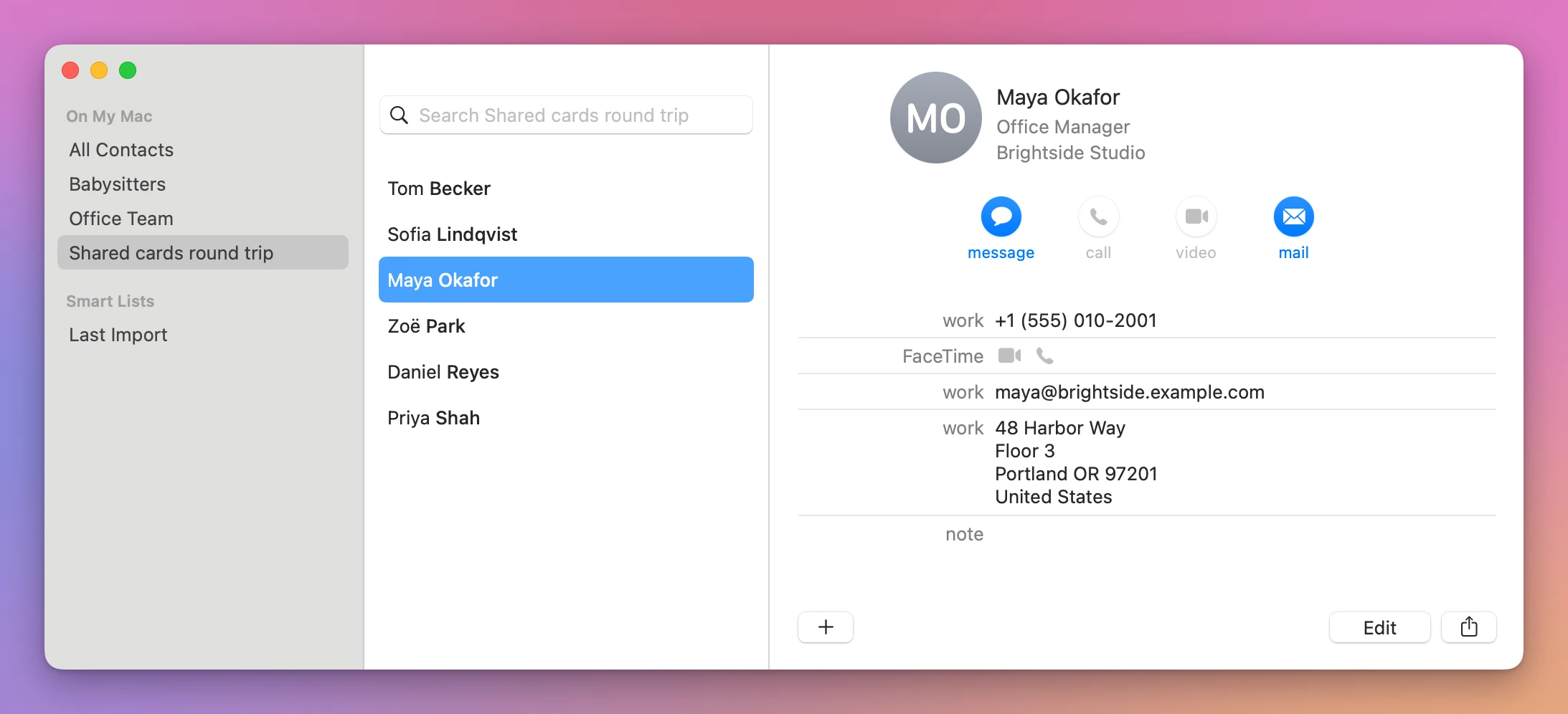
To check the result, the exported file was imported back into Contacts on the test Mac. Maya’s card came in with her title, company, work phone, work email and work address, and nothing else.
Notes never leave
The app doesn’t read notes at all, so they can’t end up on a card, whatever you tick. Family members (related names) and dates other than the birthday aren’t shared either.
A preview of every card
Cards with a problem come first. A person left with only a name gets an orange Only a name pill, and one with nothing left to share gets a red Nothing to share pill, each with a sentence that says why. You can untick anyone right there. People with nothing to share are never written to the file.
The right side shows the selected card the way it reads, with its photo if you kept photos, and the exact vCard text under it, with a Copy button.
One file, or one per person, plus a CSV
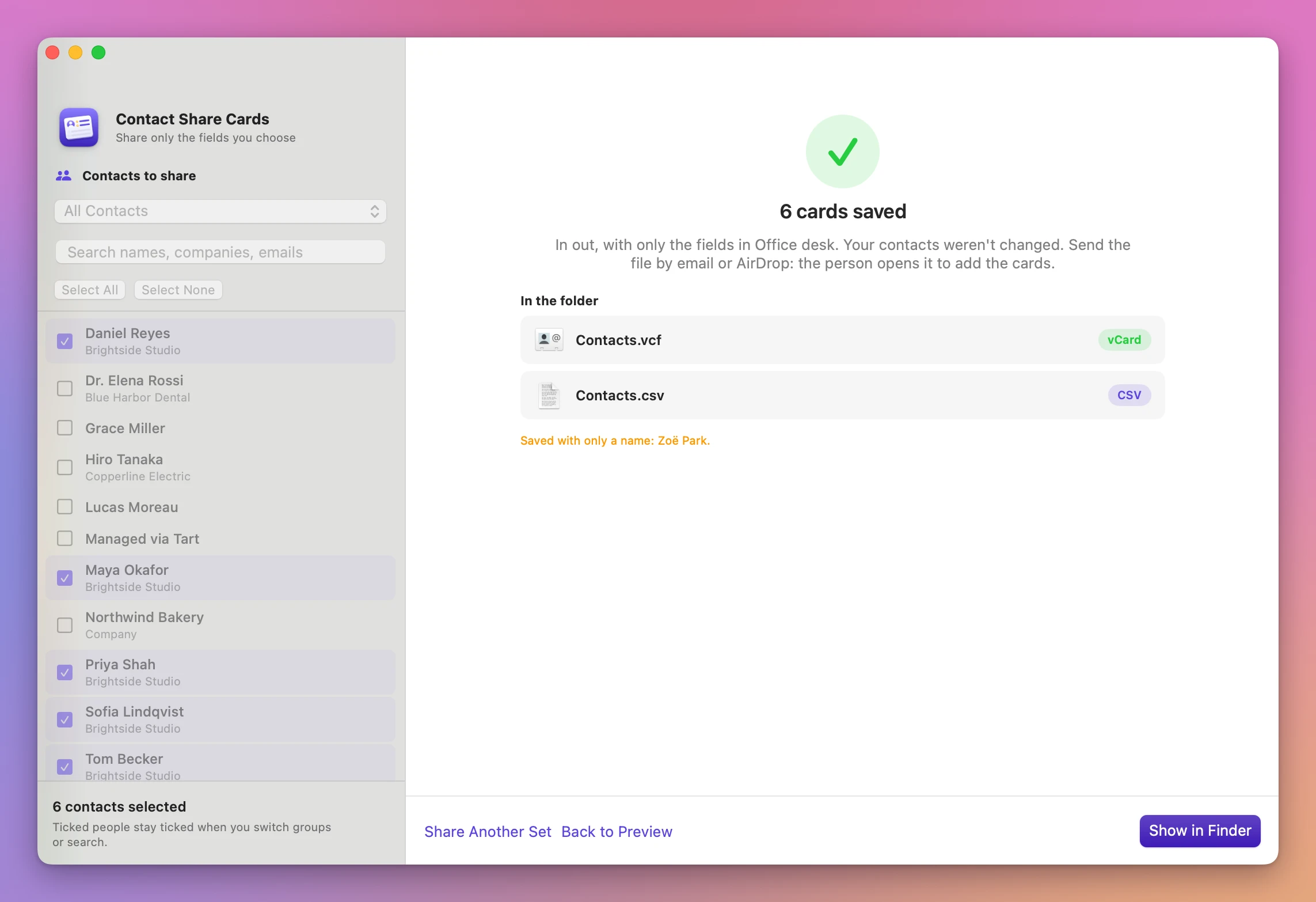
One .vcf file puts every card in one file, Contacts.vcf unless you type another name. A file per contact writes Maya Okafor.vcf, Priya Shah.vcf and so on. Also save a CSV adds a spreadsheet with a column for each field you chose.
Nothing is ever replaced. If Contacts.vcf is already in the folder, the new one is Contacts (2).vcf.
vCard files work too
File → Open vCard File… reads a .vcf someone sent you, or one you exported before, and lists its cards. The same fields, preview and export apply, and nothing is added to Contacts.
Contacts is only read
The app never changes a contact. Every export is a new file in the folder you pick.
Why not use Contacts’ own export
Contacts can share cards three ways: File → Export → Export vCard…, dragging cards out of the window, and Share Card. All three send the whole card: every phone and email, the home address, the birthday, related names and the photo.
The only field controls are in Contacts → Settings → vCard. Export notes in vCards and Export photos in vCards switch notes and photos on or off for every export. Enable private me card limits what your own card shares, and only your own card. None of them lets you share a colleague’s work email without their home address.
You can do it by hand. Duplicate each contact, delete the private fields, export the copies, then delete them. For one person that’s fine. For a team of five it’s slow, and the copies can sync to iCloud and your phone while you work. Editing the .vcf in a text editor works too, if you don’t mind folded lines, item1 groups and long blocks of photo data, and it’s easy to miss a home address.
Free vCard converters online can drop fields, but you upload your contacts to a website to do it.
If you want the opposite, every contact with everything on it, to move to a new Mac or to Google, that’s Contact Export Rescue. It exports every card with notes and photos, and finds the ones Contacts’ export leaves out. Contact Share Cards is for sending a few cards to someone else with less on them.
| Contacts’ Export vCard | Duplicate and edit by hand | Contact Share Cards | |
|---|---|---|---|
| Choose fields | Notes and photos on or off, for every export | Yes, one card at a time | Any field, for a whole group at once |
| Only work phones and emails | No | Delete the others on each copy | Tick Work under each field |
| Notes | Shared if the setting is on | Delete them on each copy | Never read |
| See the result before sending | No | Open each copy | Preview of every card and its vCard text |
| Changes to Contacts | None | Copies to make and delete | None |
| Reuse the choice next time | No | No | Saved profiles |
What it doesn’t do
- It doesn’t send anything. It saves files. You attach them to an email or send them with AirDrop yourself.
- It doesn’t share notes, ever. Not from Contacts and not from a
.vcffile. Related names, dates other than the birthday, instant message handles and phonetic names aren’t shared either. - It doesn’t change or clean up contacts. No merging, no fixing names or numbers. Each card goes out with the fields you picked, as they are in Contacts.
- It doesn’t export your whole address book for a move. That’s Contact Export Rescue.
- It wasn’t tested with iCloud, Google or Exchange accounts. The test Mac had only On My Mac contacts. Account groups are read the same way, but haven’t been checked. Smart lists don’t show up in the group picker.
Questions
Does it change anything in Contacts?
No. The app only reads Contacts. Nothing is changed, added or deleted there.
Does anything get uploaded?
No. Your contacts stay on your Mac. The app uses the internet only to check for and download updates.
What does the other person see?
A normal vCard file. They open it and the cards go into their Contacts, Google Contacts or phone, with only the fields you kept. The app writes vCard 3.0, with the same labels Contacts uses, so a work phone stays a work phone.
What if someone has only a name left?
Say you share only work emails and a friend on the list has none. The preview marks that card Only a name in orange, and the done screen lists the names saved that way. Untick the person if a card with only a name isn’t useful.
Can I share my own card?
Yes. Your card is in the list like any other contact. Tick it, choose the fields, and export.
What it needs
Contact Share Cards runs on macOS 14 Sonoma or later, on Apple silicon and Intel Macs. It needs access to your contacts, or a .vcf file to open.
The Contact Share Cards docs walk through each step.
Buy Contact Share Cards
$19 plus tax where it applies, paid once.
Download the app from the order page or your Creem receipt, unzip it and move it to Applications. I sign the app with my Apple Developer ID, and Apple notarizes the download.
The app checks for updates once a day. When a new version is ready, click Install and Relaunch. To check anytime, choose Contact Share Cards → Check for Updates….