
An app by Flavio
File Association Presets
See which app opens each kind of file, switch a whole category like code, images or video to a new app in two clicks, preview the change, and save the setup as a preset to apply on another Mac.
Buy File Association Presets · $19One-time purchase. Plus tax where it applies.
macOS 14 or later · Apple silicon and Intel
Latest version 1.0.1, released November 22, 2026
You switched code editors. Now you double-click a .py file and it opens in TextEdit. A .json file opens in the old editor, a .js file opens in Safari, and a .yml file in something else again.
The Mac’s way to fix it is one file type at a time: find a file of that type, Get Info, pick the app under Open with, click Change All…, confirm. For 30 kinds of code files that’s 30 rounds, and next month, on the new Mac, you do it all again.
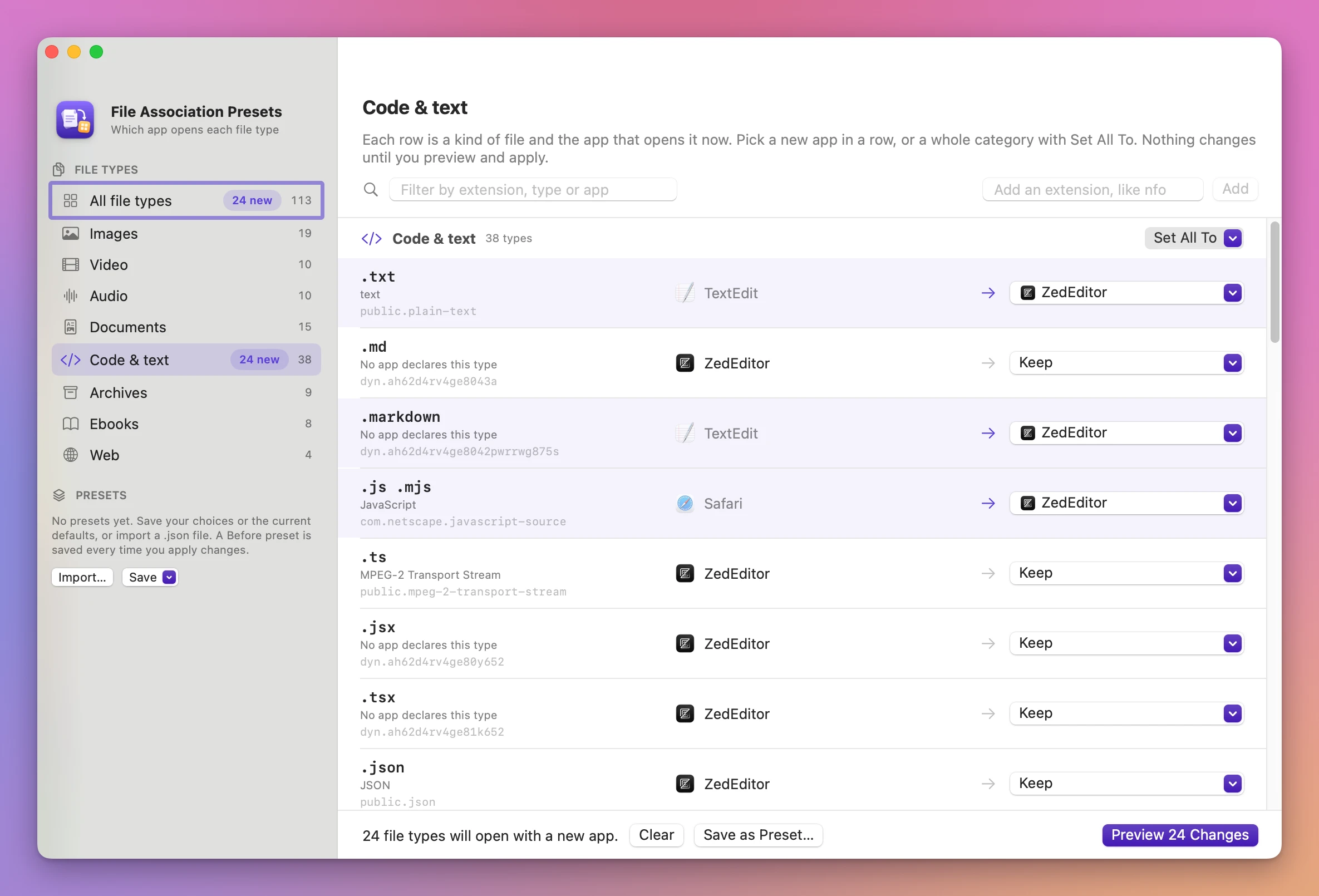
File Association Presets shows every common file type in one table, with the app that opens it now. Pick a new app for one row, or for a whole category with Set All To. Preview what changes, apply it, and the app checks each type with macOS afterwards. The apps you had before are saved as a preset, so you can go back with one click.
Who it’s for
- Anyone setting up a new Mac. On the old Mac, save the current defaults as a preset. Copy the
.jsonfile over, import it, and apply. Apps you haven’t installed yet are listed and skipped, so you can apply the same preset again once they’re in. - Developers switching editors. Moving from VS Code to Zed or Cursor means
.js,.ts,.tsx,.json,.py,.sh,.yml,.mdand twenty more. Open Code & text, choose Set All To, pick the new editor, apply. - Photographers moving to a new photo editor. Preview opens your JPEGs, HEICs and camera RAW files (
.cr2,.cr3,.nef,.arw,.dng). Switch the whole Images category to Pixelmator Pro or Affinity Photo in one go. - People whose app updates keep grabbing file types. A video player update decides it owns
.mp4and.mkvagain. Save your setup as a preset once and re-apply it after each update. - Whoever looks after a parent’s or partner’s Mac. Apply the same preset you use on yours. If they liked it better before, the Before preset puts it back.
From “it opens in the wrong app” to fixed
- Look at the table. The window opens on All file types: 113 common types in eight categories (Images, Video, Audio, Documents, Code & text, Archives, Ebooks and Web). Each row has the extensions, what the type is, and the app that opens it now, with its icon. Type in the filter field to find an extension, a type or an app.
- Pick the new app. Use the menu at the end of a row. It lists the apps that say they open that type, Other App… to choose any other app, and Keep to undo the pick. For a whole category, click Set All To in its header. Apps are sorted by how many of the category’s types they open, like “ZedEditor (opens 27 of 38)”.
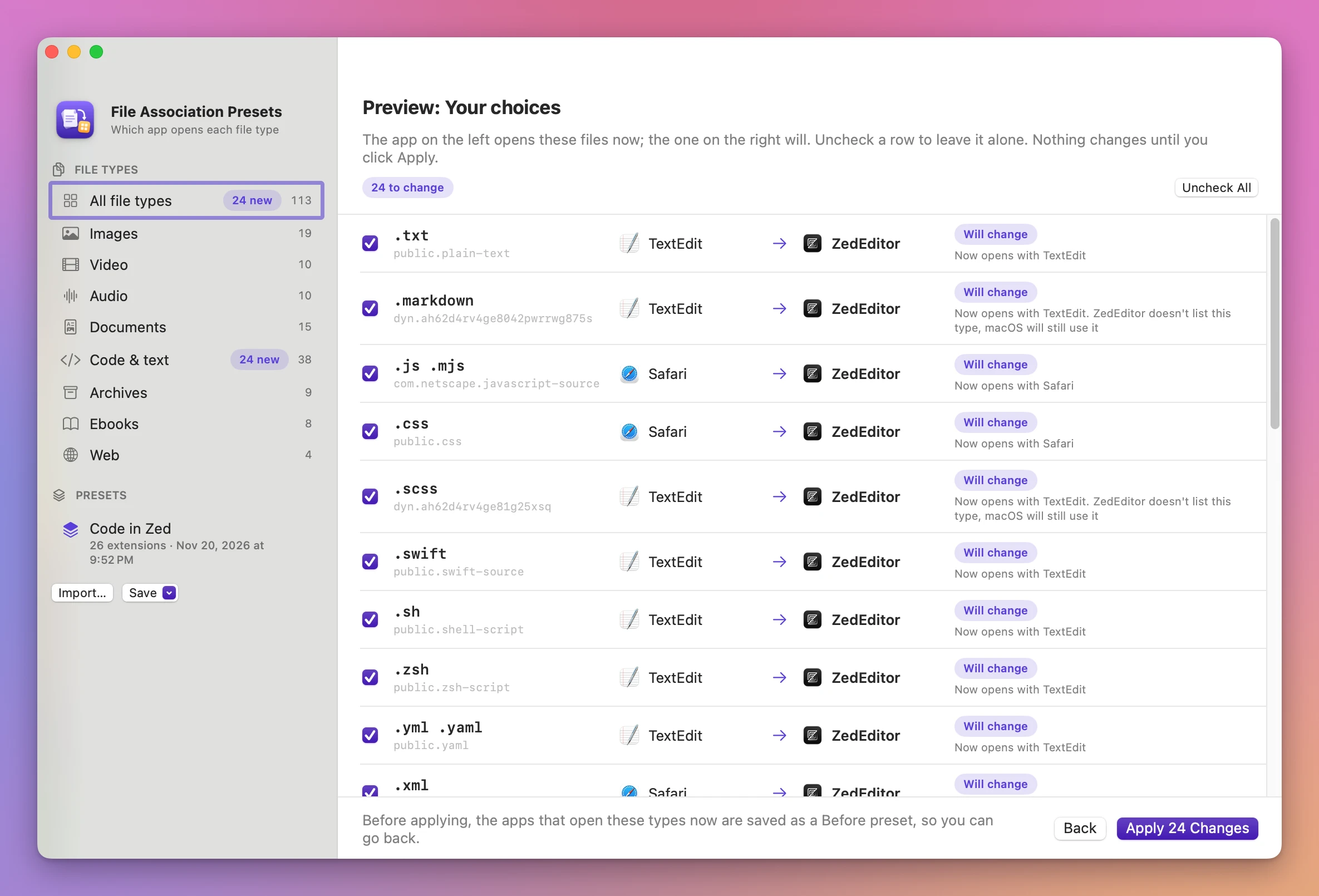
- Preview the changes. Click Preview 24 Changes (the number is yours). Each row shows the app that opens it now and the one that will, with a pill: Will change, Already set, App not on this Mac. Uncheck any row you want to leave alone.
- Apply. Click Apply 24 Changes. A progress panel shows each type as it changes.
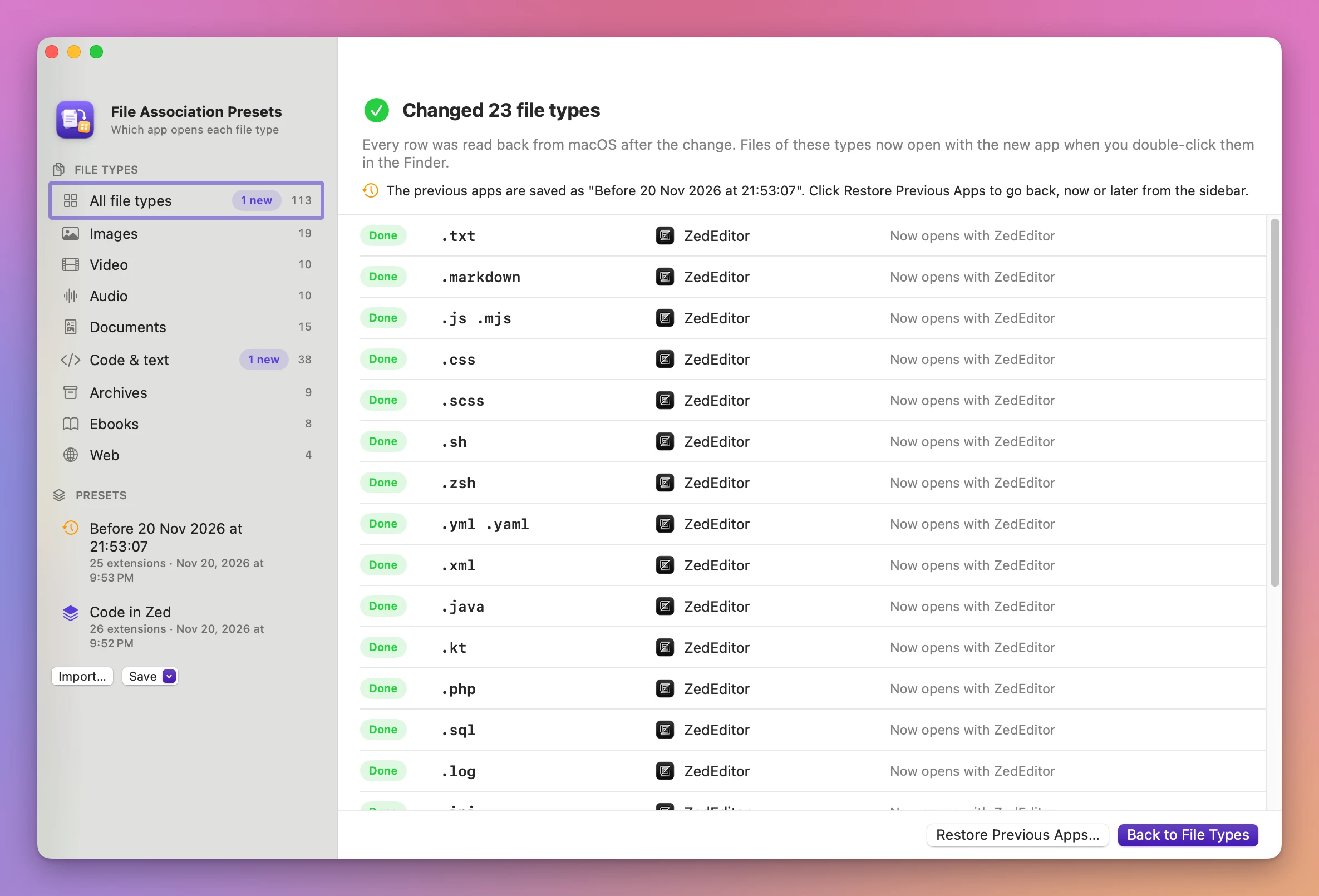
- Read the result. The done screen says how many types changed, like “Changed 23 file types”, and lists every row as Done or Failed, with the app that opens it now.
A file type macOS doesn’t know, like .nfo, can be added in the Add an extension, like nfo field. It shows up under Added by you.
What you get
Every row is checked after the change
After setting each type, the app asks macOS which app opens it now. A row only says Done when the answer is the new app. If macOS says no, the row says Failed with the reason, so you never think something changed when it didn’t.
An undo that’s always there
Before anything changes, the apps that open those types now are saved as a preset named like “Before 20 Nov 2026 at 21:53:07”. The done screen has Restore Previous Apps…, which opens that preset in the preview. It stays in the sidebar, so you can go back next week too.
Presets you can take to another Mac
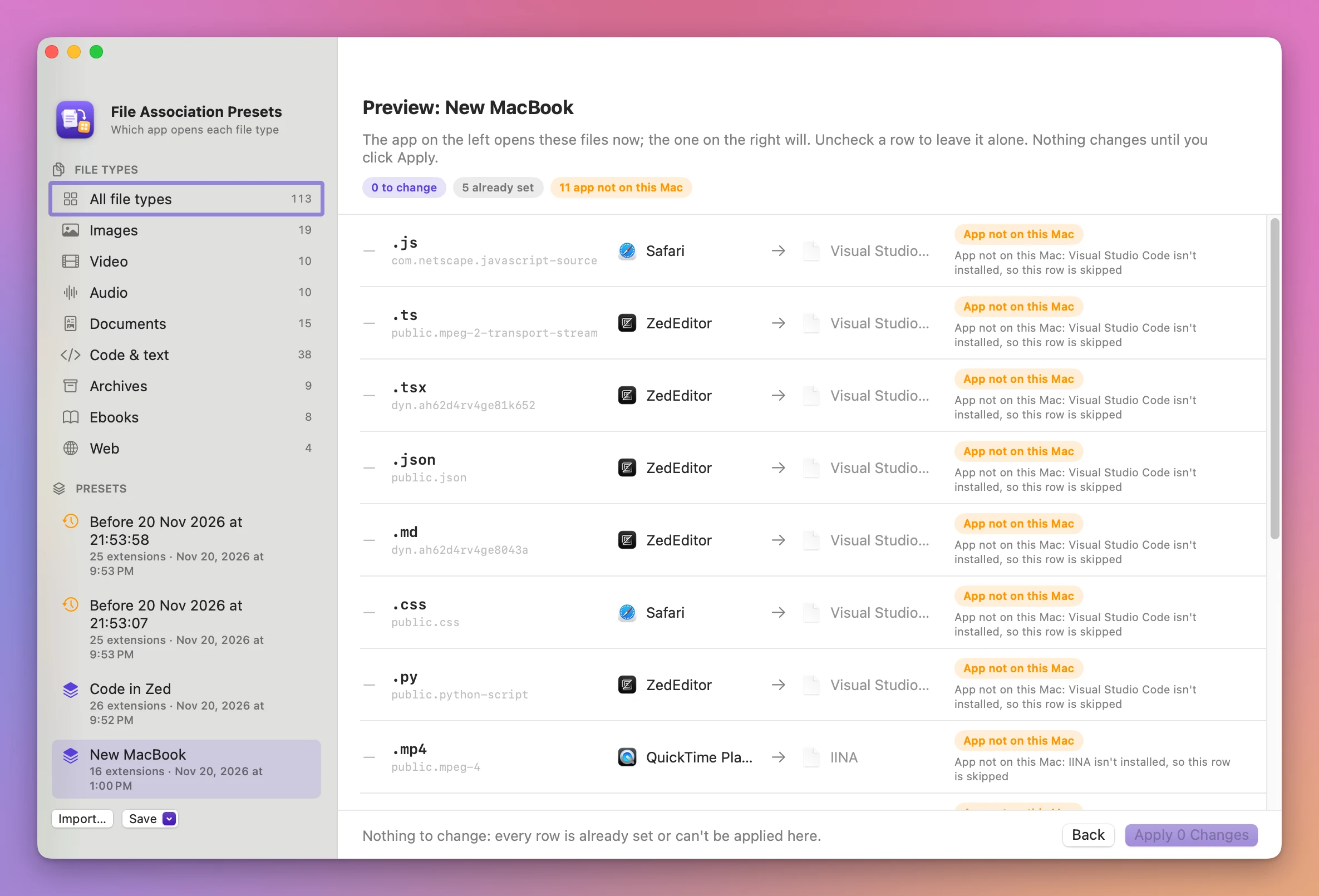
A preset is a small .json file with a list of extensions and the app for each. Make one from the Save menu in the sidebar: Current Defaults…, Your Choices… or Whole Table with Your Choices…. Right-click a preset to Export… it, then Import… it on the other Mac.
On import, the app looks for each app on that Mac. An app that isn’t installed gets App not on this Mac, and that row is skipped. Nothing changes until you click Apply.
A command line tool for scripts
For people who keep their Mac setup in a script, the app has a command line tool inside it (Contents/Helpers/file-association-presets). It lists the defaults, exports and applies presets with a dry run, and sets a list of extensions to one app.
Why not use Finder’s Get Info
The Finder can do this, and for one file type it’s all you need. Select a file, choose File › Get Info, pick an app under Open with, click Change All… and confirm. Every file with that extension now opens in that app.
The trouble is the scale. It’s one type per round, and you need a file of each type to start. A new code editor means a round for .js, another for .mjs, .ts, .json, .py, .sh and so on. There’s no list of what opens what, so you find out by double-clicking. There’s no undo, and nothing to carry the setup to your next Mac.
Some apps offer to “make me the default”, but often only for some of their file types. duti is a free command line tool that sets defaults from a text file, with its own syntax, no list of current defaults and no preview. RCDefaultApp and SwiftDefaultApps are older preference panes that did something similar.
| Finder’s Get Info | File Association Presets | |
|---|---|---|
| See which app opens each type | Get Info on a file of each type | One table of 113 types |
| Change 30 code types | 30 rounds of Get Info, pick, Change All | Set All To, then Apply |
| Need a file of that type | Yes | No |
| See the change before it happens | No | Preview with current → new |
| Check it worked | Double-click a file | Every row read back from macOS |
| Undo | Do each one again by hand | Restore Previous Apps… |
| Same setup on another Mac | Start over | Export and import a preset |
What it doesn’t do
- It can’t change HTML files. macOS keeps
.htmland.htmfor the default web browser and refused the change in testing. The row says so and tells you to change the browser in System Settings › Desktop & Dock. - It doesn’t change web links or email links. Which browser opens
httplinks and which app opensmailtolinks stay in System Settings and in each app. - It can’t put a type back to “no app”. If a type had no default app before, the Before preset leaves it out, so restoring keeps the new app for that type.
- It doesn’t install apps. A preset that names an app you don’t have skips those rows.
Questions
Does anything change before I click Apply?
No. Picking apps, clicking a preset and importing a file all end in the preview. Only Apply changes your defaults.
What’s the deal with .ts?
On a Mac with no TypeScript editor, macOS thinks .ts is a video format (MPEG-2 Transport Stream). Changing .ts changes those videos too. The row shows the type, so you can see which one you’re changing.
Why does a row say “macOS will still use it”?
Some apps don’t list every type they can open. For .markdown or .scss, the row may say “ZedEditor doesn’t list this type, macOS will still use it”. macOS accepts the change, and the done screen confirms it.
Do Before presets pile up?
Yes, every Apply saves one, restores included. Right-click the old ones and choose Move to Trash.
Does anything get uploaded?
No. The app talks to macOS on your Mac. It uses the internet only to check for and download updates.
What it needs
File Association Presets runs on macOS 14 Sonoma or later, on Apple silicon and Intel Macs. It was tested on macOS 15 Sequoia.
The File Association Presets guide walks through each screen.
Buy File Association Presets
$19 plus tax where it applies, paid once.
Download the app from the order page or your Creem receipt, unzip it and move it to Applications. I sign the app with my Apple Developer ID, and Apple notarizes the download.
The app checks for updates once a day. When a new version is ready, click Install and Relaunch. To check anytime, choose File Association Presets → Check for Updates….