
An app by Flavio
Keynote Kiosk Runner
Play a Keynote deck unattended on a shop window, reception or trade-show screen during opening hours. It starts the show again when it stops, keeps the display awake, and shows a closed screen at closing time.
Buy Keynote Kiosk Runner · $19One-time purchase. Plus tax where it applies.
macOS 14 or later · Apple silicon and Intel
Latest version 1.0.2, released November 22, 2026
You put a TV in the shop window and plugged in an old Mac. The autumn-sale deck is ready in Keynote. In the morning you open it and press Play, and it loops all day.
Then a customer taps the keyboard at the counter, or someone presses Esc, and the window shows Keynote’s editor until you notice. In the evening you have to remember to stop it. If the Mac restarts overnight, nothing plays the next morning until you come in and start it again.
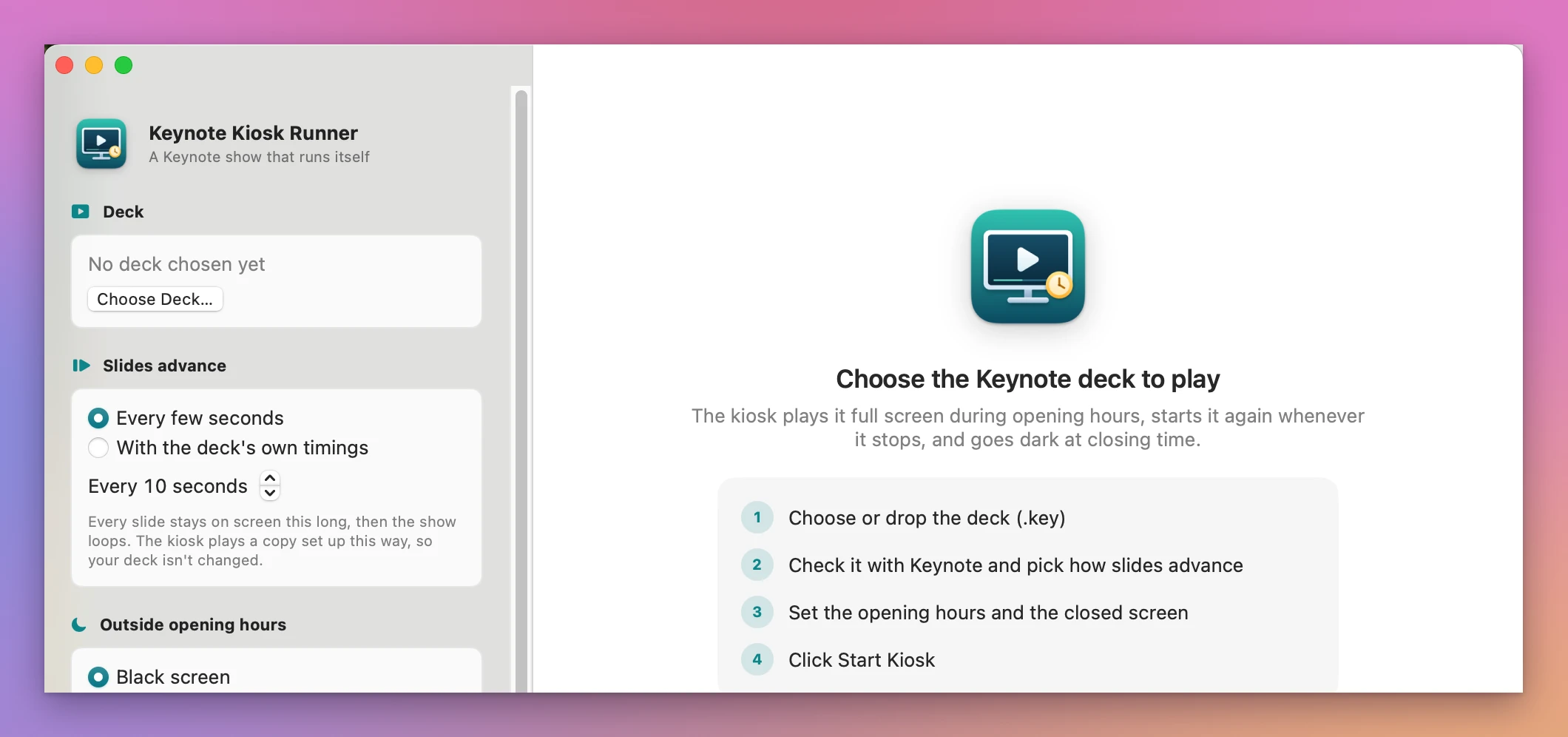
Keynote Kiosk Runner plays the deck for you. Choose the .key file, set the opening hours, and click Start Kiosk. During opening hours the show plays full screen, and every few seconds the app checks that it’s still playing. If it isn’t, it starts the deck again from the first slide. At closing time the show stops and the screen goes black, shows a “we’re closed” picture, or goes to sleep.
Who it’s for
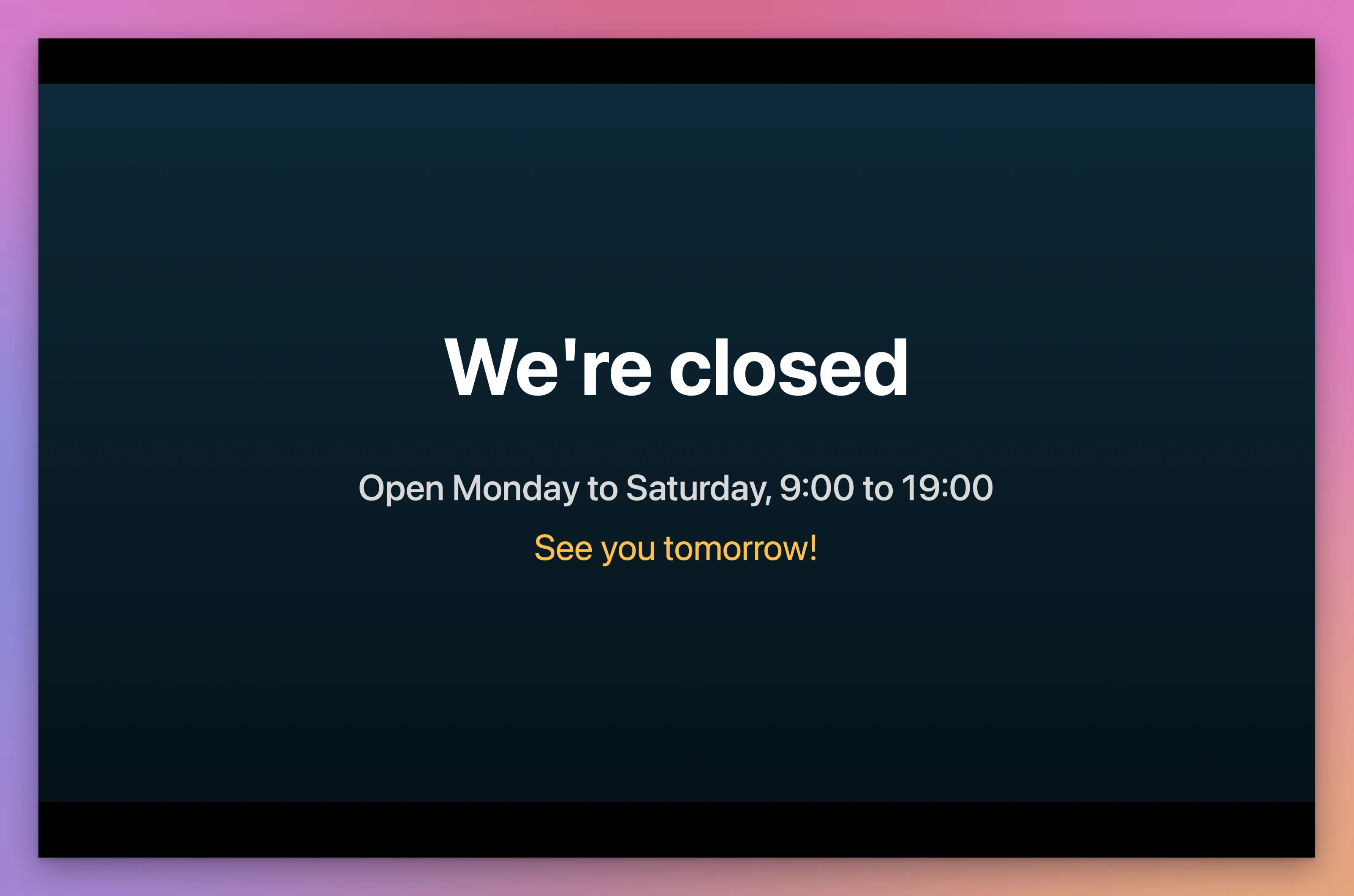
- Shops with a screen in the window. The autumn-sale deck plays Monday to Saturday from 9 to 7, then a “We’re closed, see you tomorrow” picture stays up overnight. Nobody has to start or stop anything.
- Reception desks in a dental studio, an architecture office or a co-working space. The screen shows a welcome slide, the Wi-Fi name and today’s events. When someone presses Esc by mistake, the show is back at the next check, 15 seconds later with the default setting.
- Trade-show stands. A Mac mini behind the booth loops the product deck all day. If Keynote quits, the app opens it again. When you want to present live, press Control-Option-Command-K and the kiosk stops.
- Museum, library and church foyers. Event announcements play all the time. With Open at login and Resume the kiosk when the app opens, the show comes back by itself after the Mac restarts.
- Schools. Notices play in the entrance hall during school hours, and the display goes to sleep at night and on weekends.
From a deck to a screen that runs itself
- Choose the deck. Click Choose Deck…, or drop a
.keyfile on the window. - Check it with Keynote. Click Check with Keynote. Keynote opens the deck for a moment, then closes it. The app shows the number of slides, how many are skipped, whether the deck Plays by itself or is Not self-playing, and whether it Loops. If some slides wait for a click, an orange warning says the show would stop there, with an Advance Every 10 Seconds Instead button.
- Pick how slides advance. In the sidebar, under Slides advance, choose Every few seconds (from 2 to 600 seconds per slide) or With the deck’s own timings for a deck that’s already self-playing.
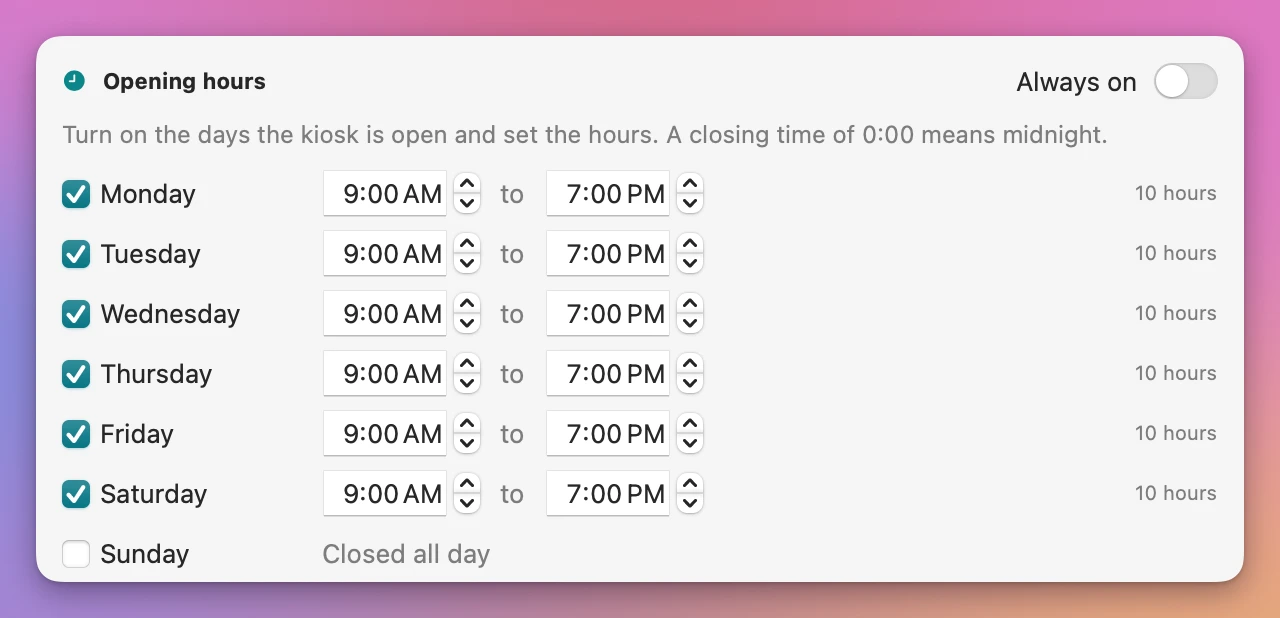
- Set the opening hours. Tick the open days and type the opening and closing time for each. The presets Mon–Sat 9:00–19:00, Every Day 10:00–18:00 and Copy Monday to Open Days fill them in. Always on keeps the show playing day and night.
- Pick what happens when you’re closed. Under Outside opening hours: Black screen, A “closed” picture (click Choose… to pick it), or Let the display sleep.
- Click Start Kiosk. The bar at the bottom tells you what happens next, like “Open now: the show starts right away and stops today at 7:00 PM”.
While the kiosk runs, the window shows what it’s doing: Playing with the slide number, Closed with the next opening time, Paused, or Needs attention with the problem. Under it, What happened lists every start, opening, closing, pause and restart, with the time and the reason.
What you get
A show that starts again
The Watchdog checks the show every 15 seconds (you can set 5 to 300). It asks Keynote three things: is it running, is a slideshow playing, and is the kiosk’s deck the one in front. If any answer is no, it opens the deck again and plays it from the first slide, and the log says why: “The slideshow had stopped (someone pressed Esc or clicked out of it)”, or “Another document was in front of the deck”. If Keynote doesn’t answer three checks in a row, the app quits it and opens it again.
Outside opening hours it works the other way. If someone starts the show by hand after closing, the next check stops it.
Your deck stays as it is
The kiosk plays a copy of the deck, kept in the app’s own folder. With Every few seconds, it sets every slide of the copy to move on by itself after that many seconds and turns on looping. Your original file is never opened or changed. If you edit the deck and save it, the kiosk notices at the next check, makes a fresh copy and starts again.
Opening hours and a closed screen
Each day has its own hours, and a closing time of 0:00 means midnight. During opening hours the app keeps the display from going to sleep. At closing time the show stops and the closed screen goes up: black, your picture filling the screen, or the display asleep. At opening time the show starts again.
Control from the menu bar
The menu bar shows the kiosk’s state, like Playing, Closed or Paused. Its menu has the details, the deck, the number of restarts, Pause for 15 Minutes or Resume Now, Stop Kiosk, and Open Keynote Kiosk Runner…. Control-Option-Command-K stops the kiosk from anywhere, even during the show.
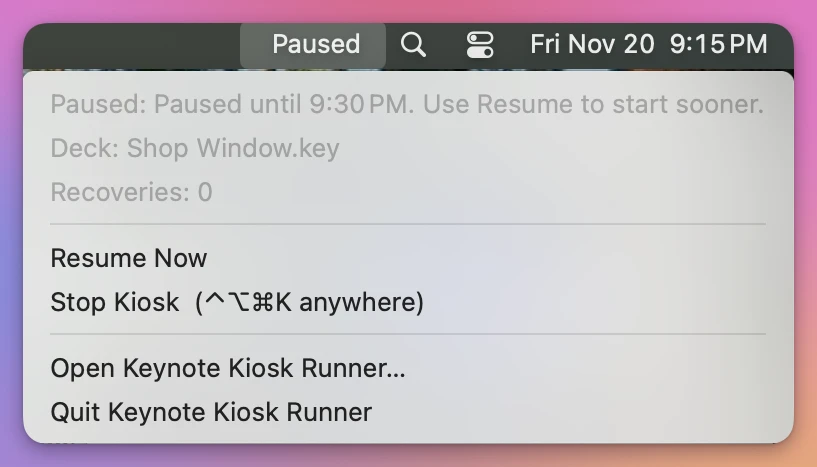
Pause for 15 Minutes stops the show so you can use the Mac, and it starts again by itself when the pause ends.
Back after a restart
Under When the Mac starts, turn on Open at login and Resume the kiosk when the app opens. After a power cut, the Mac starts, the app opens, and the kiosk goes back to playing or to the closed screen, depending on the time.
Why not use Keynote’s self-playing mode
Keynote can loop a deck on its own, for free. Click Document in the toolbar, set Presentation Type to Self-Playing, and tick Loop slideshow. There’s also Restart show if idle. If the screen only needs to play while you’re standing next to it, that’s all you need.
For a screen nobody watches, it’s missing a few things. Keynote has no schedule, so someone starts the show every morning and stops it every evening. Esc ends the show for good, and so does a dialog or another document coming to the front: the editor stays on screen until someone notices. If Keynote quits or the Mac restarts, nothing starts the show again. And a deck made for clicking has to be changed, slide by slide, before it can play by itself.
macOS can keep the display awake, but it doesn’t know your opening hours. Login Items open an app, not a slideshow. A shortcut can start a show at a set time, but it doesn’t watch it, restart it, or put up a closed sign.
Digital signage services do all this, usually for a monthly fee, with a player box and your slides made again in their editor. This app plays the Keynote deck you already have, on the Mac you already have.
| Keynote alone | Keynote Kiosk Runner | |
|---|---|---|
| Loop the deck | Self-Playing + Loop slideshow | Yes, on a copy of the deck |
| A deck made for clicking | Change every slide’s transition | Every few seconds, your file untouched |
| Opening hours | Start and stop it by hand | Hours for each day, presets, Always on |
| After closing time | The show keeps going, or you stop it | Black screen, a “closed” picture, or display asleep |
| Someone presses Esc | The editor stays on screen | Back at the next check, logged |
| Keynote quits or hangs | Nothing happens | Opened again; quit and reopened after three silent checks |
| The Mac restarts | Nothing plays | Open at login + resume |
| Display going to sleep | Change Energy settings for all hours | Kept awake only during opening hours |
What it doesn’t do
- It doesn’t choose the screen the show plays on. Keynote picks it, in Keynote › Settings › Slideshow. The app’s display picker only chooses where the closed screen goes, and I haven’t tested it with several displays.
- It doesn’t make slides. You design the deck in Keynote.
- It doesn’t play other files. Only Keynote decks, not PowerPoint, PDF or video files.
- It doesn’t skip builds that wait for a click. With Every few seconds, the time counts after a slide’s builds. A slide with click-triggered builds still waits for those clicks, so make the builds automatic in Keynote.
- It can’t tell a stuck slide from a long one. With With the deck’s own timings, a slide that waits for a click stops the show. Check with Keynote warns you about those slides before you start.
- It needs Keynote. Keynote is free on the Mac App Store.
Questions
Does it change my presentation?
No. The kiosk plays a copy in its own folder and makes all its changes there. Edit and save your deck whenever you like, and the kiosk picks up the new version at the next check.
What happens if someone presses Esc?
The show stops, and at the next check the app sees that no slideshow is playing. It opens the deck again and plays from the first slide. In my tests on a Mac with Keynote, with checks every 5 seconds, a stopped show was back 6 seconds later. I stopped the show the way Esc does, through Keynote itself, rather than pressing the key on a real kiosk.
What happens after a power cut?
With Open at login and Resume the kiosk when the app opens turned on, the app opens when the Mac starts and goes back to the kiosk. The Mac has to log in by itself for that, so turn on automatic login in System Settings. I tested that the app registers and removes itself from the login items. I haven’t tested a full reboot on a real kiosk Mac.
How do I use the Mac while the kiosk runs?
Click Pause for 15 Minutes in the window or the menu bar, or press Control-Option-Command-K to stop the kiosk. To start it again, click Resume Now or Start Kiosk.
Does it ask for permission?
macOS may ask whether Keynote Kiosk Runner can control Keynote. Allow it: the app needs that to open the deck, start the show and check on it. If you said no by mistake, turn it back on in System Settings › Privacy & Security › Automation.
Which Keynote versions does it work with?
I tested it with Keynote 15.3. Older Keynote versions are supported but not tested.
Does anything leave my Mac?
No. The app talks to Keynote on your Mac. It uses the internet only to check for updates.
What it needs
Keynote Kiosk Runner runs on macOS 14 Sonoma or later, on Apple silicon and Intel Macs, with Keynote installed.
The Keynote Kiosk Runner docs walk through each step.
Buy Keynote Kiosk Runner
$19 plus tax where it applies, paid once.
Download the app from the order page or your Creem receipt, unzip it and move it to Applications. I sign the app with my Apple Developer ID, and Apple notarizes the download.
The app checks for updates once a day. When a new version is ready, click Install and Relaunch. To check anytime, choose Keynote Kiosk Runner → Check for Updates….