
An app by Flavio
Meeting Buffer Blocks
Add prep time before and wrap-up time after the meetings you choose, as busy blocks in Calendar so nobody books over them, and keep them in step when a meeting moves or is cancelled.
Buy Meeting Buffer Blocks · $19One-time purchase. Plus tax where it applies.
macOS 14 or later · Apple silicon and Intel
Latest version 1.0.1, released November 22, 2026
Your sessions are 50 minutes, every hour. You want 15 minutes before each one to read the file, and 10 minutes after to write your notes. The calendar shows that time as free, so the booking page offers it, and a client books right on top of your notes.
You could add a “Prep” event before every session by hand. Then a client moves Tuesday’s session to Thursday, the prep block stays on Tuesday, and a cancelled session leaves two orphans behind.
Meeting Buffer Blocks adds those blocks for you. Pick the calendars to watch and the minutes before and after, click Preview Buffers, and Update Buffers puts them in Calendar as busy time. When a meeting moves or is cancelled, the next update moves or removes its blocks, and with Keep updating on, the app does it on its own.
Who it’s for
- Therapists and counselors. Sessions run 50 minutes on the hour. You want 15 minutes before to read the file and 10 after for notes, every session, without blocking the time by hand each week.
- Coaches with a booking page. Clients book through a scheduling page that reads your calendar. The buffers are busy time, so nobody can book a call straight after a long session.
- Consultants with a work calendar and a family calendar. Only the client calls get prep time. A school pickup or a dentist in the family calendar isn’t covered by a block: the block gets shorter, and the preview says why.
- Tutors with back-to-back lessons. The 10-minute gap between two lessons becomes one “Notes + Prep” block instead of two that overlap. When a lesson moves, its blocks move with it.
- Physios and doctors. Appointments with “Intake” in the title need longer preparation than follow-ups. Make two rules: the first one that fits a meeting wins.
From a calendar of meetings to a calendar with breathing room
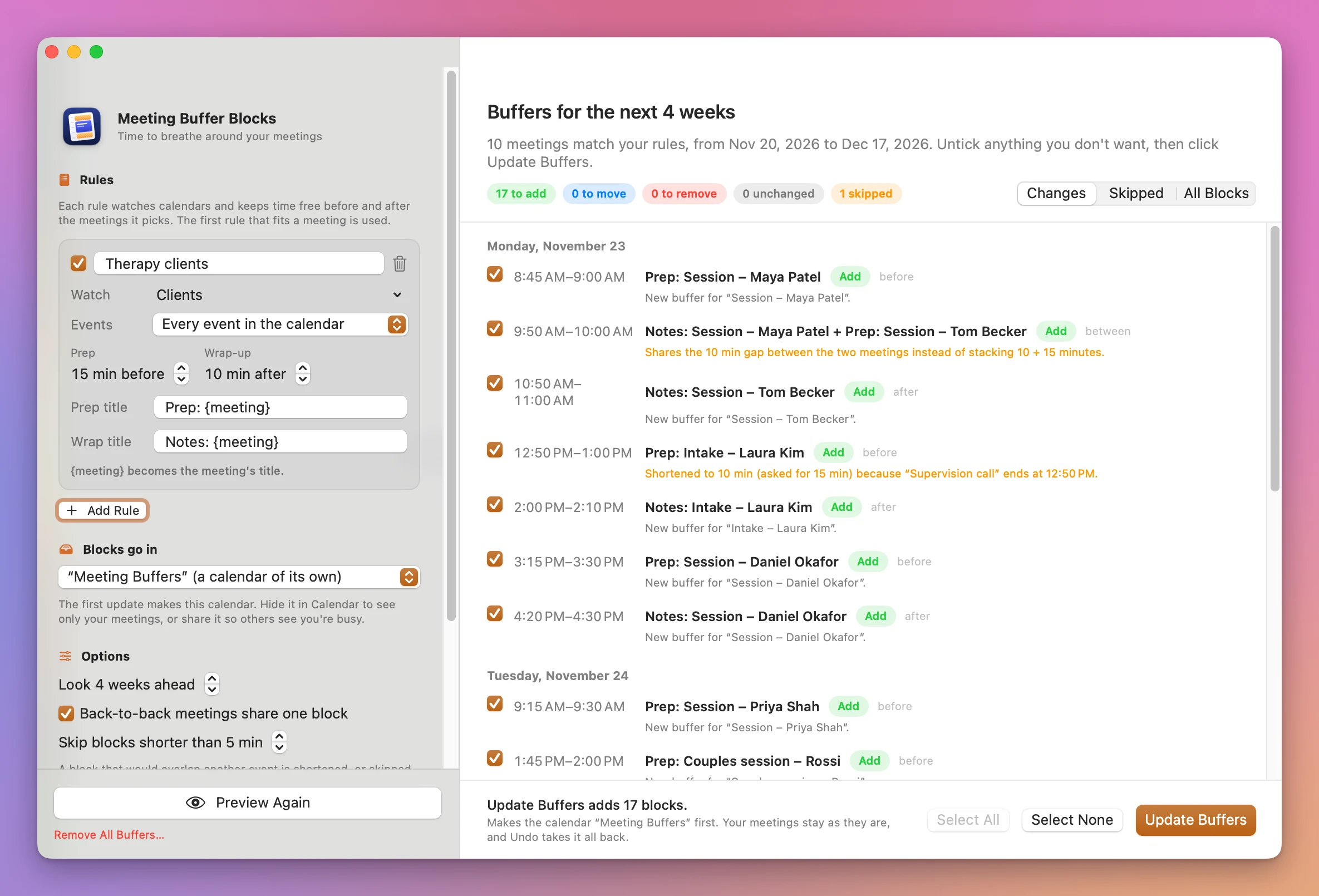
- Allow Calendar access. The first time, click Allow Calendar Access and choose Allow Full Access when macOS asks. The app reads your meetings and adds, moves and removes only the blocks it makes.
- Set up a rule. A first rule, “Client sessions”, is already there. Give it a name, then tick the calendars to watch in the Watch menu.
- Pick the events. Under Events, choose Every event in the calendar, Events with other attendees, or Events whose title contains… and type the words (commas separate alternatives, and capital letters and accents don’t matter).
- Set the minutes. Prep and Wrap-up go from None to 240 minutes, in steps of 5. Prep title and Wrap title are the block names:
Prep: {meeting}becomes “Prep: Session – Maya Patel”. - Click Preview Buffers (Command-R). The preview lists every block to add, move or remove, by day, with the reason for each one.
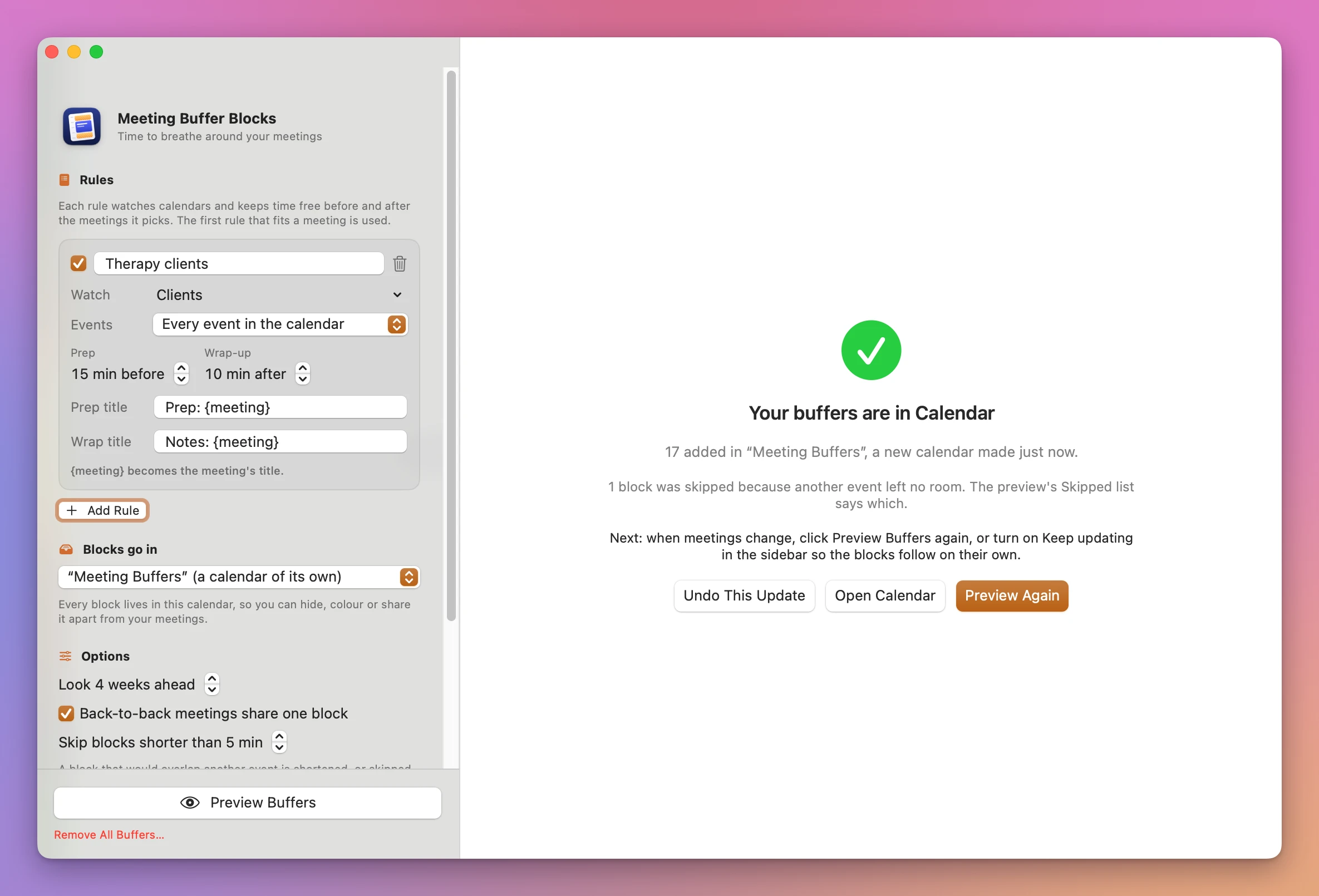
- Click Update Buffers. The first time, the app makes a calendar called “Meeting Buffers” and puts the blocks there. Untick anything you don’t want first.
What you get
Busy blocks, in a calendar of their own
Each block is a normal busy event in Calendar. By default they all go in “Meeting Buffers”, so you can hide that calendar to see only your meetings, give it its own color, or share it so others see you’re busy. You can also pick one of your own calendars under Blocks go in.
The app never changes a meeting, never adds invitees, and never sends an invitation.
Blocks that follow the meetings
Run the preview again after your week changes and it shows what to fix: a block to move (“The meeting moved: was Mon, Nov 23 at 2:15 PM.”), blocks to remove because the meeting was deleted, cancelled or declined, or no longer matches a rule.
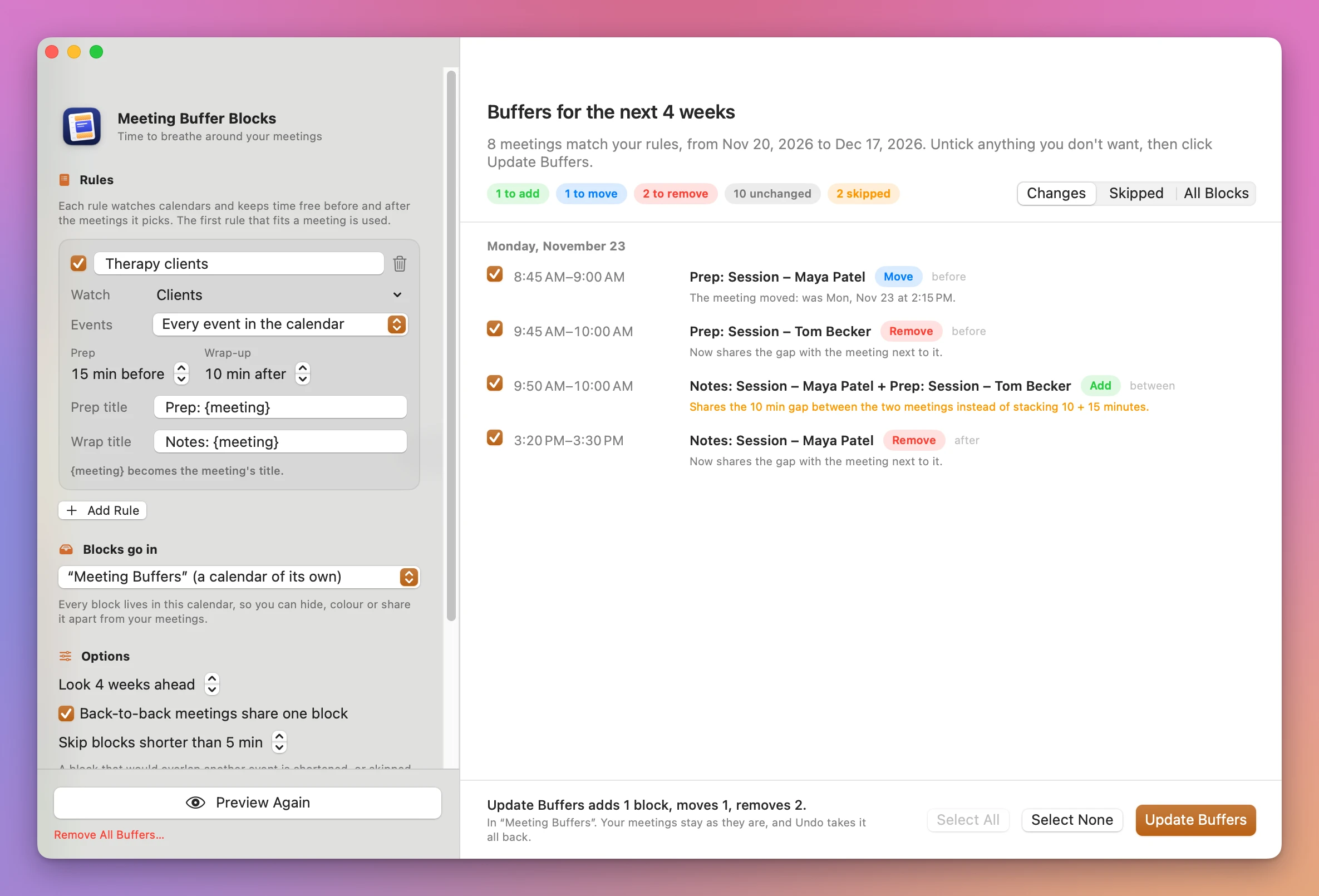
Turn on Update buffers automatically under Keep updating and you don’t need to click anything. When a meeting moves or is deleted in Calendar, the blocks follow within seconds. Close the window and the app stays in the menu bar, with Update Now and Stop Keeping Buffers Updated.
It works around your other events
Before it adds a block, the app checks every timed event in every calendar, not only the ones it watches. If a supervision call ends at 12:50 and your next session starts at 1:00, the 15-minute prep becomes 10 minutes, and the preview says so in orange. If there’s no room at all, the block is skipped and listed under Skipped with the reason. All-day events and events marked Free don’t count. Skip blocks shorter than (5 minutes by default) drops the slivers.
One block between back-to-back meetings
Two sessions 10 minutes apart would need 10 minutes of notes and 15 of prep. With Back-to-back meetings share one block on, the gap becomes one block named after both: “Notes: Session – Maya Patel + Prep: Session – Tom Becker”.
Undo, and a way out
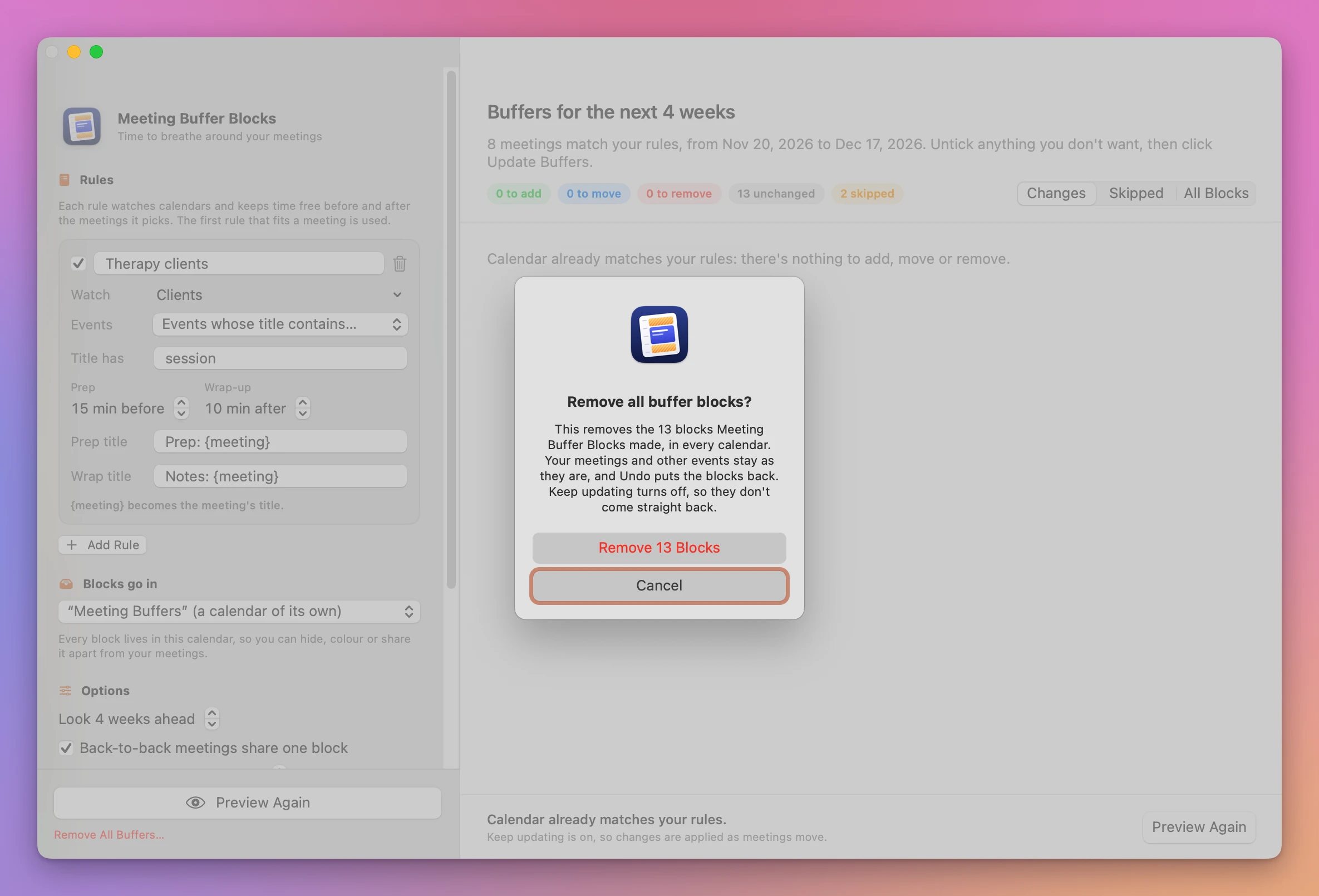
Every update is saved, and Undo This Update puts Calendar back the way it was. Remove All Buffers… counts the blocks the app made, asks first, and removes only those, in every calendar. It has its own Undo.
Why not do it by hand
Calendar on the Mac has no buffer setting. You can add a “Prep” event before each meeting yourself, and for two meetings a week that’s fine. With a dozen sessions a week, every move and every cancellation is another edit, and the blocks you forget stay where the meeting used to be.
Calendar’s alerts (“15 minutes before”) only remind you. The time still shows as free, so a booking page or a colleague can book right up to the meeting.
Google Calendar has no buffers for normal events either. Its appointment schedules can add buffer time, but only to bookings made through Google’s own booking page. Scheduling services like Calendly, Reclaim.ai and Clockwise add buffers too. They’re subscriptions, mostly built for Google or Microsoft 365 accounts, and they read your calendar on their servers.
A shortcut or a script can add events. Keeping them in step when meetings move, sharing a gap between two sessions, and removing only its own blocks is the hard part, and it’s what this app does.
| By hand in Calendar | Meeting Buffer Blocks | |
|---|---|---|
| Adding prep and wrap-up | One event at a time | All of them from your rules |
| A meeting moves | Find and move its blocks yourself | Shown in the preview, or moved on its own |
| A meeting is cancelled | Orphan blocks stay behind | Its blocks are removed |
| Back-to-back meetings | Two blocks overlap, or you trim one | One shared block in the gap |
| Another event in the way | You notice, or you don’t | Block shortened or skipped, with the reason |
| Undo | Delete them one by one | Undo This Update or Remove All Buffers… |
To offer free times in an email with buffers left around your meetings, Availability Text Copier does that without adding anything to your calendar.
What it doesn’t do
- It doesn’t run when the app is closed. Keep updating works while the app is open, in a window or in the menu bar. The app doesn’t add itself to Login Items.
- It doesn’t make repeating blocks. Each block is a single event, with no alerts and no invitees. Moving a whole repeating series removes and re-adds the blocks of each occurrence.
- It looks 1 to 26 weeks ahead. Blocks of meetings further out are left alone until they come into range.
- It undoes one update at a time. Undo the latest, then undo again to go further back.
- It leaves the “Meeting Buffers” calendar in place after Remove All Buffers…, empty. Delete it in Calendar if you don’t want it.
Questions
Which calendars does it work with?
It reads the calendars that Calendar on your Mac shows. I tested it with calendars stored On My Mac. I haven’t tested iCloud, Google or Exchange calendars, where the server has to keep the marker the app uses to find its own blocks.
Will it change my meetings?
No. It only adds, moves and removes the blocks it made, each one carrying a marker so the app can find it again. Meetings, invitees and other events are left as they are.
What does “Events with other attendees” match?
Meetings with at least one invitee besides you. I tested this one only in the app’s automated tests, since calendars stored On My Mac have no invitees.
Does anything leave my Mac?
The app works with your calendars through macOS, on your Mac. It uses the internet only to check for updates.
What it needs
Meeting Buffer Blocks runs on macOS 14 Sonoma or later, on Apple silicon and Intel Macs. It needs full access to your calendars.
The Meeting Buffer Blocks docs walk through each step.
Buy Meeting Buffer Blocks
$19 plus tax where it applies, paid once.
Download the app from the order page or your Creem receipt, unzip it and move it to Applications. I sign the app with my Apple Developer ID, and Apple notarizes the download.
The app checks for updates once a day. When a new version is ready, click Install and Relaunch. To check anytime, choose Meeting Buffer Blocks → Check for Updates….