
An app by Flavio
Model Release Tracker
Keep the model releases people signed for you, tick who's in each photo of a shoot, and see which photos are clear to license or send to a stock site, which need a release, and whose release has expired. Export a release pack with a cover page and copies of the releases those photos need.
Buy Model Release Tracker · $19One-time purchase. Plus tax where it applies.
macOS 14 or later · Apple silicon and Intel
Latest version 1.0.0, released November 24, 2026
You shot a bakery for a client, and the owner said you can put the lifestyle photos on a stock site. There are 180 keepers. Six people appear in them: two staff members who signed a release on the day, a hired model whose release came through an agency and runs out next June, a friend of the owner who never sent the form back, and someone whose release expired in May.
The stock site wants a release for every recognizable person in every photo. So you open each photo, think about who’s in it, and look for their release in your Downloads folder, in an email from March, or as a photo of a piece of paper on your phone. With a spreadsheet of photos and names you can do it for one shoot, once. A year later a brand asks to license one of those photos and you start over.
Model Release Tracker keeps the releases you already have, one person at a time, with the day each was signed, what it covers, the shoots it applies to and the day it runs out. You add a shoot’s photos and tick who’s in them, many photos at a time. The app shows every photo as Clear, Needs release or No one ticked, says why under each name, and exports a release pack for the clear ones.
Watch a 30-second demo of Model Release Tracker:
Who it’s for
- Photographers who submit to stock sites. The agency rejects a photo with a recognizable person unless a release comes with it. After a shoot with friends and hired models, you need the 40 photos out of 180 where everyone signed, and the releases to attach to each upload.
- Portrait and lifestyle photographers who license past work. A brand wants a two-year-old photo for an ad. You need to know right away whether everyone in that frame signed, and whether one of those releases has expired since.
- Commercial photographers working with talent agencies. An agency release often runs for one or two years. You want to see which photos stop being usable when it runs out, and send the client a pack for the photos in the campaign.
- Small studios where releases live everywhere. Some came by email, some are scans in a shared folder, one is a phone photo of the signed paper. One library of people and their signed forms answers “is she cleared for this?” without asking the person who did the shoot.
- Event, school, gym and community photographers. You shoot the same group of people every month, and before a photo goes in a brochure or on the website you need to know who never returned a form.
How it works
- Click Add Signed Releases… and choose the release files you have: PDFs, scans, or a photo of the paper. The app keeps a copy of each and makes a person for each one, guessing the name and the day it was signed from the file name.
- On each person’s page, check the release: Signed on, Good until if it runs out, what it Covers, and whether it Applies to every shoot or only some.
- Click New Shoot…, then Add Photos… and choose the photos or the folder they’re in.
- Select photos (Shift-click for a run, ⌘-click to add one) and tick who’s in them on the right. Each tick goes on every selected photo.
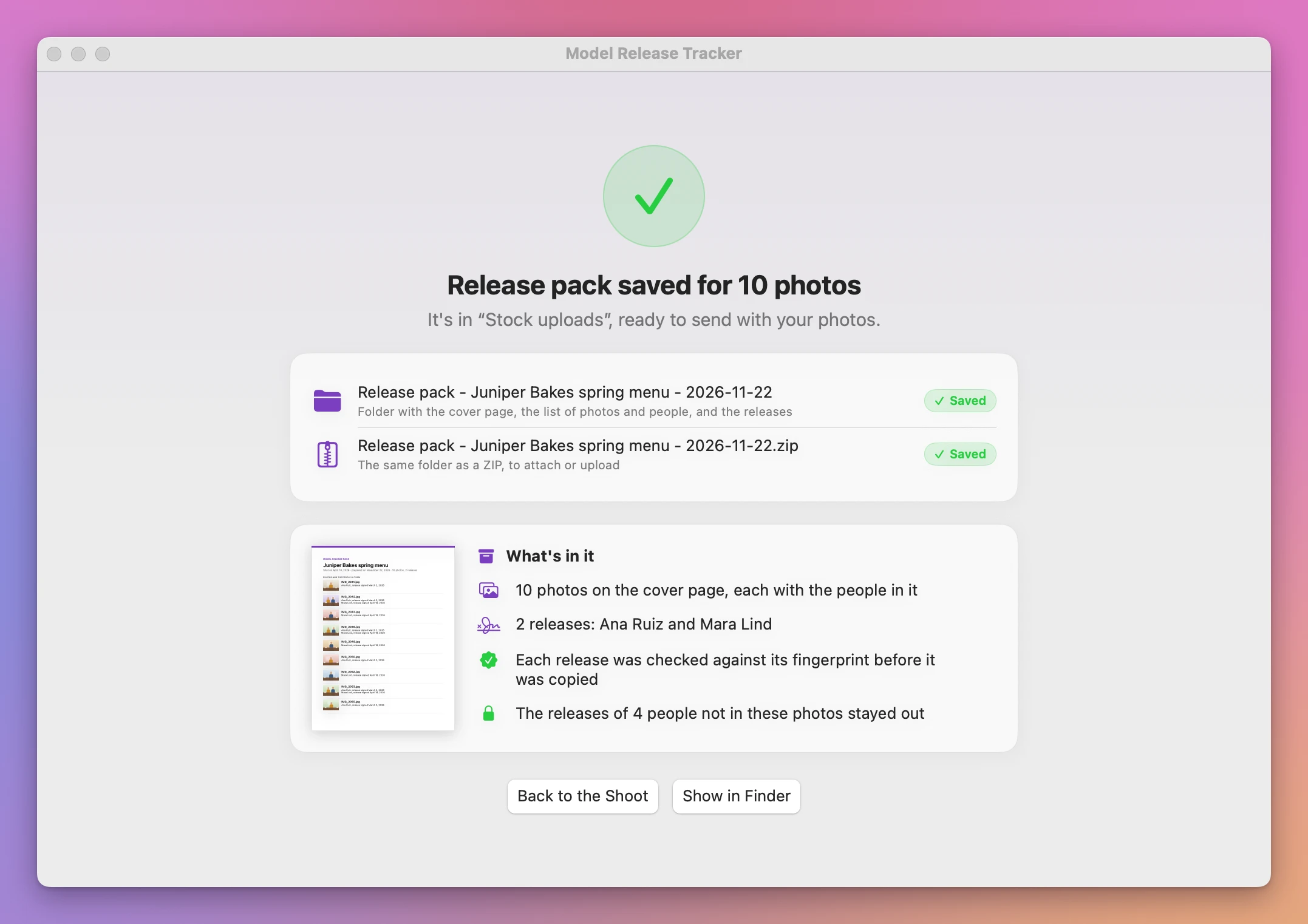
- Click Select Clear Photos, then Export Release Pack for 10 Photos…, and choose a folder.
What you get
Every photo with a status, and the reason
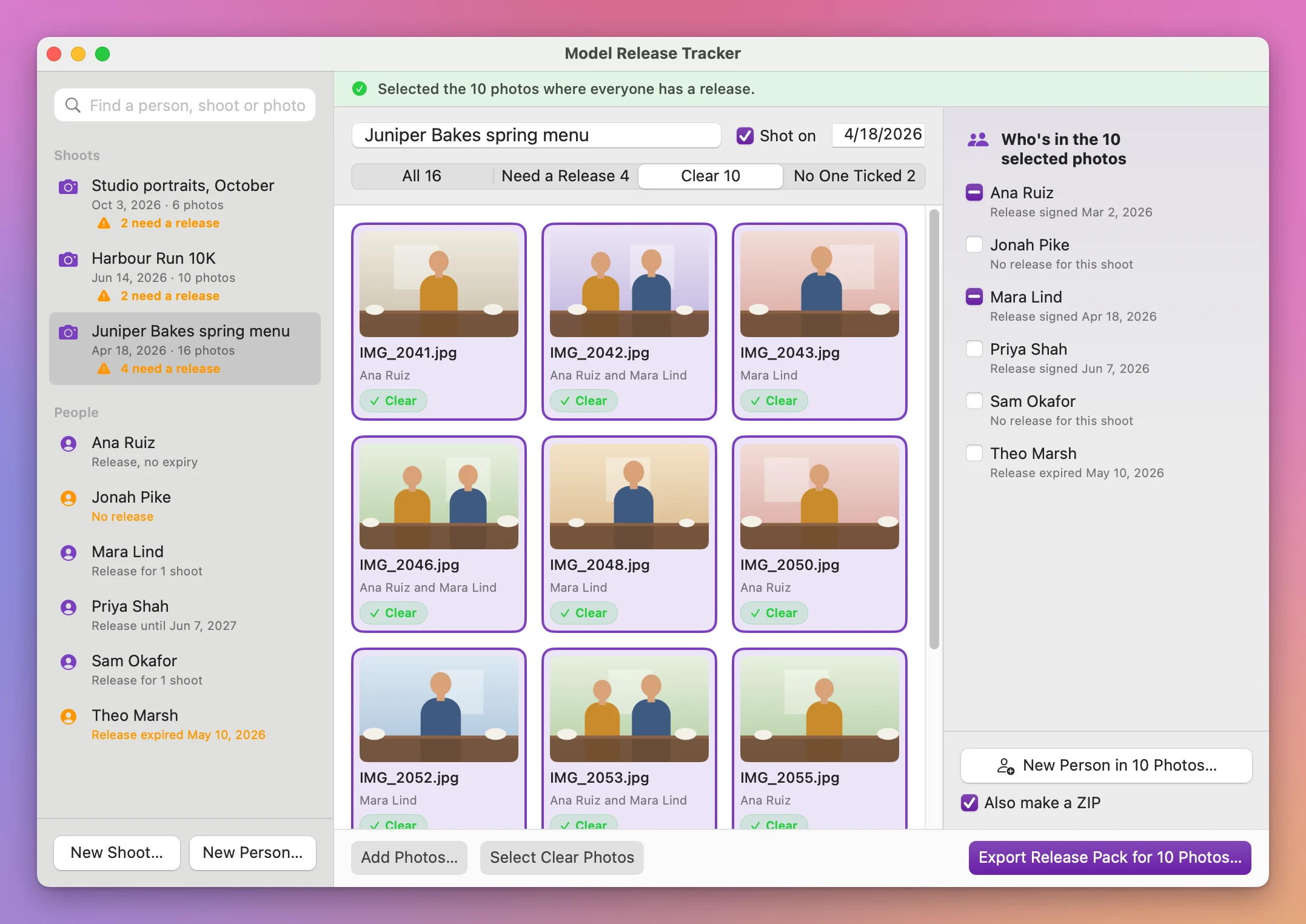
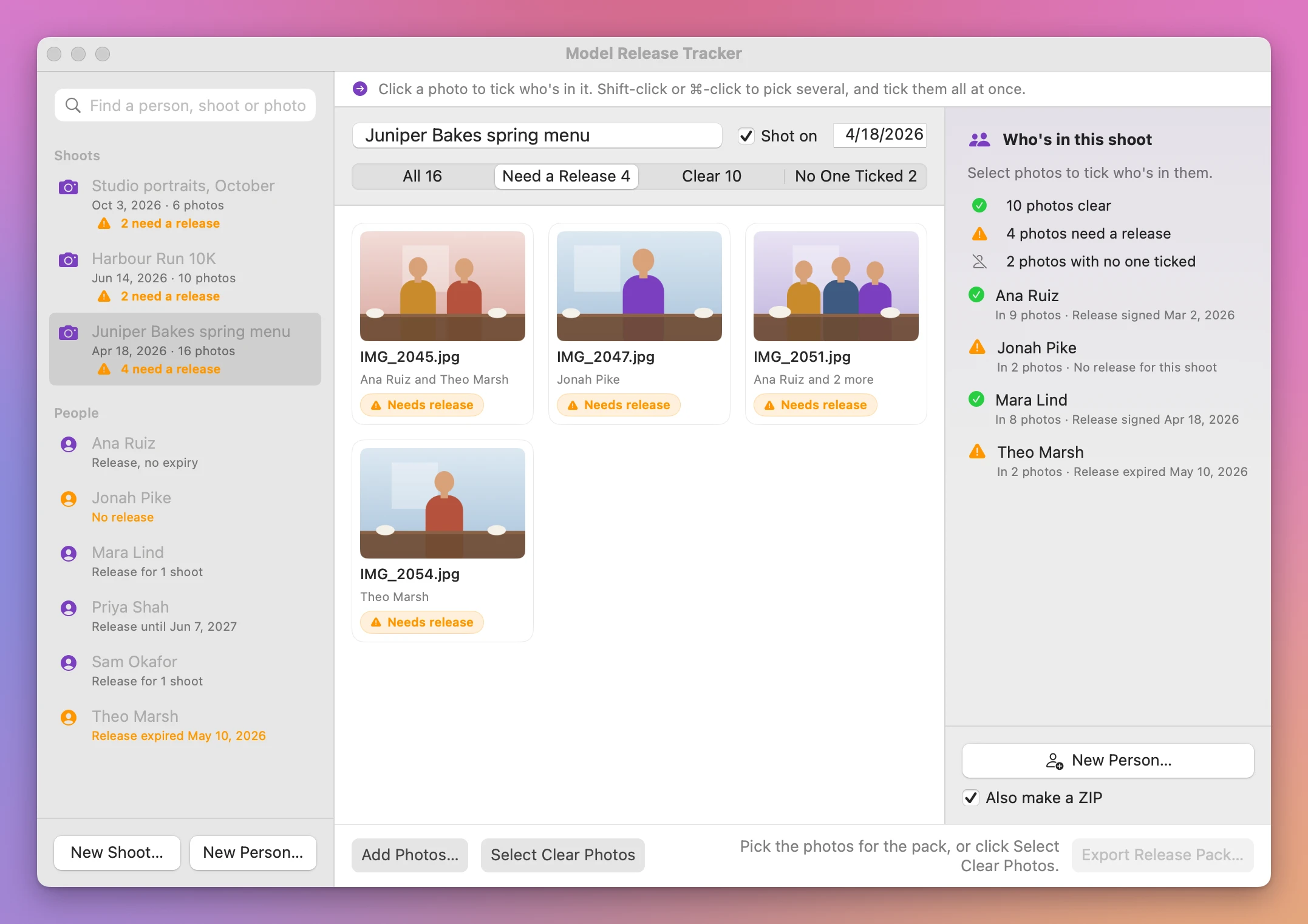
Each photo shows its preview, who’s ticked in it and a pill: Clear when everyone in it has a release for that shoot that hasn’t expired, Needs release when someone has none or only an expired one, No one ticked when you haven’t said who’s in it yet. The buttons above the grid show each group with its count: All 16, Need a Release 4, Clear 10, No One Ticked 2.
Click a photo and the right side says, under each name, why: “Release signed Mar 2, 2026”, “Release expired May 10, 2026” or “No release for this shoot”.
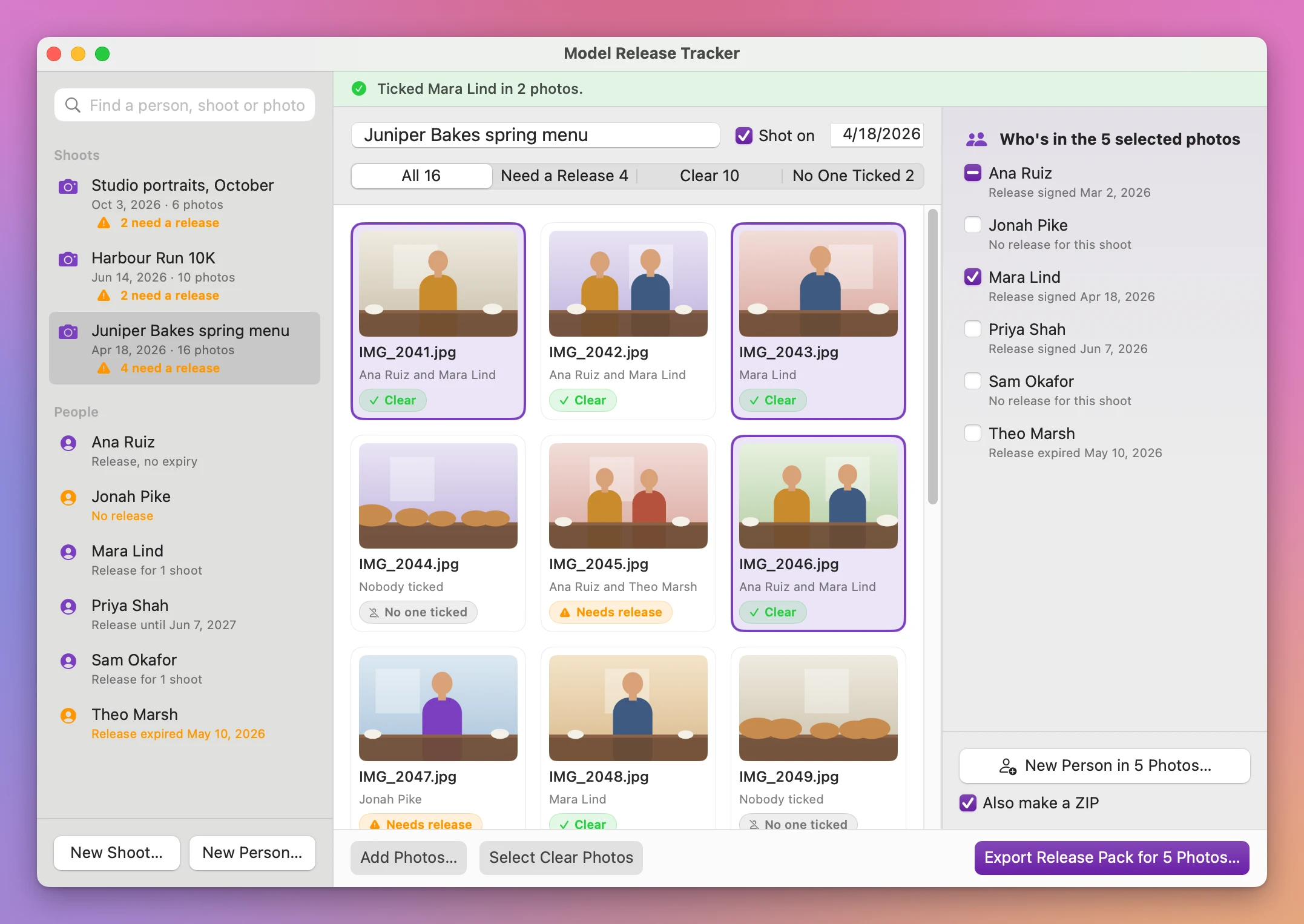
Tick the same people in many photos at once
There’s no face recognition. You say who’s in each photo, and the app makes that quick: select a run of photos and tick a name once, and it goes on all of them. A box with a dash means that person is in some of the selected photos; one click ticks them in all. New Person in 5 Photos… on the right adds someone and ticks them in the photos you selected.
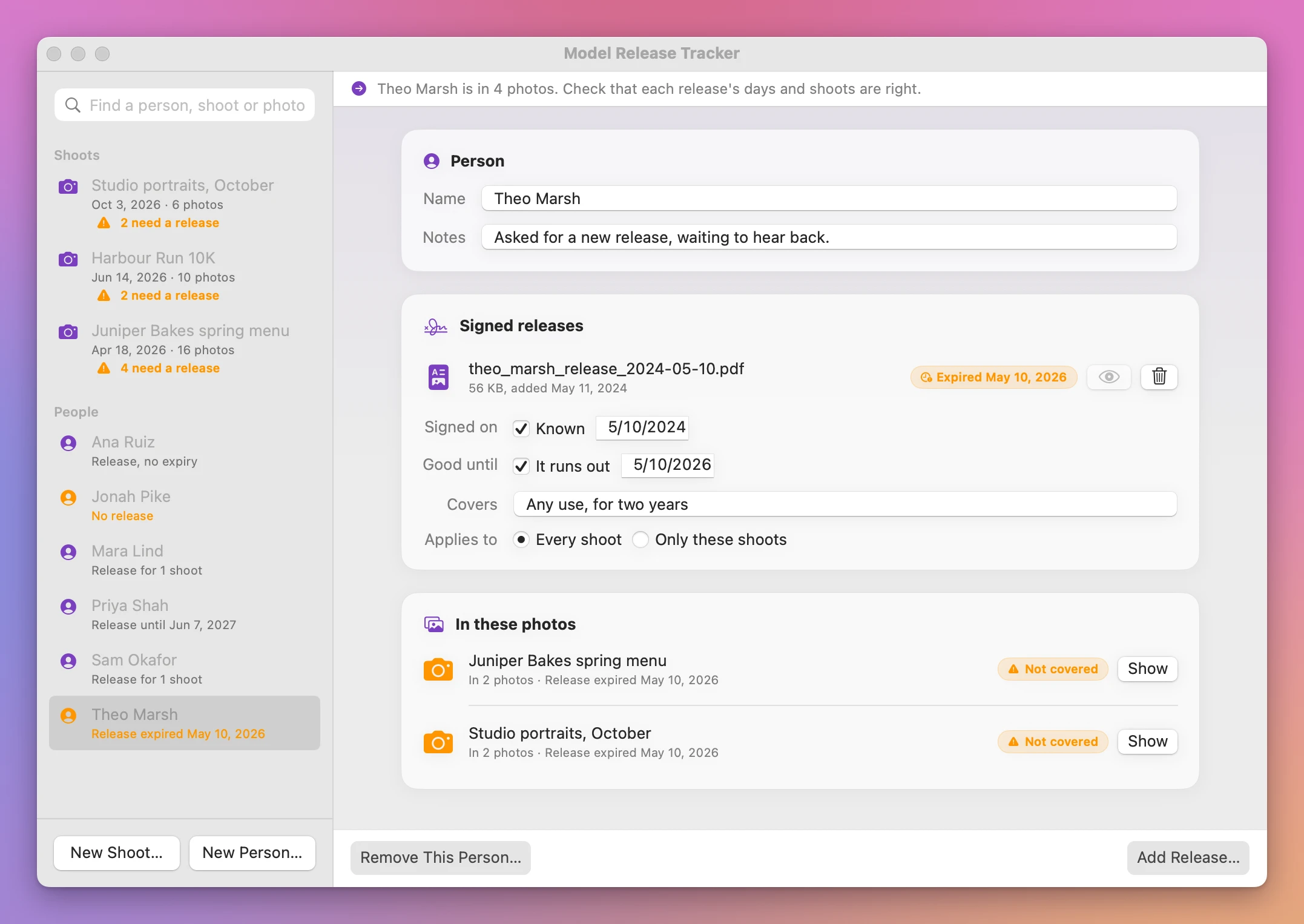
Each person’s releases, with their dates and shoots
A person can have more than one release: the one that expired and the new one, or one per shoot. The app uses the one that applies to the shoot and lasts longest. A release can apply to every shoot, or only to the shoots you tick, like a release signed for one event. The page also lists every shoot the person is in, with a Show button that opens it with their photos selected.
A release pack for the photos you’re sending
Export Release Pack… saves a new folder with:
Cover page.pdf, which lists each photo with its preview and the people in it, then each release with the day it was signed, the day it runs out, what it covers and a SHA-256 fingerprint of the file.Photos and people.csv, the same list as a spreadsheet, one row per photo.- A
Releasesfolder with a copy of each release those photos need, named after the person, likeAna Ruiz - signed 2026-03-02.pdf.
With Also make a ZIP ticked you also get a ZIP of the folder to attach or upload. The releases of people who aren’t in those photos stay out, so a client never gets someone else’s form.
Find a release when someone asks for it
Type a name, a shoot or a photo’s file name in the search field. A search for IMG_2051 opens the bakery shoot with that photo selected, and the people in it on the right with their releases.
Why not do it by hand
| What you have for free | Model Release Tracker | |
|---|---|---|
| Finding a release | Spotlight finds a PDF with a good name, not scan_0012.pdf | Every release under the person who signed it |
| Who’s in a photo | Keywords or face tags in your photo app | Ticks per photo, many photos at once |
| Is this photo clear? | Look up each person in each photo | A pill on every photo, and the reason under each name |
| Expiry dates | A reminder you hope you set | An expired release turns its photos to Needs release |
| Sending the proof | Copy files into a folder, write a list | A cover page, a CSV and only the releases needed, as a folder and a ZIP |
Photos and Lightroom Classic can tag people and add keywords, and that’s a fine place to say who’s in a photo. A tag doesn’t tell you whether that person signed, when, or for which shoot, and there’s no place in either app for the release file. A spreadsheet with names across the top and photos down the side works for one shoot of a dozen photos. At a few hundred it’s unreadable, it doesn’t hold the files, and nothing in it turns red when a release expires.
What it doesn’t do
- It doesn’t create or sign releases. It keeps the releases you already have. Make and sign them however you do today, then add the file.
- It isn’t legal advice. It doesn’t read a release or say whether it’s valid, covers a particular use, or meets an agency’s rules. “Covers” is your own note.
- It doesn’t recognize faces. You tick who’s in each photo.
- It doesn’t upload anything to a stock site, or check anything with one.
- It doesn’t copy or change your photos. It keeps a small preview of each and remembers where the photo was. If you move a photo later, the shoot still lists it, but Show Photo in Finder can’t find it.
- It doesn’t read keywords or face tags from Photos or Lightroom.
- One file per release. A release scanned as two separate pages goes in as two releases. Combine the pages into one PDF first if you want them together.
- It doesn’t sync between Macs.
Questions
Where are my releases kept?
The app copies each release into its library, in your user Library folder on this Mac. File › Show Library in Finder opens it, so it’s backed up with the rest of your files. The originals you added stay where they were.
What if a kept release goes missing?
Each release gets a fingerprint when you add it. If the kept copy disappears or changes, the person’s page says so in orange, and a pack that needs it isn’t made until you add the original file again.
Does anything get uploaded?
Nothing. Your releases and photos stay on your Mac. The app connects to the internet only to check for updates.
What it needs
macOS 14 Sonoma or later, on Apple silicon and Intel Macs. It asks macOS for no permission: it reads the files you choose or drag onto its window.
Model Release Tracker isn’t made by, affiliated with or endorsed by Apple, any stock photo agency or any release-signing app. The people, shoots and photos in the screenshots are made up, and the photos are drawn placeholders.
Buy Model Release Tracker
$19 plus tax where it applies, paid once.
Download the app from the order page or your Creem receipt, unzip it and move it to Applications. I sign the app with my Apple Developer ID, and Apple notarizes the download.
The app checks for updates once a day. When a new version is ready, click Install and Relaunch. The first time, it asks for the license key from your Creem receipt, and remembers it. To check anytime, choose Model Release Tracker → Check for Updates….