
An app by Flavio
Photo Delivery Checker
Add the folders of a photo delivery, one per version, and give each its rule: the long edge, the file type, the largest file and sRGB. See every photo missing from a version or breaking its rule, and every proof, draft, copy, empty or duplicate file that shouldn't be there. Save a PDF and CSV report. Your photos are never changed.
Buy Photo Delivery Checker · $19One-time purchase. Plus tax where it applies.
macOS 14 or later · Apple silicon and Intel
Latest version 1.0.0, released November 24, 2026
You shot a wedding and picked 412 photos. You exported them three times: web copies at 2048 pixels for the online gallery, full-resolution JPEGs to download, and TIFFs for the album lab. Then a re-edit of six photos went into two folders out of three, a proof with “proof” in its name ended up in the web folder, and one web copy came out in Display P3 instead of sRGB.
You can check this by hand. Open the three folders side by side in the Finder and scroll down the names, one window at a time. With 412 photos per folder, that’s the afternoon, and the Finder shows neither the pixel size nor the color profile in the list.
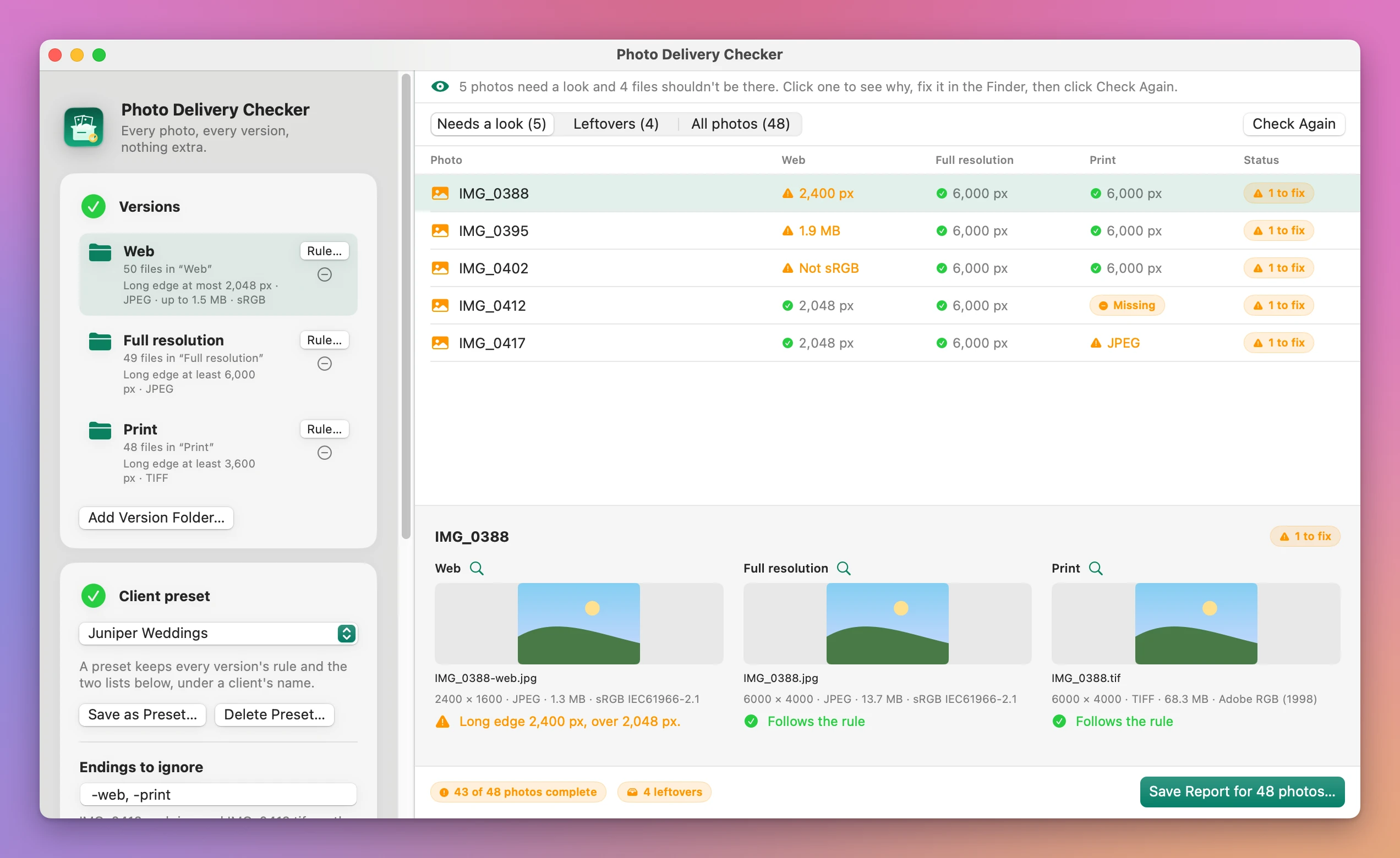
Photo Delivery Checker reads the three folders at once. It matches the photos by name, so IMG_0412-web.jpg, IMG_0412.jpg and IMG_0412.tif are the same photo, checks each file against the rule of its version, and lists what’s missing, what breaks a rule and what shouldn’t be there at all. Then it saves a report you can keep with the job.
Watch a 30-second demo of Photo Delivery Checker:
Who it’s for
- Wedding and event photographers. You deliver the same 400 to 800 photos as web copies for the gallery, full-resolution files and TIFFs for the album lab. One photo missing from the print folder is an empty page in the album, and you find out when the lab calls.
- Portrait and headshot photographers. You promised a 2048-pixel web version for the client’s site and a full-size one for print. A full-size file in Display P3 on a website looks washed out, and the client blames the photo.
- Commercial and product photographers. The client’s spec says square JPEGs under 1 MB for the shop and TIFFs for the catalog. Save the spec as a preset with the client’s name, and every delivery is checked against it.
- Photo editors and studio assistants. You prepare the delivery for the photographer, and you want to say “every version is complete” with a PDF that shows it.
- Anyone who sends watermarked proofs. Proofs and drafts live next to the finals. A file named “IMG_0399-proof.jpg” in the client’s folder is the one mistake you don’t want to explain.
How it works
- Click Add Version Folders… and pick the folder of each version, or the delivery folder that holds them. You can also drag them onto the window.
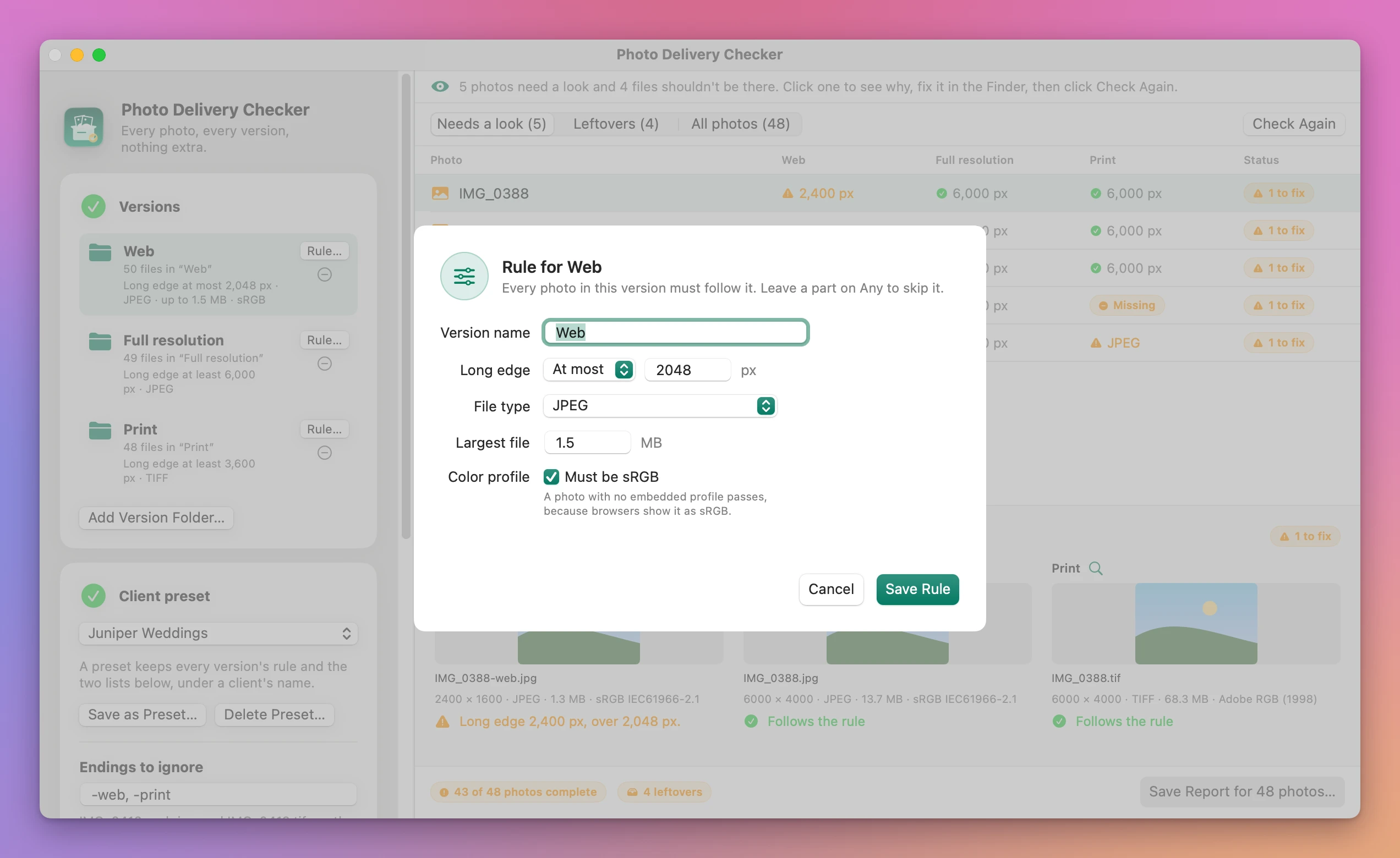
- Click Rule… next to each version and set its long edge in pixels (Exactly, At least or At most), its File type, its Largest file in MB, and Must be sRGB.
- Look at Needs a look and Leftovers. Click a photo to see every version of it and what’s wrong.
- Fix it in the Finder and click Check Again.
- Click Save Report for 48 photos….
What you get
Every photo, matched across the versions
The app matches files by name without the extension, and without the endings you list, like -web or -print. A photo that’s in Web and Full resolution but not in Print shows Missing in the Print column. Two files that match the same photo in one folder, like IMG_0200-web.jpg and IMG_0200.png, are flagged too.
A rule for each version
Each version has its own rule:
- the long edge, exactly, at least or at most a number of pixels, so portraits and landscapes are measured the same way;
- the file type: JPEG, TIFF, PNG or HEIC;
- the largest file, in MB, counted the way the Finder counts;
- whether it must be sRGB.
A file that breaks its rule shows what’s wrong in its column: “2,400 px”, “1.9 MB”, “Not sRGB”, “JPEG”. The app also notices a file whose extension lies, like a PNG named .jpg.
Leftovers that shouldn’t go to the client
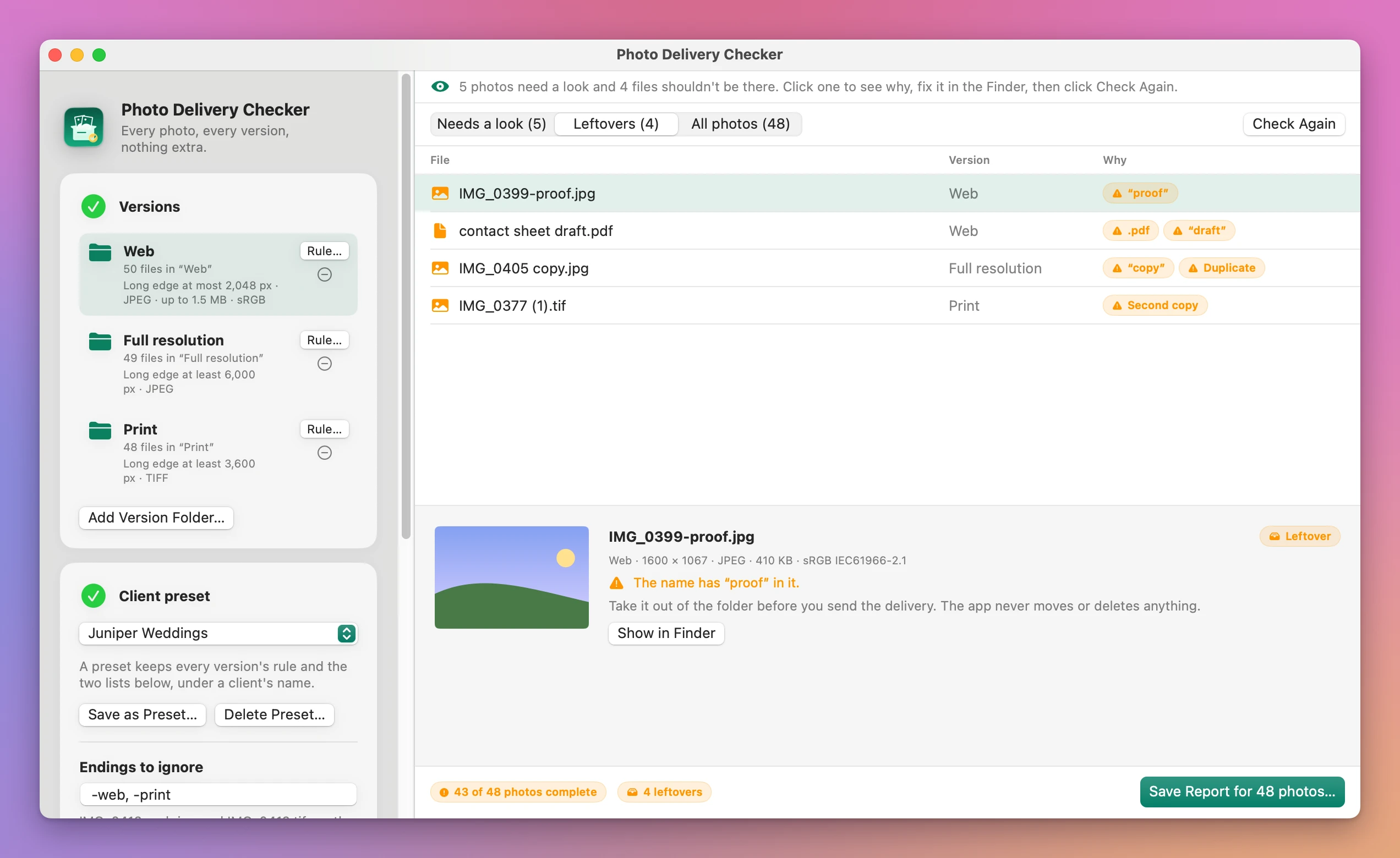
The Leftovers list has the files that don’t belong in a delivery:
- names with proof, draft, test, copy, watermark, watermarked or wm in them, or your own words;
- names that end like a second download, “IMG_0377 (1).tif”;
- empty files;
- the same file twice in one version, like a Finder copy;
- files that aren’t photos, like a .pdf, a .txt or a camera raw file.
Presets for each client
Save as Preset… keeps every version’s rule, the endings and the leftover words under a name, like “Juniper Weddings”. Next time, pick it from Client preset and each folder gets the rule of the version with the same name.
A report to keep
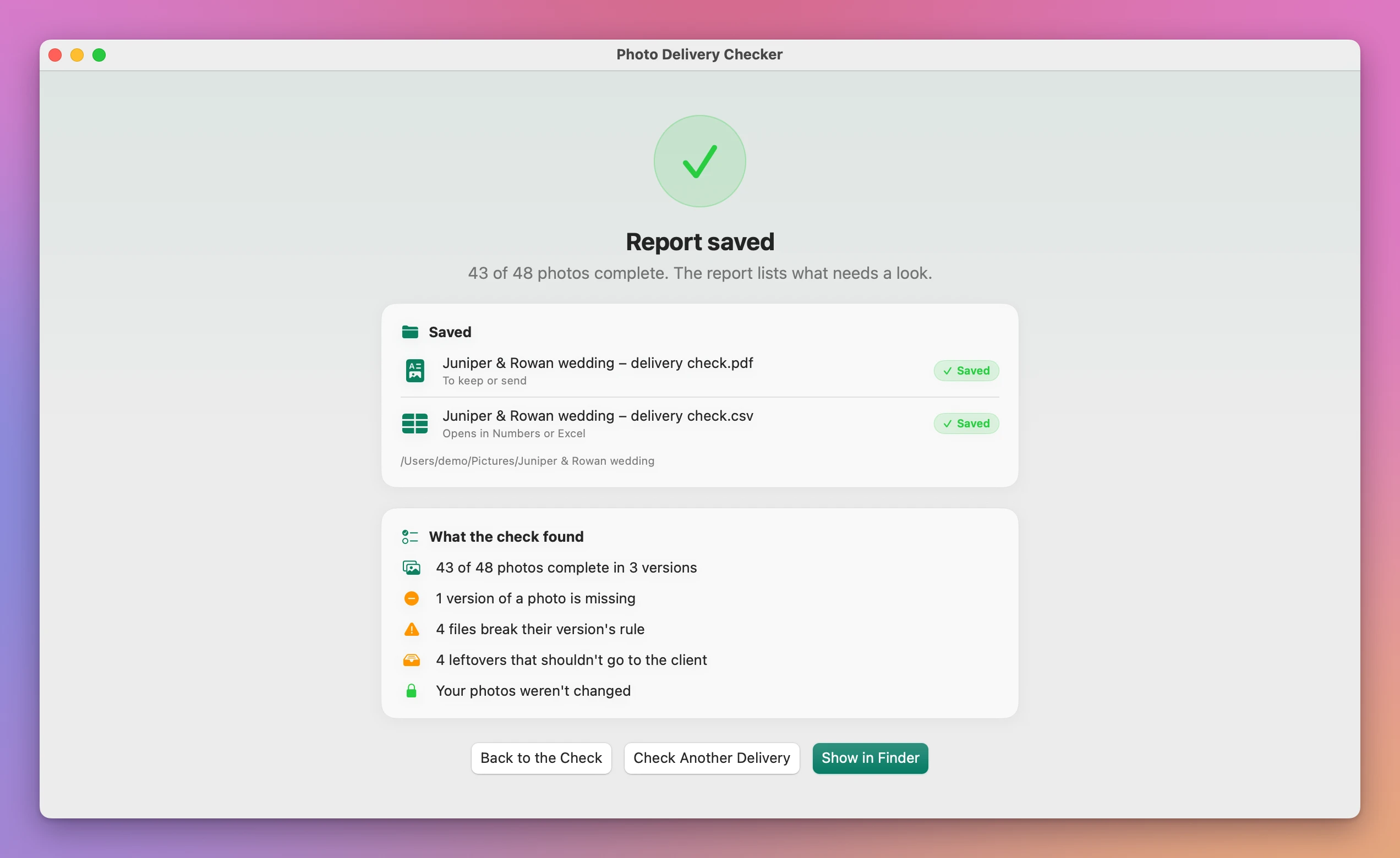
Save Report writes a PDF with the rules, what needs a look, the leftovers and a table of every photo, and a spreadsheet (CSV) with one row per photo and version that opens in Numbers or Excel.
Why not check it by hand
The Finder’s list view shows the names, sizes and kinds of one folder per window. It’s free, it’s fast, and for ten photos it’s enough. For three folders of 400, you compare names across windows by scrolling, and a photo missing from one of them is easy to miss. The list has no column for the pixel size or the color profile. Preview’s Inspector shows them, one photo at a time.
| By hand | Photo Delivery Checker | |
|---|---|---|
| A photo missing from one version | Scroll three Finder windows side by side | Missing in that version’s column |
| A web copy that’s too big | Open it and read its size | ”2,400 px” in orange, with the rule it breaks |
| The wrong color profile | Preview’s Inspector, one photo at a time | ”Not sRGB” for every photo, at once |
| A proof or a Finder copy left in | Read every name | The Leftovers list |
| The same client next month | Remember the spec | Pick the client’s preset |
| A record of the check | None | A PDF and a CSV |
What it doesn’t do
- It doesn’t fix anything. It doesn’t resize, convert, rename, move or delete a photo. It tells you which file to redo.
- It doesn’t look inside the picture. A watermarked proof is found by its name, not by its watermark. It doesn’t check focus, exposure or faces.
- The color profile is one question. Is it sRGB or not. A photo with no embedded profile passes, because browsers show it as sRGB.
- It doesn’t check credits or metadata. Copyright, captions and keywords aren’t read.
- Camera raw files aren’t checked as photos. They’re listed as leftovers.
- It doesn’t connect to your gallery service. It checks the folders on your Mac before you upload.
- Up to four versions per delivery.
Questions
Does it change my photos?
No. The app only reads them. It never writes to a photo, moves one or renames one, and the report can’t take the name of a file in the delivery.
Does anything get uploaded?
Nothing. The photos are read on your Mac. The app connects to the internet only to check for updates.
How long does it take?
It reads each photo’s size, type and color profile without opening the picture, so a folder of large TIFFs is read quickly. It reads every byte only of files that have the same size as another, to find duplicates.
Does it work with my gallery service?
It checks the folders you export before you upload them, whatever service you use. Photo Delivery Checker isn’t made by, affiliated with or endorsed by any gallery or photo delivery service, Adobe or Apple.
What it needs
macOS 14 Sonoma or later, on Apple silicon and Intel Macs. When you choose a folder on an external disk, a server, or in Desktop, Documents or Downloads, macOS may ask once whether the app can read it.
Buy Photo Delivery Checker
$19 plus tax where it applies, paid once.
Download the app from the order page or your Creem receipt, unzip it and move it to Applications. I sign the app with my Apple Developer ID, and Apple notarizes the download.
The app checks for updates once a day. When a new version is ready, click Install and Relaunch. The first time, it asks for the license key from your Creem receipt, and remembers it. To check anytime, choose Photo Delivery Checker → Check for Updates….