
An app by Flavio
Podcast Markers
Press Control-Option-1, 2 or 3 while your recorder runs to mark a topic, a correction or a clip. Afterwards the markers line up with the recording, and you export a spreadsheet, an edit checklist and Audacity labels.
Buy Podcast Markers · $19One-time purchase. Plus tax where it applies.
macOS 14 or later · Apple silicon and Intel
Latest version 1.0.1, released November 22, 2026
You record a 50-minute episode in one go. Somewhere around minute 11 you get a date wrong and say it again. At minute 23 you lose the thread and restart an answer. A guest tells a story at minute 18 that would make a great clip. By the time you open the editor, all you remember is “somewhere in the middle”.
So you listen. Or you scrub the waveform looking for the gaps where you stopped and started again. On a long recording that’s most of the editing time, before you’ve cut anything.
Podcast Markers is a small window that sits next to your recorder. Click Start a Session when you click Record. Then, while you talk, press Control-Option-1 when a topic starts, Control-Option-2 when you flub something and go again, and Control-Option-3 when a moment is worth a clip. The keys work while the recorder is the app in front. When you’re done, open the recording, check the start point by listening to one marker, and export.
Who it’s for
- Solo podcasters who record in one take. A 60-minute episode with six restarts. Instead of finding them by ear, you get six lines in a checklist: ”[ ] 23:12.2 CORRECTION Pickup: answer again, shorter”.
- Hosts who record a guest over a call. You want the three best moments for social clips, and you can’t stop the conversation to write timestamps on paper. Press Control-Option-3 and keep listening.
- Interviewers recording long sessions, like an oral history or a research interview. Mark each new topic with Control-Option-1, and the spreadsheet becomes your list of chapters.
- People who send the raw file to an editor. Send the checklist with it, with times in the recording, instead of “somewhere after the break I coughed”.
- Teachers recording lessons for a course. Mark every slip while you teach, and cut them before you upload, without watching the whole lesson again.
From the first take to an edit list
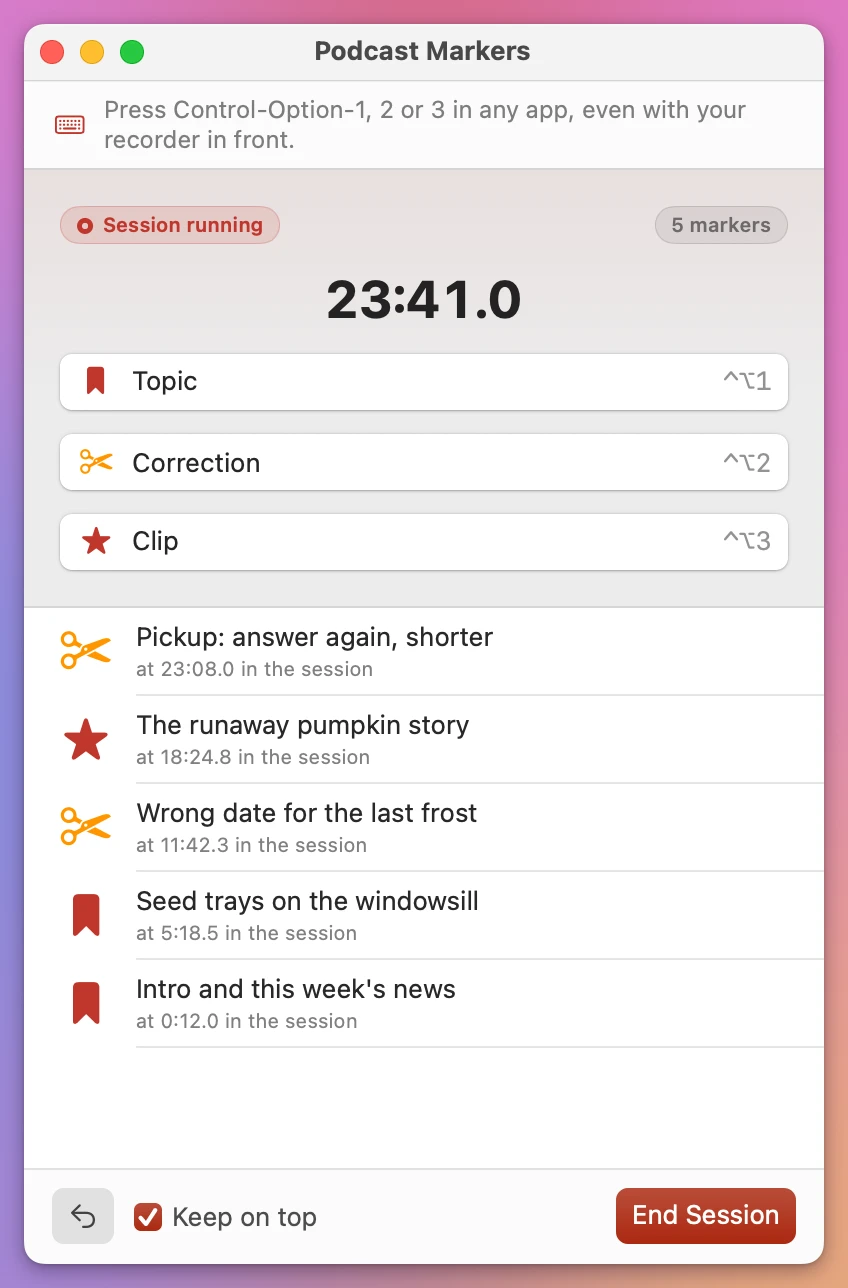
- Click Start a Session at the moment you click Record in your recorder. The window gets small and stays on top of other windows, next to the recorder.
- While you record, press Control-Option-1 for a topic, Control-Option-2 for a correction and Control-Option-3 for a clip. You can click the three buttons in the window too. Pressed one by mistake? Click the arrow at the bottom left to remove the last marker.
- When you stop recording, click End Session.
- Click Open the Recording… and pick the audio file. The markers land on its timeline.
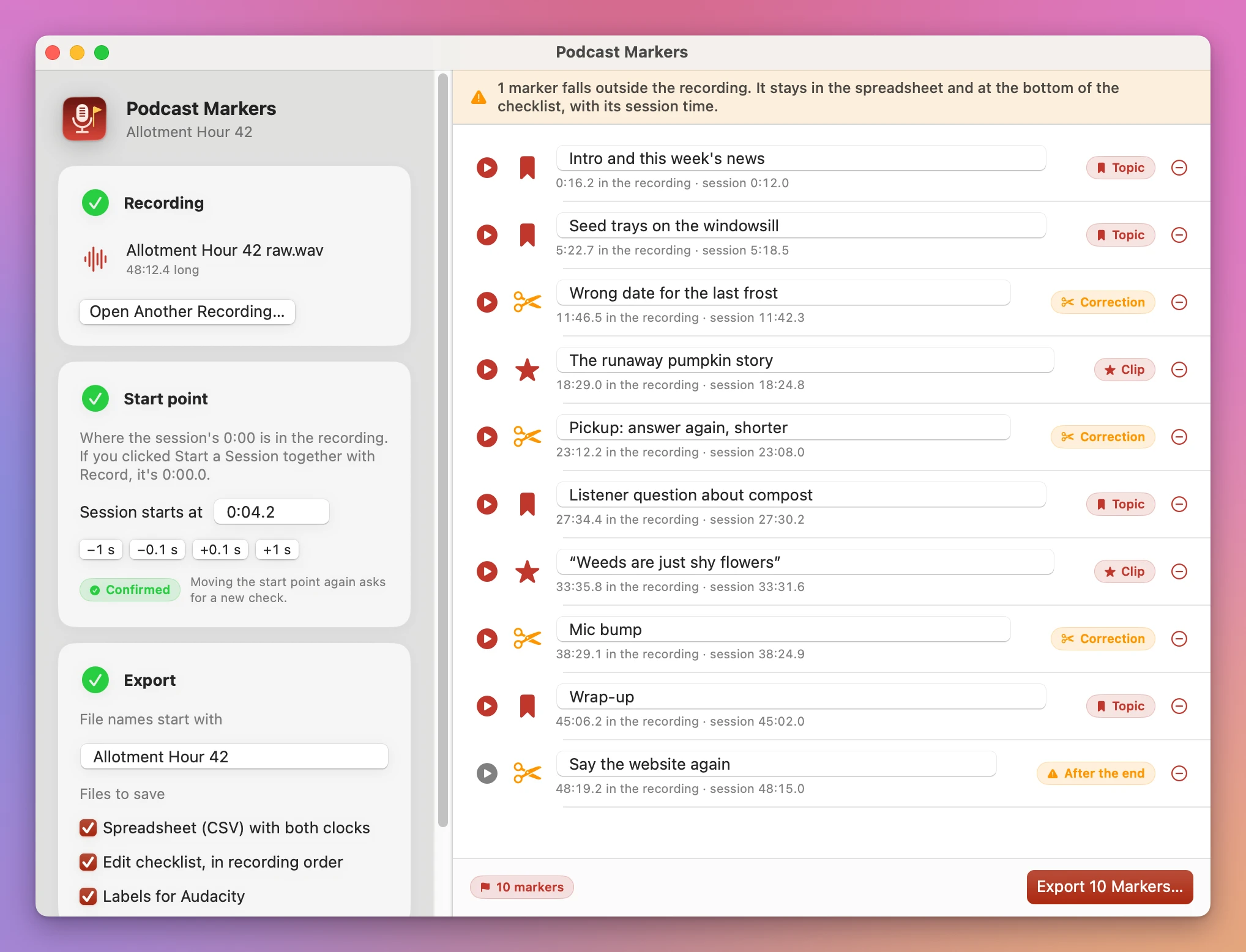
- Click ▶ next to a marker to hear the recording around it. If the moment comes early or late, move the start point, then click Confirm Start Point.
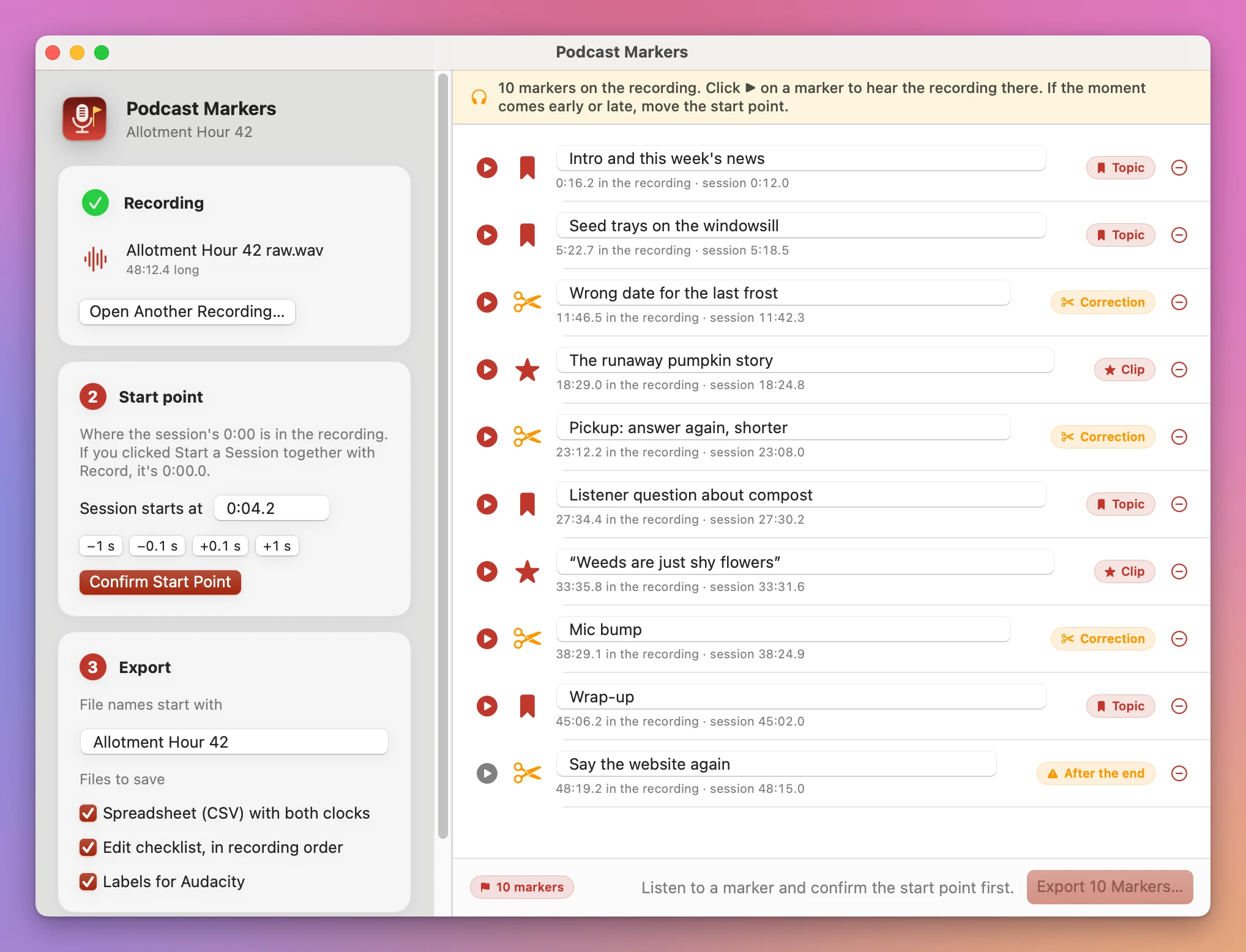
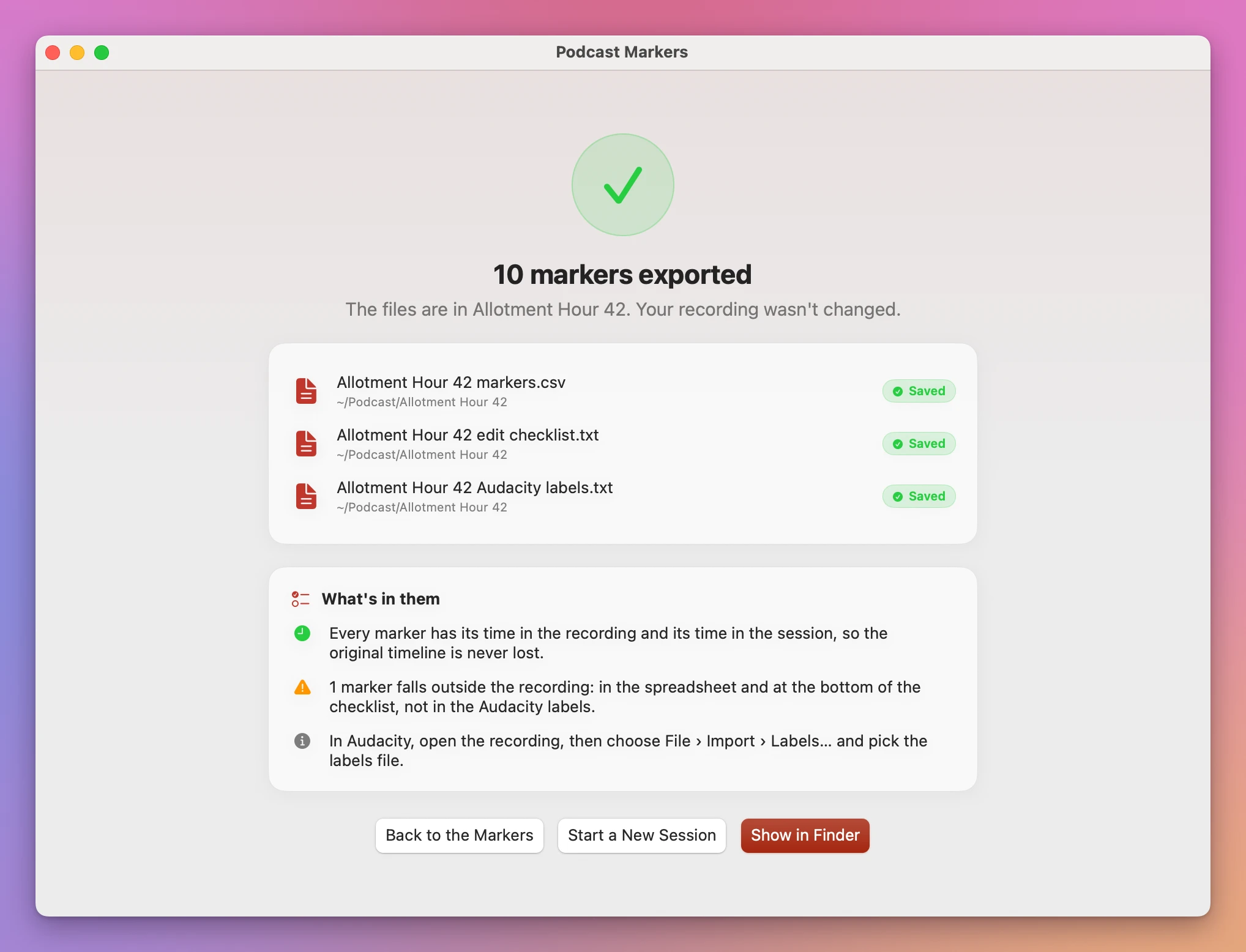
- Click Export Markers… and pick a folder.
What you get
Keys that work while the recorder is in front
The three keys are heard by the app even when another app is in front, like your recorder, your call app or a browser. They don’t need any permission in System Settings, and the app doesn’t ask for one. They only work while a session runs. If another app already uses one of them, the window says which one, and you click its button in the window instead.
Markers are saved the moment you press a key, so a crash or a flat battery doesn’t lose them. Sessions stay on the start screen under Earlier sessions.
The start point, checked by ear
The session clock starts when you click Start a Session, and the recorder’s clock starts when you click Record. If you clicked both together, the start point is 0:00.0 and you’re done. If you started the recorder four seconds earlier, every marker comes four seconds early.
So you listen. Click ▶ on a marker and the app plays the recording from two seconds before it. Type the start point (like 0:04.2, or -0:03 if you started the session first), or use the −1 s, −0.1 s, +0.1 s and +1 s buttons, and listen again. Confirm Start Point turns the step green. Move the start point again and it asks you to confirm again, so you never export markers you didn’t check.
The markers’ own times in the session never change. The start point is added on top of them, and both times go in the spreadsheet.
Markers outside the recording are flagged
A marker pressed after you stopped the recorder, or before you started it, gets an orange After the end or Before the start pill. It stays in the spreadsheet and at the bottom of the checklist, under “Outside the recording”, with its session time, and it’s left out of the Audacity labels.
Three files for the edit
- A spreadsheet (CSV): number, kind, name, the time in the recording (as
00:23:12.200and in seconds) and the time in the session, and whether it falls inside the recording. It opens in Numbers, Excel and Google Sheets. - An edit checklist: a plain text file in recording order, one box to tick per marker, with counts of topics, corrections and clips at the top.
- Labels for Audacity: in Audacity, open the recording and choose File › Import › Labels…. Each marker becomes a label named like “Correction: Wrong date for the last frost”.
Rename any marker before you export by clicking its name. Exporting never replaces a file: a second export gets a “2” in its names.
Why not do it by hand
The free way is a stopwatch and a notepad. Start the stopwatch on your phone when you start recording, and write down the time whenever something goes wrong. It works if you remember to look at the phone, and if the stopwatch and the recorder started at the same moment. The times on paper are off by however many seconds were between the two.
Some recording apps have markers of their own. Audacity can add a label while it records, and so can other editors with their own markers. That’s the best option if you record in that app, and only while it’s the app you’re recording in. If you record a call, use a hardware recorder or record in another app, those markers aren’t there.
The other way is to find everything afterwards: play the file, or scrub the waveform looking for pauses and restarts. It’s free and it’s slow, and a 50-minute file takes the better part of 50 minutes.
| Stopwatch and notepad | Markers in your recording app | Finding it by ear | Podcast Markers | |
|---|---|---|---|---|
| Cost | Free | Comes with the app | Free | $19 once |
| Works with any recorder | Yes | Only that app | Yes | Yes |
| Mark without looking away | No, you write | Yes, in that app | Not while recording | Yes, one key |
| Lines up with the recording | Off by your start gap | Yes | Yes | After you confirm the start point by ear |
| Flags times past the end | No | No need | No need | Yes |
| Edit checklist and spreadsheet | You type it | Depends on the app | You type it | Yes |
| Audacity labels | No | Audacity: yes | No | Yes |
What it doesn’t do
- It doesn’t record, cut or edit audio. It reads the recording to measure it and to play a few seconds around a marker.
- It doesn’t find mistakes by itself. No speech recognition and no silence detection: a marker is where you pressed a key.
- It doesn’t follow a pause in the recorder. If you pause the recorder in the middle, markers after the pause come early by the length of the pause.
- It writes labels for Audacity only. Other editors can read the spreadsheet, but there’s no file made for their own marker import.
- It doesn’t set the start point by itself. You confirm it by listening.
Questions
Does it need Accessibility or Input Monitoring?
No. The keys use the Mac’s own system for global shortcuts, which doesn’t need a permission. Nothing asks for one, at launch or later.
Which recordings can it open?
WAV, AIFF, M4A, MP3, FLAC and CAF. If your recorder saves something else, export the audio as one of these first.
Does anything get uploaded?
No. The recording is only read, on your Mac, and never changed. Sessions are saved on your Mac. The app connects to the internet only to check for updates.
What it needs
Podcast Markers runs on macOS 14 Sonoma or later, on Apple silicon and Intel Macs.
Podcast Markers isn’t made by, affiliated with or endorsed by Audacity or any recorder or audio editor maker.
Buy Podcast Markers
$19 plus tax where it applies, paid once.
Download the app from the order page or your Creem receipt, unzip it and move it to Applications. I sign the app with my Apple Developer ID, and Apple notarizes the download.
The app checks for updates once a day. When a new version is ready, click Install and Relaunch. To check anytime, choose Podcast Markers › Check for Updates….