
An app by Flavio
Print Bleed Checker
Open a PDF, type the print shop's trim size, bleed and safe margin, and see every page that's the wrong size, has no bleed, or has text too close to the cut. Save a marked review copy with page numbers. Your PDF is never changed.
Buy Print Bleed Checker · $19One-time purchase. Plus tax where it applies.
macOS 14 or later · Apple silicon and Intel
Latest version 1.0.1, released November 22, 2026
Your zine goes to the print shop tomorrow. Their spec sheet says A5, 148 × 210 mm, 3 mm bleed, keep text 5 mm inside the trim. The PDF has 24 pages, exported from three different files over two weekends.
You could open it in Preview and check the size of each page, then squint at the margins. Preview shows one page size at a time and draws no trim line, no bleed line and no margin. You won’t spot the caption sitting 2 mm from the edge, and you’ll miss the one page that came out at 140 × 200 mm because it was made in another document.
Print Bleed Checker checks every page at once. Type the four numbers from the spec sheet, and each page gets a green Ready or says what’s wrong. Text and pictures that sit too close to the cut get an orange box. Then save a review copy with the marks and a list of the pages to fix, to keep or to send to whoever made the layout.
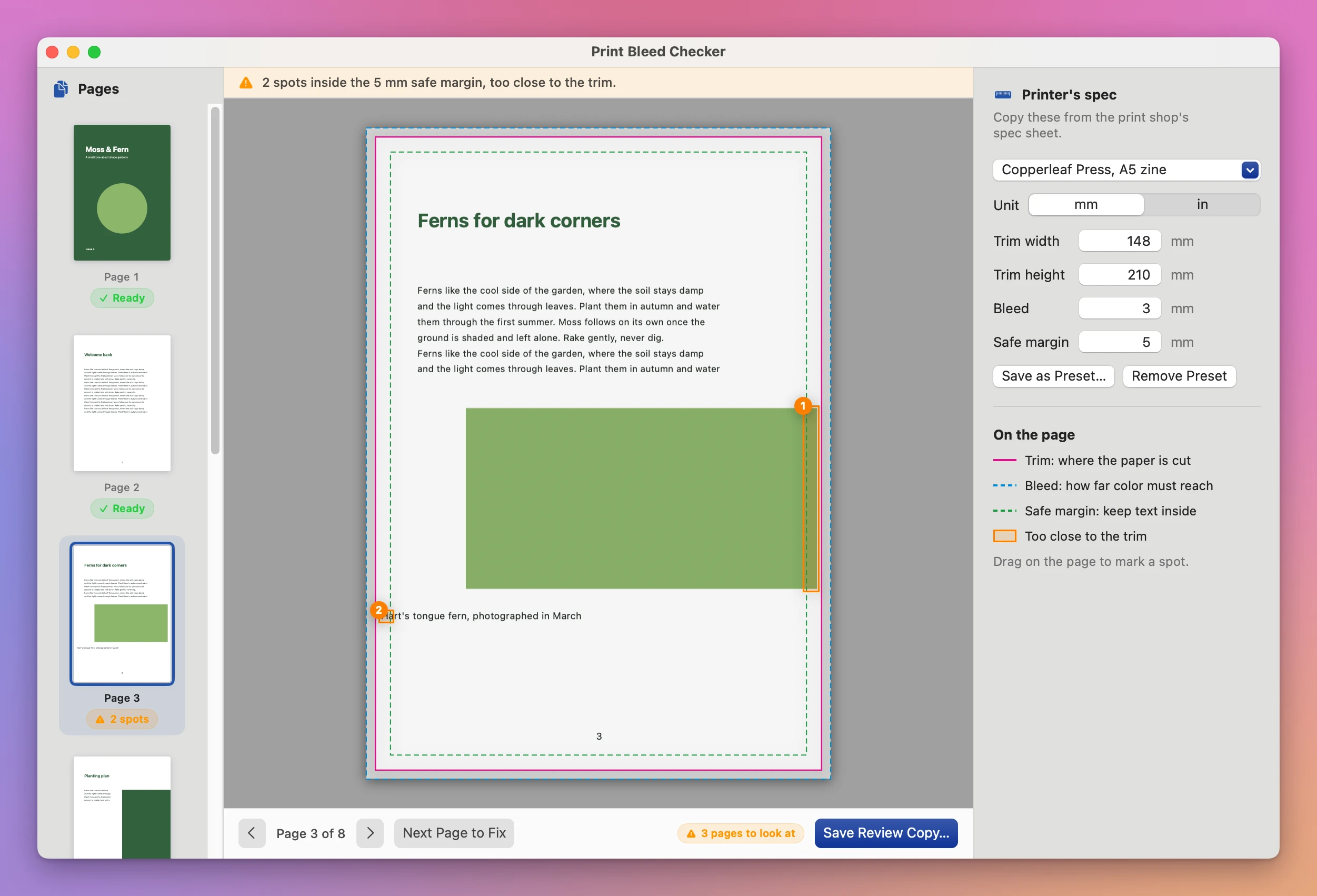
The zine, the print shop and every name in these screenshots are made up.
Who it’s for
- Zine makers sending an A5 riso or digital print run. The shop wants 3 mm bleed and a 5 mm safe margin, and the spreads came from different files, so one page always comes out a few millimeters short.
- Self-publishers uploading a paperback interior and a cover to a print-on-demand service. The spec is in inches (6 × 9 in, 0.125 in bleed), and one short page is enough to get the upload rejected.
- Photographers sending a photo book or a portfolio. Full-bleed photos are fine, and a caption or a page number 3 mm from the edge is the thing that gets cut.
- Office and school staff printing a newsletter or an event booklet at a local print shop that sent it back last time with “no bleed”.
- Freelance designers who want a marked PDF to show a client which pages need fixing, with page numbers, without opening a design app.
From a PDF to a list of pages to fix
- Click Choose a PDF…, or drag the PDF onto the window.
- On the right, under Printer’s spec, pick mm or in and type the Trim width, Trim height, Bleed and Safe margin from the spec sheet. Or pick one of your presets.
- Look at the page list. Each page says Ready, Wrong size, No bleed, Short bleed, or how many spots are too close to the trim.
- Click Next Page to Fix to go through them. Drag on a page to mark anything else you want to look at.
- Click Save Review Copy…. Your PDF isn’t touched.
What you get
The guides on every page
Each page is drawn with the trim as a solid magenta line, the bleed as a dashed blue line past it, and the safe margin as a dashed green line inside. What the cut takes away is shaded, so you see at a glance whether a photo really runs off the edge.
Wrong sizes and missing bleed, in a sentence
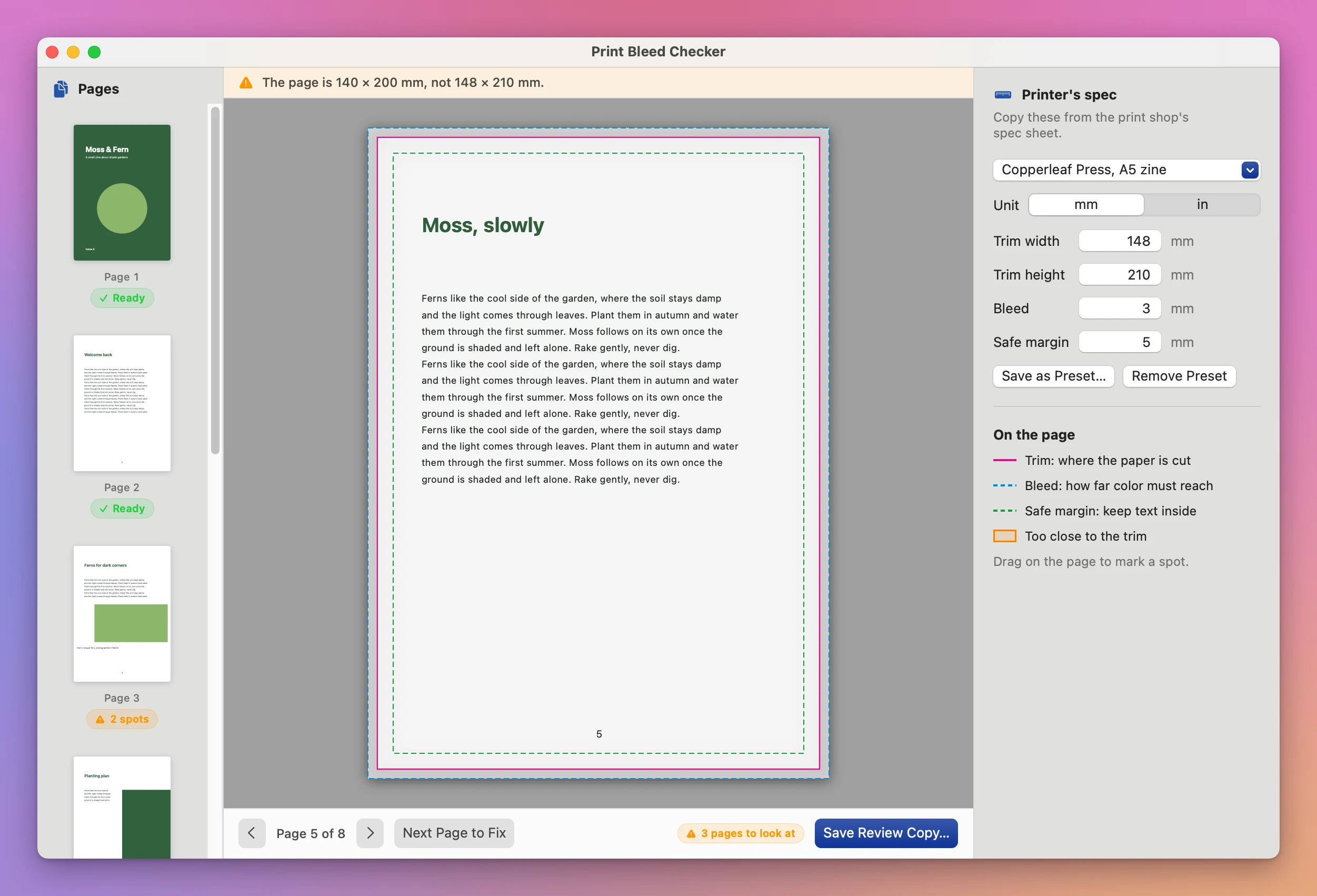
A page whose trimmed size isn’t the spec’s says so with the real numbers: “The page is 140 × 200 mm, not 148 × 210 mm.” A page with nothing past the trim says “No bleed”, and one with too little gives the amount, “The bleed is 1.5 mm, not 3 mm.”
The app reads the trim from the PDF when the file says where it is, which design apps do when you export with bleed. When it doesn’t, a page that’s the trim size plus the bleed all round has its trim in the middle.
Text and pictures too close to the cut
The app looks inside the safe margin along all four edges for anything that stops short of the trim: a caption, a page number, the edge of a picture. Each one gets a numbered orange box, and clicking it shows how close it comes, like “2 mm from the trim”. Color and photos that run off the page on purpose aren’t flagged, because they carry on into the bleed.
Your own marks
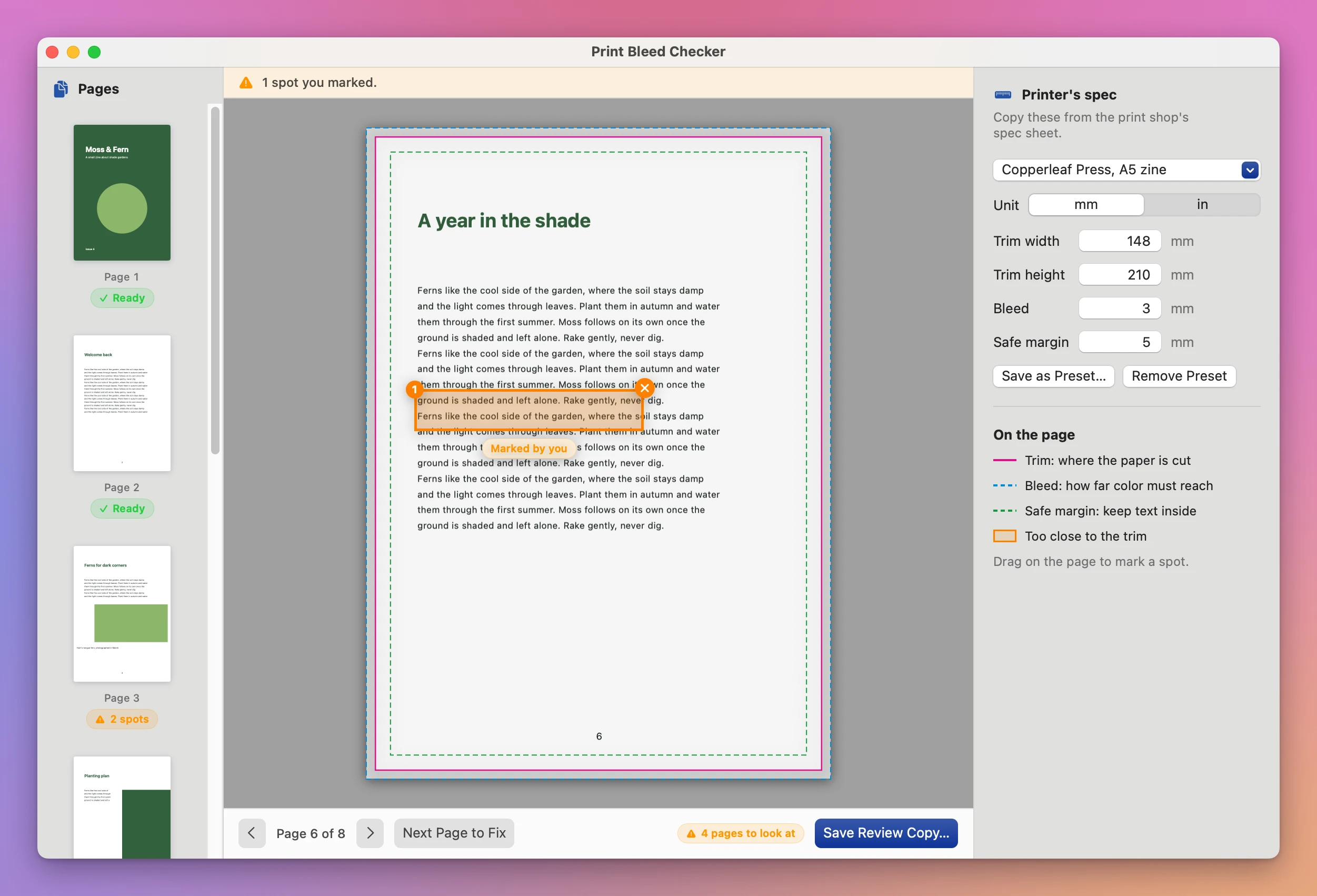
Drag on the page to box anything the app can’t judge for you, like a logo you’re unsure about. Your marks go in the review copy with the others. Any box, yours or the app’s, can be removed with a click.
Presets for your printers
Five sizes come built in, like “A5 zine, 3 mm bleed” and “US Letter, 0.125 in bleed”. Type your own printer’s numbers once, click Save as Preset…, and next time it’s one pick from the menu.
A review copy with page numbers
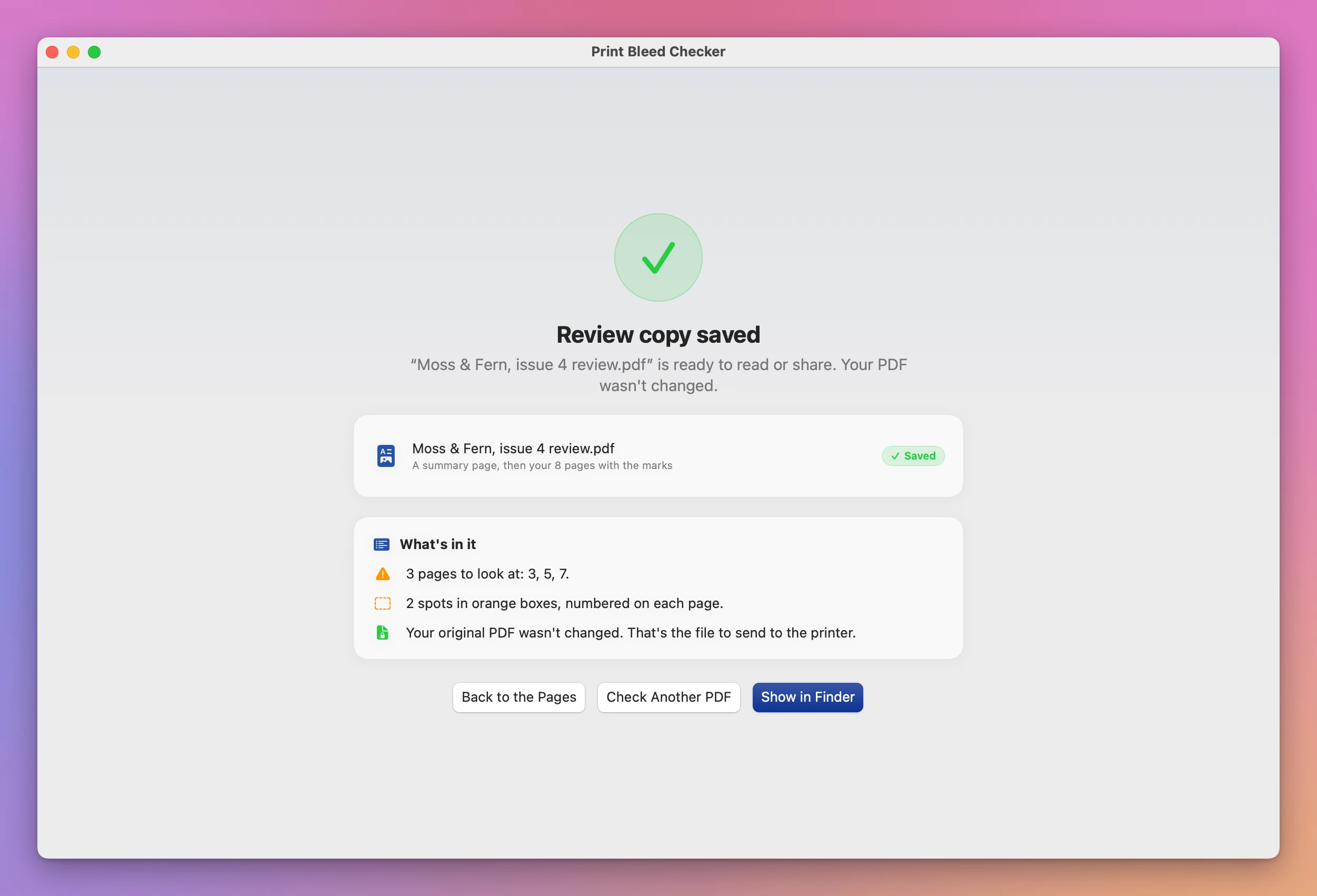
The review copy starts with a summary: the spec, how many pages need a look, one line per page (“Page 5: The page is 140 × 200 mm, not 148 × 210 mm.”), and the pages with nothing to fix. Then come your pages with the guides and the numbered boxes drawn on them, each under a band that names the page and what’s wrong. The page numbers are those of your PDF.
The review copy is a new file. Your PDF is only read, so it’s still the file you send to the printer.
Why not do it by hand
Preview opens the PDF, and its Inspector shows a page’s size. That’s one page at a time, and it draws no trim, no bleed and no safe margin, so checking 24 pages means 24 looks at a number and a lot of squinting at the edges.
The design app you made it in (InDesign, Affinity, Canva) shows the bleed and the margins while you work, in that one document. It doesn’t check the exported PDF, and that’s where the page from the other document, or the export without bleed, shows up.
Acrobat Pro has preflight checks that cover all of this and much more, by subscription and with a vocabulary made for prepress operators. And the print shop checks your file too, often after you’ve paid, and writes back a day later.
| Preview, page by page | Print Bleed Checker | |
|---|---|---|
| Page size | One page at a time, in the Inspector | Every page checked against your spec |
| Bleed | Not shown | Measured on every page, missing or short flagged |
| Text near the trim | Your eyes | Found and boxed, with the distance |
| Trim, bleed and safe lines | Not drawn | Drawn on every page |
| A list to send | Write it yourself | Review copy with page numbers |
| Your PDF | Not changed | Not changed |
What it doesn’t do
- It doesn’t fix the PDF. No adding bleed, no resizing pages, no moving text. You fix it in the app that made it and check again.
- It doesn’t check colors, ink coverage, fonts or image resolution.
- It doesn’t impose pages into spreads or printer’s sheets.
- It can’t tell text placed over a photo that runs off the page from the photo itself. Look at those pages and mark them yourself.
- It doesn’t open PDFs that need a password. Export a copy without one first.
- It checks one PDF at a time.
Questions
Does it change my PDF?
No. The PDF is only read. The review copy is a new file, and the app refuses to save it over the original.
Does anything get uploaded?
No. Everything happens on your Mac. The app goes online only to check for updates.
Millimeters or inches?
Both. Pick mm or in above the fields, and the sizes, the sentences and the review copy use that unit.
My spec sheet says “safety zone” or “live area”
That’s the safe margin: how far inside the trim text and important things should stay. If the sheet gives a live area size instead, the safe margin is the difference between the trim and the live area, divided by two.
What if my pages have a trim box?
Then the app uses it. Design apps write one when you export a PDF with bleed, and that’s the most reliable way to know where the cut is.
Buy Print Bleed Checker
$19 plus tax where it applies, paid once.
Print Bleed Checker runs on macOS 14 Sonoma or later, on Apple silicon and Intel Macs. Download the ZIP after checkout, unzip it and drag the app to Applications. The download is signed with my Developer ID and notarized by Apple.
The app checks for updates once a day. When a new version is ready, click Install and Relaunch. To check anytime, choose Print Bleed Checker → Check for Updates….
Print Bleed Checker isn’t made by, affiliated with or endorsed by Adobe, Canva, Affinity or any print shop.