
An app by Flavio
Product Shot List Checker
Paste your product codes, type the views every product needs, and choose the folder your photos land in. A grid shows which products have every angle and which still miss one, updates as new photos arrive, and saves a PDF and CSV of what's missing. It reads file names only and never changes a photo.
Buy Product Shot List Checker · $19One-time purchase. Plus tax where it applies.
macOS 14 or later · Apple silicon and Intel
Latest version 1.0.0, released November 24, 2026
You’re shooting 120 products for a web shop. Every one needs a front, a back, a side and a detail shot, named like MUG-0412_front.jpg. By the afternoon the capture folder holds 400 files, and the products go back to the client tomorrow morning.
Which ones still miss an angle? The Finder sorts the folder by name, and you scroll and count by eye: four MUG-0412 files, three MUG-0413 files, wait, which one is missing? A code typed CUP-3380 instead of CUP-3308 looks fine in the list. You find out a week later, when the retoucher asks where the back of CUP-3308 is.
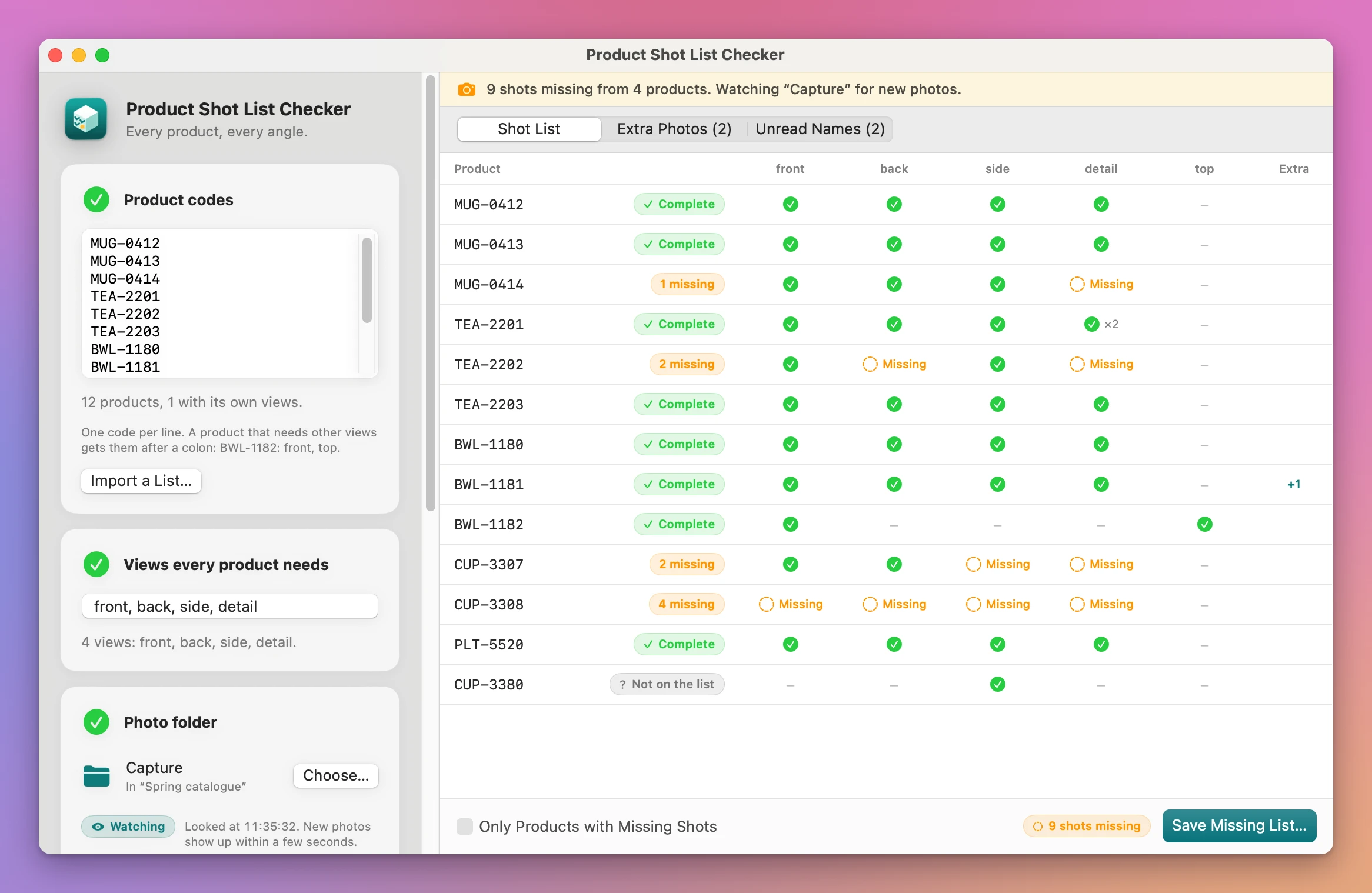
Product Shot List Checker does the counting. Paste the product codes or import them from a CSV, type the views, and choose the folder your camera or capture app saves into. A grid shows every product against every view: green where a photo is there, orange where it’s missing. It looks at the folder again every few seconds, so the grid fills in while you shoot. Before the products leave, save a PDF and a CSV of what’s still missing.
Watch a 30-second demo of Product Shot List Checker:
Who it’s for
- Studio photographers on e-commerce shoots. A client sends a spreadsheet of 300 SKUs and wants four angles of each. You tick them off in the app, not on a printout, and you know at 5 pm which six products need to come back on set.
- In-house photo teams at a retailer. Products come in on a rolling cart, and the photographer, the stylist and the person on the computer all ask “did we get the back of this one?” The grid answers without anyone scrolling the folder.
- Photographers who shoot tethered. Capture One, Lightroom or your camera maker’s app saves each shot into one folder as you shoot, named from the product code. The grid turns green a few seconds after each frame lands.
- Assistants and digital techs. You rename files as you go, and a typo puts a shot under the wrong code. Photos with a code that isn’t on the list show up in their own list, so
CUP-3380gets caught before it’s delivered as the side of a cup that doesn’t exist. - Small brands shooting their own catalogue. You photograph 40 candles on the kitchen table over a weekend. The checklist PDF tells you what’s left for Sunday.
How it works
- Paste the product codes into Product codes, one per line, or click Import a List… and pick a CSV or text file.
- Type the views every product needs, like
front, back, side, detail. - Click Choose a Folder… and pick the folder your photos land in.
- Under How the photos are named, pick what goes between the parts (
_,-,.or a space) and which part comes first. Three of your real file names show how they’re read. - Shoot. The grid updates within a few seconds of each new photo.
- Click Save Missing List… for a PDF and a CSV of what’s still missing.
What you get
A grid of products by views
One row per product, one column per view. A photo there is a green tick, a missing shot is an orange Missing, and each row says Complete or how many are missing. A RAW and a JPEG of the same shot count once, and a second take shows as ×2. Tick Only Products with Missing Shots to see just what’s left.
A product that needs other views gets them after a colon in the list: BWL-1182: front, top. Its other columns show a dash.
Names it can’t read go in their own list
The app reads the product code and the view from the file name, with the separator and order you choose. It matches them against your lists, so a code with a hyphen in it, like MUG-0412, still reads with - as the separator. A take number after the view counts too: MUG-0412_front_2.jpg.
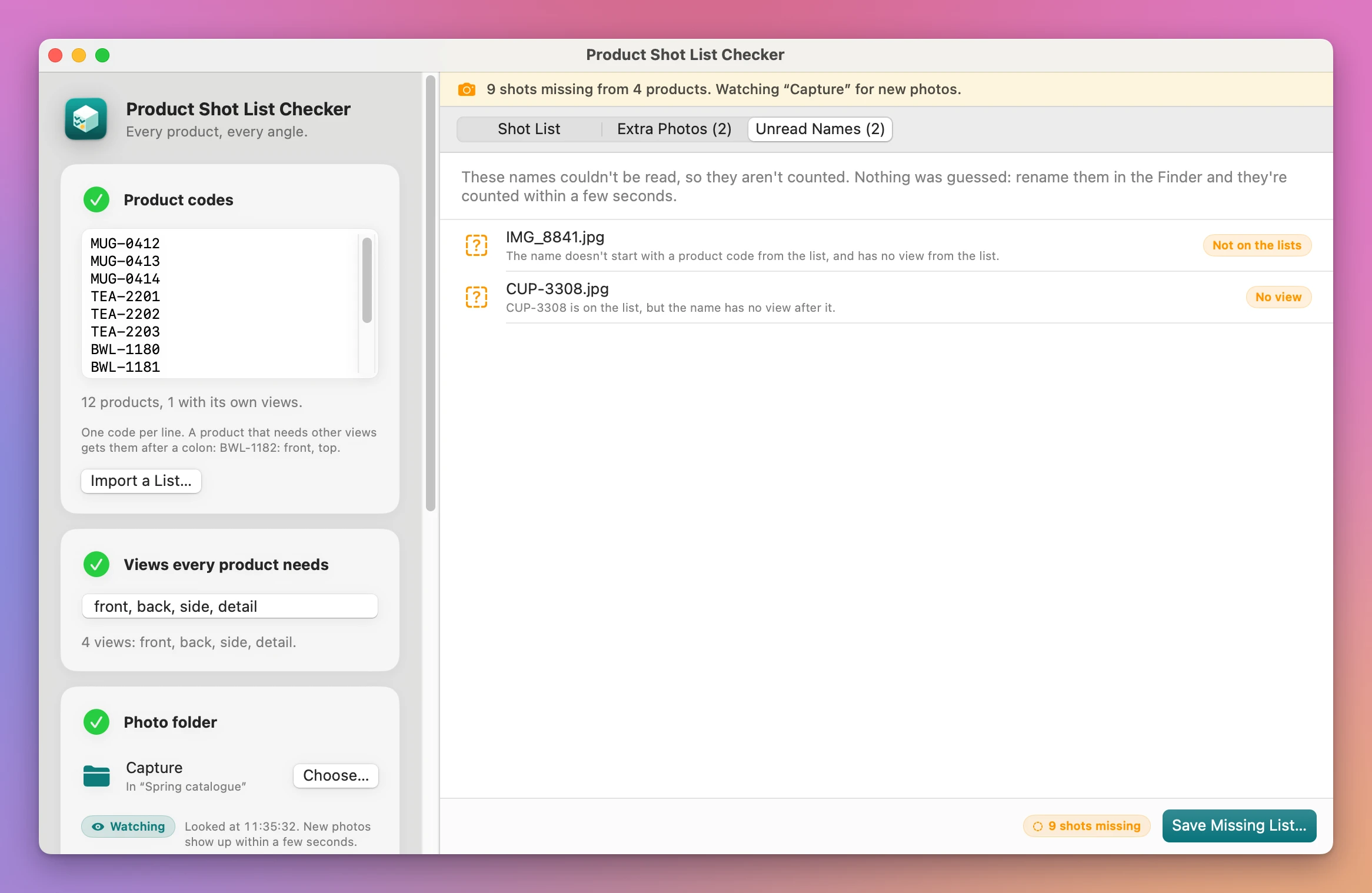
It never guesses. A name it can’t read, like IMG_8841.jpg or CUP-3308.jpg with no view, goes under Unread Names with the reason, and isn’t counted. Rename it in the Finder and the grid picks it up a few seconds later. An empty file, from a copy that failed, goes there too.
Extra photos, for the typos
Extra Photos lists the photos read as a product or a view that isn’t on the list: a mistyped code, a product added on the day, or a top view that this product doesn’t need.
A hint when the naming is different
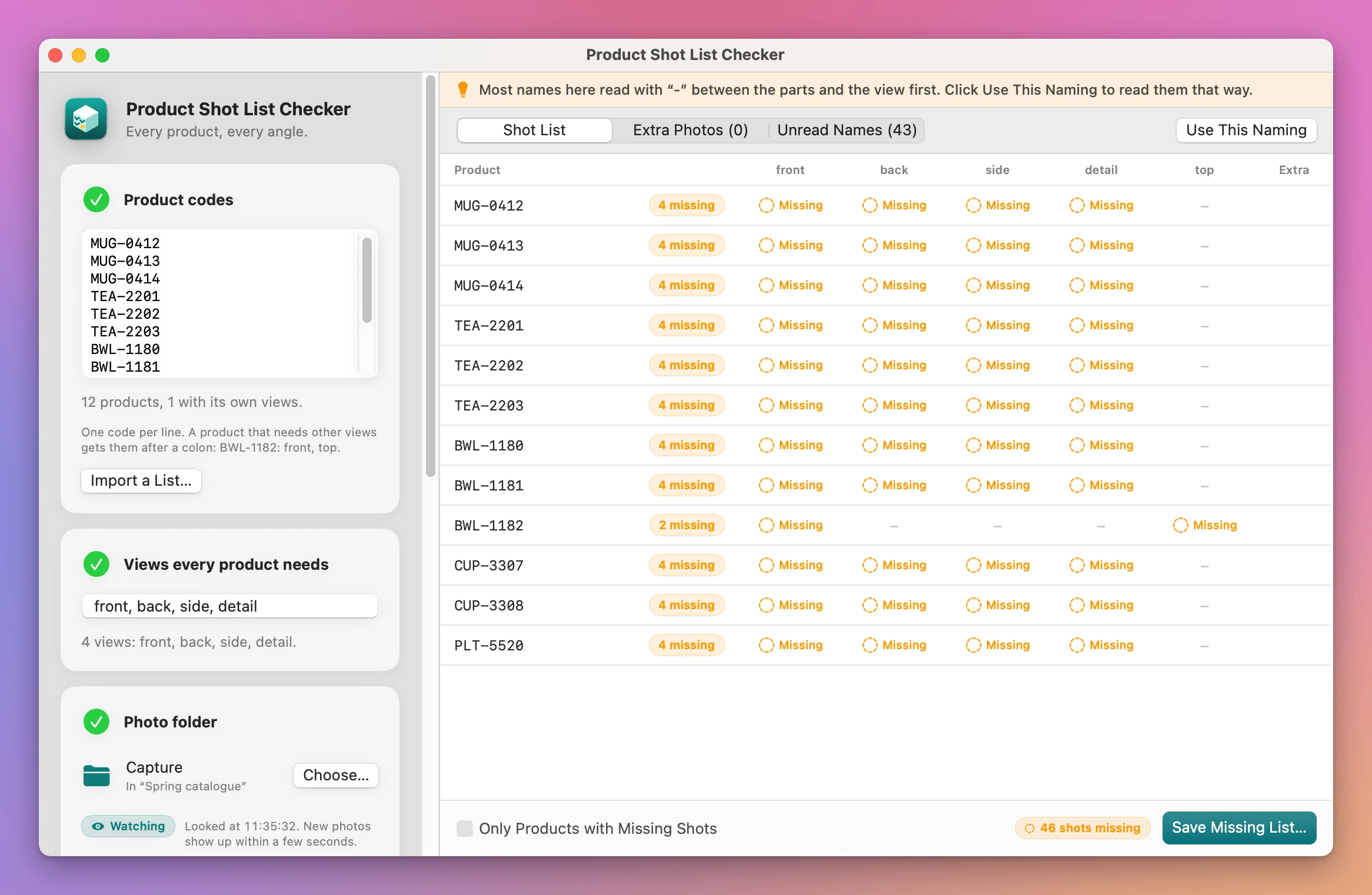
When most names read better another way, the app says so: “Most names here read with “-” between the parts and the view first.” Click Use This Naming.
A missing list to print or send
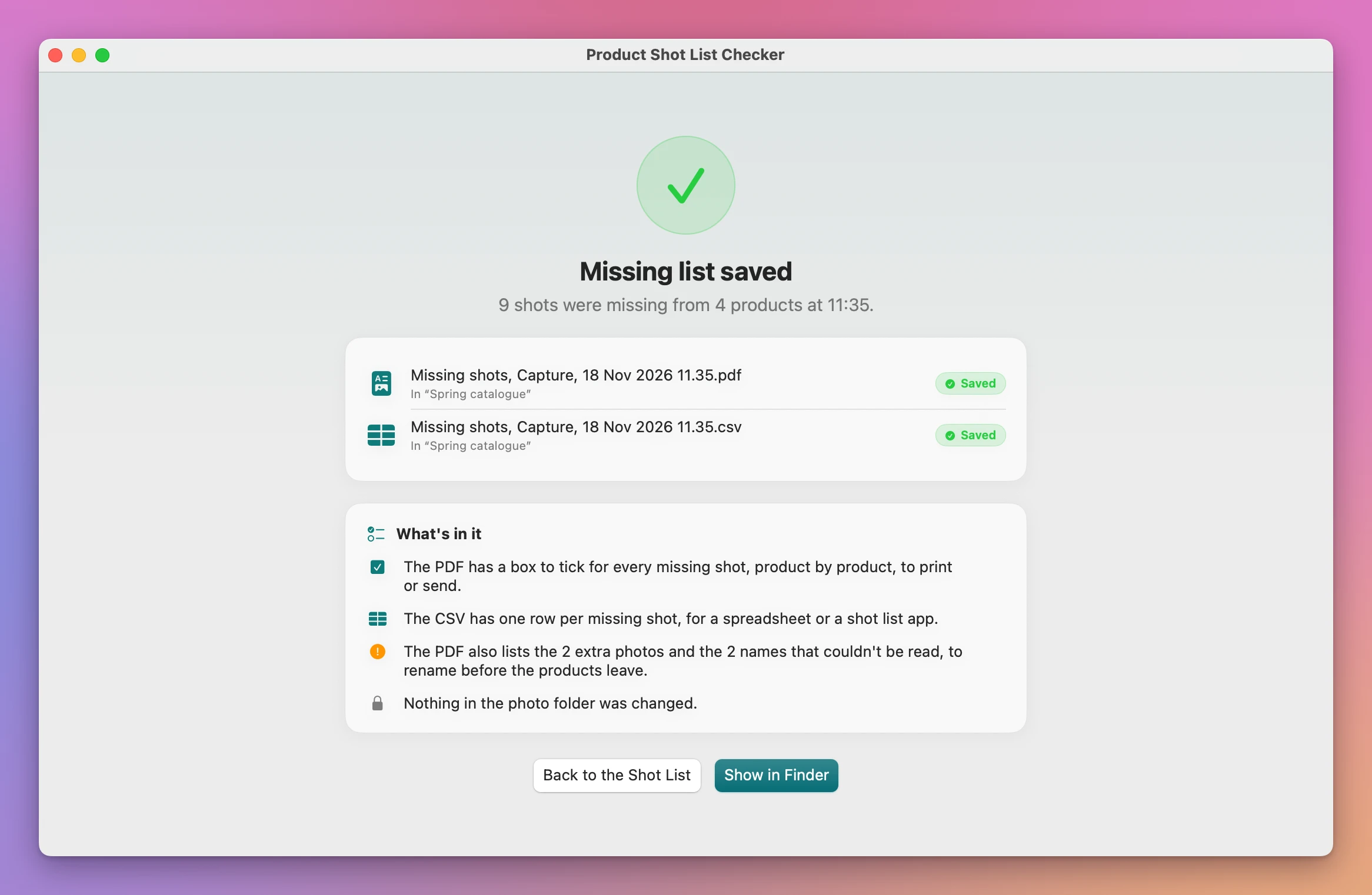
Save Missing List… writes a PDF with a box to tick for every missing shot, product by product, then the extra photos and the names that couldn’t be read. A CSV with the same name goes next to it, one row per missing shot, for a spreadsheet or the client.
Why not do it by hand
| The Finder or a spreadsheet | Product Shot List Checker | |
|---|---|---|
| Seeing what’s missing | Sort by name and count each product’s files by eye | A grid with every missing angle in orange |
| A mistyped product code | Looks like any other file | Listed under Extra Photos |
| A name with no view | Easy to miss in 400 files | Listed under Unread Names, with the reason |
| New photos | Scroll again | The grid updates within a few seconds |
| Telling the client | Type a list | A PDF and a CSV of what’s missing |
The Finder’s list view sorts by name, and with a short list that’s enough. With a few hundred files the names get cut in the middle at a normal window width, and nothing tells you that MUG-0414 has three files where it needs four. A spreadsheet with a tick box per angle works, if someone keeps it up to date during the shoot. Your capture app shows the photos, but it doesn’t know your product list.
What it doesn’t do
- It doesn’t look at the pictures. It reads file names only. A photo named
MUG-0412_front.jpgcounts as the front even if it shows the back. - It doesn’t rename, move or delete photos. Fix a name in the Finder or your capture app, and the grid follows.
- It doesn’t read Excel or Numbers files. Save the list as CSV, or copy the column of codes and paste it.
- It reads the folder and up to three levels of folders inside it, when you tick Include the folders inside it. A folder with more than 100,000 files is too big to watch, and the app says so.
- It isn’t a capture app. It doesn’t connect to the camera. It reads the folder your capture app or card reader fills.
Questions
Does it open or change my photos?
No. It reads the names, sizes and dates of the files in the folder, never what’s in them. Nothing in the folder is changed, moved or added. The PDF and CSV go where you save them.
Which files count as photos?
JPEG, TIFF, PNG, HEIC, PSD and the raw formats of the camera makers (CR3, NEF, ARW, RAF, DNG and others). Sidecars like .xmp and session files are left out.
Does anything get uploaded?
Nothing. Everything happens on your Mac. The app connects to the internet only to check for updates.
Does it remember my list?
Yes. The list, the views, the naming and the folder are kept, and the start screen offers Continue Last Shoot the next time.
What it needs
macOS 14 Sonoma or later, on Apple silicon and Intel Macs. When the folder is on a memory card, a network drive, the Desktop, Documents or Downloads, macOS may ask once whether the app can read it. Click Allow.
Product Shot List Checker isn’t made by, affiliated with or endorsed by Apple, Adobe, Capture One, Shopify, Amazon or any camera maker, store platform or retailer.
Buy Product Shot List Checker
$19 plus tax where it applies, paid once.
Download the app from the order page or your Creem receipt, unzip it and move it to Applications. I sign the app with my Apple Developer ID, and Apple notarizes the download.
The app checks for updates once a day. When a new version is ready, click Install and Relaunch. The first time, it asks for the license key from your Creem receipt, and remembers it. To check anytime, choose Product Shot List Checker → Check for Updates….