
An app by Flavio
Rebalancing Calculator
Type what you hold and the allocation you picked. See how many shares to buy or sell, or how to split new money without selling, across all your accounts, on your Mac.
Buy Rebalancing Calculator · $19One-time purchase. Plus tax where it applies.
macOS 14 or later · Apple silicon and Intel
Latest version 1.0.1, released November 22, 2026
Every month $2,000 goes into your brokerage account. You know the allocation you picked, and you know it drifted, because stocks went up and bonds didn’t. What you want is a short answer: buy how many shares of what, so the portfolio moves back toward target without selling anything.
The spreadsheet that gives you that answer took an evening to build. Every quarter you copy the prices in, and every quarter you wonder if the formula still points at the right cells, or why it tells you to sell when you only meant to add money.
Rebalancing Calculator keeps your holdings and targets saved on your Mac. Next month you type the new prices, the amount you’re adding, and click Calculate Trades. You get the trade list in whole shares, per account, with the allocation before and after.
A calculator for your own numbers, not financial advice. The app doesn’t suggest an allocation: you type the one you chose. The portfolio in the screenshots is made up, and its targets are just an example.
Who it’s for
- Three-fund investors who add money every month. You hold a total US fund, a total international fund and a bond fund at the split you chose. Each month you deposit $2,000 and want to know how many shares of which fund to buy so the portfolio drifts back, with no sales.
- Couples with a taxable account and two IRAs. You rebalance once a year and want the sales to happen inside the IRAs, not in the brokerage account.
- Retirees taking money out. You take $3,000 out every quarter and want to sell what’s most above target first, instead of a little of everything.
- People leaving an old fund. You set the old fund’s target to 0% and want the whole sell-and-buy list in whole shares, with a minimum trade size so there are no $12 trades.
- Investors outside the US. Your portfolio is in euros, and one fund is priced in dollars. Type the exchange rate once and get the trades in euros.
From your holdings to a trade list
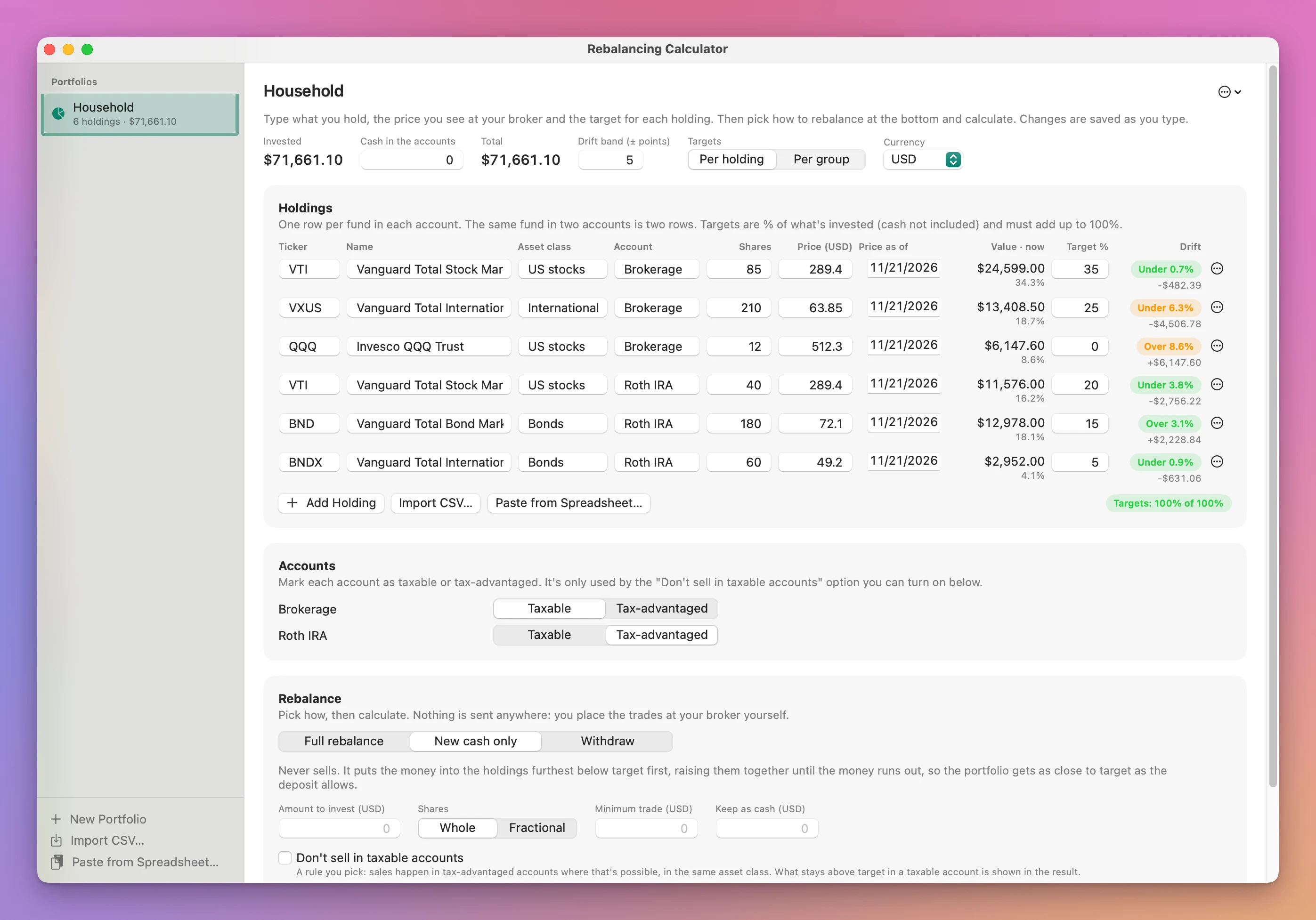
- Add your holdings. Click New Portfolio and Add Holding for each fund in each account, or click Import CSV… for a positions file, or Paste from Spreadsheet… to paste rows you copied. The same fund in two accounts is two rows. To look around first, click Try the Sample for a made-up portfolio.
- Type the prices and targets. Each row has shares, the price you see at your broker, the date of that price, and a target %. The pill under the table says when the targets add up to 100%. Each row shows its drift, in orange when it’s outside your Drift band.
- Mark the accounts. In Accounts, each one is Taxable or Tax-advantaged. The app guesses from the name: IRA, 401k, Roth, ISA, SIPP, TFSA and the like are tax-advantaged.
- Pick how to rebalance. Full rebalance sells what’s above target and buys what’s below. New cash only never sells and splits the money you add. Withdraw works out what to sell to take an amount out. Type the amount, pick Whole or Fractional shares, and set a Minimum trade or an amount to Keep as cash if you want them.
- Click Calculate Trades (or press Command-Return). The result lists the trades, sales first, with shares, price and amount, then each account’s sales, buys and net.
- Place the trades at your broker. Click Copy as Text to paste the list in a note, or Export CSV… to save it. The app never trades for you, and nothing changes in your portfolio until you update the shares.
What you get
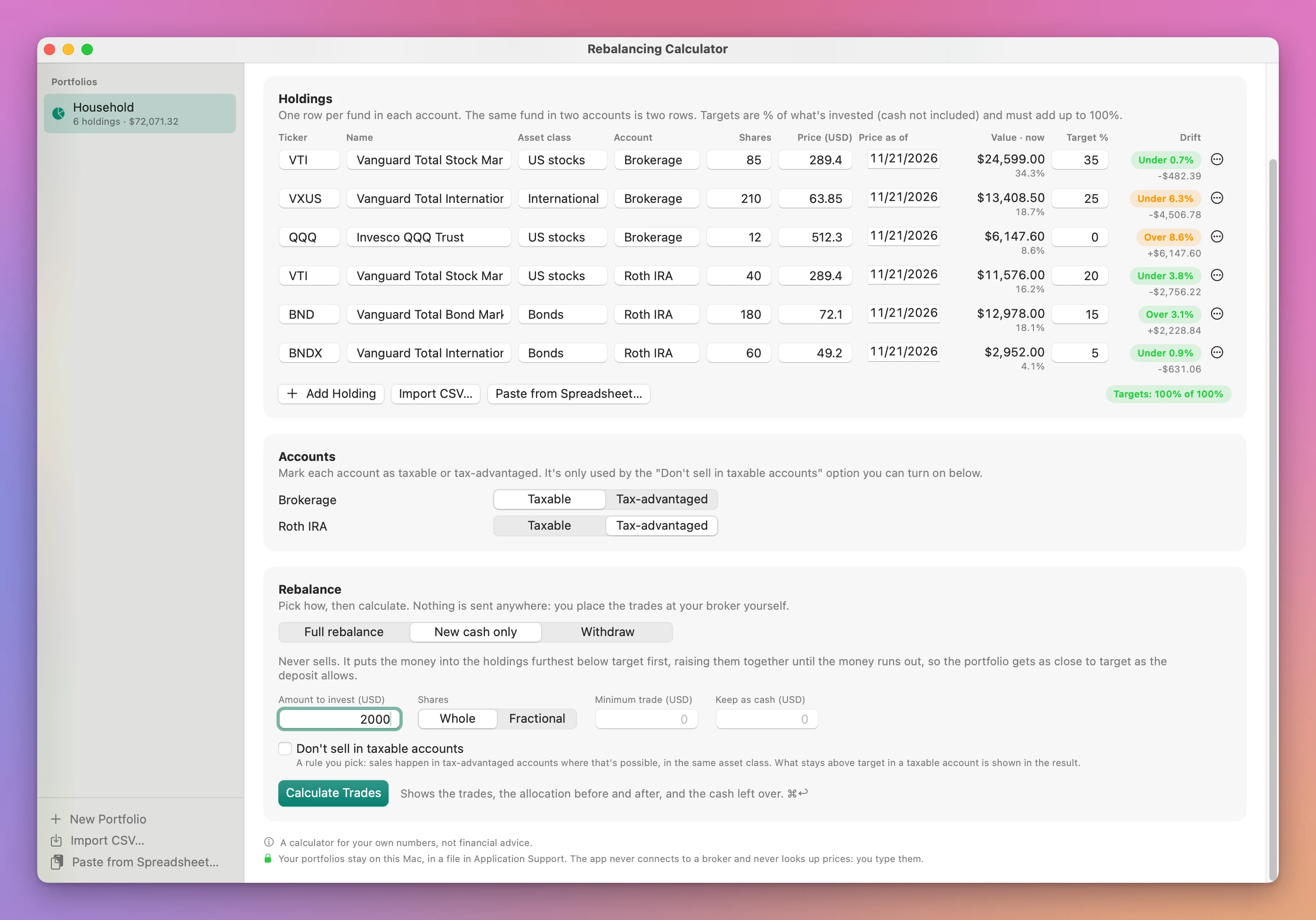
New money without selling
In New cash only mode, the money goes to the holdings furthest below target first. When the furthest one catches up with the next, both rise together, until the money runs out. Whole shares round down, and what’s left buys one more share of the holding furthest behind, only when that share brings it closer.
With the made-up portfolio above and a $2,000 deposit, the plan is three buys: 26 VXUS in the Brokerage account, 1 VTI and 1 BNDX in the Roth IRA, with $1.30 left over. It also tells you to split the deposit, $1,660.10 into Brokerage and $338.60 into the Roth IRA.
A full rebalance that keeps sales where you want them
Turn on Don’t sell in taxable accounts and a holding above target in a taxable account keeps its value. Its excess comes off the other holdings in the same asset class, so the sales happen in the tax-advantaged accounts. The result says in a note what couldn’t be moved.
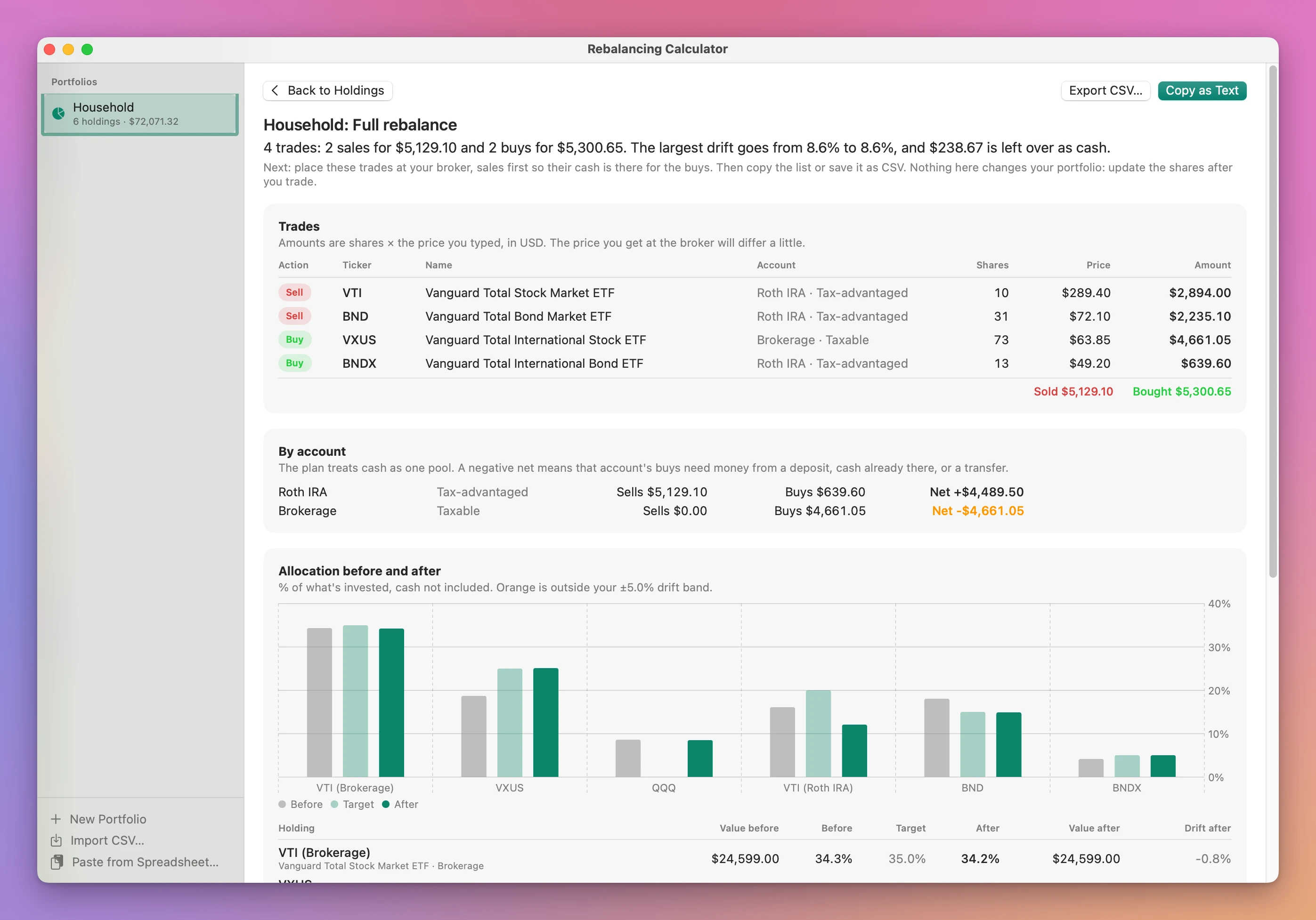
In that example QQQ has a 0% target but sits in the taxable account, so it isn’t sold. The other US stock holdings aim lower instead, and the note says so in plain words.
The allocation before and after
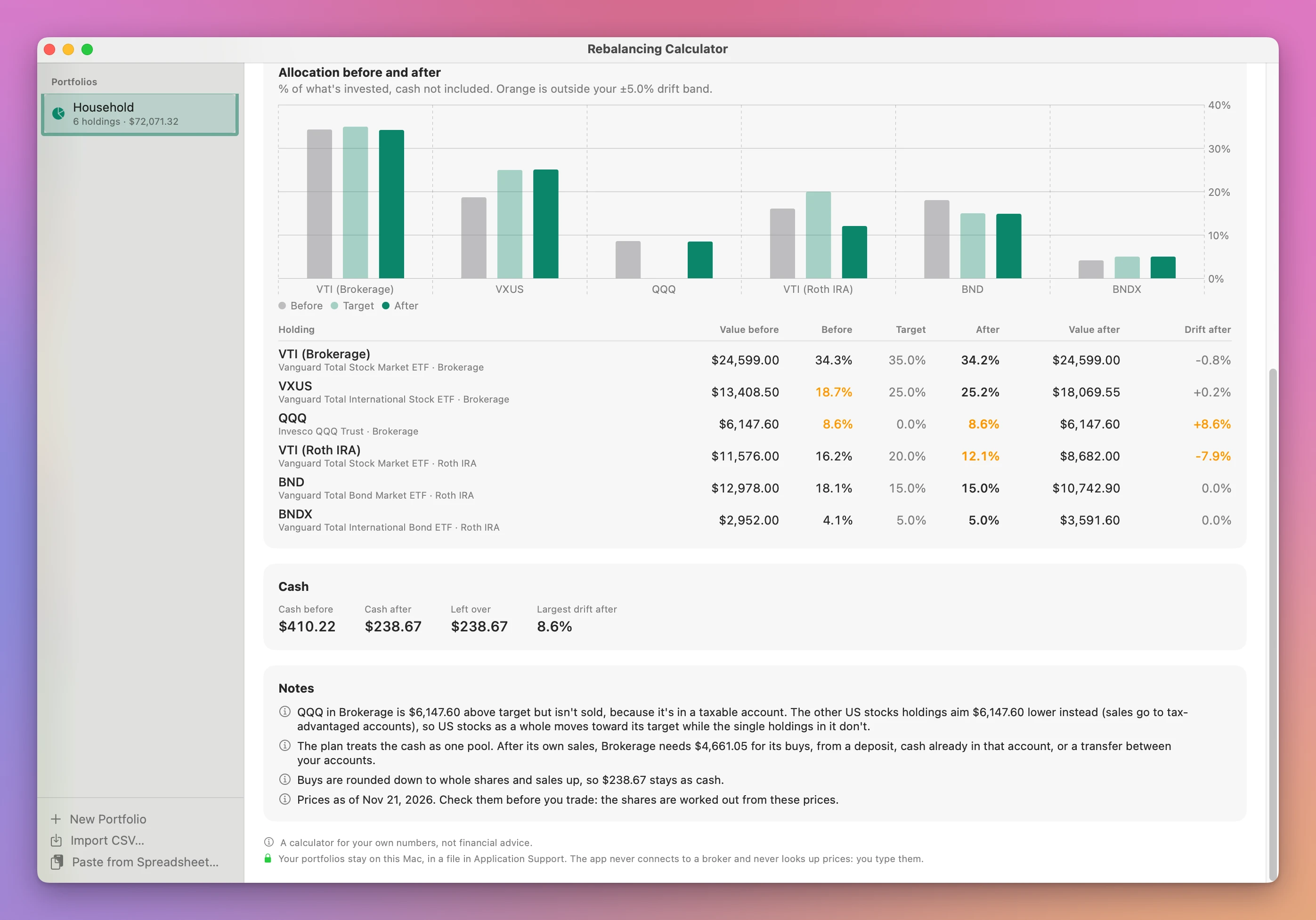
Under the trades, a chart and a table show each holding’s value and percentage before, the target, and after. Anything still outside your drift band is orange. The Cash card shows the cash before, after and left over, and Notes explain the rounding, any trade dropped by the minimum, and the date of the prices.
A CSV import that tells you what it skipped
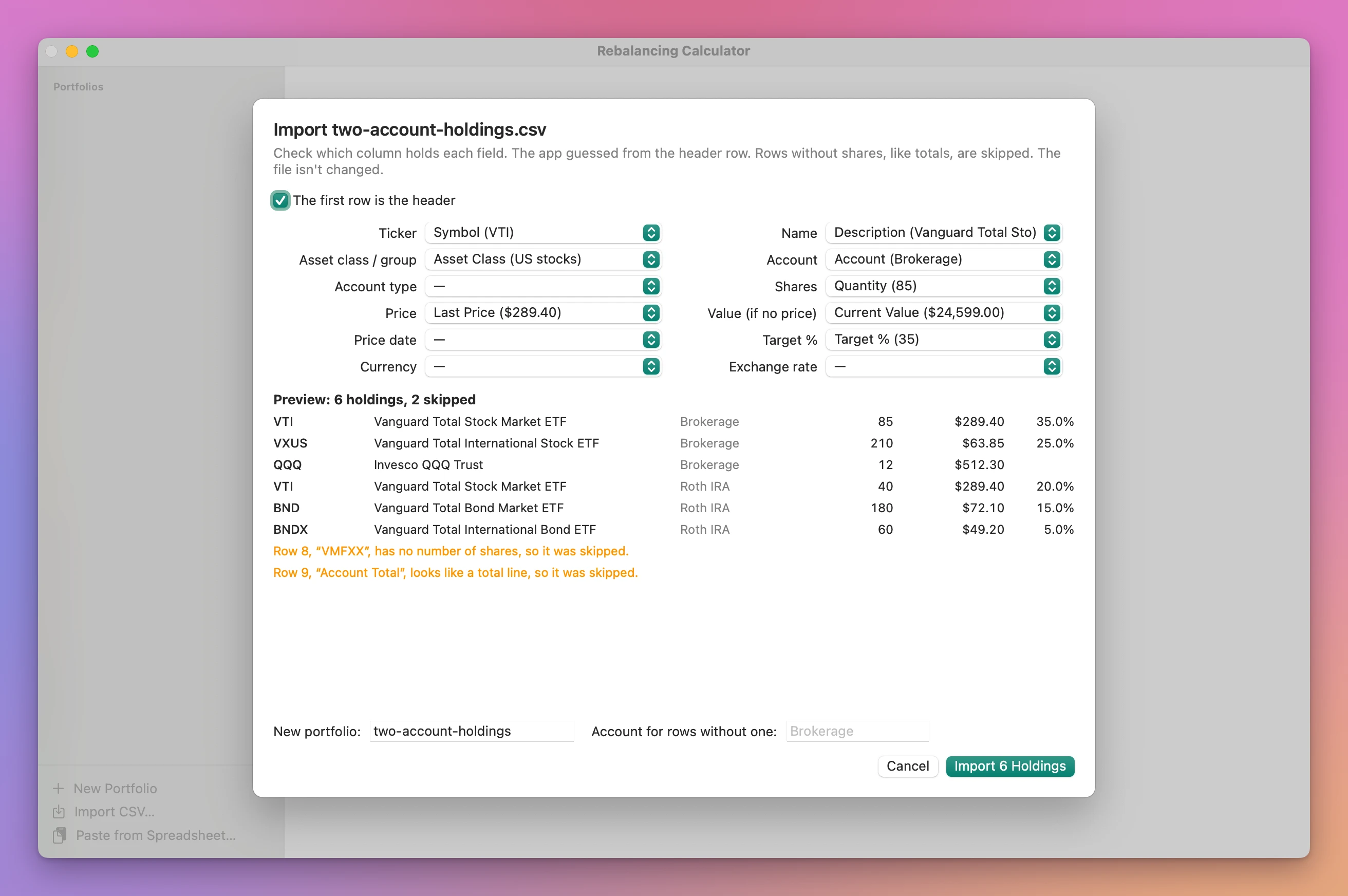
The import sheet guesses which column is which from the header, with a sample value next to each choice. Rows it can’t use get a sentence each, like a money market line with no shares or a total line at the bottom. Price can be worked out from value ÷ shares, and targets written as fractions become percentages.
Problems in plain sentences
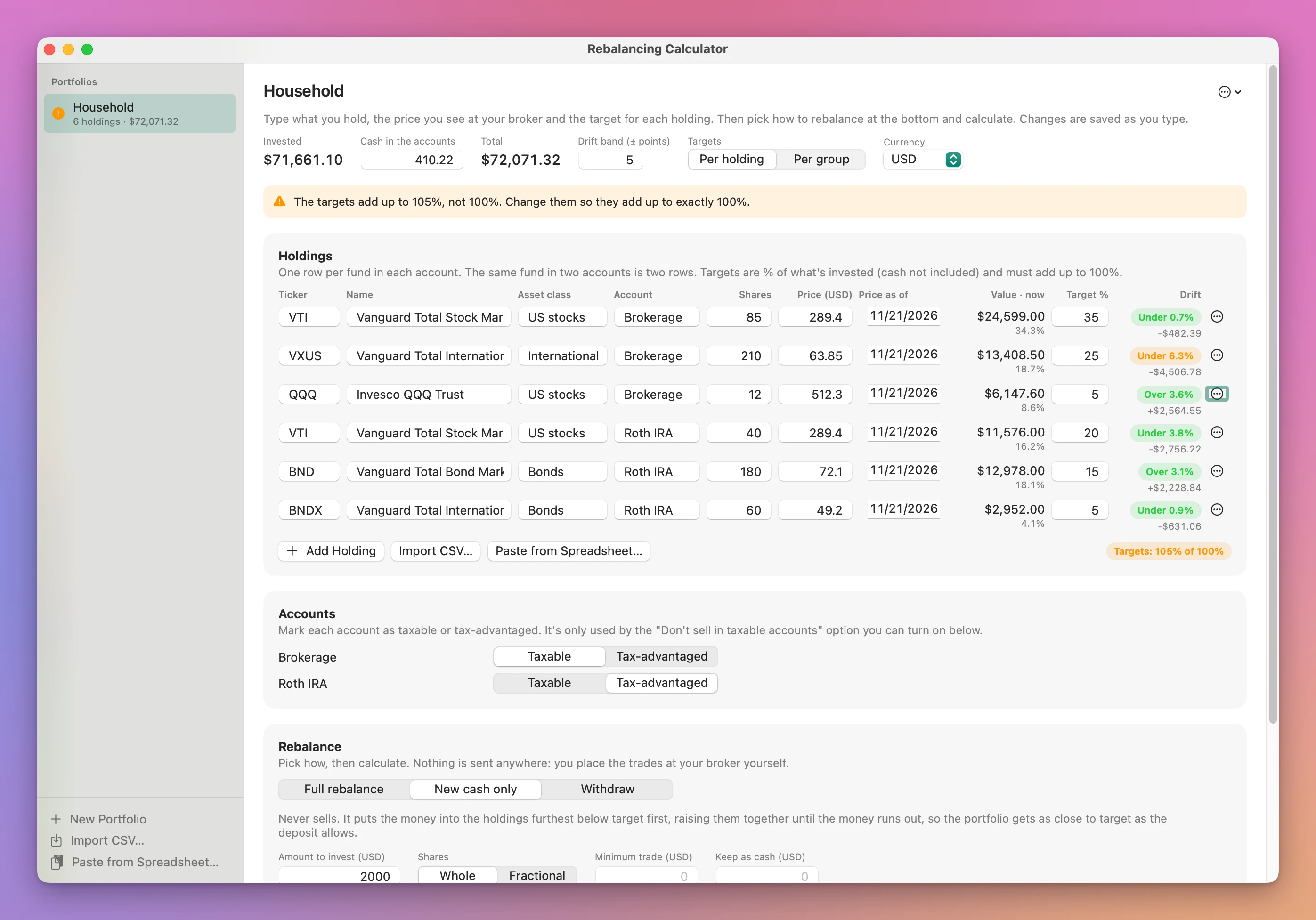
When something stops a plan, an orange banner says what and how to fix it: a price of 0, a holding in another currency without an exchange rate, or targets that add up to 105%. Calculate Trades says what’s needed first.
More controls
- Per holding or Per group targets. In group mode you set a target per asset class, and it’s split among the holdings in it by their current value.
- Keep As Is in a holding’s menu counts it in the totals but never trades it.
- Priced in Another Currency… for a fund in a currency other than the portfolio’s, with a rate you type.
- Plan › Set Every Price Date to Today after you’ve updated the prices.
Why not use a spreadsheet, a free calculator or your broker
A spreadsheet works, and plenty of people rebalance with one. Target × total − current value is one formula. The trouble is everything around it: whole shares, a deposit-only split (target minus current tells you to sell), withdrawals, a minimum trade, cash you want to keep, and the same fund in two accounts. Each of those is more formulas, and one wrong cell reference gives you a wrong trade list without any warning.
Free rebalancing calculators on the web are fine for a one-off. You retype every holding each time, and your numbers go to a website. Many don’t do whole shares, several accounts or withdrawals.
Brokers have their own tools. Vanguard, Fidelity and M1 offer automatic rebalancing or target portfolios, and if all your money is in one of those, that may be all you need. They see the accounts they hold, though, not the IRA at another broker, and they don’t do “deposit only, no sales” across accounts at two places. macOS has nothing for this: Numbers is a spreadsheet, and Stocks shows quotes, not allocations.
| Spreadsheet | Free web calculator | Broker tools | Rebalancing Calculator | |
|---|---|---|---|---|
| Cost | Free | Free | Free with the account | $19 once |
| Setup next time | Paste prices, check formulas | Retype everything | Nothing | Update the prices |
| New money without selling | Extra formulas | Some | Some, in their accounts | New cash only |
| Accounts at different brokers | If you build it | Rarely | No | Yes |
| Whole shares and leftover cash | Extra formulas | Some | Varies | Yes, with notes |
| Keep sales out of taxable accounts | Hard | Rarely | Varies | Don’t sell in taxable accounts |
| Where your numbers go | Your file | A website | Already at the broker | A file on your Mac |
| Live prices | If you connect a feed | Some | Yes | No, you type them |
What it doesn’t do
- It doesn’t fetch prices. You type them, or import them from a CSV. There’s a date next to each price so you can see how old it is.
- It doesn’t connect to a broker or trade for you. You place the trades yourself. It never asks for a login.
- It doesn’t know about tax lots, cost basis, gains, wash sales or fees. Don’t sell in taxable accounts is only a rule about where sales go.
- It doesn’t plan transfers between accounts. Cash is one pool. The result shows each account’s net, so you know where money needs to go.
- It doesn’t recommend an allocation. The targets are yours.
- It doesn’t read any broker’s export format by name. The CSV import is generic: you match the columns once in the sheet.
Questions
Is this financial advice?
No. It’s a calculator for your own numbers. You choose the targets, and the app does the arithmetic to reach them.
Does anything get uploaded?
Your portfolios stay in a file in Application Support on your Mac. The app uses the internet only to check for and download updates.
Where do the prices come from?
From you. Type the price you see at your broker, or import it with your holdings. The shares in the plan are worked out from those prices, so the price you get at the broker will differ a little.
Can I import from my broker?
If your broker exports positions as a CSV, the import sheet can read it: pick which column holds the ticker, shares, price and so on. No specific broker’s file has been tested, so check the preview before you import. You can also paste rows from a spreadsheet.
What about fractional shares?
Pick Fractional and the plan uses shares to 4 decimal places. Whole rounds buys down and sales up, and says what’s left as cash.
Which currencies does it handle?
Each portfolio has one display currency. A holding priced in another currency uses an exchange rate you type.
What it needs
Rebalancing Calculator runs on macOS 14 Sonoma or later, on Apple silicon and Intel Macs.
The Rebalancing Calculator docs walk through each step.
Buy Rebalancing Calculator
$19 plus tax where it applies, paid once.
Download the app from the order page or your Creem receipt, unzip it and move it to Applications. I sign the app with my Apple Developer ID, and Apple notarizes the download.
The app checks for updates once a day. When a new version is ready, click Install and Relaunch. To check anytime, choose Rebalancing Calculator → Check for Updates….