
An app by Flavio
Reference Sheet Maker
Gather the images for one project, group them by mood or subject, sample their colors, pin crops and write who made each one. Export a PDF reference sheet with .ase, .clr and hex swatch files. Nothing uploaded.
Buy Reference Sheet Maker · $19One-time purchase. Plus tax where it applies.
macOS 14 or later · Apple silicon and Intel
Latest version 1.0.1, released November 22, 2026
You start a picture book, a poster or a shoot, and the references are already everywhere: twenty photos in Downloads, a few from your phone, a scanned sketchbook page, a screenshot of a print. You want them on one page, the colors picked out, and a note of where each one came from, so you can still credit them in six months.
You can drop them all on a whiteboard app and export it. Then you pick each color with a color meter, copy its numbers one at a time, and type them into your drawing app’s palette by hand. The credits go in a separate text file, if they go anywhere.
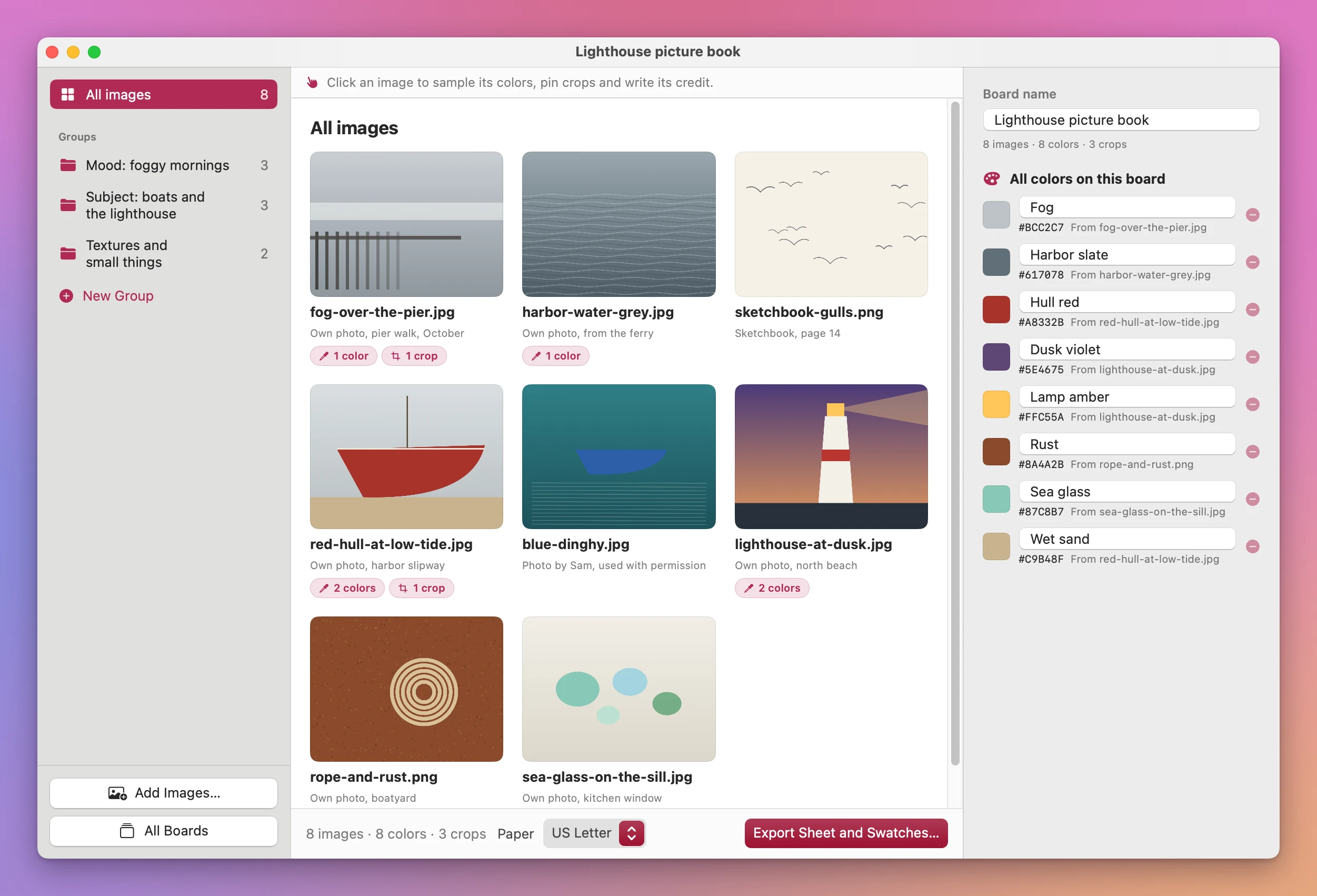
Reference Sheet Maker keeps it in one place. Add the images, group them by mood or subject, click to sample a color, drag to pin a detail, and write a credit and a note under each one. Then export a PDF reference sheet and your colors as swatch files your other apps can open. The images stay where they are and are never changed.
Who it’s for
- Illustrators starting a book or a commission who keep reference photos for every spread: the harbor at dawn, the shape of a boat, the color of wet sand. The sheet goes in the project folder, and the
.asefile goes into the drawing app’s swatches. - Photographers planning a shoot who send the client a mood sheet: the light they’re after, the locations, the palette for wardrobe and props. One PDF, with the source of every image written under it.
- Designers building a brand or a packaging line from samples on disk. Sample the colors straight from the photos of materials, name them (“Kraft paper”, “Sea glass”), and hand the developer a hex list instead of a screenshot.
- Art students and teachers who must credit every reference they used. The sheet has a list of sources at the end: every image, its credit, and the folder its original lives in.
- Anyone who reuses a palette across apps. The same colors go out as an Adobe Swatch Exchange file, an Apple color list for the Colors window of Mac apps, and a plain list of hex codes.
From a folder of images to a reference sheet
- Click Choose Images… and pick the images, a folder of them, or both. You can also drag them onto the window. The board is named after their folder, and it’s saved as you work.
- Click New Group and name it on the right: “Mood: foggy mornings”, “Subject: boats”. Drag an image onto a group in the sidebar, or open it and pick its group.
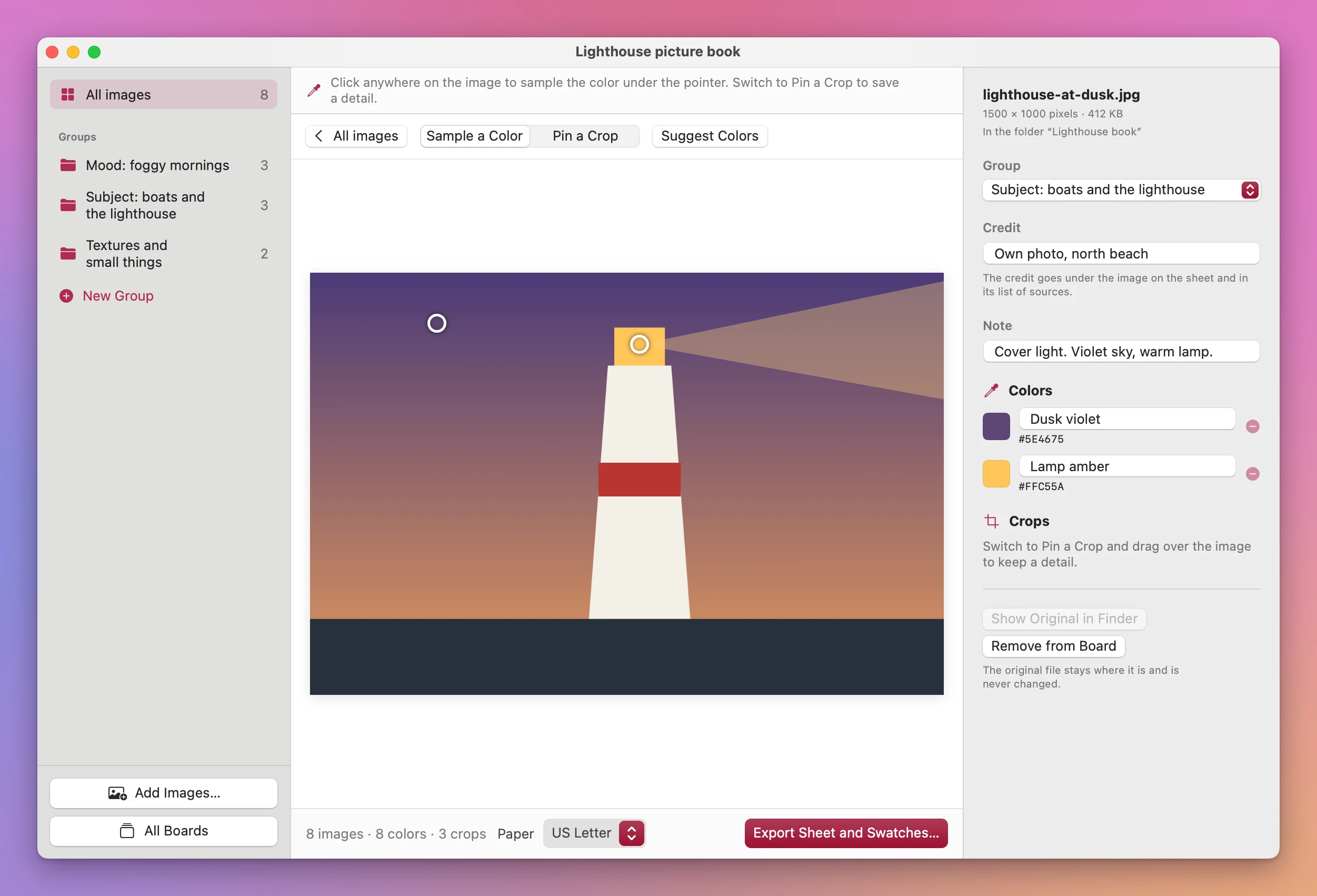
- Click an image to open it. With Sample a Color, click anywhere on it to add the color under the pointer. Suggest Colors adds the main colors of the whole image.
- Switch to Pin a Crop and drag over the part you want to keep as its own reference, like the texture of a rope or the waterline of a hull.
- Write the Credit and a Note for each image.
- Pick A4 or US Letter and click Export Sheet and Swatches…. Choose a folder. The app makes a new folder in it with the sheet and the swatch files.
What you get
A PDF reference sheet
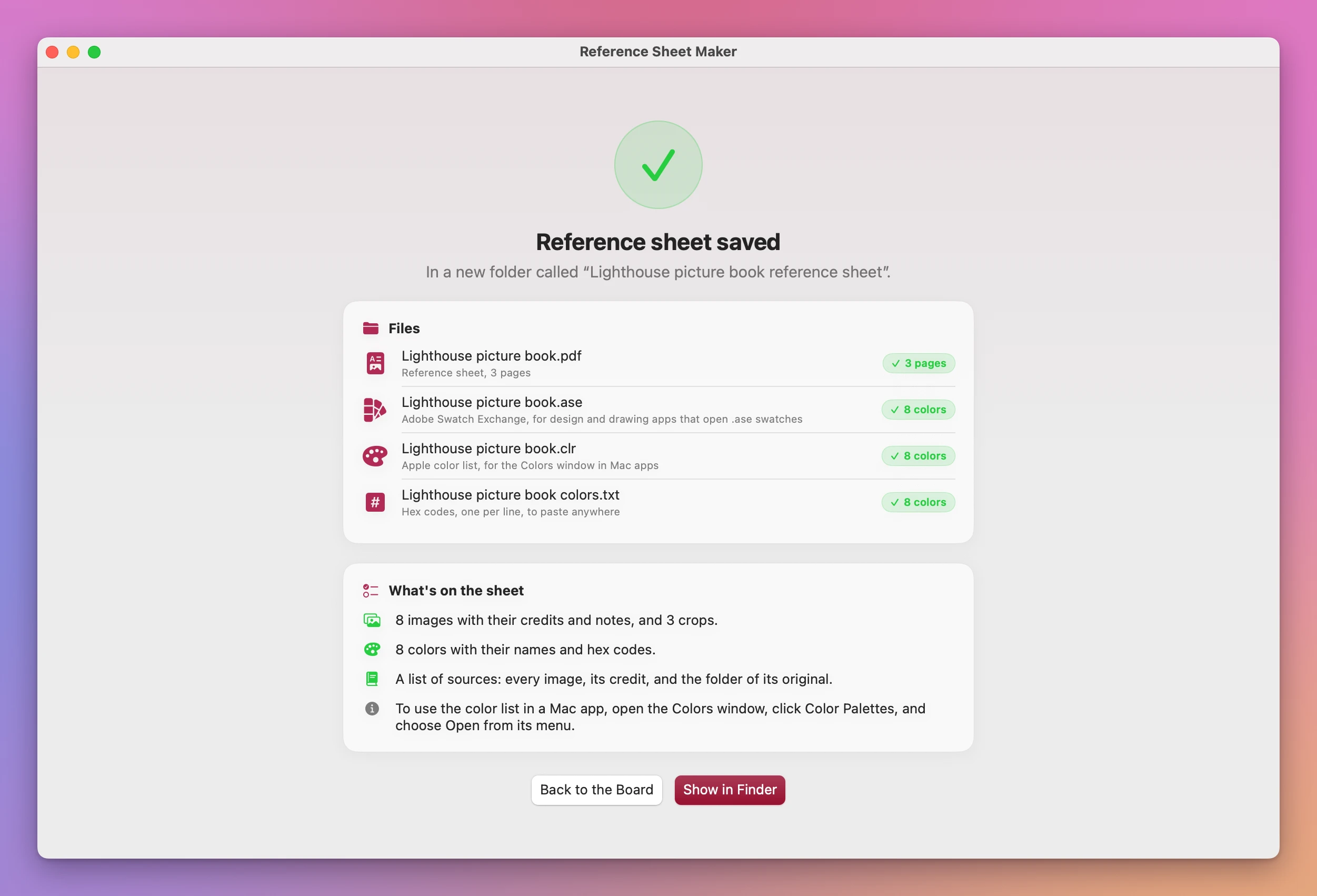
A landscape sheet, A4 or US Letter. It opens with the board’s name, the counts and the date, then your colors as large chips with their names and hex codes. Each group follows with its images, the file name, the credit and the note under each picture, and the crops pinned from them. At the end there’s a list of sources: every image, its credit, and the folder of the original. Every page is numbered.
The pictures on the sheet are smaller copies, so the eight-photo sheet in the screenshots comes to about one megabyte.
Swatch files for your other apps
- An
.asefile (Adobe Swatch Exchange), the swatch file format that design and drawing apps exchange. The colors are in one group named after the board, as RGB, with your names. - An Apple color list (
.clr), for the Colors window that Mac apps share. - A text file of hex codes, one per line with its name, like
#A8332B Hull red, to paste anywhere.
Crops
A crop is a rectangle of an image, kept with a name. It shows on the image in the app and as its own picture on the sheet, next to the image it came from.
Missing originals, before the export
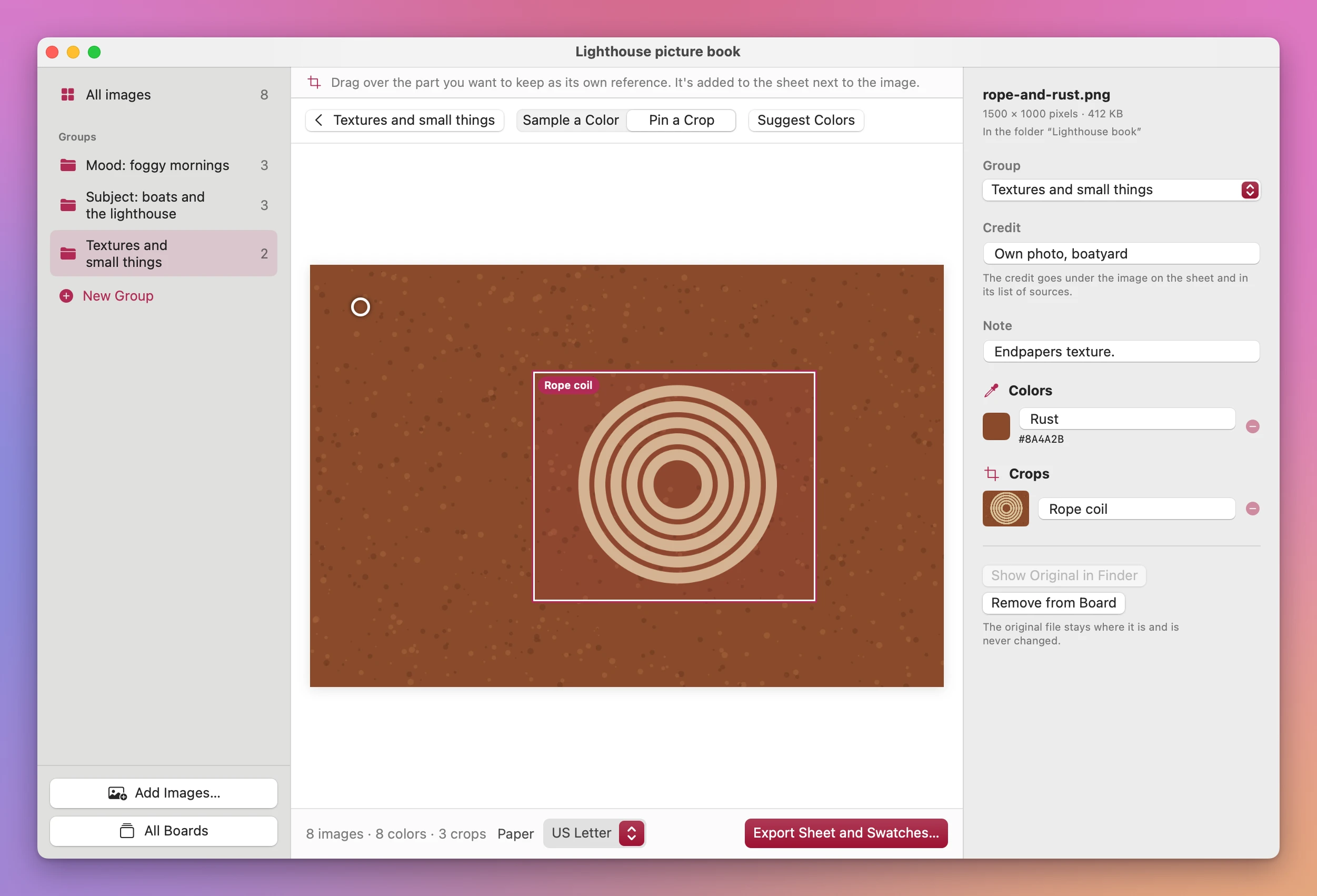
The board links to your images: it doesn’t copy them. If you move or rename one, the app tells you before it exports, with the file name and the folder it was in. Click Find… and point at the image where it is now: any other missing image with the same name in that new folder is found at the same time. Or click Leave Out and Export… to make the sheet without it. Its credit and notes stay on the board either way.
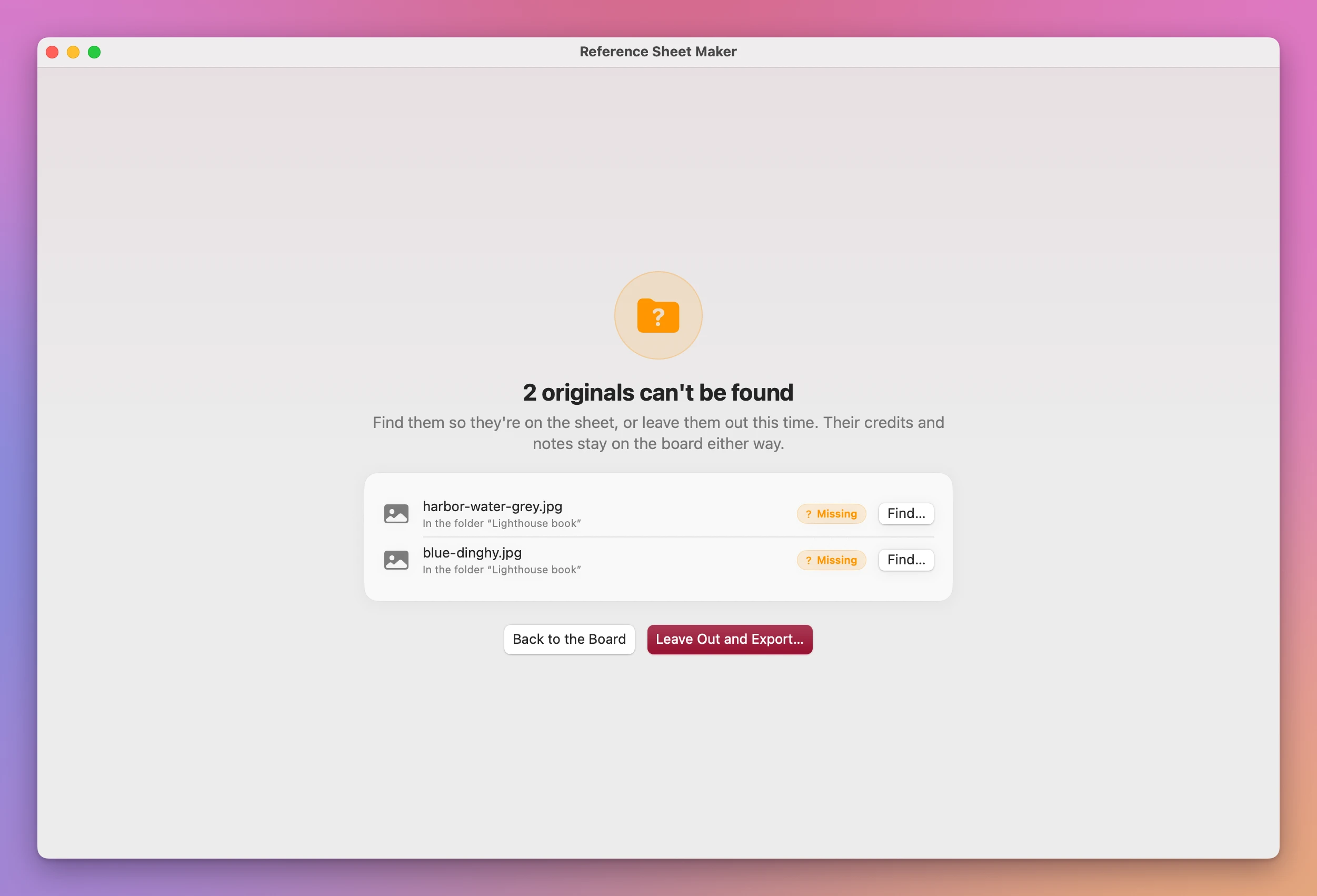
When it’s done, the window lists the files it saved and what’s on the sheet.
Why not use Freeform and Digital Color Meter
The Mac already has the pieces. Freeform holds images on a board (Insert › Photos or Videos…) and saves it with File › Export Board as PDF…. Digital Color Meter, in the Utilities folder, shows the color under the pointer, and Color › Copy Color as Text copies its numbers. For a quick board you only look at, that’s enough.
The slow part is the colors. Digital Color Meter reads one pixel area at a time, starts out showing the display’s native values rather than sRGB, and nothing collects what you copied: you paste each color into your drawing app, or into a note, by hand. There’s no swatch file at the end. Credits are text boxes you place yourself, and nothing tells you when an image on the board was moved.
| Freeform and Digital Color Meter | Reference Sheet Maker | |
|---|---|---|
| Collecting images | Insert them on a board | Choose or drop images and folders |
| Sampling a color | Point, copy the numbers, paste them somewhere | Click the image, the color is added with a name |
| Main colors of an image | By eye | Suggest Colors |
| Swatch files | None | .ase, .clr and a hex list |
| Credits | Text boxes you place | A credit under every image, and a list of sources |
| A moved original | Not noticed | Listed before the export, with Find… |
| Your files | Stay on your Mac | Stay on your Mac, never changed |
What it doesn’t do
- No free-form canvas. Images sit in a tidy grid by group. You can’t arrange them by hand, resize them or overlap them.
- One sheet layout. Landscape, four pictures across, A4 or US Letter. No templates, no custom fonts.
- No editing of the images. No filters, no rotation, no color correction. A crop is a rectangle, kept as a reference, not saved as a new image.
- No CMYK or spot colors. Colors are sampled and saved as RGB. A print shop’s color matching is a job for your design app.
- No sync and no sharing. Boards live on this Mac. The sheet is a PDF you can send any way you like.
- No import of swatch files. It writes
.ase,.clrand hex lists. It doesn’t read palettes from other apps.
Questions
Are my images uploaded or changed?
No. The app reads them on your Mac and never writes to them. The board stores where each one is, plus your groups, colors, crops, credits and notes.
What happens when I move my images?
The board still knows the old place. The image shows a Missing label, and before an export the app lists every missing one. Click Find… to point at the new place.
Which images does it take?
The images macOS can open: JPEG, PNG, HEIC, TIFF, WebP, GIF and raw photos from most cameras. Adding a folder takes the images directly inside it, not its subfolders.
Which apps open the swatch files?
The .ase file is the Adobe Swatch Exchange format that many design and drawing apps import. The .clr file is an Apple color list for the Colors window of Mac apps. The hex list is plain text. Reference Sheet Maker isn’t made by, affiliated with or endorsed by Adobe or Apple.
Does it ask for any permission?
Nothing when it opens. When you open a board again another day and its images are in Desktop, Documents or Downloads, or on another disk, macOS may ask once whether the app can read that folder. Click Allow.
What it needs
Reference Sheet Maker runs on macOS 14 Sonoma or later, on Apple silicon and Intel.
Buy Reference Sheet Maker
$19 plus tax where it applies, paid once.
Download the ZIP after checkout, unzip it and drag the app to Applications. The download is signed and notarized by Apple.
The app checks for updates once a day. When a new version is ready, click Install and Relaunch. To check anytime, choose Reference Sheet Maker → Check for Updates….