
An app by Flavio
Retouching Brief Maker
Click on your photo where something needs fixing, drop a numbered pin and type the instruction. Export a PDF brief with every photo, its pins and the list to match, plus a marked JPEG of each. Your photos are never changed.
Buy Retouching Brief Maker for Mac · $19Buy Retouching Brief Maker for Windows · $19One-time purchase. Plus tax where it applies. Mac and Windows versions are sold separately.
macOS 14 or later · Apple silicon and Intel
Windows 10 and Windows 11 · Intel, AMD and Arm PCs
Latest Mac version 1.0.0, released November 26, 2026
You shot a bakery’s team headshots and you’re sending the twelve selects to a retoucher. You write the email: “On the second one, remove the reflection in his glasses. On the first one, the stray hairs on the left, and soften the shadow under the chin.”
Then the retouched photos come back. The wrong hair is gone, the chin is untouched, and the glasses still shine on one of the twelve. The retoucher did what they understood from a paragraph of text about photos they’d never seen.
Retouching Brief Maker puts each instruction on the photo. You click where something needs fixing, a numbered pin drops there with its point on the spot, and you type what to do. Then you export a brief: a PDF with every photo, its pins and the numbered list beside it, and, if you want, a marked JPEG of each photo. Pin 2 on photo 7 can only mean one thing.
Watch a 30-second demo of Retouching Brief Maker:
Who it’s for
- Wedding and portrait photographers who outsource retouching. Forty selects go to a retouching service, each with two or three fixes. Every fix is a pin on the exact spot, so nobody guesses which stray hair you meant.
- Headshot photographers with corporate clients. The client writes “her collar is crooked, remove his badge, can you fix the glare”. You turn the email into pins on the right photos before you forward anything.
- Product and e-commerce photographers. Dust on the bottle, a reflection in the label, a crease in the backdrop, crumbs in front of the bread. A note for the whole photo says “keep the full frame, I’ll crop it myself”.
- Small business owners sending photos to a freelance retoucher. You aren’t a photographer and you don’t know the words. Click on the problem and write it the way you’d say it.
- Studio managers and photography teachers. You hand edits to an assistant or a student, and the printed brief is a checklist they can work down, photo by photo.
How it works
- Click Choose Photos…, or drag photos or a folder onto the window. JPEG, PNG, TIFF and HEIC photos go in.
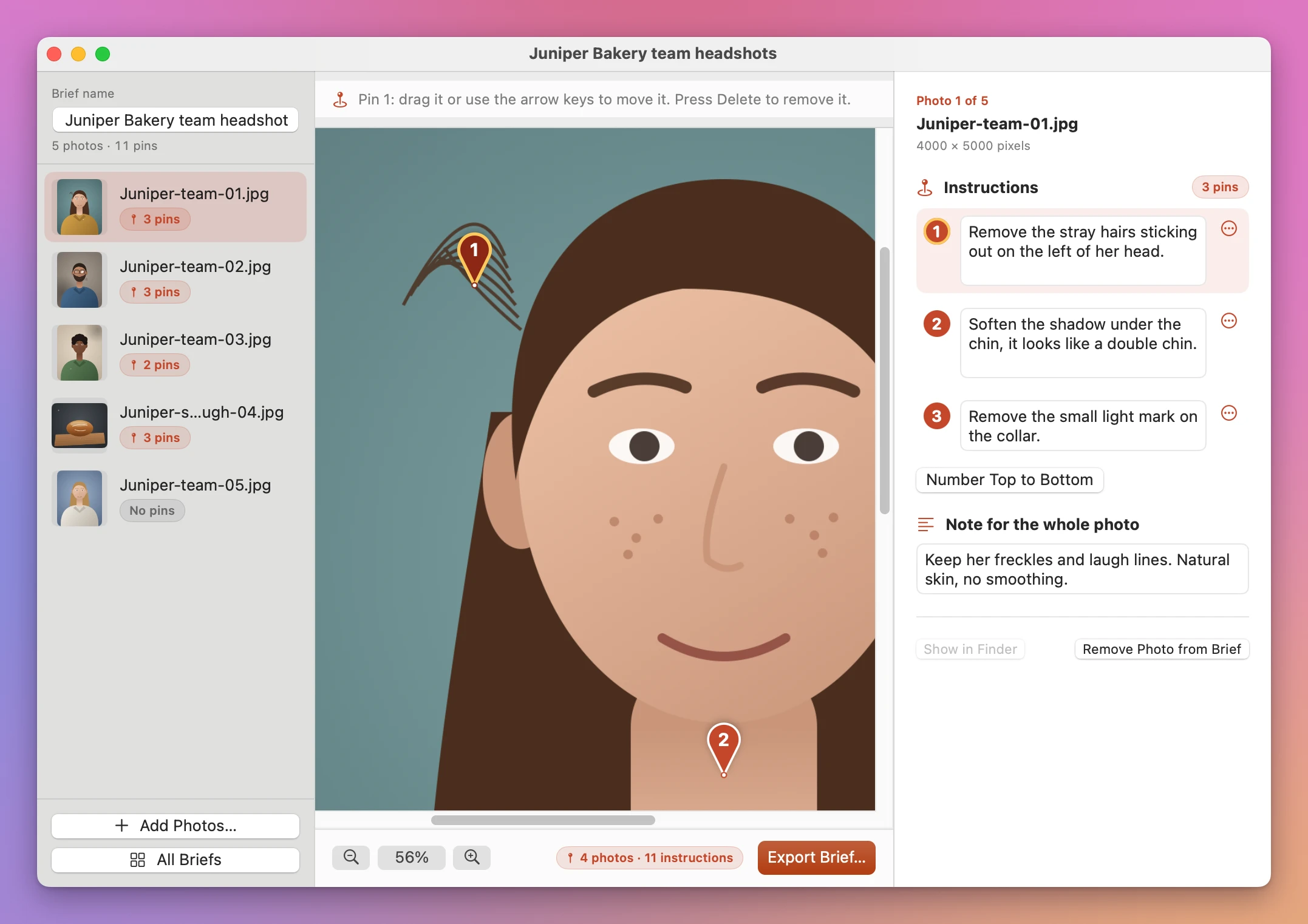
- Pick a photo on the left and click on it where something needs fixing. A numbered pin drops there.
- Type what to do in the pin’s field on the right. Add a Note for the whole photo if you want.
- Zoom in to put a pin on the exact spot, and drag a pin to move it.
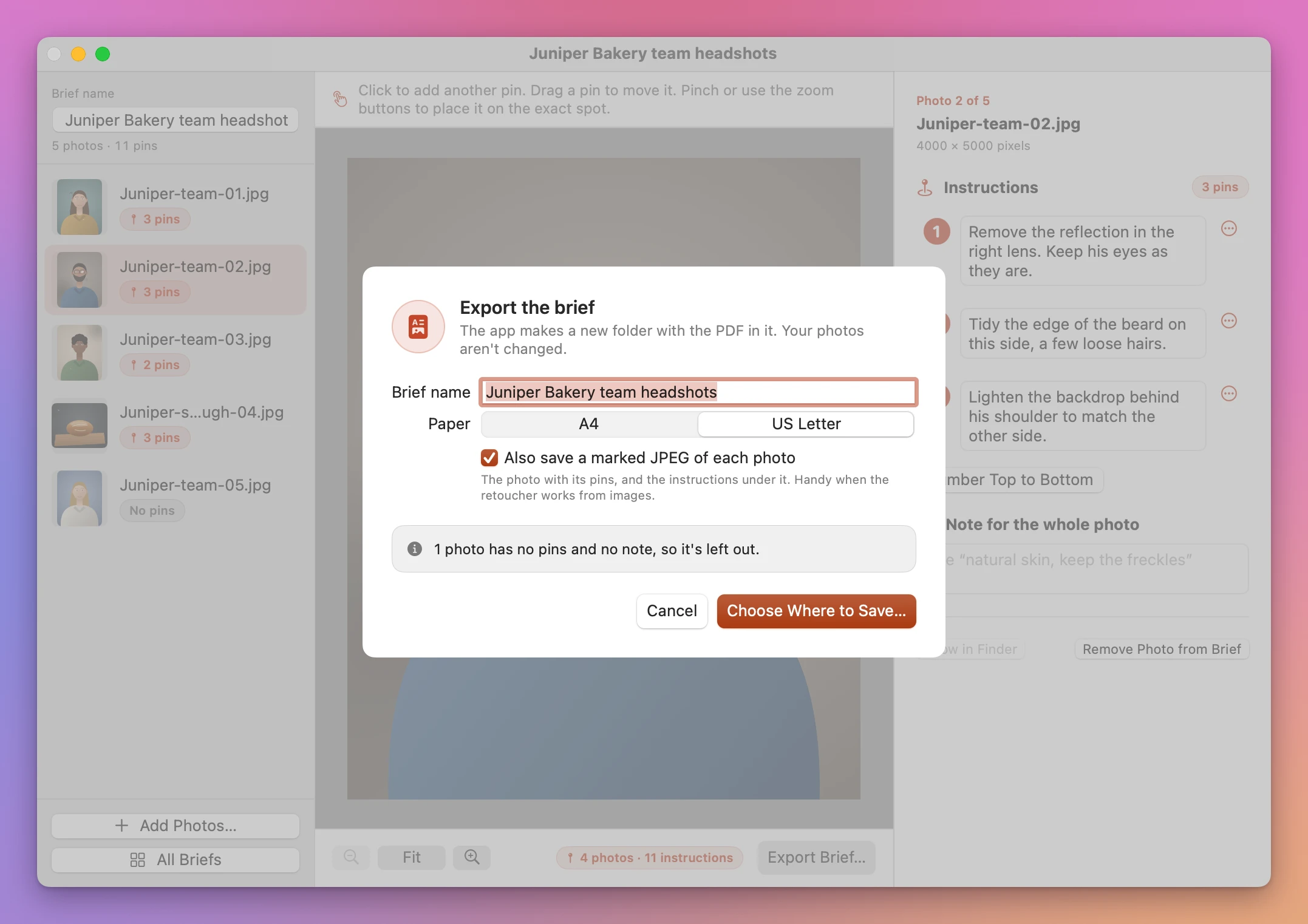
- Click Export Brief…, pick the paper size, and choose Choose Where to Save….
The brief is saved as you work, so you can close the app and come back to it tomorrow.
What you get
Pins that point at the spot
Each pin is a round head with its number and a point that touches the spot you clicked. Near the top edge of a photo it hangs below the spot instead, so it never goes off the picture. Zoom in with the buttons, View → Zoom In or a pinch on the trackpad, up to four times the photo’s own pixels, and drag an empty part of the photo to move around.
Pins you can move, renumber and remove
Drag a pin, or select it and use the arrow keys. Press Delete to remove one, and Edit → Undo brings it back. The pins after a removed one move up a number. Each instruction has a … menu to move it up or down the list, which changes its number, and Number Top to Bottom numbers all of them from the top of the photo down.
A PDF the retoucher can work from
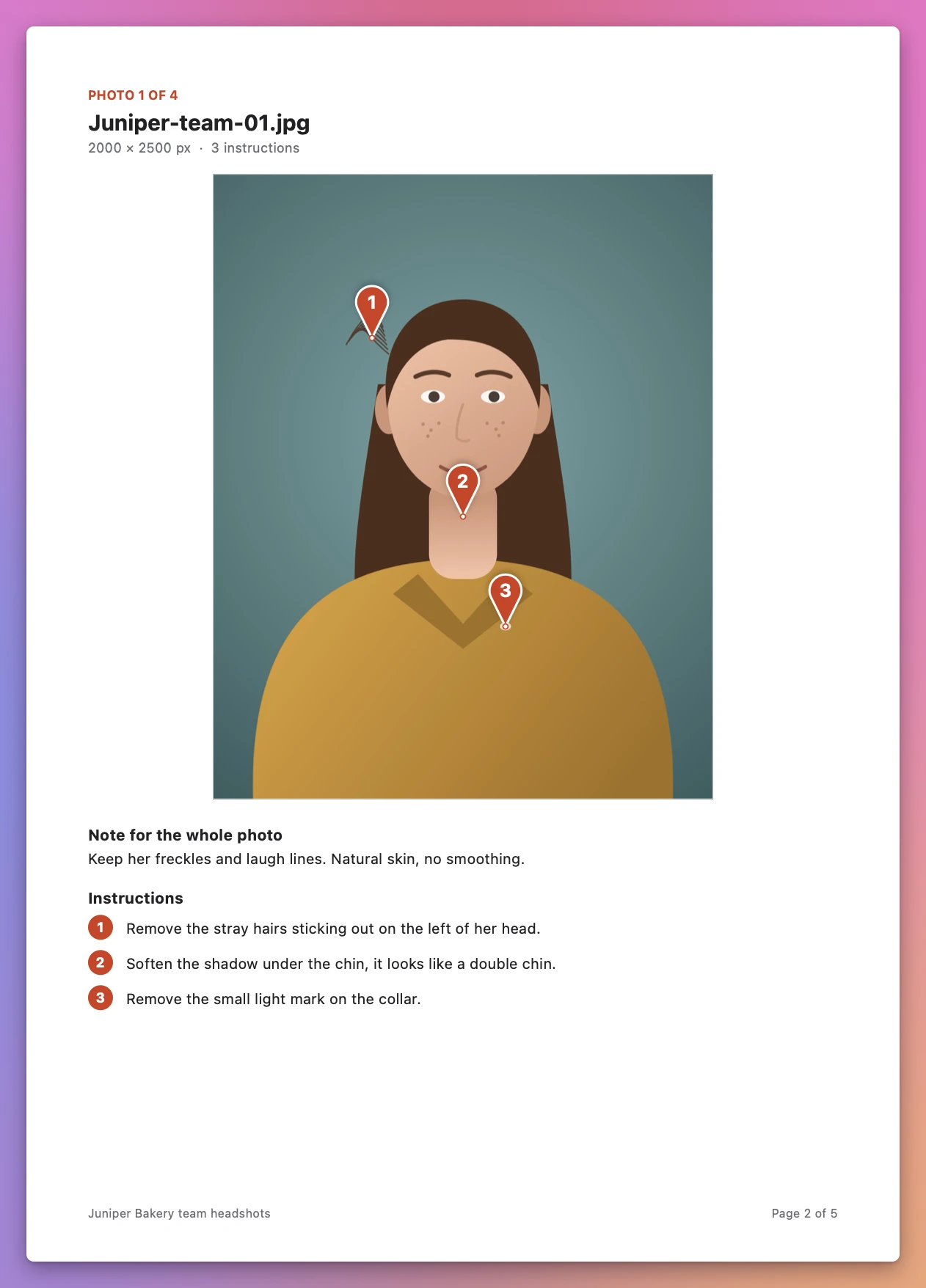
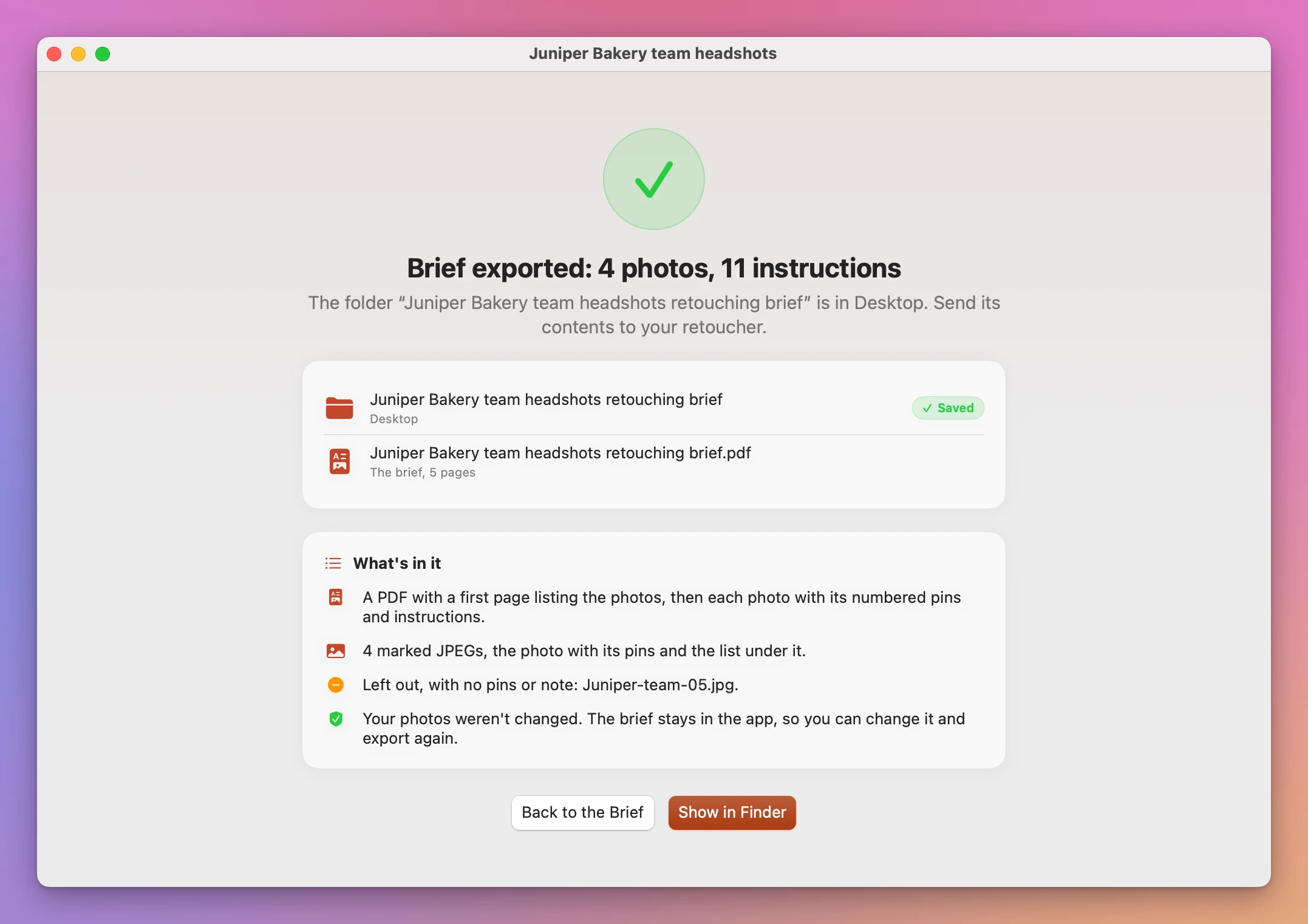
The first page lists every photo with a small copy of it, its pins, how many instructions it has, its note and the page it’s on. Then each photo gets a page: its number and file name, the photo with its pins, your note, and the numbered instructions. A long list carries on to the next page.
A marked JPEG of each photo
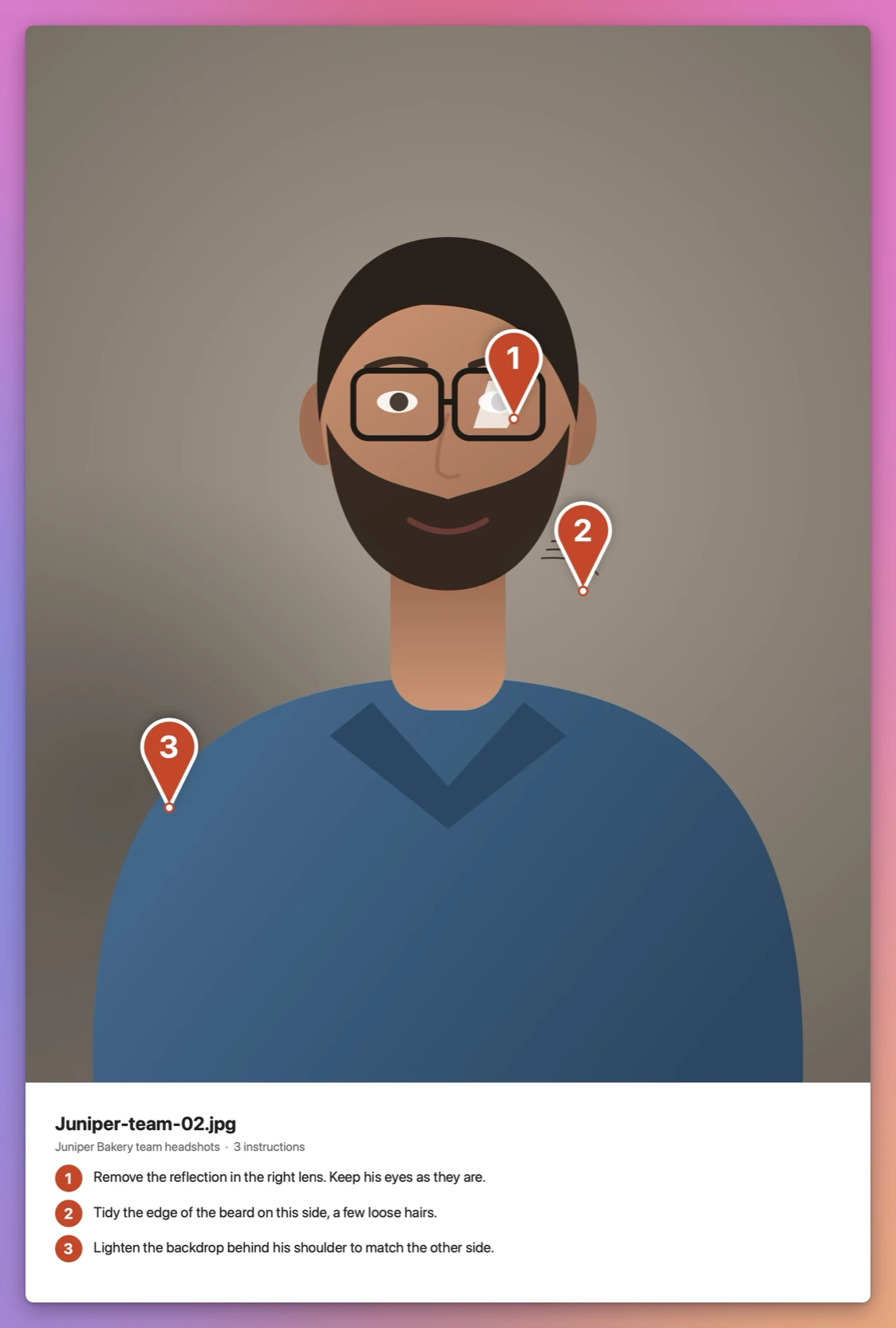
Tick Also save a marked JPEG of each photo and every photo also comes out as a JPEG with its pins on it and the instructions in a white band underneath, numbered like the PDF. It’s handy when the retoucher keeps the brief open next to the photo they’re working on.
Only the photos that need work
Photos with no pins and no note are left out of the export, and the export sheet tells you how many before you save. A pin you haven’t written anything for yet goes in as “No instruction written for this pin”, and the sheet warns you about it first.
Your originals stay as they are
The app only reads your photos. The export goes in a new folder, like “Juniper Bakery team headshots retouching brief”, and never replaces a file: a second export makes a second folder. If you move a photo after making the brief, the app says it isn’t where it was, and Find… points it to the new place with its pins kept.
Why not do it by hand
The free way is Preview. Open the photo, choose View → Show Markup Toolbar, and Tools → Annotate gives you rectangles, ovals, arrows, text and speech bubbles to draw on it. For one photo with one fix, that works.
It gets slow when there are more. Preview draws on the photo itself, so you make a copy first with File → Duplicate to keep the original clean. The text sits on top of the picture, often over the thing you want fixed. Nothing is numbered, so you number the boxes by hand, and if you remove fix number 2 you renumber every box after it. There’s no list of instructions to read in one place, and no single document with all twelve photos: you send twelve marked copies and an email.
| Preview’s Markup | Retouching Brief Maker | |
|---|---|---|
| Marks on the photo | Shapes, arrows and text drawn on a copy | Numbered pins, the photo itself untouched |
| Instructions | Text boxes on top of the picture | A numbered list beside each photo |
| Renumbering after a change | By hand, box by box | Automatic, or Number Top to Bottom |
| Twelve photos | Twelve marked copies | One PDF with a first page that lists them |
| Placing a mark on a few pixels | Zoom, then draw | Zoom up to four times the photo’s pixels, then click |
| Change it next week | Edit each copy again | Reopen the brief from the app’s list |
Photoshop can do this too, with a layer of numbers and a text file next to it, if you and the retoucher both have it. Retouching Brief Maker is for the step before the retoucher opens anything: saying what to do.
If you’re still choosing which photos to deliver, Photo Shortlist is for picking them. Retouching Brief Maker comes after, on the photos you chose.
What it doesn’t do
- No drawing tools. Pins only: no arrows, circles, freehand lines or highlighter.
- No retouching. It doesn’t change your photos, it tells someone else how to.
- No sending or sharing. You send the PDF and the JPEGs the way you already send files to your retoucher.
- No raw files. JPEG, PNG, TIFF and HEIC photos only. Export JPEGs or TIFFs from your raw editor first.
- No replies from the retoucher. There’s no way for them to tick off or answer an instruction inside the app.
Questions
Does it change my photos?
No. It only reads them. The brief keeps where each photo is, and the export writes new files in a new folder.
Does anything get uploaded?
Nothing. Everything happens on your Mac. The app connects to the internet only to check for updates.
Where is the brief saved?
In the app, as you work. The start screen lists your briefs, newest first. Click one to keep editing it, and Control-click it to move it to the Trash.
What it needs
macOS 14 Sonoma or later, on Apple silicon and Intel Macs. It asks for no permission when it opens. When you reopen a brief another day and its photos are in Desktop, Documents or Downloads, macOS may ask once whether the app can read that folder.
Retouching Brief Maker isn’t made by, affiliated with or endorsed by Adobe or Apple.
Buy Retouching Brief Maker
$19 plus tax where it applies, paid once. The purchase page shows the download and your license key. You’ll find them in your Creem receipt too.
Unzip the app and move it to Applications. I sign the app with my Apple Developer ID, and Apple notarizes the download.
The app checks for updates once a day. When a new version is ready, click Install and Relaunch. The first time, it asks for the license key from your Creem receipt, and remembers it. To check anytime, choose Retouching Brief Maker → Check for Updates….