
An app by Flavio
Script Runtime Estimator
Open or paste a script, set how fast each speaker reads, and type the length the video must fit. Script Runtime Estimator times every section, shows where the time runs out, and says about how many words to cut. Then save a timing sheet with start times.
Buy Script Runtime Estimator · $19One-time purchase. Plus tax where it applies.
macOS 14 or later · Apple silicon and Intel
Latest version 1.0.2, released November 22, 2026
You wrote the script for a three-minute how-to video. It has nine sections, a host who talks fast and a voiceover who doesn’t, a few pauses for effect, and a music sting at the start. Will it fit three minutes?
The usual answer is a word count divided by 150. That gives you one number for the whole script, at one speed, and it doesn’t say which section to cut. Reading it aloud with a stopwatch is closer, but it’s one take, and you do it again after every edit.
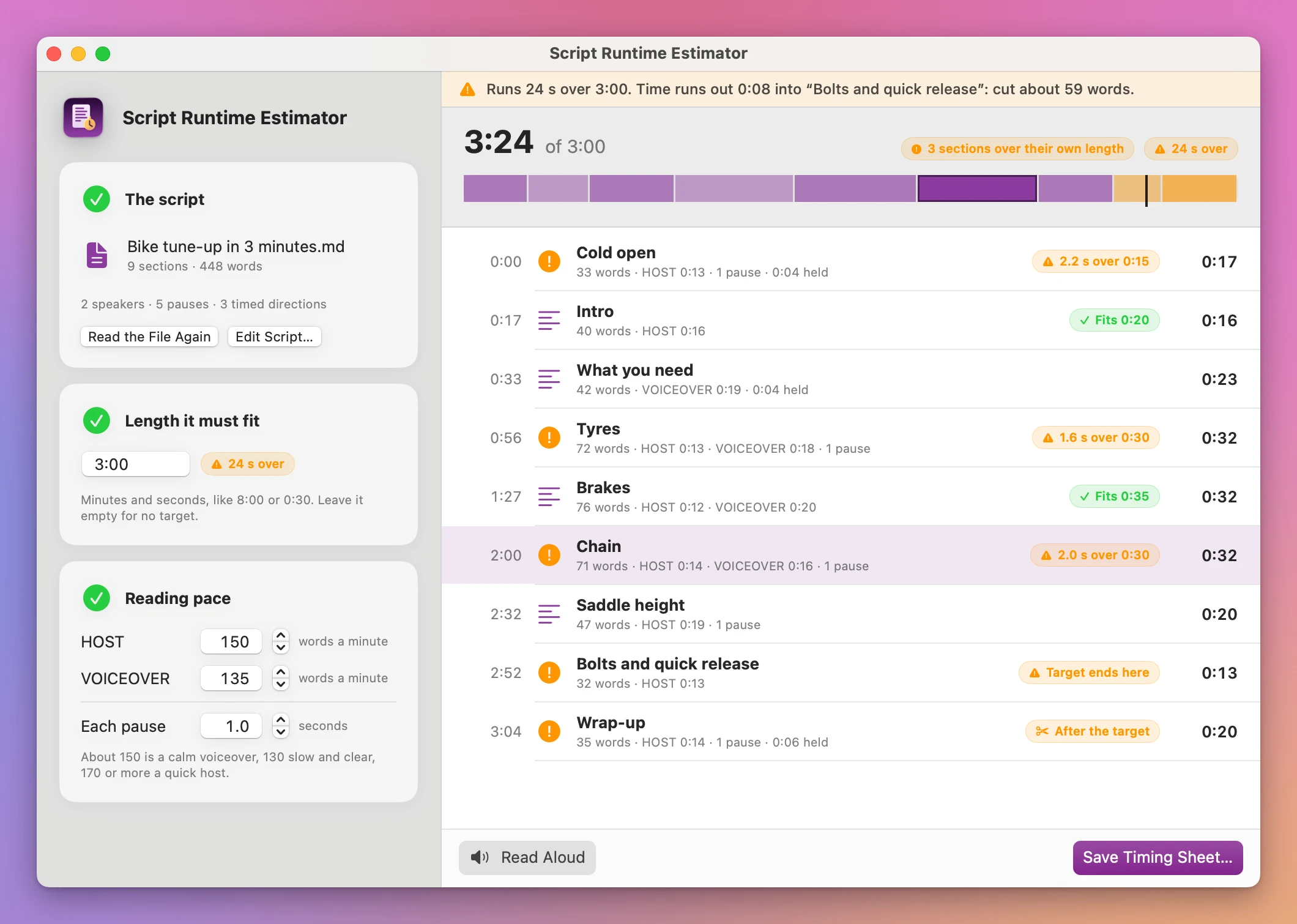
Script Runtime Estimator reads the script, finds the sections and the speakers, and times each section with that speaker’s pace. Type the length the video must fit, and the sections past it turn orange. The line at the top tells you how far over you are, where the time runs out, and about how many words to cut.
Watch a 30-second demo of Script Runtime Estimator:
Who it’s for
- YouTubers who write first. Your videos do better under 8 minutes, and your intro always runs long. Open the script, type
8:00, and see that the intro takes 1:10 before you record it three times. - Voiceover artists. The client sends a script and says “60 seconds max”. At your natural pace it reads at 72 seconds. Save the timing sheet and send it before the session, so the cut happens in the script, not in the booth.
- Ad and radio producers. A 30-second spot with an announcer and a customer, each with a different pace and a pause before the call to action. Every second counts, and the app counts them per voice.
- Explainer and course video makers. You plan the hook at 15 seconds and the demo at 2 minutes. Put the length in the heading,
## Hook (0:15), and the app tells you which section went over its own length. - Short-film writers. Open a Fountain screenplay and get a rough read of the dialogue in each scene, with action lines left out.
From a script to a timing sheet
- Click Open a Script… and pick your script, or drag it onto the window. Text, Markdown, Word, RTF, OpenDocument and Fountain files work. Or copy the text and click Paste a Script….
- Type the length it must fit under Length it must fit, like
8:00or0:30. - Under Reading pace, set each speaker’s words a minute. The app remembers them for the next script.
- Read the list. Each section has its start time and length, and the ones that don’t fit are orange.
- Click a section and Read Aloud to hear it at each speaker’s pace.
- Cut words in your writing app, save, and click Read the File Again.
- Click Save Timing Sheet… and pick a folder.
What you get
Every section timed at its speaker’s pace
Write a speaker’s name before their lines, like HOST: or Narrator:, and each name gets its own pace. A speaker keeps talking until another one is named, so you don’t have to tag every line. Sections start at headings (## Intro in Markdown, or the Heading styles in Word), at lines like SCENE 3 or Part 2: The demo, and at screenplay scene headings like INT. KITCHEN - DAY.
A length at the end of a heading, like ## Hook (0:15), is that section’s own target. The section gets a green Fits 0:15 or an orange 2.2 s over 0:15.
Pauses and directions
[PAUSE] and [BEAT] add a pause, one second to start with, or what you set under Each pause. [PAUSE 2s] adds two seconds. Anything else in square brackets is a direction and isn’t read, and when it has a length in it, like [MUSIC STING 3s] or [B-ROLL 0:04], it adds that time too. Words in parentheses are read, unless the whole line is in parentheses.
Where the time runs out
The bar at the top shows every section as long as it reads, with the target as a line. The section the line falls in says Target ends here, the ones after it say After the target, and the hint line sums it up: “Runs 24 s over 3:00. Time runs out 0:08 into “Bolts and quick release”: cut about 59 words.”
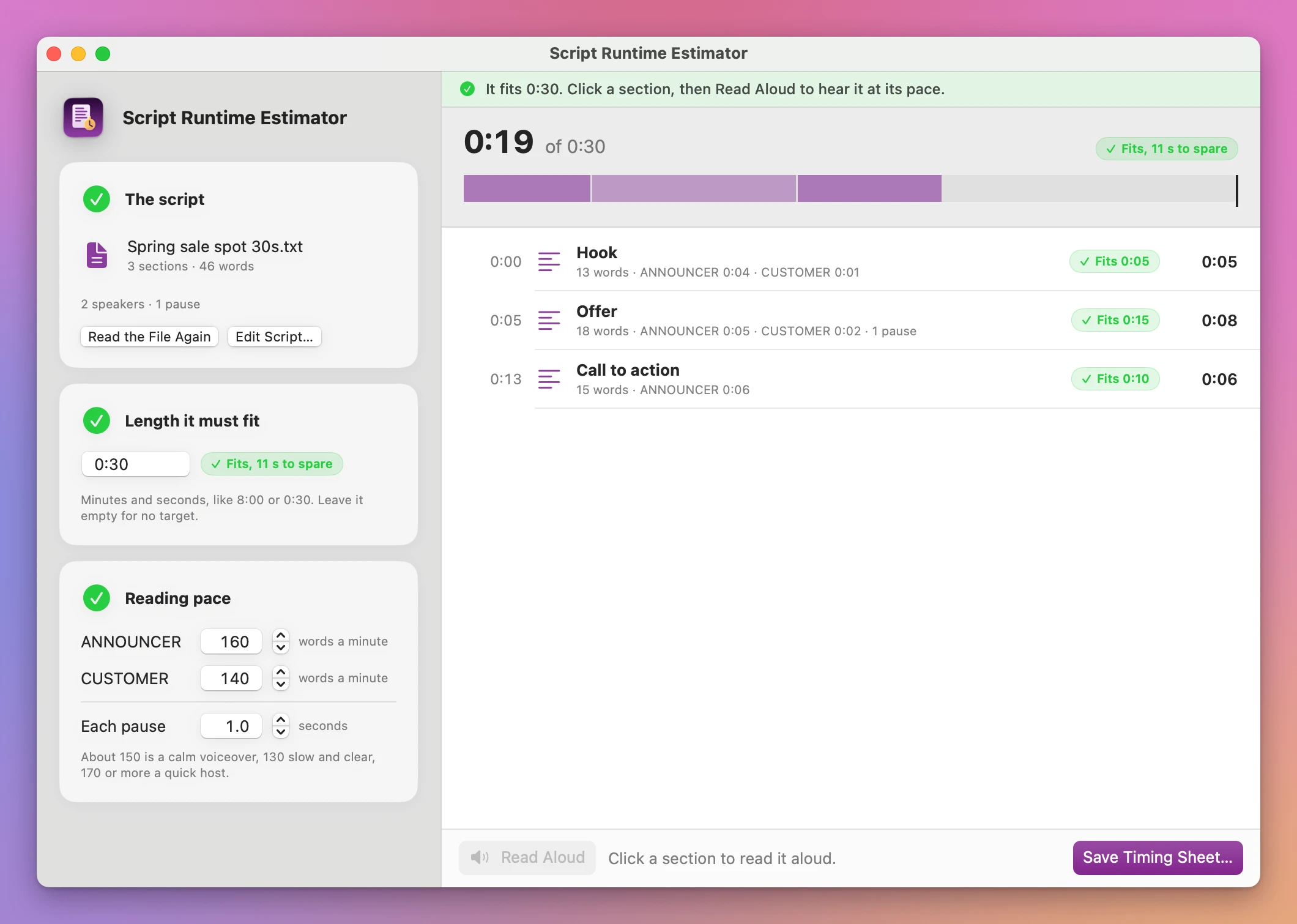
When the script fits, it says so, with the time to spare.
Paste a script from anywhere
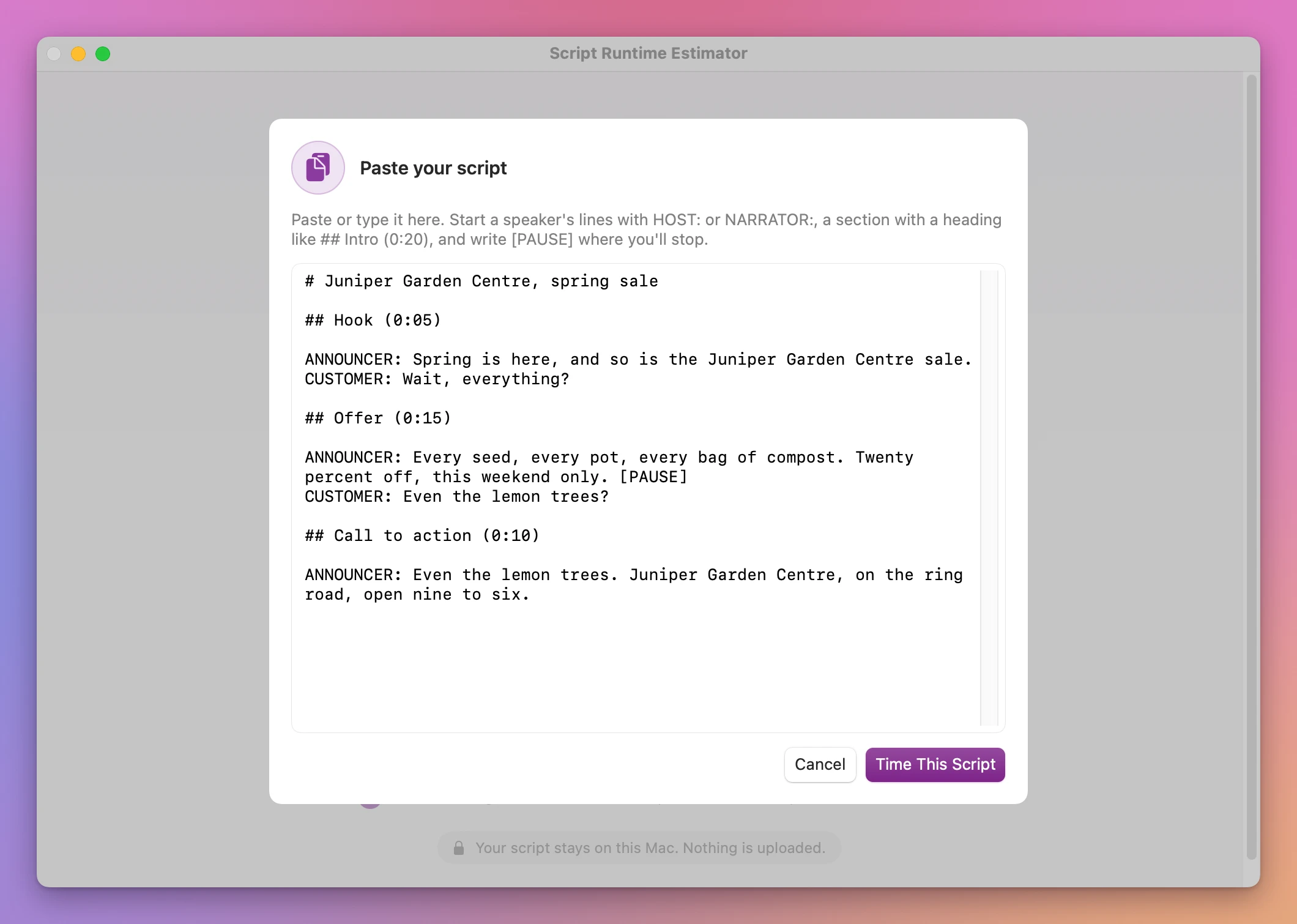
Paste a Script… opens a box with whatever text you copied, from a Google Doc, an email or a chat. Edit Script… lets you change the words of the open script right in the app to try a shorter version. The file itself is never changed.
A timing sheet to send
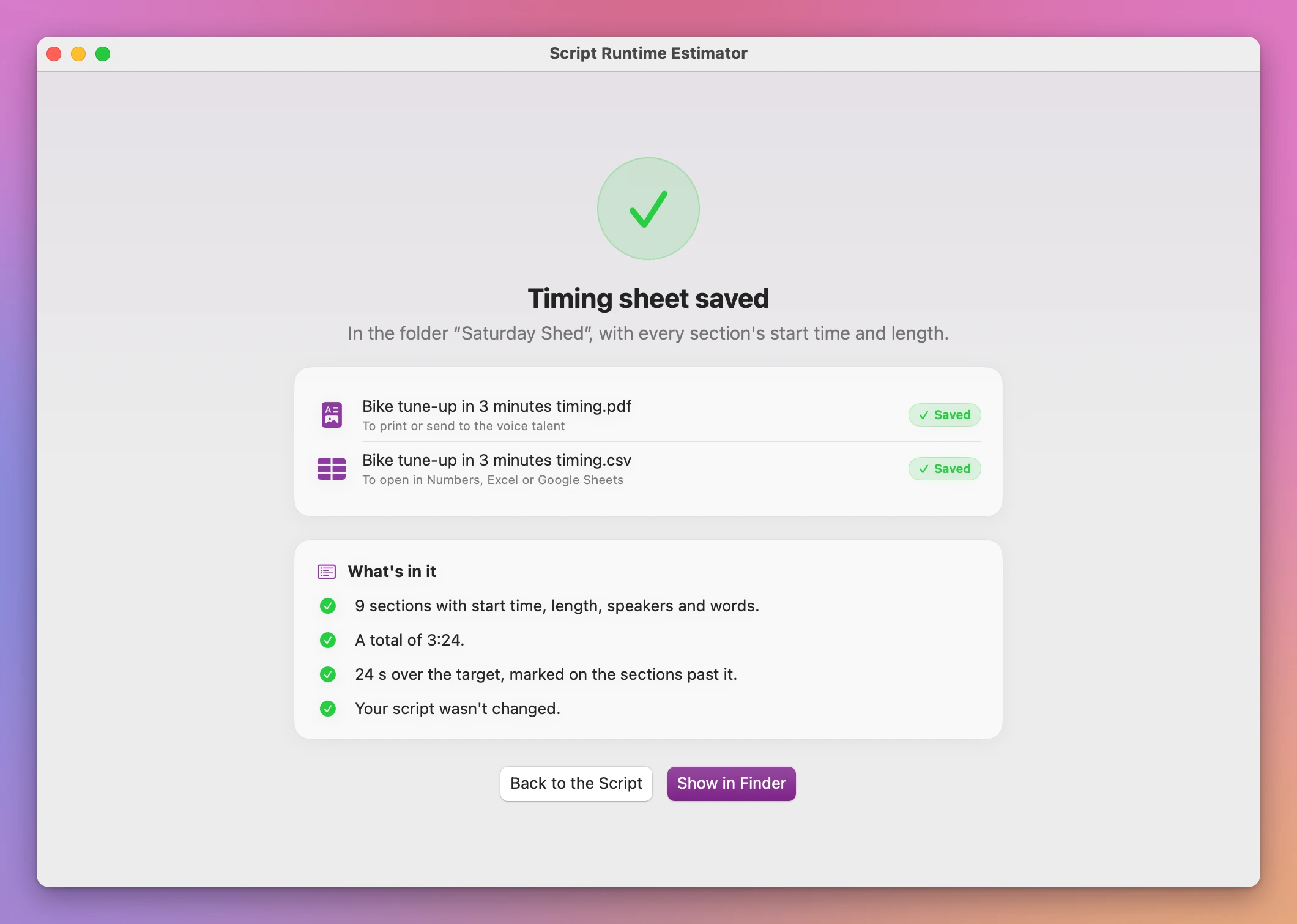
Save Timing Sheet… writes two files into the folder you pick: a PDF to print or send to the voice talent, and a CSV spreadsheet for Numbers, Excel or Google Sheets. Both list every section with its start time, length, speakers, words and target, mark the sections past the target, and end with the total. The spreadsheet also has each section’s end time and its length in seconds. If those names are taken, the new files get a number. Nothing is written over.
Hear it at that pace
Click a section and Read Aloud. The Mac’s own voice reads it, each speaker’s part at that speaker’s words a minute. It’s a quick way to hear whether 170 sounds rushed. The pauses aren’t played, and the voice is a guide, not a stopwatch.
Why not do it by hand
Pages, Word and Google Docs all count words, and 150 words a minute is the usual rule of thumb. Divide, and you have the total. For one speaker, one pace and no pauses, that’s honestly enough.
It gets slow when the script has sections and more than one voice. You select each section, note its words, divide by the right speaker’s pace, add the pauses and the music, and add it all up to find where the target falls. After every edit you do it again. Free “words to minutes” websites do the division for you, for the whole text at one pace, and your script goes to someone’s website.
Reading it aloud with the stopwatch in the Clock app is the real test, and you should still do it once with your speaker. It’s one take, at the pace of that day, and it doesn’t tell you which section to cut.
| Word count ÷ 150 | Words-to-minutes website | Stopwatch read | Script Runtime Estimator | |
|---|---|---|---|---|
| Cost | Free | Free | Free | $19 once |
| Time per section | You select and divide each one | Paste each one | You note the times | Yes, with start times |
| A pace per speaker | You do the math | No | The reader’s pace | Yes |
| Pauses and timed directions | You add them | No | As read | Yes |
| Where the target runs out | You add it up | No | You watch the clock | Yes, with words to cut |
| After every edit | Again | Again | Read it again | Read the File Again |
| Timing sheet to send | No | No | No | PDF and CSV |
| Script stays on your Mac | Yes | No | Yes | Yes |
What it doesn’t do
- It doesn’t record you or listen to a take. The times are estimates from the paces you set, and real reads vary with the voice and the direction.
- It doesn’t change your script file. Edits made with Edit Script… are only for timing.
- It doesn’t open Pages or PDF files. Export the script as Word, RTF or plain text, or copy the text and paste it.
- It counts words as written:
2026is one word, though it’s said as three. - It doesn’t make subtitles, a teleprompter or a voiceover recording.
Questions
Does it upload my script?
No. Everything happens on your Mac. The app connects to the internet only to check for updates.
What pace should I use?
About 150 words a minute is a calm voiceover, 130 slow and clear, 170 or more a quick host. The best number is your speaker’s: time one take of a section, then set the pace until the app shows the same length.
Does it work with my screenplay?
If it’s in Fountain, yes. Scene headings start sections, the name above a line of dialogue is the speaker, and action lines aren’t timed. From another screenwriting app, export the script as Fountain if it offers it, or as plain text with the speakers’ names before their lines.
What it needs
Script Runtime Estimator runs on macOS 14 Sonoma or later, on Apple silicon and Intel Macs. It asks for no permissions.
Buy Script Runtime Estimator
$19 plus tax where it applies, paid once.
Download the app from the order page or your Creem receipt, unzip it and move it to Applications. I sign the app with my Apple Developer ID, and Apple notarizes the download.
The app checks for updates once a day. When a new version is ready, click Install and Relaunch. To check anytime, choose Script Runtime Estimator → Check for Updates….
Script Runtime Estimator is an independent app. It’s not made by, affiliated with or endorsed by Apple, Microsoft, Google or YouTube.