
An app by Flavio
Shoot Storage Planner
Enter each camera's recording format, the hours it records, the shoot days and the copies you keep. Shoot Storage Planner works out the terabytes, the drives to buy, and which of your plugged-in drives still fit tomorrow, then saves the plan as a one-page PDF for the producer.
Buy Shoot Storage Planner · $19One-time purchase. Plus tax where it applies.
macOS 14 or later · Apple silicon and Intel
Latest version 1.0.2, released November 24, 2026
A three-day documentary. Two cameras in ProRes 422 HQ, 4K, recording three hours a day each. A drone for an hour, an interview camera in Blackmagic RAW for an hour and a half. Three copies of everything, proxies for the editor. The producer wants to know how many drives to order by Friday.
You can do it with a calculator. Multiply each bitrate by 0.45 to get gigabytes an hour, then by the hours, the cameras, the days and the copies. Then round each copy up to whole drives, after leaving some room free on each one. It’s ten minutes of arithmetic, and one forgotten factor of 8 means the shoot runs out of space on day two.
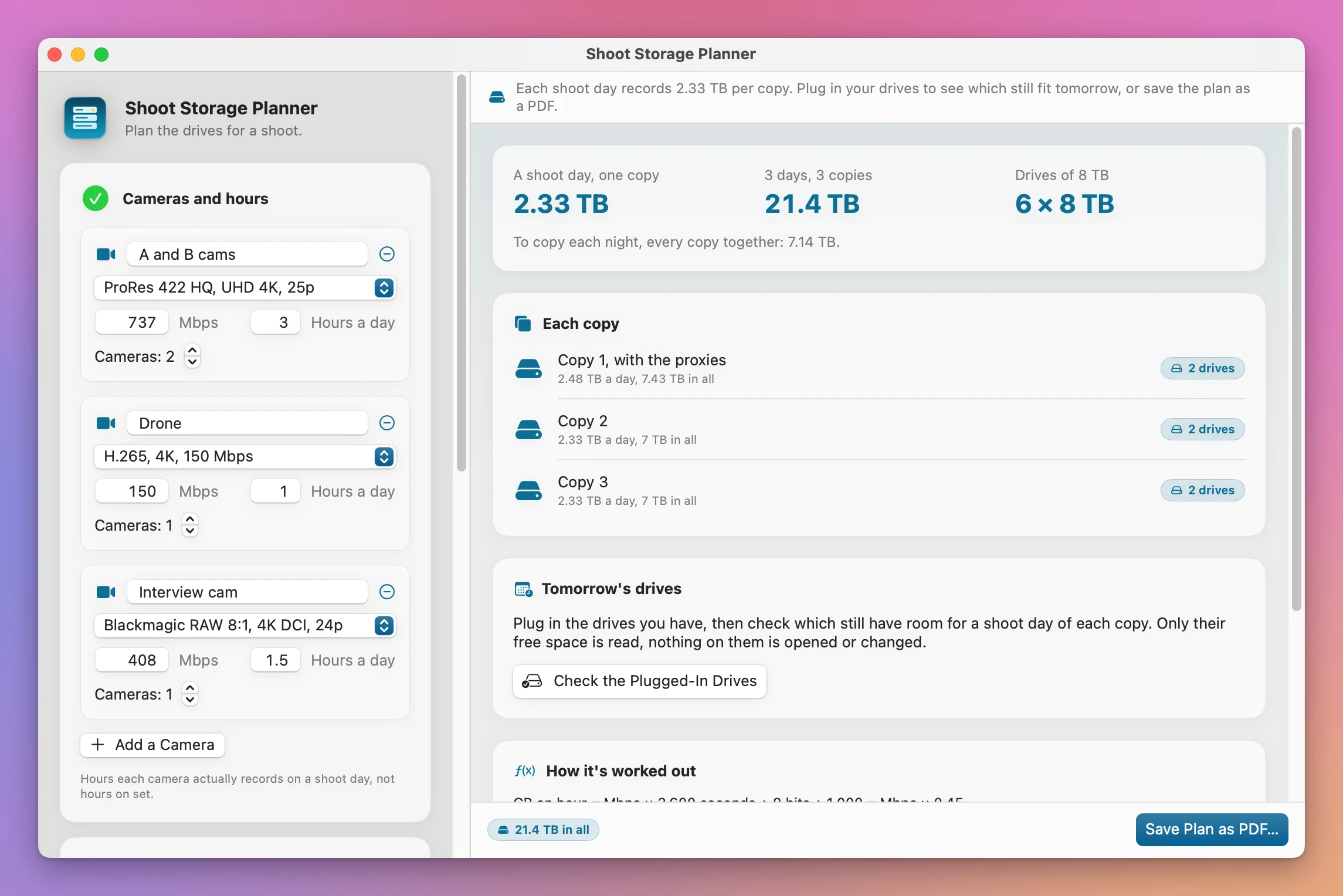
Shoot Storage Planner does the arithmetic as you type. For that shoot it says 2.33 TB a day, 21.4 TB in all, and six 8 TB drives. The night before day one, plug in the drives you have, and it tells you which copy each drive takes tomorrow, and what to bring when one is missing.
Watch a 30-second demo of Shoot Storage Planner:
Who it’s for
- DITs and data wranglers. Two cameras, a drone, three copies, and a cart of drives that has to last the week. The plan says how much goes on each copy every night, and the drive check says which drive takes which copy tomorrow.
- Freelance videographers quoting a job. A wedding with two cameras recording all day in H.265 at 150 Mbps. You want the storage line of the quote right, and to know whether the two 2 TB SSDs in the bag are enough.
- Assistant editors getting ready for a delivery. A week of Blackmagic RAW is coming, and the editor wants ProRes Proxy on the edit drive. The app counts the proxies for every hour recorded and puts them on the first copy.
- Producers who sign off on the drive order. The one-page PDF has the cameras, the hours, the copies, the drive count and the formula, so the number is easy to check and easy to forward.
- YouTubers and course creators moving to ProRes. A week of recording at a higher bitrate fills a drive faster than you’d guess. Find out before you buy the drive, not when the camera stops.
From cameras to a drive order
- Under Cameras and hours, name the camera, pick its format from the menu and type the hours it records on a shoot day. Set Cameras to how many of it you run. The bitrate fills in, and you can type the figure from your camera’s manual over it.
- Click Add a Camera for a drone, a gimbal or a second kind of camera.
- Under Days and copies, set the shoot days and the copies. Two backups and a shuttle drive make 3. Choose where the proxies go and how much of each drive to keep free.
- Pick the Drive size. The right side shows a shoot day, the whole shoot, each copy and the drives to buy.
- The night before, plug in your drives and click Check the Plugged-In Drives.
- Click Save Plan as PDF… and send the page to the producer.
What you get
The numbers a producer asks for
Three numbers at the top: a shoot day of one copy, everything stored over the shoot, and the drives to buy, like 6 × 8 TB. Under them, what you copy each night, every copy together.
Each copy gets its own line, with what it takes a day, in all, and its drives. A copy never shares a drive with another copy, because two copies on one drive aren’t a backup, so each copy is rounded up to whole drives on its own. The copy that holds the proxies needs more, and you see it.
A bitrate table you can override
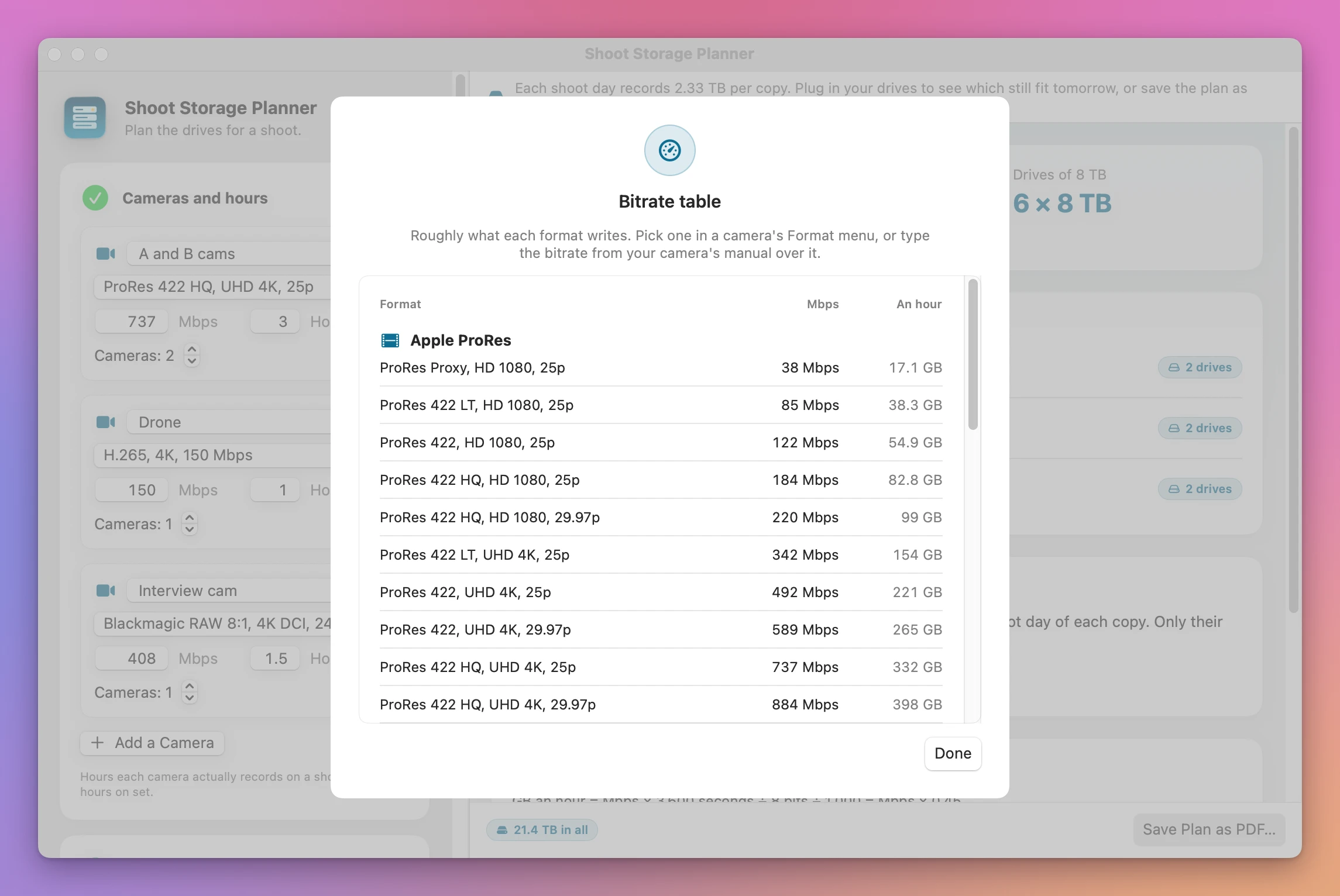
The Format menu has ProRes Proxy to ProRes 4444 at HD and UHD frame rates, Blackmagic RAW from 3:1 to 12:1, H.264 and H.265 at common settings, and All-Intra. Plan › Bitrate Table… lists them with what an hour takes. The figures are approximate, so the bitrate is a field: type the number from your camera’s manual and the format gets a Bitrate edited pill. Custom bitrate covers anything that isn’t in the table.
Which drives still fit tomorrow
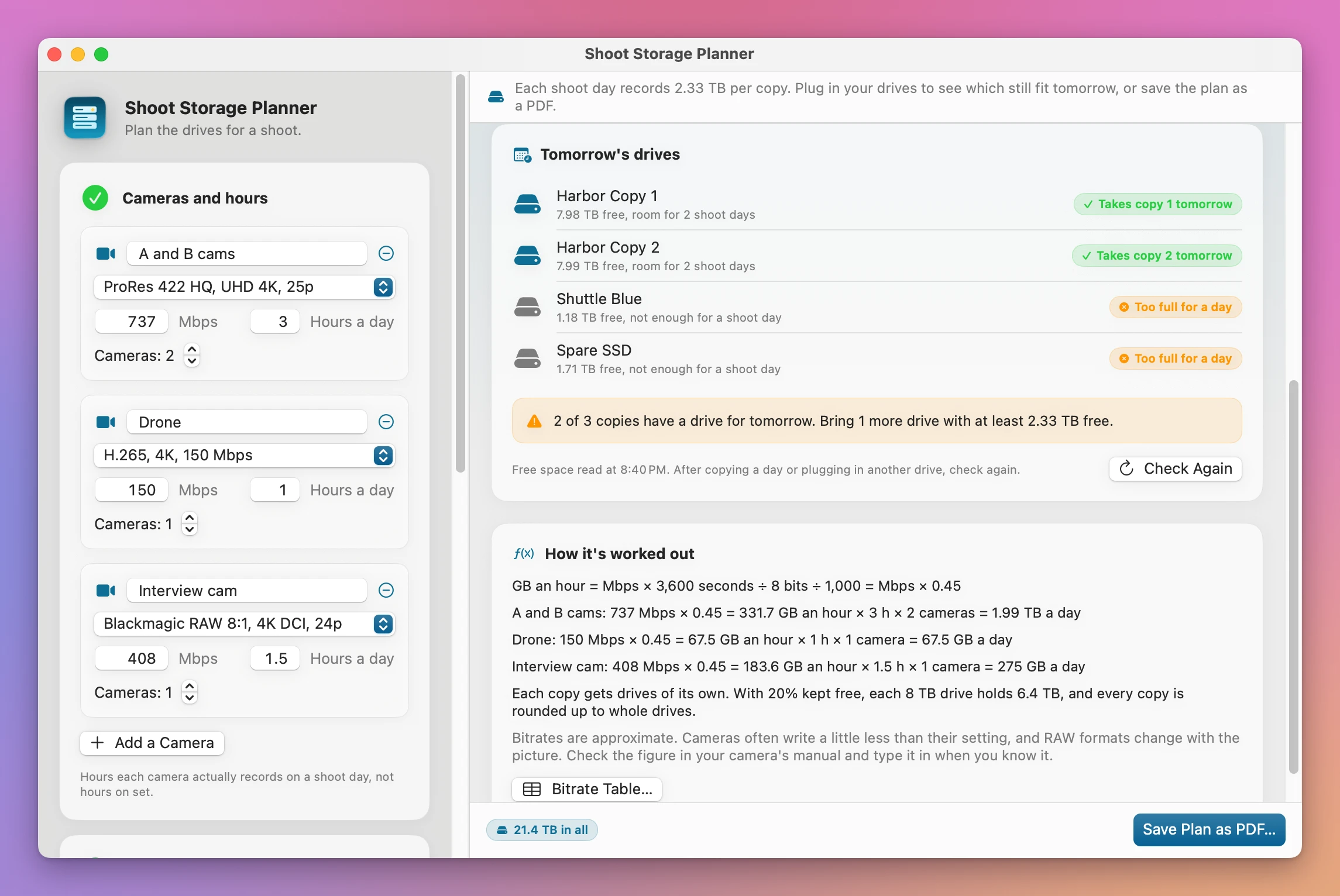
With your drives plugged in, Check the Plugged-In Drives reads how much space each one has free, and nothing else. Each drive gets a line: its free space, how many shoot days still fit, and a pill. Takes copy 1 tomorrow in green, Fits a day, spare, or Too full for a day in orange. If a copy has no drive, a line says how many more drives to bring and how much space each needs.
The math on screen and on paper
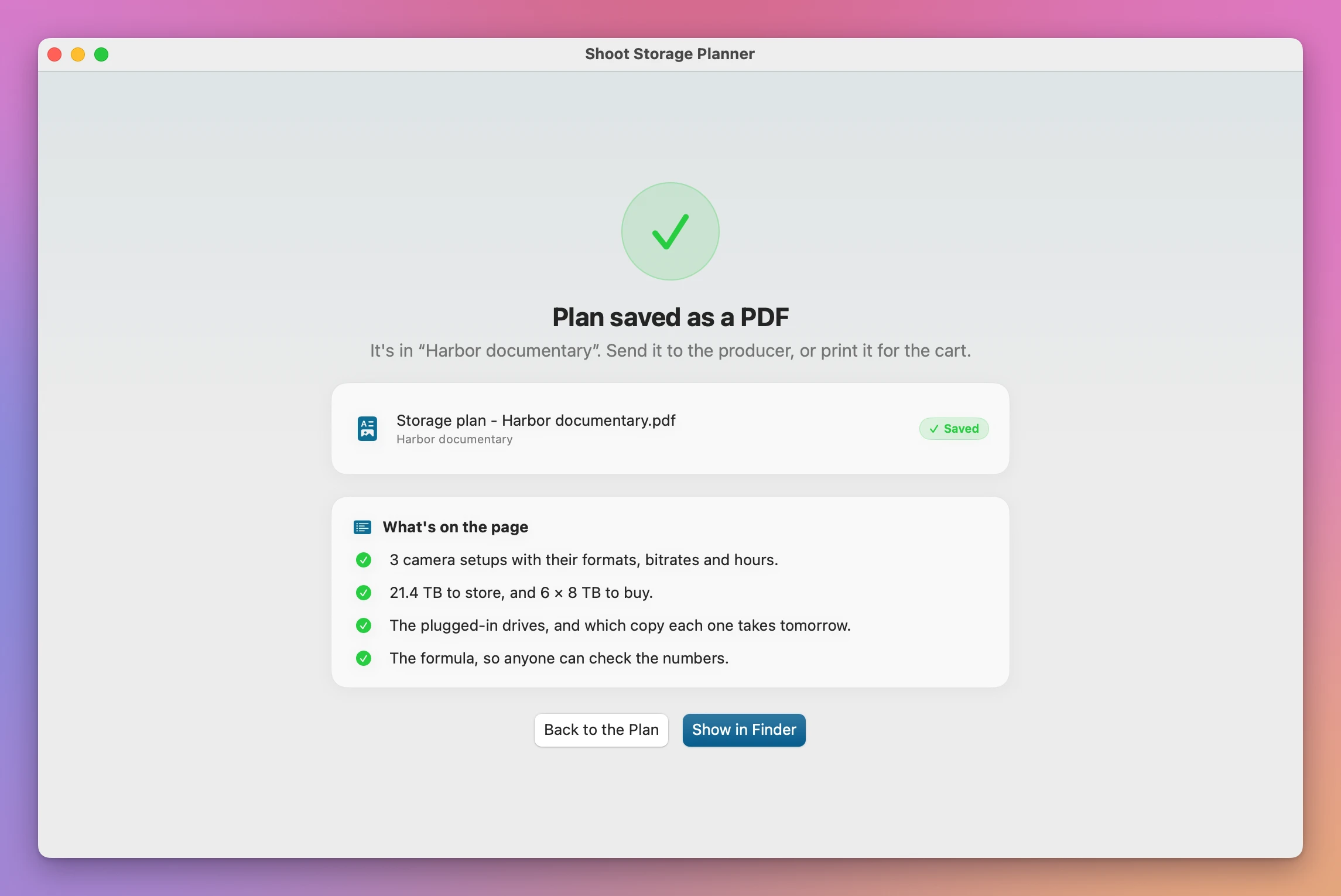
How it’s worked out writes the formula for every camera, like “737 Mbps × 0.45 = 331.7 GB an hour × 3 h × 2 cameras = 1.99 TB a day”, and how the drives are counted. Save Plan as PDF… puts it all on one page, Letter or A4 depending on where you are, with the drive check if you ran one.
Why not use a calculator or a website
Free storage calculators exist on the web and on the iPhone, and they’re good at one question: how many gigabytes an hour of one format takes. A spreadsheet can do the rest if you build it. The Finder shows a drive’s free space in its window or in Get Info, one drive at a time.
What they don’t do is the whole plan in one place: several cameras added up, copies on their own drives, proxies on the right copy, room kept free, the drive count, and the drives on your desk checked against tomorrow.
| Calculator and Finder | Web storage calculators | Shoot Storage Planner | |
|---|---|---|---|
| GB an hour of a format | You multiply by 0.45 | Yes | Yes, from the table or your figure |
| Several cameras, hours, days | You add it up | Usually one format at a time | Up to 8 camera setups |
| Copies on their own drives | You round each one | Rarely | Yes, rounded per copy |
| Proxies on one copy or all | You add them | Rarely | Yes |
| Drives to buy | You divide and round | Rarely | Yes, after the free share |
| Which plugged-in drive fits tomorrow | Get Info on each, then math | No | One click |
| A page for the producer | You type it | No | One-page PDF with the formula |
What it doesn’t do
- It doesn’t copy, offload or verify footage, and it never opens a file on your drives.
- It doesn’t read a camera or a clip to find its bitrate. The table is approximate, and you type the real figure when you know it.
- No drive prices, no offload times, no RAID or parity.
- One plan at a time. It’s remembered between launches, and the PDF keeps a copy of each.
Questions
Does it upload anything?
No. The plan stays on your Mac. The app reads only the free space of your drives, and only when you click. It connects to my update server to check for new versions.
How accurate are the numbers?
The arithmetic is exact. The bitrates in the table are approximate: cameras often write a little less than their setting, and RAW formats change with the picture. That’s why the formula is on screen and every bitrate can be typed over.
How does it count terabytes?
The way drive makers and the Finder do: 1 TB is 1,000 GB. A drive sold as 4 TB shows about 4 TB in the Finder.
What does it need?
macOS 14 Sonoma or later, on an Apple silicon or Intel Mac.
Shoot Storage Planner isn’t made by, affiliated with or endorsed by Apple or Blackmagic Design. ProRes is a trademark of Apple, and Blackmagic RAW is a trademark of Blackmagic Design.
Buy Shoot Storage Planner
$19 plus tax where it applies, paid once. You get the Mac app, signed and notarized by Apple, and it updates itself.