
An app by Flavio
Slide Rehearsal Timer
Open the PDF of your slides, rehearse out loud with the arrow keys, and see the time on every slide against its target. Record your voice to listen back from any slide, compare two rehearsals and export a pacing plan, on your Mac.
Buy Slide Rehearsal Timer · $19One-time purchase. Plus tax where it applies.
macOS 14 or later · Apple silicon and Intel
Latest version 1.1.0, released November 22, 2026
You have a 15 minute slot for a workshop, and your last run-through took 18. A stopwatch tells you that. It doesn’t tell you where the three extra minutes went: the intro, the slide with six bullet points, or the story you always tell on slide 9.
So you rehearse with the stopwatch’s Lap button and a notepad, writing down a time at every slide change. Then you cut something, rehearse again, and compare two columns of numbers by hand. Or you record yourself, and later scrub through 18 minutes of audio looking for the part where you rambled.
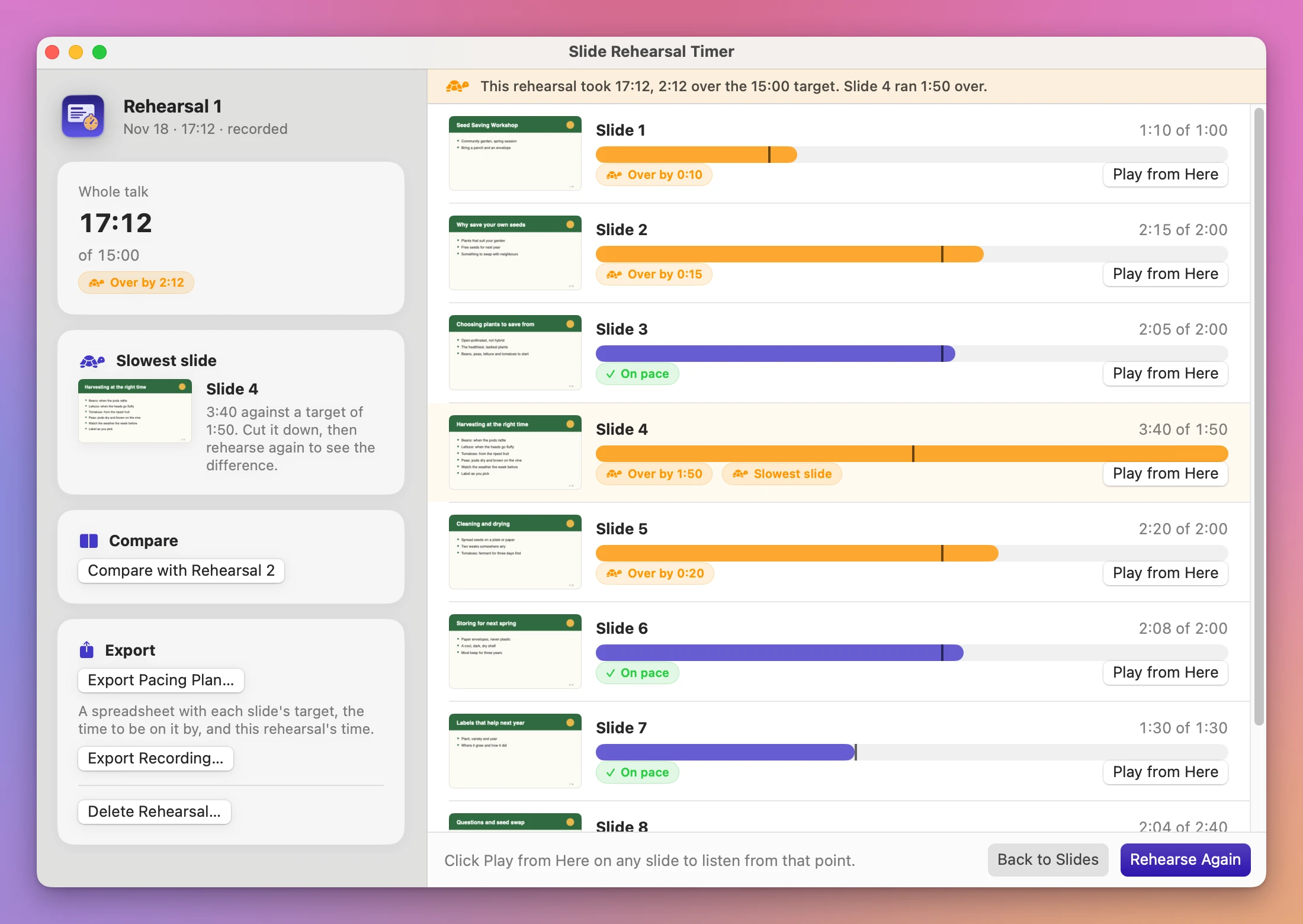
Slide Rehearsal Timer opens the PDF of your slides. You talk through them with the arrow keys, and it records the time on every slide, and your voice too if you want. At the end you see each slide against its target, the slowest one, and you can listen from the moment any slide came up.
Who it’s for
- Workshop instructors. Your 45 minute session keeps running into the coffee break. One rehearsal shows the three slides that eat the time, with how far over each one goes.
- First-time conference speakers. The slot is 20 minutes with a red light at 19. You rehearse every evening for a week, and you want to see the talk get shorter, rehearsal by rehearsal.
- Teachers with a new lesson deck. A 50 minute class and 30 slides. Give the whole lesson 45 minutes, spread it over the slides, and the app tells you “Be on slide 12 by 18:00” while you practise.
- Trainers who give the same deck every month. You changed four slides since last time. Rehearse, compare with last month’s run, and see which changes made it longer.
- Students before a defence or a 12 minute presentation. Record the rehearsal, then click Play from Here on the slide where it felt slow and listen to what you said.
From PDF to pacing plan
- Export your slides as a PDF from Keynote, PowerPoint or Google Slides.
- Click Choose a Slide Deck PDF…, or drag the PDF onto the window.
- Type the length of the whole talk and click Spread Evenly, or type a time like 1:30 next to any slide.
- Pick Record my voice or Time only, no recording, and click Start Rehearsal.
- Talk. Press → or the space bar for the next slide, ← to go back, P to pause.
- Click Finish Rehearsal, and look for the orange pills.
What you get
A rehearsal screen that keeps you on time
The slide fills most of the window. On the side you see the time on this slide against its target, the whole talk against the total, the next slide, and a line like “Be on slide 5 by 6:50” that turns orange when you’re behind.
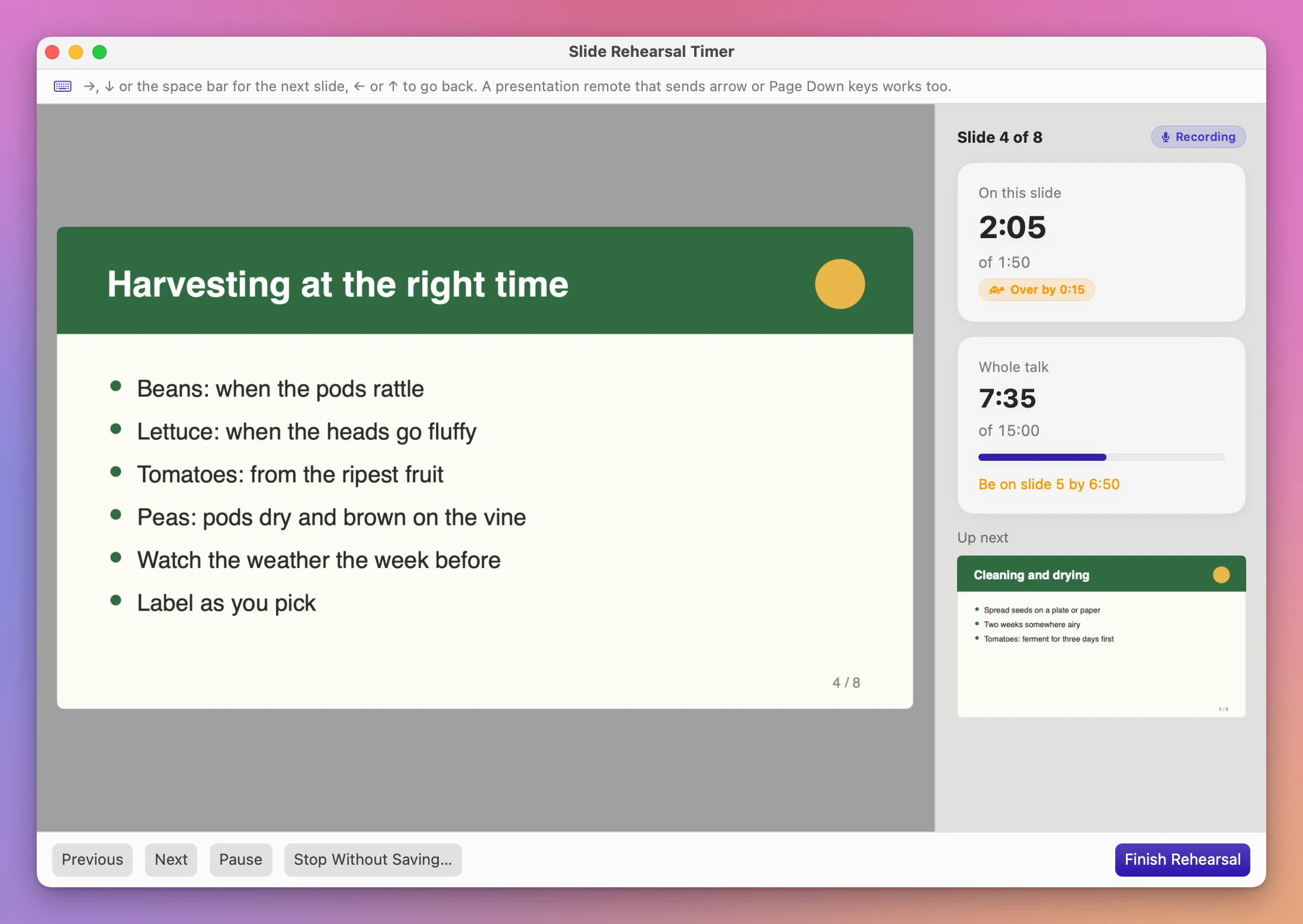
The arrow keys, the space bar, Page Up and Page Down move between slides, so a presentation remote that sends those keys works too. Going back to a slide adds the new time to that slide. Return on its own does nothing, so a stray key never ends the rehearsal.
Every slide against its target
After the rehearsal each slide gets a bar with a tick where its target is, and a pill: On pace within 10% of the target, Over by 1:50, Under by 0:12. The slowest slide gets its own card, so you know what to cut first.
Listen from any slide
With Record my voice on, the app records while you rehearse and remembers where every slide came up. Play from Here on slide 7 starts the recording at slide 7. No scrubbing.
The first time, macOS asks whether the app can use the microphone, right after you click Start Rehearsal. With Time only, no recording, the microphone is never used and nothing is asked.
Two rehearsals side by side
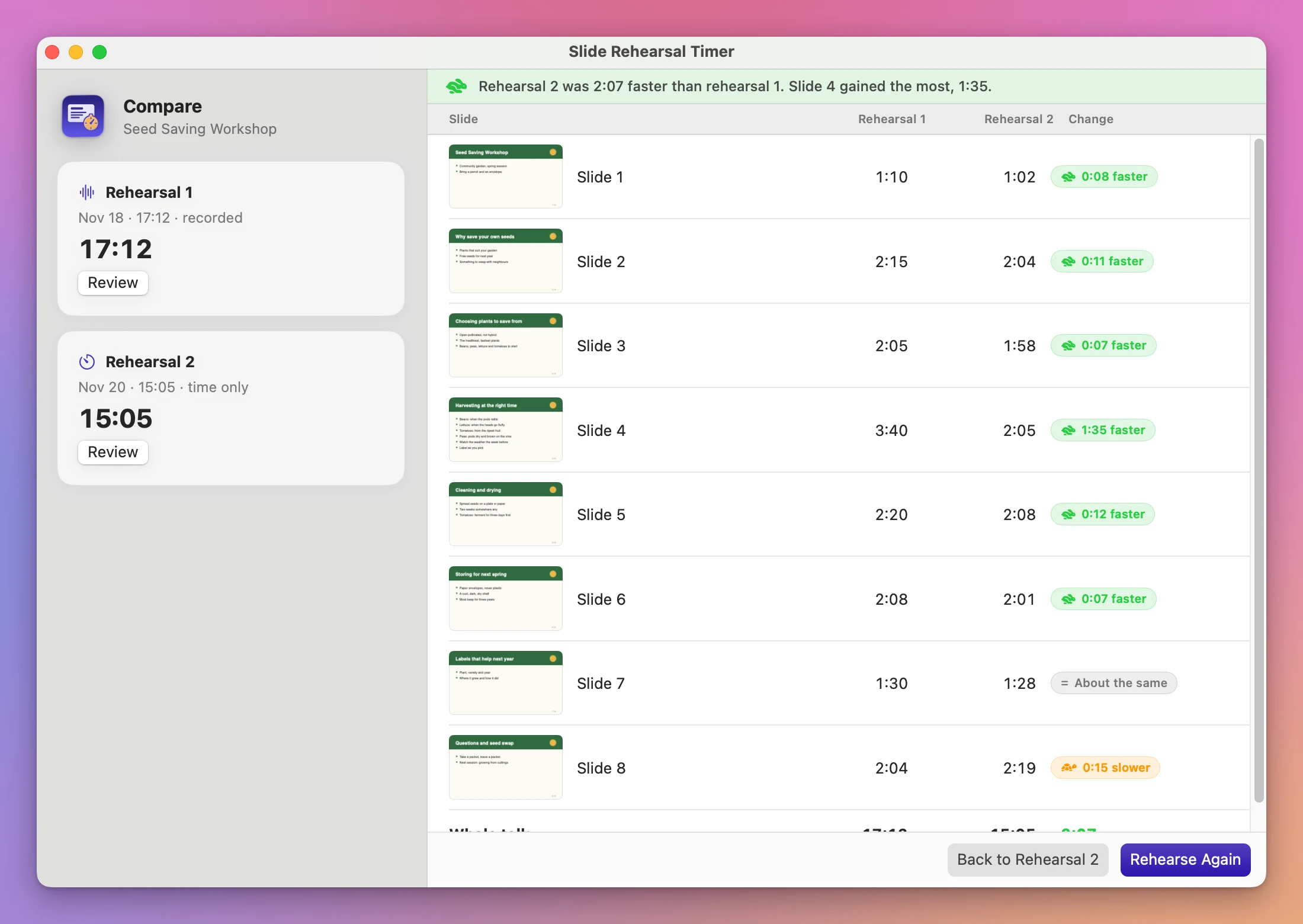
Edit your slides, export the PDF again with the same name, and click Rehearse Again. The app reads the new PDF. Then Compare with Rehearsal 1 lists both runs slide by slide, with how much faster or slower each slide got.
A pacing plan and the recording
Export Pacing Plan… saves a spreadsheet that opens in Numbers or Excel: each slide’s target, when to be on it, the rehearsal’s time and the difference. Print it and keep it next to the laptop. Export Recording… saves the audio as an M4A file.
Why not do it by hand
The Mac and your slides app already give you some of this.
Keynote has a rehearse mode that shows a clock while you practise. PowerPoint has Rehearse Timings, which saves how long each slide stayed up as its advance time, replacing the last run. Neither keeps a list of your rehearsals to compare, or a recording you can play from a slide. They also only work with their own files.
The Clock app’s stopwatch has a Lap button. Press it at every slide change and you get a list of lap times. That works, but it’s one more thing to press while you talk, the laps aren’t tied to slide numbers, and there are no targets. Comparing two rehearsals means copying both lists into a spreadsheet.
Voice Memos or QuickTime record you fine, but with no marks. To hear slide 7 you guess where it started and scrub.
| Clock + notepad | Keynote or PowerPoint | Slide Rehearsal Timer | |
|---|---|---|---|
| Time on every slide | Laps, written down | While you rehearse | Saved for every rehearsal |
| Target per slide | No | No | Yes, or spread from the total |
| ”Be on slide 5 by 6:50” | No | No | Yes |
| Listen from a slide | No | No | Play from Here |
| Compare two rehearsals | By hand | No | Side by side |
| Works with any slides app | Yes | Only its own files | Any PDF |
What it doesn’t do
- It doesn’t change your slides. The PDF is only read.
- No speaker notes, animations or builds: one PDF page is one slide.
- No transcription, words per minute or filler-word counts.
- No video, and no presenting on a second screen to an audience.
- Rehearsals are kept by the PDF’s file name. Rename the file and it starts a new list.
- No sync between Macs.
Questions
Does anything get uploaded?
No. Your slides, targets, rehearsal times and recordings stay on your Mac, in the app’s own folder. The app uses the internet only to check for updates.
Do I need a microphone?
Only to record. Time only, no recording works on any Mac, and never turns the microphone on.
Which slides app does it work with?
Any app that can export a PDF with one page per slide: Keynote, PowerPoint, Google Slides and most others. Slide Rehearsal Timer isn’t made by, affiliated with or endorsed by Apple, Microsoft or Google.
What if I go back to an earlier slide?
The time goes to that slide again, added to what it had. The recording keeps where each slide first came up, so Play from Here starts there.
What it needs
Slide Rehearsal Timer runs on macOS 14 Sonoma or later, on Apple silicon and Intel Macs.
Buy Slide Rehearsal Timer
$19 plus tax where it applies, paid once.
Download the app from the order page or your Creem receipt, unzip it and move it to Applications. I sign the app with my Apple Developer ID, and Apple notarizes the download.
The app checks for updates once a day. When a new version is ready, click Install and Relaunch. To check anytime, choose Slide Rehearsal Timer → Check for Updates….