
How to check a PDF's bleed and margins before printing
By Flavio
Before you send a zine or a booklet to the print shop, check that every page is the right size, has bleed, and keeps text away from the trim. Here's the free way with Preview, and a faster one.
The print shop sent a spec sheet: A5, 148 × 210 mm, 3 mm bleed, keep text 5 mm inside the trim. Your PDF has to match it on every page, or it comes back, or worse, it gets printed with a white line on one edge and a page number cut in half.
You can check this with Preview, page by page. For more than a few pages, Print Bleed Checker checks them all at once and lists the pages to fix.
What the three numbers mean
Spec sheets use three words, and they’re easy to mix up.
- Trim: the finished size, where the paper is cut. For an A5 zine it’s 148 × 210 mm.
- Bleed: extra picture or color past the trim, usually 3 mm (or 0.125 in) on every side. The cutter isn’t perfectly precise, so anything that should touch the edge has to go a little beyond it. Without bleed, a slightly off cut leaves a thin white line.
- Safe margin: a band inside the trim, often 3 to 5 mm, where text and anything important shouldn’t go, for the same reason. A caption 2 mm from the edge can lose its first letter.
A PDF exported with 3 mm bleed is bigger than the trim: an A5 page with bleed measures 154 × 216 mm.
The free way: Preview, one page at a time
Preview, the app that opens PDFs on every Mac, can tell you a page’s size.
- Open the PDF in Preview.
- Choose Tools › Show Inspector. Its first tab, General Info, has a Page size line. On the test Mac it was in inches only: 6.07 × 8.51 inches for an A5 page with 3 mm bleed.
- Click the fourth tab, the crop icon, and set Units to Centimeters (the other choices are Points and Inches). Media Box is the size of the page you’re on.
- Compare it with the spec: the trim plus the bleed on both sides, so 15.4 × 21.6 cm for A5 with 3 mm bleed.
- Choose Go › Go to Page…, type the next page number, and look again. The Inspector follows the page you’re on.
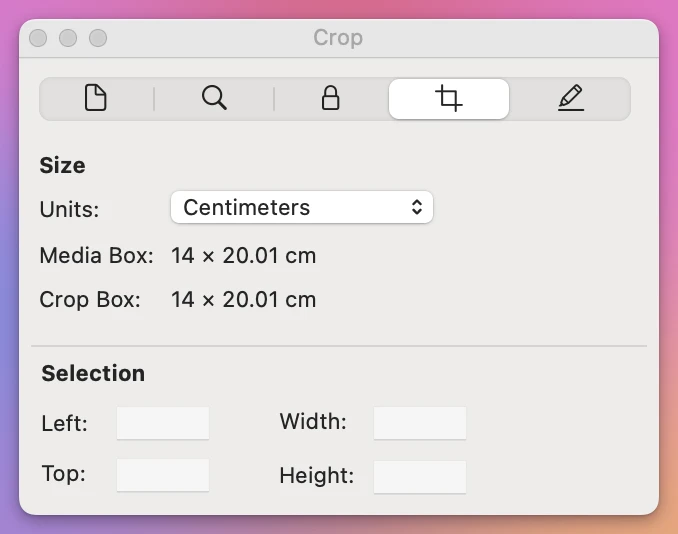
That covers the size. For the bleed, all Preview gives you is the page size: if a page shows 14.8 × 21 cm, the trim size itself, it has no bleed. For the safe margin, Preview draws no guides, so you zoom in on each edge and judge 5 mm by eye.
It works for a 4-page flyer. On a 24-page zine put together from three documents, it’s an hour of clicking, and the mistakes hide in the middle: one page made in another document at 140 × 200 mm, one spread exported without bleed.
The faster way: check every page at once
Print Bleed Checker reads the whole PDF and checks each page against the numbers you type. The example here is a made-up 8-page garden zine, “Moss & Fern”, with three mistakes in it.
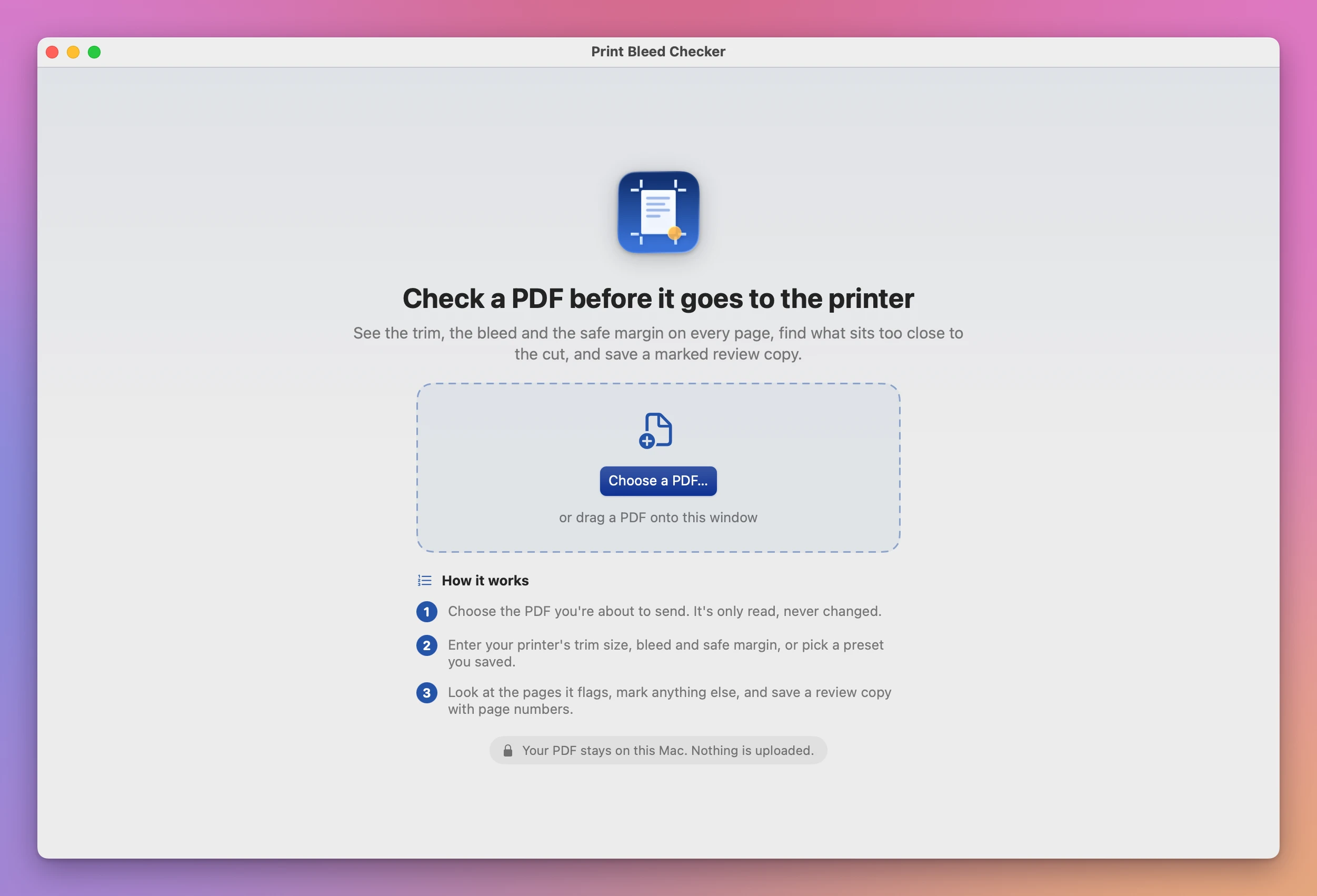
Open the app and click Choose a PDF…, or drag the PDF onto the window.
On the right, under Printer’s spec, pick mm or in, then type the four numbers: Trim width 148, Trim height 210, Bleed 3, Safe margin 5. Every page is checked again as soon as you leave a field.
The page list on the left now has a pill under each page. Green Ready means nothing to fix. Here, three pages need a look.
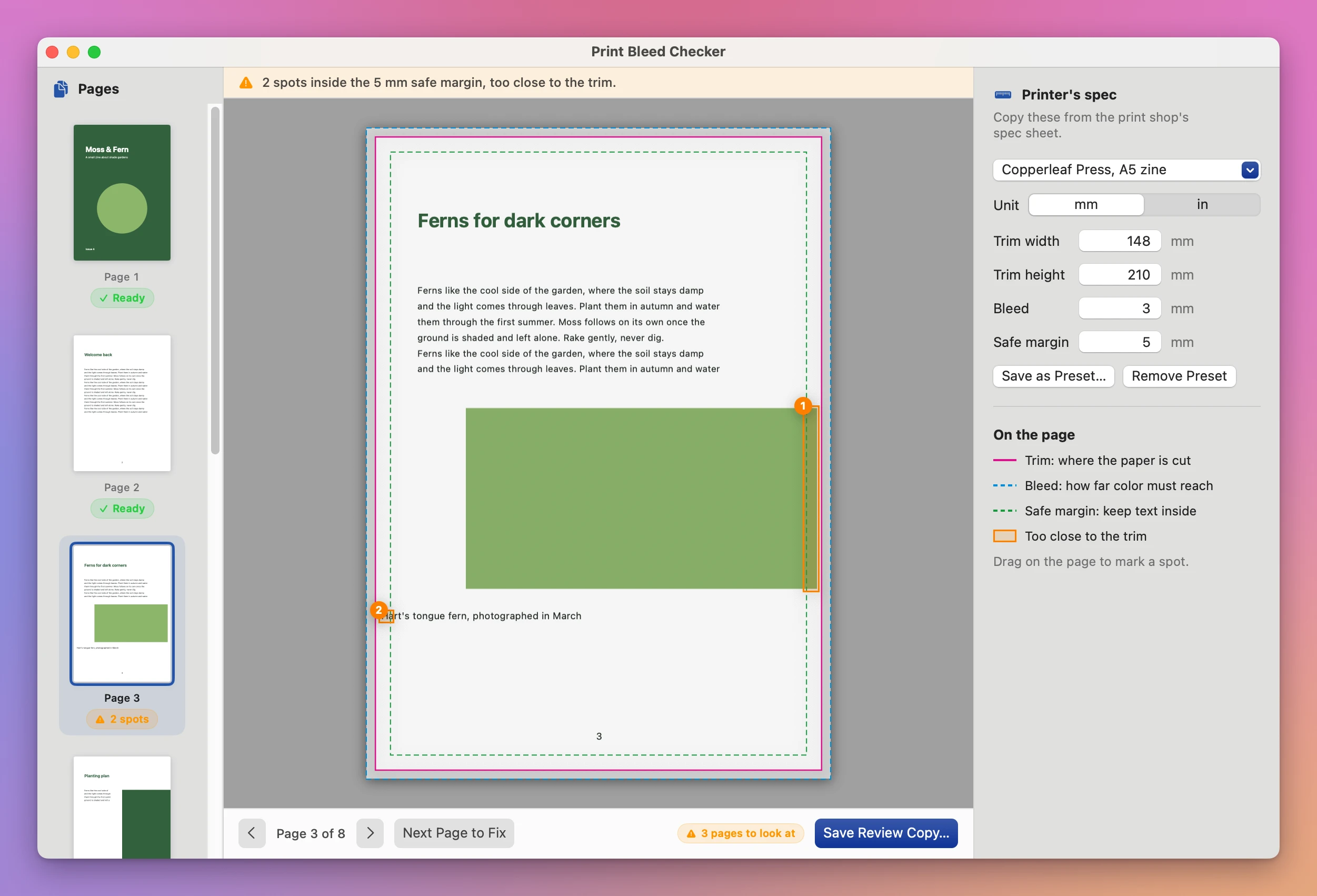
Page 3 has two spots inside the safe margin: a caption that starts 2 mm from the left edge, and a picture that stops 1.5 mm short of the right one. The picture is the worse one: a 1.5 mm strip of white between it and the edge looks like a mistake, and a cut that’s a little off makes the strip uneven. Clicking a box shows how close it comes to the trim.
The cover and page 4 have color and a photo that run off the page on purpose. Those aren’t flagged, because they continue into the bleed.
Click Next Page to Fix to jump to page 5.
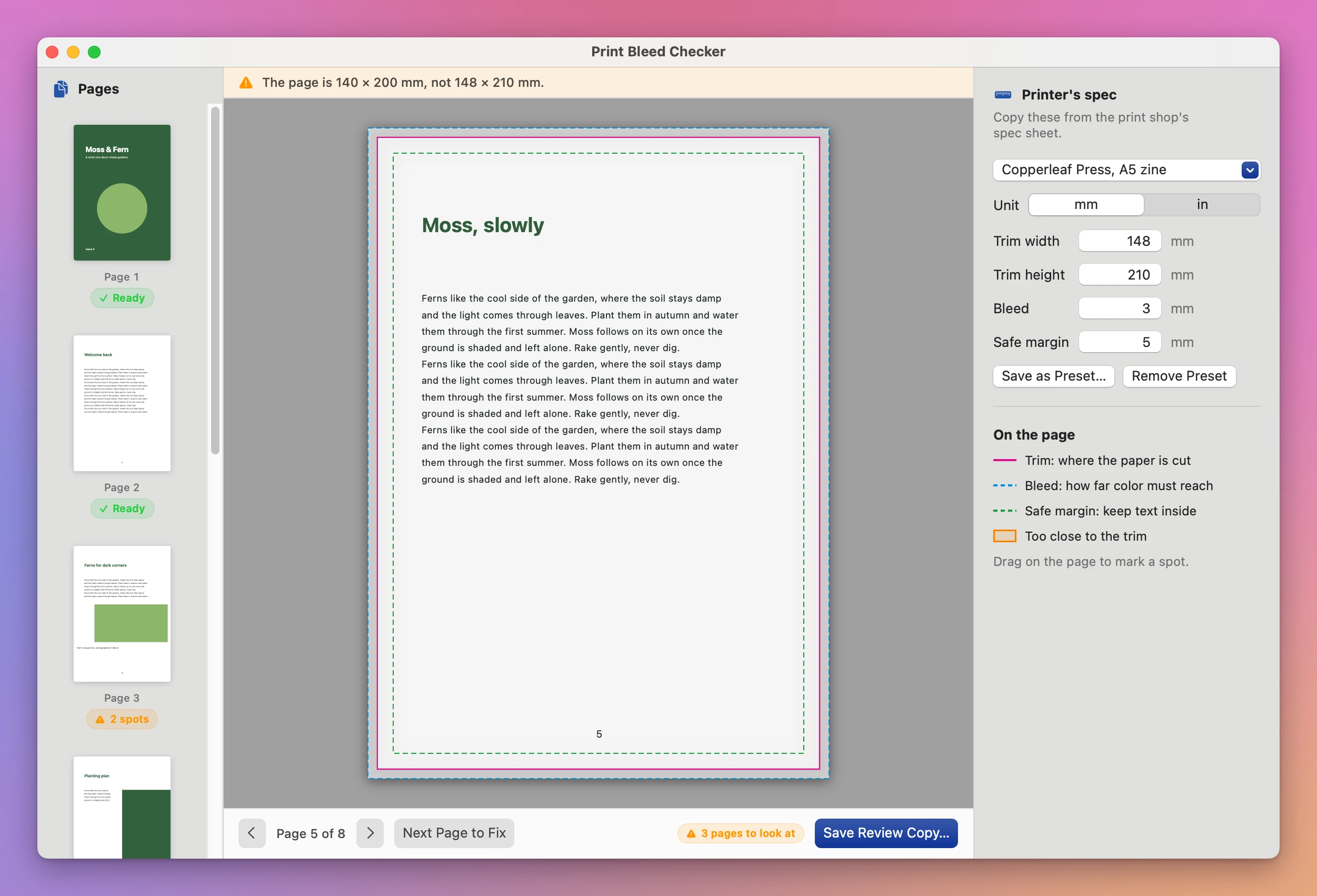
Page 5 is 140 × 200 mm, an undersized page from another document. Page 7 says “No bleed”: it was exported at exactly 148 × 210 mm, with nothing past the trim.
If something else worries you, like a logo you’re unsure about, drag on the page to draw your own box around it.
Save a list for whoever fixes it
Click Save Review Copy…. The app writes a new PDF next to yours: a summary page that lists every page to fix with a sentence (“Page 5: The page is 140 × 200 mm, not 148 × 210 mm.”), then your pages with the lines and the numbered boxes drawn on them.
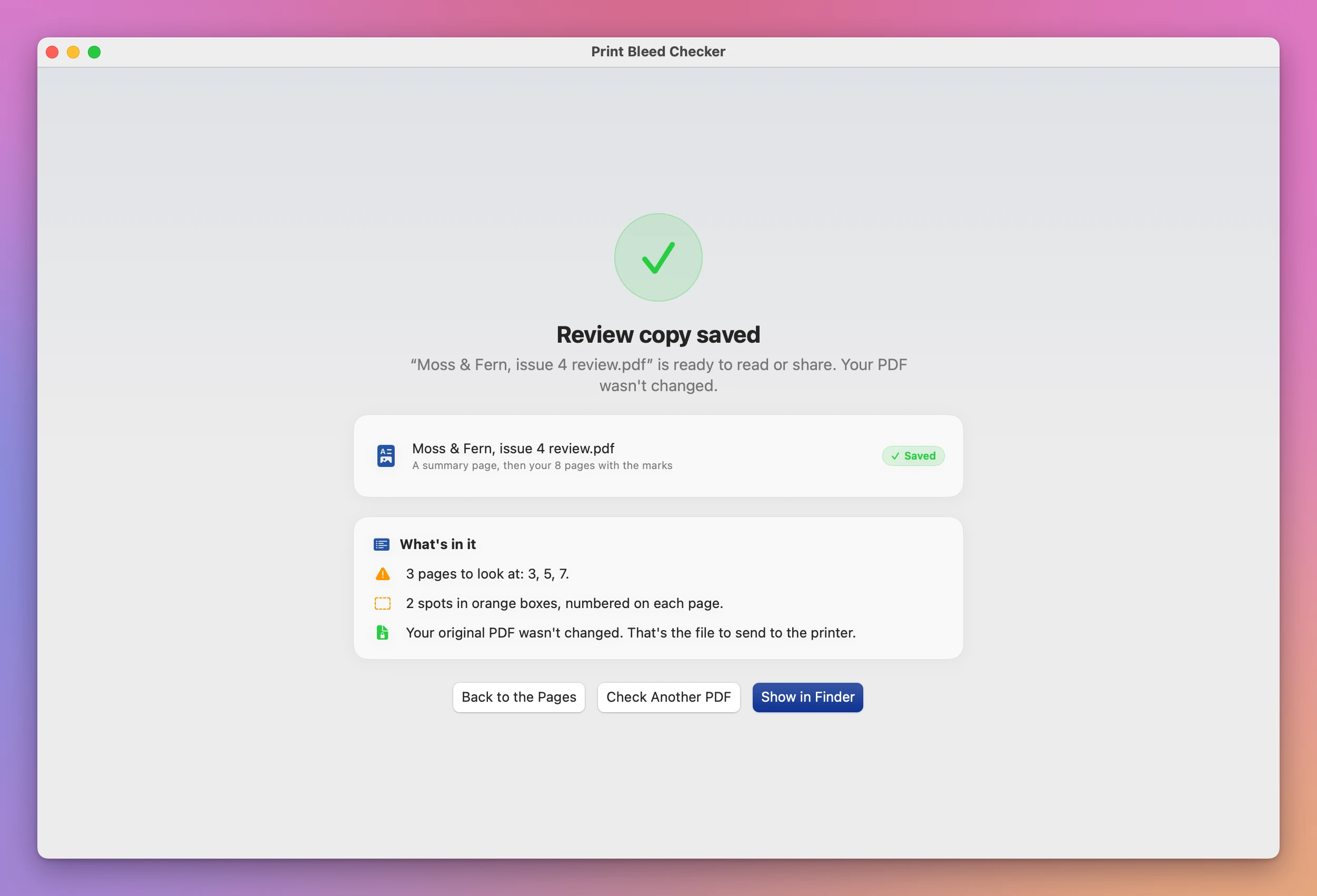
Your PDF isn’t changed. Fix the pages in the app you made them in, export again, and open the new PDF to check it. When every page says Ready, send the printer that file, not the review copy.
To keep a print shop’s numbers for next time, click Save as Preset… and name it after the shop.
Preview or the app?
| Preview | Print Bleed Checker | |
|---|---|---|
| Page size | One page at a time | Every page against your spec |
| Bleed | Work it out from the size | Measured, missing or short flagged |
| Text near the edge | Zoom in and judge by eye | Found and boxed, with the distance |
| Trim and margin lines | Not drawn | Drawn on every page |
| A list of pages to fix | Write it yourself | Review copy with page numbers |
| Cost | Free, on every Mac | $19, paid once |
For a flyer or a postcard, Preview is enough. For anything with more pages, Print Bleed Checker does in a minute what Preview does in an hour.
Get Print Bleed Checker
Check a PDF against your printer's trim size, bleed and safe margin before you send it. See the guides on every page, find pages that are the wrong size or have no bleed, and text or pictures too close to the cut, then save a marked review copy with page numbers. Your original PDF is never changed.
See Print Bleed Checker → · Read the docs · $19. See the app page for tax details.