
How to combine song charts into one setlist PDF
By Flavio
Put your song charts in running order in one PDF on a Mac, with Preview for free or with Setlist Pack, which numbers the songs, prints each key and cue and keeps the backing tracks in the same order.
You have a gig on Saturday and eight songs to play. The charts are PDFs and phone photos in a few different folders, and the band wants one file they can open on a tablet, in the right order.
The free way is Preview, the app that opens PDFs on every Mac: it can join several charts into one PDF. If the order changes again, or you also want the key and a cue on each page, Setlist Pack does it in one click and keeps the backing tracks in the same order.
Can Preview join PDFs into one?
Yes. Preview can add the pages of one PDF to another, and reorder pages by dragging them. The steps go like this:
- In the Finder, select the first chart and choose File › Duplicate. Preview saves its changes into the file you open, so work on the copy. On the test Mac, the copy had all the new pages as soon as they were added, without a Save.
- Open the copy in Preview and choose View › Thumbnails to show the pages in the sidebar.
- Click the last thumbnail, choose Edit › Insert › Page from File…, pick the next chart’s PDF and click Open. Its pages join the document after the one you clicked.
- Repeat for each song, in running order.
- Drag thumbnails up and down if a page is in the wrong place.
- Choose File › Export…, leave Format on PDF, type a new name and click Save.
It’s free, and for a set that won’t change again it’s enough.
Where the free way gets slow
The joined PDF is only the pages. Nothing on them says which song number it is, what key you’re in, whether the guitar needs a capo, or that song 4 starts with the backing track alone. Those live in your head or in a note on your phone.
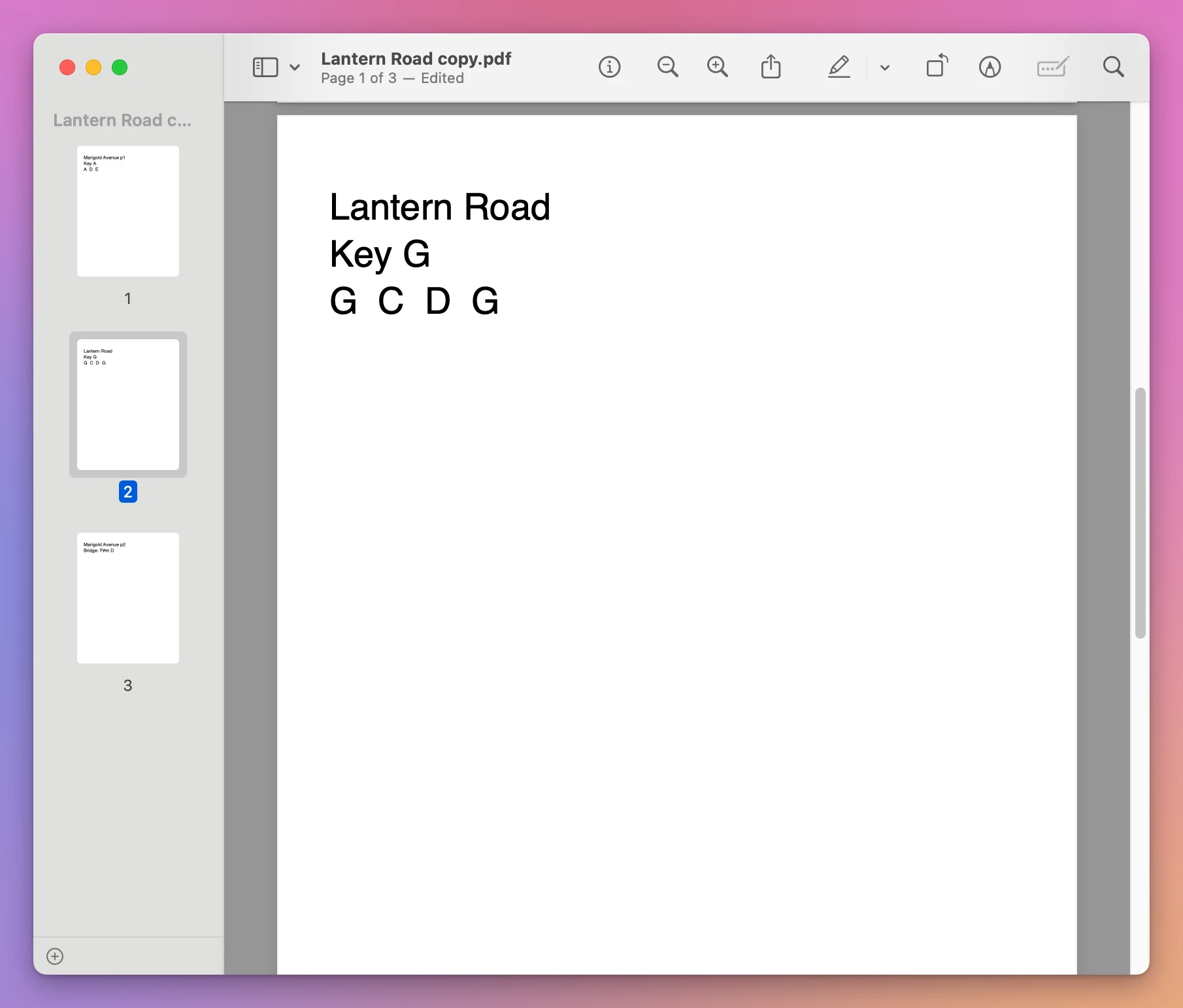
When the running order changes, you drag pages again. A two-page chart is two thumbnails to move, and it’s easy to split one. Here Lantern Road was dragged toward the end of the set and landed between the two pages of Marigold Avenue.
 The backing tracks don’t follow either: you rename
Marigold Avenue - backing track.wav to 02 Marigold Avenue.wav by hand, then rename it again when it becomes song 4.
| Preview | Setlist Pack | |
|---|---|---|
| One PDF in running order | Yes, dragging page by page | Yes, one click |
| Song number, key, capo and cue on each chart | No | At the top of every page |
| The next song and its cue | No | At the bottom of every page |
| A page that lists the running order | Type it yourself | First page of the PDF |
| One bookmark per song | No | Yes |
| Backing tracks numbered in the same order | Rename by hand | Copies in the pack |
| The order changes again | Drag the pages again | Drag the song, export again |
| A chart that moved or disappeared | You notice at the gig | Flagged before you export |
Put the charts in order with Setlist Pack
Setlist Pack is a Mac app that keeps each song with its chart, its backing tracks and a cue. It costs $19, paid once. The songs, charts and tracks in these screenshots are made up for this tutorial.
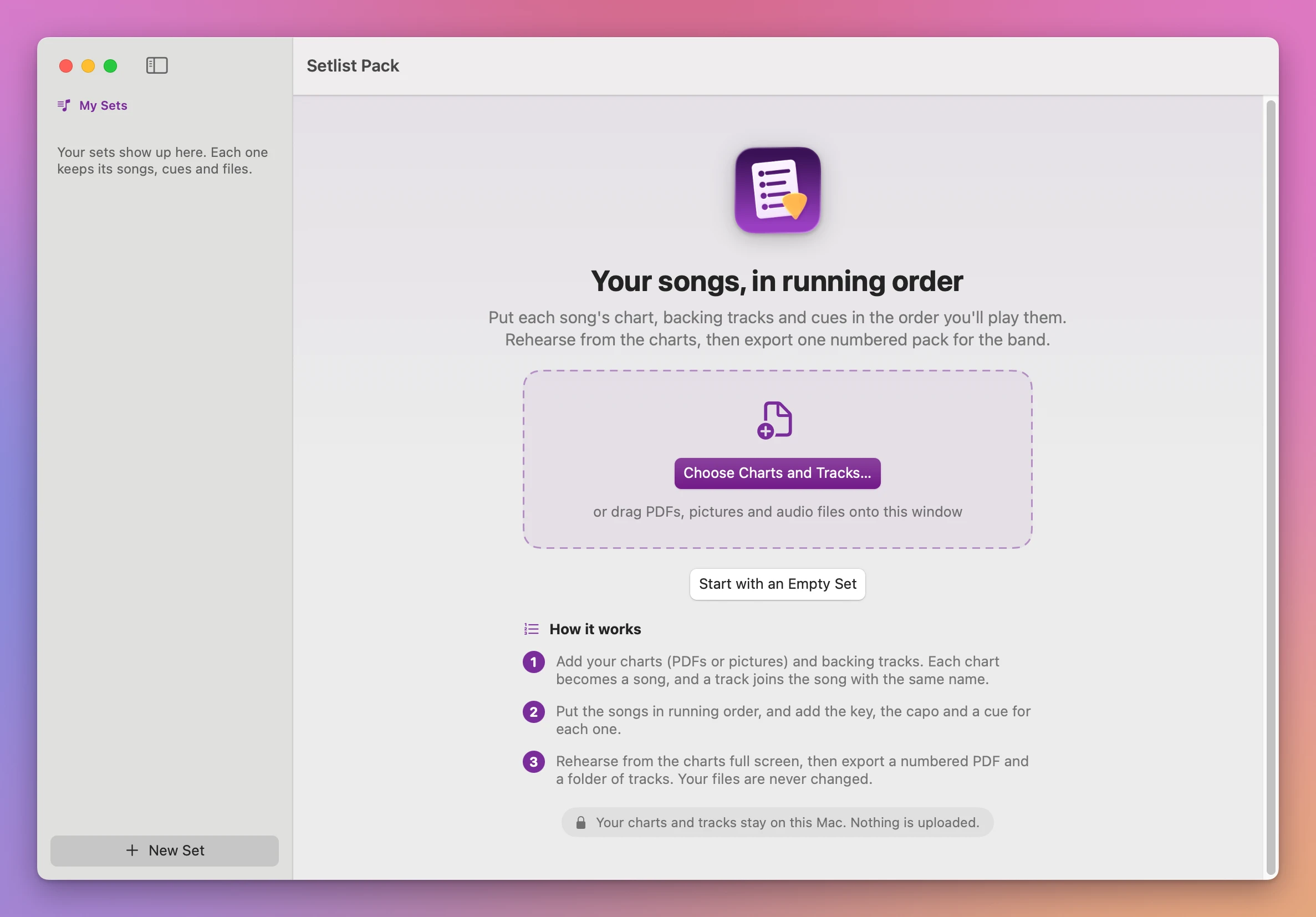
Open the app and click Choose Charts and Tracks…, then pick all the charts and tracks at once. You can also drag them onto the window. Each chart becomes a song named after its file, and a track named like Lantern Road - backing track.wav joins the song Lantern Road.
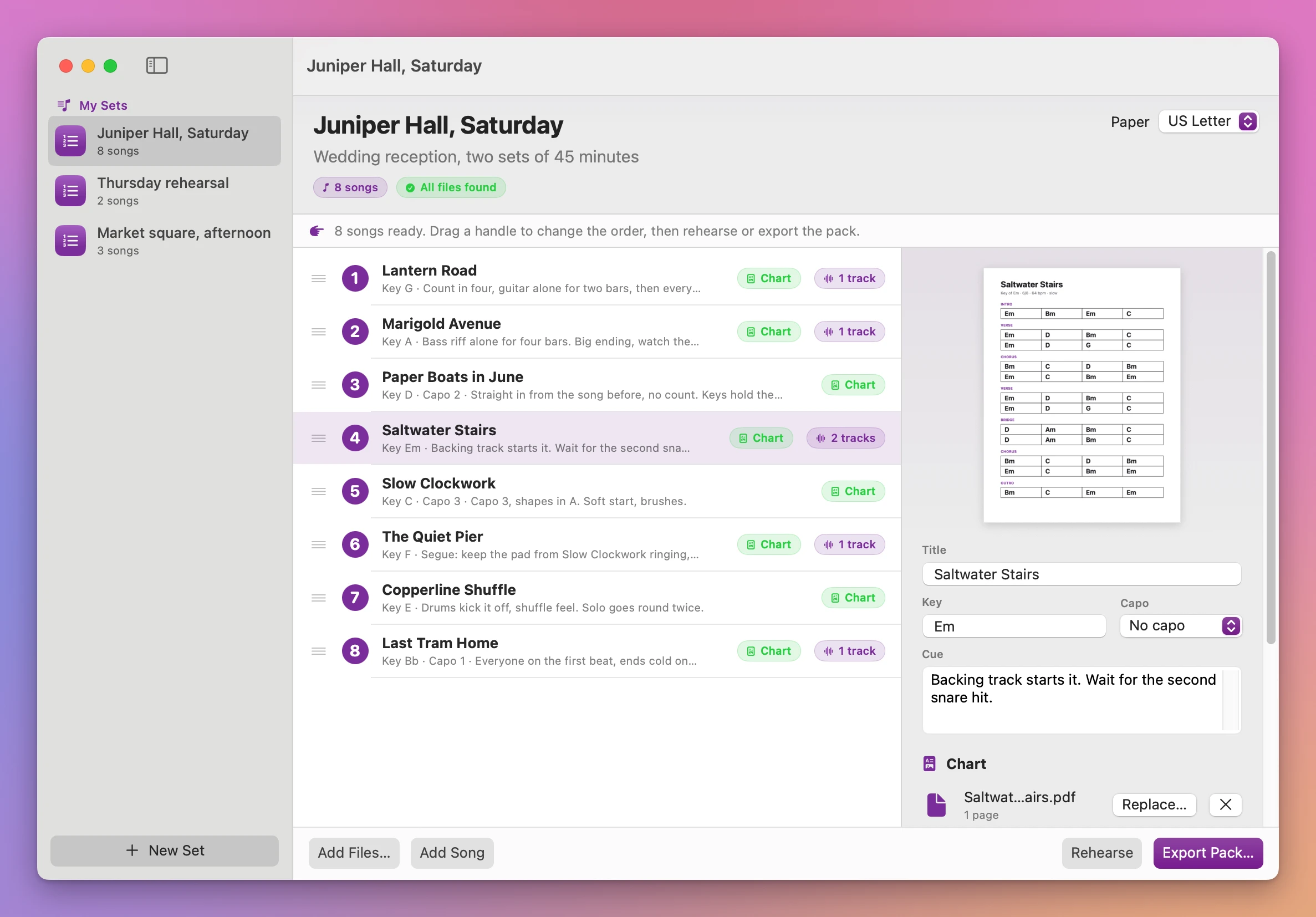
Here the eight made-up charts became eight songs, and the line under the set’s name said “8 songs added and 6 tracks joined their songs.”
Type the name of the set at the top and where you’re playing under it. Then drag each song by its handle, the three lines on the left, into running order. Move Up and Move Down under a song’s details do the same with the mouse, one step at a time.
Click a song to fill in its Key, its Capo and a Cue, like “Bass riff alone for four bars”. Its chart shows on the right.
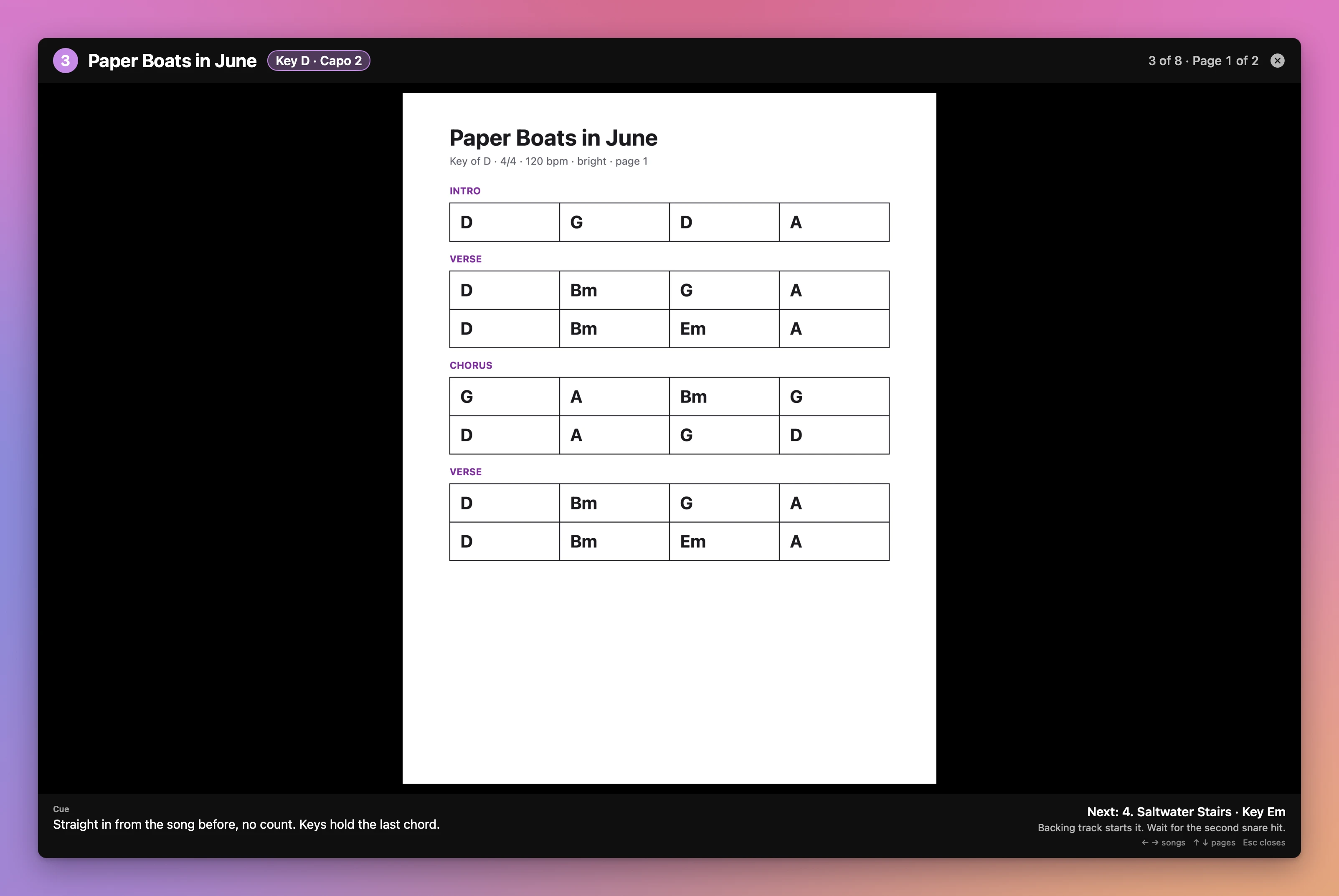
To play through the set before the gig, click Rehearse. The chart fills the screen with the song’s number, key and capo at the top, and its cue and the next song at the bottom. The left and right arrow keys move between songs, up and down between the pages of a chart, and Escape closes it.
Export the pack for the band
Click Export Pack…, choose a folder, and click Export Here. The app makes a folder named after the set with three things in it:
- one PDF: the running order with every cue on the first page, then each chart with its number and key at the top and the next song at the bottom, with a bookmark per song
- Backing tracks, with a copy of each track numbered in running order
- Setlist.txt, the running order as plain text for the band chat
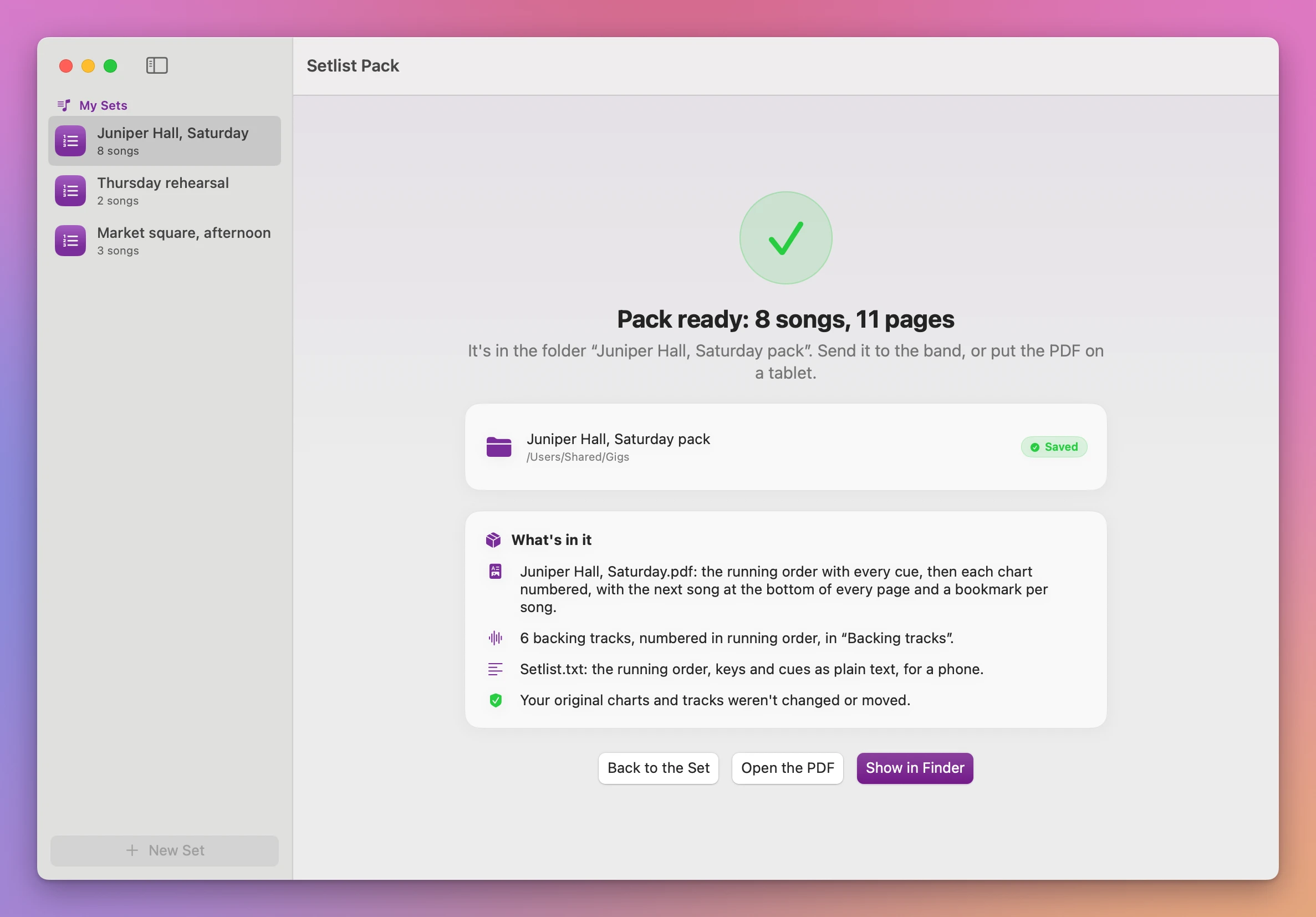
The pack is made of copies: your original charts and tracks stay as they are.
When the order changes at soundcheck
Drag the song to its new place and click Export Pack… again. The new pack goes next to the old one, with a number after its name. Every song number, page number, “Next” line and track number follows the new order.
If a chart isn’t where it was, its song shows an orange Missing pill before you export. A file you only moved to another folder is found by itself. For one that’s really gone, Find Moved Files… looks in a folder you choose.
Get Setlist Pack
Put each song's chart, backing tracks and cues in the order you'll play them. Rehearse from the charts full screen, catch missing files before the show, and export one numbered PDF and a folder of tracks for the band.
See Setlist Pack → · Read the docs · $19. See the app page for tax details.