
How much storage do I need for a video shoot? Work out the terabytes and the drives
By Flavio
Multiply each camera's bitrate by 0.45 to get gigabytes an hour, then by the hours, cameras, days and copies, and round each copy up to whole drives. Here's the arithmetic with a calculator, and the faster way with a Mac app.
You’re planning a shoot and someone asks how many drives to order. The answer comes from the cameras’ bitrates. Multiply each bitrate in megabits a second by 0.45 to get gigabytes an hour, then by the hours each camera records, the number of cameras, the shoot days and the copies you keep. Then round each copy up to whole drives, leaving some room free on each one.
Let’s do it by hand first, then with Shoot Storage Planner.
Why 0.45?
A bitrate is in megabits a second. An hour has 3,600 seconds, a byte has 8 bits, and a gigabyte is 1,000 megabytes. So:
GB an hour = Mbps × 3,600 ÷ 8 ÷ 1,000 = Mbps × 0.45
A camera recording H.265 at 150 Mbps writes 67.5 GB an hour. ProRes 422 HQ in UHD 4K at 25p is about 737 Mbps, so about 332 GB an hour. Drive makers and the Finder count 1 TB as 1,000 GB, so you can stay in those units all the way.
The bitrate is the one number you have to look up. For H.264 and H.265 it’s the camera’s bitrate setting. For ProRes, Apple publishes a table for each resolution and frame rate. For Blackmagic RAW, the camera’s manual lists the data rate of each ratio, often in megabytes a second: multiply by 8 to get megabits.
Work it out with a calculator
The example here is a made-up three-day documentary, the same one in the screenshots below:
- two cameras in ProRes 422 HQ, UHD 4K, 25p, recording 3 hours a day each;
- a drone in H.265 at 150 Mbps for 1 hour a day;
- an interview camera in Blackmagic RAW 8:1, 4K DCI, about 408 Mbps, for an hour and a half;
- three copies of everything, and ProRes Proxy files for the editor on the first copy.
Go camera by camera, with Calculator or any calculator:
| Camera | Sum | A day |
|---|---|---|
| A and B cams | 737 × 0.45 × 3 × 2 | 1,990 GB |
| Drone | 150 × 0.45 × 1 | 67.5 GB |
| Interview cam | 408 × 0.45 × 1.5 | 275 GB |
| One copy, a day | 2,333 GB |
Proxies are made for every hour every camera records: 8.5 hours a day here. ProRes Proxy at HD 1080 25p is about 38 Mbps, so 38 × 0.45 × 8.5 = 145 GB a day, on the first copy only.
Over three days, the first copy holds (2,333 + 145) × 3 = 7,434 GB, and the other two hold 6,999 GB each.
Now the drives. Each copy goes on drives of its own, because two copies on the same drive aren’t a backup. With 8 TB drives and 20% of each kept free, a drive holds 6.4 TB. 7.4 TB doesn’t fit on one drive, and neither does 7 TB, so each copy needs two: six 8 TB drives in all.
It works. It’s also a dozen multiplications, and a single missed factor (the second camera, the proxies, the free space) changes the drive count.
Check which drives still fit tomorrow
The night before a shoot day, the question changes: which of the drives on the cart still have room for tomorrow?
In the Finder, a drive’s Get Info window shows its capacity and how much is available. Open it for each drive, subtract the space you want to keep free, and compare with one copy’s day. Remember that each copy needs a drive of its own.
The faster way: Shoot Storage Planner
Shoot Storage Planner is a Mac app that does this arithmetic as you type. It costs $19, paid once.
Name each camera, pick its format from the Format menu, and type the hours it records a day. The bitrate fills in from a built-in table, and you can type the figure from your camera’s manual over it. Click Add a Camera for the drone and the interview camera. Then set the shoot days, the copies, where the proxies go and how much of each drive to keep free, and pick the drive size.
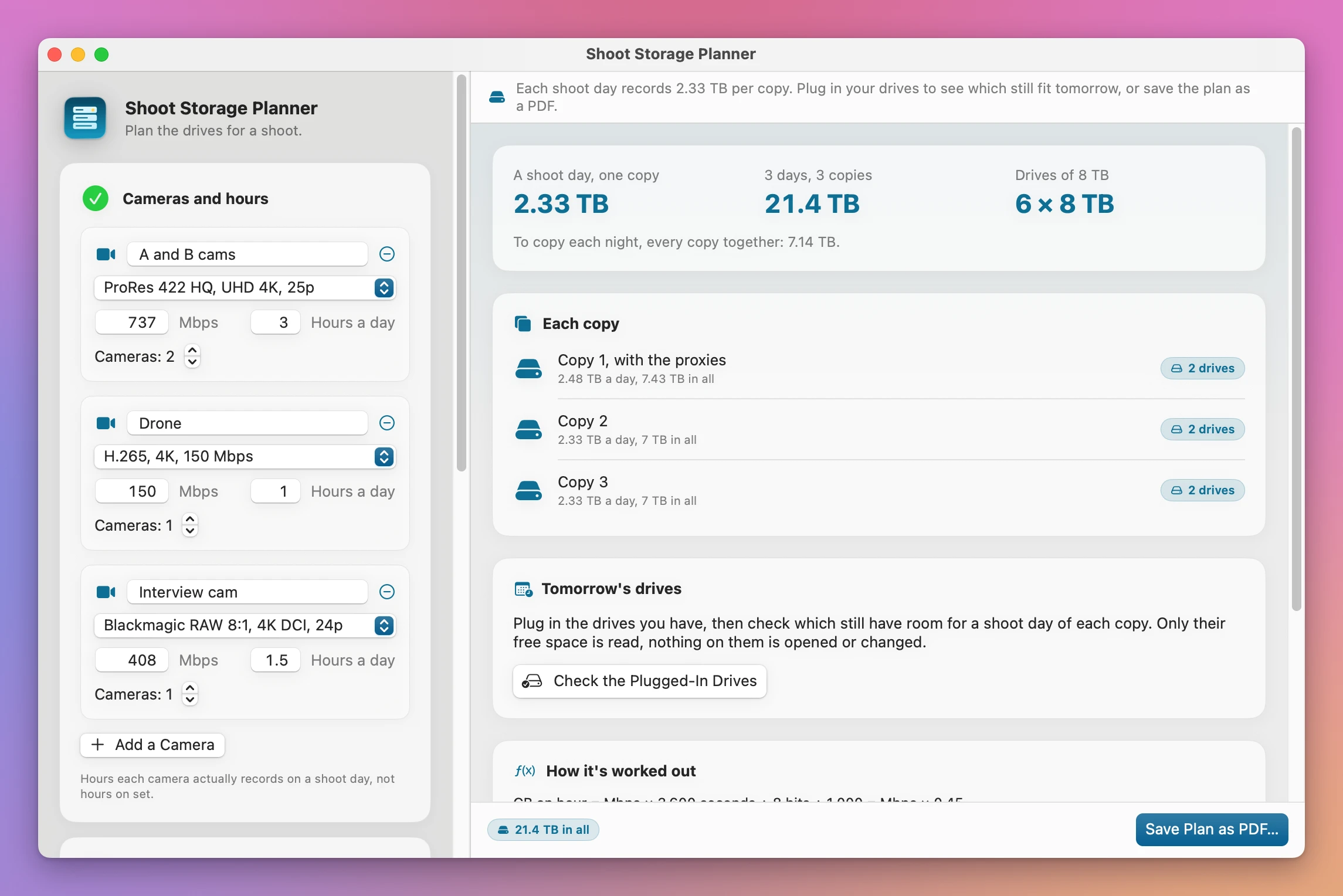
The numbers are the same as the calculator’s: 2.33 TB a day, 21.4 TB stored in all, six 8 TB drives. How it’s worked out shows the sum for each camera, like “737 Mbps × 0.45 = 331.7 GB an hour × 3 h × 2 cameras = 1.99 TB a day”, so you can check it.
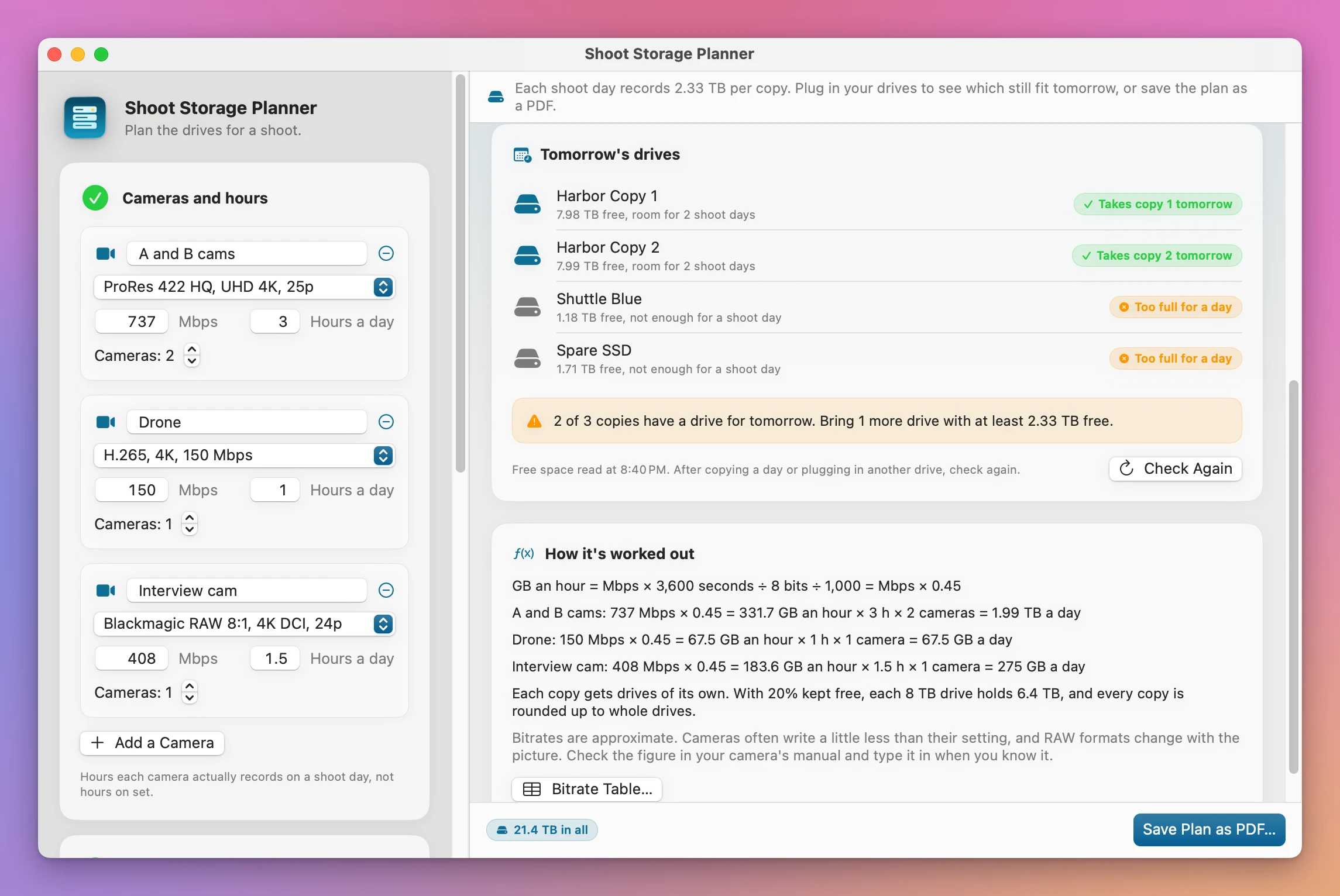
The night before, plug in the drives and click Check the Plugged-In Drives. The app reads how much space each drive has free, and nothing else. Each drive gets a line that says which copy it takes tomorrow, or that it’s too full for a day.
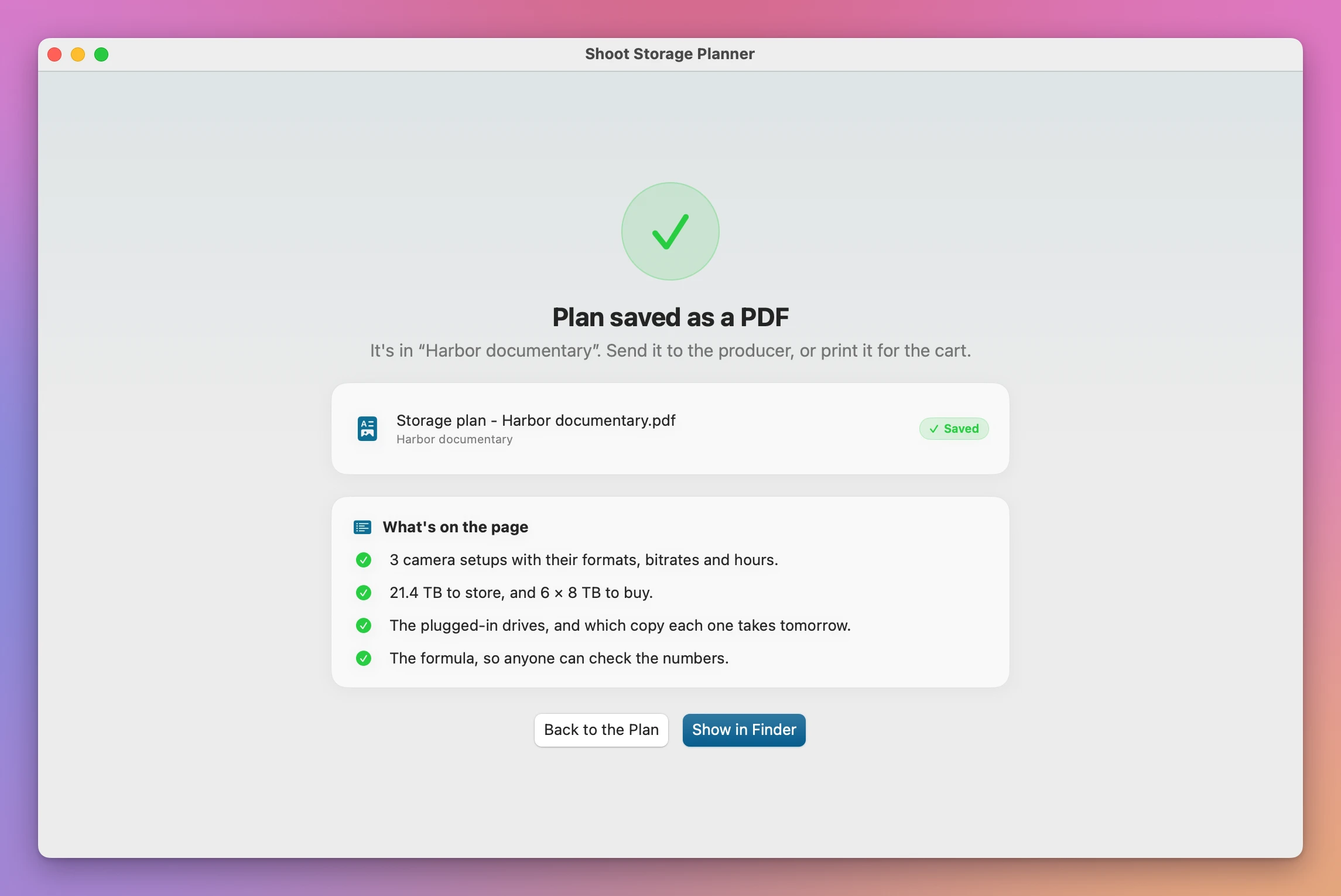
Save Plan as PDF… writes it all on one page, with the formula, for the producer.
Calculator or app?
| Calculator and Finder | Shoot Storage Planner | |
|---|---|---|
| GB an hour | Mbps × 0.45, by hand | Filled in from the format |
| Several cameras | One sum each, then add | Up to 8 camera setups |
| Copies and proxies | You add and multiply | Set once |
| Drives to buy | Divide and round each copy | Counted per copy |
| Which drive fits tomorrow | Get Info on each drive, then math | One click |
| A page for the producer | You type it | One-page PDF |
The calculator is fine for one camera and one copy. Once there are several cameras, backups and a cart of drives, the app saves the dozen sums and the mistakes that come with them.
The bitrates in any table are approximate. Cameras often write a little less than their setting, and RAW formats change with the picture, so plan with the figure from your camera’s manual when you have it.
Get Shoot Storage Planner
Work out how many terabytes a video shoot fills and how many drives to buy, from each camera's format, the hours it records, the shoot days and the copies you keep. The night before, see which of your plugged-in drives still fit tomorrow, and save the plan as a one-page PDF for the producer.
See Shoot Storage Planner → · Read the docs · $19. See the app page for tax details.