
Keep track of when the photo licenses you sold expire
By Flavio
You licensed photos to clients for a year or two, and nobody reminds you when a license runs out. Here's how to keep the end dates, see what expires in the next 30, 60 and 90 days, and send the client a renewal note in time.
You licensed four photos to a bakery for a year: their website, social media and the printed menus. The year is up on December 10. The bakery won’t write to tell you, and the photos will still be on their menus in January.
The short answer: write down the end date of every license the day you sign it, somewhere that warns you a few weeks before, and send the client a note before the last day. Calendar can do the warning for free. If you sell more than a handful of licenses a year, Photo License Tracker keeps the licenses with their photos and terms, shows what ends in the next 30, 60 and 90 days, and writes the note for you.
What a license needs to remember
A usage license is a deal with five parts: which photos, where the client may use them (website, print, packaging, billboards), in which territory, whether it’s exclusive, and for how long. The fee goes with it.
The part that costs money is the last one. When a license ends and the client keeps using the photos, you can ask for a renewal, but only if you notice. The end date usually lives in three places at once: the agreement PDF, the invoice, and an email thread from a year ago.
So the job is to keep the end date next to the rest of the terms, and to be told early enough to write to the client.
The free way, with Calendar
Calendar comes with every Mac, and it’s enough for a few licenses a year.
- Open Calendar, click Month and go to the month the license ends with the arrow next to Today.
- Double-click the last day of the license. Calendar makes a “New Event” from 9 to 10 AM, with its title selected.
- Type a title you’ll understand in a year, like “License ends: Juniper Bakes, spring menu”, and press Return.
- Double-click the event to open it, then click its date. Tick all-day.
- Click the alert menu. It offers a reminder on the day, 1 or 2 days before, or 1 week before. For more, pick Custom…, type the number of days, like 21, and click OK.
- Click Add Notes, URL, or Attachments and type the photos, the uses, the territory, the fee, and where the agreement is.
- Click an empty day to close the event, then double-click it again to check that the alert and the notes are there.
The license in this screenshot is made up.
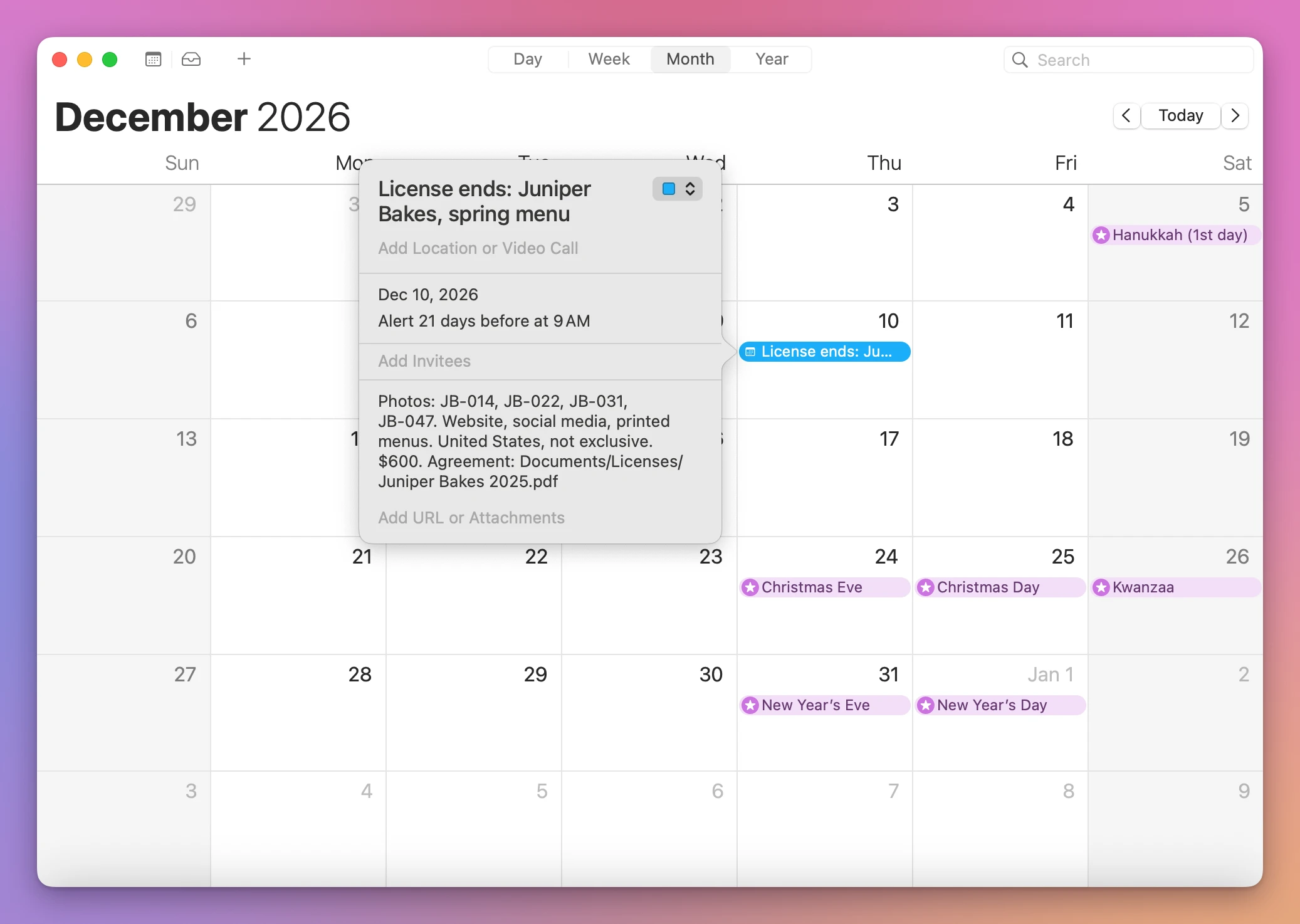
That’s about two minutes per license, and it works as long as you do it the day you sign. To see every license at once, type “License ends” in the search field: Calendar lists the matching events by date on the right. What it doesn’t do: keep the photos or the agreement, or write the note to the client. When the alert rings, you open the old invoice and write the email from scratch.
A spreadsheet in Numbers is the other free way. One row per license, one column per term, sorted by end date. It gives you the list Calendar doesn’t, but it never rings, and the photos stay in your shoot folders.
The shorter way, with Photo License Tracker
Photo License Tracker is a Mac app I made for this. It costs $19, paid once. The clients and photos in these screenshots are made up.
Click Choose Photos… and pick the photos you licensed, with the signed agreement. You can also drop them on the window. The app keeps a small preview of each photo and a copy of the agreement, and never changes your originals. The new license starts today and ends a year later, and the line at the top asks for the client’s name.
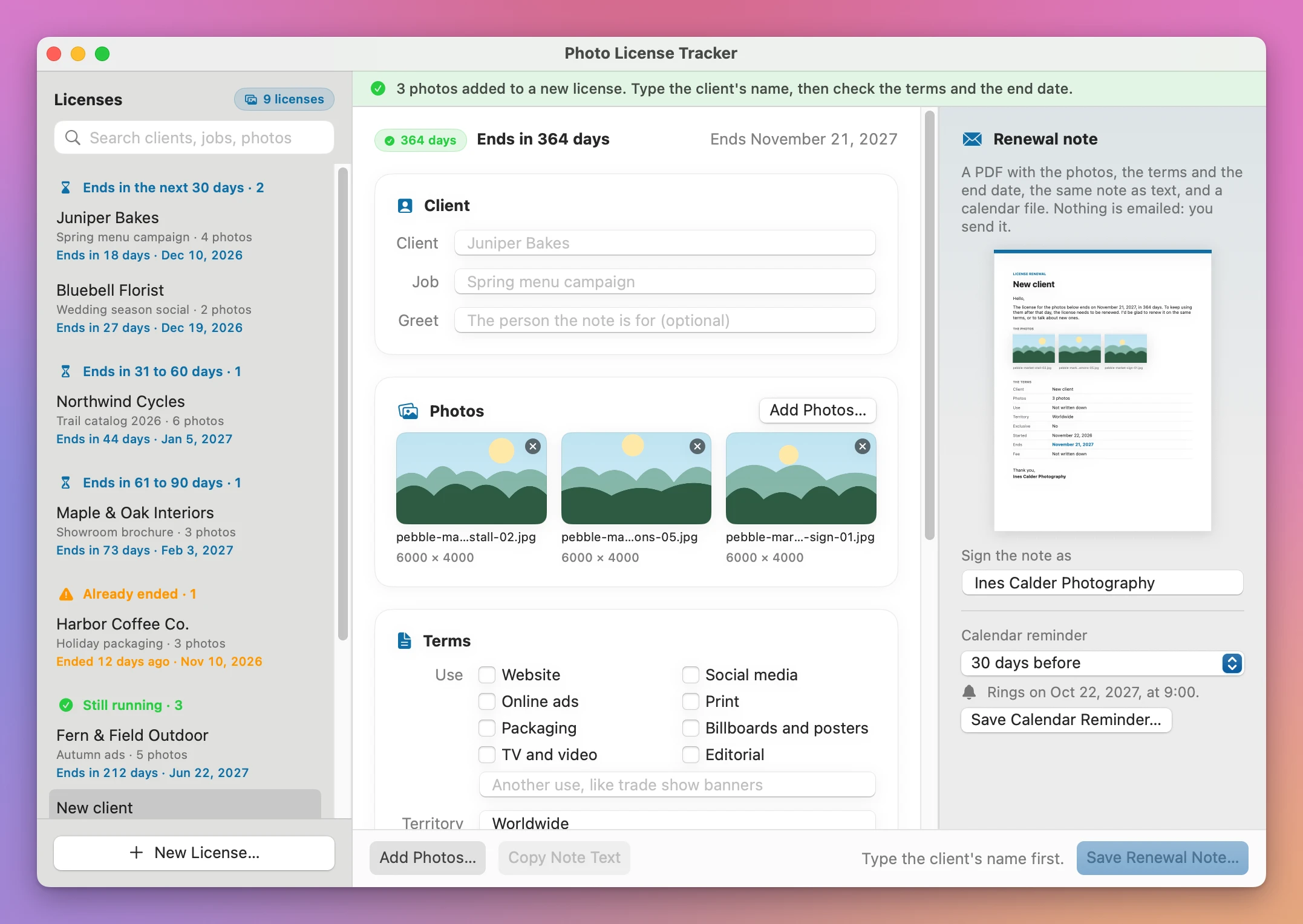
Type the client, the job and the person to greet. Under Terms, tick where they may use the photos, type the territory, tick Exclusive if it is, and set the start date, the end date and the fee.
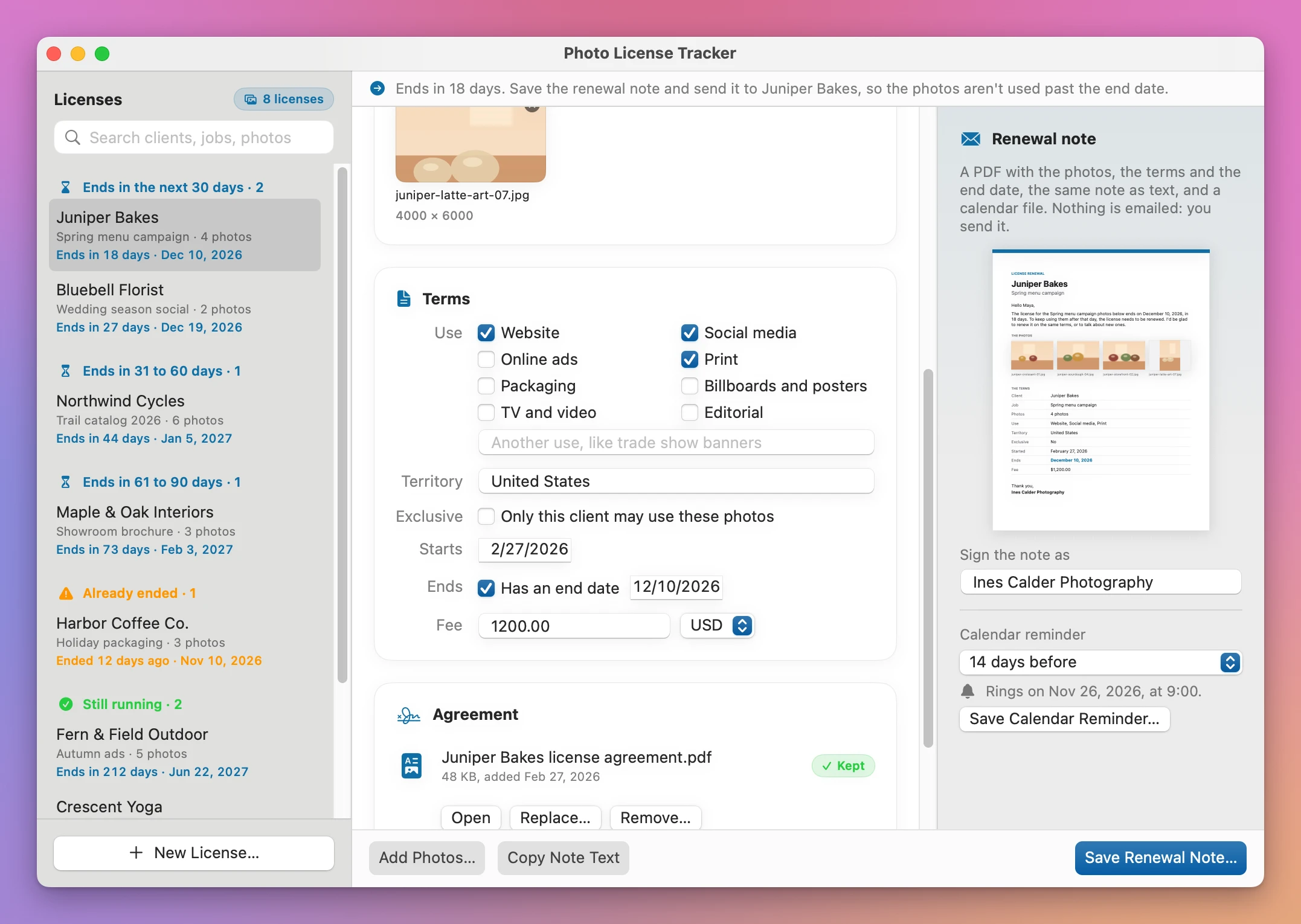
The list on the left does the counting. It groups every license into Ends in the next 30 days, Ends in 31 to 60 days, Ends in 61 to 90 days, Already ended (in orange) and Still running, and works out the days from today each time you open it.
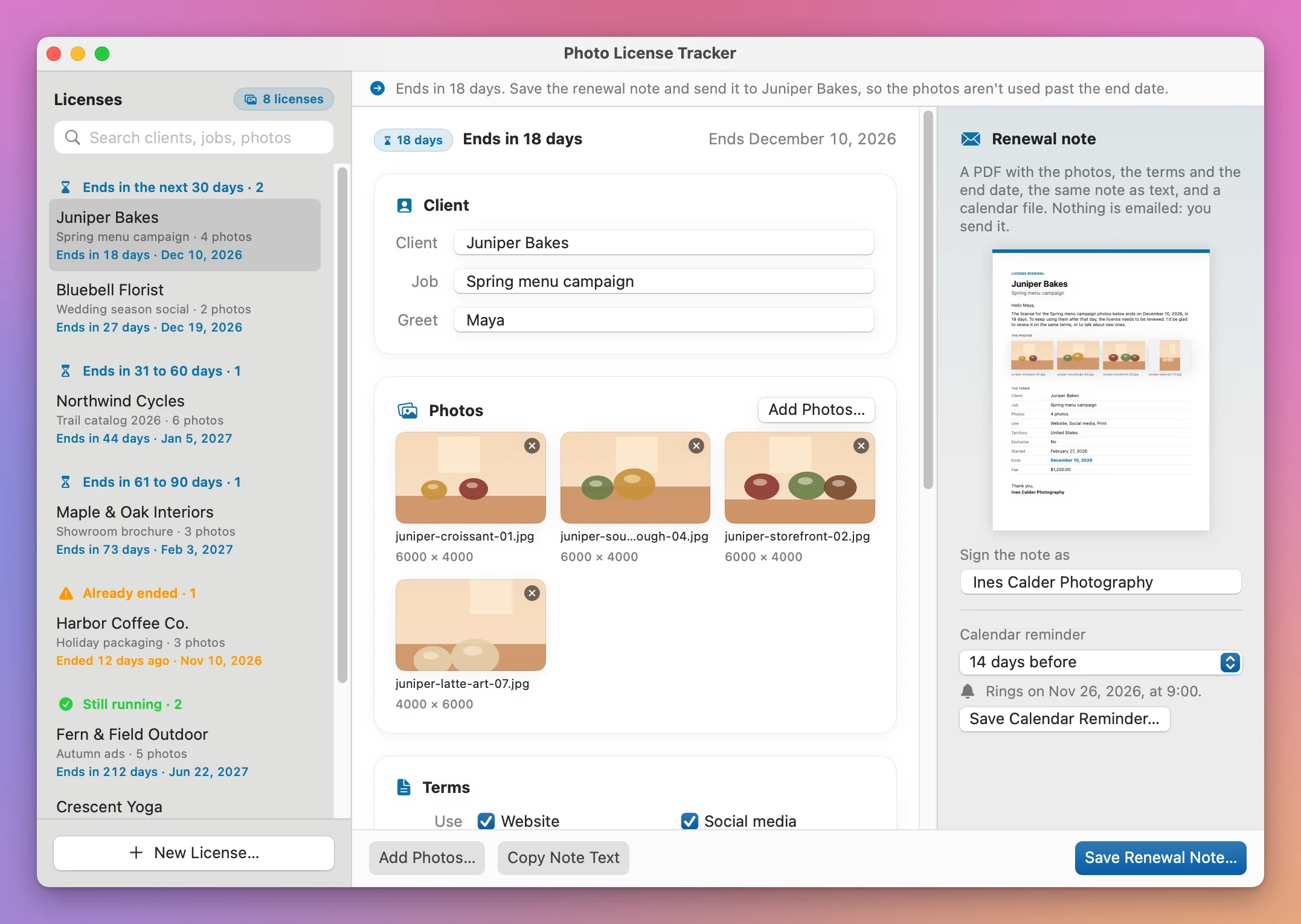
When a license shows up under 30 days, click Save Renewal Note… and pick a folder. You get a PDF for the client with the photos, the terms and the end date, signed with your name, the same note as text, and a calendar file with the end date and a reminder at 9:00 the number of days before you picked. Nothing is emailed: you attach the PDF, or click Copy Note Text and paste it, when you’re ready.
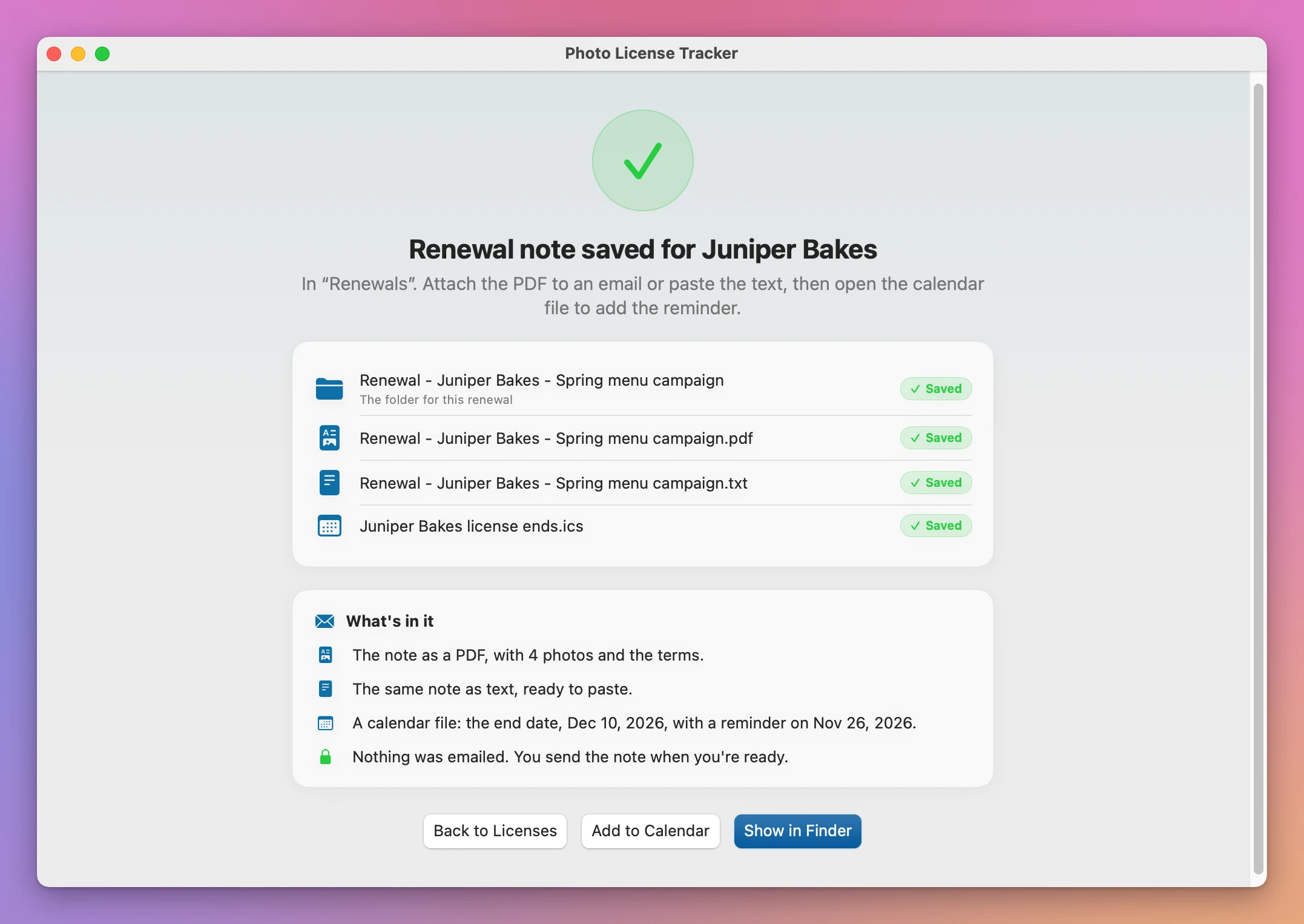
If a client won’t renew, tick Done: this license won’t be renewed and it moves to its own group.
Which way to pick
| Calendar | Spreadsheet | Photo License Tracker | |
|---|---|---|---|
| Cost | Free | Free | $19 once |
| What ends in the next 30, 60, 90 days | Search the titles, a list by date | Sort by the end date | Grouped, counted from today |
| A reminder before the end | Yes, if you set the alert | No | A calendar file with the reminder |
| Keeps the photos and agreement | No | No | Previews and a copy |
| Writes the note to the client | No | No | PDF and text |
| Time per license | About 2 minutes | About 2 minutes | About 2 minutes, then one click per renewal |
With two or three licenses a year, Calendar is fine. Once you have a dozen clients on different end dates, the list and the ready note are what save the renewal.
Photo License Tracker keeps the terms you type. It isn’t legal advice, and it doesn’t check whether a use is covered.
Get Photo License Tracker
Keep every license you have granted to a client: the photos, where they may be used, the territory, exclusive or not, the start and end dates, the fee and the agreement. See what ends in the next 30, 60 and 90 days and what already ended, and save a renewal note for the client as a PDF and text, with a calendar reminder before the end date.
See Photo License Tracker → · Read the docs · $19. See the app page for tax details.
More for working photographers tutorials → · All app tutorials →