
How to make a mood board with color swatches
By Flavio
Put a project's reference images on one board, pick their colors and keep a credit for each, then save it as a PDF. The free way with Freeform and Digital Color Meter, and a shorter way that also writes swatch files.
You’re starting an illustration, a poster or a shoot, and the reference images are spread over Downloads, a scan folder and your phone’s photos. You want them on one page, with the colors picked out and a note of where each image came from.
On a Mac you can do it for free with two apps that come with it: Freeform for the board, and Digital Color Meter for the colors. If you want the colors as swatch files for your drawing app, and the credits on the page without placing each one by hand, Reference Sheet Maker does it in one window.
What goes on a reference board?
A board that you’ll still use in a month has three things:
- the images, grouped by what they’re for: a mood, a subject, a texture;
- the colors you picked from them, with names and numbers you can type into another app;
- where each image came from, so you can credit it or find the original again.
The images in this tutorial are made up: eight drawings of a foggy harbor and a lighthouse, made for the purpose.
The free way: Freeform and Digital Color Meter
Freeform is in the Applications folder. Make a new board, then put your images on it with Insert › Photos or Videos… or Insert › Choose…. Add a Text Box from the Insert menu under each image for its credit.
For the colors, open Digital Color Meter from Applications › Utilities. It shows the color under the pointer, wherever the pointer is on the screen.
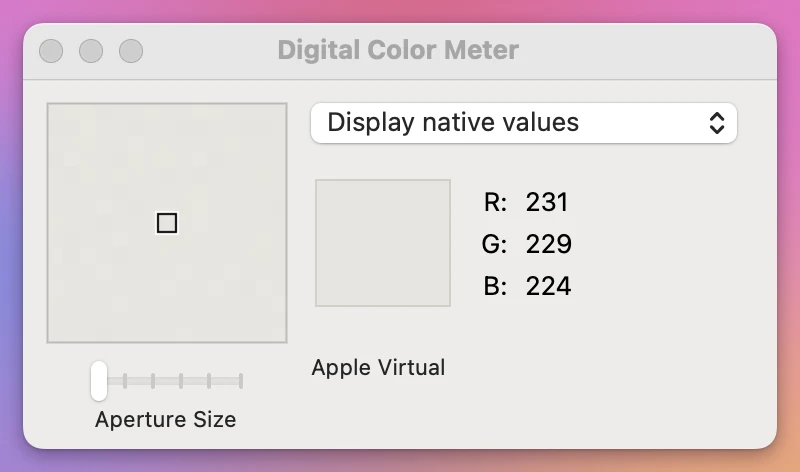
Be careful with the menu at the top. When it opened here, it was set to Display native values, the numbers of this particular display. To get numbers that mean the same thing in another app, pick Display in sRGB in that menu. Then:
- Move the pointer over the color you want in an image on your board.
- Choose Color › Copy Color as Text in Digital Color Meter’s menu bar.
- Paste it somewhere, like a sticky note on the board or a text file. What it copies is the three numbers, red, green and blue, like “150 150 150”.
- Repeat for every color.
When the board is done, choose File › Export Board as PDF… in Freeform to save it as a PDF you can send or print.
That works, and it costs nothing. The slow part is the colors: each one is point, copy, paste, and nothing collects them into a palette. At the end you have numbers in a text box, not a swatch file your drawing app can import. The credits are text boxes you line up by hand, and if you move an image file later, nothing on the board tells you.
The shorter way: Reference Sheet Maker
Reference Sheet Maker is a Mac app that keeps the images, colors and credits of one project together, and exports them as a PDF sheet and swatch files. It costs $19, paid once.
- Click Choose Images… and pick the images, or a folder of them. The images stay where they are and aren’t changed.
- Click New Group for each mood or subject, name it on the right, and drag images onto it in the sidebar.
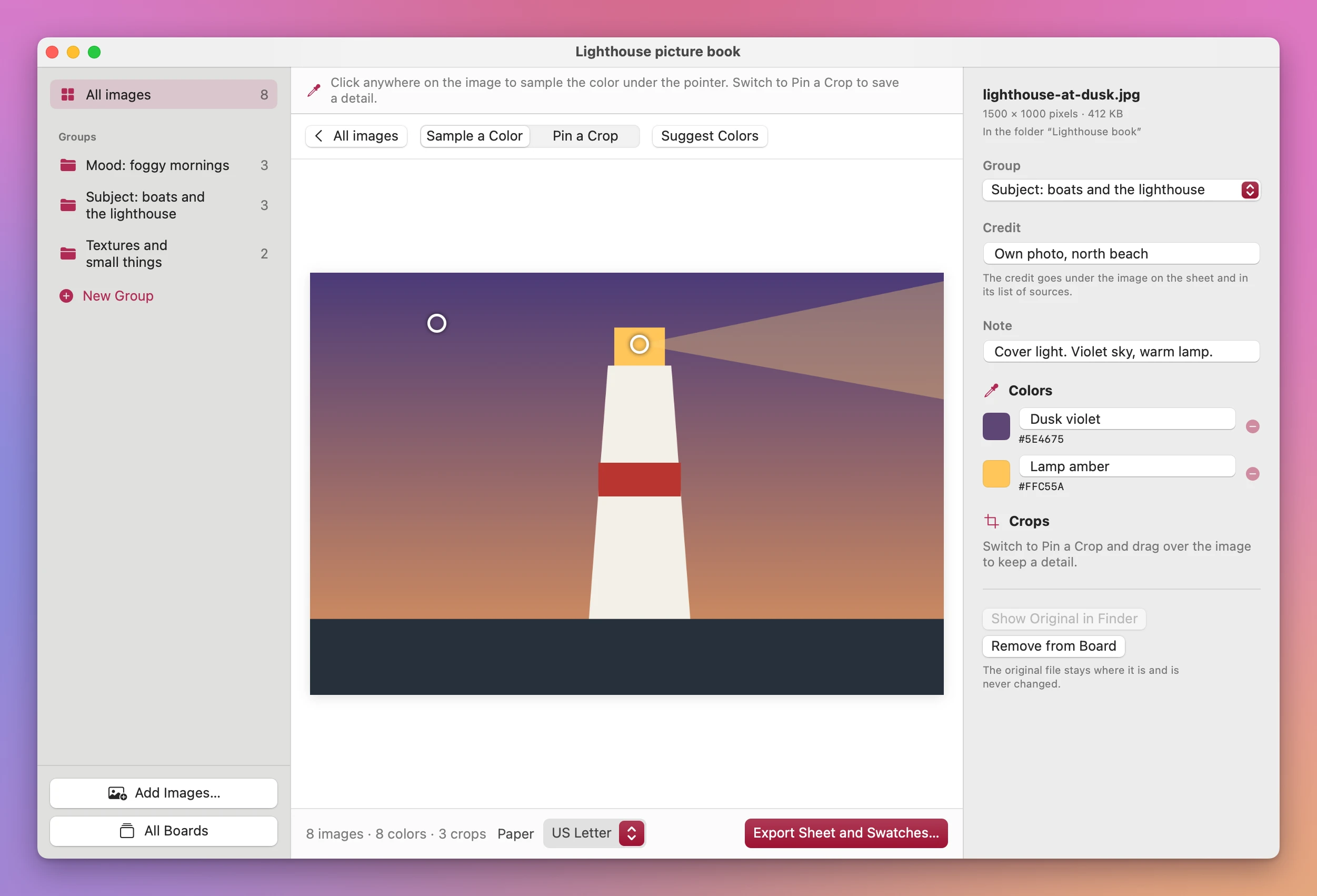
- Click an image to open it, then click on it to sample a color. Suggest Colors adds the main colors of the whole image.
- Write the Credit and a Note on the right.
- Pick the paper, A4 or US Letter, and click Export Sheet and Swatches….
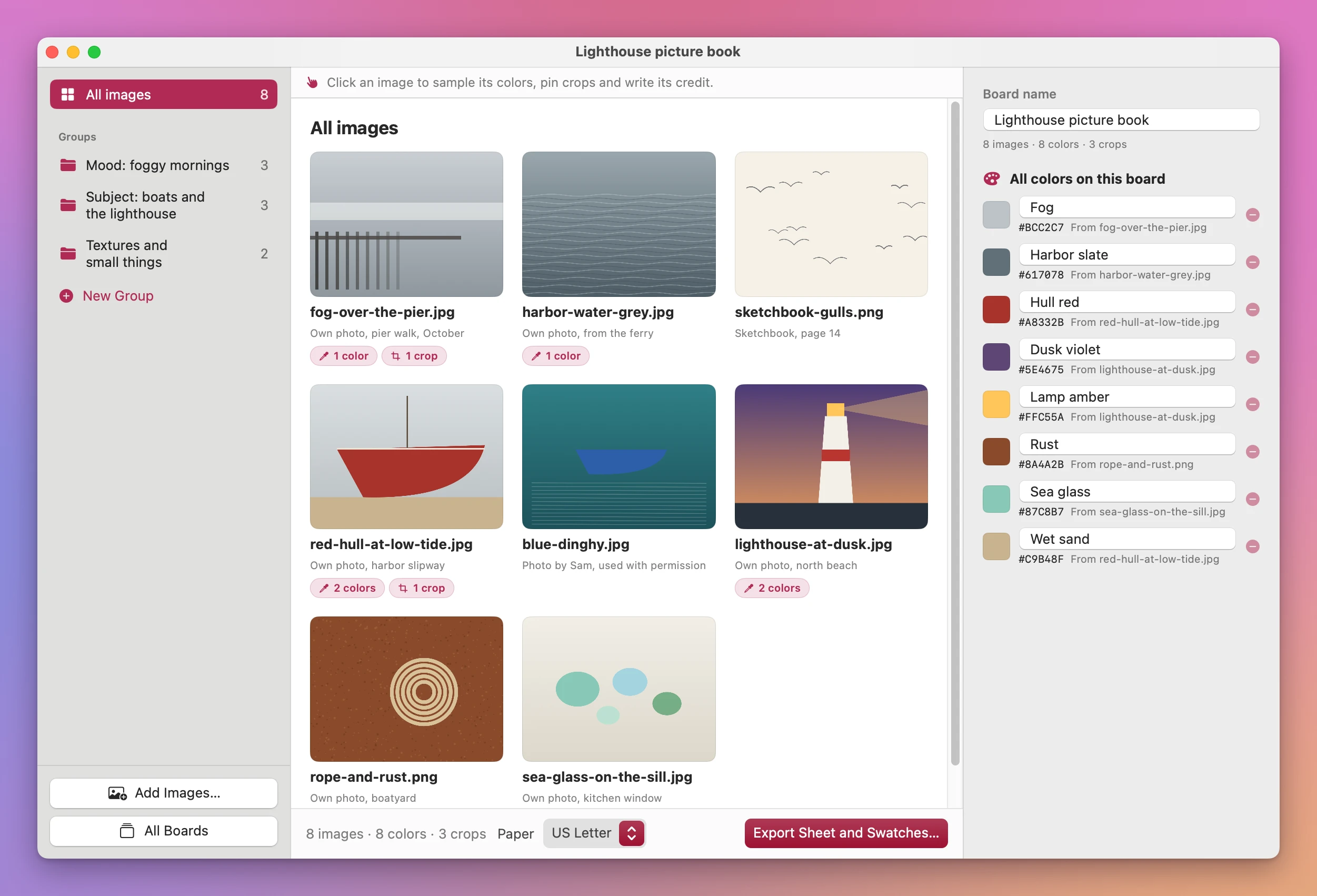
Here’s the board with all eight images, three groups and eight named colors. The colors list says which image each came from.
Sampling is one click on the image. The color gets a plain name, which you can change, and its spot stays marked on the picture.
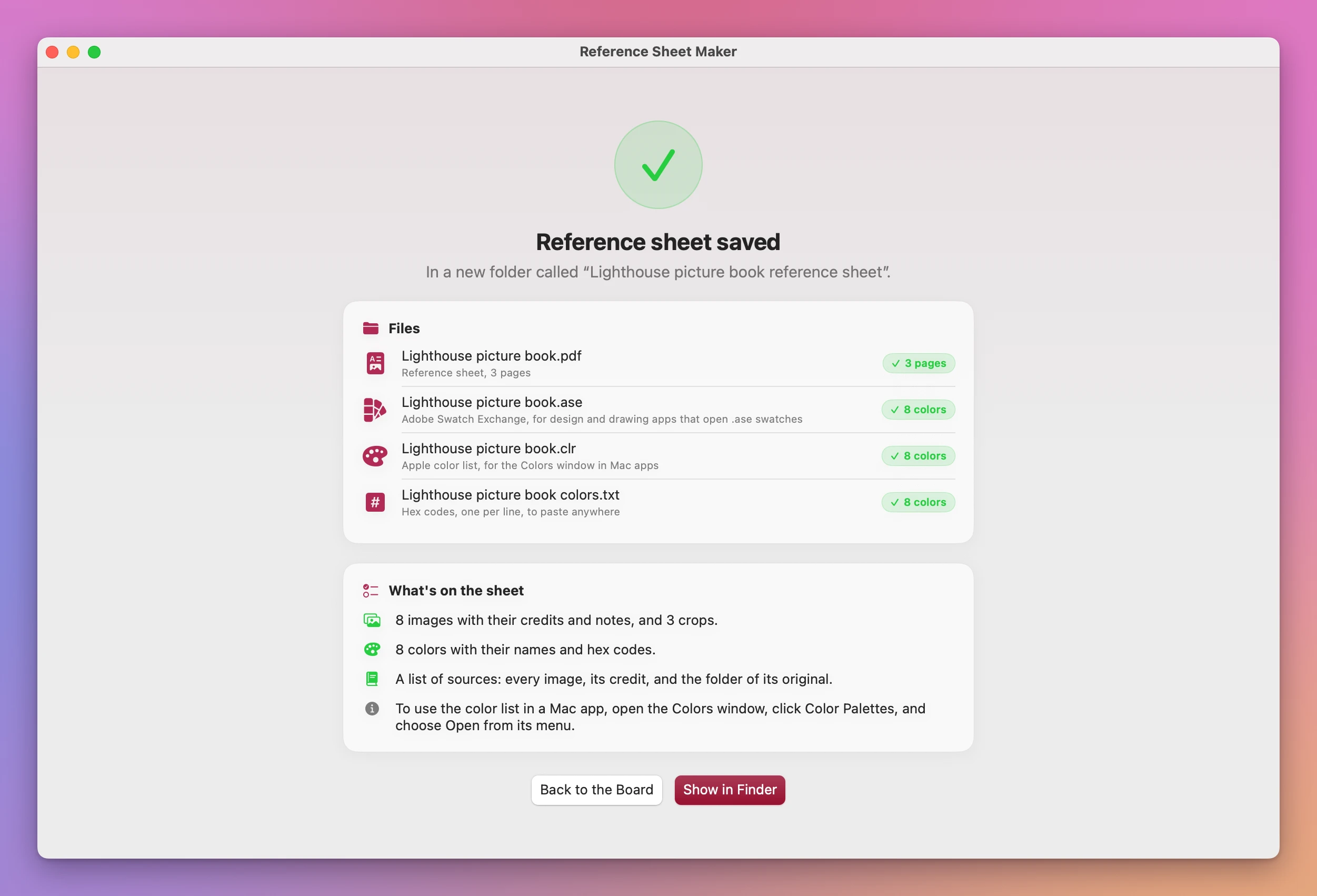
The export makes a new folder with four files: the PDF sheet, an .ase swatch file (Adobe Swatch Exchange), an Apple color list (.clr) for the Colors window of Mac apps, and a text file of hex codes. The sheet lists every image with its credit and note, the crops you pinned, and a list of sources at the end.
If you moved one of the images since you added it, the app lists it before the export, with a Find… button to point at its new place.
Which way should you use?
| Freeform and Digital Color Meter | Reference Sheet Maker | |
|---|---|---|
| Cost | Free, comes with the Mac | $19, paid once |
| Arranging images | Anywhere on a free canvas | A grid, by group |
| Picking a color | Point, copy, paste, one at a time | Click on the image |
| Swatch files | None | .ase, .clr and hex list |
| Credits | Text boxes you place | Under every image, plus a list of sources |
| A moved image file | Not noticed | Listed before the export |
| Your images | Stay on your Mac | Stay on your Mac, never changed |
If you want to arrange images freely, overlap them or draw arrows between them, Freeform is the better tool, and it’s already on your Mac. If the board is a working document you’ll come back to, with colors you’ll use in other apps and credits you’ll need later, the app saves the copying and pasting.
Get Reference Sheet Maker
Gather the images for one project into a board, group them by mood or subject, sample their colors, pin crops and write who made each one. Export a PDF reference sheet with .ase, .clr and hex swatch files. Your images are never changed or uploaded.
See Reference Sheet Maker → · Read the docs · $19. See the app page for tax details.