
How to save a web page on your Mac to read it offline
By Flavio
Safari and Chrome can both keep a web page on your Mac. Use Safari's Web Archive or Chrome's Webpage, Single File for one file with the pictures inside, or Safari's Export as PDF for a copy that opens in Preview.
You found a page you want to keep: a recipe, a hiking route, an article for the plane. You want it on your Mac, so it still opens without a connection, or after the site is gone.
The short answer: in Safari, choose File › Save As… and pick Web Archive. In Chrome, choose File › Save Page As… and pick Webpage, Single File. Each gives you one file that keeps the page as it looked, pictures included. File › Export as PDF… in Safari gives you a PDF that opens in Preview. The other choices keep only the text, or break when you move the file. If you keep many pages, Page Saver does it with a paste and a click.
What happens to each copy when the site is gone?
Here’s one page saved every way Safari and Chrome offer, then opened after the site was taken down. It’s a walk on Ridgeline Rambles, a made-up hiking blog served on a test Mac. Its second picture loads only when you scroll to it, as on many sites. The screenshots are from macOS 15 Sequoia.
| Way to save | What you get | Opens with the site gone | Pictures | Opens in |
|---|---|---|---|---|
| Safari, Save As, Web Archive | One .webarchive file, 14 KB | Yes, with the layout | Both | Safari |
| Safari, Save As, Page Source | One .html file, 2 KB | Text only, no layout | None | Safari |
| Safari, Export as PDF | One .pdf file, 43 KB | Yes, with the layout | Both | Preview |
| Safari, Reading List | Nothing you can see in the Finder | No, on the test Mac | None | Safari |
| Chrome, Webpage, Complete | An .html file and a _files folder | Yes, if the two stay together | Both | Chrome |
| Chrome, Webpage, Single File | One .mhtml file, 13 KB | Yes, with the layout | Both | Chrome |
| Chrome, Webpage, HTML Only | One .html file, 2 KB | Text only, no layout | None | Chrome |
| Page Saver, Save | One page in the app, 13 KB | Yes, with the layout | Both | Page Saver |
The links in a saved page still point at the website. With the site down, clicking packing list in a copy saved from Chrome gave an error page, and in Page Saver it opened Safari, which showed a blank page.
How do I save a page in Safari?
Open the page, then choose File › Save As…. The Format menu has three choices, and the one picked at the start is Page Source, which “Saves only the source text of this page”.
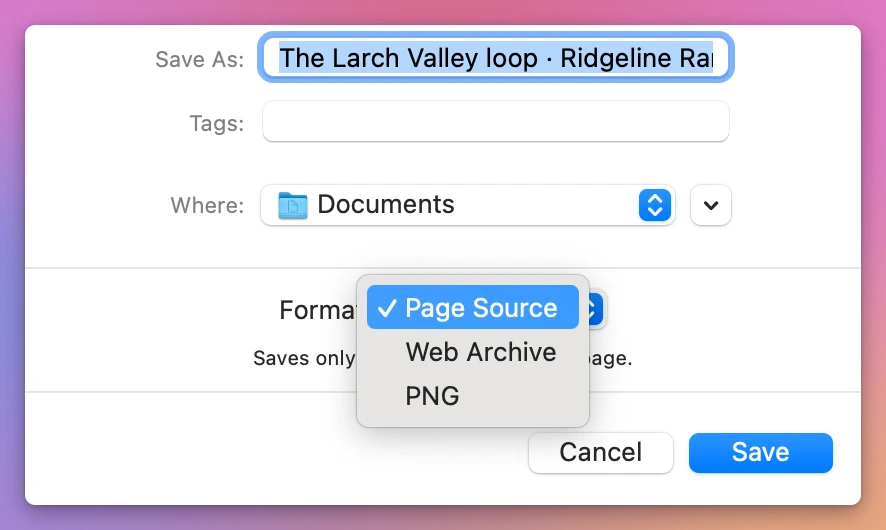
Pick Web Archive, choose a folder and click Save. Double-click the file later and it opens in Safari with the layout and both pictures, site or no site.
The catch is that a web archive is a Safari file. Opened in Chrome, the page doesn’t show: Chrome treats the file as a download and copies it to the Downloads folder.
Page Source keeps the text and the links: with the site down, it shows plain black words and an empty box where each picture was. PNG saves the page as one tall picture (479 KB here), so you can’t click a link or select the text.
Is a PDF better?
For a page you want to send to someone, yes. Choose File › Export as PDF…, pick a folder and click Save. Safari doesn’t ask about paper sizes: it made one long page with the whole article, so nothing got cut at a page break. Preview showed it as “1 page” with the layout and both pictures.
Does Safari’s Reading List work offline?
It’s meant to, with a setting that’s off at the start. Add the page with Bookmarks › Add to Reading List, then open Safari › Settings…, click Advanced and check Save articles for offline reading automatically. Right-clicking a page in the Reading List sidebar also offers Save Offline.
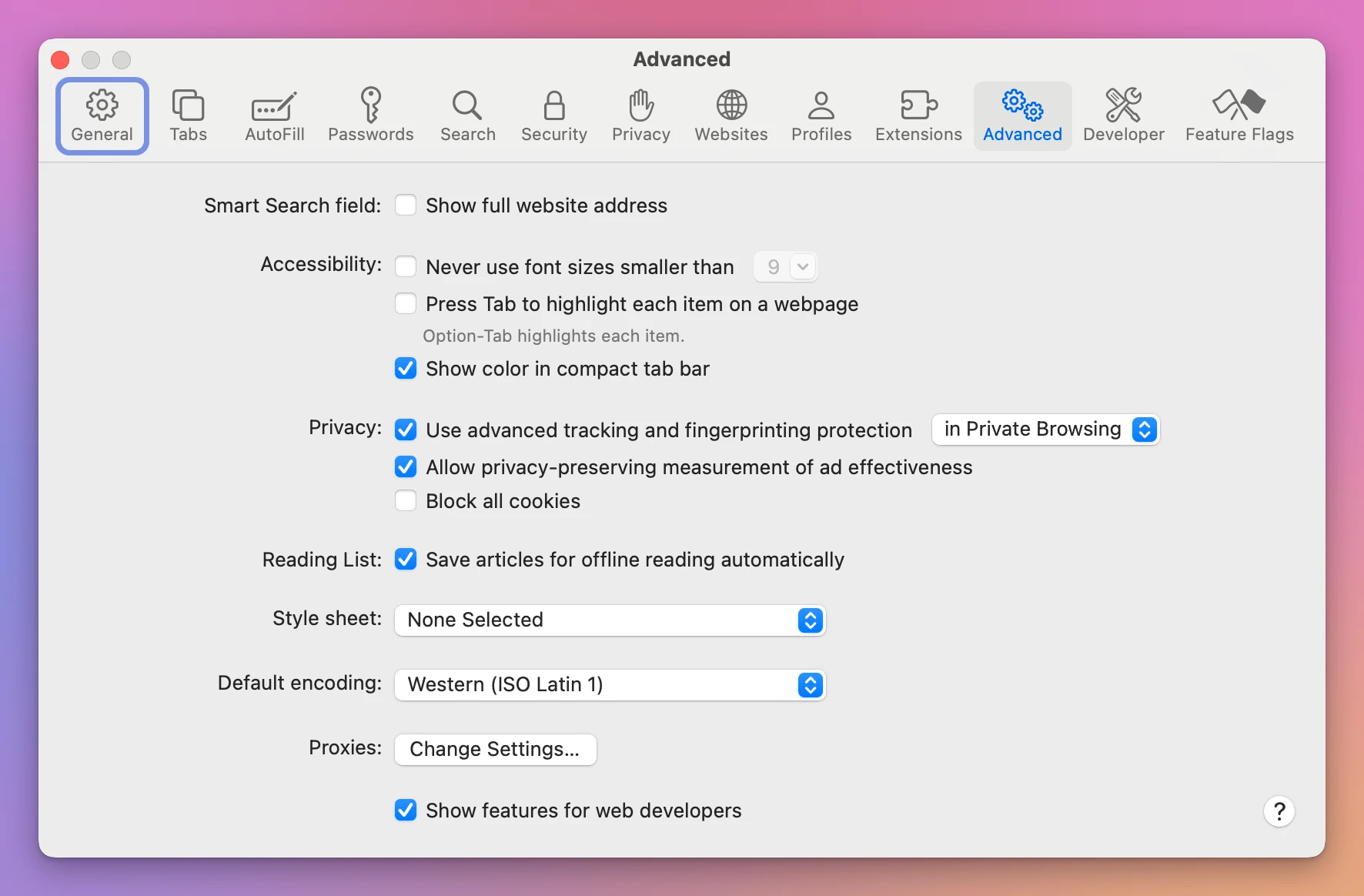
On the test Mac, which has no Apple Account signed in, it didn’t work: after Save Offline the menu still offered Save Offline, and with the site down the page opened blank. Try it with Wi-Fi off before you count on it.
How do I save a page in Chrome?
Open the page and choose File › Save Page As…. The Format menu has three choices: Webpage, HTML Only, Webpage, Single File and Webpage, Complete, which is the one picked at the start.
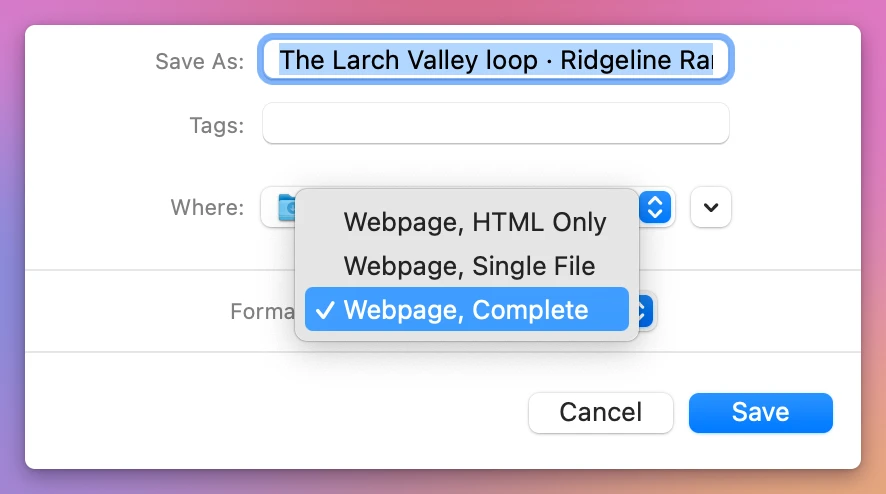
Webpage, Complete saves an .html file and a folder with the same name ending in _files. The folder holds the stylesheet and the two pictures.
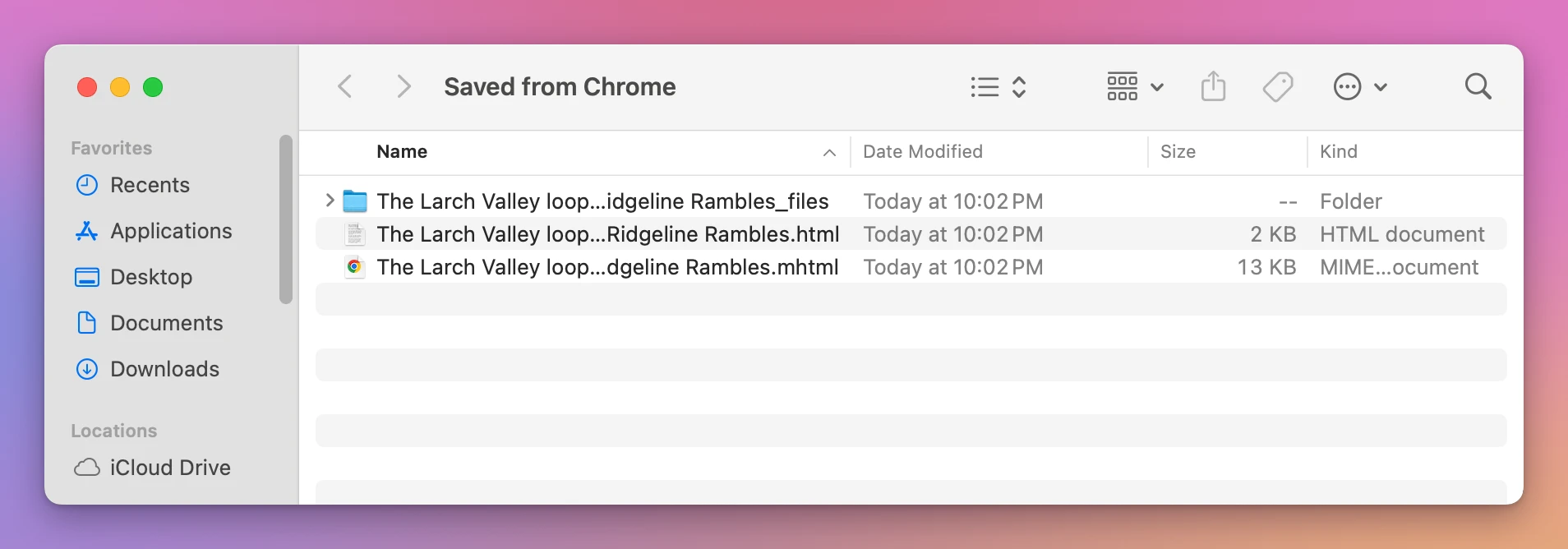
The two have to stay side by side. Copied alone to another folder, the .html file opened as plain text with no pictures, because the page looks for them in the _files folder next to it.
Webpage, Single File saves one .mhtml file with the pictures inside, and it opened in Chrome with the layout and both pictures with the site down. That’s the one to pick in Chrome. Webpage, HTML Only keeps the plain text, like Safari’s Page Source.
Is there a quicker way to keep pages for years?
The browser way is a save dialog and a format choice for each page, and you have to remember which format opens where. Page Saver is a Mac app I built for this. Every page you save is one file with the pictures and the styles inside, kept in the app’s library. It costs $19, paid once.
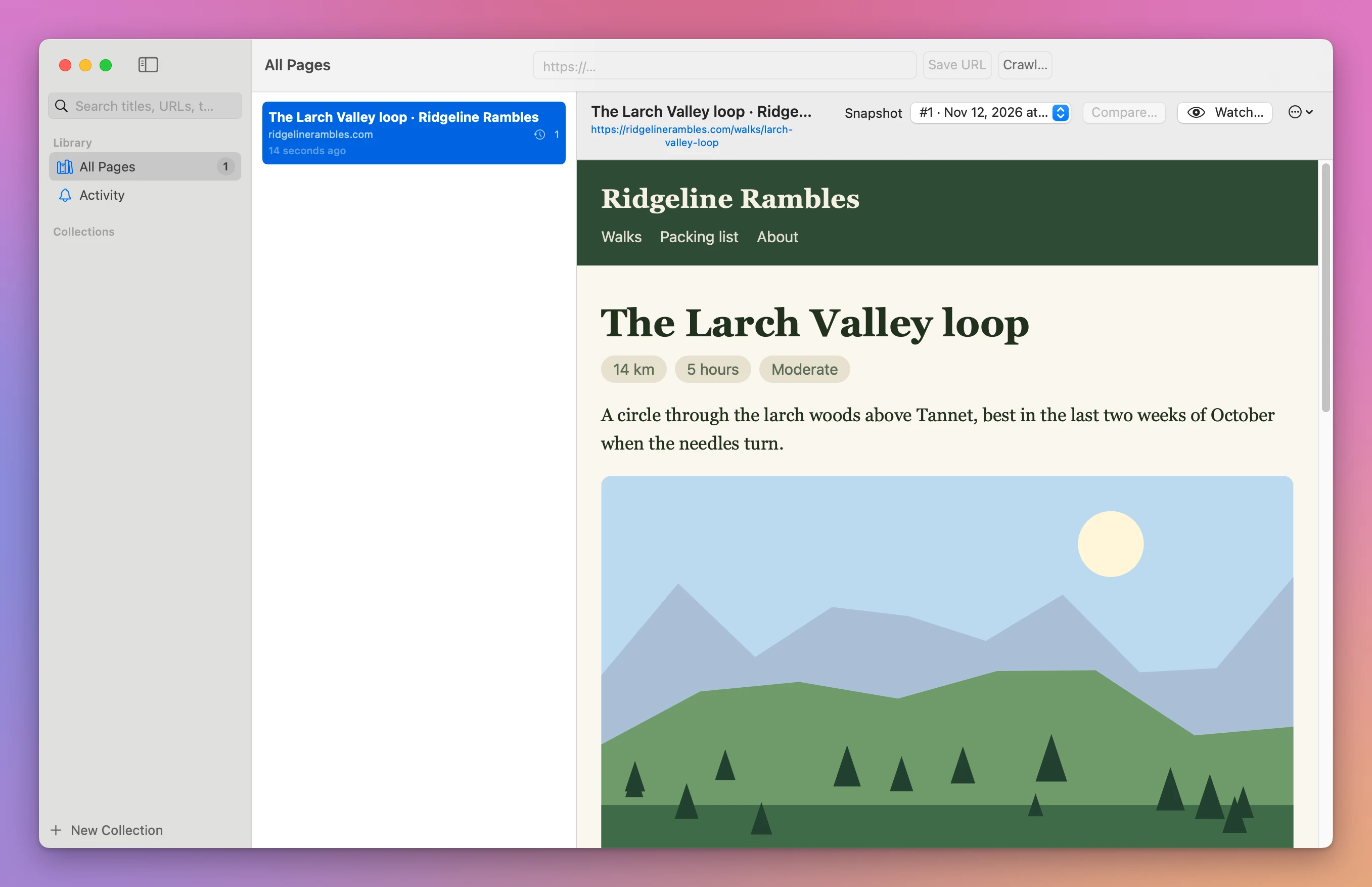
Paste the address in the field at the top of the window and click Save. The Larch Valley page took a few seconds, and the app listed it as snapshot #1, 13 KB.
With the site taken down, clicking the page in the list opened it with the layout, the first picture and, further down, the second one that loads late.
Get Page Saver
Save web pages on your Mac as single HTML files, keep snapshots, compare them, and get alerts when watched pages change, die or get taken over. Crawl whole sites to read offline. Includes a native Mac app, Safari and Chrome extensions, and a CLI.
See Page Saver → · Read the docs · $19. See the app page for tax details.