
How to share a contact on a Mac without the home address
By Flavio
Contacts on the Mac shares the whole card, home address and birthday included. Here's what its settings can hide, the by-hand way to send less, and how to share only the work details of a whole group at once.
You want to send someone a contact from your Mac. A colleague’s details to a client, or your own card to a new landlord. But the card has a home address, a personal mobile number and a birthday on it, and you only want to share the work phone and the work email.
Contacts can’t do that for one card. Its export, drag and Share Card all send the whole card. You can make a trimmed copy by hand, or use an app that lets you tick the fields and exports the cards with only those.
What Contacts sends when you share a card
File → Export → Export vCard…, dragging a card out of the window and Share Card all write a vCard file (a .vcf, the file format for contacts) with everything on the card. That means every phone number and email, the home address, the birthday, related names and the photo.
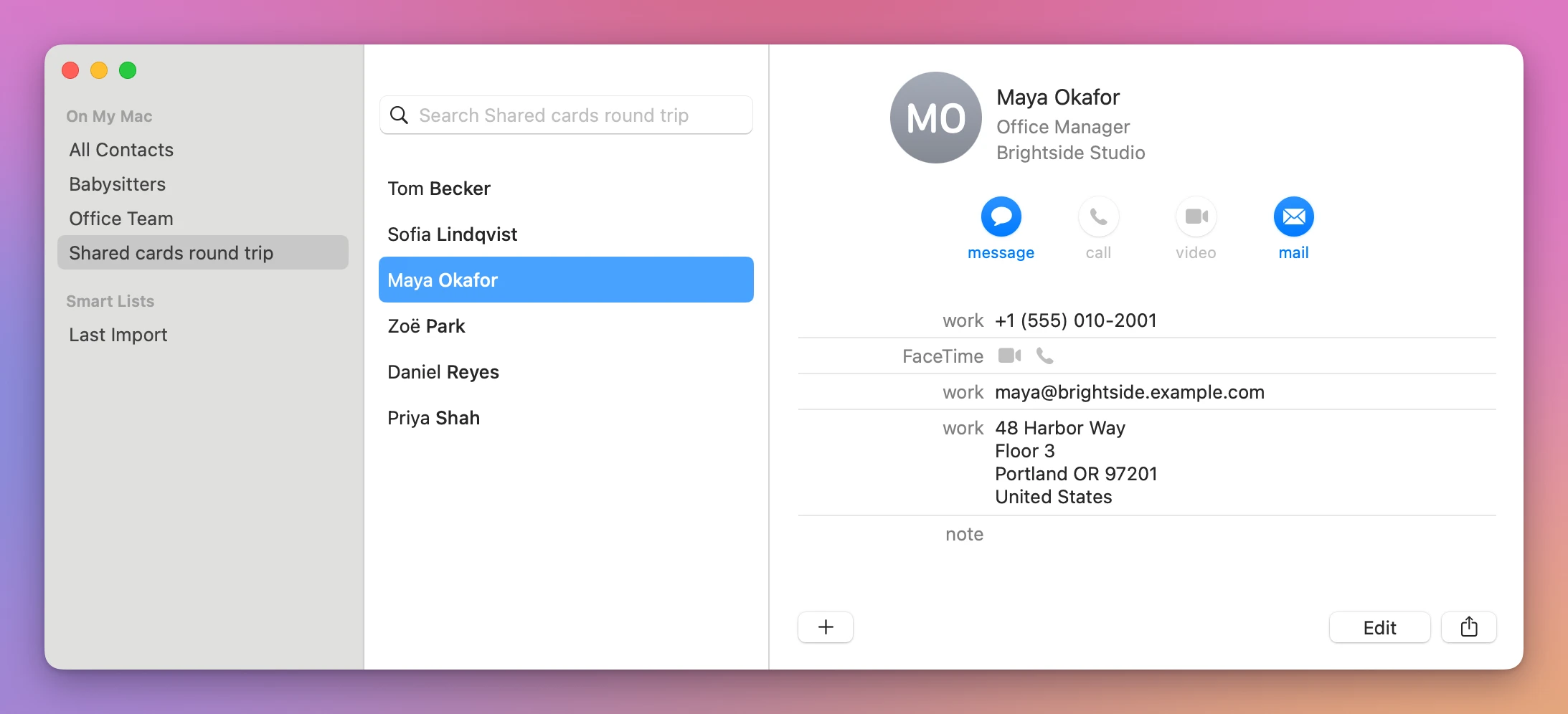
Here’s what that looks like for a made-up colleague, Maya Okafor, before and after trimming her card to work details:
| On Maya’s card | Contacts’ export | Trimmed to work details |
|---|---|---|
| Name, title, company | Yes | Yes |
| Work phone | Yes | Yes |
| iPhone number | Yes | No |
| Home phone | Yes | No |
| Work email | Yes | Yes |
| Home email | Yes | No |
| Work address | Yes | Yes |
| Home address | Yes | No |
| Birthday | Yes | No |
| Photo | Yes | No |
| Note (“Gate code…”) | Only if notes export is on | No |
The settings Contacts has
Open Contacts → Settings and click vCard. Three checkboxes there matter:
- Export notes in vCards decides whether notes go out.
- Export photos in vCards decides whether photos go out.
- Enable private me card limits what your own card shares. You choose the private fields by editing your card.
The first two apply to every export, for every contact. The third only works for your own card. None of them leaves out a colleague’s home address.
The free way: share a trimmed copy
To share less of someone else’s card with only what’s on the Mac:
- Make a copy of the card in Contacts, or a new card, with only the fields you want to share.
- Export or share that copy.
- Delete the copy.
For one person that’s a couple of minutes. For a team of five it’s five copies to make, check and delete, and while they exist they can sync to iCloud and show up on your iPhone. You can also edit the exported .vcf in TextEdit and delete the lines you don’t want, but the file has long lines split in two, blocks of photo data, and labels on separate lines, so a home address is easy to miss.
Share only the fields you choose with Contact Share Cards
Contact Share Cards is a Mac app I built for this. You tick the people and the fields, check each card, and it saves vCards with only those fields. It only reads Contacts and never reads notes. It costs $19, paid once.
The steps below were done on a test Mac running macOS 15, with made-up contacts in On My Mac and a group called Office Team.
1. Allow access and tick the people
Click Allow Access to Contacts, then Allow in the macOS prompt. Your contacts show up in the sidebar.
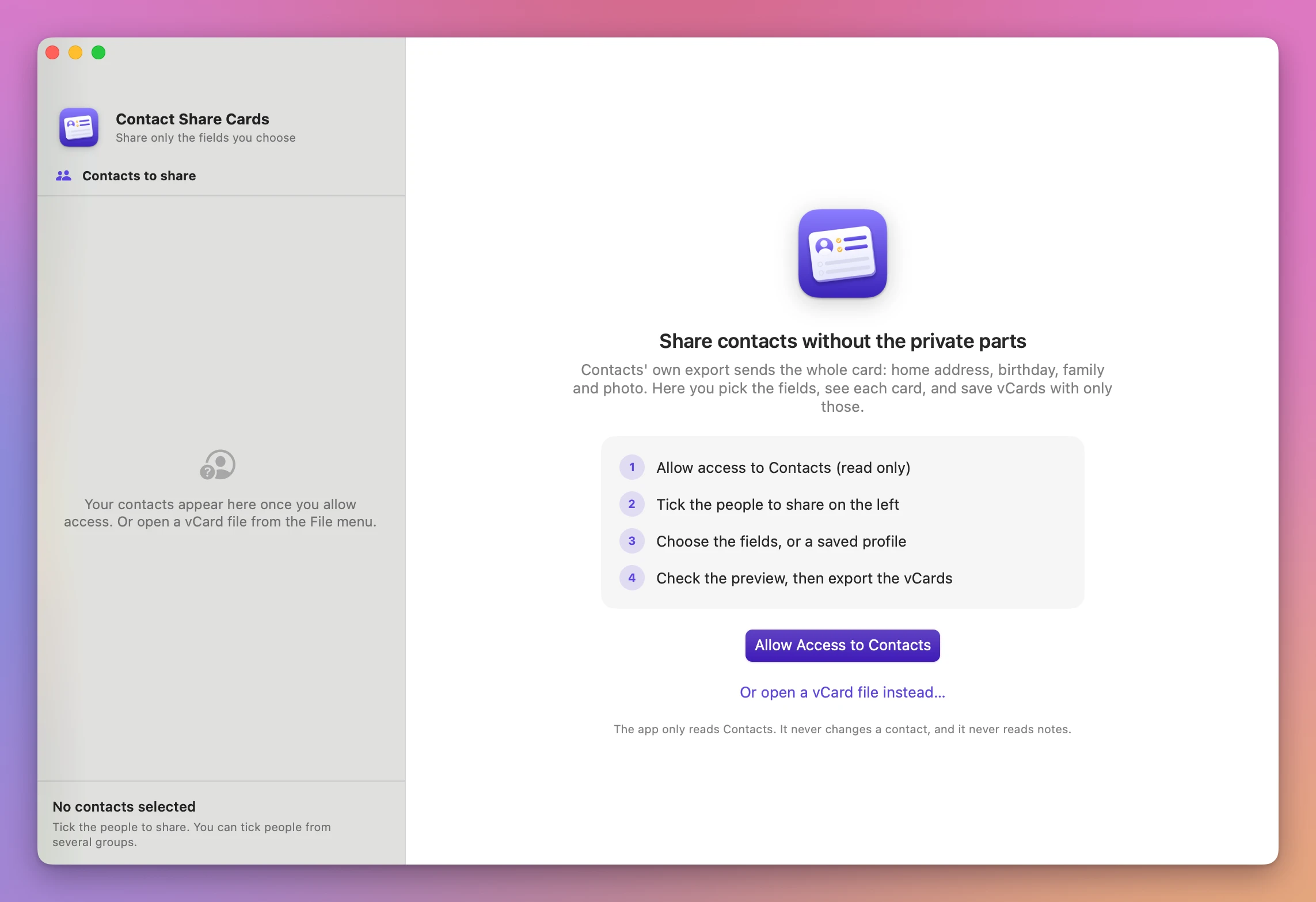
Pick a group in the picker at the top of the sidebar, here Office Team, and click Select All. You can also search and tick people one by one: ticks stay when you switch groups, so the test also ticked Zoë Park from All Contacts, six people in all.
2. Choose the fields
The Choose what to share screen starts with the Client profile: name, company, job title, department, work, mobile and main phones, work email, work address and websites. For phones, emails and addresses you pick the labels, like Work only.
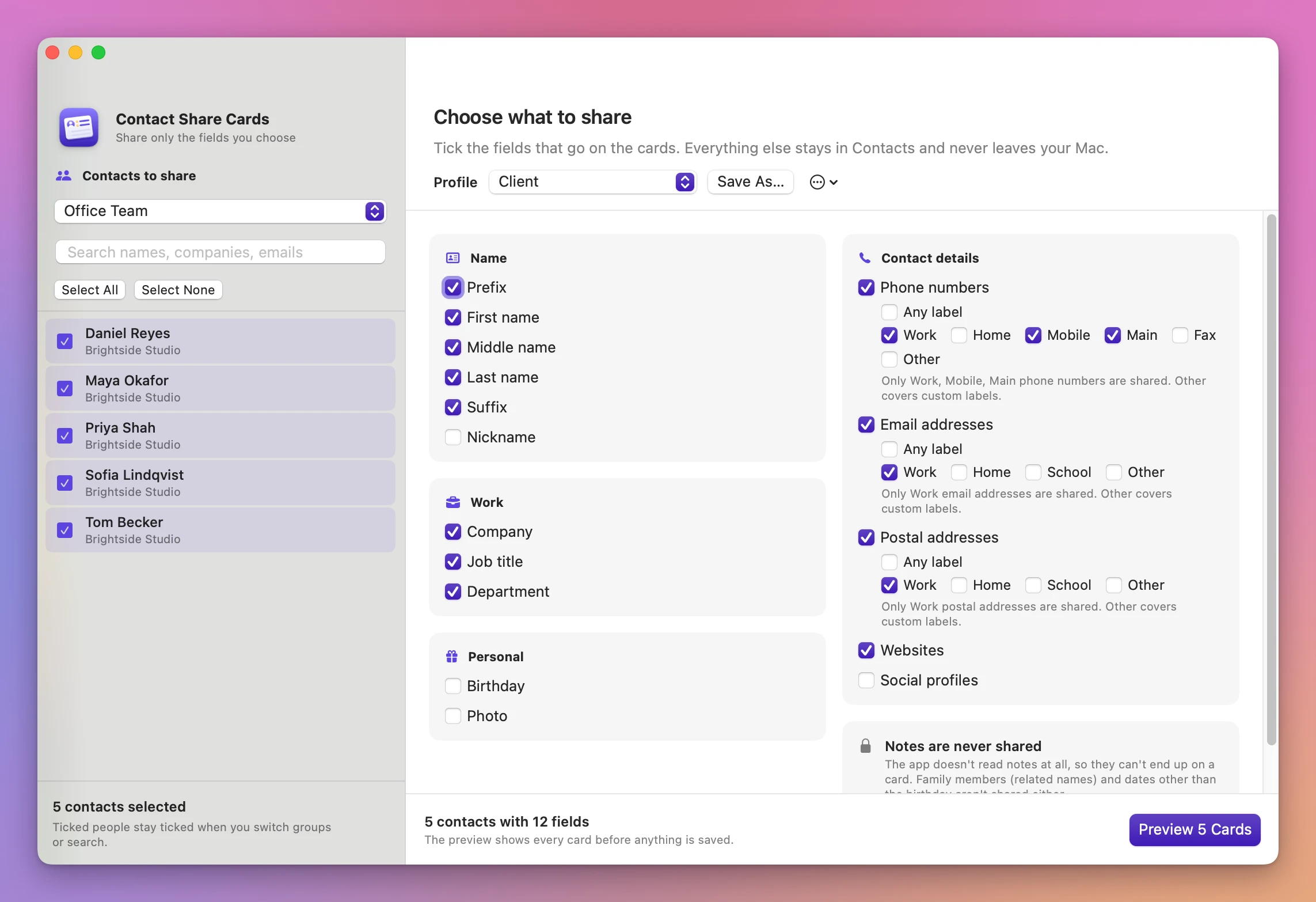
To keep personal mobiles out too, untick Mobile under Phone numbers. An orange Edited pill appears. Click Save As…, type a name like “Office desk”, and the profile is there next time.
3. Check every card
Click Preview. Each card shows up as it will be shared, with a line saying what was left out and the exact vCard text. Here, with the Client profile, Maya’s card keeps her work phone, iPhone number, work email and work address, and leaves out “1 phone number, 1 email address, 1 address, birthday”.
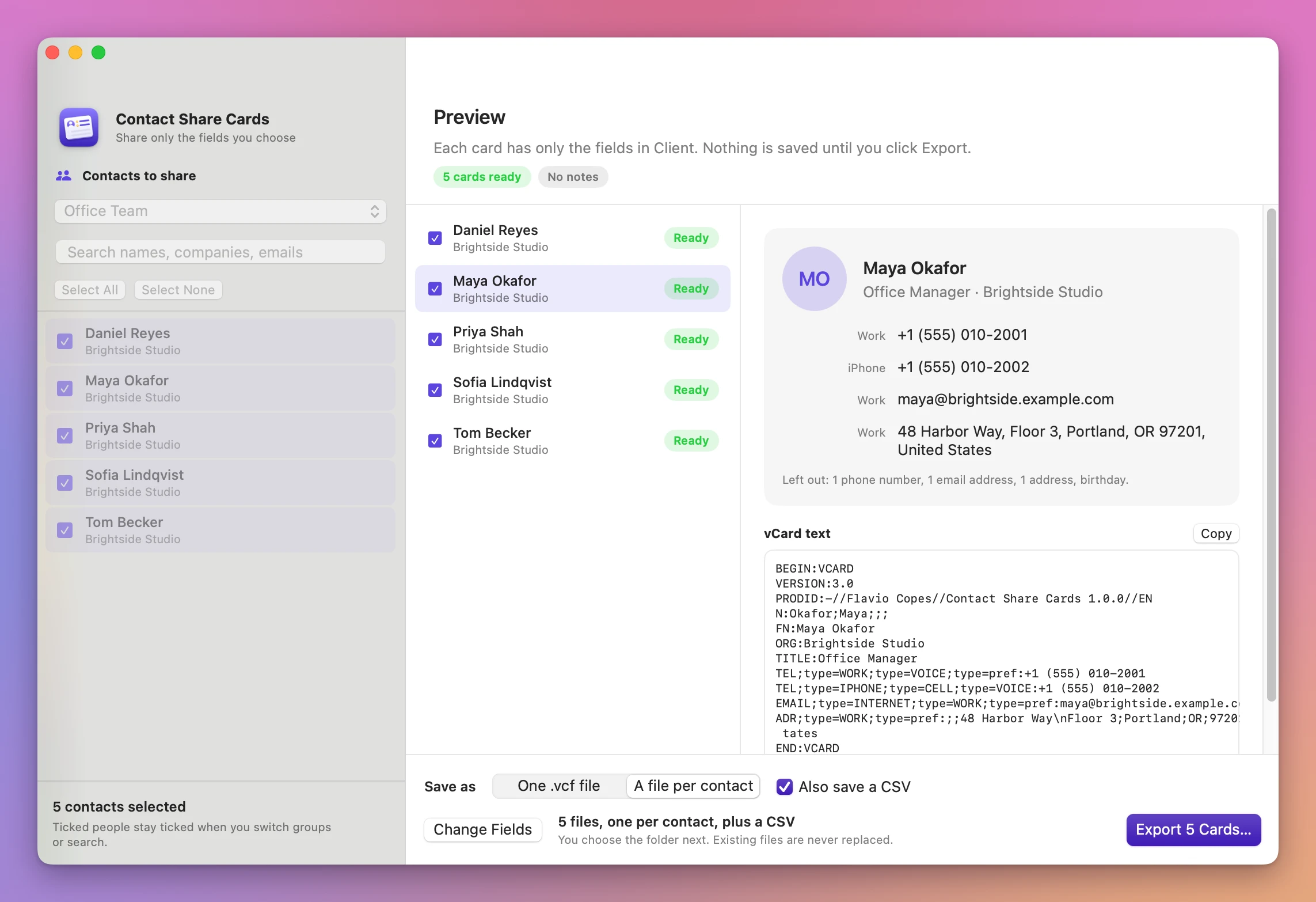
Zoë Park has no work details at all, so with the Office desk profile her card was marked Only a name in orange. Untick anyone like that if a card with only a name isn’t useful.
4. Export and send
Under Save as, choose One .vcf file or A file per contact, and tick Also save a CSV for a spreadsheet of the same fields. Click Export, pick a folder, and the done screen lists the files.
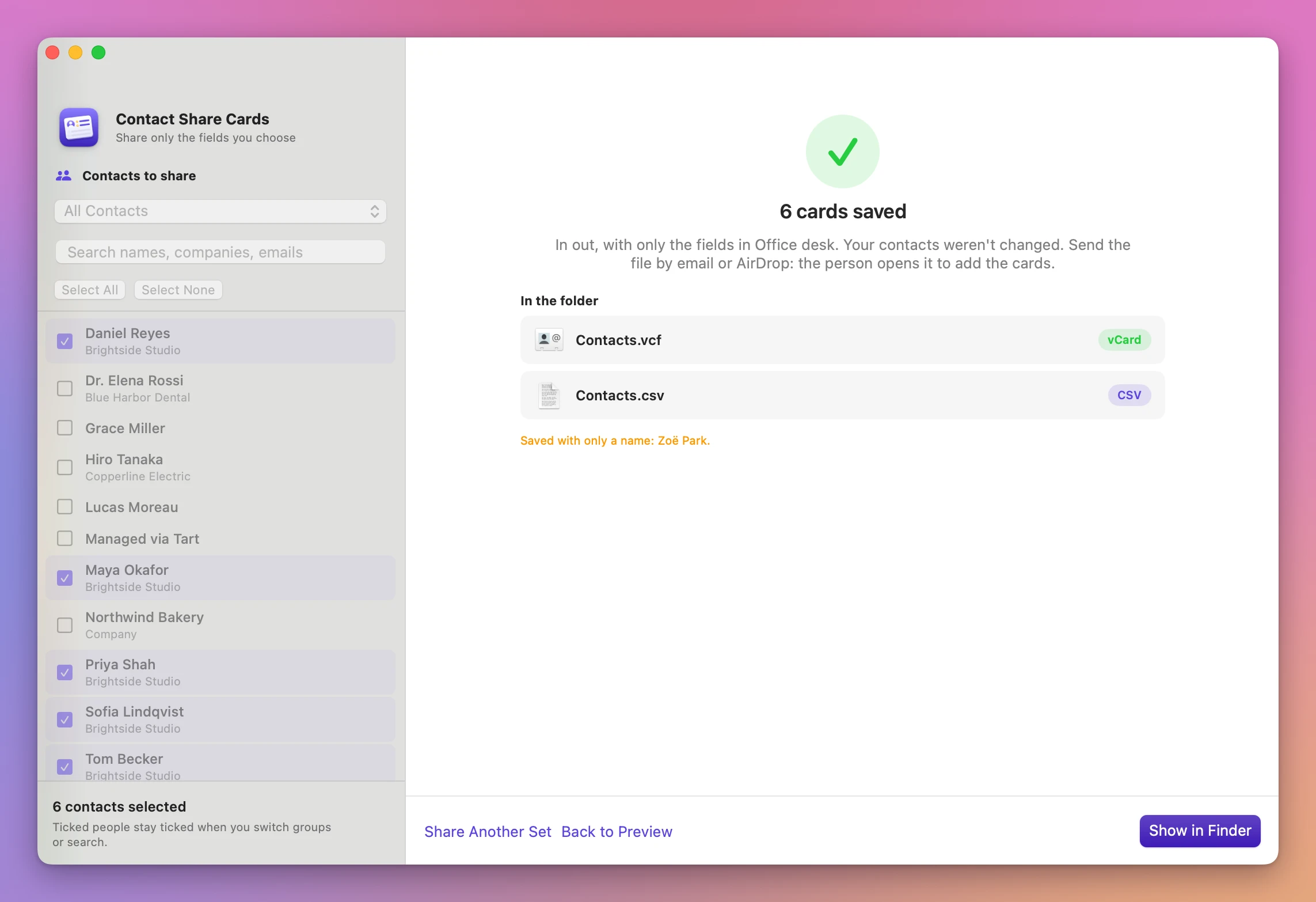
Attach Contacts.vcf to an email or send it with AirDrop. If a file with that name is already in the folder, the new one is Contacts (2).vcf, so nothing is replaced.
What the other person gets
On the test Mac, the exported file was imported back into Contacts. Maya’s card came in with her title, company, work phone, work email and work address. No iPhone number, home phone, home email, home address, birthday or note.
Which way to pick
| Contacts’ export | A trimmed copy by hand | Contact Share Cards | |
|---|---|---|---|
| Leaves out the home address | No | Yes | Yes |
| Only work phones and emails | No | Delete the rest on each copy | Tick Work |
| Many people at once | Yes, whole cards | One copy each | Yes |
| Changes your contacts | No | Copies to make and delete | No, only reads |
| See the cards before sending | No | Open each copy | Preview of every card |
If you want the opposite, every contact with every field, to move to a new Mac or to Google Contacts, Contact Export Rescue exports the whole address book with notes and photos, including the cards Contacts’ export sometimes leaves out.
Get Contact Share Cards
Share contacts as vCards with only the fields you choose, like name, company and work email, without the home address, birthday, notes or photo.
See Contact Share Cards → · Read the docs · $19. See the app page for tax details.
More email, messages and contacts tutorials → · All app tutorials →