
How to time each slide while you rehearse a presentation
By Flavio
To see which slides make your talk run long, you need a time for every slide, not only the total. Here's the free way with a stopwatch's lap button, and a faster way that keeps every rehearsal.
Your talk has a 15 minute slot and the last rehearsal took 17. The total tells you you’re over. It doesn’t tell you which slides took the extra two minutes, and that’s what you need to know before you cut anything.
The answer is a time for each slide. You can get it for free with a stopwatch that has a lap button, or with Slide Rehearsal Timer, a Mac app that times every slide while you move through a PDF of your deck.
Why the total isn’t enough
A talk almost never runs long evenly. Usually one or two slides carry most of the overrun: the one with six bullet points, the demo, the story you didn’t plan to tell. Cut a little everywhere and you lose the good parts. Cut the slow slide and the talk fits.
So you want two numbers per slide: how long it took, and how long you meant it to take.
The free way: a stopwatch with laps
The Clock app on the Mac has a Stopwatch tab with a Lap button. Here’s the routine:
- Open your slides in your slides app, or export them as a PDF and open it in Preview.
- Open Clock, click Stopwatch, and put the window next to your slides.
- Click Start when you start talking.
- Each time you move to the next slide, click Lap.
- When you finish, click Stop, and type the lap times into a note or a spreadsheet, next to the slide numbers.
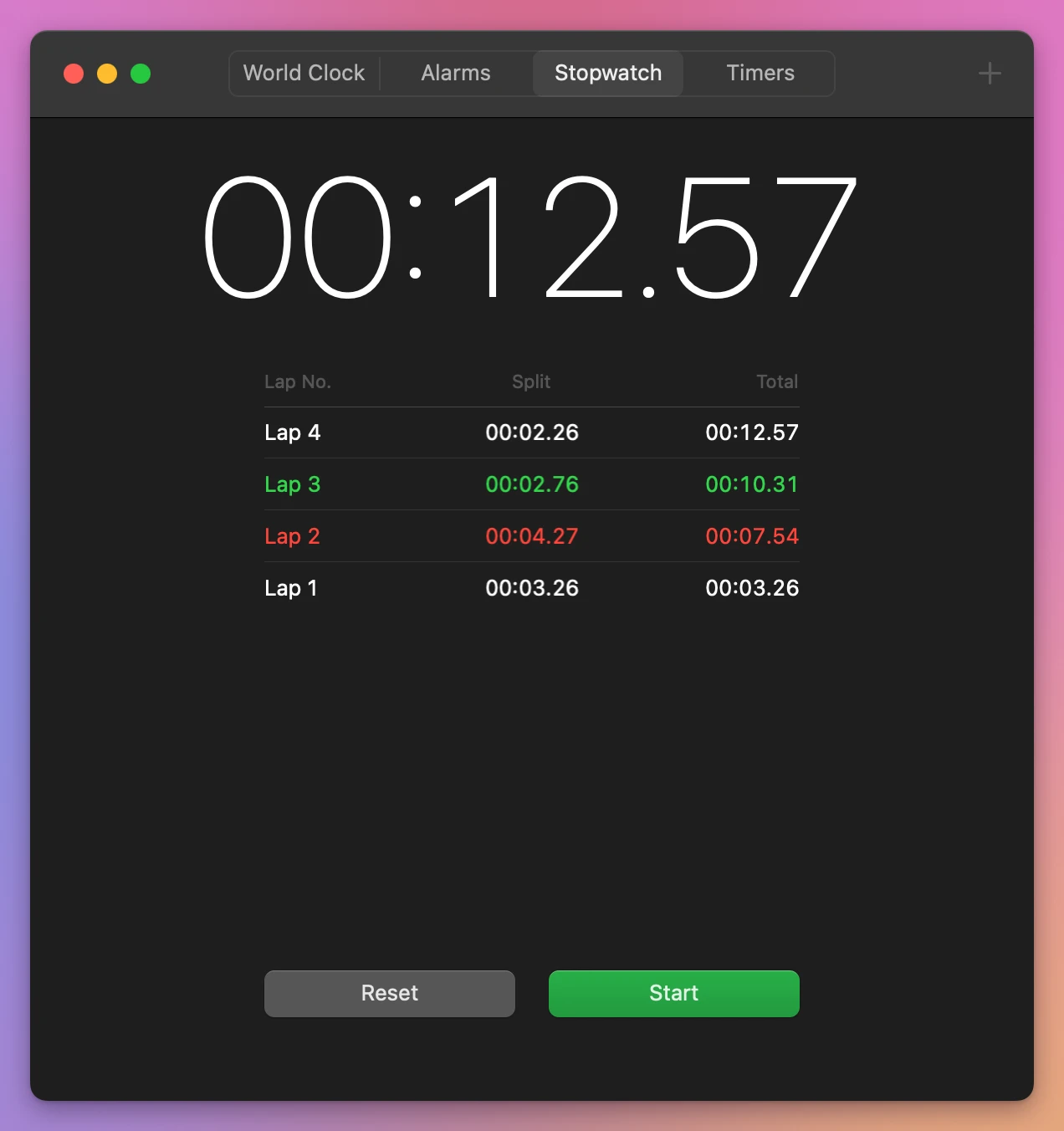
The laps show up newest first, each with its own time under Split and the running time under Total. Clock colors the fastest lap green and the slowest red. On the test Mac, the lap times couldn’t be selected and copied, so you write them down by hand.
It works, and it costs nothing. The problems show up on the second rehearsal:
- You press two things at every slide change, the next-slide key and the lap button, while you’re trying to talk.
- A lap is just a number. If you go back a slide to repeat something, the laps no longer match the slides.
- There’s no target. You work out “should be done with slide 5 by 6:50” yourself.
- Comparing two rehearsals means two columns in a spreadsheet and some subtraction.
- If you also want to hear yourself, you record separately, and finding where slide 7 starts means scrubbing through the audio.
The faster way: Slide Rehearsal Timer
Slide Rehearsal Timer does the lap part for you, because the key that moves the slide is also the key that marks the time. It costs $19, paid once.
The screenshots below are from a made-up 8-slide workshop deck, “Seed Saving Workshop”.
Set the targets
Export your slides as a PDF (File menu in Keynote, PowerPoint or Google Slides), then click Choose a Slide Deck PDF… and pick it. Under Target time, type the length of the talk in minutes and click Spread Evenly. Then change any slide that needs more or less time: click its target, type a time like 1:50 and press Return.
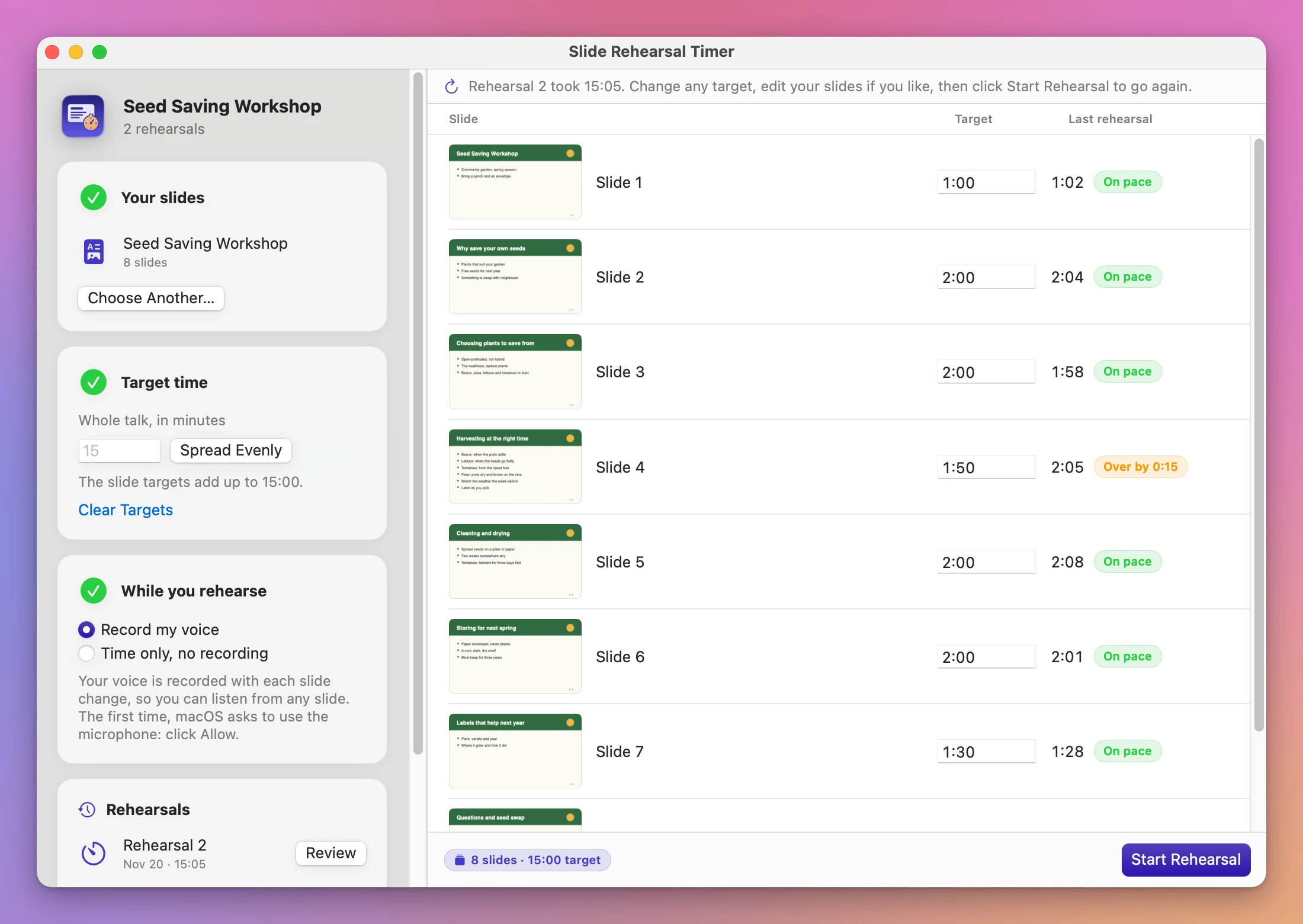
Under While you rehearse, pick Record my voice to keep a recording, or Time only, no recording. The first time you record, macOS asks whether the app can use the microphone, right after you click Start Rehearsal.
Rehearse with the arrow keys
Click Start Rehearsal and talk. The → key, the space bar or Page Down moves to the next slide, ← goes back, and P pauses the clock. Going back to a slide adds the extra time to that slide, not to the one you left.
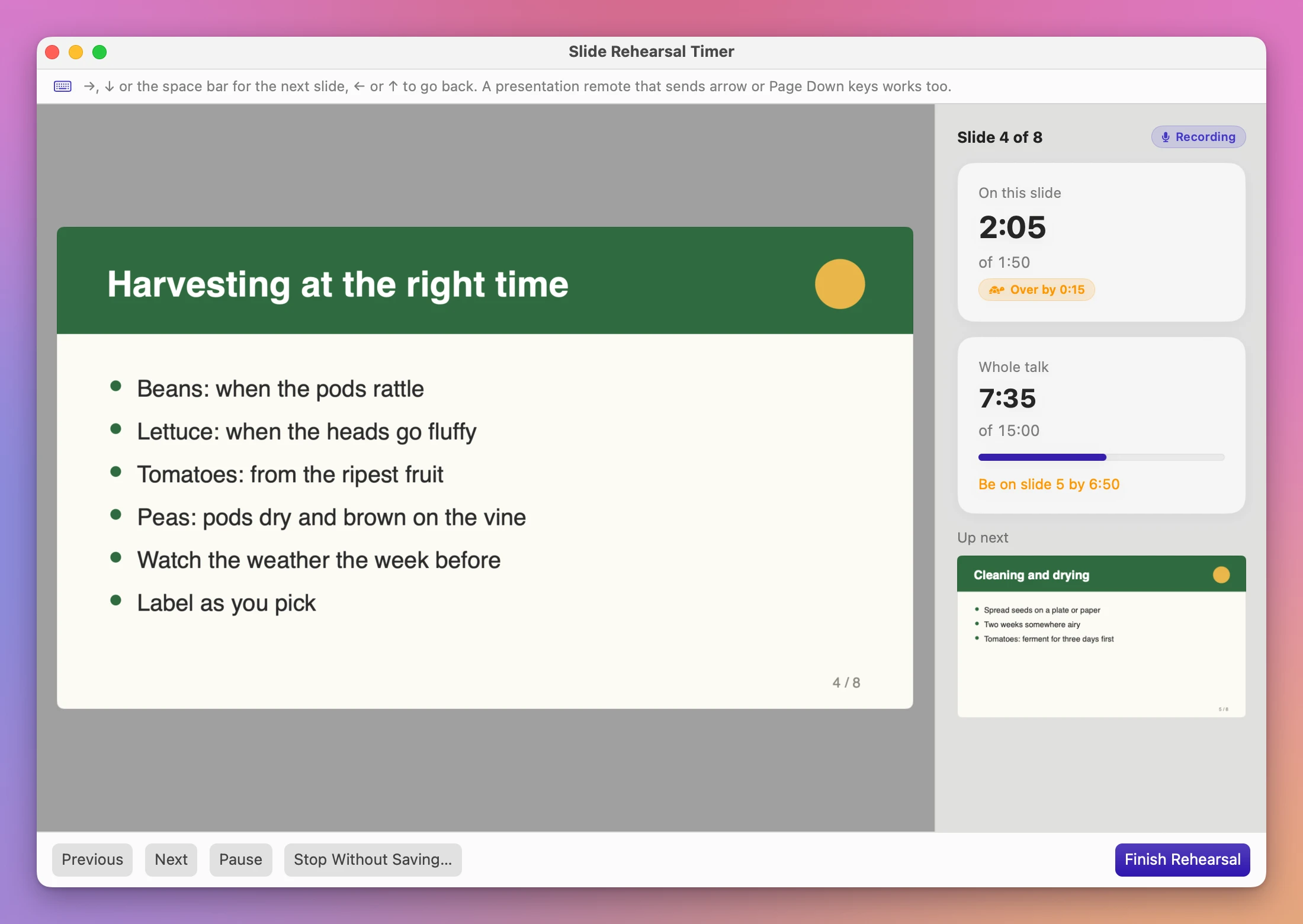
The side panel answers the question you’d otherwise do in your head: which slide you should be on, and by when.
Find the slowest slide
Click Finish Rehearsal. Every slide gets a bar with a tick at its target and a pill: On pace within 10% of the target, otherwise Over by or Under by. The slide that ran most over gets its own card.
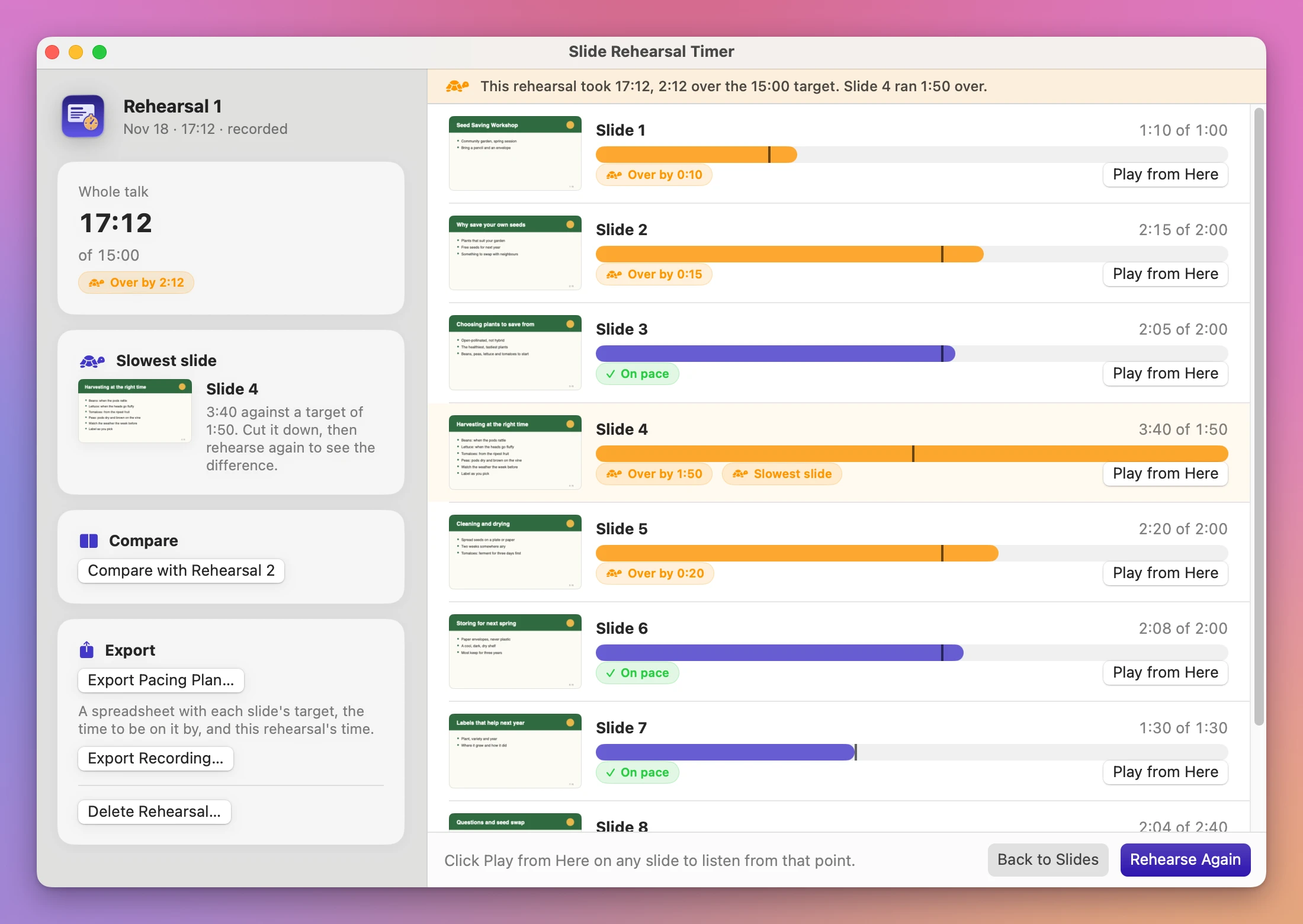
If you recorded, Play from Here on that slide starts the recording where the slide came up, so you hear exactly what took so long. Export Pacing Plan… saves a spreadsheet with each slide’s target and the time to be on it by.
Cut, rehearse again, compare
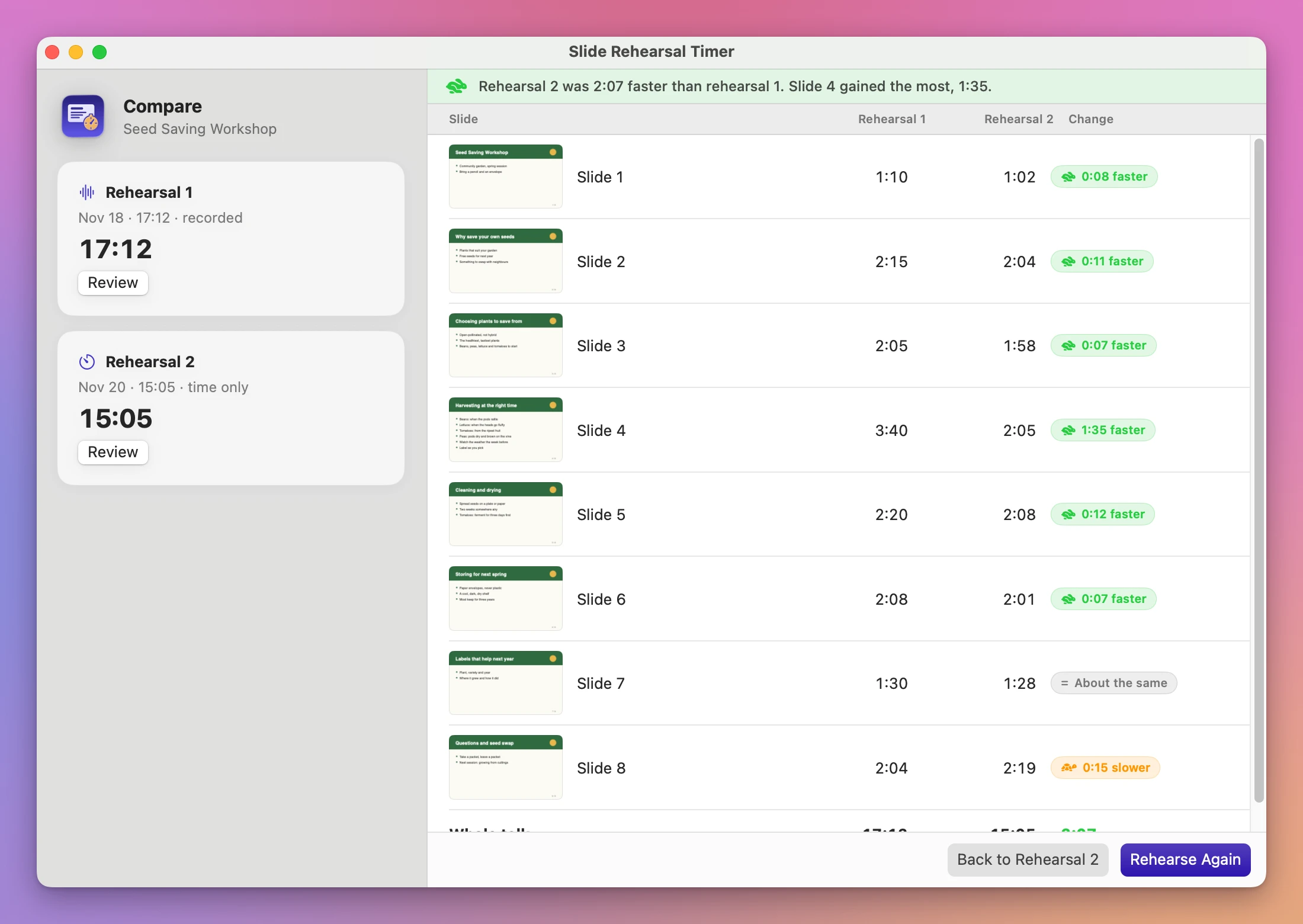
Edit the slow slide, export the PDF again over the old one, and click Rehearse Again. The app reads the new PDF. Then Compare with Rehearsal 1 puts both runs side by side.
Which way to use
| Clock stopwatch + notes | Slide Rehearsal Timer | |
|---|---|---|
| Cost | Free | $19 once |
| Keys per slide change | Two (next slide, lap) | One |
| Going back a slide | Laps stop matching slides | Time goes to the right slide |
| Target per slide | Worked out by hand | Typed or spread from the total |
| Listen to one slide | Scrub a separate recording | Play from Here |
| Compare two rehearsals | Spreadsheet and subtraction | Side by side |
For a one-off five minute talk, the stopwatch is plenty. If you’ll rehearse the same deck several times, or you give it every month, the app saves the bookkeeping, and the slowest slide is on screen the moment you stop talking.
Get Slide Rehearsal Timer
Rehearse a talk over the PDF of your slides and see the time on every slide against its target. Record your voice to listen back from any slide, compare two rehearsals and export a pacing plan.
See Slide Rehearsal Timer → · Read the docs · $19. See the app page for tax details.