
An app by Flavio
Video Credits Builder
Keep the credit each song, stock clip, photo and sound effect asks for, entered once. Tick what a video uses, or drop its media folder, and copy one block of credits for the description or the end credits. Anything missing a credit is flagged.
Buy Video Credits Builder · $19One-time purchase. Plus tax where it applies.
macOS 14 or later · Apple silicon and Intel
Latest version 1.0.2, released November 22, 2026
Your video uses two tracks from a free music site, three stock clips, a photo with a Creative Commons license and a couple of sound effects. Each of them asks for a credit, and most give you the exact line to paste in the description. You copied them when you downloaded the files, somewhere.
So you dig through download pages and old descriptions, paste the lines one by one, and hope you didn’t skip the second track. If you did, the first sign is often a copyright claim on the video.
Video Credits Builder keeps every asset’s credit line, license and link, entered once. For each video you tick what you used, or drop the project’s media folder and the app finds them by file name. Then you copy one block of credits, ready for the description or the end credits. Anything that’s missing its credit text, its license or its license link is flagged before you upload.
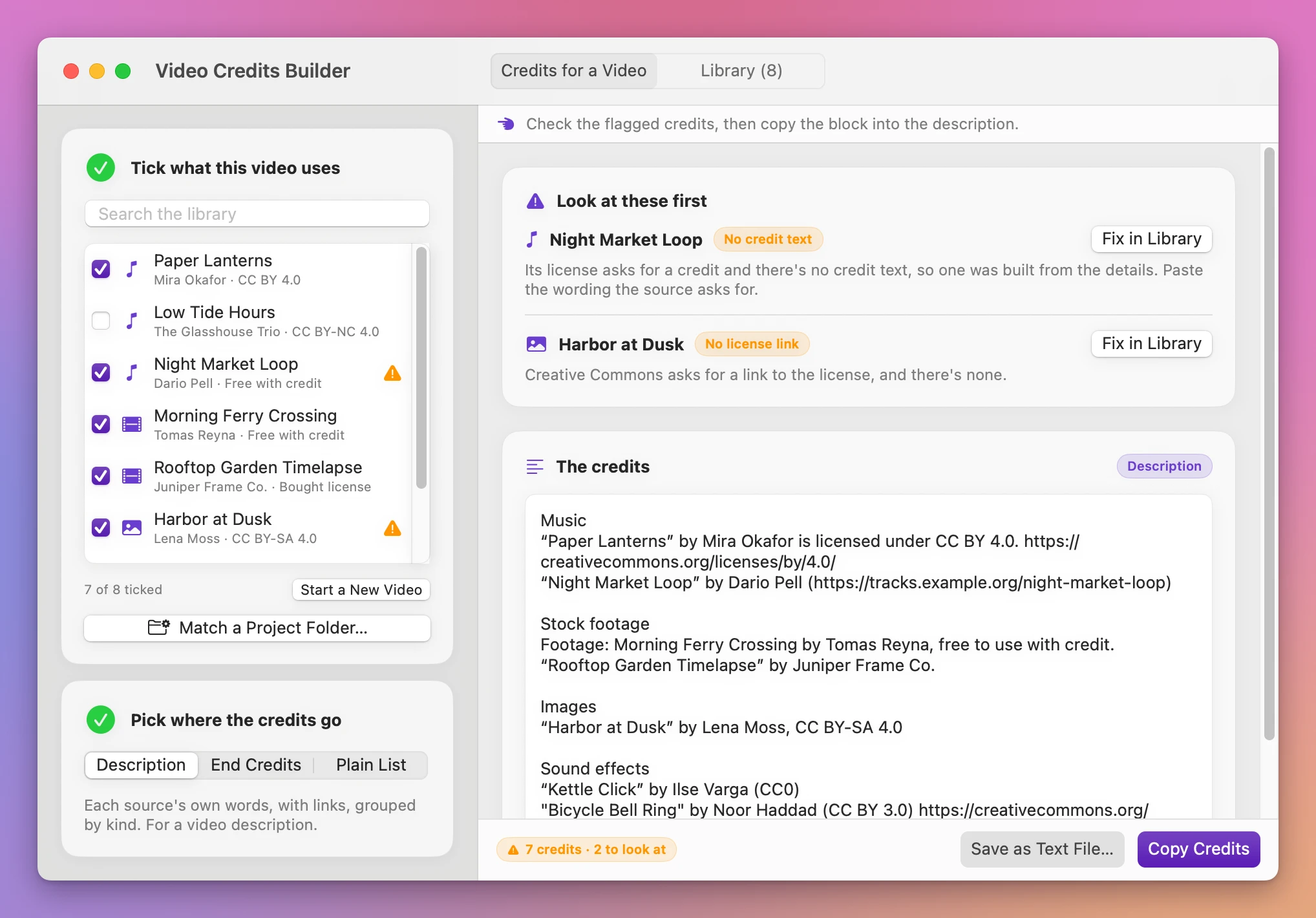
Watch a 30-second demo of Video Credits Builder:
Who it’s for
- YouTubers who use Creative Commons music. Each track’s page says “credit the artist with this line” and links the license. With a new video every week, the credits are where things slip, and a missing one can bring a claim or a takedown request.
- Freelance editors cutting with stock footage and free music. The client wants the list of what’s licensed from where with the final export. Tick the assets, pick Plain List, save it as a text file and send it along.
- Documentary and school video makers. Archive photos and Creative Commons images need a credit roll at the end. End Credits gives you headings, titles, creators and licenses, ready for a text layer.
- Podcasters who post video episodes. The same intro music and sound effects in every episode, and the same credits to paste every week. Tick them once, and Start a New Video keeps your library for the next one.
- Social media people at small teams. A handful of tracks reused across dozens of short videos, each needing its credit in the caption.
From a pile of downloads to one block of credits
- Click Add Your First Asset. Paste the credit the music or stock site gives you into Credit text, then click Fill In the Details From This Text. The title, the creator, the license and its link are filled in from the text. Pick the License if it wasn’t found.
- Add the other tracks, clips, photos and sounds the same way. Or drag a project’s media folder onto the window and click Add next to the files that came from a library.
- In Credits for a Video, tick what this video uses. Or click Match a Project Folder… and pick its media folder: the assets whose file names are in it get ticked.
- Pick Description, End Credits or Plain List.
- Look at the assets under Look at these first, and click Fix in Library for each.
- Click Copy Credits and paste them into the description, or Save as Text File….
What you get
A library of credits, entered once
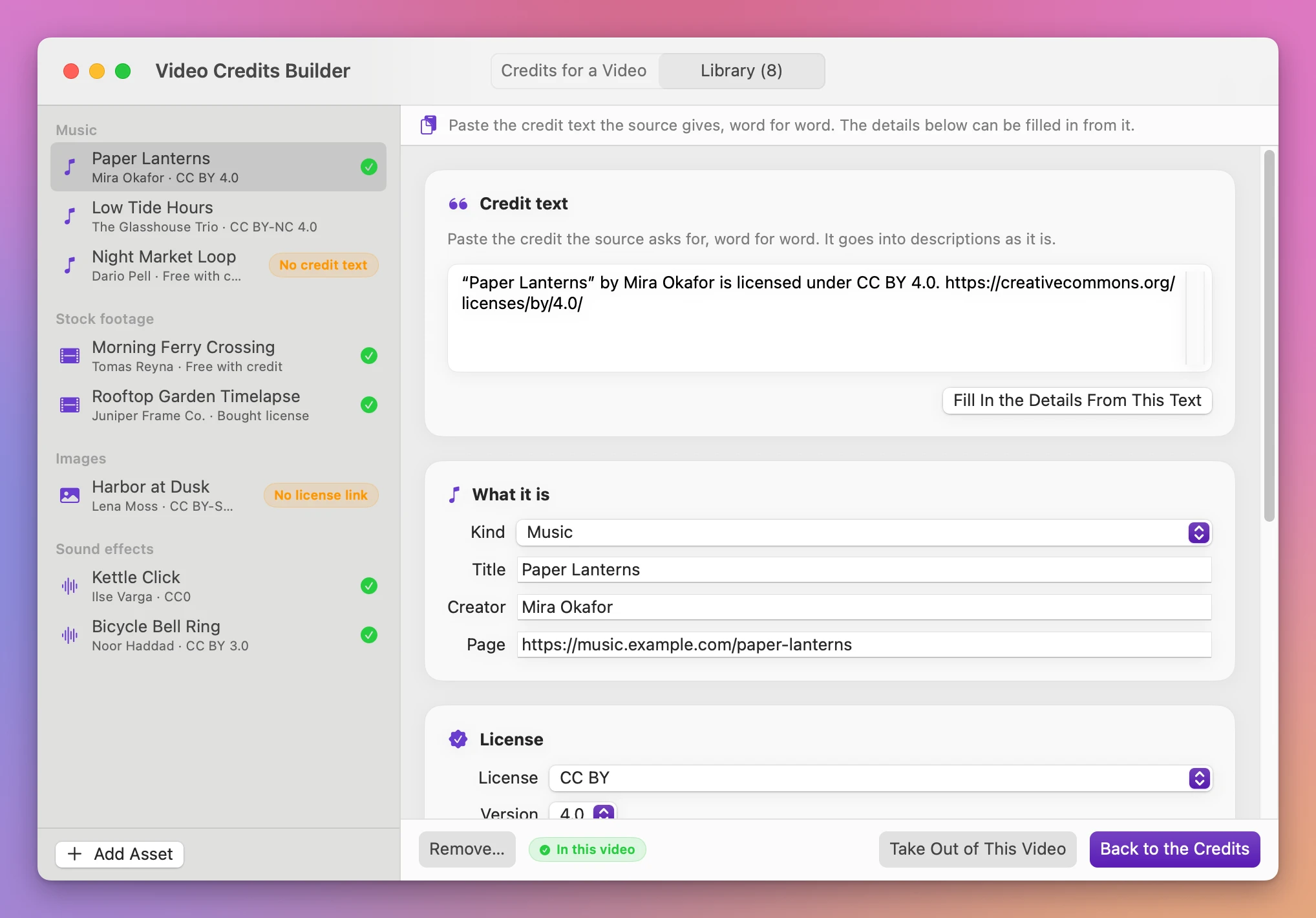
Each asset keeps its kind (music, stock footage, image, sound effect), its title, its creator, the page you got it from, its license, the license link, the file names it’s found by, a note for yourself, and the credit text the source asks for, word for word.
Paste a credit like “Paper Lanterns” by Mira Okafor is licensed under CC BY 4.0, with its link, and Fill In the Details From This Text reads the title in quotes, the name after “by”, the license from its link or its name, and the links. It only fills fields that are empty, so it never overwrites what you typed.
The licenses it knows: the six Creative Commons licenses that ask for a credit (CC BY, BY-SA, BY-ND, BY-NC, BY-NC-SA, BY-NC-ND) with their version, CC0, public domain, free with credit, free with no credit needed, a bought license, and other. For a Creative Commons license, Use the Official Link fills in the license’s page.
Three ways to write the credits
- Description groups the credits under Music, Stock footage, Images and Sound effects, with each source’s own words and links. When a Creative Commons license asks for a link to the license and the credit text doesn’t have it, the link goes on the line under it. An asset with no credit text gets a line built from its title, creator, page and license.
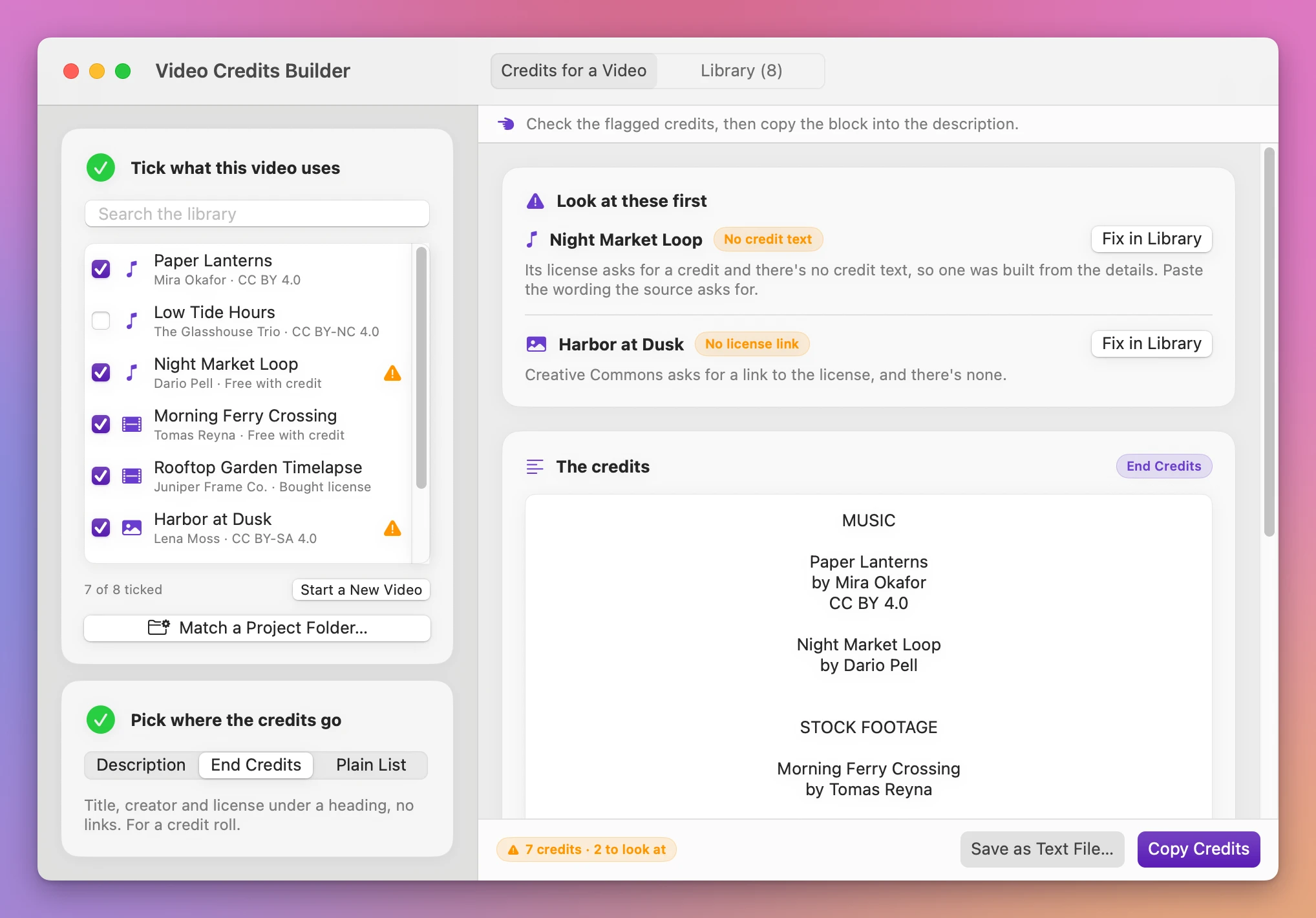
- End Credits puts each group under a heading in capitals, with the title, “by” and the creator, and the license name on separate lines. No links, because nobody can read a link in a credit roll.
- Plain List is one line per asset, with its kind, license and link.
What’s missing, before you upload
Every ticked asset is checked. The ones that need a look are listed with an orange pill and a sentence:
- No credit text: the license asks for a credit and there’s none, so the app built one from the details. Paste the wording the source gives.
- License not set: nobody can tell whether it needs a credit.
- No creator and No license link: Creative Commons asks for both.
- Non-commercial and No changes allowed: the license is a CC BY-NC or a CC BY-ND one. Check before you put the track in a monetized video, or trim and loop it.
Fix in Library opens the asset.
A project’s media folder, matched by name
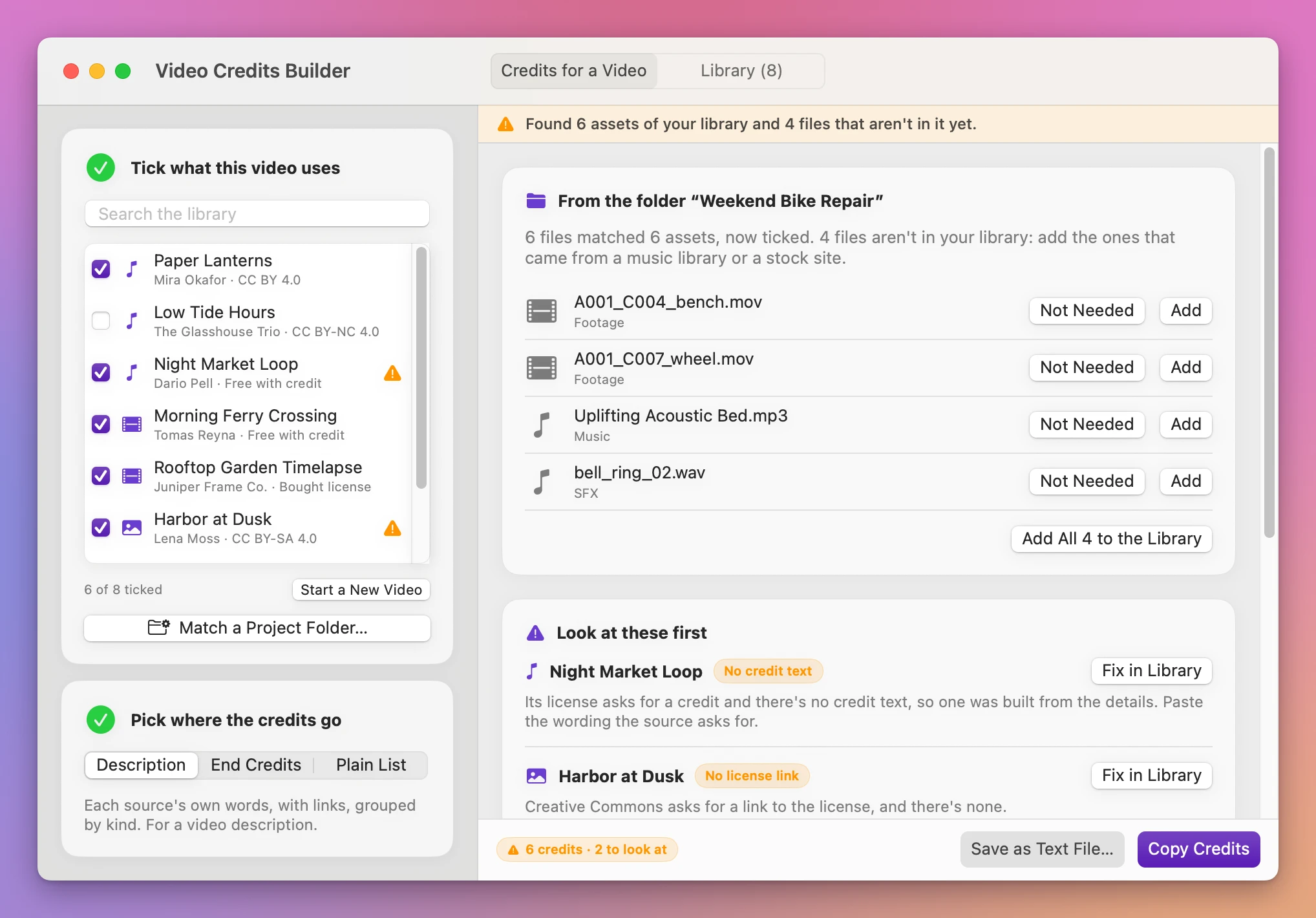
Drop the folder of a video’s project on the window, or click Match a Project Folder…. The app reads the names of the music, video and image files in it and ticks the assets with a matching file name, or whose title is in the file name. Files that aren’t in your library are listed, with Add for the ones from a music library or a stock site and Not Needed for your own clips.
Only file names are read. Nothing in the folder is opened or changed.
Your library, on any of your Macs
File → Export Library… saves a copy of the library as a file, and File → Import Library… adds the assets of a saved library to yours, skipping the ones already there.
Why not do it by hand
The usual way is a note or a spreadsheet with one line per track, copied from the download page. For each video you open it, find the lines of the tracks you used, and paste them into the description. It’s free and it works when you’re careful.
What makes it slow is matching the note to the video. The project folder has ten media files, and you have to remember which ones came from a music site, which from a stock site and which you shot yourself. A track you replaced at the last minute is still in the note and not in the video, and the one that replaced it isn’t in the note.
Your editing app can list the clips in a project, but not the credit each one asks for. Music and stock sites show the credit line once, on the download page. Credit roll apps make a scrolling credits video from text you type.
| A note or spreadsheet | Video Credits Builder | |
|---|---|---|
| Cost | Free | $19 once |
| Keeps each source’s credit text | Yes, if you pasted it | Yes |
| Title, creator, license from the pasted text | By hand | One click |
| Find what a video used | From memory | Tick, or match the media folder by file name |
| Flags a missing credit or license | No | Yes, before you copy |
| Warns about non-commercial licenses | No | Yes |
| Description, end credits and plain list | Rewrite it each time | Three formats from the same library |
| Groups by music, footage, images, sounds | By hand | Yes |
What it doesn’t do
- It doesn’t find the license of a file on its own. You paste the credit and pick the license.
- It doesn’t check a video on YouTube or any other site, and it doesn’t stop claims.
- It doesn’t read an editing app’s project or timeline. It matches the file names in a folder.
- It doesn’t keep license PDFs, receipts or invoices.
- It doesn’t make a credit roll video. It writes the text you put in one.
- It doesn’t tell you what a license allows. Read each license.
Questions
Does it change my files?
No. The app reads the names of the files in a project folder and nothing else. Your library is kept in the app’s own folder on your Mac.
Does it upload anything?
No. Your library and your projects stay on your Mac. The app connects to the internet only to check for updates.
Does it work with my editing app?
It doesn’t open projects. It works with the folder of media files any editing app uses: drop the folder that holds the project’s music, footage and images.
What it needs
Video Credits Builder runs on macOS 14 Sonoma or later, on Apple silicon and Intel Macs. It asks for no permissions.
Buy Video Credits Builder
$19 plus tax where it applies, paid once.
Download the app from the order page or your Creem receipt, unzip it and move it to Applications. I sign the app with my Apple Developer ID, and Apple notarizes the download.
The app checks for updates once a day. When a new version is ready, click Install and Relaunch. To check anytime, choose Video Credits Builder → Check for Updates….
Video Credits Builder is an independent app. It’s not made by, affiliated with or endorsed by Creative Commons, YouTube, Apple or any music or stock footage library. Creative Commons license names are used only to name the licenses.