
An app by Flavio
Video Export Checker
Drop in the exports of one video and compare their length, picture size and sound side by side, with frames from the opening to the end. Black openings, silent sound, the wrong shape and odd lengths are marked, and a preflight report goes out as a PDF and a spreadsheet. Your videos are never changed.
Buy Video Export Checker · $19One-time purchase. Plus tax where it applies.
macOS 14 or later · Apple silicon and Intel
Latest version 1.0.1, released November 22, 2026
You finished a 90-second promo and exported it four times: a 4K upload, a ProRes master for the client, a copy for the client’s site and the cut you made last week. Then the client writes back. The master has no music. The site copy came out at 4096 × 2160 and shows black bars. Nobody noticed, because every file opened and played.
You can catch this by hand. Open each export in QuickTime Player, check its size in the Movie Inspector, scrub to the start and the end, and listen for a few seconds. With four files that’s a quarter of an hour, and a track that’s there but silent looks fine in every window that lists it.
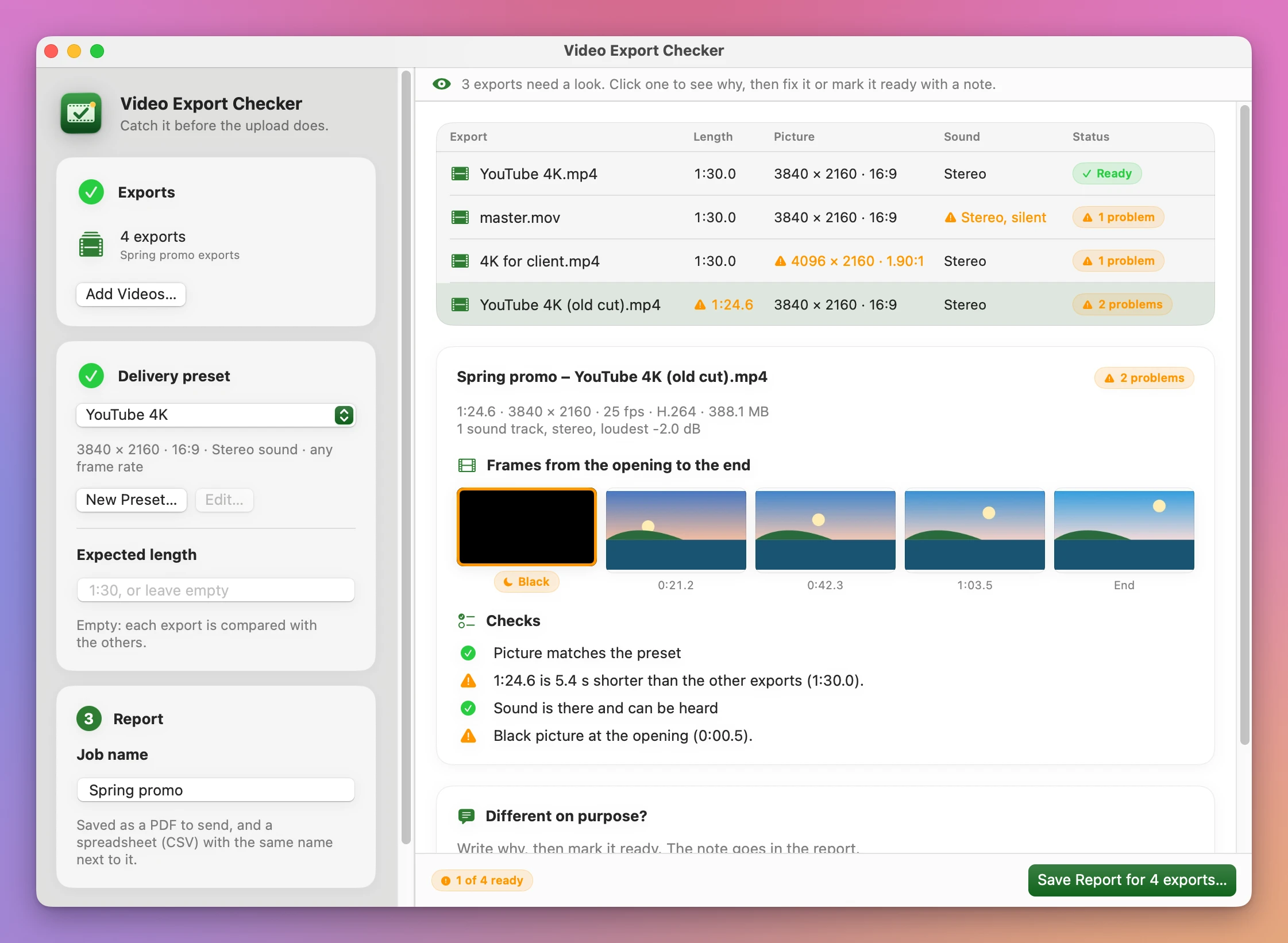
Video Export Checker reads all of them at once. It lays their length, picture size and sound side by side, marks every value that doesn’t match in orange, and shows five frames from each one, from the opening to the end. When a difference is on purpose you say so in a note, and the app saves a preflight report you can send with the delivery.
Who it’s for
- Freelance video editors. You deliver a 4K master, an HD copy and a vertical cut of every job. One of them once went out with the music track muted in the export settings, and you only heard about it from the client.
- Social media managers. The same video goes up as a YouTube upload, an Instagram Reel at 1080 × 1920 and a square post. A 16:9 file uploaded as a Reel gets cropped or letterboxed, and you’d rather see “Wrong shape” before you schedule it.
- Wedding and event videographers. You export a full film, a highlights cut and a teaser. Each should start on picture, not on two seconds of black left over from the timeline.
- Small agencies. The client wants proof of what was checked. The PDF lists every export with its numbers, its frames and the note for the one that’s different on purpose, like the textless master without music.
- Course makers. You re-exported a lesson after fixing a typo on screen. The new file should be the same length as the old one, with sound, and the app says so in one line.
How it works
- Click Choose Videos… and pick the exports of one job, or the folder they’re in. You can also drag them onto the window or onto the app’s icon in the Dock.
- Pick the Delivery preset: YouTube 4K, YouTube HD, Instagram Reel 1080 × 1920, Square post 1080 × 1080, Portrait post 1080 × 1350, or your own.
- Type the Expected length, like 1:30, or leave it empty to compare the exports with each other.
- Click an export to see its frames and its checks. The comparison shows every value that doesn’t match in orange.
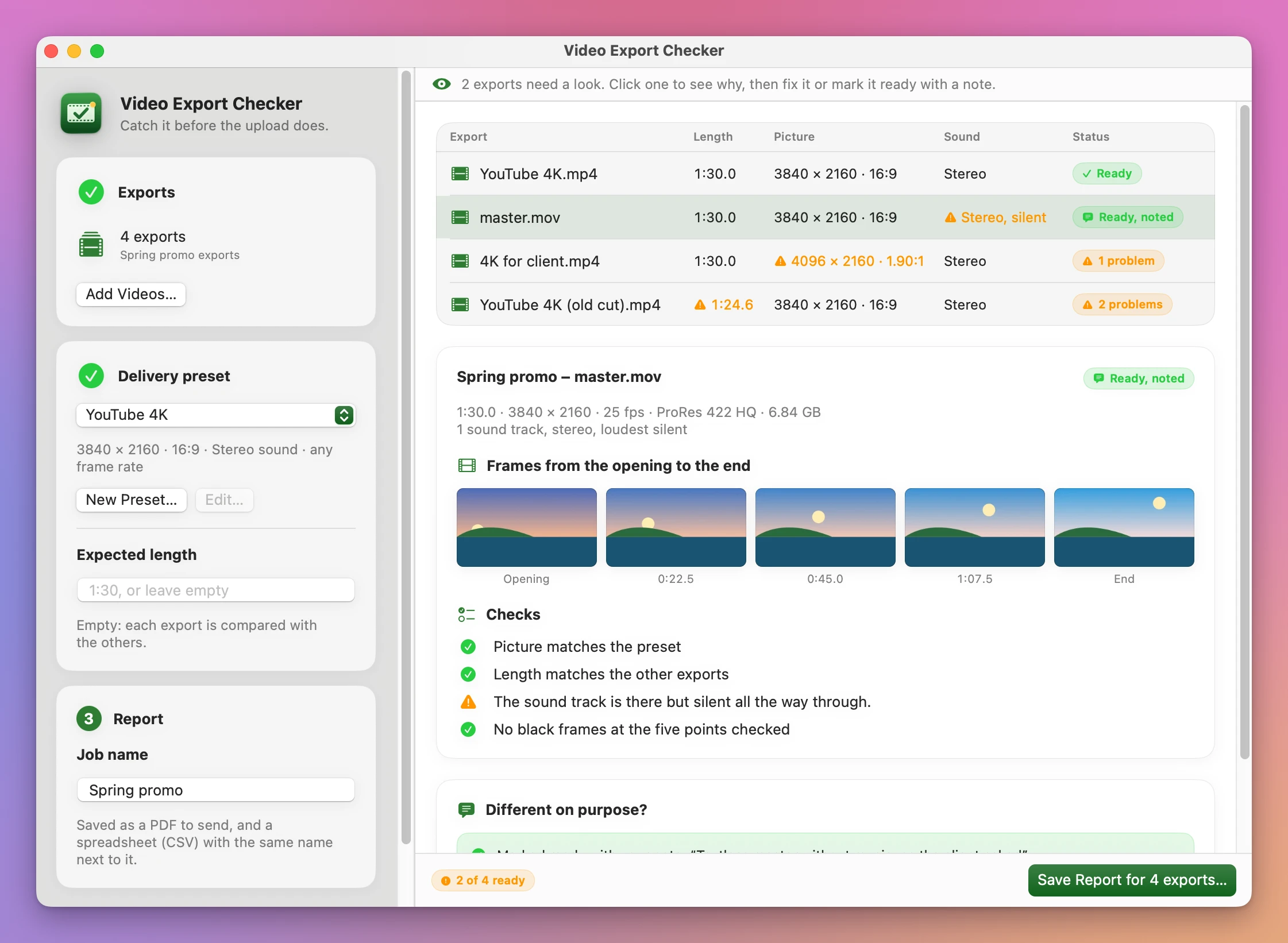
- If a difference is on purpose, write why under Different on purpose? and click Mark Ready.
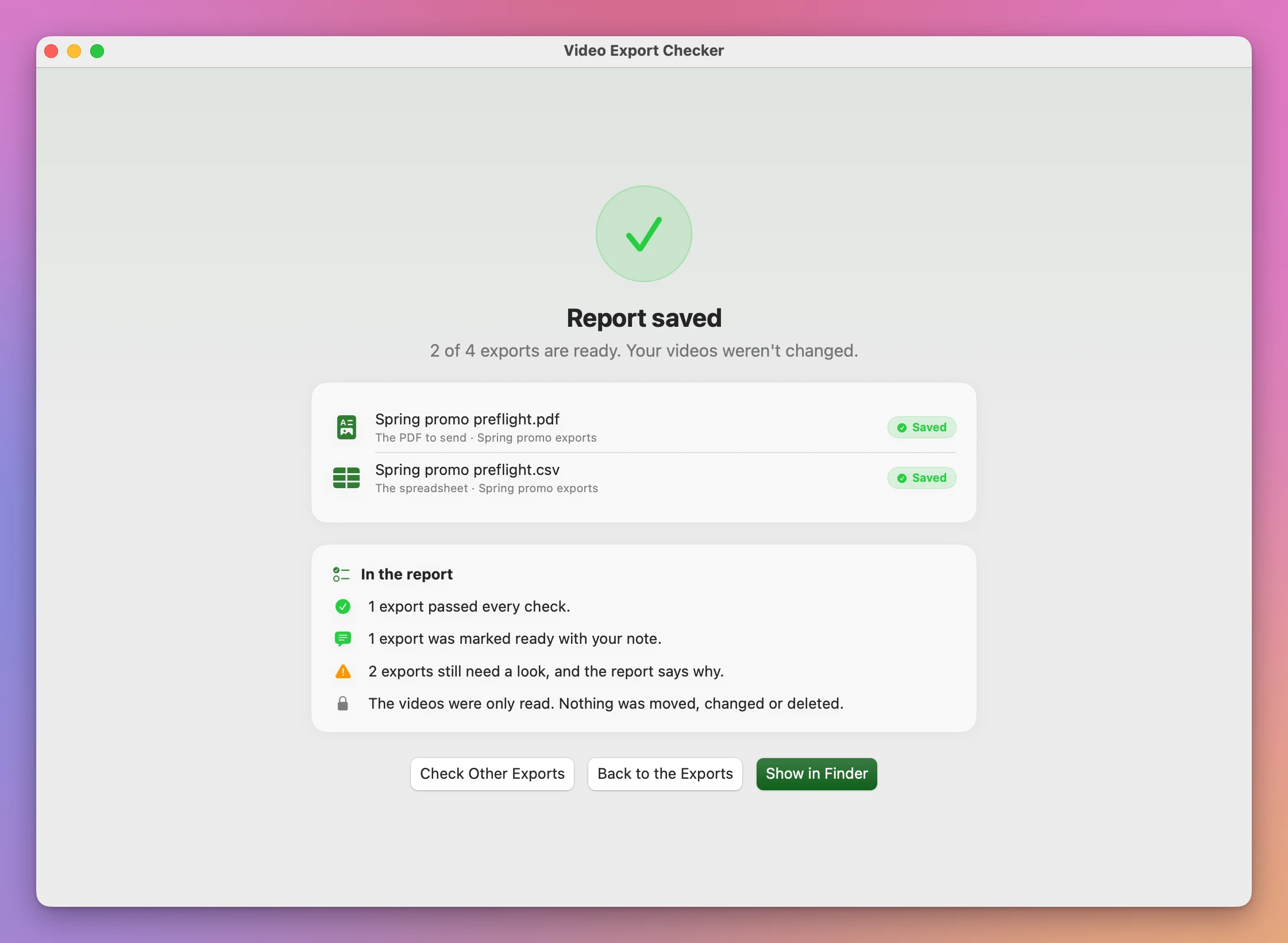
- Click Save Report for 4 exports… and pick where.
What you get
Every export side by side
One row per file, with its length, its picture size and shape, its sound and a status: Ready, 1 problem, 2 problems or Ready, noted. The names are shortened to the part that tells them apart, so “Spring promo – YouTube 4K (old cut).mp4” shows as “YouTube 4K (old cut).mp4”. A file that isn’t a video stays in the list as Can’t be read, with the reason.
Five frames from each one
The app takes a frame half a second in, at a quarter, at the middle, at three quarters and half a second before the end. A frame that’s black is outlined in orange with a Black pill. The opening frame is half a second in so a short fade from black doesn’t count, but a black leader of a second or two does.
Sound that’s there but silent
The app plays every sound track through, measuring as it goes. A track whose loudest moment is under -60 dB is marked “The sound track is there but silent all the way through.” It also says when there’s no sound track at all and the preset wants one, and when the sound is mono and the preset wants stereo.
The wrong shape, told apart from the wrong size
A vertical 1080 × 1920 file for a 16:9 preset is “Wrong shape”. A 1920 × 1080 file for the YouTube 4K preset has the right shape and gets “1920 × 1080 is smaller than the preset’s 3840 × 2160.” The size is the one players show, after the rotation a phone writes into the file.
Lengths that don’t match
With an expected length, each export must be within half a second of it. Without one, each export is compared with the others, so the old cut that’s 5.4 seconds short stands out on its own.
Your own presets
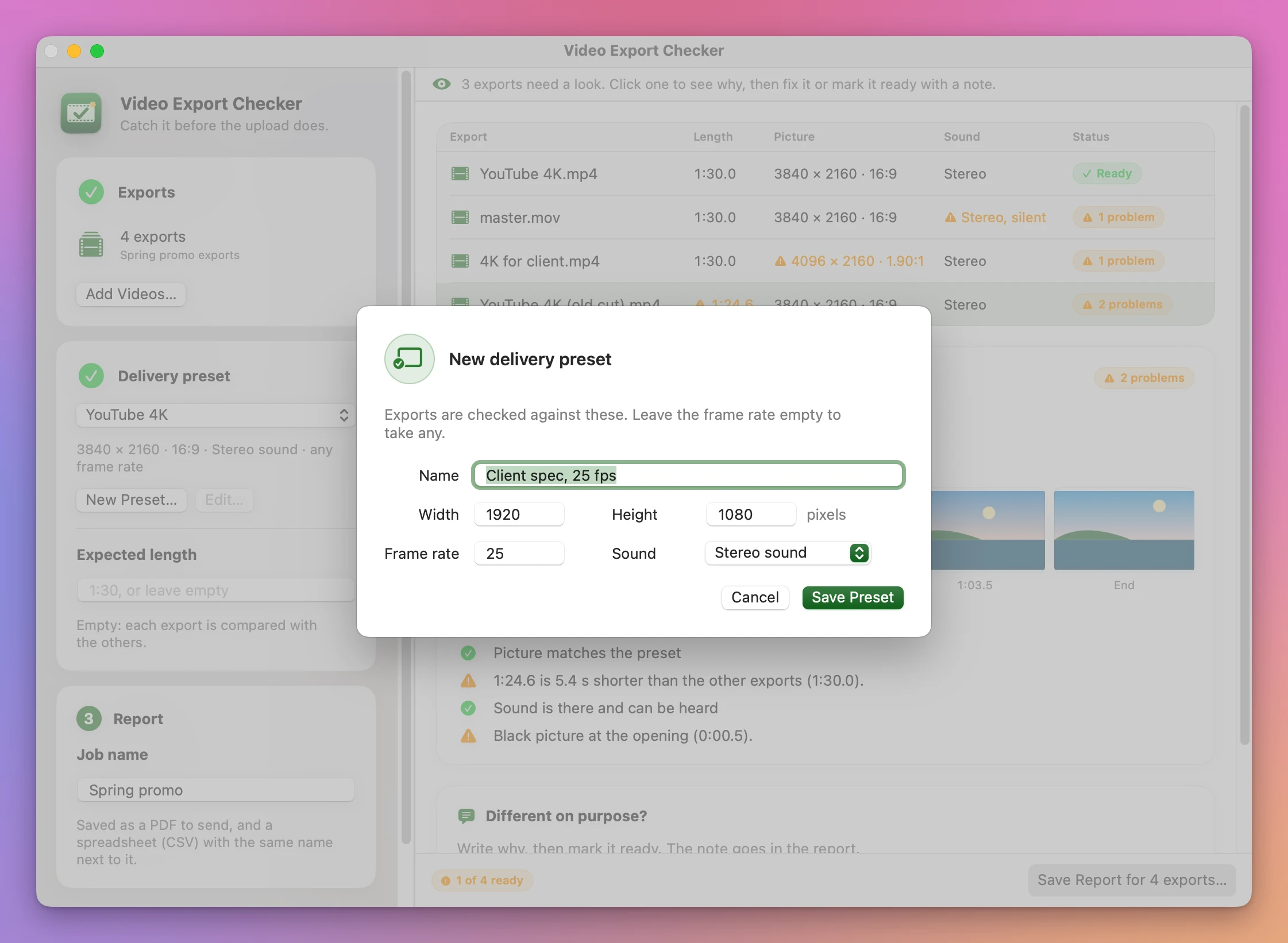
New Preset… takes a name, a width and height, a frame rate if the delivery asks for one, and the sound it needs: not needed, needed, stereo or 5.1. Use it for a client’s spec sheet or a festival’s.
Notes for differences that are on purpose
A textless master without music is silent on purpose. Write that under Different on purpose?, click Mark Ready, and the export counts as ready with your note next to it, in the window and in the report.
A preflight report to send
Save Report writes a PDF with each export’s numbers, problems, note and five frames, and a spreadsheet (CSV) with the same name next to it, one row per export, that opens in Numbers or Excel.
Why not check them by hand
macOS can tell you a lot about one video. The Finder’s Get Info shows its dimensions, codecs, length and audio channels. QuickTime Player’s Movie Inspector adds the frame rate. Both are free and both are right.
What they don’t do is compare. You open one window per export and read the numbers across by eye. Neither one says that a sound track is silent: it shows up as Stereo, AAC, like any other. Neither one shows the first and last frames, so you scrub each file to both ends. And when you’re done, you have nothing to send the client but your word.
| By hand | Video Export Checker | |
|---|---|---|
| Four exports | Four Get Info or Inspector windows, compared by eye | One table, the odd values in orange |
| A silent track | Listen to each file | Measured all the way through, marked when silent |
| A black opening | Scrub each file to the start and the end | Five frames per export, black ones outlined |
| The wrong shape | Work out 4096 ÷ 2160 yourself | ”Wrong shape: 1.90:1. The preset wants 16:9.” |
| A length that’s off | Compare times to the tenth of a second | Against the expected length or the other exports |
| Proof for the client | A message saying you checked | A PDF with the frames and a CSV |
What it doesn’t do
- It doesn’t fix anything. It doesn’t re-export, trim, add sound or change a file. It tells you which export to redo.
- It doesn’t measure loudness to a broadcast standard. It finds silent tracks, not mixes that are too loud or too quiet for a platform’s LUFS target.
- It doesn’t look at every frame. It looks at five per export, so a flash of black in the middle of a scene can slip between them.
- It doesn’t check captions, chapters or metadata. Only the picture, the length and the sound.
- It reads what your Mac can play. MOV, MP4 and M4V files that QuickTime Player opens. Other formats show as Can’t be read.
Questions
Does it change my videos?
No. The app only reads them. It never writes to a video, moves one or renames one, and the report can’t take a video’s name.
Does anything get uploaded?
Nothing. The videos are read on your Mac. The app connects to the internet only to check for updates.
How long does it take?
It plays each sound track through to measure it and decodes five frames, so a long ProRes master takes longer than a short MP4. The progress shows “3 of 4” and the name of the file it’s reading.
Is the YouTube preset the official spec?
The built-in presets are the common picture sizes for those uploads, with stereo sound. For an exact delivery spec, make your own preset with New Preset…. Video Export Checker isn’t made by, affiliated with or endorsed by Google, YouTube, Meta or Instagram.
What it needs
macOS 14 Sonoma or later, on Apple silicon and Intel Macs. The app asks macOS for no permission.
Buy Video Export Checker
$19 plus tax where it applies, paid once.
Download the app from the order page or your Creem receipt, unzip it and move it to Applications. I sign the app with my Apple Developer ID, and Apple notarizes the download.
The app checks for updates once a day. When a new version is ready, click Install and Relaunch. To check anytime, choose Video Export Checker → Check for Updates….