Sample lesson: Show the modal
A free lesson from the AHA Stack Masterclass, where HTMX loads a modal from the server and the dialog element shows it.
This is lesson 25 of 125 of the AHA Stack Masterclass. At this point we have a dashboard that lists projects from PocketBase. In the previous lessons we added an empty
<dialog>element to the app layout, created the page partialsrc/pages/app/modals/project/new.astrofor the “new project” modal, and installed htmx.
Now that htmx is loaded, we can start using it.
Add these 2 lines to the src/components/app/projects/AddNewProjectCard.astro component:
<div class='text-white bg-zinc-800 rounded-lg shadow'>
  <div
    class='flex items-center justify-between w-full p-6 text-center space-x-6'>
    <div class='flex-1 mx-auto'>
      <button
        type='button'
        class='inline-flex items-center justify-center px-6 py-2 text-sm font-bold text-white bg-blue-600 border border-transparent rounded-md hover:bg-blue-700 focus:outline-none focus:ring-2 focus:ring-offset-2 focus:ring-blue-500 select-none'
        hx-get='/app/modals/project/new'
        hx-target='dialog'
      >
        Add new project
      </button>
    </div>
  </div>
</div>
This tells htmx to get the HTML returned by the URL /app/modals/project/new (the page partial we created before), and put it inside the <dialog> element.
We just have one dialog element in our app, and I don’t think we’ll need more, so we’ll just target it this way.
Otherwise you could have used any CSS selector (htmx works with the standard CSS selectors to target elements), like #modal for example.
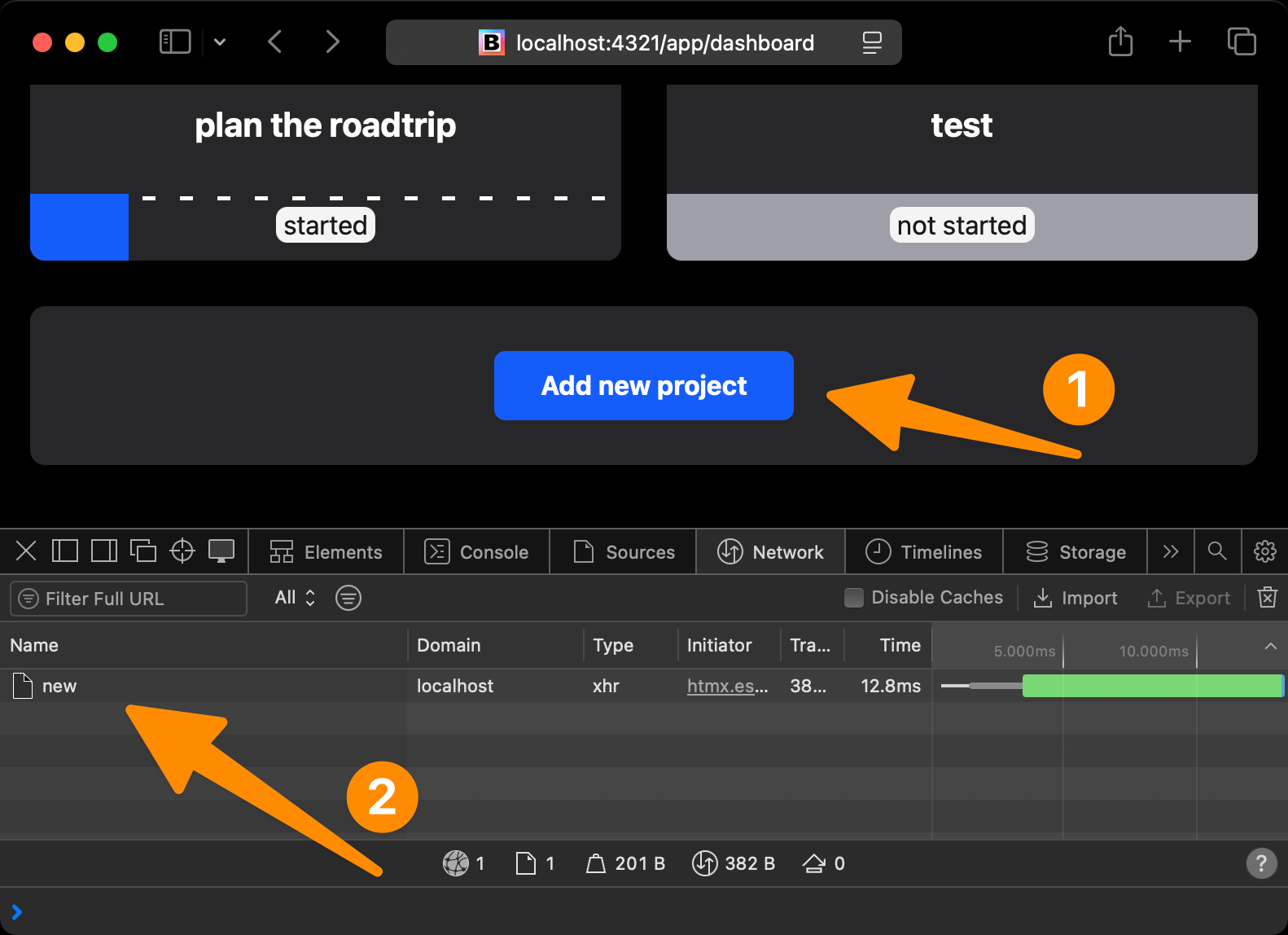
Now try clicking the “Add new project” button.
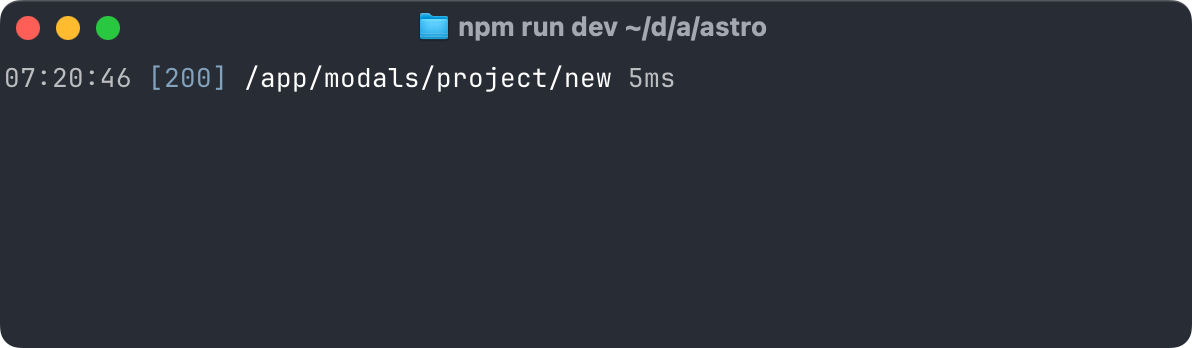
Nothing seems to happen, but if you look at the terminal where npm run dev is running, you’ll see a new GET request made to the URL /app/modals/project/new:
And in the network panel in the DevTools you’ll see the request too:
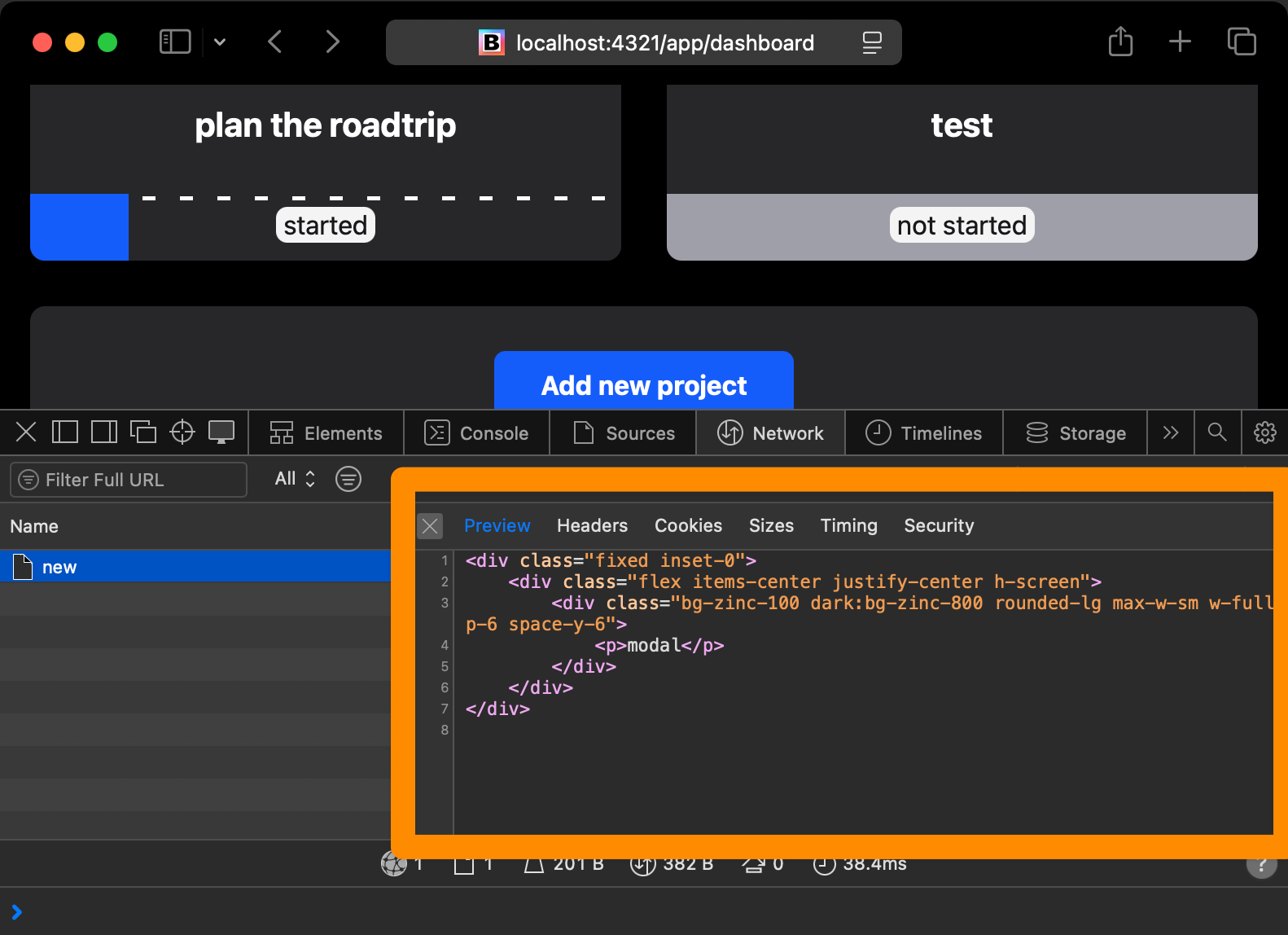
If you open the details of this request, by clicking it, you’ll see the HTML we wrote in the page partial:
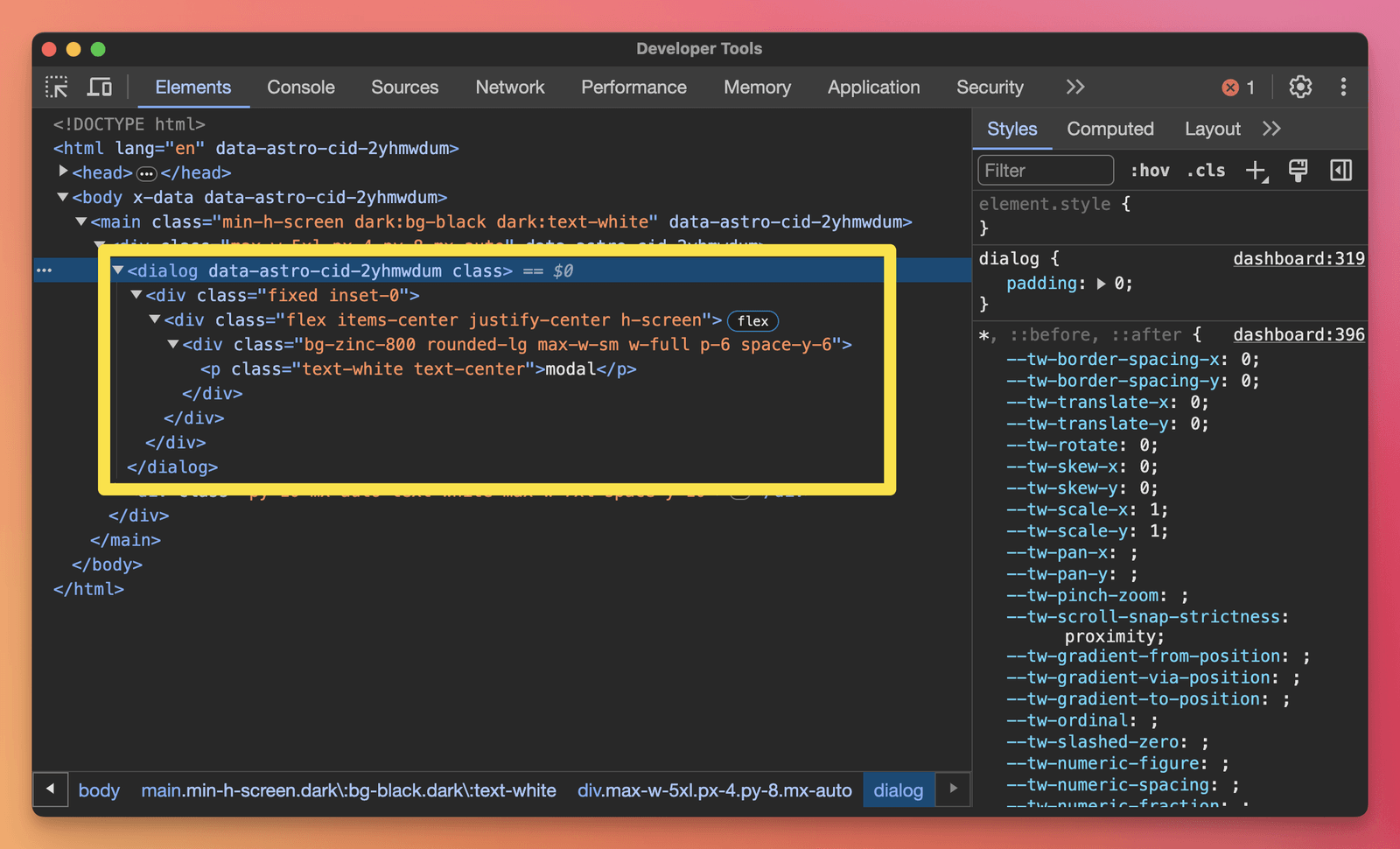
This HTML we retrieved was added to the <dialog> tag by htmx:
This is the first time we used htmx, but notice how much stuff it did behind the scenes, just by adding those 2 lines:
hx-get='/app/modals/project/new'
hx-target='dialog'
Now the question is, why don’t we see the content on the page?
It’s because the <dialog> element is a bit special. As I mentioned before, its content is hidden by default.
We need to add a line of JavaScript to src/pages/app/modals/project/new.astro to tell it to show the content:
---
export const partial = true
---

<script is:inline>
  document.querySelector('dialog').showModal()
</script>

<div class='fixed inset-0'>
  <div class='flex items-center justify-center h-screen'>
    <div
      class='bg-zinc-100 dark:bg-zinc-800 rounded-lg max-w-sm w-full p-6 space-y-6'>
      <p>modal</p>
    </div>
  </div>
</div>
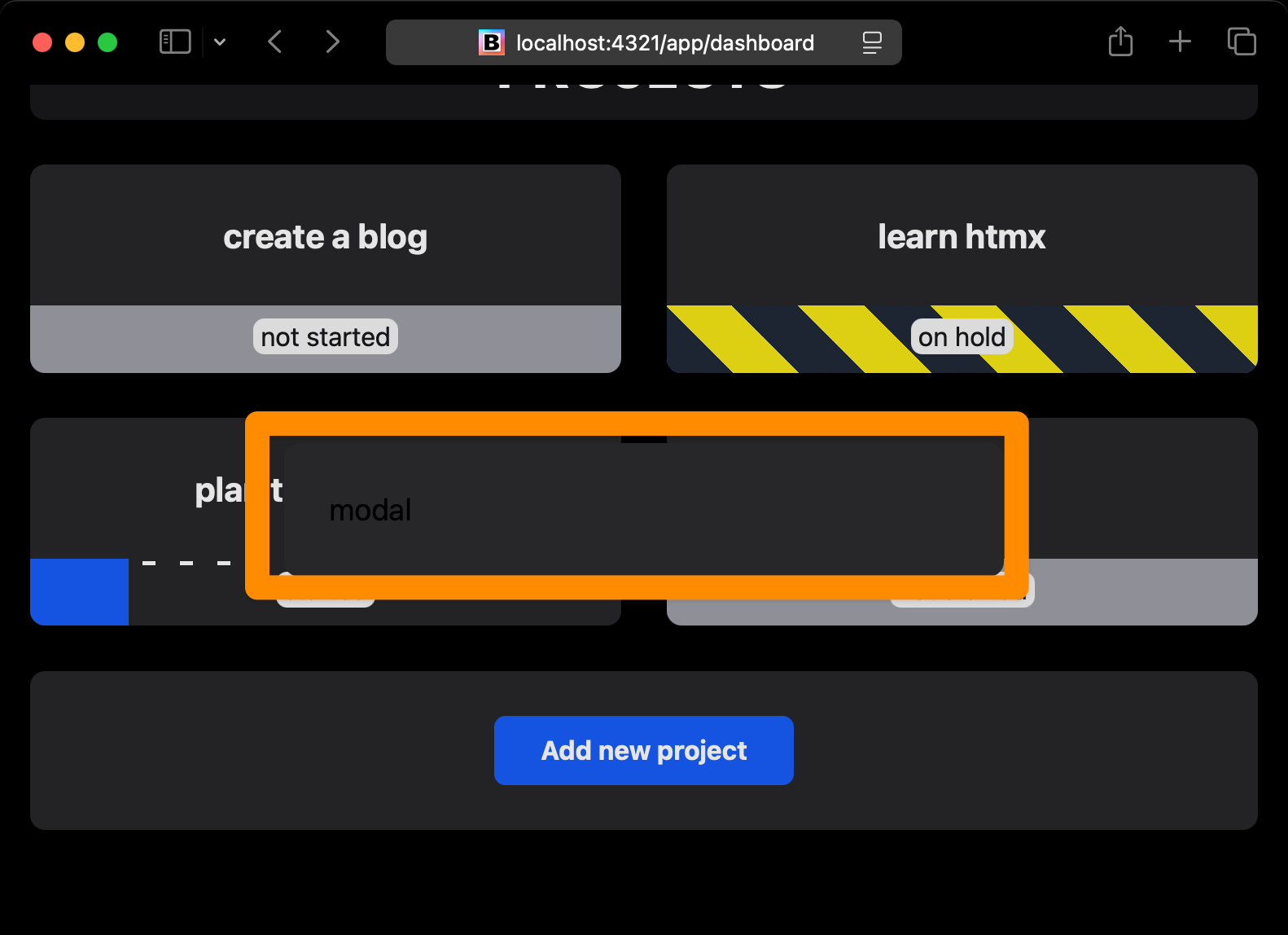
It works:
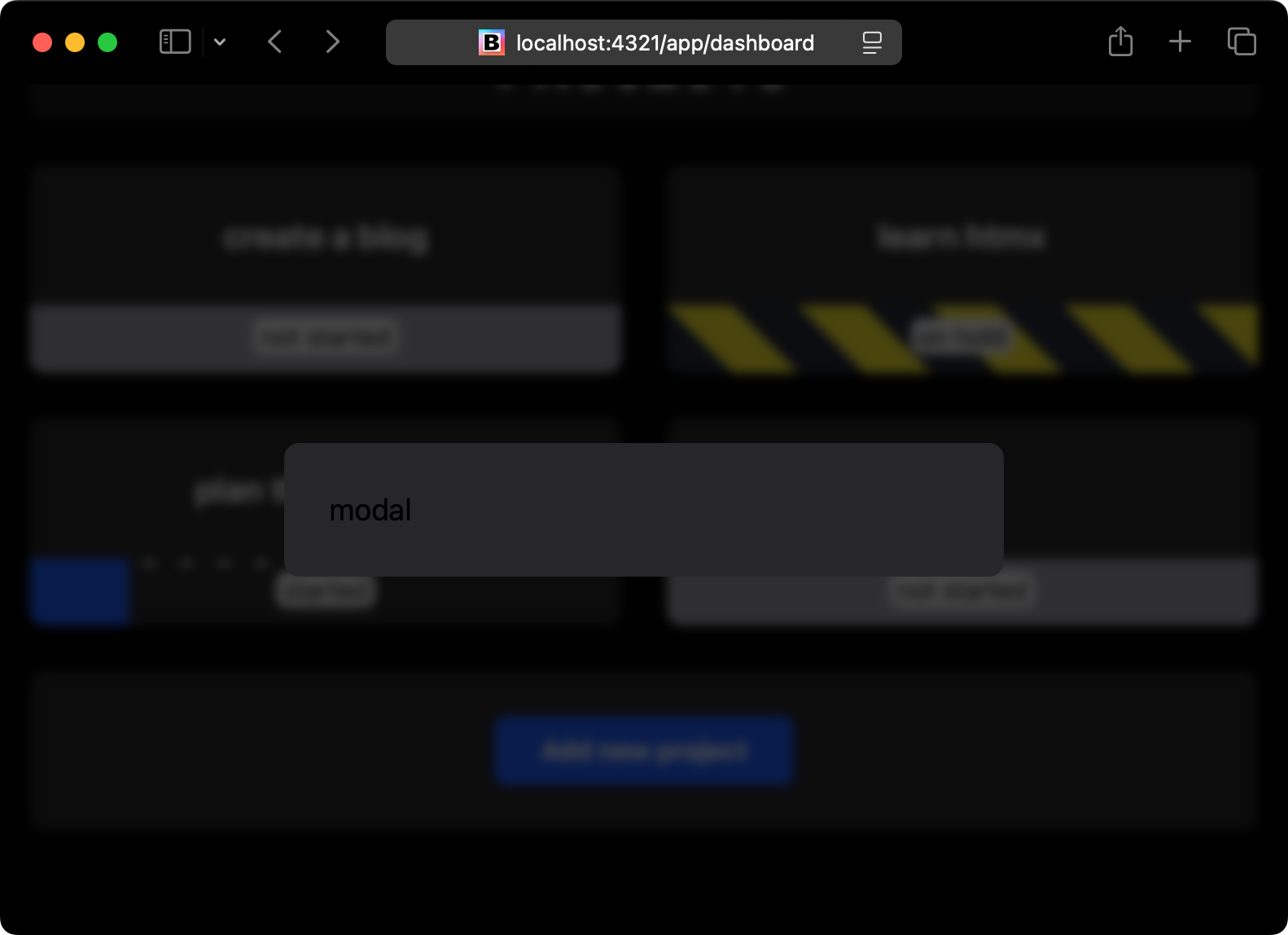
We can now add a special <dialog>-specific CSS rule in src/styles/global.css to blur all the content “behind” the dialog:
dialog::backdrop {
  background-color: rgba(0, 0, 0, 0.7);
  backdrop-filter: blur(3px);
}
This looks better:
Keep going
In the next lessons we add the form to the modal, close it when you click outside, and save the new project to PocketBase. Then we keep going until the app has accounts, teams, Stripe subscriptions and a production deploy.
The full course is 125 lessons like this one, plus the source code on GitHub and a Discord chat with the other students. It costs $49, with lifetime access and a 30-day money-back guarantee.