
An app by Flavio
Bookmark Merge Desk
Merge the bookmark files you exported from Safari, Chrome, Firefox, Edge and Brave into one clean file, and decide which folders merge and which duplicates go before anything is saved.
Buy Bookmark Merge Desk · $20One-time purchase. Plus tax where it applies.
macOS 14 or later · Apple silicon and Intel
Latest version 1.0.1, released November 20, 2026
You used Safari at home, Chrome at work and Firefox for a side project. Now you want one browser, with all your bookmarks in it.
Every browser can import another browser’s bookmarks. But each import lands in its own new folder. Import three browsers and you get three copies of your bookmarks bar, three “Work” folders, and GitHub saved five times as https://github.com, https://github.com/, http://github.com/ and https://www.github.com/.
Bookmark Merge Desk merges the exported files before any of them reach a browser. Add the exports, look at which folders combine and which duplicates go, then click Save Merged File. You get one bookmarks file that every browser can import, and a report of what happened to each bookmark.
Who it’s for
- Someone setting up a new Mac. Safari at home, Chrome at work, Firefox for the odd project. You want one tidy set of bookmarks in the browser you’re keeping, not three half-sets in three “Imported” folders.
- Web developers. You have five browsers installed for testing, and over the years each one collected its own bookmarks. Once a year you want them back in one place.
- The family helper. Your mother’s old Firefox bookmarks and her Safari Favorites need to end up together on her new laptop, without every recipe site showing up twice.
- Researchers and students. Your “Reading” folder exists in Chrome and in Edge, with links that differ only by a
?utm_source=newslettertag or a slash at the end. You want each article once. - Anyone switching browsers. You’re leaving Chrome for Safari, Brave or Arc, and you want to arrive with no duplicates, while keeping the article you filed on purpose in two project folders.
From five exports to one bookmarks file
- Export your bookmarks from each browser. The app’s first screen says where each browser keeps its export command. You get one
.htmlfile per browser. Your bookmarks in the browsers stay as they are. - Add the exports. Click Add Bookmark Exports…, or drop the files (or a folder of them) on the sidebar. Each file shows the browser it came from and how many bookmarks and folders it has. A file that isn’t a bookmarks export says so in a plain sentence, and so does a zip file, with how to unzip it.
- Click Preview Merge. Nothing is written yet. The Review the merge screen shows the totals: how many bookmarks go in, how many come out, how many duplicates are removed.
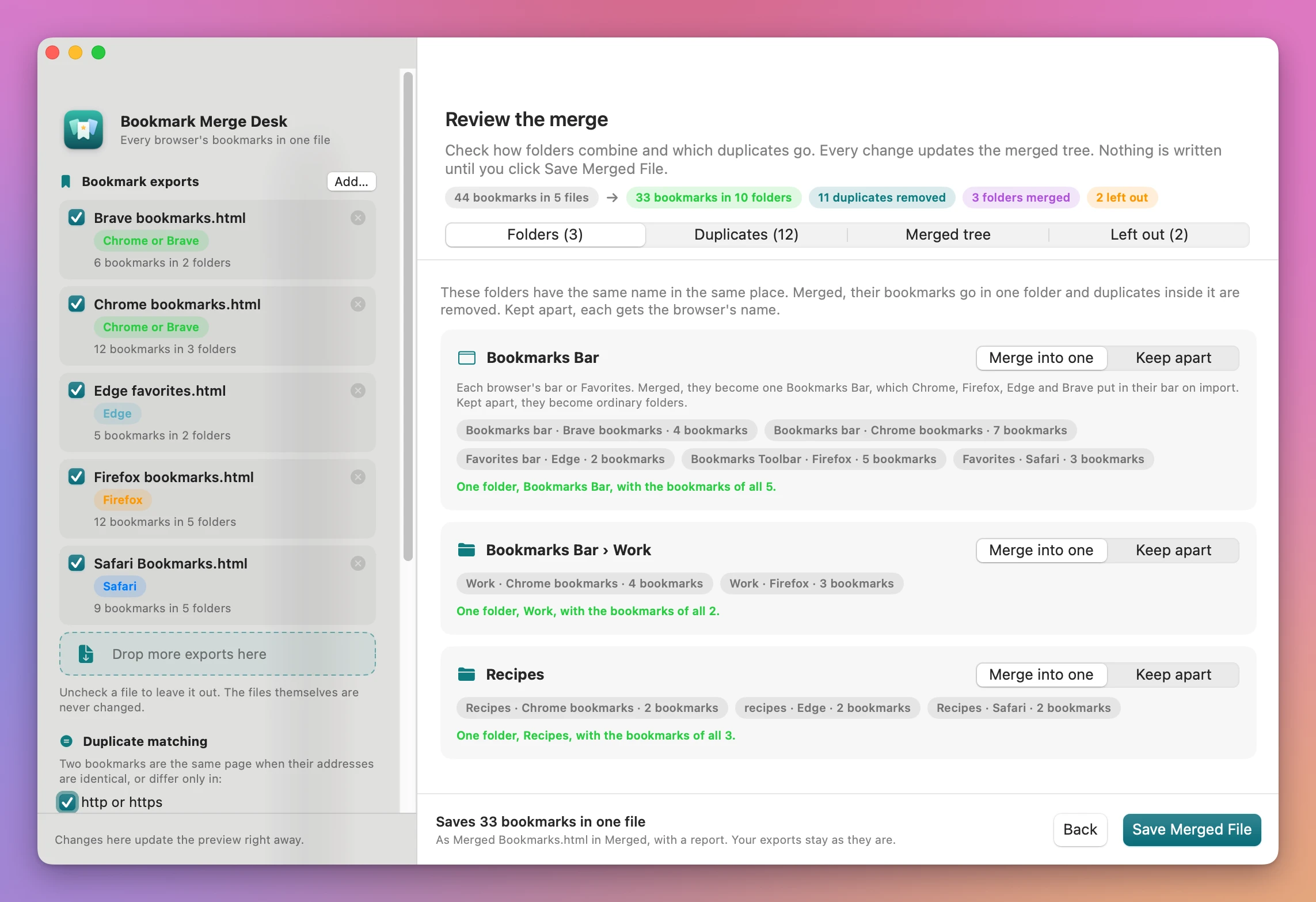
- Check the folders. The Folders tab lists every folder name that appears in more than one export at the same place. For each one, pick Merge into one or Keep apart. Kept apart, each one gets its source’s name, like “Work (Firefox)”.
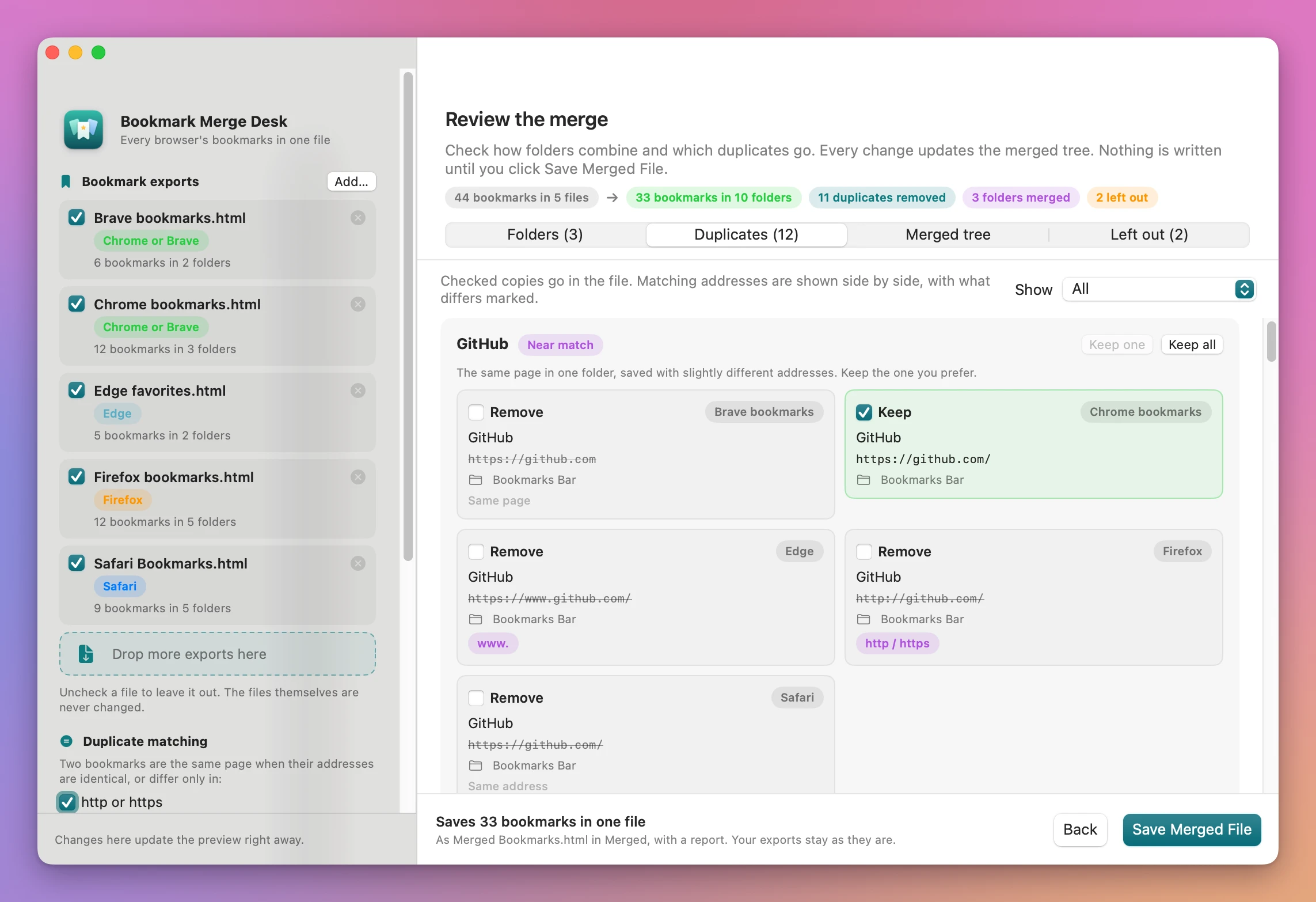
- Check the duplicates. The Duplicates tab shows each group of copies side by side, with the address struck through on the ones that go and a label on what differs: http / https, www., a trailing slash, utm_ tracking, a #fragment. Tick Keep on the copy you want.
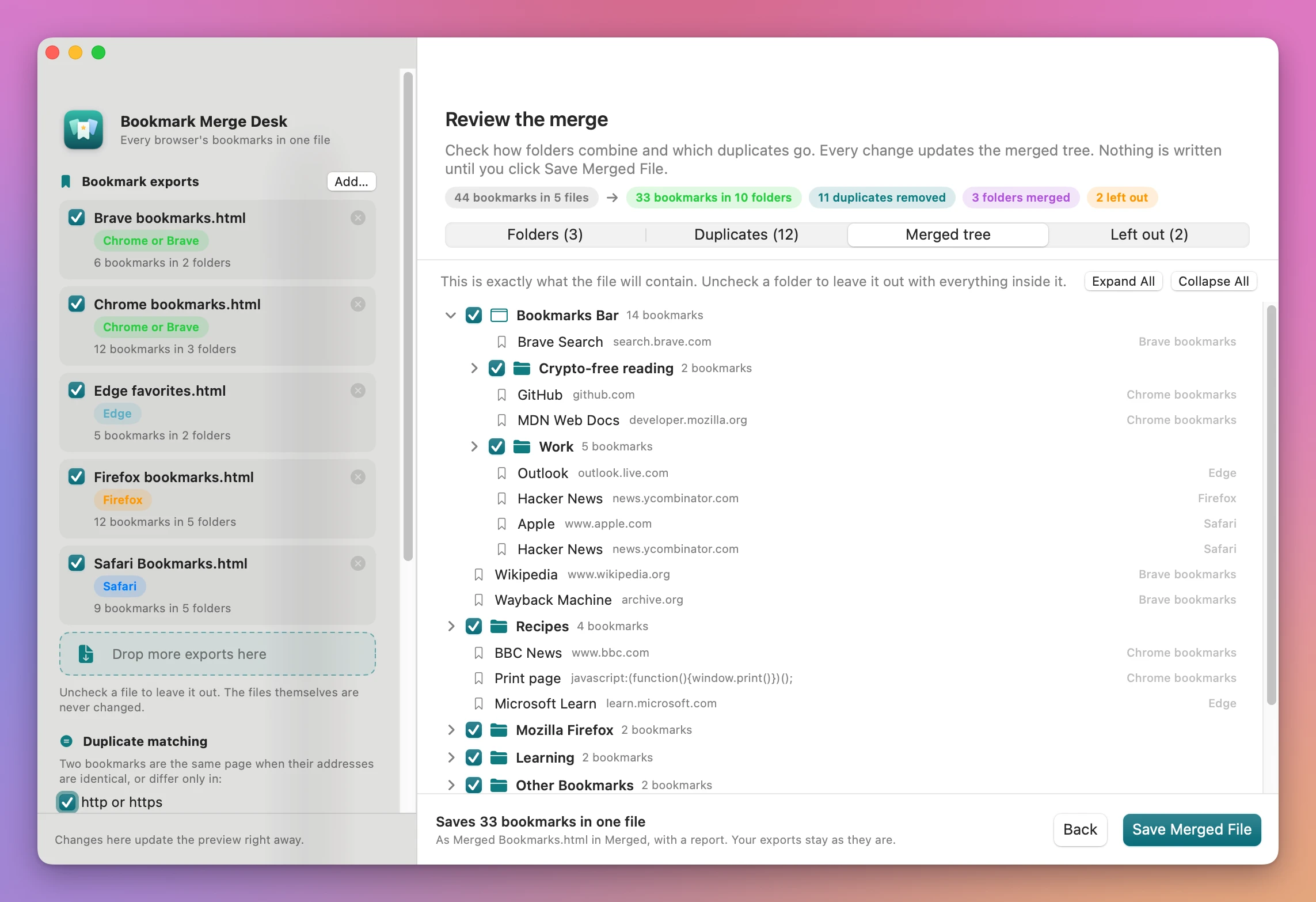
- Look at the result. The Merged tree tab is exactly what the file will contain. Untick a folder to leave it out. Left out lists what won’t be in the file, and why.
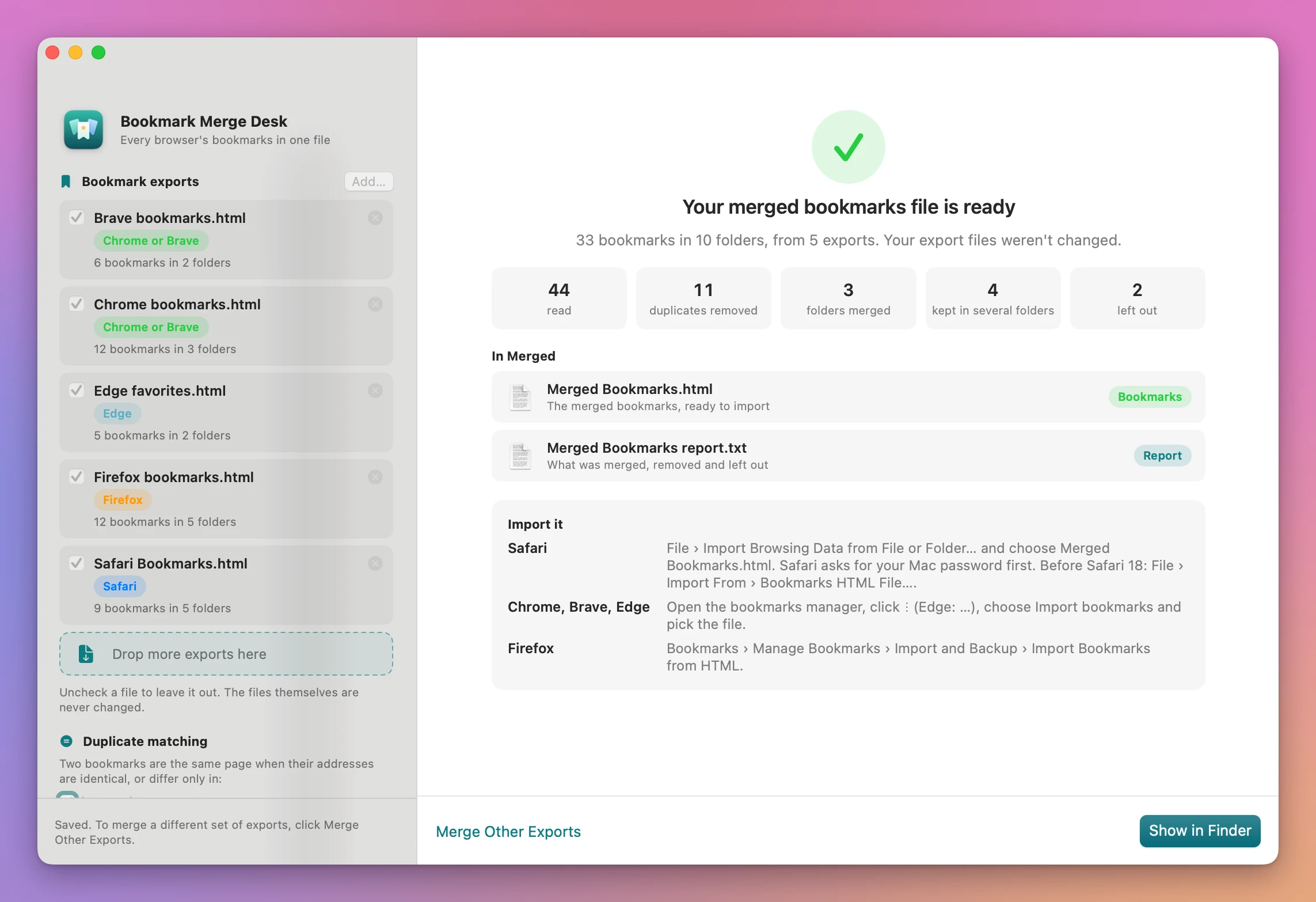
- Click Save Merged File. You get
Merged Bookmarks.htmlandMerged Bookmarks report.txtin the folder you chose under Save in. The done screen says how to import the file in Safari, in Chrome, Brave and Edge, and in Firefox.
What you get
Folders that merge the way you’d expect
Two folders merge when they have the same name, ignoring capitals, in the same place. “Recipes” in Chrome and “recipes” in Edge become one Recipes folder. Each browser’s bar counts as the same place: Chrome and Brave’s “Bookmarks bar”, Edge’s “Favorites bar”, Firefox’s “Bookmarks Toolbar” and Safari’s “Favorites” become one Bookmarks Bar.
You choose per folder. Keep your work folders apart and merge everything else, for example.
Duplicates found even when the address differs a little
Two bookmarks count as the same page when their addresses are identical, or differ only in:
- http or https
www.at the start- a trailing slash
- utm_ tracking tags (and the
fbclidandgclidones) - a
#fragmentat the end
Each rule is a checkbox under Duplicate matching, all on by default. Turn one off if, for you, two of those addresses really are different pages.
By default the app keeps one copy per folder, the one with the cleanest address: https, no tracking tags, the form most of your exports agree on. A page you saved in two different folders stays in both. The quick buttons Keep one, One per folder, Only one and Keep all change a whole group at once.
A file every browser imports, and a report
The merged file is a standard bookmarks HTML file, the same kind each browser exports. Next to it, the report lists the exports it read, every folder merged or kept apart, every duplicate removed with the copy that was kept and the reason, the pages kept in more than one folder, and everything left out.
The app never saves over a file. If Merged Bookmarks.html already exists, the new one is Merged Bookmarks 2.html.
Your exports and your browsers aren’t touched
The app reads the export files you add and writes two new files. It never opens a browser’s own bookmarks, so nothing changes in Safari, Chrome or Firefox until you import the merged file yourself.
Why not import them one by one
Safari, Chrome, Firefox and Edge can all import a bookmarks file from another browser. It’s free and it works. The trouble is what you end up with: each import goes into a folder of its own, so three imports give you three copies of your bar, three “Work” folders, and every site you saved in more than one browser two or three times. None of them merges folders with the same name or removes duplicates while importing, so the tidying is left to you, folder by folder.
Edge has a Remove duplicate favorites command, but it works on Edge’s own favorites and only on exact copies, with no review. Bookmark cleanup extensions exist too. They work on the live bookmarks of the one browser they’re installed in, and they change them as they go.
iCloud, Chrome sync and Edge sync keep one browser’s bookmarks the same across your devices, so they copy bookmarks from one place to another without merging folders or removing duplicates.
You could also edit the exported HTML by hand. With a few hundred bookmarks in nested lists, and addresses like http://www.site.com/?utm_source=x next to https://site.com, it’s slow and easy to break.
| Importing each export | Bookmark Merge Desk | |
|---|---|---|
| Three browsers’ bars | Three folders | One Bookmarks Bar, or kept apart if you choose |
| Same-named folders | Separate copies | Merged, folder by folder as you decide |
github.com vs https://www.github.com/ | Both kept | Shown side by side, you pick one |
| See the result first | No | The Merged tree tab shows the exact file |
| Your live bookmarks | Changed on each import | Untouched until you import one file |
| A record of what changed | None | A report with every decision |
What it doesn’t do
- It doesn’t read your browsers directly. It works on the bookmark files you export, never on a browser’s own bookmarks database.
- It doesn’t import the file for you. You import the merged file in your browser, with its own import command.
- It doesn’t open zip files. Safari 18 exports a zip with your browsing data. Double-click it in the Finder and add the bookmarks file inside, or the unzipped folder.
- It doesn’t merge folders with different names. “Recipes” and “Cooking” stay two folders.
- It doesn’t keep separator lines or Firefox smart folders. Separators are dropped, and Firefox’s saved searches (like “Recently Bookmarked”) only work inside Firefox, so they’re listed under Left out.
- It doesn’t tell Chrome and Brave apart. Their exports are identical, so they show as “Chrome or Brave” and use the file name as the label.
Questions
Are my bookmarks changed?
No. The app only reads the export files and writes a new merged file and a report. Your browsers aren’t touched, and neither are the exports.
Which browsers does it work with?
Bookmark exports from Safari, Chrome, Firefox, Edge and Brave, and other bookmarks HTML files in the same standard format.
What happens to Safari’s Reading List?
It’s included by default, as a Reading List folder, and the sidebar shows how many pages it has. Untick Safari’s Reading List under Include to leave it out.
Can I keep the same page in two folders?
Yes. Copies in different folders all stay by default, and the done screen counts them as “kept in several folders”. Click Only one on a group if you want just one copy in the whole file.
What about the little site icons?
Icons saved in the exports go into the merged file. Untick Favicons saved in the exports to leave them out and get a smaller file.
Does anything get uploaded?
No. Everything happens on your Mac. The app uses the internet only to check for updates.
What it needs
Bookmark Merge Desk runs on macOS 14 Sonoma or later, on Apple silicon and Intel Macs.
The Bookmark Merge Desk docs walk through each step.
Buy Bookmark Merge Desk
$20 plus tax where it applies, paid once.
Download the app from the order page or your Creem receipt, unzip it and move it to Applications. I sign the app with my Apple Developer ID, and Apple notarizes the download.
The app checks for updates once a day. When a new version is ready, click Install and Relaunch. To check anytime, choose Bookmark Merge Desk → Check for Updates….