
Mac & Windows app by Flavio
Bundle Stock Calculator
List the parts in each gift box, kit or multipack once, choose your stock CSV, and see how many of each bundle you can sell, which part holds each one back, and which bundles compete for the same part. Plan a safe split and export a CSV for your store and a restock sheet.
Buy Bundle Stock Calculator for Mac · $19Buy Bundle Stock Calculator for Windows · $19Buy once, use forever. Up to 3 computers you own (license). Plus tax where it applies. Mac and Windows versions are sold separately.
macOS 14 or later (Apple silicon and Intel) · Windows 10 and Windows 11 (x64 and ARM64)
Latest Mac version 1.0.0, released November 27, 2026
You sell a Cedar Evening Gift Box: two candle tins, a matchbook, a large kraft box and a length of jute ribbon. You also sell an Oat & Linen Spa Set with one of those candle tins in it, and a Hostess Bundle with another. Your stock export says 14 candle tins.
How many Cedar boxes can you list? Seven, if nobody buys a Spa Set. Fourteen Spa Sets, if nobody buys a Cedar box. List both at their maximum and you’ve promised 28 tins you don’t have. With nine bundles and fifteen parts, the spreadsheet that works this out gets long and fragile, and it still treats each bundle as if it had the shared parts to itself.
Bundle Stock Calculator keeps your bundle recipes, reads the stock CSV from your store or spreadsheet, and shows what each bundle can sell, the part that limits it with the math written out, and the parts two or more bundles are fighting over. Then it splits those parts fairly, so the numbers you list add up to what’s on your shelf.
Watch a 30-second demo of Bundle Stock Calculator:
Who it’s for
- Candle, soap and tea makers who sell gift sets. Six gift boxes draw on the same tins, boxes and ribbon. Before a holiday weekend you need to know how many of each to list without promising the same tin twice.
- Kit sellers: craft kits, cocktail kits, plant kits, sample boxes. A kit has ten or fifteen parts, one missing part stops the whole kit, and finding which one by eye takes an afternoon.
- Shops that sell multipacks next to singles. A Harbor Mug 2-Pack, a Tea Time Kit with one mug, and the mug on its own, all from the same 40 mugs on the shelf.
- Sellers on more than one store who keep components in a spreadsheet, because the store’s own bundle feature only works inside that store, or costs extra every month.
- Anyone placing a supplier order who wants to know which part to buy first, and how many, to unlock the most kits before a launch.
How it works
- Click Try the Example Shop to look around with made-up data, or Type Your First Bundle to start with yours.
- For each bundle, type its name and SKU, then each part’s Component SKU and Qty per bundle. If your recipes are already in a spreadsheet, click Import CSV… instead.
- Click Choose a CSV… and pick the stock export from your store or spreadsheet. The app finds the SKU and quantity columns and tells you which ones it used.
- Read what each bundle can sell. Click a bundle to see all its parts, and type a different number over any part’s stock to try a what-if.
- Switch to Safe Allocation, change the number to list for any bundle, and click Export 9 Bundles to CSV… when everything fits. Save Restock Sheet… gives you the parts to buy.
What you get
The bottleneck of every bundle, with the math
Each bundle shows one big number: how many you can make from the parts you have. Under the name, the part that stops it there: “Maple Candle Tin 8oz: 14 on hand ÷ 2 per kit = max 7”. A pill says Ready, Shared Part, Low Stock (5 or fewer), Out of Stock or Missing SKU, when a part in the recipe isn’t in your stock file at all.
Click a bundle and every part is listed with how many go in one kit, how many you have, and how many kits that part alone could make. The bottleneck is marked.
What-if numbers
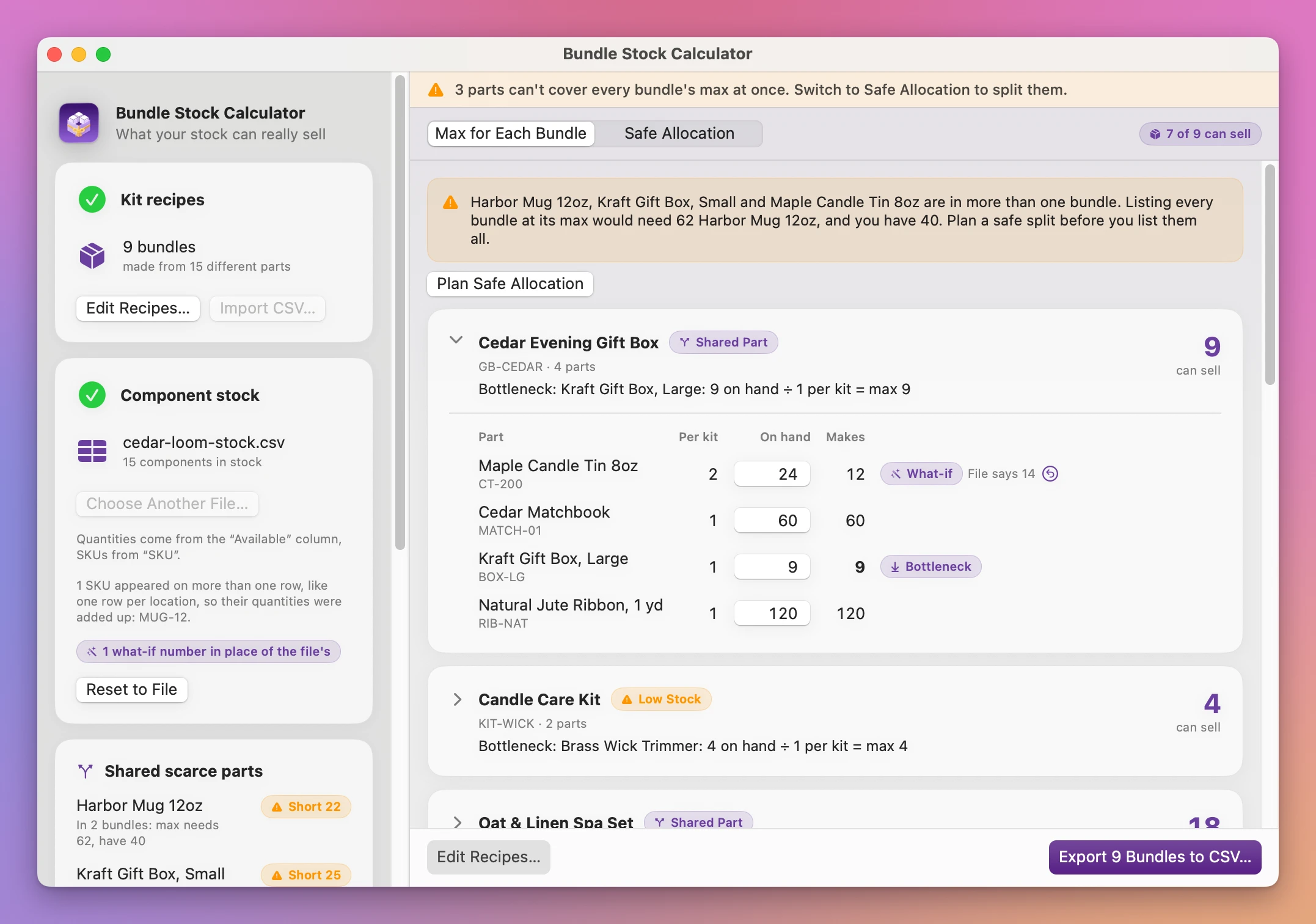
Type over any part’s stock to see what changes. Ten more candle tins arriving Thursday? Type 24 where it says 14, and the Cedar Evening Gift Box goes from 7 to 9, now held back by the large box. The part shows What-if and “File says 14” next to it, and Reset to File puts the real numbers back. Your stock file is never changed.
Shared parts, split safely
When two or more bundles use the same part, the app adds up what each bundle’s maximum would need. If that’s more than you have, the part is listed as short, in orange, with the numbers.
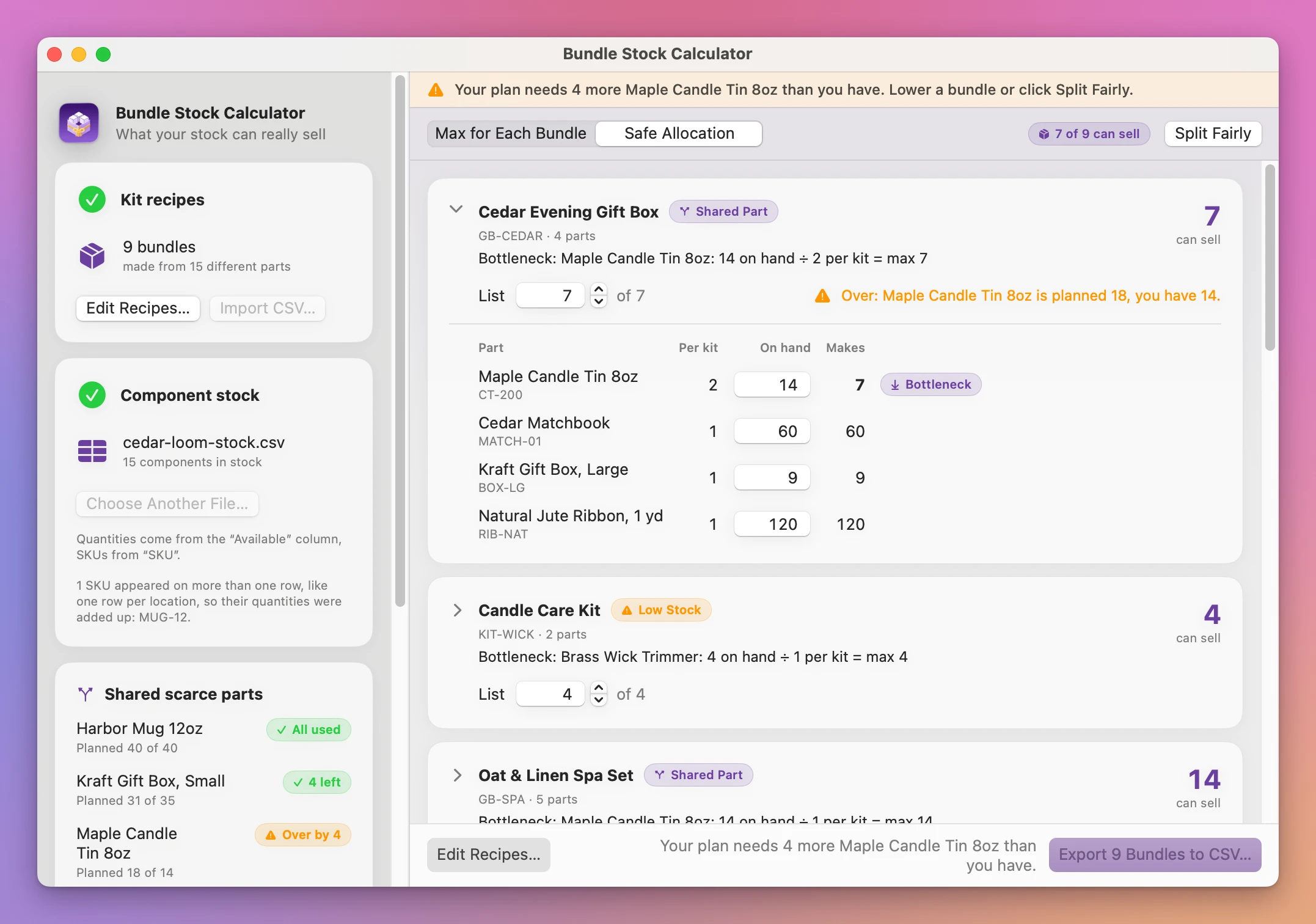
Safe Allocation gives every bundle a number to list. It starts from a fair split: every bundle goes up together until a shared part runs out, and no bundle gets more than its own maximum. Change any number with the field or the arrows, and the shared parts on the left update as you go: “Planned 18 of 14”, Over by 4. While the plan needs more than you have, the export button is off and the reason is written next to it. Split Fairly starts over.
A CSV for your store
Export Bundle Inventory CSV… saves one row per bundle with Bundle SKU, Bundle Name, Max Sellable, Allocated Qty and Bottleneck SKU. Allocated Qty is the safe plan, so you can paste it into your listings, or adjust the columns to your store’s import format and upload it. SKUs are written exactly as in your recipes, leading zeros included, and accents show up right in Excel and Numbers.
A restock sheet
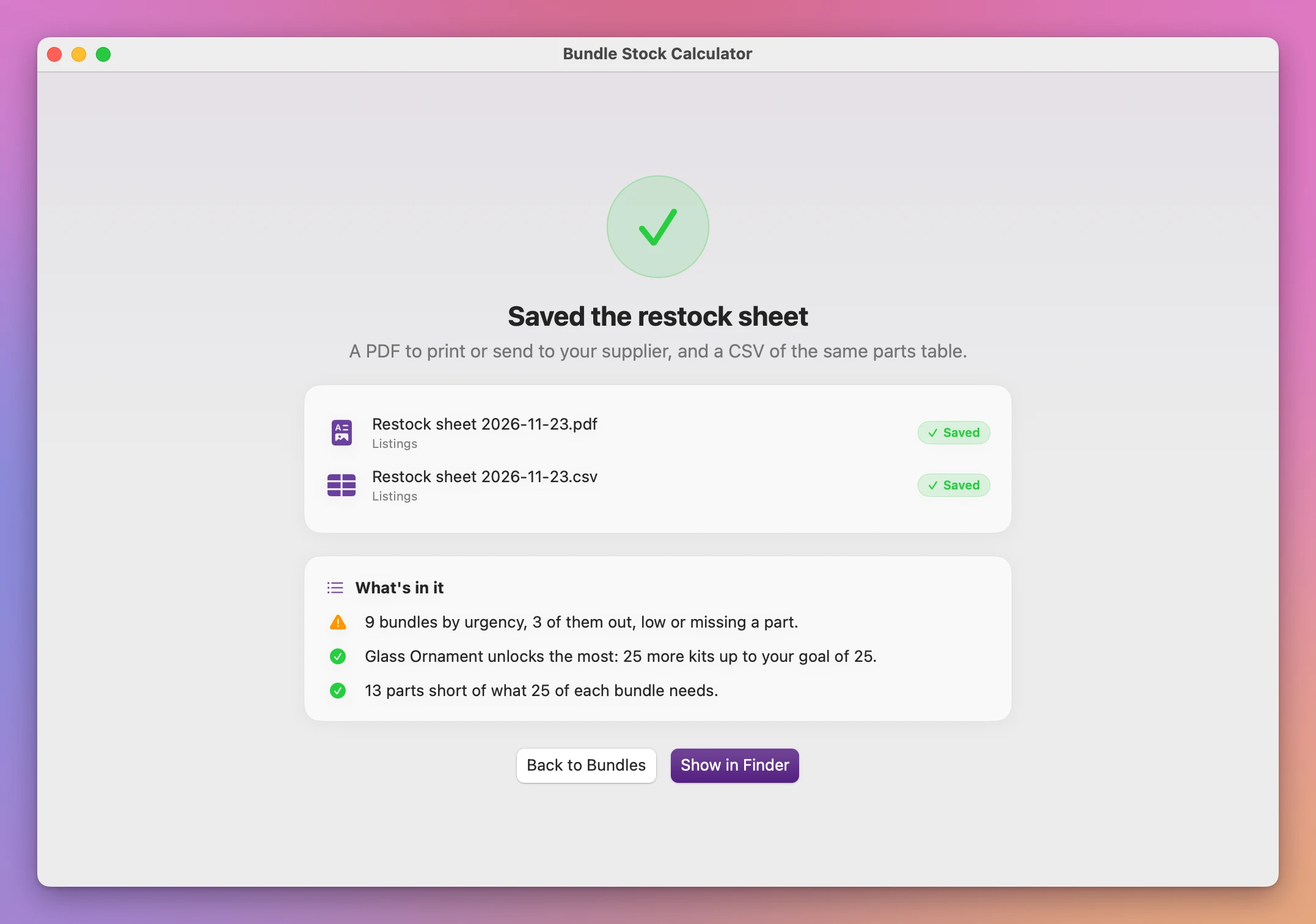
Save Restock Sheet… saves a PDF and a CSV. The PDF lists your bundles most urgent first (missing a part, out of stock, low), then every part with how many you have, how many you’d need for a goal you pick (25 of each bundle, say), how many you’re short, and how many more kits buying it would unlock. The parts that unlock the most come first, which is the order to place a supplier order in.
Recipes you type once
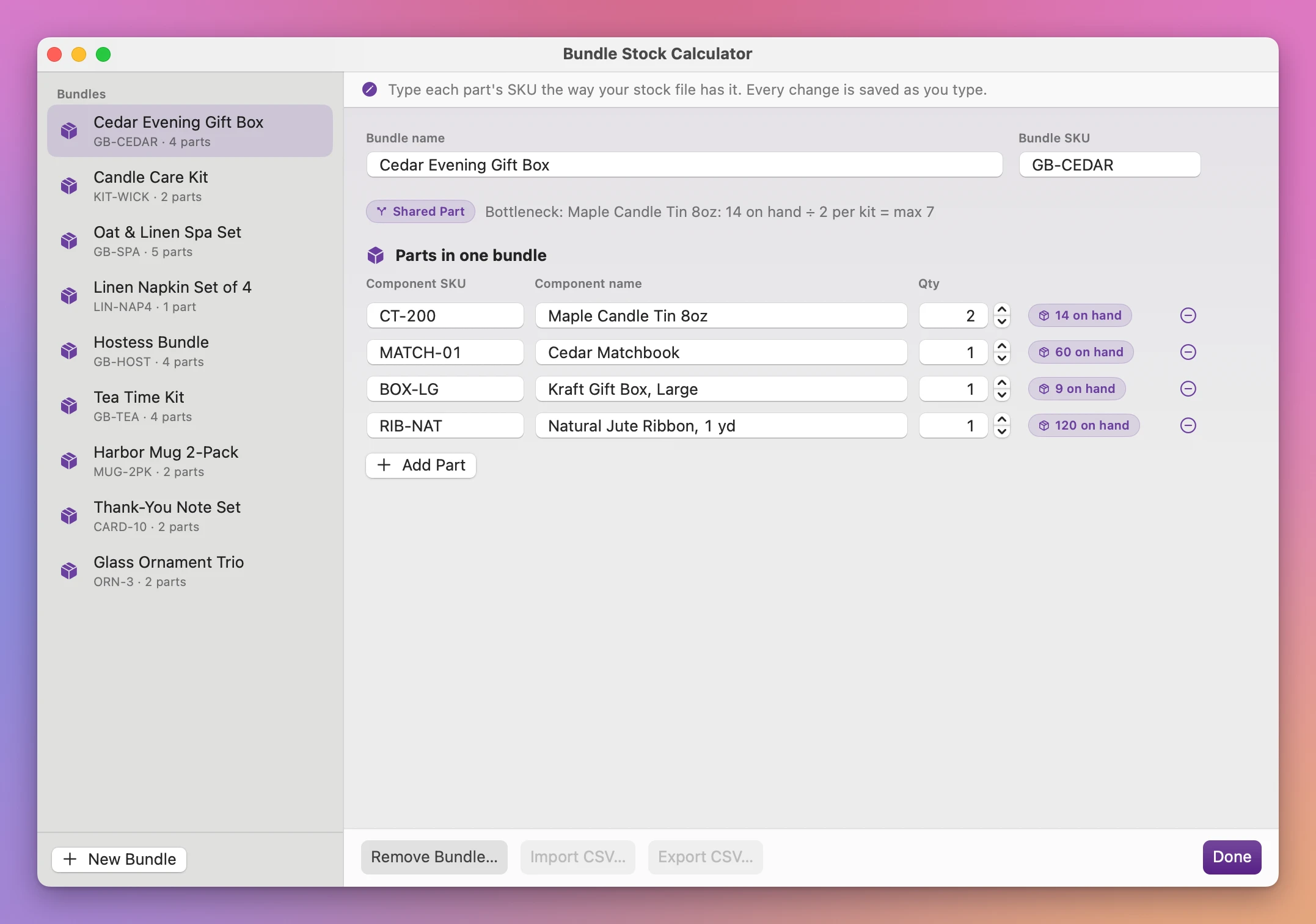
Your bundles and their parts are kept, and so are the numbers from the last stock file, so next month you only choose the new export. In the recipe editor, a part’s name fills in from your stock file when you type its SKU, each part shows how many you have, and a bundle with a problem (an SKU used twice, a part with no SKU) says so. Export CSV… saves your recipes as a spreadsheet, and Import CSV… reads one back.
Why not do it in a spreadsheet
| Numbers or Excel | Bundle Stock Calculator | |
|---|---|---|
| Max per bundle | A lookup and INT(on hand / needed) per part, then MIN per bundle | Every bundle at once, from one stock file |
| Which part limits it | Another formula, or reading the row | Written under the bundle, with the math |
| Parts two bundles share | Each bundle counts them as its own, so the totals oversell | Listed as short, and split so the plan fits |
| A part missing from the export | #N/A somewhere in the sheet | Missing SKU, with the SKU named |
| One SKU on two rows (two locations) | Counted once, or twice, depending on the lookup | Added up, and said |
00417 turned into 417 by Excel | No match | Matched, and marked |
| Restock order | Build another sheet | A PDF and CSV, ordered by kits unlocked |
A spreadsheet is the right tool for one or two bundles, and it’s free. The trouble starts with shared parts: the formula for each bundle is correct on its own, and the sum of all of them is wrong. Your store’s bundle feature, when it has one, tracks bundles inside that store only, and doesn’t plan a split or a supplier order.
What it doesn’t do
- It doesn’t connect to your store. It reads the CSV you export and writes CSVs you upload or copy from. Nothing is sent anywhere.
- It doesn’t change your stock file, or your store’s stock.
- It doesn’t track orders, sales or incoming deliveries. Use a what-if number for stock that’s on its way.
- No bundles inside bundles. Each part is a component in your stock file.
- Whole units only. A part that’s used by weight or length needs a unit you count, like “1 yard of ribbon”.
- It doesn’t sync between Macs.
Questions
Which stock files does it read?
Any CSV with an SKU column and a quantity column, from a store export or a spreadsheet saved as CSV. It recognizes the usual names (SKU, Item Code, Available, On hand, Quantity, Qty, Stock) and prefers “Available” over “On hand”, because on hand often includes units already sold. It reads comma, semicolon and tab files, files from Excel on Windows, and a title line above the table. If it can’t find a column, it tells you which columns it saw.
Bundle Stock Calculator isn’t made by, affiliated with or endorsed by Shopify, Etsy, Amazon, WooCommerce, eBay or Apple. The shop, products and numbers in the screenshots are made up.
What does “fair split” mean?
Every bundle gets the same number of units, raised together until a shared part runs out. Bundles that can still grow keep going, one unit at a time, until nothing else fits. No bundle gets more than it could sell on its own. You can change any number after that.
Does anything get uploaded?
Nothing. Your recipes and the stock numbers stay on your Mac. The app connects to the internet only to check for updates.
What it needs
macOS 14 Sonoma or later, on Apple silicon and Intel Macs. It asks macOS for no permission: it reads the files you choose or drag onto its window.
Buy Bundle Stock Calculator
$19 plus tax where it applies, paid once.
Download the app from the order page or your Creem receipt, unzip it and move it to Applications. I sign the app with my Apple Developer ID, and Apple notarizes the download.
The app checks for updates once a day. When a new version is ready, click Install and Relaunch. The first time, it asks for the license key from your Creem receipt, and remembers it. To check anytime, choose Bundle Stock Calculator → Check for Updates….