
An app by Flavio
Deadline Checklist Generator
Turn a template of steps like "8 weeks before" or "3 working days before" into dated reminders in a new Reminders list, with weekends and your holidays skipped, and re-date the whole list when the event moves.
Buy Deadline Checklist Generator · $20One-time purchase. Plus tax where it applies.
macOS 14 or later · Apple silicon and Intel
Latest version 1.0.1, released November 20, 2026
The gala is on Wednesday 9 June. The venue has to be booked 12 weeks before, catering ordered 10 working days before, badges printed 2 working days before, and suppliers paid 2 weeks after. Last year you worked out each date with a calendar open, skipped the bank holiday by hand, and typed every one into Reminders.
Then the venue calls. The gala moves a week. Every date is wrong, and you can’t remember which ones you’d already pushed by hand.
Deadline Checklist Generator does the counting. You write the steps once, as a template, with offsets like “3 working days before”. Pick the event date, check the preview, and click Create Reminders List. You get a new Reminders list with every reminder on its date, weekends and your holidays skipped. When the event moves, set the new date and the app moves every reminder you haven’t changed yourself.
Who it’s for
- Event organizers. You run the same conference or gala every year. Twenty steps go from “book the venue, 12 weeks before” to “pay suppliers, 2 weeks after”, and every year you redo the dates for a new day of the week.
- Consultants who run workshops. Questionnaire 3 weeks before, agenda 2 working days before, summary 2 working days after, invoice a month after. The same steps for every client, a different date each time.
- Wedding and party planners. The couple moves the date. One review moves every reminder, and the ones you already agreed by phone and changed by hand stay where you put them.
- Small businesses with fixed dates. A product launch, a trade fair, a quarterly report. Public holidays shift the working days, and “5 working days before” lands somewhere different every time.
- Teachers and school staff. An exam or an open day, counted back in school days, with the term’s holidays pasted in once.
From a template to a dated list
- Add a template. The first time, click Add Sample Templates to get two ready ones: Event (10 steps) and Client workshop (8 steps). Or click New Template… and write your own. Each step has a title, an amount, a unit (days, working days, weeks or months), before or after, and optional notes that go into the reminder. 0 means “on the day”.
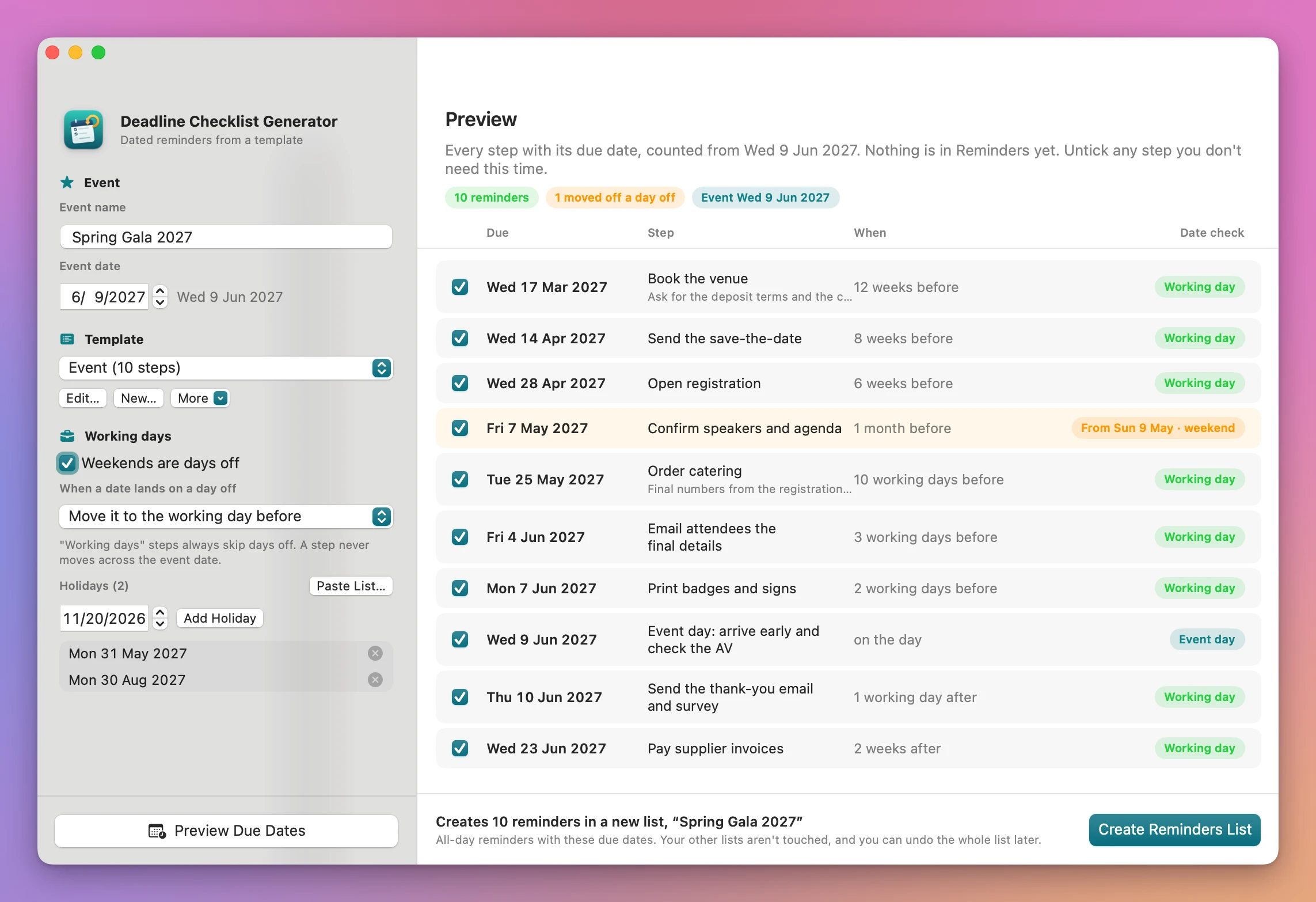
- Name the event and pick its date. The event name becomes the name of the Reminders list. The weekday shows next to the date, and if the date falls on a weekend or a holiday, a line says so.
- Set the working days. Weekends are days off is ticked by default. Under When a date lands on a day off, pick Move it to the working day before, Move it to the working day after or Keep the date. Add your holidays one at a time with Add Holiday, or click Paste List… and paste one date per line.
- Click Preview Due Dates (Command-R). Every step shows its due date with the weekday, its offset, and a pill: Working day, Event day, or an orange row when the date moved off a weekend or a holiday. Untick any step you don’t need this time.
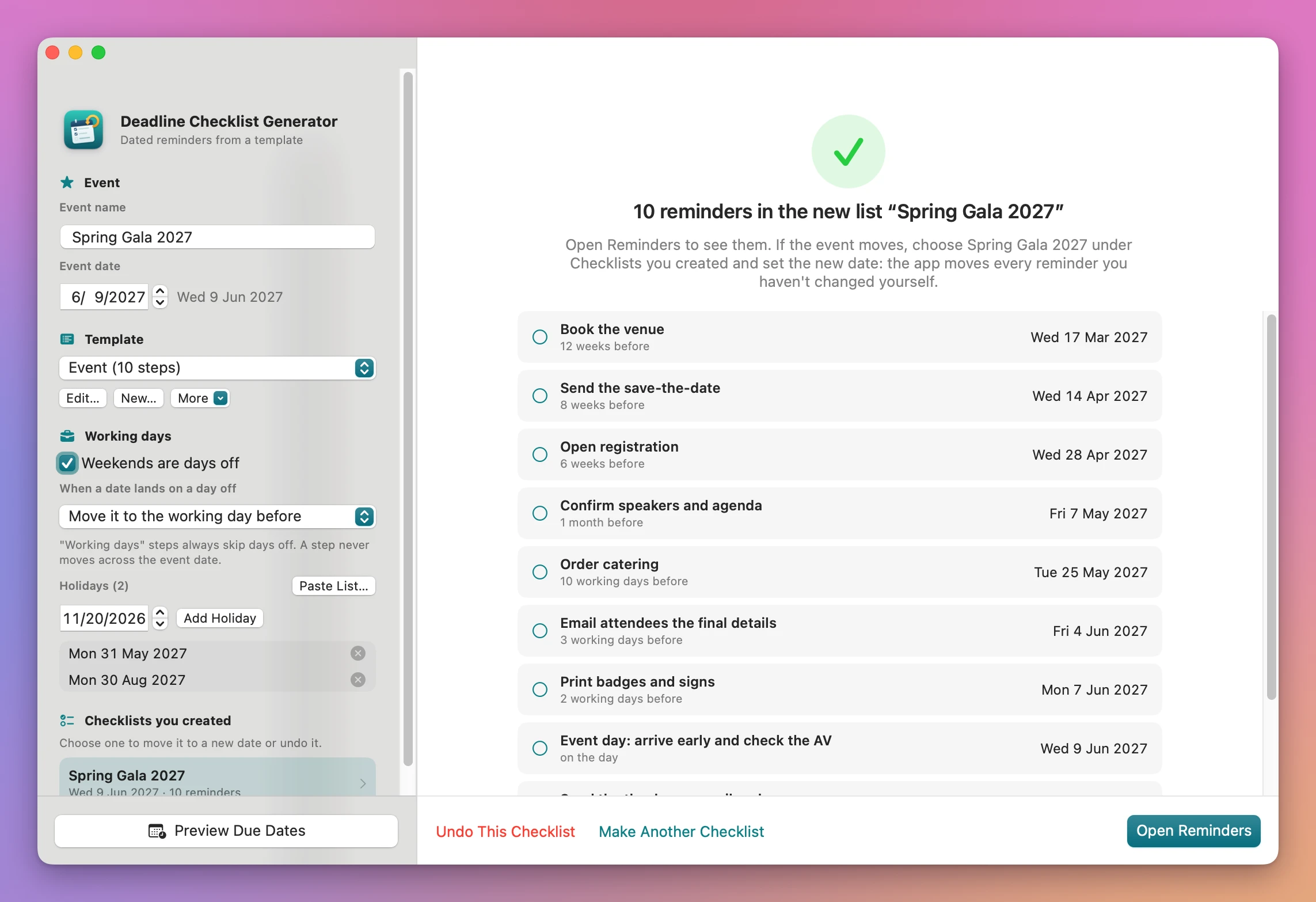
- Click Create Reminders List. The first time, macOS asks whether the app can use Reminders. Then you get a new list with an all-day reminder for each step, and the done screen lists them all with Open Reminders, Undo This Checklist and Make Another Checklist.
When the event moves
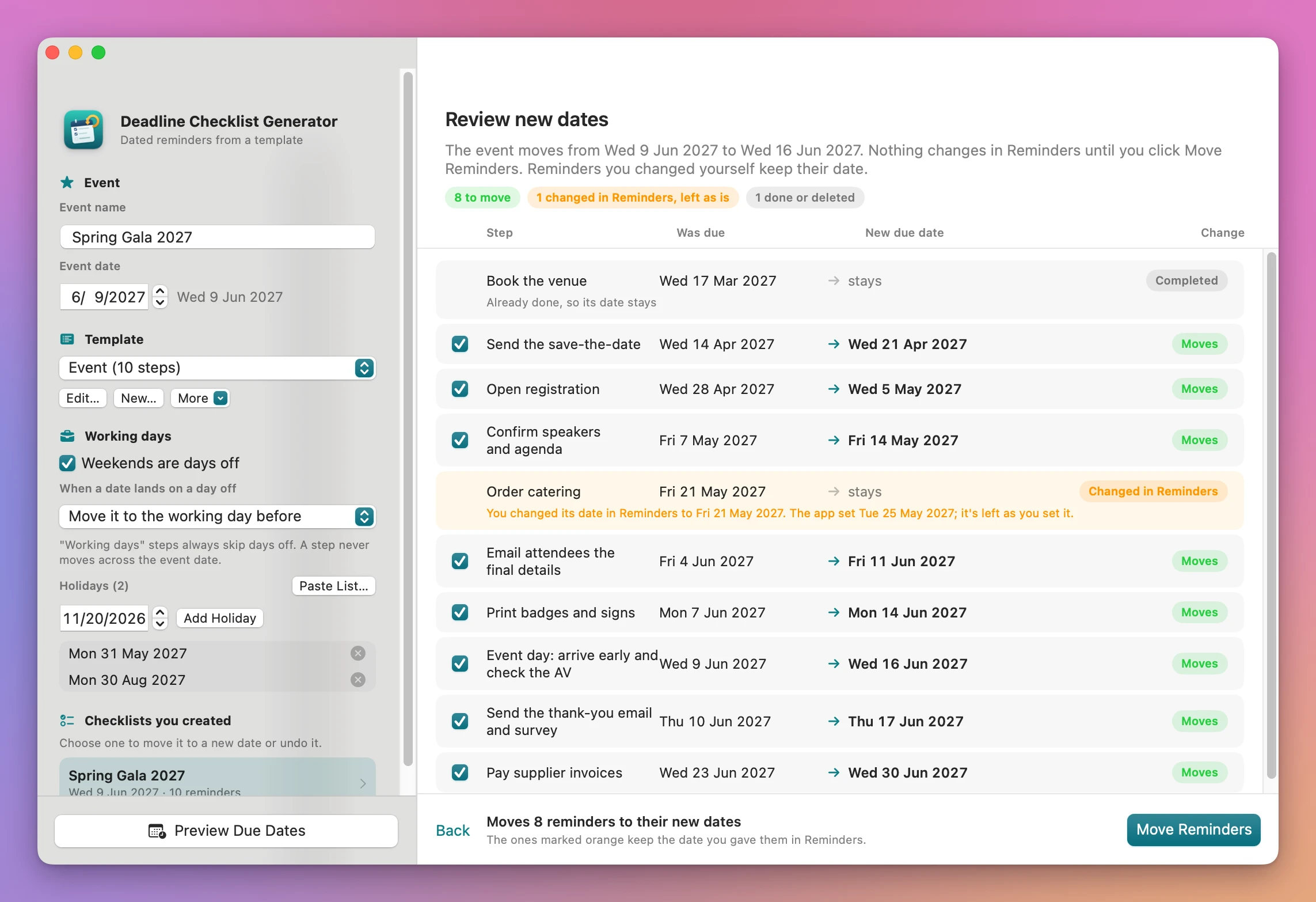
Choose the list under Checklists you created in the sidebar. Set the New event date and click Review New Dates.
The review shows every reminder with its old date, its new date and what happens to it. Reminders that move get a green Moves pill and a checkbox, so you can leave one out. A reminder you changed yourself in Reminders gets an orange Changed in Reminders pill and keeps your date. A completed one is left alone. Nothing changes until you click Move Reminders.
What you get
Working days that skip your holidays
“10 working days before” counts only working days, starting the day before the event. Weekends don’t count when they’re days off, and holidays never count. In the sample above, Mon 31 May is a holiday, so “Order catering, 10 working days before” a Wed 9 June event lands on Tue 25 May.
Steps in days, weeks or months count calendar time. If the result lands on a day off, it moves to the working day before or after, as you chose. A step never moves across the event: a step due after the event never moves back onto it or before it. “On the day” never moves, even when the event is on a Saturday.
Month math that doesn’t overflow
“1 month before” 31 March is 28 February, or 29 February in a leap year. Dates are plain calendar days, so a daylight saving change can’t shift a reminder by a day.
A new list for every event
Each checklist goes into a new Reminders list named after the event. If a list with that name already exists, the new one is called “Spring Gala 2027 (2)”. The app never adds to or changes a list it didn’t make. The reminders are all-day, so they sync to your iPhone and Apple Watch like any other reminder.
Re-dating that respects your edits
The app remembers the date it set on each reminder. When you review a move, a reminder whose date no longer matches (or that now has a time) counts as changed by you, and it stays as you set it.
Undo
Undo This Checklist deletes the reminders the app created in that list, including ones you changed or completed, and the list itself when nothing else is in it. Reminders you added to the list yourself stay, and so does the list. The confirmation tells you exactly how many reminders it deletes.
Templates you can share
Templates are saved between launches. More has Duplicate, Export Template… and Import Template…, so you can send a colleague your conference template as a file.
Why not use Reminders’ own templates
Reminders can save a list as a template (File → Save as Template) and make a new list from it. That copies the reminders. It doesn’t know that “Order catering” is 10 working days before the event, so for every new event you open each reminder and retype its date.
Reminders also understands dates like “next Friday” when you type them, but they count from today, not back from an event, and they know nothing about your holidays.
A spreadsheet can do the math: =WORKDAY(event, -3, holidays) gives you 3 working days before, with your holidays skipped. Then you copy every row into Reminders by hand. When the event moves, you do it again and lose track of which dates you’d changed yourself.
Shortcuts can add reminders with dates. Building one that reads a template with working-day offsets, skips a holiday list, shows a preview, re-dates and undoes is a project of its own. Project management tools like OmniPlan or Asana do re-scheduling well, but they’re a separate place to look, often a subscription, and your phone’s reminders stay empty.
| By hand | Deadline Checklist Generator | |
|---|---|---|
| Working out the dates | A calendar, counting back, every event | Computed from the template |
| Weekends and holidays | Checked by eye | Skipped, with your own holiday list |
| Getting them into Reminders | Typed one by one | One click, a new list |
| Seeing them first | Only after typing | A preview, with moved dates in orange |
| The event moves | Retype every date | Review old → new, then Move Reminders |
| Dates you changed yourself | You have to remember | Detected and left alone |
| Starting over | Delete each reminder | Undo This Checklist |
What it doesn’t do
- No dependencies between steps. Every step counts from the event date. A step can’t be “2 days after step 3”.
- Weekends are Saturday and Sunday. Friday and Saturday weekends aren’t supported. You can untick Weekends are days off to count every day.
- No built-in holiday calendar. You add the holidays that apply to you, or paste a list.
- No times or alerts. The reminders are all-day. Notes come from the template.
- One event date per checklist. A three-day conference counts from one of its days.
- Re-dating uses today’s settings. If you change the holidays or the weekend rule, a review uses the new ones, not the ones the list was made with.
Questions
Does it touch my other lists?
No. Each checklist goes into a new list, and the app only moves or deletes the reminders it created. If a list with the event’s name already exists, it makes a new one with “(2)” after the name.
Which account does the list go into?
Your default Reminders account, which is iCloud when you’re signed in. I tested the app with a local On My Mac account.
What if I said no to Reminders access?
The preview still works. When you click Create Reminders List, the app says it can’t use Reminders and offers Open Privacy Settings. Turn it on in System Settings → Privacy & Security → Reminders and try again.
What if I change a reminder in Reminders?
Change it freely. If you move its date, the next review shows “Changed in Reminders” and leaves it on your date. Completed reminders are left alone too.
Can I write holidays in my own format?
The paste box takes one date per line written like 2027-12-25. Anything after # is a comment, so 2027-12-25 # Christmas works. Lines that aren’t dates are listed in red and skipped.
What it needs
Deadline Checklist Generator runs on macOS 14 Sonoma or later, on Apple silicon and Intel Macs. It needs access to Reminders to create, move and undo lists.
The Deadline Checklist Generator docs walk through each step.
Buy Deadline Checklist Generator
$20 plus tax where it applies, paid once.
Download the app from the order page or your Creem receipt, unzip it and move it to Applications. I sign the app with my Apple Developer ID, and Apple notarizes the download.
The app checks for updates once a day. When a new version is ready, click Install and Relaunch. To check anytime, choose Deadline Checklist Generator → Check for Updates….