
An app by Flavio
Email to PDF Packet
Turn an exported email into one PDF: a contents page, the message with sender and date, then every attached PDF and photo. Made on your Mac.
Buy Email to PDF Packet · $20One-time purchase. Plus tax where it applies.
macOS 15 or later · Apple silicon and Intel
Latest version 1.2.1, released November 20, 2026
Your insurer wants “all the correspondence” about the leak. Your landlord’s email has the inspection report as a PDF, a signed form and four photos of the ceiling. The invoice came separately from the plumber. You need to send it as one file, in an order someone else can follow.
Doing that by hand means printing the message to PDF, saving every attachment, opening them all in Preview, dragging pages into order, saving, and naming the result. Then the next email.
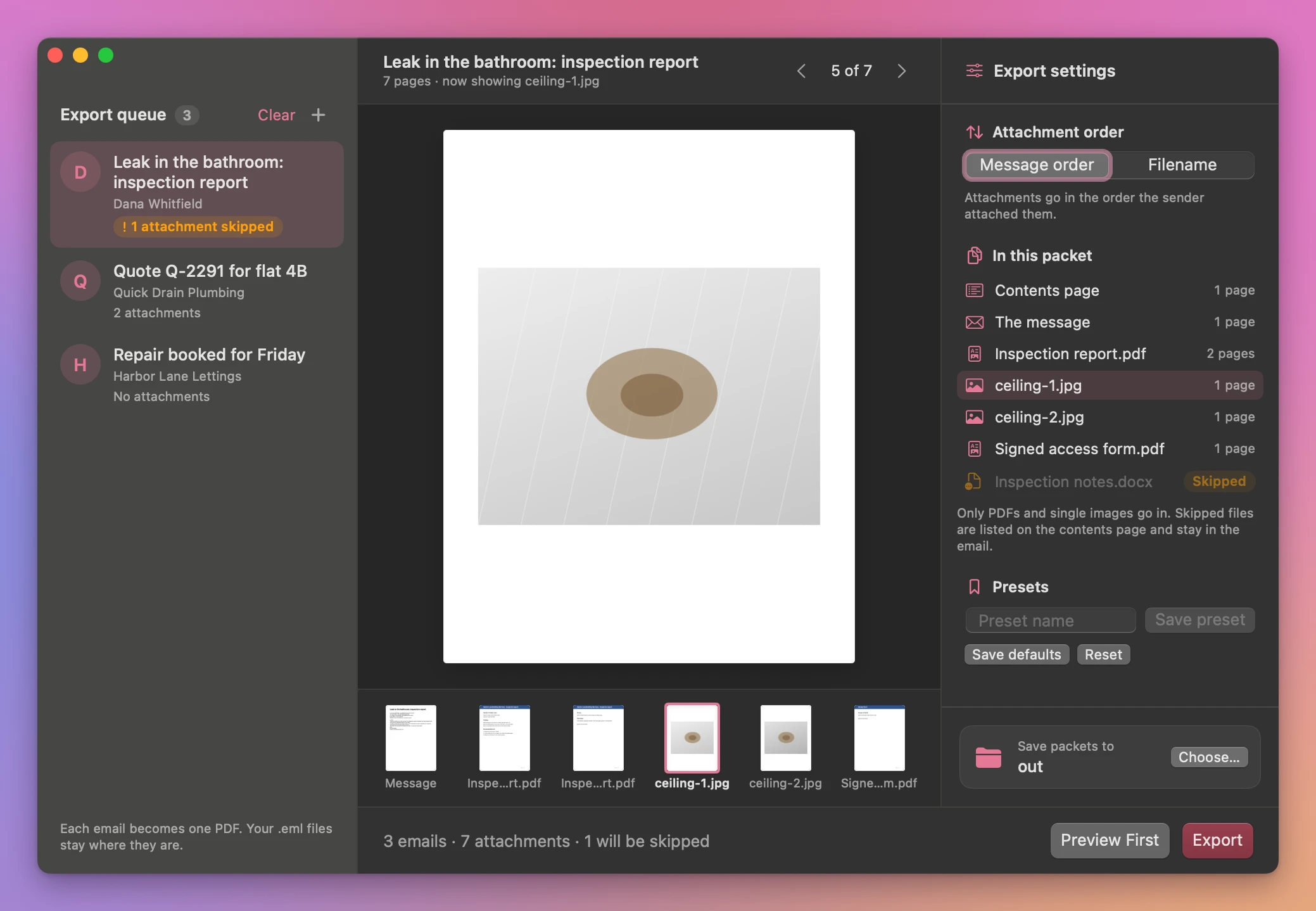
Email to PDF Packet does it from the email itself. You export the message as an .eml file and add it to the app. You get one PDF that starts with a contents page, then the message with who sent it, to whom and when, then every attached PDF and image, in order. If an attachment couldn’t go in, the contents page says which one.
Who it’s for
- Tenants and landlords keeping a record of a repair. The inspection email, the signed form and the photos of the damp wall end up in one PDF for the property file, or for the deposit dispute a year later.
- Anyone filing an insurance claim who has to send the insurer the emails with the quotes, invoices and photos attached. One packet per email, each one readable without opening ten attachments.
- Paralegals and people preparing a complaint who need an email and its exhibits as a single document for a case file or an ombudsman’s upload form.
- Bookkeepers and accountants archiving a client’s email together with the receipts and statements it came with, so the explanation and the numbers stay together.
- Freelancers and contractors who want proof of what a client approved. The “yes, go ahead” email and the attached drawings or quote are saved as one PDF with the date on it.
From inbox to packet
Say you have six emails about the leak, each with a few attachments.
- Get each email out as an
.emlfile. In Apple Mail, drag the message from the list to a folder in Finder. In Gmail on the web, open the message, click the three-dot menu and choose Download message. - Open Email to PDF Packet and drop the six
.emlfiles on the window, or click Add EML Files…. - Under Attachment order, keep Message order to follow the order the sender attached them in. Pick Filename when the attachments are numbered, like
01 Report.pdf,02 Photo.jpg. - Click an email to see its packet, page by page. In this packet lists the contents page, the message and each attachment with its page count, and marks the ones that can’t go in as Skipped. Preview First opens the packet in Quick Look if you want a closer look.
- Click Choose… next to Save packets to, pick a folder, then click Export.
- The results screen lists each packet, like
Leak in the bathroom - packet.pdf. Click Open to check one, or Show in Finder to see the folder.
By hand, one email with five attachments is about a dozen steps: save the message as a PDF, save five attachments, open them all, drag them into one file in the right order, save, rename. Six emails is around seventy steps. Here it’s one export.
What’s in a packet
The contents page
The packet opens with a Packet contents page. It has the subject, then a line for the message and its page count, then a line for each attachment with its name, how many pages it takes and where it starts. An attachment that couldn’t be added is listed as “skipped, unsupported or unreadable”. An email with nothing attached says “No attachments.”
The message
After the contents page comes the email. Its first page has the subject as a title, then From, To, Cc, Date and Subject, then the message text. Long messages continue on as many pages as they need.
The message is real text in the PDF, so you can search it and copy from it. HTML emails, which is most of them, are turned into plain readable text. Their layout, colors and logos aren’t kept. Pictures inside the message body aren’t drawn, and some show as an [Inline image] label.
The attachments
Attached PDFs are added with all their pages, as they are. Attached images, such as JPEG or PNG photos, each get their own page, scaled to fit.
These are skipped and listed on the contents page:
- PDFs protected with a password
- animated GIFs and other images with more than one frame
- everything else, such as Word documents, spreadsheets and ZIP files
Skipped attachments are still in the original email. Only the packet leaves them out.
Names, originals and errors
Each packet is named after the email’s subject, plus - packet.pdf. An email with no subject becomes Email packet - packet.pdf. If the name is already taken in the output folder, the new packet gets a number, like Leak in the bathroom - packet (2).pdf. Nothing is overwritten.
Your .eml files are only read. After writing a packet, the app opens it again and checks every page is there.
When an attachment is skipped, you see it before you export: the email gets an orange label in the queue, and the file is marked Skipped under In this packet. The packet is still saved, and the results screen notes “One attachment was skipped. See the packet contents page.” A file that isn’t an email, or an .eml over 100 MB, gets an error and no packet. Cancel stops a batch, and packets already saved stay in the folder.
Why not use Mail’s Export as PDF
Apple Mail can export a message as a PDF. That PDF is the message as Mail shows it. The pages inside an attached PDF don’t become pages of that file, so you still save each attachment and put them together yourself in Preview.
That’s fine for one email with one attachment. For a claim or a case file with several emails and a dozen attachments, it’s slow, and the order is easy to get wrong. There’s also no list telling the reader what should be there.
| Mail and Preview by hand | Email to PDF Packet | |
|---|---|---|
| One email, five attachments | About a dozen steps | Add the .eml, click Export |
| Attached PDFs | Saved and merged by hand | All their pages, added for you |
| What’s in the file | Whatever you remembered | Contents page with page counts |
| Missing attachments | Easy not to notice | Listed as skipped |
| Several emails | Repeat everything | One packet each, in one batch |
| Your mail | Stays on your Mac | Stays on your Mac |
What it doesn’t do
- It doesn’t read your mailbox. It works on
.emlfiles you export. It doesn’t connect to Mail, Gmail or any account. - No original email layout. HTML emails become plain text. If you need the email to look exactly as it did, with its formatting, export it from Mail as well.
- No Word, Excel or other attachments. Only PDFs and single-frame images go in. Convert the rest to PDF first.
- One email per packet. A thread of six emails gives six packets, not one. To merge them, put the packets in a folder and use Folder to PDF Packets.
- No size reduction. Packets with many phone photos or big scans can be large. If an upload form has a limit, PDF Size Limit can shrink the packet.
If you’d rather keep the attachments as separate files in folders, Mail Attachment Filer does that.
Questions
Does it need access to my email account?
It doesn’t. The app reads the .eml files you give it, and it never signs in to anything or sees the rest of your mail.
Is anything uploaded?
Everything is processed on your Mac. The app uses the internet only to check for and download updates.
Are my .eml files changed?
They’re only read. Each packet is a new PDF in the output folder you choose.
What if the email is in another language or uses accents?
The app reads the character sets emails declare, so names and text with accents come through as written.
Why does the queue say “Saved, with skipped files”?
It means at least one attachment wasn’t a PDF or a single image, so it couldn’t go in. The packet is saved anyway, and its contents page names the attachment that’s missing, so you can send that one separately.
The documentation covers the settings in more detail.
What it needs
Email to PDF Packet runs on macOS 15 Sequoia or later, on Apple silicon and Intel Macs. Files are processed locally.
The app renders HTML mail as readable text and labels inline body images. It appends unencrypted PDF and single-frame image attachments. Other attachments stay in the original email.
Buy Email to PDF Packet
$20 plus tax where it applies, paid once.
Download the app from the order page or your Creem receipt, unzip it and move it to Applications. I sign the app with my Apple Developer ID, and Apple notarizes the download.
The app checks for updates once a day. When a new version is ready, click Install and Relaunch. To check anytime, choose Email to PDF Packet → Check for Updates….