
A developer tool by Flavio
Firewall Manager
Open DigitalOcean SSH access only for your current IP, with a countdown and close-now controls. A native Mac app and CLI.
Buy Firewall Manager · $20One-time purchase. Tax included. Source code included.
macOS 14 or later · Apple silicon and Intel
Latest version 1.3.0, released November 20, 2026
Your Droplet’s firewall has port 22 open to the whole internet, because closing it means logging in to the DigitalOcean dashboard every time you want to deploy. Check the server’s auth log and you’ll likely find bots trying to log in around the clock.
The safer setup is SSH closed by default, opened only for your IP while you work. By hand that’s the dashboard, the firewall, a new inbound rule, your current IP pasted in, and later the same steps to remove it. Most people do it once and then leave the rule there.
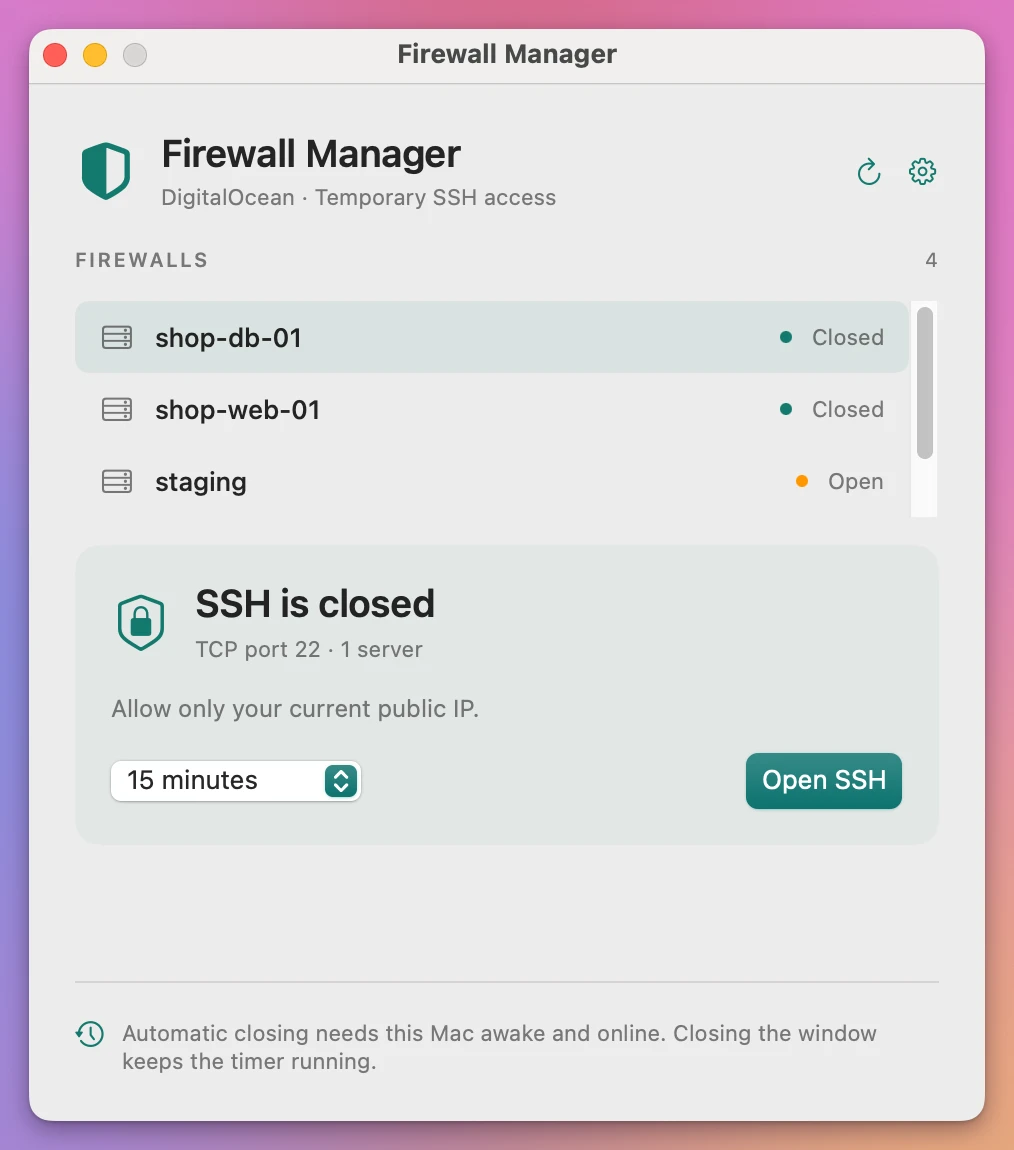
Firewall Manager is a small Mac app that makes that safe setup easy. Choose a firewall, pick a time limit, and open TCP port 22 for your current public IP address. The window shows the countdown and a Close now button. When time runs out, the rule is removed for you. A companion CLI lets you do the same from Terminal or a coding agent.
Here’s a one-minute run: connecting the account, opening SSH on one server, the CLI, closing access, and an old rule that left SSH open to everyone:
The firewalls, servers, IP address and token are fictional. The app and the CLI talk to a local fake of the DigitalOcean API.
Who it’s for
- Indie developers with a few Droplets. You SSH in once a week to update packages or check a log. You want port 22 closed the other six days and 23 hours.
- People who work from different places. Your home IP changes, and the café’s IP is different again. A fixed allowlist rule goes stale, and an open rule lets everyone try. Firewall Manager reads your current IP each time.
- Developers who let a coding agent deploy. The agent needs SSH for one
scpand one restart.firewall-manager runopens access, runs the command, and closes the rule when it exits. - Small teams that inherited an open firewall. An old rule allows SSH from
0.0.0.0/0. Close existing SSH access… removes the port 22 rules and keeps your web traffic. - Anyone who forgets to clean up. You opened access “for five minutes” last month and it’s still there. Here every rule has a deadline, and a background job removes it.
A maintenance session with it
Suppose you want to update a server and allow 15 minutes for the work.
- Open Firewall Manager and select the server’s firewall.
- Choose 15 minutes from the duration menu.
- Click Open SSH. The app finds your public IPv4 address and adds a rule for it alone, like
198.51.100.47/32. - Use your normal SSH command in Terminal.
- When you finish, click Close now. If you forget, the rule goes away when the countdown reaches zero.
- Check the firewall status in the list. SSH shows as closed again.
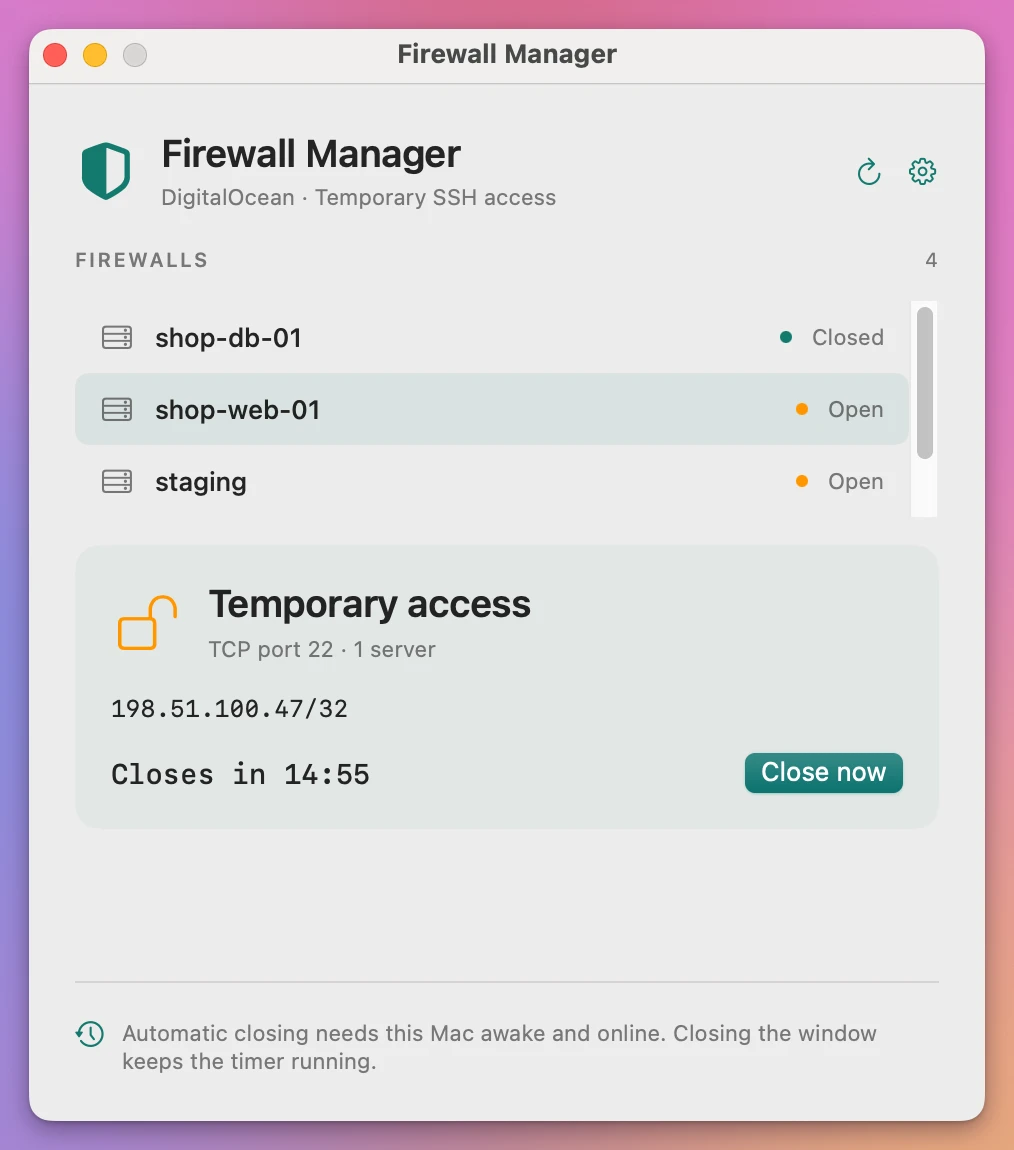
In the DigitalOcean dashboard, the same session takes roughly ten clicks to open, a lookup of your IP, and the same again to close. Here it’s two clicks, and closing happens on its own.
You can choose 5, 15 or 30 minutes, or an hour. Firewall Manager creates a rule for your current public IPv4 address rather than allowing SSH from the whole internet.
Your SSH key is still required. Firewall Manager manages the cloud firewall. It does not replace your SSH client or change your server’s login settings.
Use it from Terminal or a coding agent
Install the firewall-manager command from the app’s settings with Install Companion CLI. It goes in ~/.local/bin. The app and CLI share the same token and access records, so temporary access opened from the terminal also appears in the app.
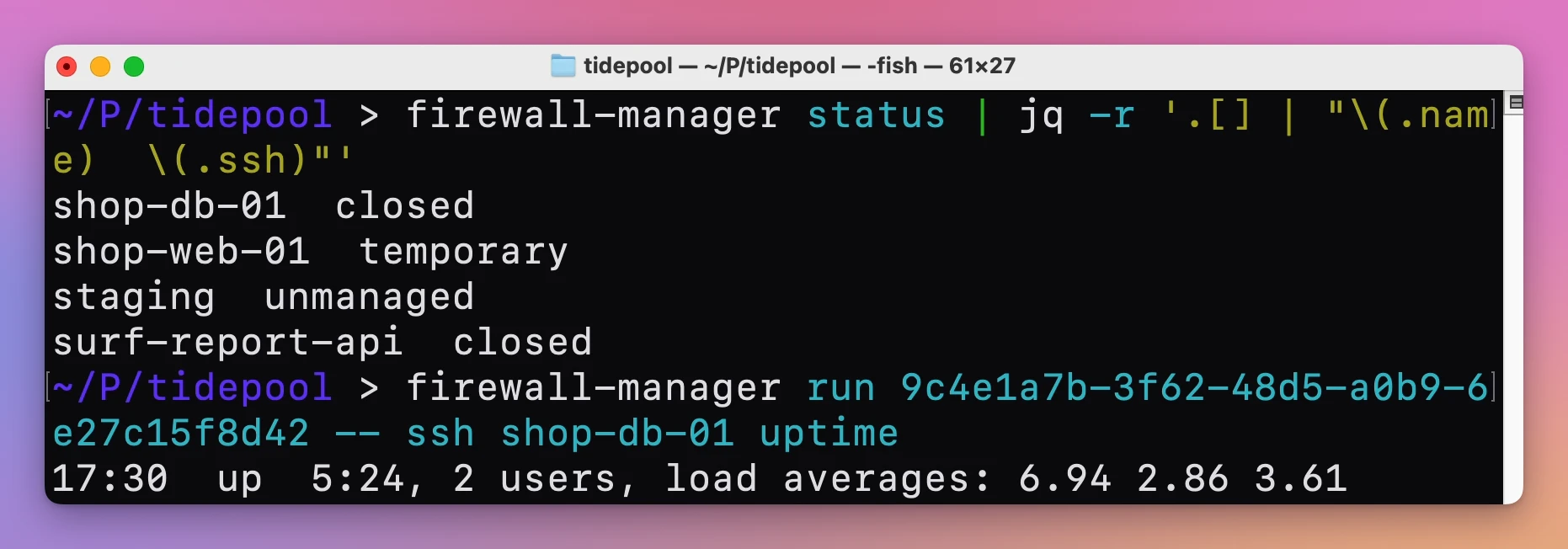
The CLI can list firewalls, inspect actual SSH access, open a timed rule, close tracked access, and wrap a local command:
firewall-manager list
firewall-manager open FIREWALL_ID --minutes 15
firewall-manager run FIREWALL_ID -- ssh [email protected] uptime
firewall-manager close FIREWALL_ID
run opens access, runs the command, and closes the rule when the command exits or when its time is up. Its capabilities command describes the available operations for coding agents.
Here status sees the rule opened in the app, and run opens SSH on another server just for one ssh command:
DigitalOcean is the only supported provider. The app talks to its API directly, so you don’t need to install doctl. If you already use it, Use doctl login imports its default context.
How automatic closing works
A background agent on your Mac checks for expired access every 15 seconds, including when the app’s window is closed. It starts again when you log in. It keeps recovery records if DigitalOcean cannot confirm a change, so cleanup can retry. The app shows Close overdue · retrying while that happens.
Your Mac must be awake and online for automatic cleanup to work. If it sleeps, shuts down or loses its connection, the firewall rule can remain open until cleanup runs again. This version has no server-side expiry.
Removing a rule blocks new connections. An SSH session that is already established may stay connected.
Keep the rest of your firewall intact
Temporary access requires a firewall attached directly to one server, without tag attachments or additional firewalls on that server. The app checks this before opening access.
It refuses to add a temporary rule over existing SSH access. You can explicitly close existing rules for port 22 first. Rules that cover a wider port range need review in DigitalOcean.
HTTP, HTTPS and outbound rules are kept. Automatic cleanup removes the exact IP rule created for the task.
Your token stays on your Mac
Create a DigitalOcean API token with read access to your account, Droplets and firewalls, plus permission to update firewalls: account:read, droplet:read, firewall:read and firewall:update. The app stores it in macOS Keychain. It does not send the token to me or use a separate hosted service.
The app needs internet access to contact DigitalOcean and determine your public IP address. DigitalOcean hosting and other third-party service costs are separate.
Why not use the DigitalOcean dashboard
The DigitalOcean control panel does all of this for free. You can add an inbound SSH rule for one IP and delete it later, and doctl can do it from the terminal. For a one-time change that’s fine.
The trouble is the repetition and the cleanup. Every session means looking up your IP, editing the firewall, and remembering to remove the rule. Nothing removes it for you, so the rule tends to stay.
| Dashboard or doctl by hand | Firewall Manager | |
|---|---|---|
| Opening SSH for your IP | Look up the IP, add a rule | Pick a time, click Open SSH |
| Closing it | Remember to delete the rule | Close now, or automatic at the deadline |
| SSH for one command | Open, run, close, by hand | firewall-manager run |
| Existing open SSH rules | Found by reading each firewall | Shown, with Close existing SSH access… |
| Web and outbound rules | Careful editing | Left alone |
What it doesn’t do
- It only works with DigitalOcean. No AWS, Hetzner or other providers.
- It only opens SSH on port 22, over IPv4. Other ports and IPv6 addresses aren’t handled.
- It has no server-side timer. If your Mac sleeps or goes offline, the rule stays until cleanup runs again.
- It doesn’t end live sessions. Closing a rule blocks new connections. An established SSH session may stay connected.
- It doesn’t handle shared firewalls. The firewall must be attached directly to one Droplet, with no tags and no other firewalls on that Droplet.
- It doesn’t replace your SSH setup. You still need your key and your server’s normal login.
Questions
Is my token sent anywhere?
Only to DigitalOcean’s API. It’s stored in macOS Keychain, and there’s no hosted service in between. CLI authentication takes tokens through standard input, never as command arguments.
What if my Mac goes to sleep with SSH open?
The rule stays until your Mac is awake and online again, then the background job removes it. Close access with Close now when you finish, and don’t rely only on the timer.
Can I lock myself out?
It’s possible if you close existing SSH rules and then can’t open access again. Keep another way in, like the DigitalOcean console, the first time you use Close existing SSH access….
Does it work on Intel Macs?
Yes. It runs on macOS 14 or later, on Apple silicon and Intel Macs.
Is the source included?
Yes. The purchase includes the full MIT-licensed source code.
The documentation covers setup, the CLI and recovery, and the tutorials show how to open SSH to a Droplet only from your IP for a set time, run one SSH command and close the rule after, and let a coding agent open SSH for a limited time.
What you get
The $20 one-time purchase includes the signed and Apple-notarized Mac app and the companion CLI. It runs on macOS 14 or later, on Apple silicon and Intel Macs.
After purchase, download the signed and notarized Mac app from your purchase page. Unzip it and move Firewall Manager.app to Applications.
Firewall Manager checks for updates once a day. Choose Firewall Manager › Check for Updates… to check now and Install and Relaunch to install.