
An app by Flavio
Folder Icon Painter
Tint the macOS folder any color and add a symbol, emoji or a few letters, or use a picture. Paint a whole tree of folders in one go, see every folder first, and put the old icons back from the restore log.
Buy Folder Icon Painter · $20One-time purchase. Plus tax where it applies.
macOS 14 or later · Apple silicon and Intel
Latest version 1.0.0, released November 20, 2026
You have a Clients folder with 40 project folders inside. In the Finder, the Dock stack and every Open dialog, they’re 40 identical blue folders, and you read names to find the one you want.
A custom icon fixes that. macOS lets you paste a picture onto a folder in Get Info, one folder at a time, and you need the picture ready first. Forty folders is forty rounds, and taking an icon off again deletes it for good.
Folder Icon Painter does the batch. Pick the folders, choose a color and a symbol, emoji or a few letters, look at the preview of every folder, and click Paint. Every batch goes into a restore log, so you can put back exactly the icons the folders had before, custom ones included.
Who it’s for
- Designers and agencies. Your
Clientsfolder holds 40 project folders that all look alike. Give each client its own color and initials, like a green folder withACME, and the right one jumps out in the Dock stack and the Open dialog. - Freelancers who work by year. Mark every 2026 project folder, and its subfolders, with a green
2026, skippingnode_modulesand.git. When the year is archived, restore the batch and they’re plain folders again. - Video editors. Paint every folder of the production you’re on with a 🎬, and leave the
Archive*folders out with a skip pattern. - Teachers. Give each class folder a symbol (a book, a flask, a globe) in one go. Save the look as a style, and next term’s folders get the same icons.
- Anyone who lost a custom icon before. You pasted a new icon over one you’d made with care, and Finder has no undo for that. Here every batch can be put back, and a folder that had its own icon gets that icon back.
From a folder of look-alikes to icons you can tell apart
Say you have the client folders above.
- Add the folders. Drop them on the sidebar, or click Add… next to Folders (also File › Add Folders…, Command-O). Each one shows its current icon.
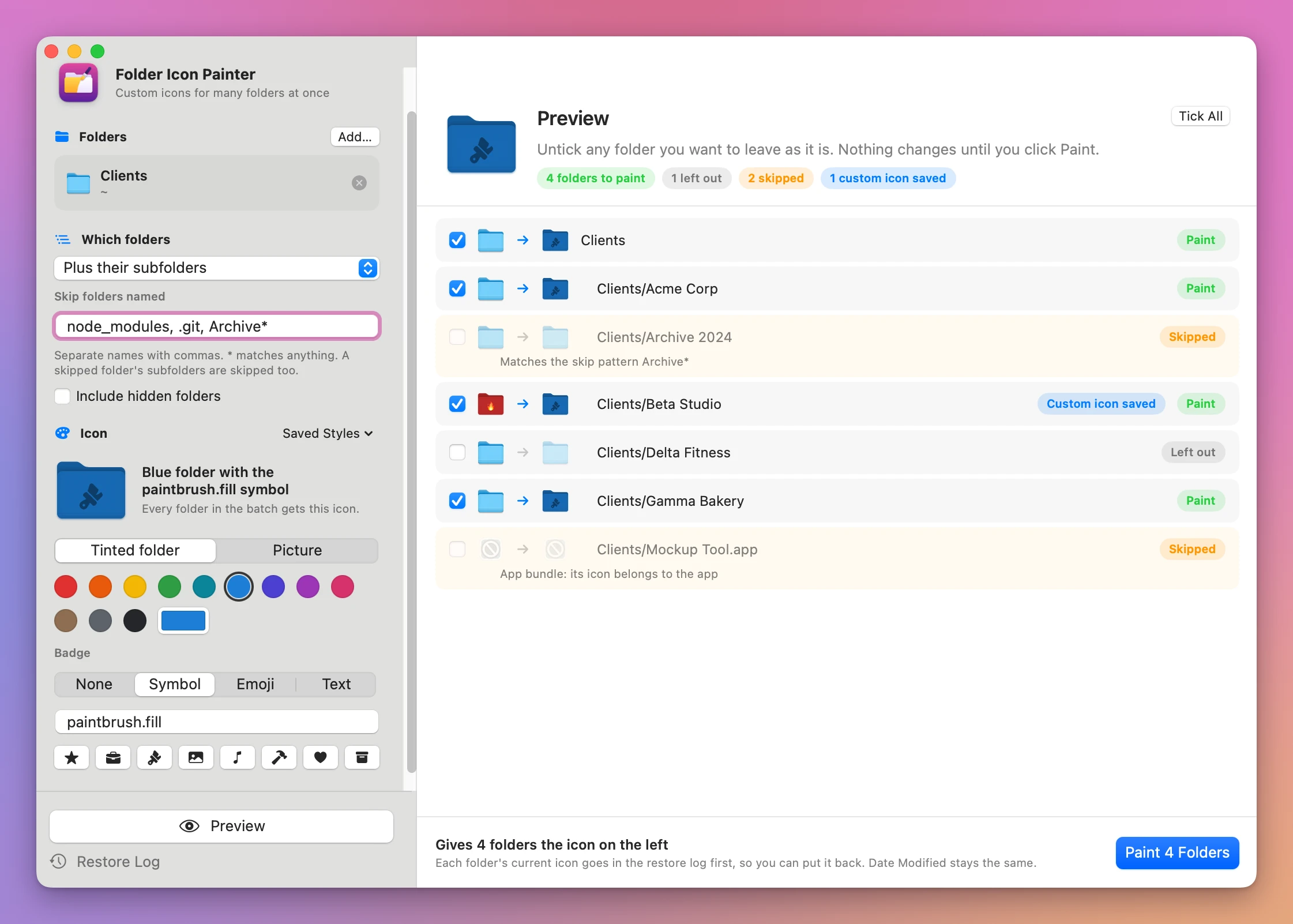
- Choose which folders. The Which folders menu goes from Only the chosen folders to Plus their subfolders, Two levels, Three levels and Every subfolder, all the way down. With subfolders on, Skip folders named takes names separated by commas, with
*and?as wildcards. It starts withnode_modules, .git, build, dist, DerivedData, Pods, vendor. Hidden folders are left out unless you tick Include hidden folders. - Design the icon. Under Icon, pick Tinted folder and one of the 12 colors, or any color from the color well. Then a Badge: None, Symbol (type a symbol name or click one of the 8 quick symbols), Emoji, or Text with up to 4 characters. The preview shows the icon with a description like “Blue folder with the paintbrush.fill symbol”. Or pick Picture and drop an image, which becomes the whole icon.
- Click Preview (Command-R). Every folder is listed with its current icon, an arrow and its new icon. Untick any folder you want to leave as it is. Nothing changes until you paint.
- Click Paint N Folders. The done screen lists the painted folders. Show in Finder takes you to them.
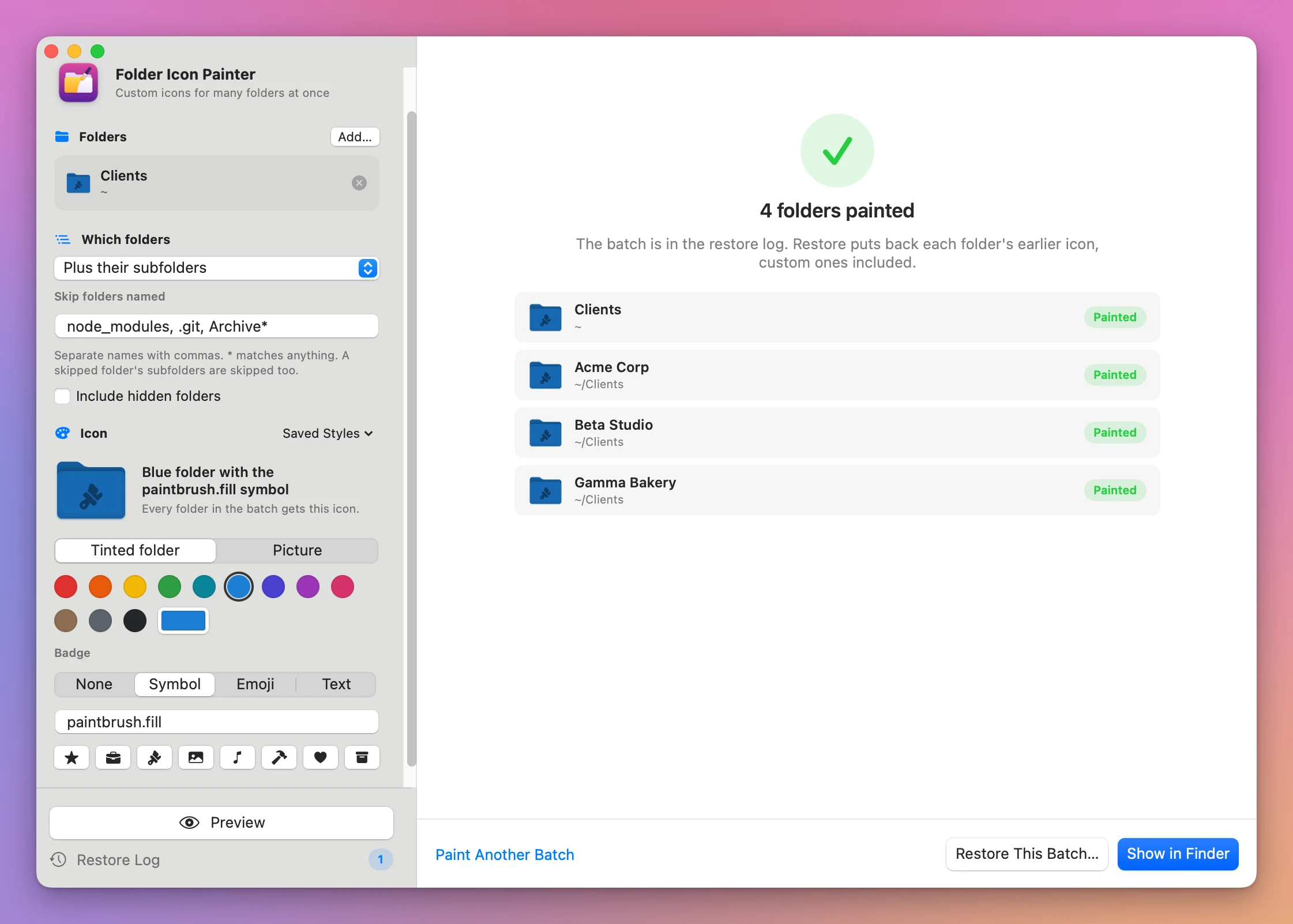
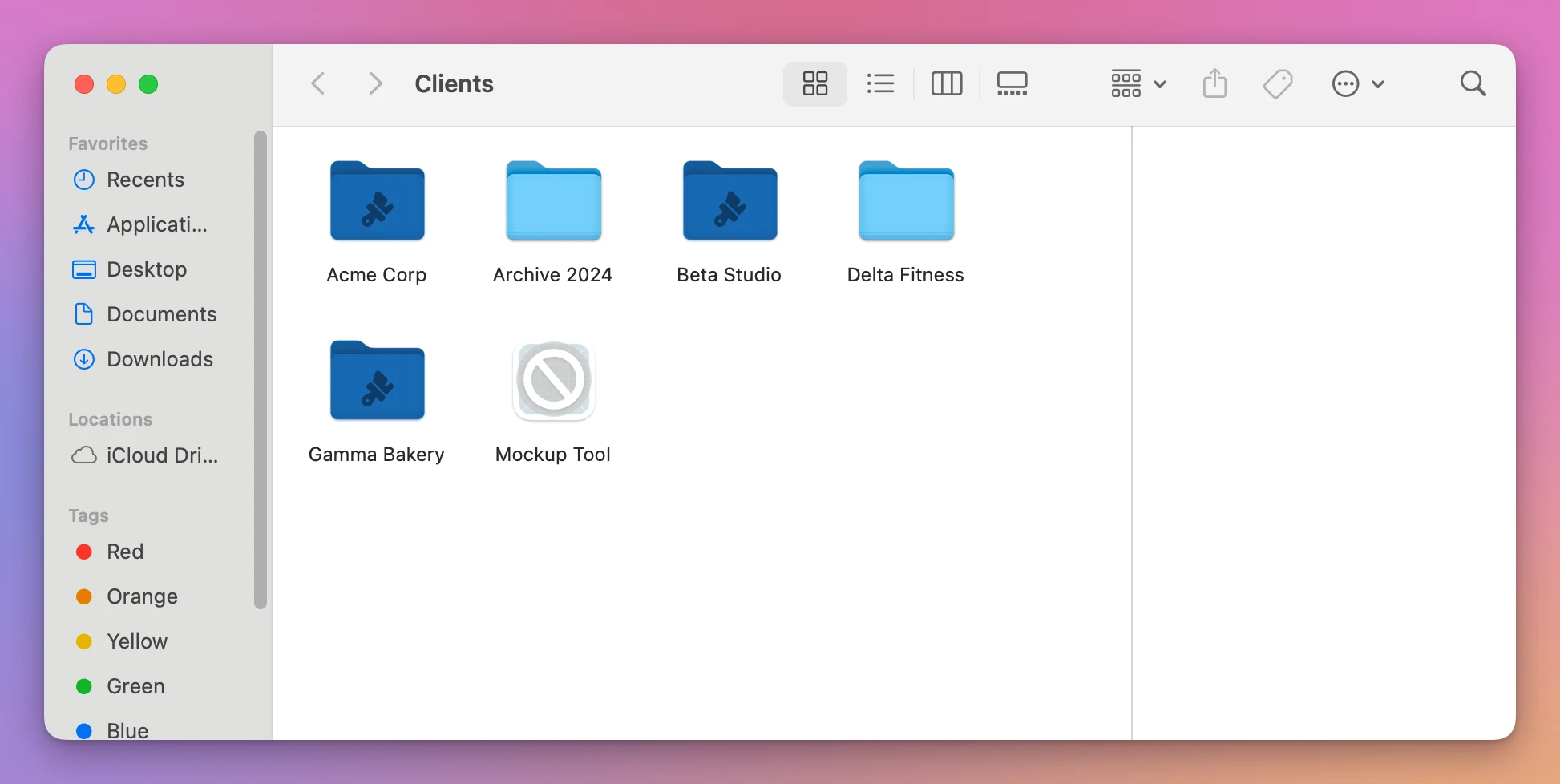
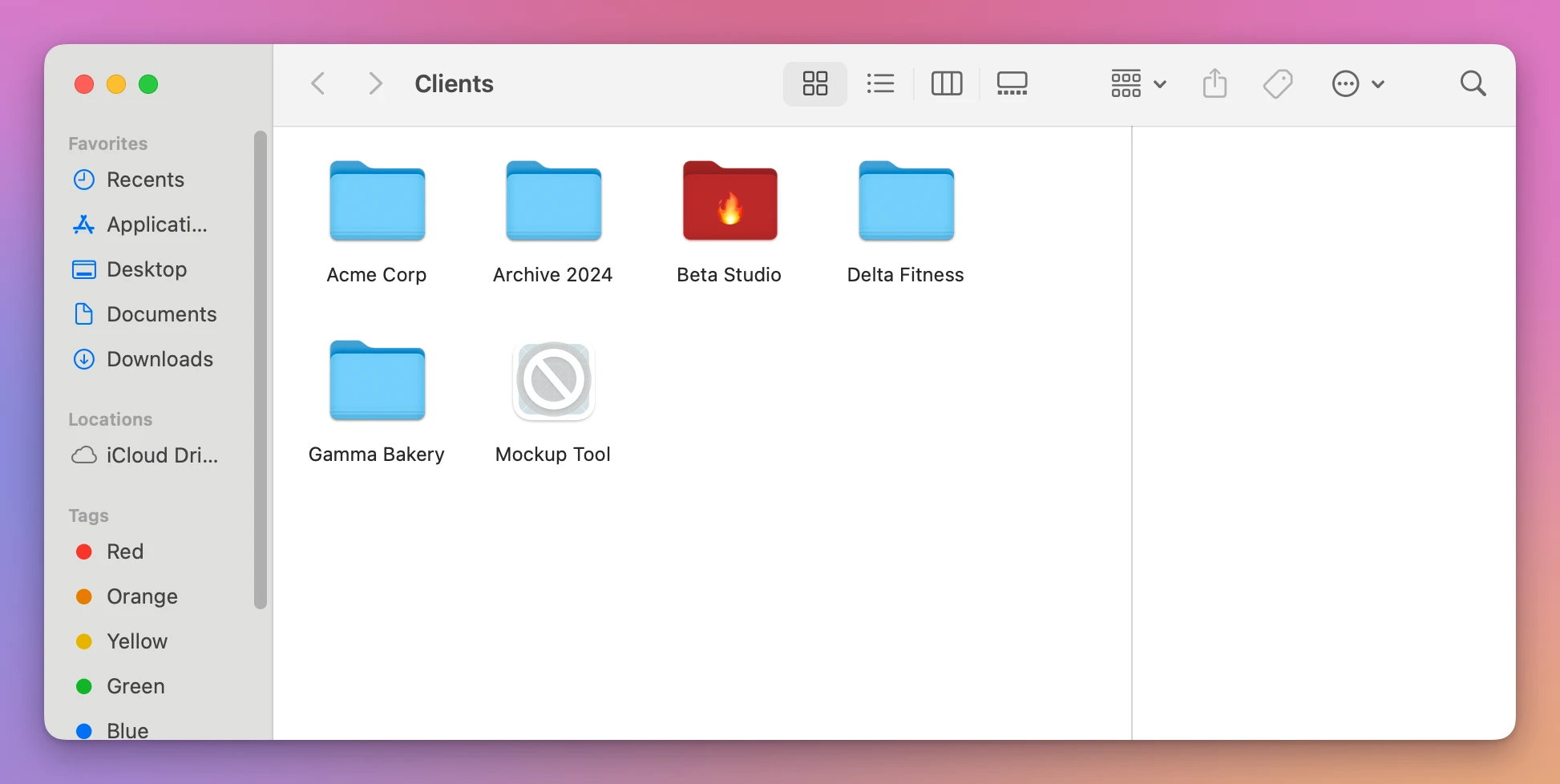
In the Finder, the painted folders stand out from the ones that were skipped or left out:
Putting the old icons back
Every click on Paint is a batch in the Restore Log (Command-L, or the button at the bottom of the sidebar). Pick a batch, tick the folders to put back, and click Restore N Folders.
A folder that had the standard icon goes back to the standard icon. A folder that had its own custom icon gets that icon back, exactly as it was: before painting, the app saved a copy of it in the batch. In the example, Beta Studio was a red folder with a 🔥 before the batch, and it’s a red folder with a 🔥 again after the restore.
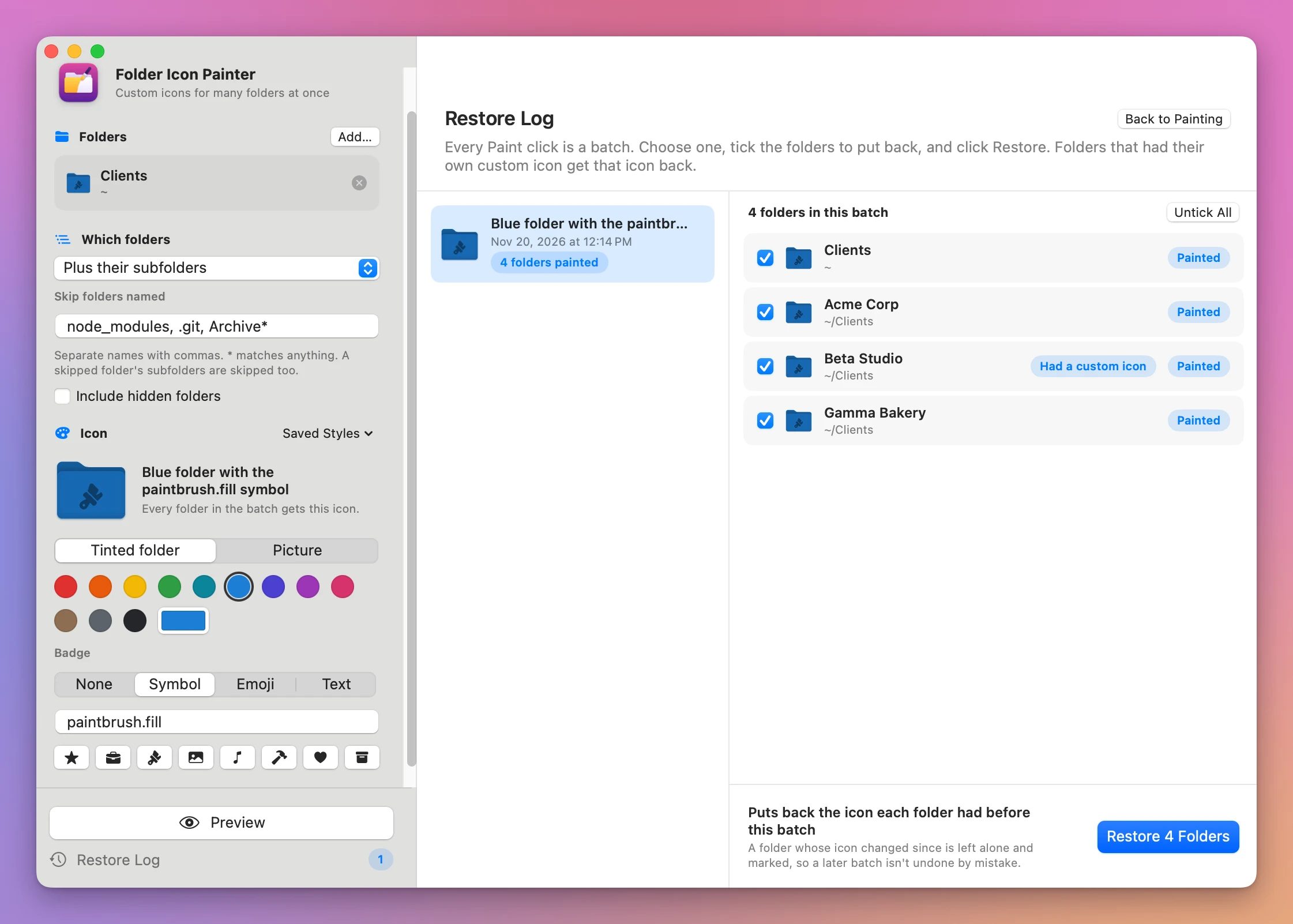
If a folder’s icon changed after the batch, because a later batch painted it again or you changed it by hand, the restore leaves it alone and says so with a Changed since pill. That way restoring an old batch doesn’t undo a newer one by mistake. If you do want the old icon back anyway, Restore Anyway is there for those folders. A folder you moved or renamed since is still found.
What you get
Icons that look like macOS folders
A tinted icon starts from the Mac’s own folder icon, in any color. A badge is drawn in a darker shade of the folder color, or a lighter one on very dark folders, the way Finder draws its own folder symbols. A picture is fitted into the icon, never stretched, and it can be a PNG, JPEG, HEIC, TIFF, PDF or ICNS file.
When something’s wrong with the icon, like a symbol name that doesn’t exist or too many letters, the problem shows in orange under the preview and Preview stays off until it’s fixed.
Saved styles
The Saved Styles menu keeps the icons you use again: Save This Style… asks for a name. A picture is copied into the app’s library, so the style keeps working if you move or delete the original image.
Folders it won’t touch
The preview marks these as Skipped, with the reason:
- app bundles and packages, whose icon belongs to them, and links to folders
- the top of a disk, and system folders like
/System,/Libraryand/Applications - your home folder, its Desktop, Documents, Downloads, Movies, Music, Pictures, Public, Applications and Sites folders, and everything in
~/Library - folders that belong to another user, and folders you can’t write to
The preview stops at 3,000 folders and tells you when it does.
Date Modified stays the same
Painting and restoring keep each folder’s Date Modified, so a window sorted by date doesn’t reshuffle.
Why not do it by hand
Finder tags already mark folders, and for “this one is important” they’re free and enough. A tag is a small colored dot next to the name, though. It doesn’t change the icon, so in icon view, in the Dock or in a stack, a row of project folders still looks the same.
Get Info sets a custom icon: copy a picture, select the folder, choose File › Get Info, click the small icon at the top and paste. For one or two folders, that’s the right tool. For 30 client folders it’s 30 rounds, and you need to make the picture somewhere else first, because Get Info can’t tint the folder or add a symbol. To take a custom icon off, you select it in Get Info and delete it, and it’s gone: if you pasted over an icon you’d made earlier, that one is gone too.
Other icon apps can make folder icons too. What Folder Icon Painter adds is the batch: a whole tree with depth and skip patterns, every folder shown before anything changes, and a restore log that puts back what was there.
| Get Info and paste | Folder Icon Painter | |
|---|---|---|
| 30 folders | 30 rounds of copy, Get Info, click, paste | One preview, one click |
| Subfolders | Each one by hand | Up to every level, with names to skip |
| Making the icon | In another app, as a picture | Any color plus a symbol, emoji, letters or a picture |
| Seeing what changes | Folder by folder | Every folder in one list first |
| App bundles and system folders | No warning | Skipped, with the reason |
| Taking it off | Deleted for good | Restore puts back the earlier icon, custom ones too |
What it doesn’t do
- It doesn’t change Finder tags or label colors. It changes the icon. Tags stay as they are.
- It doesn’t paint files. Only folders get icons.
- It doesn’t paint app bundles, system folders or your home’s special folders. See the list above.
- It isn’t made for disks that don’t keep custom icons. It was tested on the Mac’s own disk. On some external drives (like ones formatted for Windows), network shares or iCloud Drive folders, an icon may not stay. When an icon doesn’t land, the done screen lists that folder in red with the reason.
- It doesn’t sync icons between Macs. A folder painted on another Mac, or by another app, shows as Changed since in the log.
Questions
Does painting change what’s inside the folders?
Your files aren’t touched. macOS keeps a custom icon in a hidden file inside the folder, and restoring a folder to the standard icon removes it again. Date Modified stays the same.
What happens to a folder that already had a custom icon?
The preview marks it Custom icon saved. The app keeps a copy of that icon in the batch, and restoring puts it back exactly as it was.
Can I restore only some folders of a batch?
Yes. In the Restore Log, untick the folders you want to keep painted and click Restore N Folders.
Does anything get uploaded?
No. Everything happens on your Mac. The app goes online only to check for updates.
What it needs
Folder Icon Painter runs on macOS 14 Sonoma or later, on Apple silicon and Intel Macs.
The Folder Icon Painter docs walk through each option.
Buy Folder Icon Painter
$20 plus tax where it applies, paid once.
Download the app from the order page or your Creem receipt, unzip it and move it to Applications. I sign the app with my Apple Developer ID, and Apple notarizes the download.
The app checks for updates once a day. When a new version is ready, click Install and Relaunch. To check anytime, choose Folder Icon Painter → Check for Updates….