
An app by Flavio
Keynote Notes Editor
Export every presenter note of a Keynote deck to one Markdown or text file, edit the whole talk in any editor, then review the changes slide by slide and write them into a copy of the deck.
Buy Keynote Notes Editor · $19One-time purchase. Plus tax where it applies.
macOS 14 or later · Apple silicon and Intel
Latest version 1.0.1, released November 22, 2026
Your talk is next week. The slides are done, and the script lives in 40 little presenter notes boxes, one under each slide. You want to read it top to bottom, fix the flow, cut two minutes, run spell check on it.
In Keynote that means clicking slide 1, editing its notes, clicking slide 2, and so on. There’s no view with all the notes in one place, and no way to bring notes back in from a file.
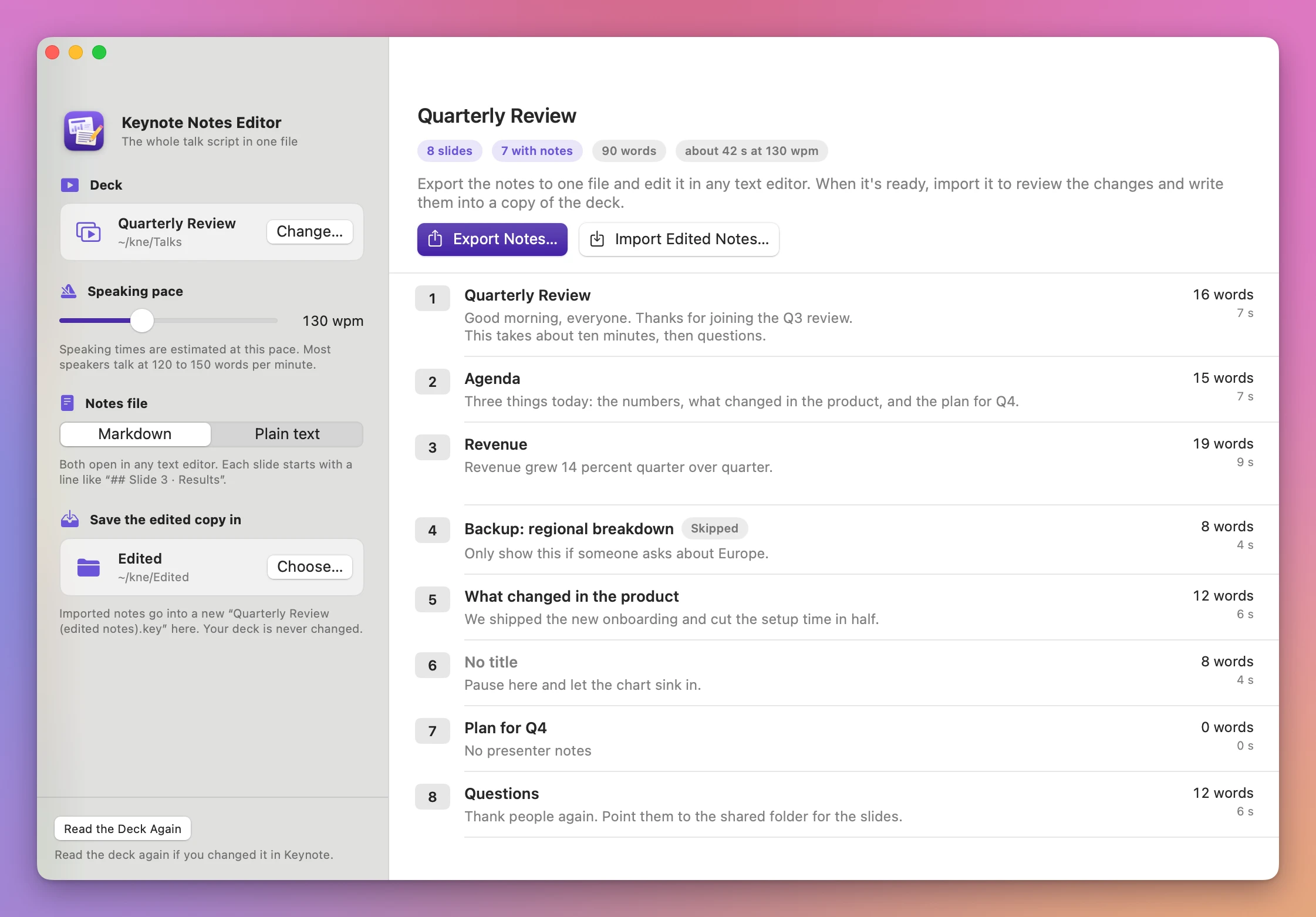
Keynote Notes Editor puts the whole talk script in one file. Click Export Notes…, edit the file in any text editor (or send it to a co-speaker or a translator), then click Import Edited Notes…. The app shows what changed on each slide and writes the notes you tick into a copy of the deck. Your original deck is never changed.
Who it’s for
- Conference speakers. You’re rewriting the script of a 45-minute talk the night before. You want it in your favorite editor, with spell check or a grammar tool, and then back in the deck without pasting 40 boxes by hand.
- Trainers and teachers. The course deck needs new dates and examples every term, spread over 60 slides. Export, search and replace in the file, import, and review only the slides that changed.
- Teams sharing a deck. The deck owner sends the speaker notes to a colleague or an editor, who sends back an edited file. The import shows exactly which slides changed, and warns when the deck was reordered in the meantime.
- Speakers giving a talk in another language. Send the
.txtfile to a translator, import the translated notes into “Conference Talk (edited notes).key”, and keep the original-language deck as it is. - Anyone checking their timing. Every slide shows its word count and speaking time at your own pace, and so does the whole talk, before and after your edits.
From a deck to an edited deck
- Choose the deck. Click Choose a Keynote Deck…, or drop a
.keyfile on the window. The first time, macOS asks you to let the app control Keynote. The app reads the deck through Keynote and lists every slide with its title, the start of its notes, the words and the speaking time. - Pick the file type and pace. In the sidebar, pick Markdown or Plain text under Notes file, and set Speaking pace (90 to 200 words per minute, 130 to start). The app remembers both.
- Export. Click Export Notes… and save the file. It’s called “Quarterly Review notes.md” unless you change it. Each slide starts with a line like
## Slide 3 · Revenue, with its notes under it. - Edit. Open the file in any text editor and change the notes. Keep the
## Slidelines as they are. You can also send the file to someone else and wait for it to come back. - Import. Click Import Edited Notes… and pick the edited file. The app reads the deck again and shows a row for every slide.
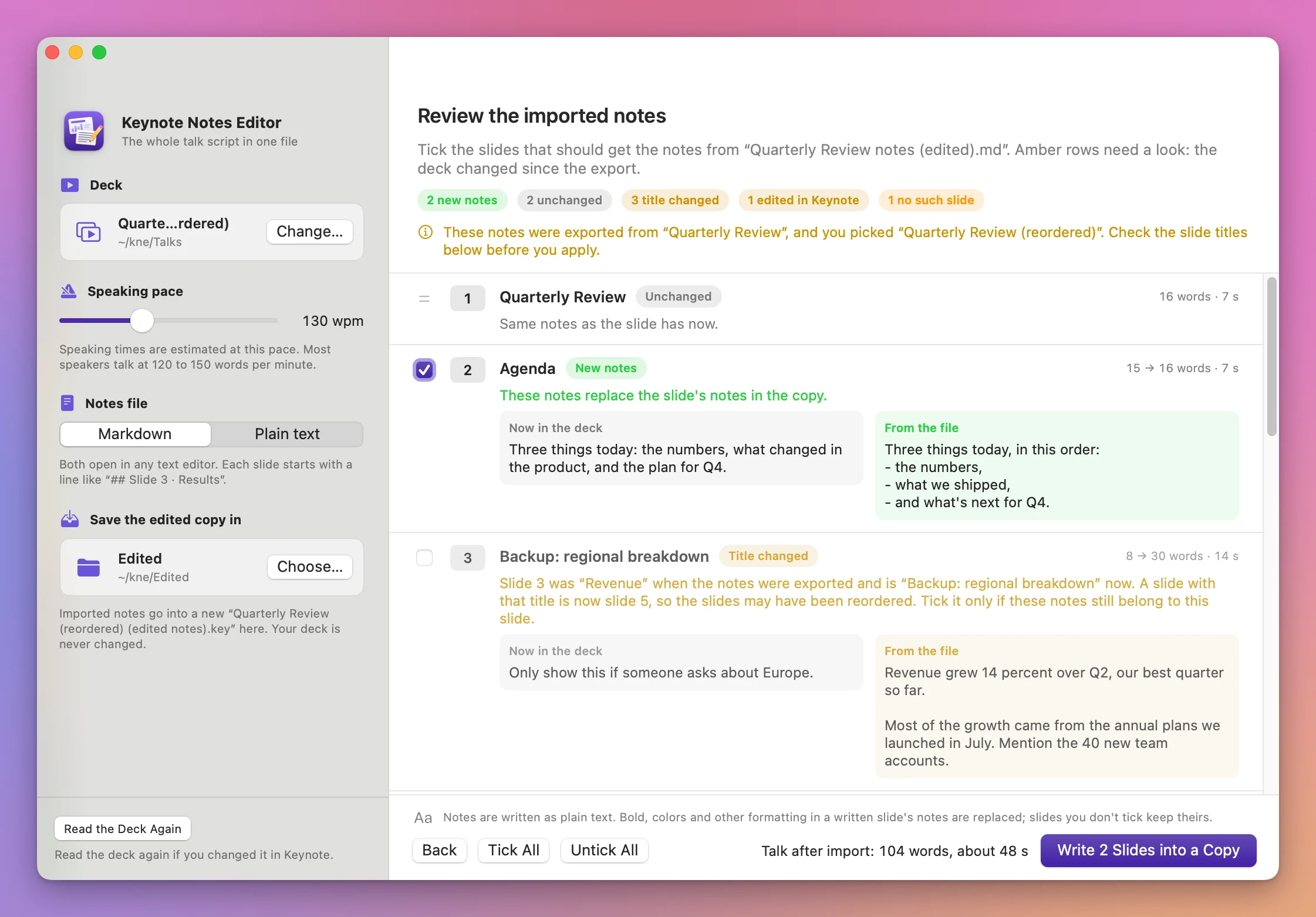
- Review and write. Changed slides are ticked, with the notes now in the deck and the notes from the file side by side. Untick what you don’t want, then click Write N Slides into a Copy. The copy goes into the folder under Save the edited copy in, which starts as the deck’s own folder.
What you get
The whole talk in one file
The exported file is plain Markdown or plain text, so it opens in TextEdit, BBEdit, VS Code, Obsidian, iA Writer, or anything else. At the top there’s a short block that records the deck name, the slide count, and a fingerprint of each slide’s notes and title. Leave that block in place: it’s how the import knows what changed.
A review before anything is written
Every slide gets a colored pill and a sentence that says what will happen:
- New notes (green, ticked): the file has different notes for this slide.
- Unchanged (grey): same notes as the slide has now.
- Not in the file (grey): the slide’s notes stay as they are.
- Title changed (amber, unticked): the slide at this number had another title when you exported, and the app tells you which slide has the old title now, because the slides may have been reordered.
- Edited in Keynote (amber, unticked): someone changed this slide’s notes in Keynote after the export.
- No such slide or Listed twice (orange): the file has notes for a slide that doesn’t exist, or the same slide twice. Those can’t be written.
Each changed row shows the word count before and after, and the footer shows the length of the whole talk after the import. If the file came from a different deck, or the number of slides changed, a warning says so before you write anything.
Your deck stays as it is
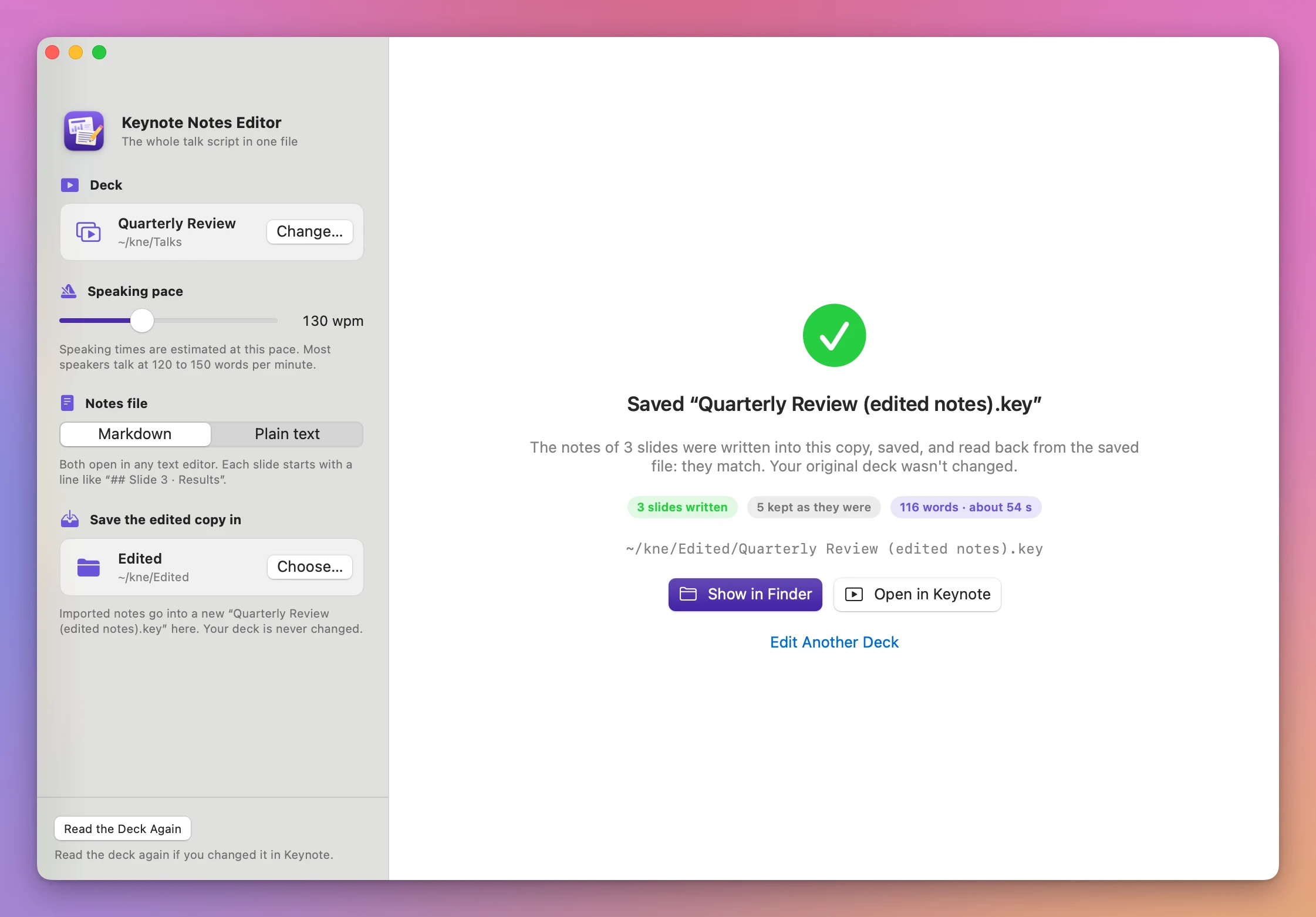
The app never opens or saves your deck in Keynote. Every Keynote step works on a private copy in a temporary folder, so a deck you have open in Keynote isn’t touched either. The edited notes go into a new file named after the deck with “(edited notes)” added, like “Quarterly Review (edited notes).key”. If that name is taken, the app adds a number instead of replacing it.
A check after saving
After writing the notes, the app saves the copy, closes it, opens it again and reads the notes back. The done screen says whether they match what you ticked.
Timing for every slide
The deck screen shows the words and the speaking time of each slide and the total for the talk, at the pace you set. Most speakers talk at 120 to 150 words per minute.
Why not use Keynote’s own options
Keynote edits presenter notes one slide at a time, in the notes pane under the slide. For a few fixes, that’s all you need.
To get all the notes out, you can export the deck with File › Export To › PDF with the presenter notes included, or print it with its notes. That gives you a copy to read, with every note in order. It’s read-only: nothing brings the edited notes back into the deck.
The outline view shows slide titles and the text on the slides, not the presenter notes.
Copying and pasting works, slide by slide. For a 40-slide talk that’s 80 trips between Keynote and your editor, it’s easy to paste into the wrong slide, and nothing tells you which slides changed or whether the deck was reordered since.
| Keynote by hand | Keynote Notes Editor | |
|---|---|---|
| See every note at once | Export a PDF or print, read-only | One editable .md or .txt file |
| Edit the whole script | One slide at a time in the notes pane | In any text editor, with its spell check and search |
| Bring edits back | Paste each slide’s notes | Import the file, tick the slides, write them |
| Know what changed | You remember | New, unchanged, title changed, edited in Keynote |
| Deck reordered since | Notes land on the wrong slides | Flagged and left unticked |
| Your original deck | Changed as you go | Never changed, edits go into a copy |
| Speaking time | Count the words yourself | Per slide and for the whole talk |
What it doesn’t do
- It needs Keynote. The app reads and writes notes through Keynote, which is free on the Mac App Store.
- Notes are plain text. Bold, colors and other formatting in the notes of a slide you write are replaced. Slides you don’t tick keep theirs. Images in notes aren’t exported.
- No Word files. The notes file is Markdown or plain text.
- It doesn’t add or remove slides. It only changes the notes of slides that are already in the deck.
- Titles come from the title box. A slide with a hidden or custom title box shows “No title” and is matched by its number.
- It doesn’t make slides from your script. For playing a finished deck on a screen all day, there’s Keynote Kiosk Runner.
Questions
Does it change my presentation?
Your deck is only read, through a private copy. The edited notes go into a new “(edited notes)” copy in the folder you pick.
What if I reordered the slides after exporting?
The file remembers the title and the notes of each slide at export time. If slide 3 had another title then, the row is amber and unticked, and the sentence tells you where the old title is now. Tick it only if those notes still belong on that slide.
What if someone changed the notes in Keynote after the export?
That slide shows Edited in Keynote and stays unticked, so the file doesn’t overwrite their change unless you tick it.
Can I send the file to someone who doesn’t have the app?
Yes. It’s a normal text file. They edit the notes under each ## Slide line and send it back, and you import it.
Does it ask for permission?
The first time, macOS asks you to let Keynote Notes Editor control Keynote. That’s how it reads and writes the notes.
Does Keynote need to be open?
No. If Keynote isn’t running, the app starts it and quits it again when it’s done. If Keynote is showing a dialog, like its theme chooser, the app can’t talk to it and tells you after a minute.
Does anything leave my Mac?
The notes are read and written on your Mac, so a talk that isn’t public yet stays private. The app uses the internet only to check for and download updates.
What it needs
Keynote Notes Editor runs on macOS 14 Sonoma or later, on Apple silicon and Intel Macs, with Keynote installed.
The Keynote Notes Editor docs walk through each step.
Buy Keynote Notes Editor
$19 plus tax where it applies, paid once.
Download the app from the order page or your Creem receipt, unzip it and move it to Applications. I sign the app with my Apple Developer ID, and Apple notarizes the download.
The app checks for updates once a day. When a new version is ready, click Install and Relaunch. To check anytime, choose Keynote Notes Editor → Check for Updates….